How to Export Gemini Chat to Claude Without Losing Context
July 16, 20268 min read
If you want to export Gemini chat to Claude, first decide what you actually need to move. Claude handles a polished memory summary differently from a full Gemini transcript, and Google Takeout data is not the same thing as a Claude-ready conversation.
The practical workflow is to separate three jobs: moving preferences into Claude memory, moving a specific Gemini conversation into a Claude chat or project, and backing up your wider Gemini activity for archival use. This guide covers the reliable options, including how to export Gemini data to Claude with Google Takeout and how to export Gemini memory to Claude with Claude's import flow.
1. Import Gemini Memory Into Claude With Start Import
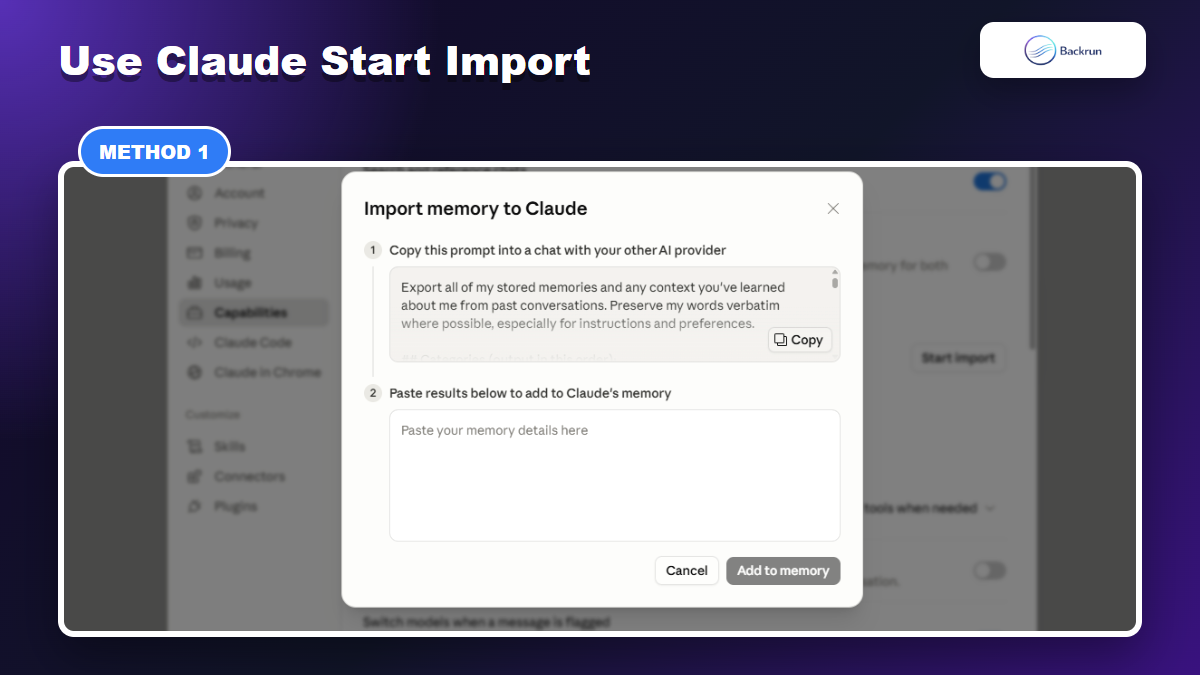
Claude Start Import is the cleanest route for moving Gemini memory-style preferences into Claude.
Claude's Settings area includes an import flow under Capabilities. The modal gives you a prompt to copy into another AI provider, then asks you to paste the result back into Claude's memory field. This is the best route when you want Claude to understand your preferences, writing style, recurring instructions, and long-term context from Gemini.
Open Claude settings and go to Capabilities.
Choose Start import in the memory section.
Copy Claude's generated prompt.
Paste that prompt into Gemini and ask Gemini to return only the useful memory-style context.
Review Gemini's answer for private data, outdated facts, and wrong assumptions.
Paste the cleaned result into Claude and add it to memory.
Best for: preferences, tone, working style, personal instructions, recurring project context, and general "what Gemini has learned about me" information.
Advantage: Claude gets a concise personalization layer instead of a noisy transcript.
Limitation: this is not a full chat history import. It transfers memory-like context, not every message you ever sent to Gemini.
Trust check: never paste the generated memory result blindly. Remove passwords, client details, private addresses, API keys, health details, or anything Claude should not retain long term.
Prompt tip: ask Gemini to separate "known facts" from "preferences" and "uncertain guesses." Claude memory works better when the imported material is explicit about confidence.
2. Export a Gemini Chat With Gemini Exporter and Upload It to Claude
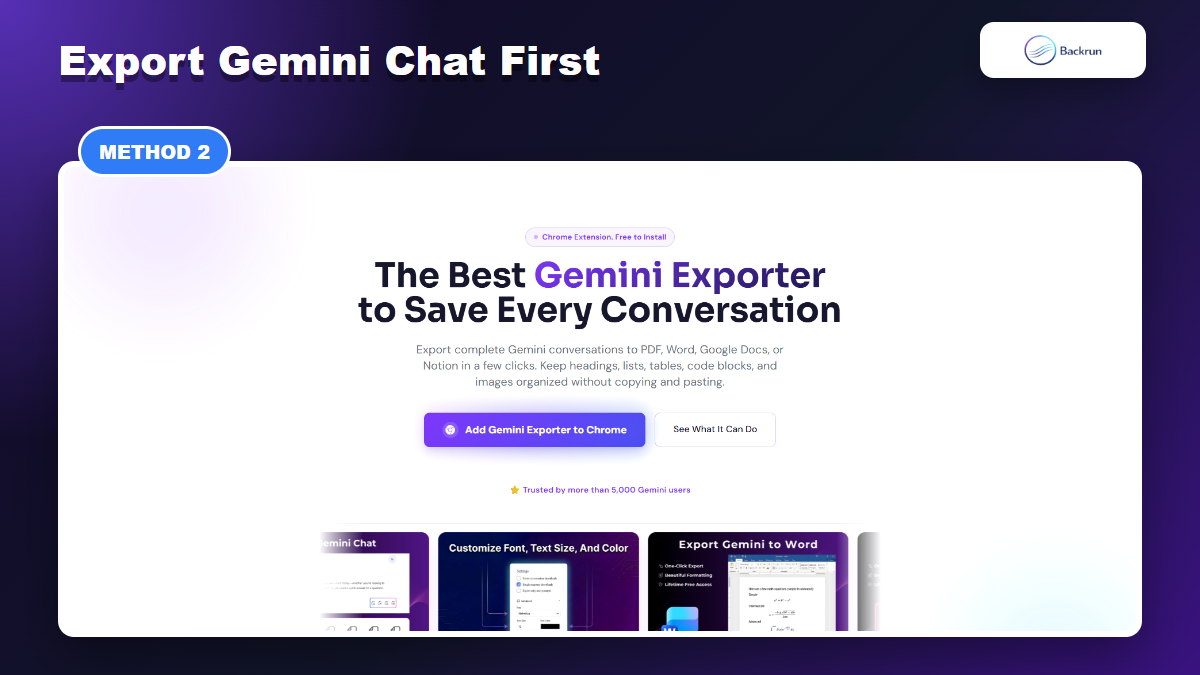
Gemini Exporter is useful when you need the conversation content before bringing it into Claude.
If you need the actual conversation content, use Gemini Exporter first. It can export complete Gemini conversations to formats such as PDF, Word, Google Docs, and Notion, which gives you a cleaner file or document before you bring the content into Claude.
Open the Gemini conversation you want to reuse in Claude.
Use Gemini Exporter and choose the format that fits your target workflow.
Open the exported file and remove irrelevant prompts, private details, and repeated sections.
Upload the file to Claude if your Claude plan/workspace supports file uploads, or paste the cleaned sections into a Claude chat.
Ask Claude to summarize the imported content first before continuing the task.
Best for: one important Gemini conversation, research notes, product planning, long Q&A, code discussions, or client discovery threads.
Advantage: you preserve far more structure than manual copy-paste, especially for headings, lists, tables, and code blocks.
Limitation: an exported file does not automatically become Claude memory. It gives Claude context for the current chat or project unless you also distill it into memory using method 1.
Import prompt that works well:Read this Gemini export. First summarize the goal, decisions, constraints, important facts, and unresolved questions. Do not continue until I confirm the summary.
If your main cleanup format is Markdown, Backrun's Gemini to Markdown guide is the closest companion workflow.
3. Use Google Takeout for a Bulk Gemini Activity Archive
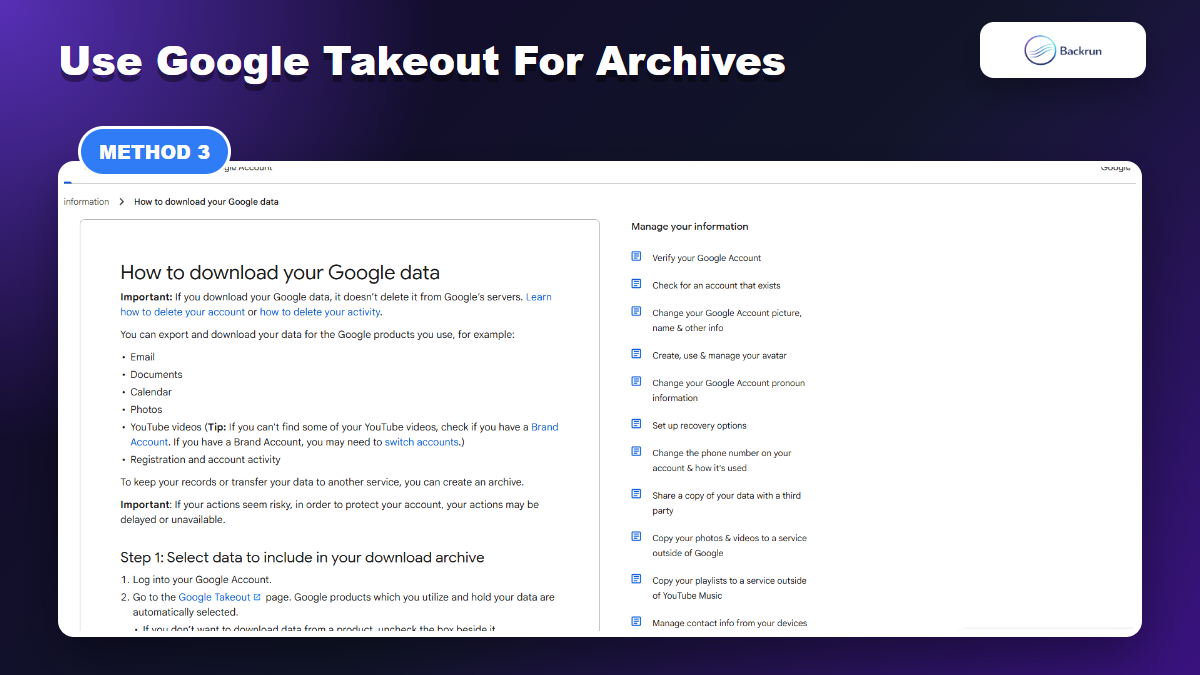
Google Takeout is the official bulk archive path, but it produces technical files that need cleanup before Claude.
Google Takeout is the official way to download a broader archive of your Google data. It is useful when you want a backup of Gemini-related activity, but it is not a one-click Claude importer. Expect technical files, often JSON or HTML-style exports, that need filtering before Claude can use them well.
Click Deselect all so you do not export unrelated Google products.
Select Gemini if it appears in your Takeout list.
Alternatively, select My Activity and use the included-data filter for Gemini apps activity if available in your account.
Click Next step, choose the delivery method, file type, and archive size.
Create the export and wait for Google's download link.
Extract the archive, then inspect the files before giving anything to Claude.
Best for: bulk archival, compliance-style backup, personal records, and cases where you need a wider copy of Gemini activity rather than one selected chat.
Advantage: it comes from Google's official data export system, so it is the best archival route.
Limitation: Claude will not benefit from raw Takeout files unless you convert them into clean context. Large JSON dumps can be noisy, repetitive, and privacy-heavy.
Practical workflow: extract only the conversations or activity entries you actually need, convert them into Markdown or plain text, then ask Claude to summarize them before doing any real work.
Privacy note: Google Takeout can include more than you expected. Before uploading files anywhere, search for names, emails, tokens, billing details, private links, and sensitive project data.
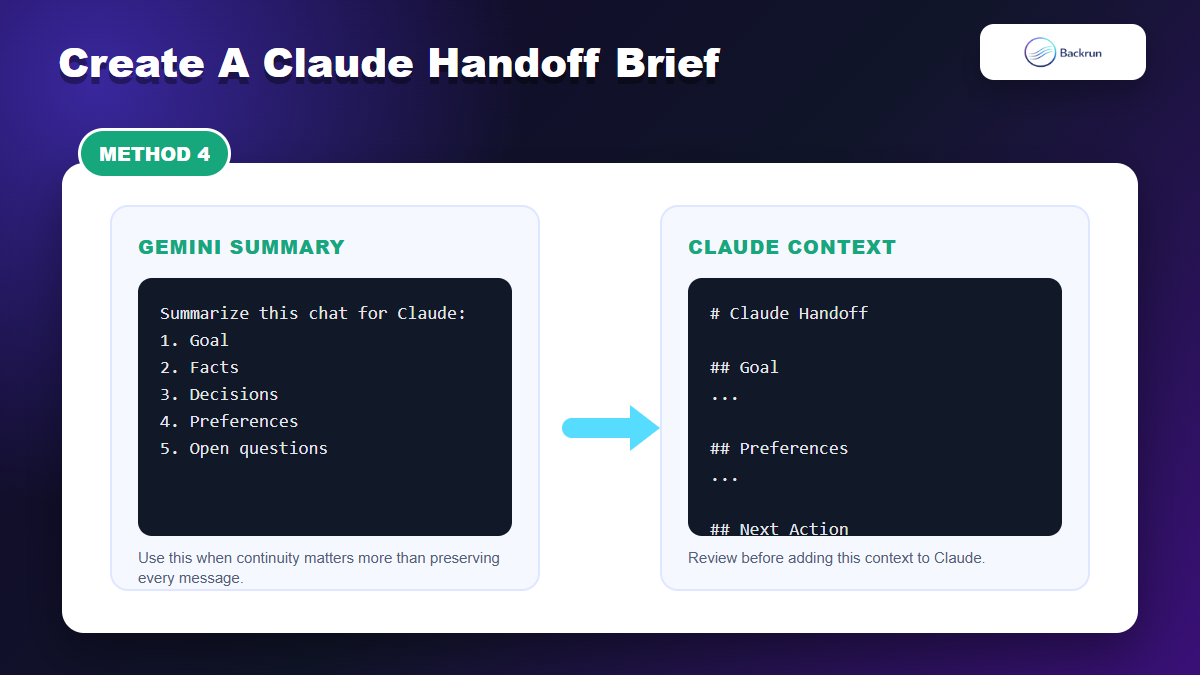
4. Ask Gemini for a Claude-Ready Handoff Brief
A handoff brief is often cleaner than pasting an entire exploratory Gemini thread into Claude.
For many workflows, the cleanest way to move from Gemini to Claude is not a raw export. It is a handoff brief. Ask Gemini to summarize the conversation into a structured document that Claude can understand immediately.
Return to the end of the Gemini chat.
Ask Gemini to create a Claude handoff brief.
Require sections for objective, background, decisions, constraints, data, examples, open questions, and next actions.
Ask Gemini to keep direct quotes or exact values where precision matters.
Paste the brief into Claude and ask Claude to restate the context before continuing.
Best for: strategy, writing, coding plans, research synthesis, and any project where Claude only needs the current state of the work.
Advantage: it removes noise. Claude sees what matters instead of reading every exploratory Gemini turn.
Limitation: summary quality depends on Gemini. Review the handoff before relying on it.
Reusable prompt:Create a Claude-ready handoff brief from this Gemini conversation. Include objective, source facts, decisions made, constraints, preferences, rejected ideas, unresolved questions, and the exact next prompt Claude should answer.
Quality check: compare the brief against the original Gemini thread for missing links, file names, product names, deadlines, numbers, and assumptions.
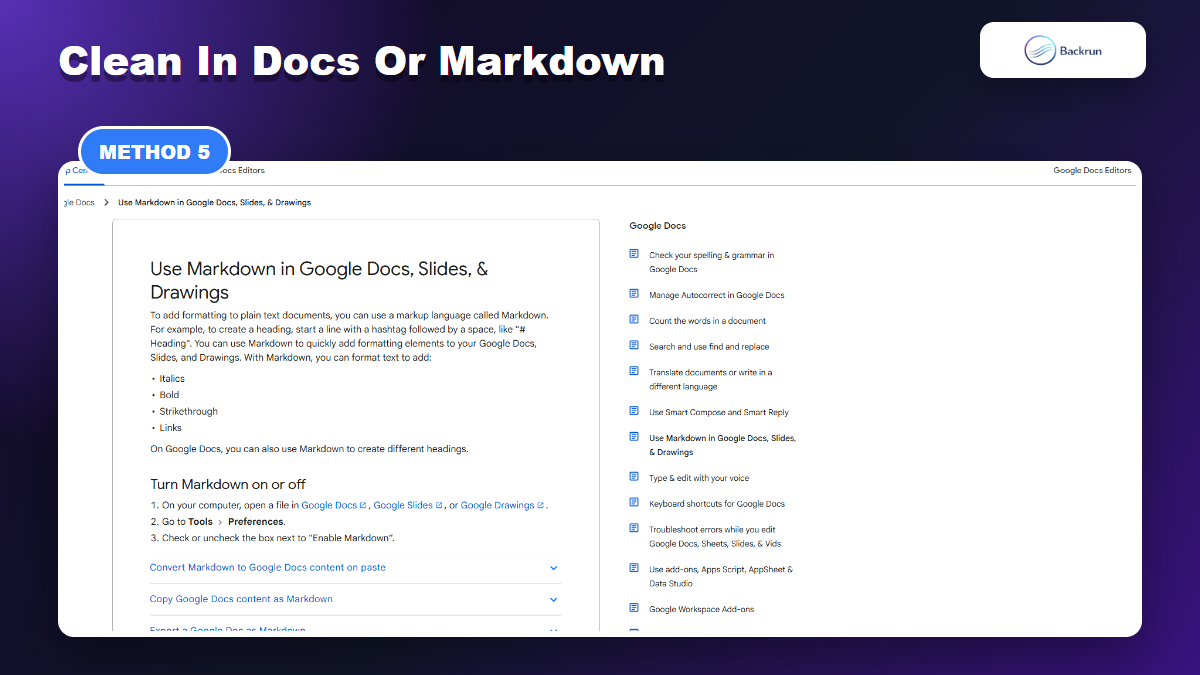
5. Clean the Export in Google Docs or Markdown Before Claude
Google Docs or Markdown gives you a cleanup layer before adding Gemini content to Claude.
When the Gemini export is messy, use Google Docs or Markdown as a cleanup layer before Claude sees it. Google Docs can help with visual editing, while Markdown is better for structured notes, code, tables, and documentation.
Move the Gemini content into Google Docs or a Markdown editor.
Remove irrelevant prompts and keep only the parts Claude needs.
Convert the content into clear sections with headings, bullets, tables, and code fences.
Download or copy the cleaned result as Markdown, plain text, or a document.
Paste or upload it into Claude with instructions for how to use it.
Best for: documents you plan to reuse, publish, archive, or turn into a Claude project context file.
Advantage: cleanup reduces hallucination risk because Claude receives a clearer source document.
Limitation: this adds an extra step. If you only need one short answer, direct copy-paste may be faster.
Good prompt for Claude:Use the pasted Gemini context as source material. First identify what is factual, what is inferred, and what is missing. Then continue the task.
If your transfer path goes through Google Docs, the Backrun guide on Gemini to Google Docs can help with the first half of the process. If you are moving between AI assistants more generally, see export Gemini chat to ChatGPT for a similar transfer pattern.
Quick Recap
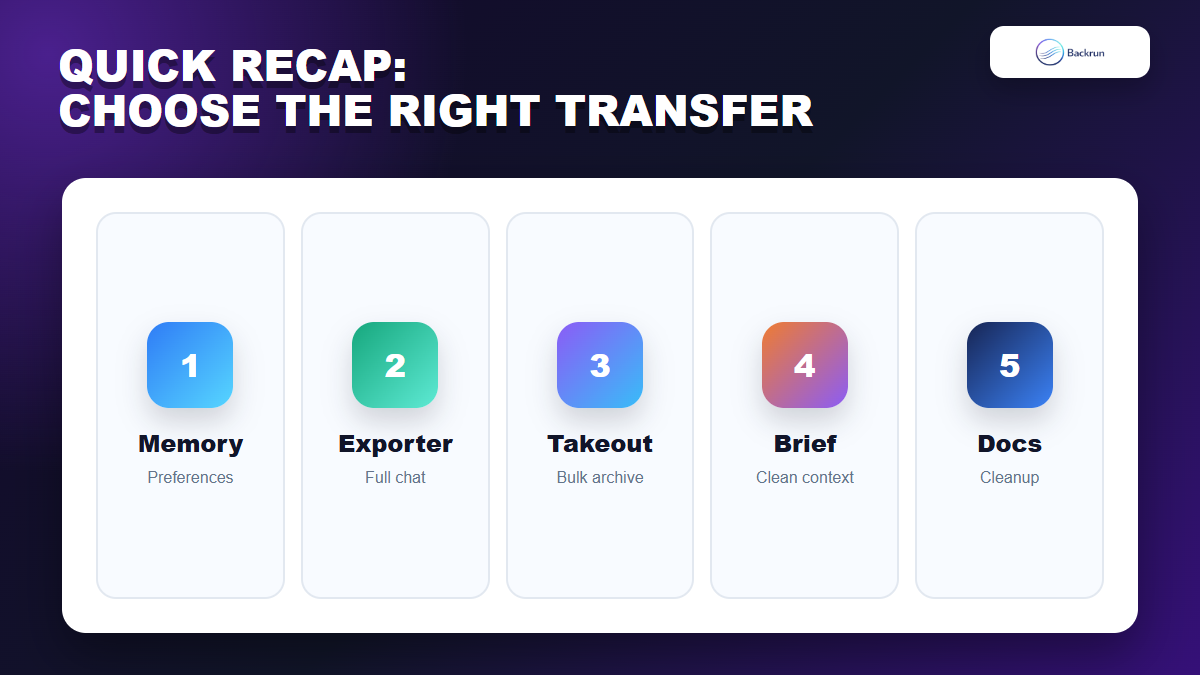
Choose the method based on whether you need memory, a full chat, a bulk archive, a handoff brief, or cleaned content.
The right export method depends on whether you want memory, one chat, a bulk archive, or a cleaned project context file.
Method
Use it when
Main strength
Main caution
Claude Start Import
You want Gemini memory in Claude
Best for preferences
Not a full transcript
Gemini Exporter
You need one full Gemini chat
Clean conversation export
Still needs review before Claude
Google Takeout
You need a bulk archive
Official Google backup route
Technical files need filtering
Claude handoff brief
You need continuity
Fastest clean context
Must verify summary accuracy
Docs or Markdown cleanup
You need reusable project context
Best structure before Claude
Extra editing step
Use Claude Start Import when the goal is memory. Use Gemini Exporter when you need a specific chat. Use Google Takeout when you need a broad archive. For most real work, a reviewed Claude-ready handoff brief is the cleanest way to move context without dragging every Gemini message into the new assistant.