5 Ways to Export AI Conversations to PDF, Word or Markdown
July 24, 20266 min read
ChatGPT, Gemini, Claude, and Grok are increasingly being used for work, study, research, content creation, and programming.
However, when people need to save an important conversation, many still have to copy each response manually into Word or Google Docs. This takes time and may change the original formatting of tables, code blocks, formulas, and other content.
Here are five popular ways to export AI conversations quickly and efficiently without losing their formatting.
Method 1: Use a Browser Extension
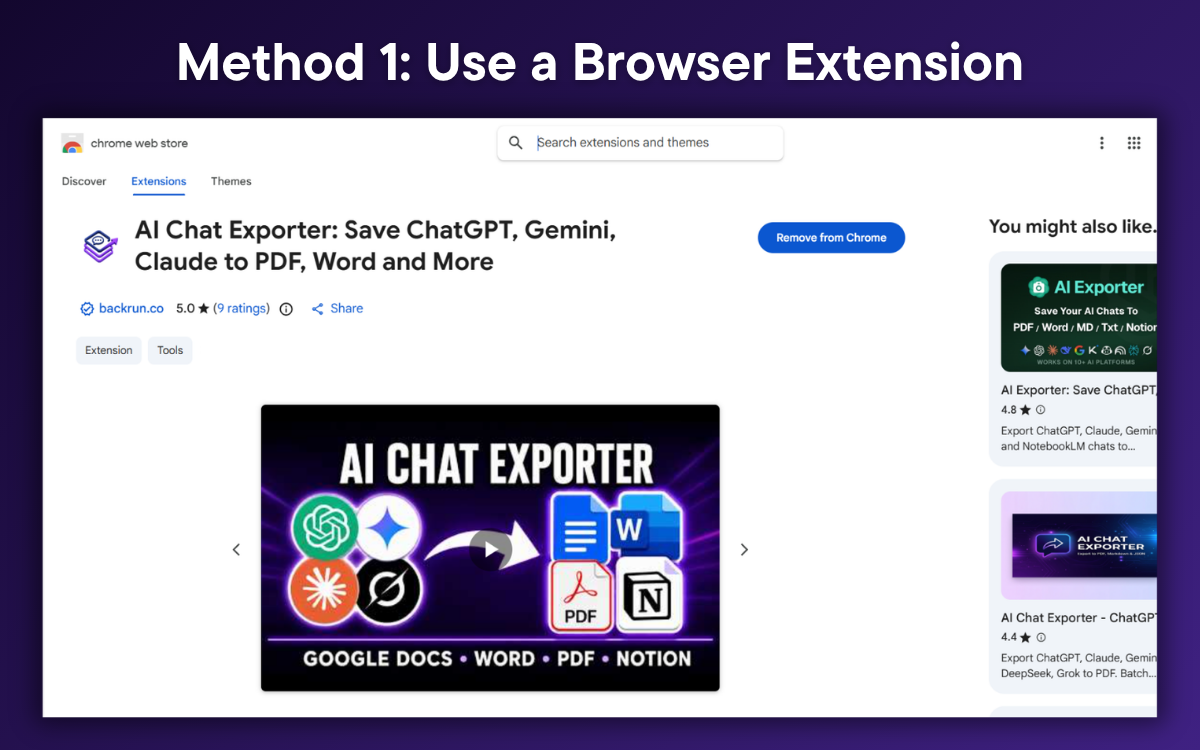
This method is ideal if you frequently need to save long conversations generated by AI. Many tools can help you do this, and you can find plenty of options by searching the Chrome Web Store.
For me, AI Chat Exporter by Backrun is currently the most effective option.
Why do I use this tool?
AI Chat Exporter supports four AI platforms: ChatGPT, Gemini, Claude, and Grok.
The extension supports multiple export formats, including PDF, Word, Google Docs, and Markdown, while many other extensions focus on only one format.
You can customize the document before exporting it.
This tool allows you to export chat snippets from ChatGPT while preserving the original formatting, including code blocks, images, tables, and even mathematical formulas.
How to Use It
Install an AI conversation export extension from the Chrome Web Store, such as AI Chat Exporter by Backrun shown in the image, or another similar extension.
Open the conversation you want to save in ChatGPT, Gemini, Claude, or Grok.
Select your preferred export format, such as PDF, Word, Google Docs, or Markdown.
Click the corresponding format button to export the conversation.
This is the method I recommend most because it is fast, preserves formatting well, and allows you to export selected parts of a conversation instead of saving the entire chat.
Method 2: Ask the AI to Create a File
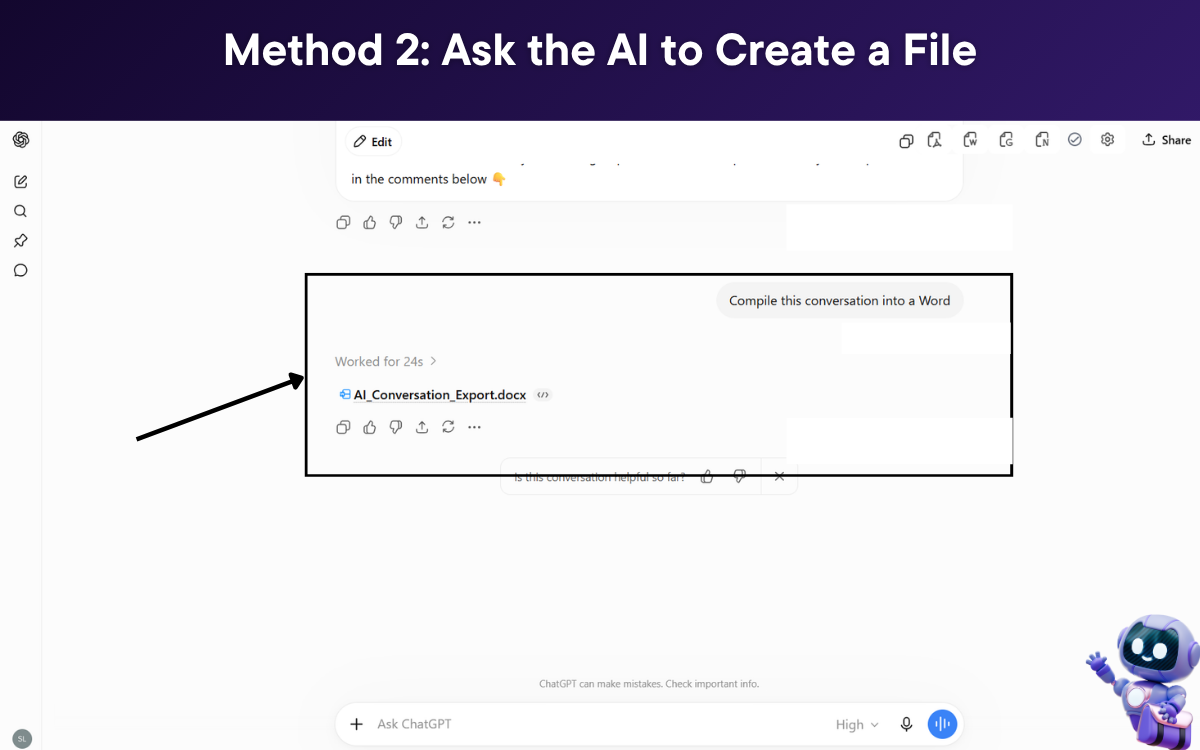
You can ask the AI directly to compile the conversation and create a file in your preferred format without installing an extension.
Open the AI conversation you want to export and enter a prompt such as:
Compile this conversation into a Word/ PDF/ Markdown/ or other file format.
Now you need to wait a few minutes for the AI tool to create the document file, and then you just need to press download to complete the process.
This method works best for conversations that are not too long. The AI can create a well-formatted file based on your requirements, but the process may take quite a while.
Method 3: Use the Print to PDF Feature
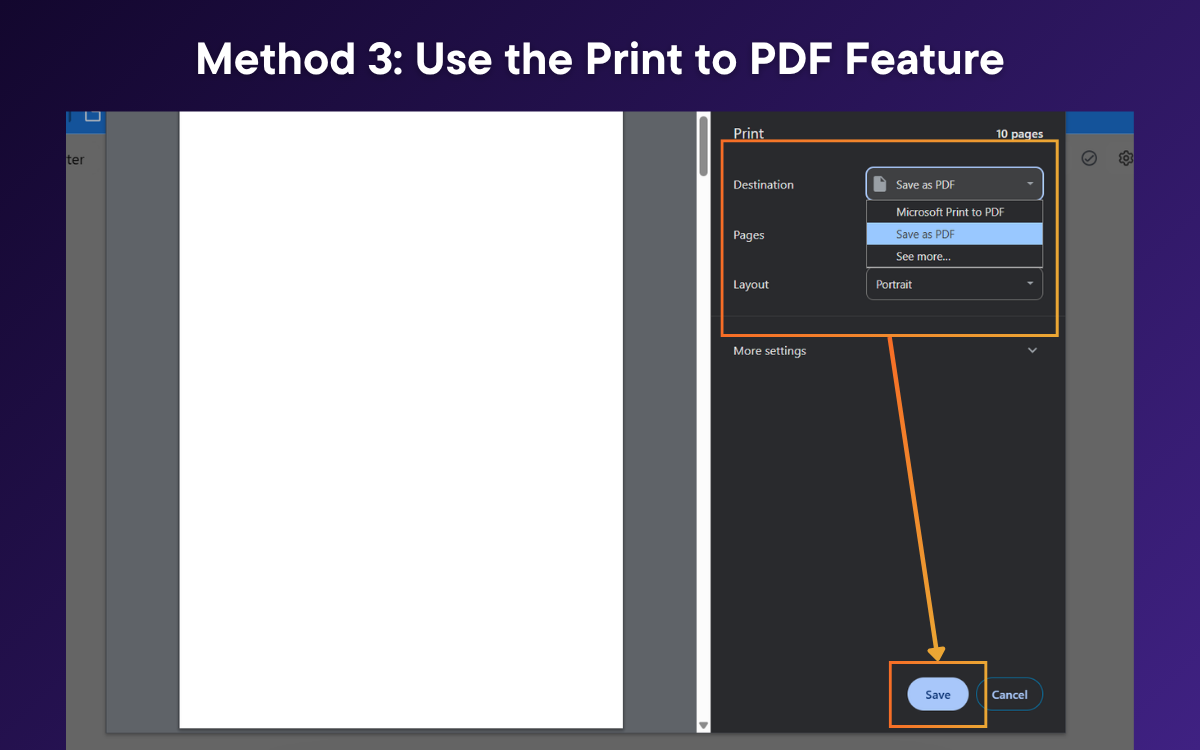
When you only need to save a conversation quickly for later reading, you can use your browser’s print function.
Follow these steps:
Press Ctrl + P on Windows or Cmd + P on Mac.
Select Save as PDF under Destination.
Click Save and choose where you want to store the file.
This method is simple and does not require any additional tools. However, the exported file may contain unnecessary interface elements, tables may be split across pages, and code blocks may not display properly.
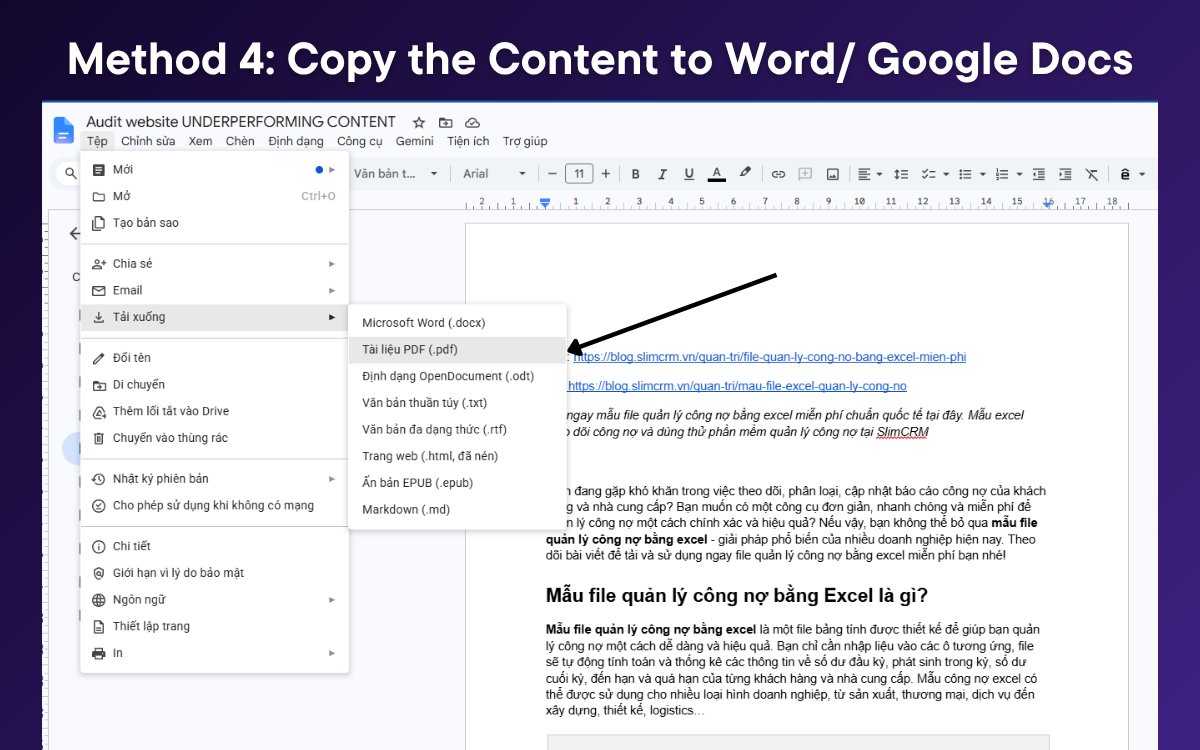
Method 4: Copy the Content to Word or Google Docs
You can also select the content and copy it into Word or Google Docs.
In Google Docs or Word, go to File, select Download, and choose PDF Document to export it as a PDF.
This method works well for short responses. For long conversations containing tables, formulas, or programming content, copying each section can take a lot of time, and you may need to manually fix the formatting afterward.
Method 5: Use the AI Platform’s Built-in Data Export Feature
This method is suitable when you want to back up your entire conversation history and account data rather than export a specific conversation. Each AI platform has a different export process.
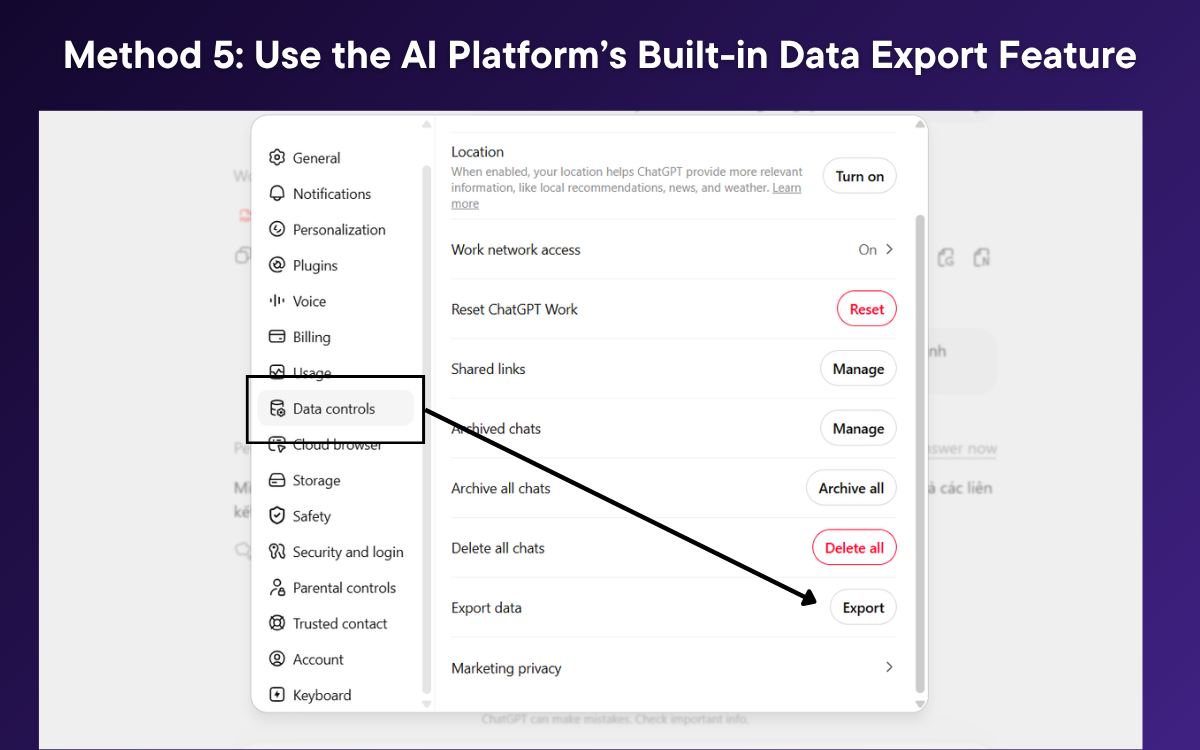
1. ChatGPT
Open the Profile menu.
Select Settings.
Select Data Controls.
Under Export Data, select Export.
Confirm your request.
ChatGPT will send a data download link by email or notification. The ZIP file includes your conversation history and other related account data.
Click Deselect all, then scroll down and select My Activity.
Select All activity data included.
Deselect all options in the pop-up window, select only Gemini Apps, and then click OK.
Click Next step, choose your preferred export method, and select Create export.
Google will prepare your data and send you a download link once the export is complete.
3. Claude
Open Claude on the web or Claude Desktop.
Click your account initials in the bottom-left corner.
Select Settings.
Open the Privacy section.
Click Export data.
Claude will send the data download link to your email. This process cannot be completed directly through the Claude app on iOS or Android.
4. Grok
On Grok.com or the Grok app:
Open Settings.
Select Data Controls.
Select the option to download your data.
Follow xAI’s confirmation instructions.
When using Grok directly through the X platform, go to Settings and privacy, select Your account, and then choose Download an archive of your data.
One important thing to note is that built-in data export features usually generate a ZIP file or raw data intended for backup purposes. They do not create a polished, ready-to-use PDF or Word document. You need to upload that document to the AI tool and ask it to create a file in the desired format, similar to step 2.
Quick Recap
These are five practical ways to export AI conversations to PDF, Word, Markdown or other formats without losing important formatting. Each method has its own advantages depending on whether you need a quick PDF, an editable document, selected messages, or a complete backup of your account data. You can view the overview below to see which method is right for you:
Method
Best for
Main advantage
Limitation
Browser extension
Regularly exporting long or selected AI conversations
Fast, supports multiple formats, and preserves formatting well
Requires installing an extension
Ask the AI to create a file
Short or medium-length conversations
Creates a customized document based on your instructions
Can take longer to process
Print to PDF
Quickly saving a conversation for later reading
Simple and requires no additional tools
May include interface elements or poor page breaks
Copy to Word or Google Docs
Short responses that need further editing
Easy to edit before exporting
Formatting may need to be fixed manually
Built-in data export
Backing up your full conversation history and account data
Creates a complete account backup
Usually produces ZIP files or raw data rather than polished documents