5 Ways to Export Gemini to Markdown Without Losing Structure
July 30, 20267 min read
If you need export Gemini to markdown, the real win is not just getting text out of Gemini. You want a clean .md file where headings, lists, links, tables, code blocks, and useful context still make sense after export.
The best route depends on how much of the conversation you need. For a full chat, use an exporter. For one polished answer, ask Gemini for raw Markdown. For content that needs editing first, Google Docs can be a useful bridge.
1. Use AI Chat Exporter for Full Gemini Conversations
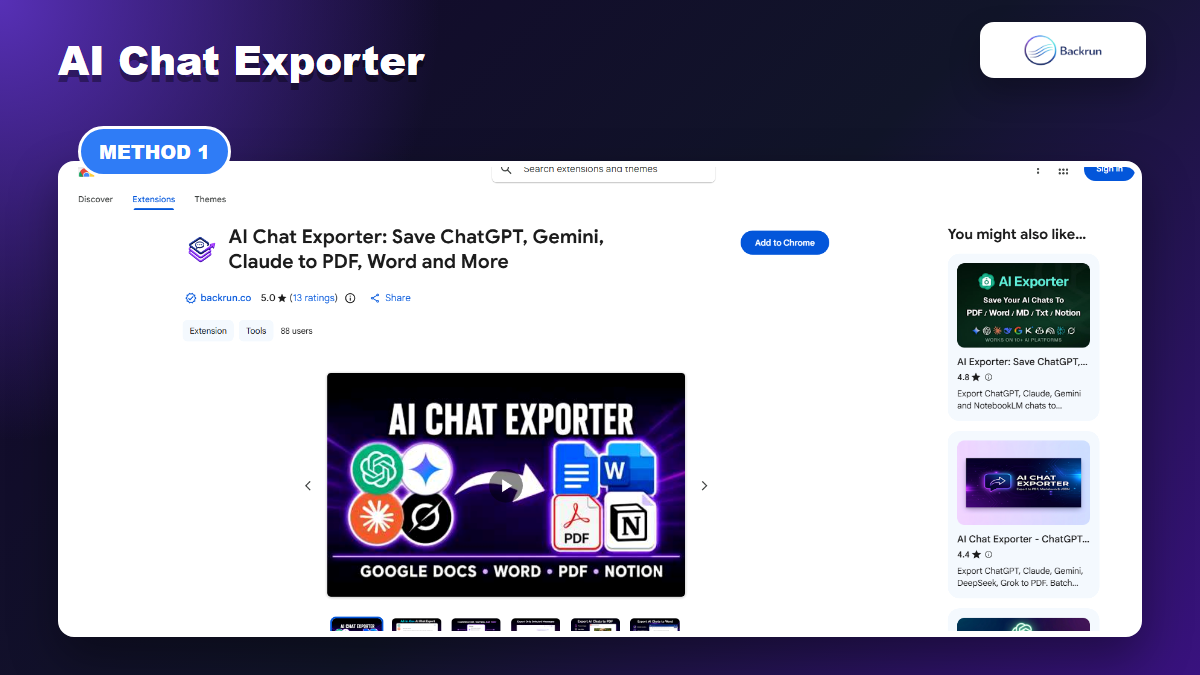
AI Chat Exporter is the first method to try when you want to export more than one Gemini message.
AI Chat Exporter is the most practical starting point when you want the whole Gemini conversation, not just one answer. The extension supports Gemini along with ChatGPT, Claude, and Grok, and it is designed for exporting AI chats into reusable document formats. For a Markdown workflow, the key benefit is simple: you can save selected messages or the full conversation, then keep the result organized enough to move into a note system, documentation folder, or editor.
Open Gemini and load the conversation you want to save.
Select the messages you want, or choose the full conversation if the whole thread matters.
Export the chat using the format that best fits your next step.
Open the exported file and check headings, tables, code fences, links, and message order before importing it into Obsidian, GitHub, VS Code, or a docs site.
Best for: full Gemini chats, long research sessions, technical conversations, and reusable notes where manual copy-paste would be slow.
Advantage: selected-message export helps you avoid saving messy brainstorming prompts when you only need the final answer or a few important replies.
Limitation: every browser extension is a trust decision. Test first with a harmless Gemini chat and review Chrome permissions before using it on client, company, or personal data.
Practical check: use one test conversation that includes a Markdown table, a JavaScript or Python code block, a numbered list, and a link. If those four pieces survive cleanly, the exporter is much more likely to work for real documentation.
2. Ask Gemini to Create a Markdown File Directly
Direct Markdown file generation is clean when the feature is available in your Gemini account.
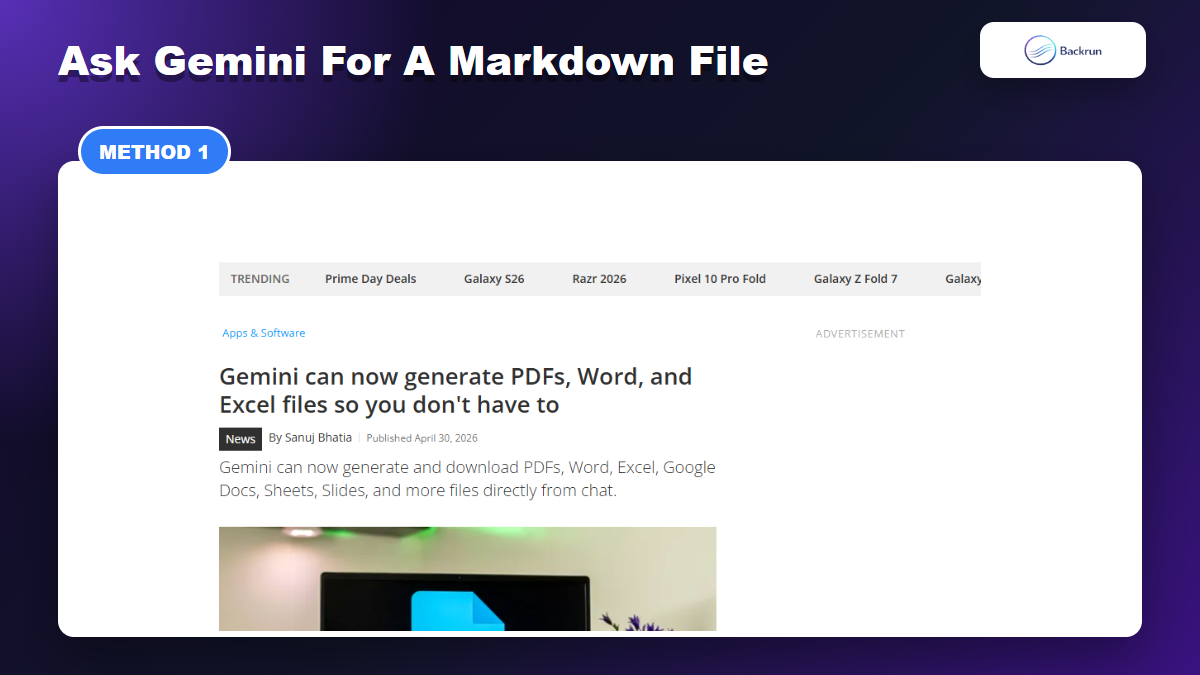
If your Gemini account can create downloadable files, this is the cleanest no-extension route. Instead of copying a rendered answer and trying to repair the formatting, ask Gemini to produce a real Markdown file from the content you want to keep.
Open the Gemini answer you want to save.
Ask for a Markdown file: Create a downloadable Markdown file from this answer. Keep headings, bullets, links, tables, and fenced code blocks.
Give the file a useful name, such as gemini-research-notes.md.
Download the file when Gemini provides a file card or download button.
Preview the Markdown in your actual editor before you rely on it.
Best for: one polished answer, documentation drafts, checklists, summaries, and structured notes.
Advantage: it avoids an extra conversion step and keeps the workflow inside Gemini.
Limitation: availability can vary by account, region, and rollout. If you do not see a file option, use AI Chat Exporter for a full thread or raw Markdown for one answer.
Good habit: ask Gemini to organize the output before creating the file. A simple structure such as title, summary, steps, examples, and next actions usually produces cleaner Markdown than a vague "export this" prompt.
3. Ask Gemini for Raw Markdown and Save It Manually
Raw Markdown is still the fastest route when you only need one final answer.
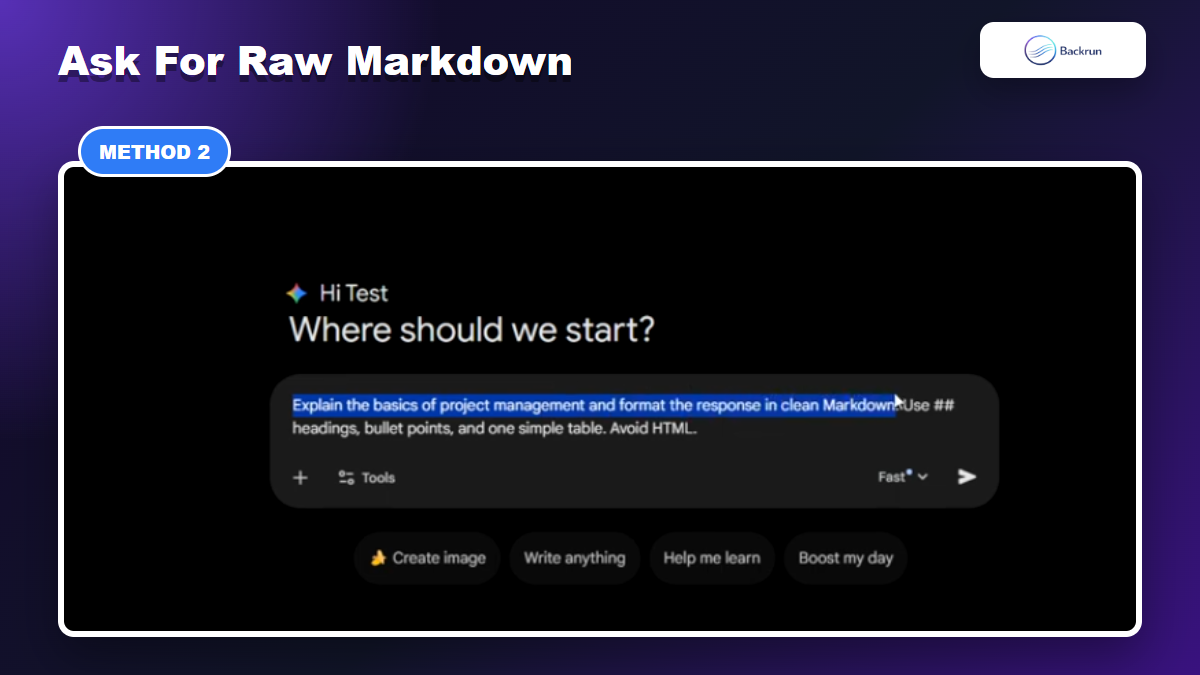
Raw Markdown is the simplest option when you only need a single response. It is also the easiest method to verify because you can see the syntax before saving it.
Ask Gemini to rewrite the answer as raw Markdown. Example: Format the final answer as clean raw Markdown. Use headings, lists, Markdown tables, and fenced code blocks. Do not use HTML.
Ask Gemini to put the Markdown inside one code block if the interface keeps rendering it instead of showing syntax.
Copy the Markdown from the code block.
Paste it into VS Code, Obsidian, Typora, or your repository.
Save it as .md and preview the rendered result.
Best for: quick notes, blog outlines, prompt libraries, small technical explanations, and one-off research summaries.
Advantage: no extension, no Google Docs bridge, and no account-level export process.
Limitation: it is not a true transcript. Gemini may rewrite or condense earlier context unless you explicitly tell it to preserve the conversation structure.
Quality check: paste the result into the exact app where you will use it. Obsidian, GitHub, Notion imports, and static-site generators can treat callouts, checkboxes, and tables differently.
4. Export to Google Docs, Then Download Markdown
Google Docs gives you an editing layer before downloading the final .md file.
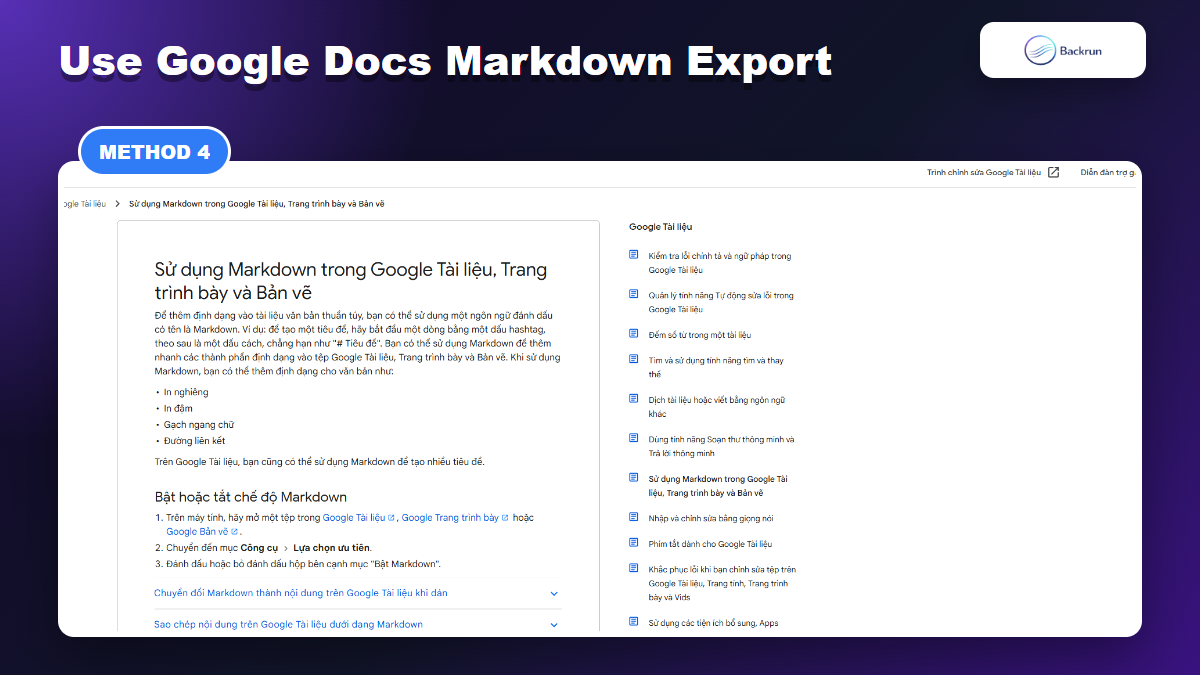
Google Docs is useful when the Gemini answer needs editing before it becomes Markdown. You can clean the document visually, fix headings and links, then download the final result as a Markdown file.
Move the Gemini answer into Google Docs using Gemini's export option, manual copy, or a supported exporter.
Clean the document: fix headings, lists, tables, links, and code blocks.
Use Copy as Markdown if you only need a selected section.
Use File > Download > Markdown (.md) if you need the whole document.
Open the downloaded file and inspect the syntax.
Best for: content that needs human editing before it becomes a Markdown note, README, or documentation page.
Advantage: Google Docs gives you a familiar cleanup layer before Markdown export.
Limitation: conversion can shift formatting. Complex tables and code samples still need a careful preview after download.
If your workflow starts in Docs more often than Markdown, Backrun has a dedicated guide on Gemini to Google Docs.
5. Use a Markdown Capture Extension for Visible Snippets
A lightweight Markdown capture tool can be enough for visible snippets or one technical answer.
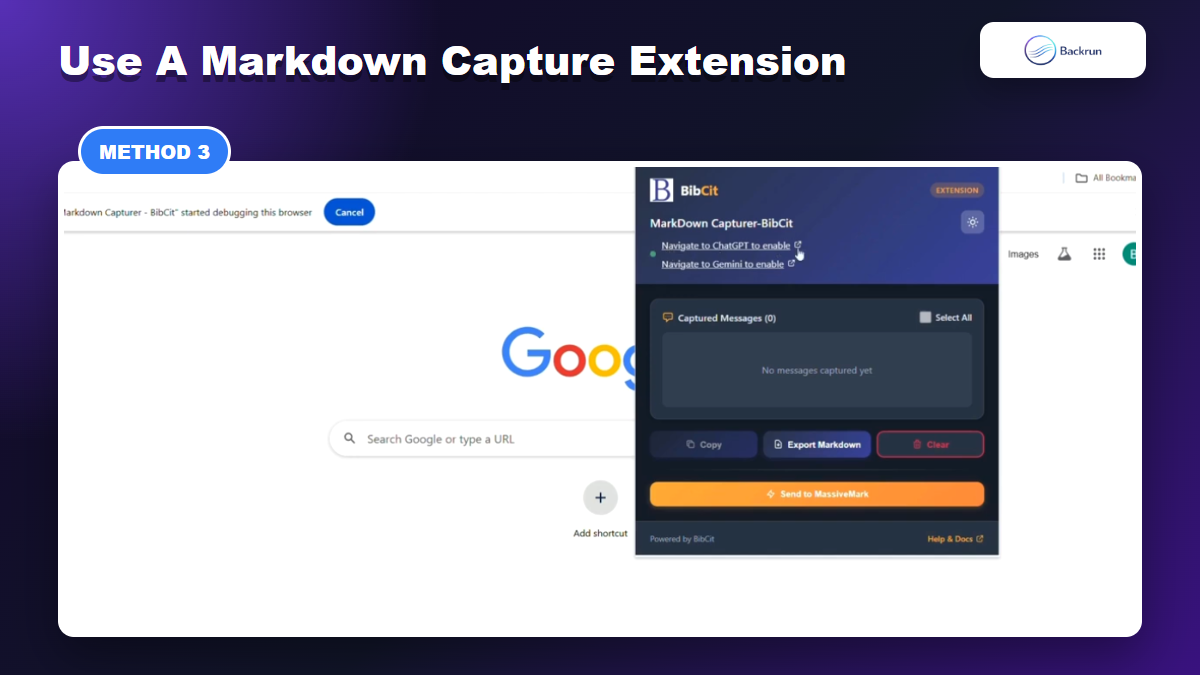
A lightweight Markdown capture extension can help when you do not need a full exporter. This route is useful when Gemini displays a formatted answer, but normal browser copy does not preserve the Markdown syntax you need.
Install a Markdown capture extension that works on the visible web page.
Open the Gemini response and make sure the part you need is loaded on screen.
Capture the selected answer or visible content.
Copy or export as Markdown.
Paste the output into your editor and check code fences, links, and tables.
Best for: short technical answers, snippets, quick documentation blocks, and visible messages.
Advantage: it is fast when you only need one section and do not want a full conversation export.
Limitation: it may only capture visible content. For long chats, selected messages, or full threads, AI Chat Exporter is usually the cleaner route.
If you also work with ChatGPT, the same Markdown decision logic is covered in Backrun's ChatGPT to Markdown guide.
Quick Recap
Choose the Markdown path based on whether you need a full chat, one answer, cleanup, or a quick capture.
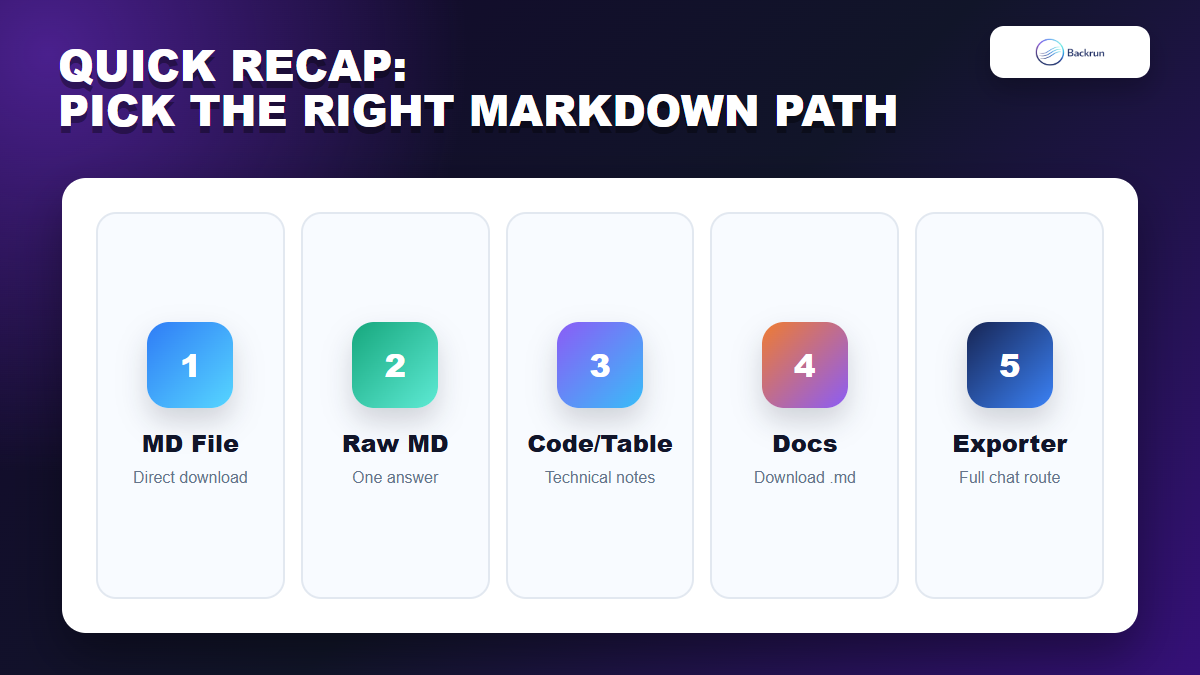
The best Gemini to Markdown workflow depends on how much context you need and how much cleanup you are willing to do.
Method
Use it when
Main strength
Main caution
AI Chat Exporter
You need selected messages or the full chat
Best full-conversation workflow
Review extension permissions
Direct Markdown file
Gemini offers file download
Cleanest no-extension path
Availability can vary
Raw Markdown prompt
You need one final answer
Fast and private
Not a full transcript
Google Docs export
You want to edit before download
Good cleanup layer
Conversion can shift formatting
Markdown capture extension
You need a visible snippet
Quick for code and links
May not capture long threads
Start with AI Chat Exporter when the whole Gemini conversation matters. Use direct Markdown files or raw Markdown prompts for one polished answer, Google Docs when you want to edit first, and a capture extension when you only need a small visible snippet.