How to Export Claude to Obsidian as Clean Markdown Notes
October 01, 20268 min read
If you want to export Claude to Obsidian, Markdown is the most useful destination. It keeps your notes editable, searchable, linkable, and readable without locking the conversation inside a PDF or a browser tab.
The best method depends on scope. A long research thread needs a full-chat exporter, a finished idea may be better as a curated Markdown artifact, one useful answer can be copied manually, and an account-wide backup needs Claude's official data export. The four workflows below are distinct, practical, and designed for real Obsidian use.
1. Use AI Chat Exporter for a Full Claude Conversation
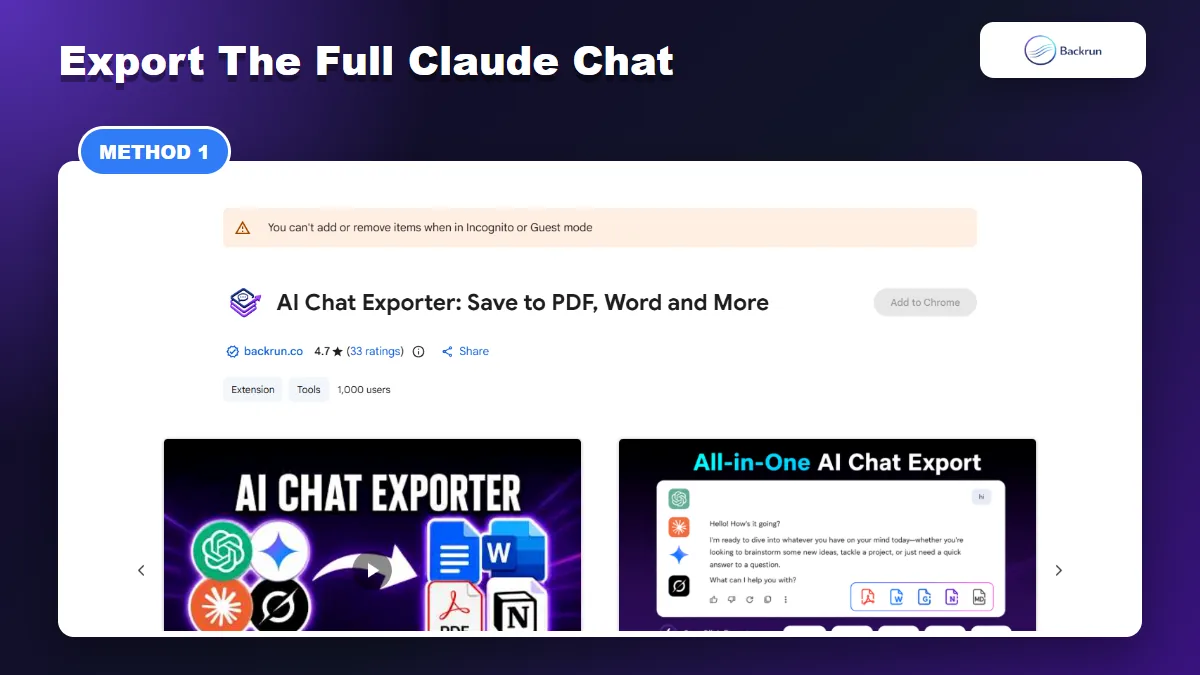
AI Chat Exporter can save a complete Claude conversation or selected messages as Markdown for an Obsidian vault.
Use this method when the prompts, follow-up questions, corrections, and final answer all matter. AI Chat Exporter supports Claude and can export a whole conversation or selected messages as Markdown, giving you a file that Obsidian can read directly.
Below is the most reliable workflow for moving a complete Claude thread into your vault.
Open Claude and load the conversation you want to preserve.
Select the messages that belong in the note, or choose the full conversation when the sequence is important.
Choose Markdown as the output format.
Download the .md file and move it into the folder used by your Obsidian vault.
Open the note in Obsidian and verify headings, nested lists, tables, links, code fences, formulas, and artifact references.
Best for: long research chats, technical work, writing sessions, prompt experiments, and conversations where the reasoning path matters.
Practical advantage: selecting only the useful messages prevents repeated prompts, failed attempts, and unrelated branches from making the note difficult to search later.
Verification check: test the extension with a harmless conversation containing a table, a link, a code block, and a formula. Open the exported file in your actual vault before relying on it for important work.
Privacy note: review the extension permissions and privacy policy before using it with client, company, financial, or personal information. Local Markdown export is the safer choice when you do not need a cloud destination.
2. Create a Claude Doc, Then Export It as Markdown
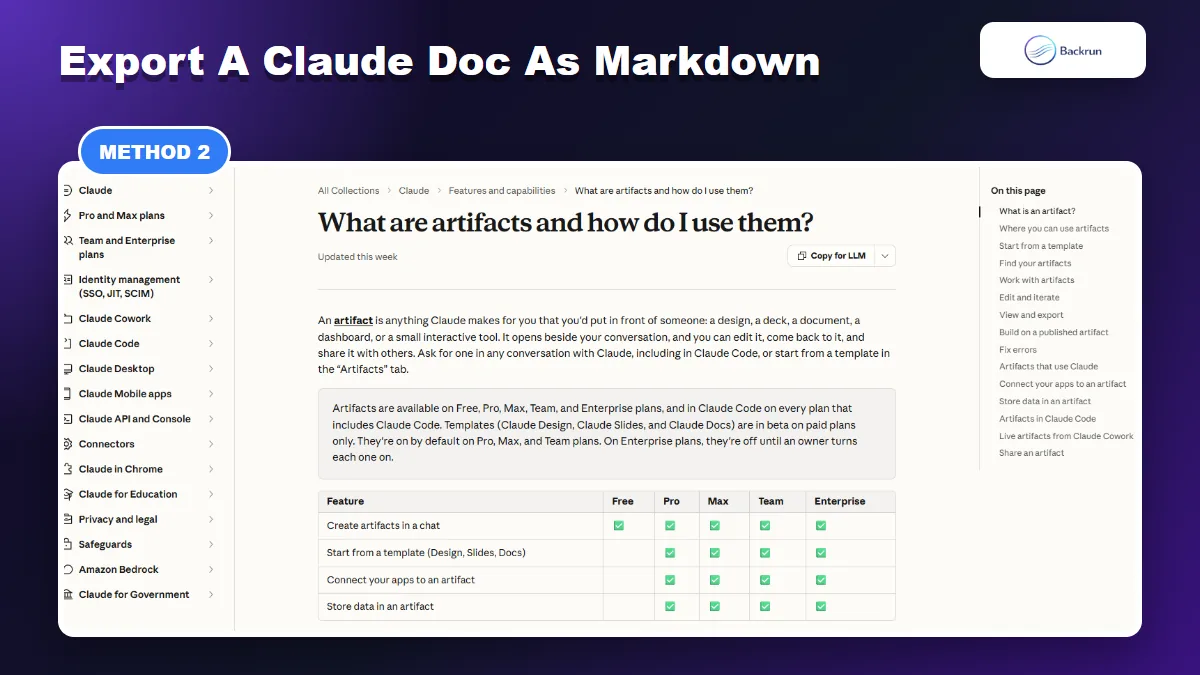
Claude Docs on supported paid plans can be exported as Markdown when you want a curated note instead of a verbatim transcript.
A full transcript is not always the best note. When a conversation contains brainstorming, revisions, and false starts, turn the useful material into a Claude Doc first and export that document as Markdown.
Availability: Anthropic currently lists Claude Docs templates as a beta feature on paid plans. They are enabled by default on Pro, Max, and Team plans; an Enterprise owner may need to enable them. Free users should use the raw Markdown workflow in Method 3 instead.
Use the following workflow when you want a clean knowledge note rather than a message-by-message archive.
Make sure Cloud code execution and file creation is enabled in Settings > Capabilities. Team and Enterprise controls may be managed by an organization owner.
Open the finished Claude conversation and identify what the final note should preserve.
Select Output > Docs in the message box, or ask Claude to create a Claude Doc from the current conversation.
Describe the structure. A practical prompt is: Create an Obsidian-ready document from this conversation. Include a title, summary, key decisions, headings, bullets, source links, code examples, and next actions.
Review the document while it is still beside the chat. Ask Claude to restore any missing decisions or examples.
Click Export and choose Markdown.
Save the .md file with a stable name, move it into your vault, and add properties, tags, or wikilinks.
Best for: project briefs, SOPs, research summaries, meeting notes, decision logs, learning notes, and documentation drafts.
Main advantage: Claude can remove duplicate exploration and organize the result before the file reaches Obsidian.
Main limitation: this is a generated document, not a verbatim record. Compare important facts, quotations, numbers, code, and links with the original conversation.
Anthropic's official artifacts documentation confirms that Claude Docs export to Word, PDF, Markdown, and Google Docs. Legacy artifacts created before September 16, 2026 retain their top-panel copy and download controls, but new legacy artifacts can no longer be created.
3. Copy One Claude Answer as Raw Markdown
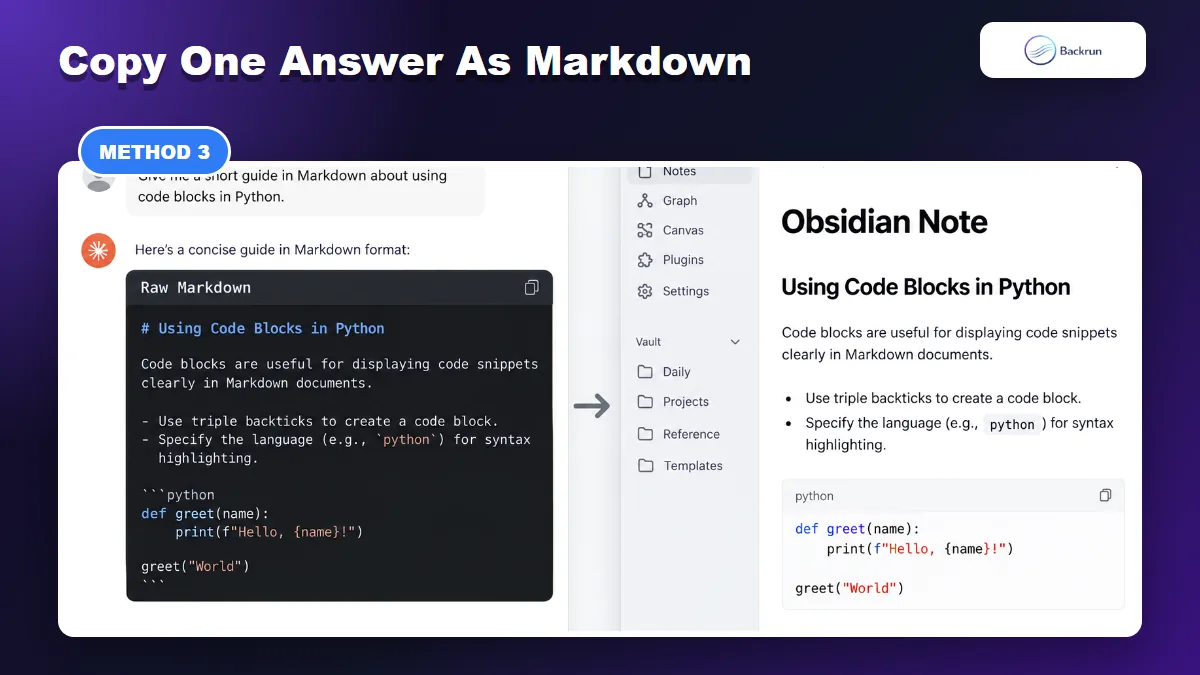
Raw Markdown is the fastest path when only one Claude answer belongs in Obsidian.
Manual copy is the fastest option when only one Claude answer belongs in Obsidian. The important step is asking for raw Markdown instead of copying rendered text and hoping every heading or code block survives.
Here is a simple workflow for one answer, checklist, outline, or technical explanation.
Ask Claude to rewrite the answer as raw Markdown with the structure you want.
Request one fenced block around the Markdown if Claude keeps rendering the syntax instead of showing it. When the note contains triple-backtick code fences, ask Claude to use four backticks for the outer block so the inner code survives.
Copy only the Markdown content, then create a new note in Obsidian.
Paste into Source mode so you can see the underlying syntax.
Switch to Reading view and check headings, lists, tables, links, callouts, and code fences.
Add note properties such as source, created date, topic, status, and the Claude conversation URL when appropriate.
Best for: one final answer, reusable prompts, short code explanations, study notes, checklists, and compact research findings.
Prompt example:Return this answer as raw Markdown for Obsidian. Use one H1 title, H2 sections, bullet points, fenced code blocks with language labels, and a Sources section containing only the links already present.
Common problem: copied tables and nested lists can still need cleanup. If the answer is more than a few screens long, the full-chat exporter is usually faster and less error-prone.
If Markdown fidelity is your main concern, the related Backrun guide to export Claude chat to Markdown goes deeper into file-oriented workflows.
4. Convert Claude's Official Data Export for Bulk Notes
Claude data export is useful for bulk backup, but selected conversations still need conversion before they become good Obsidian notes.
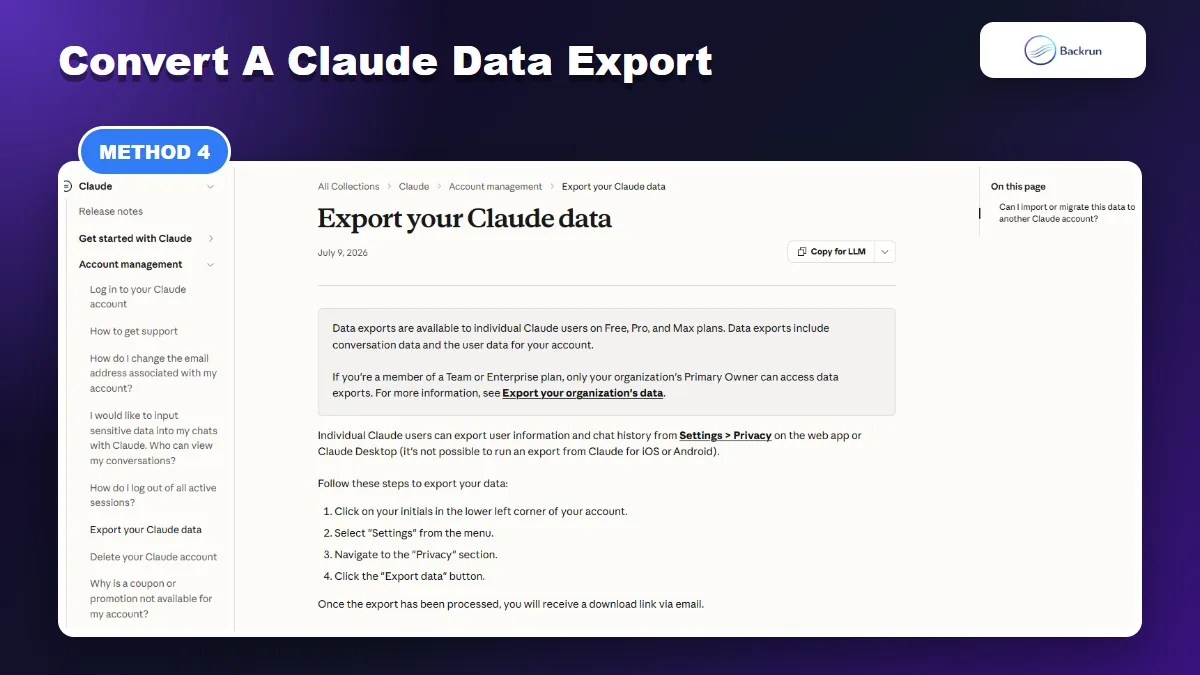
Claude's official data export is designed for account backup rather than polished note creation. It is still the appropriate starting point when you need many conversations, an audit archive, or a recoverable copy of your history.
Use this workflow for bulk migration, then convert only the conversations that deserve a permanent place in Obsidian.
Open Claude on the web or Claude Desktop.
Click your initials, open Settings, and go to Privacy.
Click Export data and wait for the email from Anthropic.
Download the archive promptly. Anthropic says the emailed download link expires after 24 hours.
Keep the original archive private and work from a duplicate when converting files.
Locate the conversation data and convert selected conversations to Markdown with a trusted local script or converter.
Map each speaker to clear headings, retain timestamps when useful, and place the chat title and date in YAML properties.
Import the resulting Markdown files by moving them into the vault or using Obsidian's official Importer plugin for Markdown files, folders, or ZIP archives.
Best for: full-history backup, migration review, compliance, research archives, and bulk conversion.
Main limitation: the archive is not an Obsidian-ready knowledge base. Attachments, artifacts, tool output, duplicated content, and very long conversations may require special handling.
Important: do not import the original Claude ZIP directly into Obsidian and expect finished notes. Convert the relevant conversation data to .md files first; only then move those files into the vault or give a Markdown ZIP to the Importer plugin.
Security note: never upload a full Claude archive to an unknown online converter. It may contain private prompts, customer data, internal links, source files, or information you forgot was present.
Anthropic documents the account export steps on its official data export page. Obsidian's Markdown import documentation confirms that .md files can be moved directly into a vault, while the Importer plugin can process Markdown folders and ZIP archives.
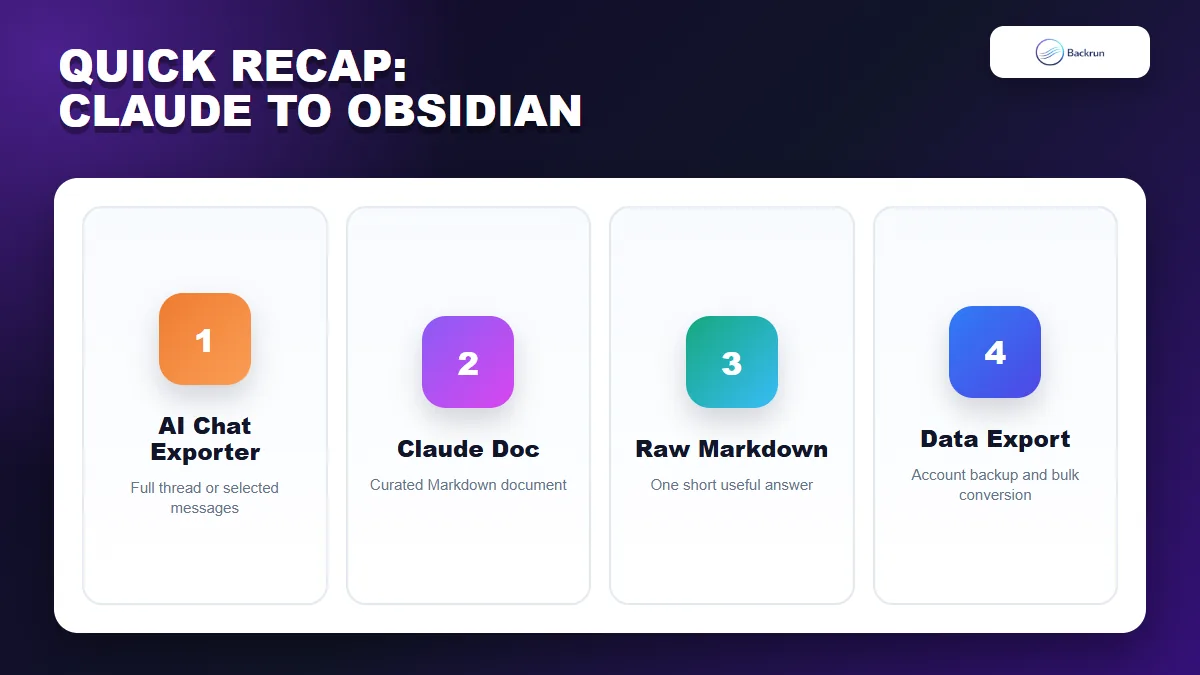
Quick Recap
Choose the method by scope: full conversation, curated note, one answer, or account archive.
Choose the workflow based on how much of the Claude conversation you actually need.
Method
Best for
Main strength
Main caution
AI Chat Exporter
Full chats or selected messages
Direct Markdown file with conversation structure
Review extension permissions and formatting
Claude Doc
Curated knowledge notes on supported paid plans
Claude organizes the material before Markdown export
Not a verbatim archive
Raw Markdown copy
One short answer or Free-plan fallback
Fast and requires no extension
Manual cleanup for complex content
Claude data export
Bulk backup and migration
Official account-level archive
Original ZIP must be converted first
For most people, the best way to export Claude to Obsidian is to use AI Chat Exporter for a complete thread, a Claude Markdown artifact for a polished note, or raw Markdown for one short answer. Reserve the official data export for bulk archives rather than everyday note capture.