How to Export Gemini to Google Docs Without Losing Structure
June 29, 20266 min read
Moving Gemini to Google Docs can mean two very different jobs. Sometimes you only want to send one Gemini answer into a Google Doc. Other times you need the whole conversation, including prompts, follow-up questions, tables, code blocks, and images. The right method depends on how much context you need to preserve.
Use Gemini's Built-In Export to Docs Button
Gemini’s built-in Export to Docs is best for sending one response into a Google Doc.
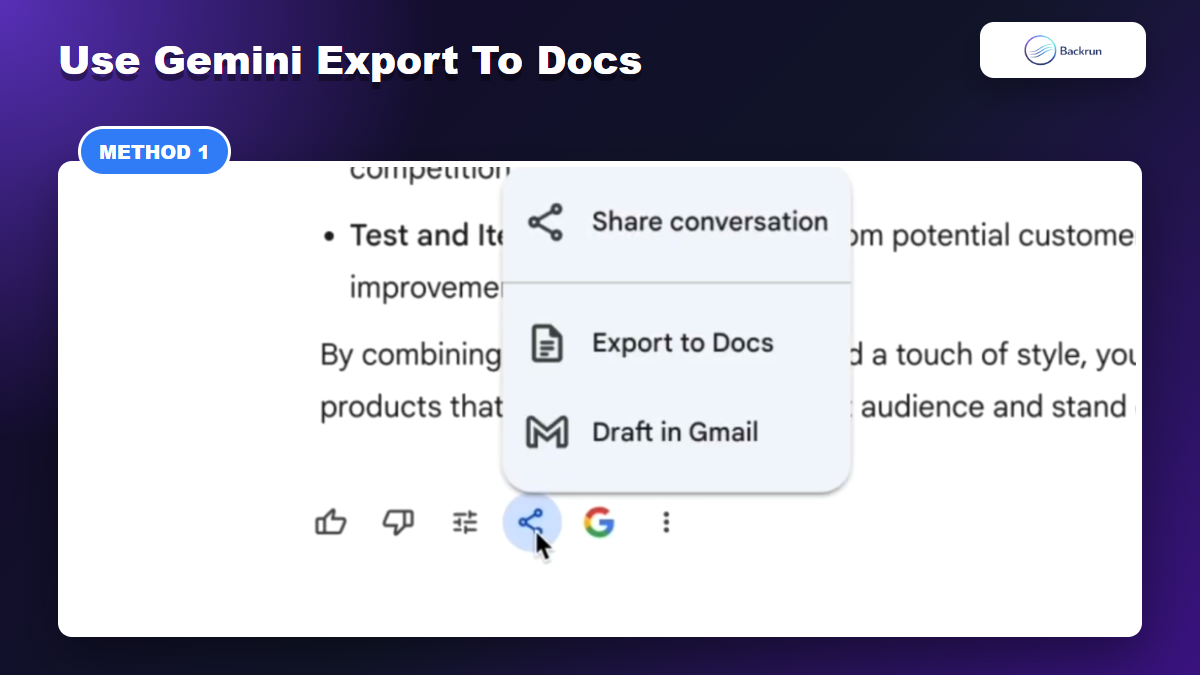
Gemini has a native Export to Docs option in the response menu. This is the fastest built-in way to send one Gemini response into Google Docs, and it is the method many users miss because the option sits under the share/export menu below a specific answer.
Open the Gemini chat that contains the answer you want to save.
Find the exact Gemini response you want to move into Google Docs.
Click the share/export icon below that response.
Choose Export to Docs from the menu.
Open the created Google Doc and check headings, lists, links, tables, and spacing.
Best for: one polished answer, a single summary, a short draft, or a response you want to continue editing in Google Docs.
Advantage: it is native, fast, and does not require installing anything.
Limitation: this button exports one response, not the entire conversation thread. If the context from earlier prompts matters, this method can produce a document that looks clean but feels incomplete.
Reader check: use this method when the final answer already contains everything a reader needs. Do not use it as a full chat archive.
Use Backrun Gemini Exporter for a Full Conversation
Backrun Gemini Exporter is better when you need the whole conversation, not just one response.
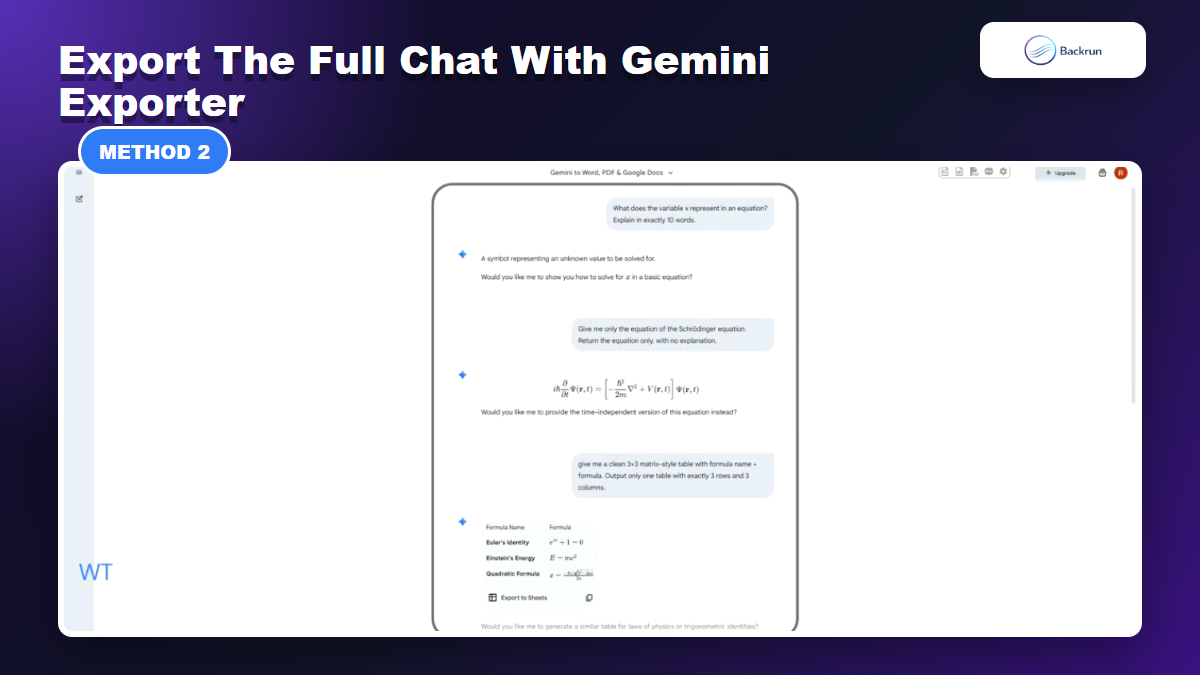
If you need the full thread, Gemini Exporter by Backrun is the stronger workflow. It is built for exporting complete Gemini conversations into formats such as Google Docs, Word, PDF, and Notion, so it solves the gap left by Gemini's one-response export button.
Install Gemini Exporter from the Backrun page or Chrome Web Store.
Open the Gemini conversation you want to save.
Load the whole thread so every useful message is visible.
Choose Google Docs as the export format.
Review the exported document for message order, tables, code blocks, images, and links.
Best for: research chats, client notes, lesson plans, project records, coding discussions, and any conversation where the back-and-forth matters.
Advantage: it saves cleanup time because you do not have to export each response one by one or rebuild context manually.
Limitation: like any browser extension, you should review permissions and avoid exporting confidential content unless your workflow allows it.
Practical note: use the Google Docs output when you want online editing and collaboration. Use Word when you need a local file checkpoint first, and PDF when you only need a read-only archive.
Copy and Paste a Short Gemini Answer Manually
Manual copy-paste works when the content is short enough to clean by hand.
Manual copy-paste is not elegant, but it is still useful when the answer is short and you want complete control over the final document. This method is often better than exporting when you only need one paragraph, a small list, or a section that will be merged into an existing Google Doc.
Select the Gemini text you want to reuse.
Copy only the useful part, not the entire chat page.
Paste into Google Docs and check whether the formatting looks clean.
Use Paste without formatting if the copied text brings unwanted styles.
Rebuild the document styles with real Google Docs headings, bullets, and links.
Best for: short snippets, quick notes, one-off summaries, and cases where privacy matters more than automation.
Advantage: it is simple, transparent, and requires no extra tool.
Limitation: it does not scale. Long Gemini chats, tables, code blocks, images, and equations can break or become tedious to clean.
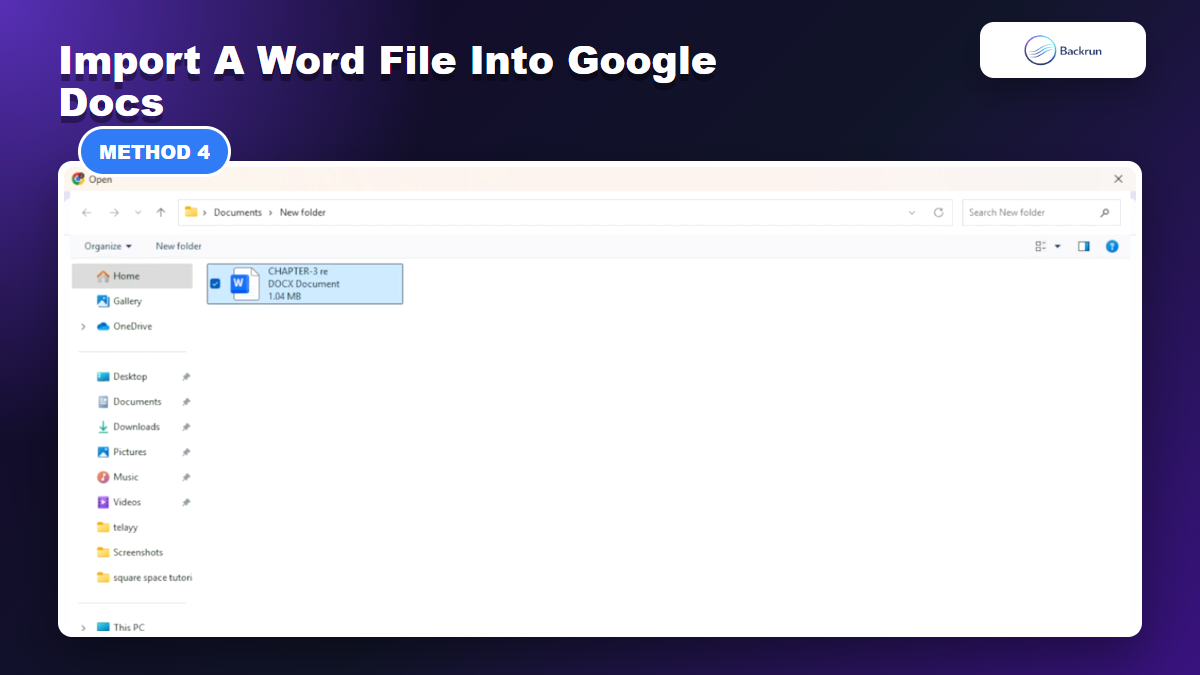
Export to Word First, Then Convert to Google Docs
A Word file checkpoint is useful when you want a backup before converting to Google Docs.
Sometimes the safer route is to create a document file first, then open it in Google Docs. This works well when your export tool creates a Word file, when you want a local backup, or when Google Docs conversion is part of your team's normal workflow.
Export or create a Word document from the Gemini content.
Upload the .docx file to Google Drive.
Open it with Google Docs or convert it to Google Docs format.
Check the converted version for broken spacing, missing images, table issues, and link formatting.
Keep the original Word file until the Google Doc is reviewed and ready to share.
Best for: longer drafts, team handoffs, formatted reports, and situations where you want a backup file before cloud editing.
Advantage: you get a checkpoint file. If conversion creates a formatting problem, you can return to the original instead of rebuilding the Gemini output from scratch.
Limitation: conversion quality depends on the document structure. Tables and images should always be checked after opening the file in Google Docs.
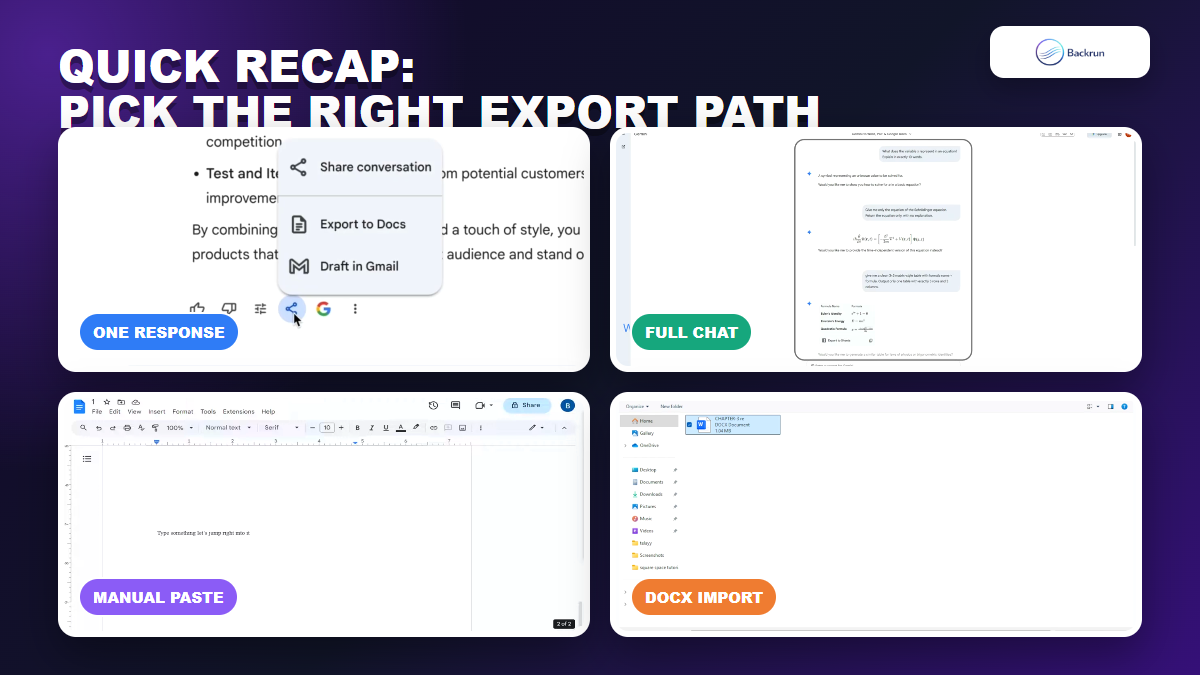
Quick Recap
Choose the workflow based on whether you need a full chat, a new doc, a short answer, or a file checkpoint.
There is no single best workflow for every Gemini export. Choose based on whether you need one response, the whole thread, a quick snippet, or a document checkpoint.
Method
Use it when
Main strength
Main caution
Gemini Export to Docs
You only need one response
Fast and native
Does not export the full conversation
Backrun Gemini Exporter
You need the complete chat
Best full-thread workflow
Review extension permissions
Manual copy-paste
You only need a short snippet
Simple and private
Weak for complex formatting
Word to Google Docs
You want a file checkpoint first
Good for backup and handoff
Conversion needs a final review
For one Gemini answer, use the built-in Export to Docs button. For a full conversation, use Backrun Gemini Exporter. For a short reusable section, copy and paste manually. For longer drafts that need a backup, export to Word first and convert it in Google Docs. That gives you a practical way to move Gemini to Google Docs without losing the structure that makes the document useful.