How to Export Gemini Chats to Obsidian as Clean Markdown Notes
September 30, 20267 min read
If you want to export Gemini chats to Obsidian, the cleanest destination is usually a Markdown file. Obsidian reads Markdown natively, so headings, lists, links, code blocks, and note metadata can remain editable instead of being trapped inside a PDF.
The right workflow depends on how much you need to keep. A full research conversation needs an exporter, one polished answer may only need raw Markdown, and an account-wide backup belongs in an archive workflow. The four methods below cover those real use cases without turning small variations into separate methods.
1. Use AI Chat Exporter for a Full Gemini Conversation
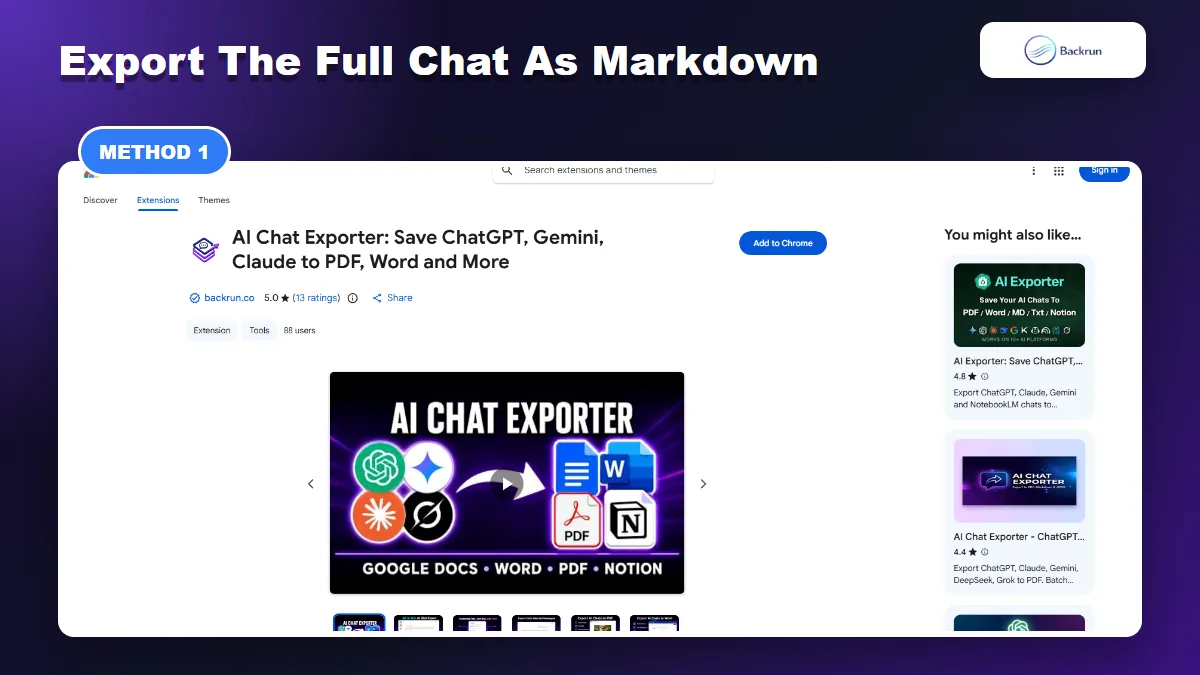
AI Chat Exporter is the most direct option when you need a full Gemini conversation or selected messages as Markdown.
Use this method when the prompts, follow-up questions, and message order are part of the value. AI Chat Exporter can save Gemini conversations as Markdown, which gives you a file that can be placed directly inside an Obsidian vault.
Below is the most reliable workflow for exporting either a full Gemini thread or selected messages.
Open Gemini and load the conversation you want to preserve.
Select the useful messages, or choose the full conversation when earlier prompts are necessary for context.
Choose Markdown as the export format.
Download the .md file and move it into the folder used by your Obsidian vault.
Open the note in Obsidian and check headings, nested lists, tables, code fences, links, and images.
Best for: long research chats, coding sessions, content planning, prompt experiments, and conversations where the back-and-forth matters.
Experience tip: select only the messages that deserve to become permanent notes. Repeated prompts, failed attempts, and private details make the exported note harder to search and maintain.
Verification check: test the exporter with one harmless conversation containing a heading, table, link, and code block. If those elements survive correctly, the workflow is ready for important notes.
2. Ask Gemini to Create a Downloadable Markdown File
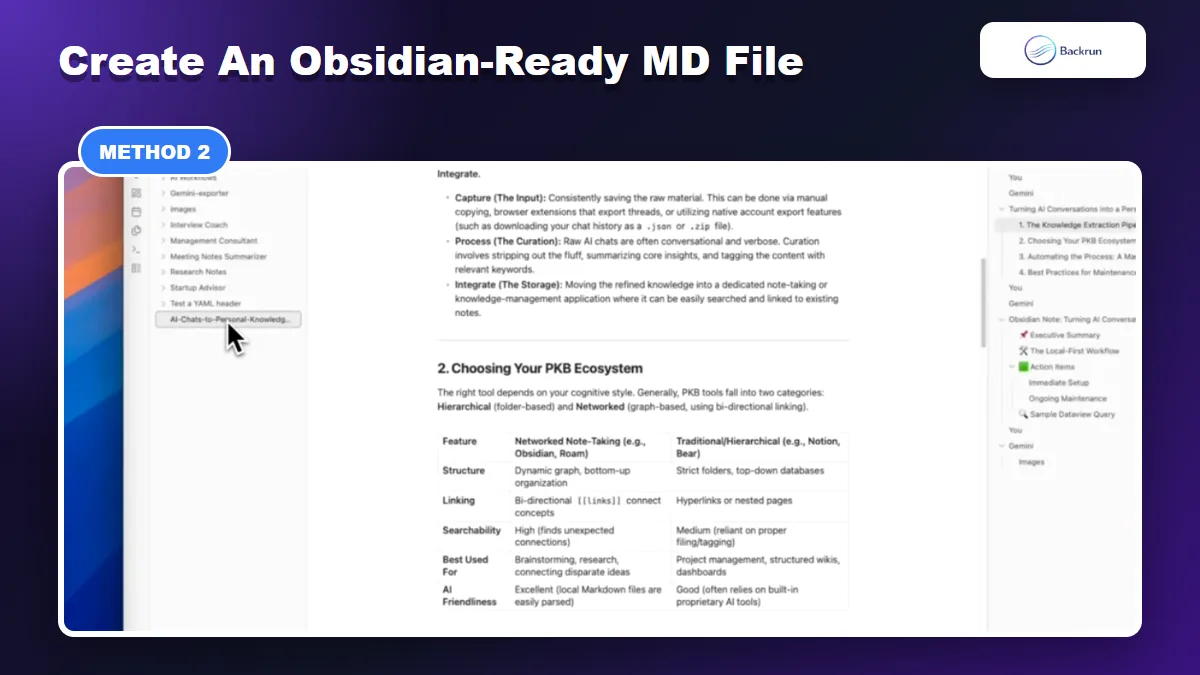
A downloadable Markdown file can be moved directly into an Obsidian vault and opened as a native note.
Gemini can generate supported file types from a conversation, including Markdown. This works best when you want one clean note built from the useful parts of the chat rather than an exact transcript of every message.
Use the following steps to turn the current result into an Obsidian-ready file.
Open the Gemini conversation and make sure the final answer contains everything the note needs.
Ask Gemini to create a Markdown file. A useful prompt is: Create a downloadable Markdown file from this work for Obsidian. Include a clear title, short summary, headings, bullets, source links, code fences, and next actions.
Download the generated file when Gemini shows the file card.
Rename it clearly using a stable name such as customer-research-summary.md.
Move the file into your Obsidian vault or a temporary import folder.
Open it in Reading view and verify tables, links, frontmatter, callouts, and code blocks.
Best for: finished research notes, meeting summaries, SOPs, checklists, learning notes, and documentation drafts.
Main advantage: Gemini can reorganize a messy conversation into one focused note before creating the file.
Main limitation: this is a generated document, not a verbatim conversation export. Compare important facts, numbers, quotations, and links with the original chat before deleting anything.
Google's Gemini help documentation confirms that supported generated files include Markdown, alongside Workspace files, PDF, DOCX, CSV, TXT, and other formats. Availability can still vary by account, so keep the exporter method as a fallback.
3. Copy One Gemini Answer as Raw Markdown
Raw Markdown is the fastest method when you only need one useful Gemini answer rather than the full chat.
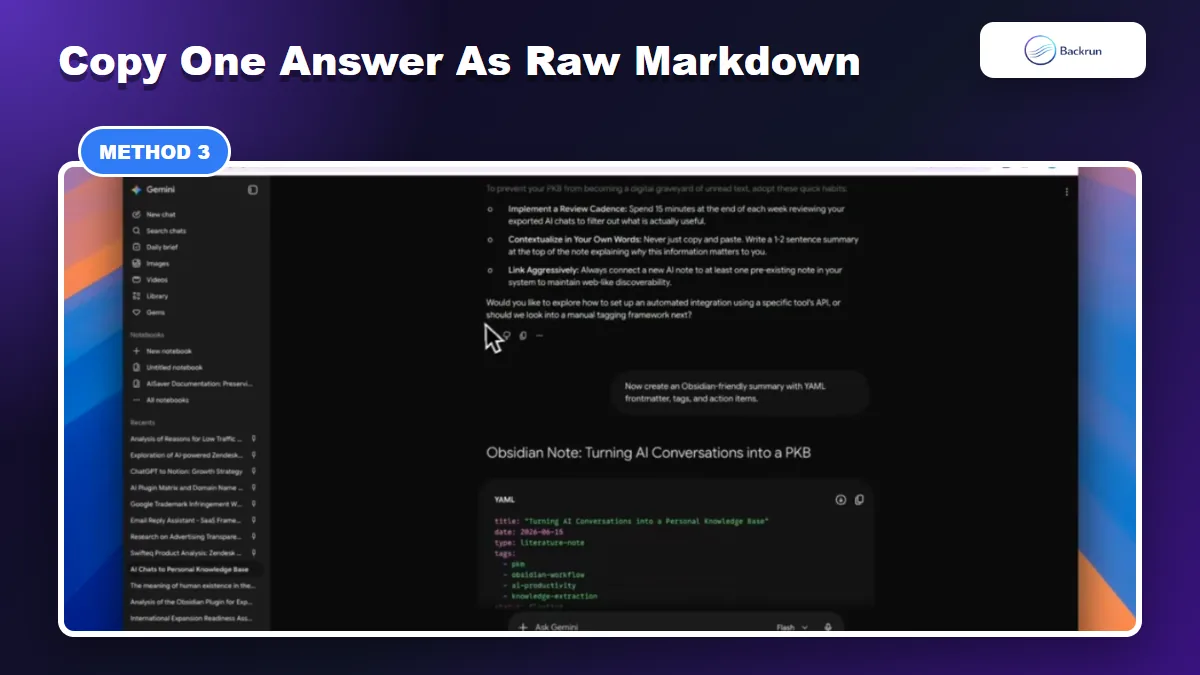
Manual copy is the fastest option when only one Gemini answer belongs in Obsidian. The key is asking for raw Markdown instead of copying the visually rendered answer and hoping the structure survives.
Here is a simple workflow for creating a useful note without installing anything.
Ask Gemini to rewrite the answer as raw Markdown. Tell it to preserve headings, lists, links, tables, and fenced code blocks.
Request one code block around the full Markdown when the interface renders the syntax instead of displaying it.
Copy the raw Markdown, then create a new note in Obsidian.
Paste the content into Source mode and switch to Reading view to inspect the result.
Add Obsidian-specific context, such as YAML properties, tags, and internal links like [[Project Alpha]].
Write a two-sentence summary at the top so the note remains understandable months later.
Best for: one answer, a checklist, a prompt template, a code explanation, an outline, or a short research summary.
Main advantage: it is fast, transparent, and does not require extension permissions.
Main limitation: it does not preserve the whole Gemini chat. It creates a curated note, which is often better for a knowledge base but unsuitable for audit or transcript needs.
If your goal is the Markdown file itself rather than Obsidian organization, Backrun's guide to exporting Gemini to Markdown compares additional file and Google Docs workflows.
4. Export One Gemini Response to Docs, Then Download Markdown
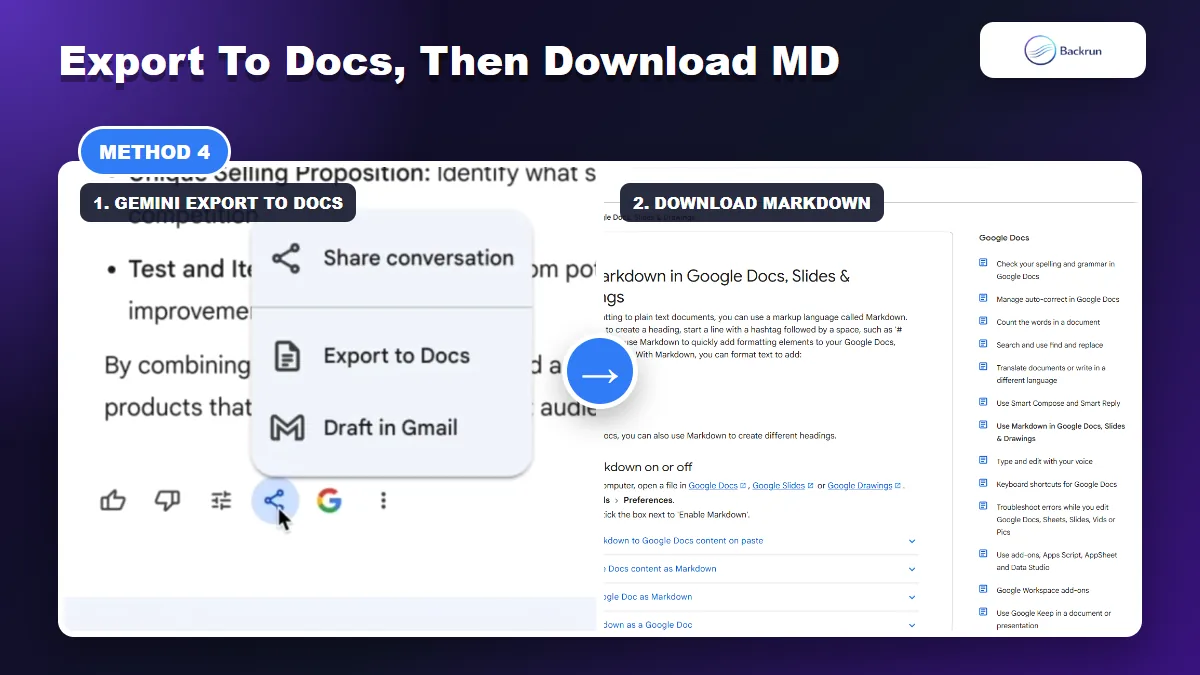
Gemini can send one response to Google Docs, where it can be edited and downloaded as a Markdown file for Obsidian.
This is the strongest built-in route when Gemini has already produced one polished response and you want a visual editing step before Obsidian. Google officially supports exporting an individual Gemini response to Docs, and Google Docs can officially download that document as a Markdown .md file.
Use the workflow below when you need to revise headings, remove extra paragraphs, or fix tables before the note enters your vault.
Open the Gemini response you want to preserve.
Click Share & export beneath the response, then choose Export to Docs.
Open the new Google Doc created in Google Drive.
Edit the document: add a descriptive title, remove conversational filler, verify links, and simplify complex tables.
Choose File > Download > Markdown (.md).
Move the downloaded file into your Obsidian vault or import it with Obsidian's official Importer plugin.
Open the note in Obsidian and check formatting before adding internal links and tags.
Best for: one detailed response that needs cleanup, collaborative editing, fact checking, or approval in Google Docs before becoming a permanent note.
Main advantage: every step uses built-in Google functionality, and the Google Doc gives you a comfortable editing surface before Markdown conversion.
Main limitation: Gemini's native Export to Docs action exports one response, not the complete multi-turn conversation. Use AI Chat Exporter when prompts and follow-up messages must remain together.
Why Google Takeout is not a main method: Takeout remains useful for account backup, but Google's archive is not an efficient Obsidian workflow. It produces bulk activity data that still needs filtering and conversion, so it should be treated as disaster recovery rather than a daily export option.
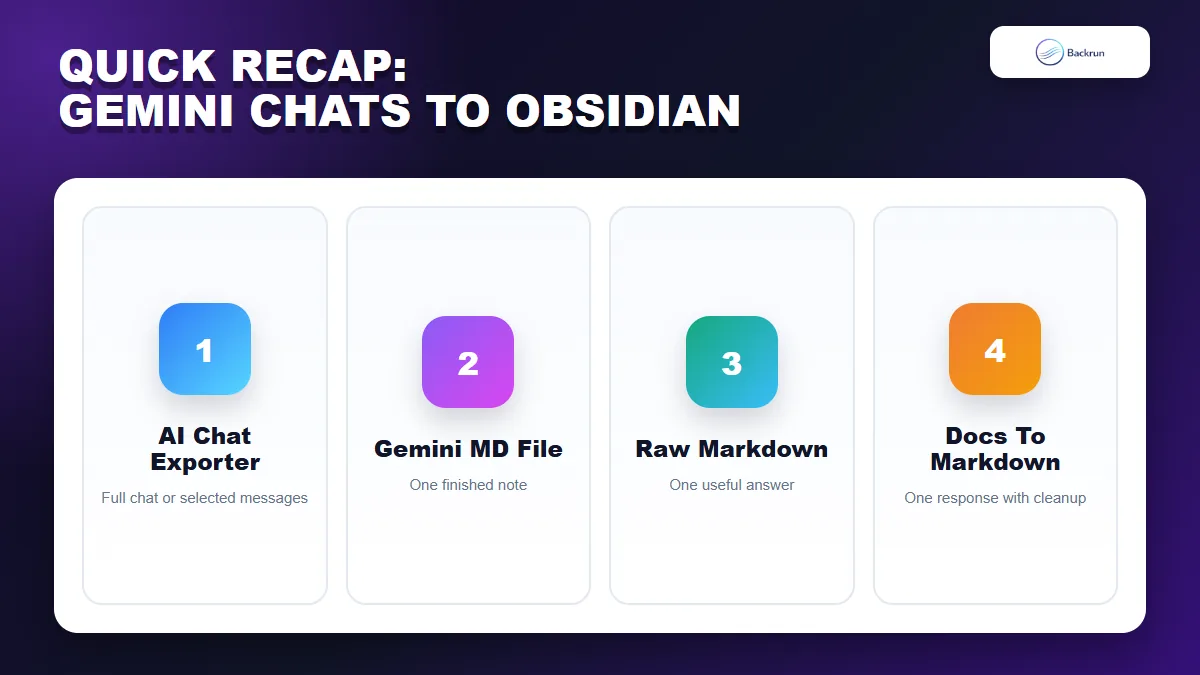
Quick Recap
Choose the workflow based on whether you need a full conversation, one finished note, one answer, or a bulk archive.
Choose the method based on what you are trying to preserve, not only on which button is fastest.
Method
Best for
Main benefit
Main caution
AI Chat Exporter
Full chats or selected messages
Direct Obsidian-ready Markdown
Review permissions and the final file
Gemini-generated Markdown file
One finished, organized note
Gemini can clean and structure the result
Not a verbatim transcript
Raw Markdown copy
One short useful answer
Fast and requires no extension
Manual and limited to selected content
Google Docs to Markdown
One response that needs editing
Official Google workflow with a cleanup step
Does not export the full chat
To export Gemini chats to Obsidian with the least cleanup, keep AI Chat Exporter as the first choice when the full conversation matters. Ask Gemini for a Markdown file when you want a curated note, use raw Markdown for one short answer, and use the Google Docs bridge when the response needs editing before it reaches your vault.