How to Export Grok AI Conversations to Obsidian in 3 Reliable Ways
October 03, 20267 min read
A useful Grok thread can disappear into your chat history long before you turn it into a durable note. The most reliable way to export Grok AI conversations to Obsidian is to move the content through Markdown, the native file format Obsidian is designed to read.
This guide covers three workflows that genuinely serve different needs: preserving a conversation, converting it into a focused knowledge note, and creating a bulk archive. Each method also explains what it does not preserve, so you can choose the right level of fidelity.
1. Export a Grok Conversation as Markdown With AI Chat Exporter
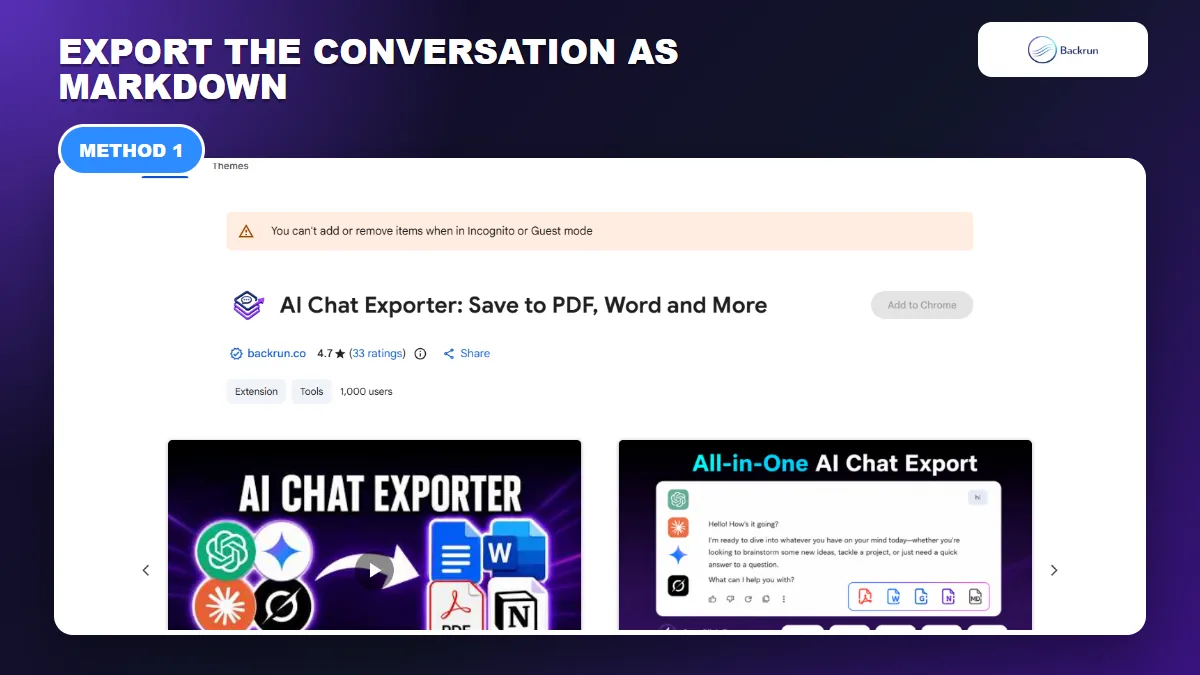
AI Chat Exporter can download a complete Grok thread or selected messages as a Markdown file for Obsidian.
If you want the complete thread or a precise set of messages, a direct Markdown export is the cleanest route. AI Chat Exporter supports Grok and can save either selected messages or the full conversation to Markdown, which avoids rebuilding headings, code blocks, lists, and tables by hand.
Use the following workflow to create a note that can go straight into an Obsidian vault:
Open grok.com and load the conversation you want to keep.
Select only the useful messages, or choose the full conversation when prompts and intermediate answers provide important context.
Choose Markdown as the output format and download the .md file.
Move the file into your Obsidian vault. You can drag it into Obsidian's File Explorer or place it directly inside the vault folder with Windows Explorer or Finder.
Open the note and review it before deleting the original download.
Check the result rather than assuming the export is perfect. Long research answers may contain citations, generated images, equations, or nested tables that deserve a quick comparison with the original thread. Rename the file to a stable, descriptive title and add properties such as source: Grok, created, and topic tags.
A strong exported note should pass four quick checks before it enters your permanent vault:
Message order: prompts and answers appear in the same sequence as the Grok thread.
Code fences: opening and closing fences are balanced, and the language label is still present.
Tables and citations: columns remain readable and source links still point to the expected pages.
Attachments: images or files are stored locally when you need them offline, rather than depending on temporary remote URLs.
The extension's current listing says local file exports are processed on the device, while destinations such as Notion or Google Docs involve the selected service. Even so, review the extension's permissions and privacy policy before exporting sensitive material.
2. Ask Grok to Create an Obsidian-Ready Markdown Note
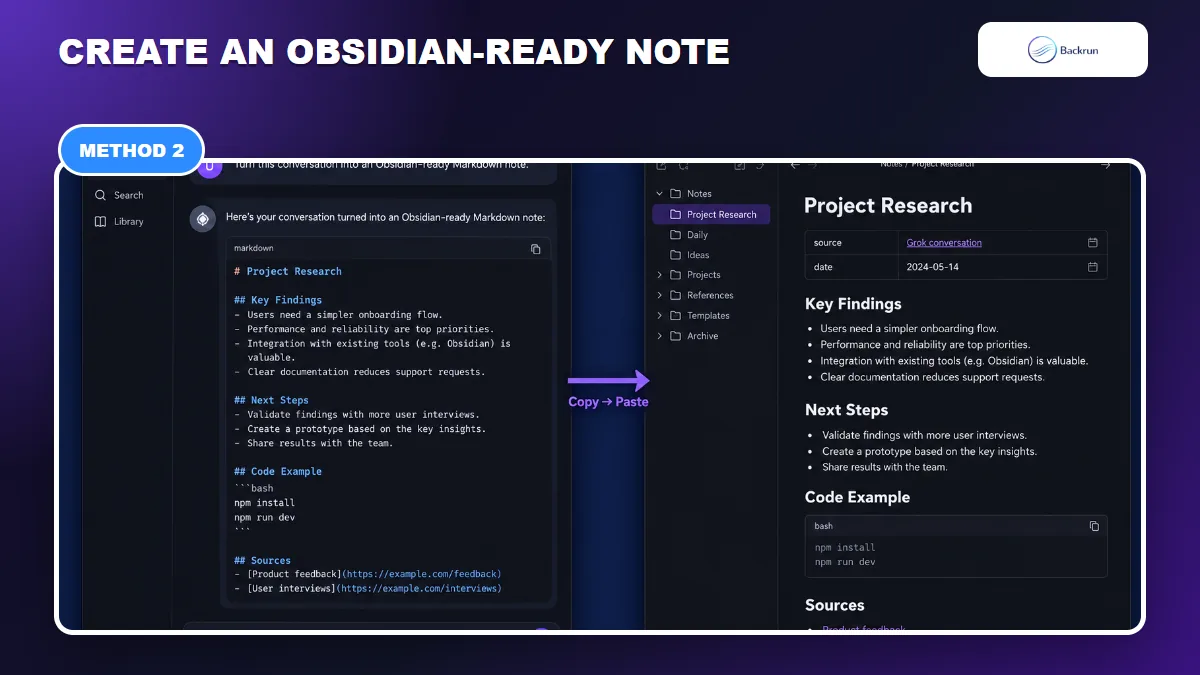
Ask Grok for a focused Markdown note when you need reusable knowledge rather than a verbatim transcript.
A verbatim transcript is not always the best note. For brainstorming, research, or project planning, you may get more value by asking Grok to consolidate the conversation into a focused Markdown document before you copy it into Obsidian.
Use a prompt that defines the structure and tells Grok not to invent missing details:
Turn this conversation into an Obsidian-ready Markdown note. Keep the verified facts, decisions, examples, code blocks, and source links. Use one H1 title, clear H2 sections, concise bullets, and a short Next Steps section. Add YAML properties for source, created date, and tags. Do not add claims that are not present in the conversation. Return only raw Markdown.
Then complete the note with these steps:
Run the prompt near the end of the Grok thread so the model can use the relevant context.
Read the generated note inside Grok and compare any important facts, quotations, or links with the original messages.
Copy the raw Markdown from the response.
Create a new note in Obsidian, switch to Source mode when needed, and paste the Markdown.
Fix internal links and attachments. Replace plain topic mentions with Obsidian links such as [[Project Name]], and save any referenced images inside the vault.
This method creates a curated knowledge note, not a complete archive. Grok may shorten examples or leave out earlier turns, so use the direct exporter when message-by-message fidelity matters. For a broader explanation of portable chat formatting, see our guide to exporting Grok to Markdown.
Keep provenance visible inside the note. A short property block with the original conversation URL, export date, model name, and a status such as reviewed: true makes it easier to distinguish verified research from an unreviewed AI summary. If the conversation includes several unrelated topics, create separate notes and link them from an index rather than forcing everything into one oversized file.
3. Download Your Grok Data for a Bulk Archive
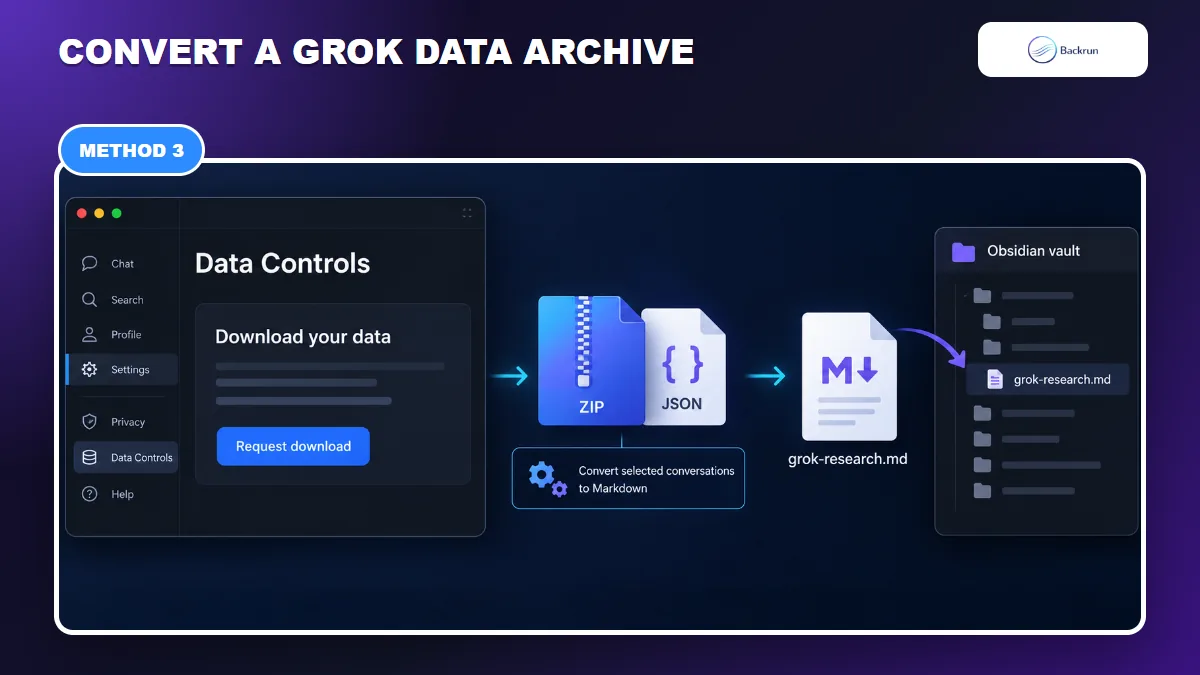
The official account download is a bulk archive; convert only the conversations you need before adding them to Obsidian.
When you need account-level coverage rather than one conversation, use Grok's official data download. The SpaceXAI consumer FAQ directs Grok users to Settings → Data Controls on Grok.com or the mobile app to download their data.
The archive is useful as a backup, but it is not a finished Obsidian vault. Follow this workflow instead of importing the original ZIP blindly:
Open Grok Settings and select Data Controls.
Request or download your data, then complete any identity-verification or email steps shown by Grok.
Store the original archive privately and extract a working copy.
Locate the conversation records you actually need. Archive layouts can change, so search the extracted files for a distinctive phrase or conversation title rather than relying on a fixed filename.
Convert selected records into individual Markdown files. Keep one conversation per note, preserve speaker order, and use readable filenames such as grok-market-research-2026-10-03.md.
Move the converted files into your vault, then add tags, links, and attachments only after confirming the text is complete.
For a small archive, conversion can be manual: open a conversation record in a text editor, preserve the speaker labels and message order, then save the result as UTF-8 Markdown. For a large archive, use a local script or trusted offline converter that creates one .md file per conversation. Test it on two or three records first, especially when the data contains escaped line breaks, Unicode characters, code blocks, or embedded links.
Keep the untouched archive outside your active vault. Obsidian works best with readable notes, not every account-level metadata file. Importing only the conversations that support an ongoing project also keeps search results and backlinks useful.
Obsidian's official Markdown import guidance accepts .md files, folders, or archives that already contain Markdown. A Grok account ZIP may contain JSON or other account data, so it must be converted first. Do not upload the entire archive to an unrelated online converter if it contains private prompts, personal data, or confidential research.
Quick Recap
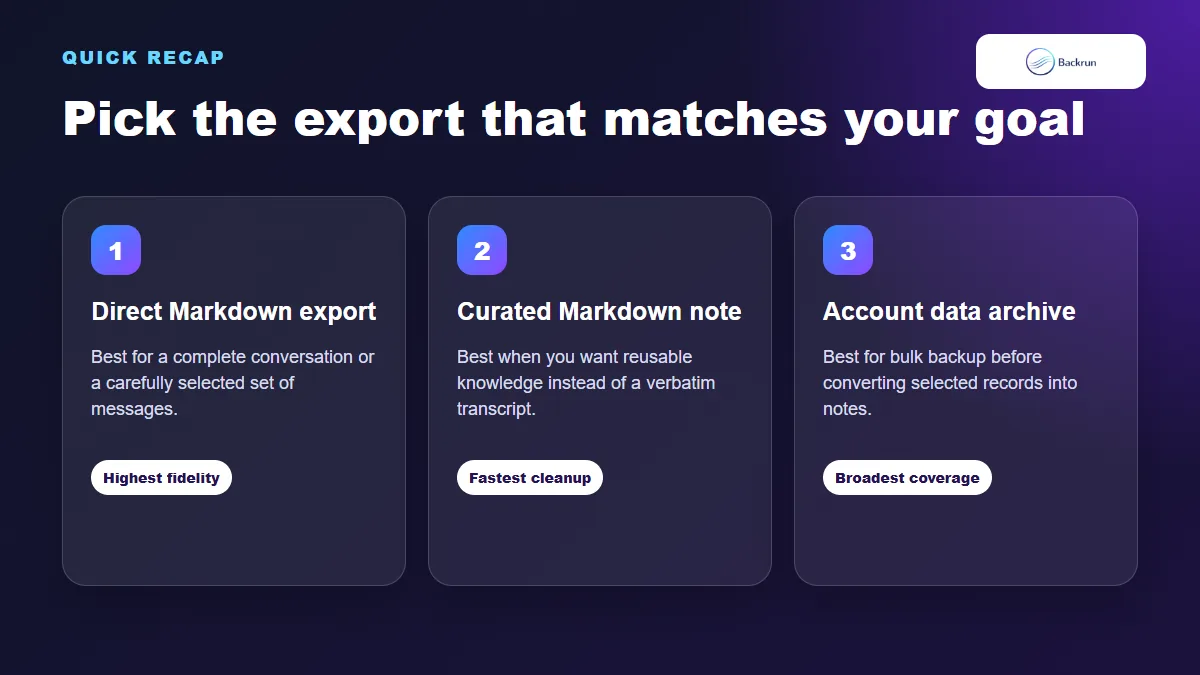
Choose direct Markdown for fidelity, a curated note for reuse, or the data archive for bulk backup.
The right method depends on whether you value fidelity, readability, or coverage.
Method
Best for
What reaches Obsidian
Main limitation
AI Chat Exporter
One full thread or selected messages
A direct Markdown file
Requires a browser extension and a review of complex formatting
Grok-generated note
Research summaries and reusable project notes
Curated Markdown copied into a note
Not a verbatim transcript
Grok data download
Bulk backup and migration
Markdown files created from selected archive records
The original archive is not ready for direct Obsidian import
For most people, direct Markdown export is the practical default. Use a curated note when the conversation needs editing, and reserve the account download for bulk backup or recovery. Whichever route you choose, verify the note before treating it as a reliable record.