How to Export Gemini Chat to ChatGPT Without Losing Context
July 13, 20268 min read
There is no official one-click importer that moves an entire Gemini conversation into ChatGPT with perfect formatting. But you can still export Gemini chat to ChatGPT in a practical way if you choose the right transfer format for the amount of context you need.
The mistake is treating every chat the same. A short answer can be copied directly. A long research thread needs a document or file. A messy brainstorming session often works better as a structured handoff brief. This guide focuses on methods that actually work today, including a safer way to export Gemini to ChatGPT when the conversation is too long for manual copy-paste.
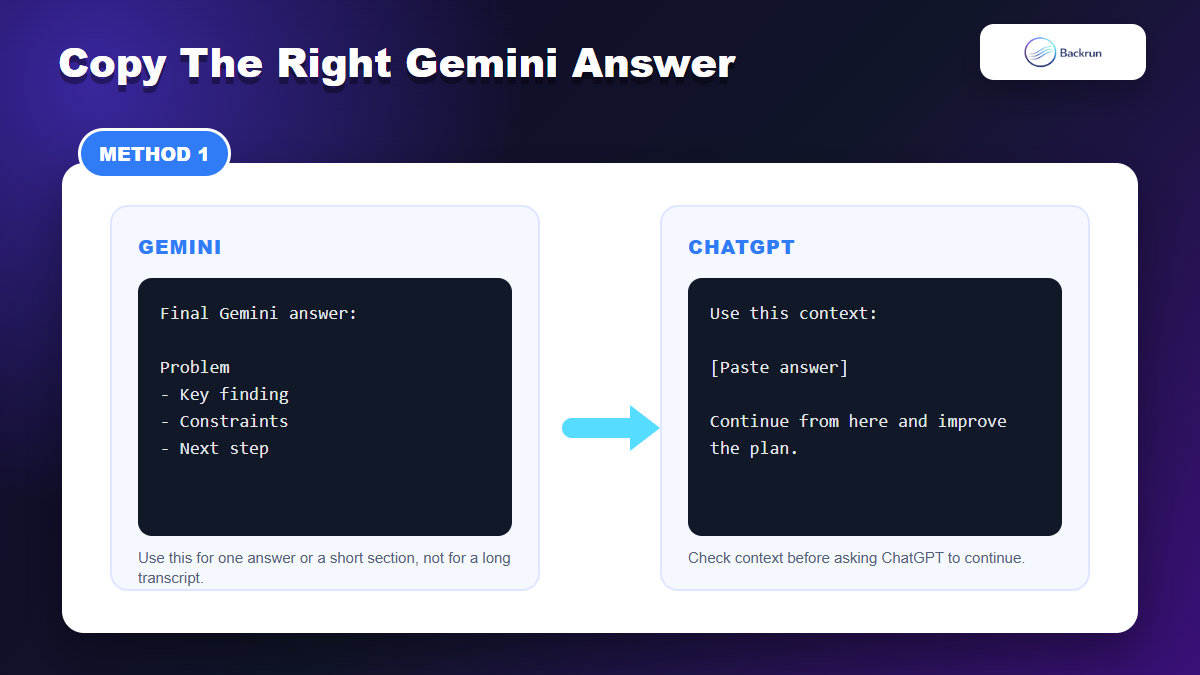
1. Copy the Gemini Answer Into ChatGPT
Manual copy is the fastest route when you only need one Gemini answer inside ChatGPT.
The simplest method is still the right one when you only need one Gemini response, one table, one outline, or one code explanation. Instead of trying to move the whole conversation, copy the final answer and tell ChatGPT exactly what to do with it.
Open the Gemini chat and find the specific answer you want to continue in ChatGPT.
Copy only the useful section, not the entire thread.
Open ChatGPT and start a new chat.
Paste the Gemini answer with instructions, such as: Use this Gemini answer as context. Improve it, check for gaps, and continue from the same assumptions.
Ask ChatGPT to restate the context before it starts solving the task.
Best for: short answers, quick rewrites, outlines, small tables, and one-step comparisons between Gemini and ChatGPT.
Advantage: it is fast, private, and does not require any extension or file export.
Limitation: it does not preserve the full back-and-forth. If Gemini used earlier messages to shape the answer, ChatGPT will not know that context unless you include it.
Practical tip: add a short instruction above the pasted text. ChatGPT usually performs better when it knows whether to critique, rewrite, summarize, continue, or convert the Gemini output.
Quality check: if the answer contains a table, code block, or numbered plan, ask ChatGPT to confirm the structure before editing it. That catches formatting loss early.
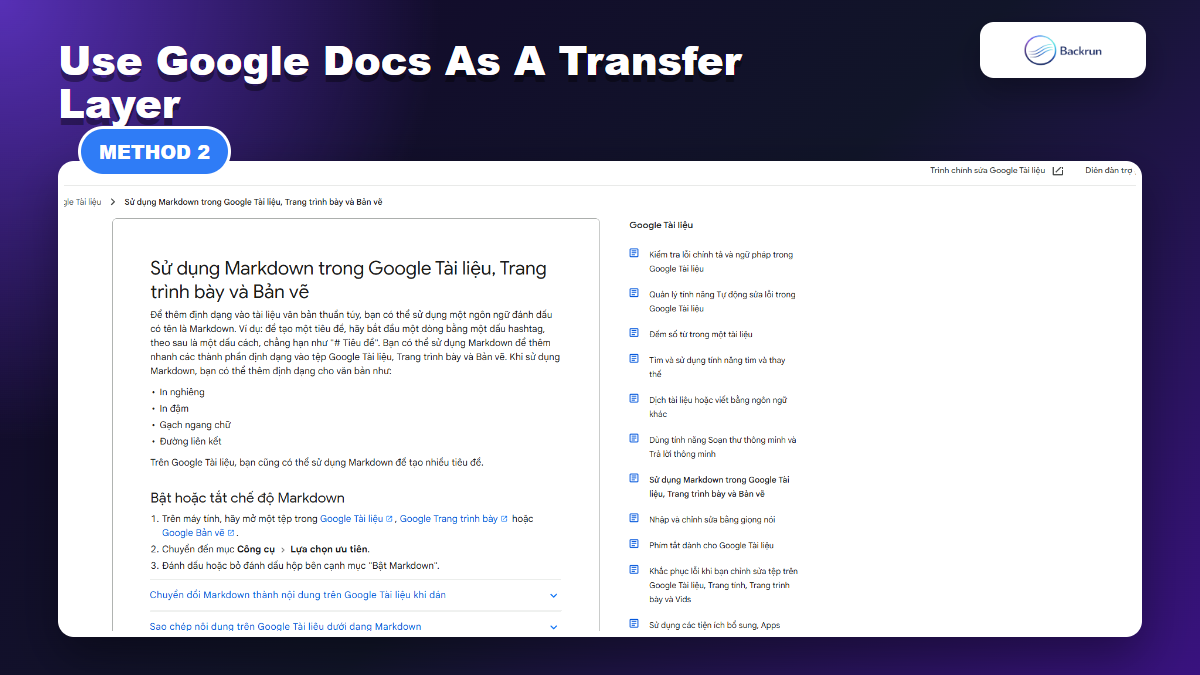
2. Use Google Docs as the Transfer Workspace
Google Docs is useful when you want to clean the Gemini answer before moving it into ChatGPT.
Google Docs is a good middle layer when the Gemini answer needs cleanup before it goes into ChatGPT. You can move the content into a document, fix headings and spacing, then copy the cleaned version into ChatGPT. Google Docs also has Markdown copy and download options, which helps when you want a more structured transfer.
Move the Gemini answer into Google Docs using Gemini's export option or manual copy.
Clean the document: remove duplicate greetings, fix headings, repair broken lists, and simplify tables.
Highlight the section ChatGPT needs instead of copying the entire document blindly.
Copy the cleaned section as normal text or Markdown.
Paste it into ChatGPT with a clear instruction: Use this cleaned Google Docs content as source context. Do not invent missing details.
Best for: content drafts, meeting notes, research summaries, long outlines, and any Gemini answer that needs human review before ChatGPT continues.
Advantage: the document step gives you control. You can remove noise before ChatGPT sees it.
Limitation: this is not a full automated import. You still choose what to transfer.
Formatting note: Google Docs is helpful for headings and lists, but code blocks may need extra care. If code formatting matters, use Markdown or TXT in method 4.
If you use this route often, the related Backrun guide on Gemini to Google Docs goes deeper into the export step before you bring the content into ChatGPT.
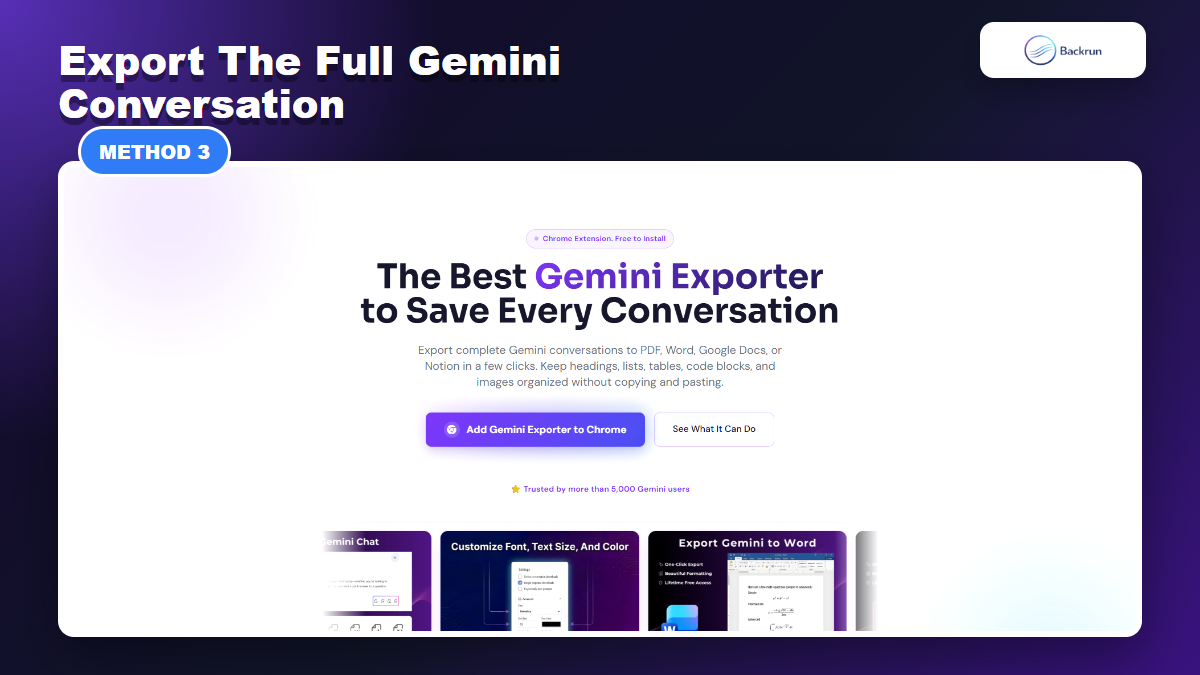
3. Export the Full Gemini Conversation and Upload It to ChatGPT
Gemini Exporter is the strongest route when you need the full Gemini thread before importing it into ChatGPT.
When you need the whole Gemini thread, manual copy-paste becomes fragile. A better route is to export the conversation as a document first, then upload that file to ChatGPT and ask it to extract the context. Backrun Gemini Exporter is useful here because it can save Gemini conversations to formats such as Word, PDF, Google Docs, and Notion.
Open the Gemini conversation and load the full thread.
Use Gemini Exporter to export the chat to Word, PDF, or Google Docs.
Open the exported file and remove anything ChatGPT does not need, such as duplicate prompts or unrelated side notes.
Upload the cleaned file to ChatGPT if your ChatGPT plan and workspace allow file uploads.
Ask ChatGPT to summarize the file first, then continue the task after you approve the summary.
Best for: long chats, research threads, client discovery notes, product planning, and cases where the previous prompts matter.
Advantage: you preserve more context than direct copy-paste, especially when the conversation has many steps.
Limitation: ChatGPT file upload limits and supported file behavior can vary by plan and workspace. OpenAI's file upload help page is the right place to check current limits before relying on this for a production workflow.
Import prompt that works well:Read the uploaded Gemini conversation. First summarize the goal, decisions, constraints, and unresolved questions. Do not continue until I confirm the summary.
Security note: remove API keys, client data, personal information, and private documents before uploading the exported file into another AI tool.
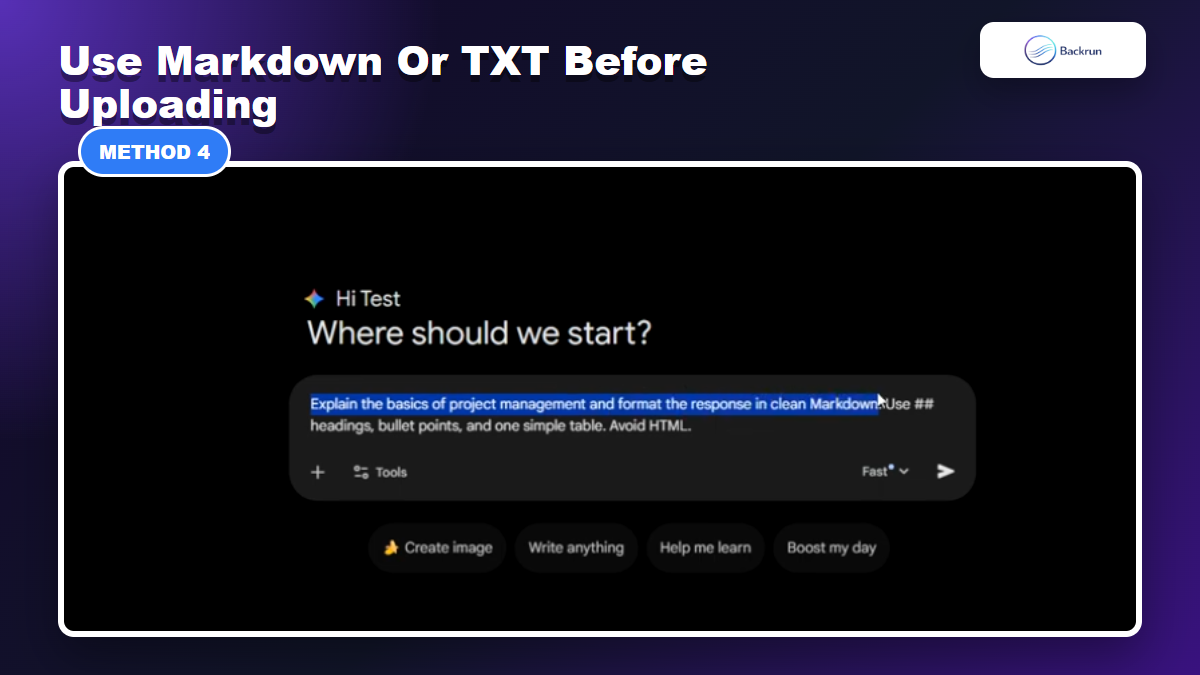
4. Turn the Gemini Chat Into Markdown or TXT Before Uploading
Markdown or TXT gives ChatGPT a cleaner structure than a messy visual copy-paste.
Markdown and TXT are often cleaner than PDF when you want ChatGPT to understand structure. PDF can preserve the visual layout, but Markdown and TXT make headings, lists, code blocks, and tables easier for ChatGPT to parse.
Ask Gemini to format the final conversation summary as Markdown or plain text.
Use clear sections: goal, source facts, decisions, constraints, examples, open questions, and next action.
Save the output as .md or .txt.
Upload the file to ChatGPT or paste the text if the file is short.
Ask ChatGPT to preserve the section structure before rewriting or expanding it.
Best for: technical notes, prompt libraries, code-heavy answers, structured research, and workflows that continue in GitHub, Obsidian, docs sites, or ChatGPT projects.
Advantage: Markdown makes the transferred context readable for both humans and AI. It also reduces the chance that a table or code sample becomes a broken paragraph.
Limitation: if you ask Gemini to summarize instead of export, you are no longer preserving every message. You are creating a structured version of the important context.
Good prompt:Convert this Gemini conversation into clean Markdown for ChatGPT. Preserve decisions, constraints, examples, links, code blocks, tables, and open questions. Remove small talk.
For a more detailed Markdown workflow, see Backrun's guide on Gemini to Markdown. If you need the same idea on the ChatGPT side, the ChatGPT to Markdown guide is the closest companion article.
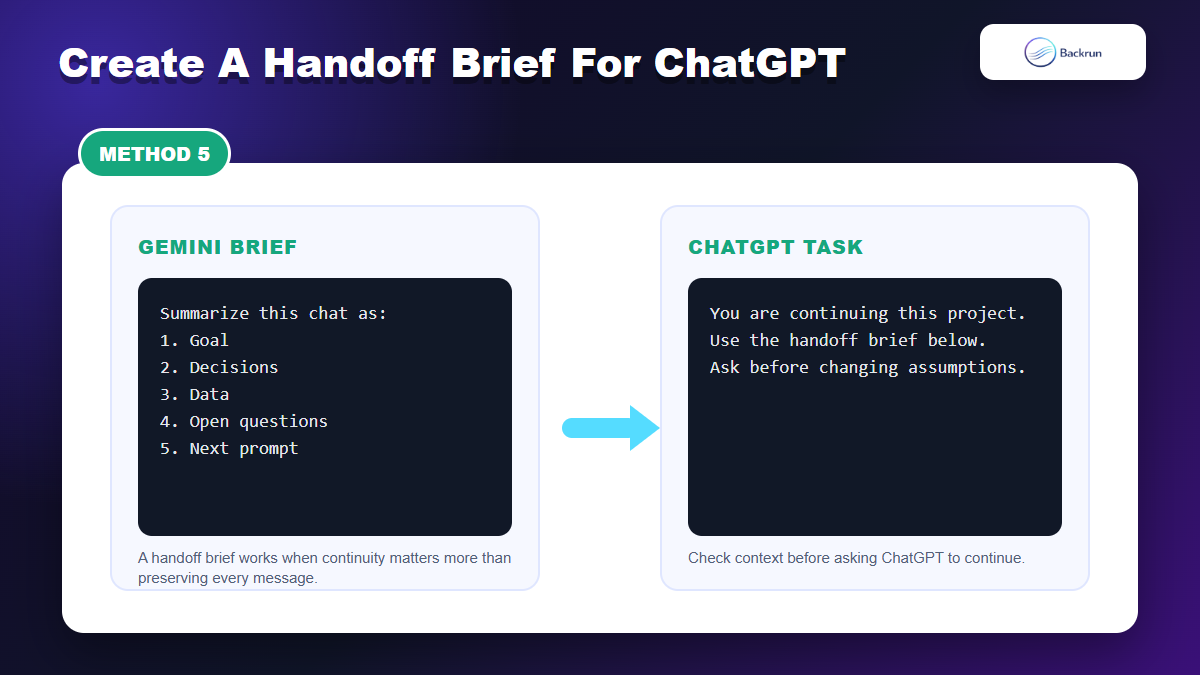
5. Create a Handoff Brief for ChatGPT
A handoff brief helps ChatGPT continue the work without importing the entire conversation.
A handoff brief is the most reliable method when your goal is not to archive the Gemini transcript, but to make ChatGPT continue the work correctly. Instead of moving every message, ask Gemini to produce a concise project brief that ChatGPT can use as the new starting point.
Return to the Gemini conversation after the useful work is done.
Ask Gemini to create a handoff brief with the exact structure ChatGPT needs.
Require Gemini to separate facts from assumptions.
Paste the brief into ChatGPT and ask it to confirm the context.
Continue the task only after ChatGPT restates the goal accurately.
Best for: strategy work, writing projects, coding plans, research synthesis, product decisions, and any task where continuity matters more than transcript history.
Advantage: it saves tokens and reduces noise. ChatGPT gets the decisions and constraints without reading every exploratory message.
Limitation: the brief is only as good as Gemini's summary. If a detail is critical, include it manually.
Handoff prompt:Create a ChatGPT handoff brief from this conversation. Include: objective, background, decisions made, important facts, constraints, rejected ideas, unresolved questions, and the exact next prompt ChatGPT should answer.
Review habit: skim the brief before pasting it. Look for missing dates, numbers, tool names, links, and assumptions. These are the details most likely to change ChatGPT's answer.
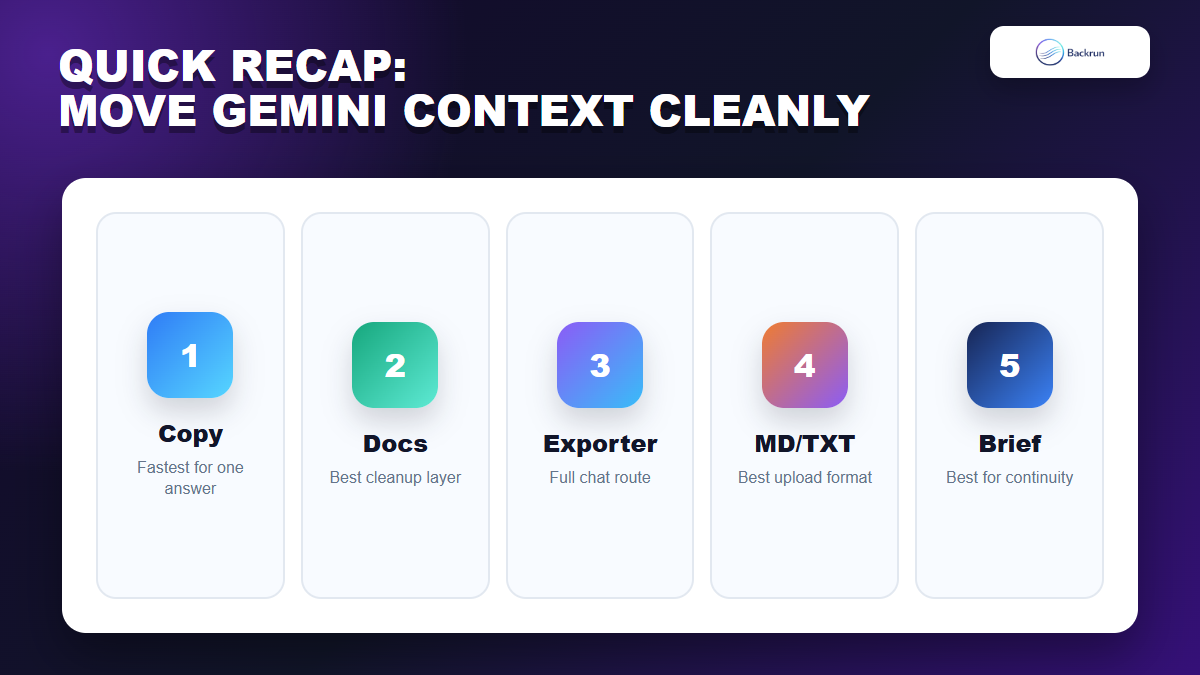
Quick Recap
Choose the transfer method based on whether you need one answer, an edited document, a full chat, or a compact context brief.
The best way to move Gemini work into ChatGPT depends on how much context you need and how much formatting you need to preserve.
Method
Use it when
Main strength
Main caution
Copy the Gemini answer
You need one useful response
Fastest route
Not a full chat export
Google Docs workspace
You want to clean content first
Easy editing layer
Manual selection still matters
Gemini Exporter plus ChatGPT upload
You need the full conversation
Best full-thread route
Check upload limits and privacy
Markdown or TXT
You need structure ChatGPT can parse
Great for code and notes
May summarize instead of preserve every line
Handoff brief
You need ChatGPT to continue the task
Cleanest context transfer
Needs human review
If you only need one answer, copy it into ChatGPT with a clear instruction. If you need the whole Gemini chat, export it first with a document workflow, clean it, then upload or paste the structured version into ChatGPT. For most real work, a reviewed handoff brief gives the best balance between context, clarity, and speed.