4 Ways to Export ChatGPT to Markdown Without Losing Structure
July 07, 20267 min read
If you need chatgpt to markdown, the main challenge is not getting text out of the chat. It is keeping headings, lists, code blocks, tables, links, and message context clean enough to use in Obsidian, GitHub, VS Code, Notion imports, or a static-site workflow.
ChatGPT does not always give you a perfect one-click Markdown file from the default interface, so the best method depends on what you are saving. A short answer needs a different workflow from a full conversation archive. Below are the practical methods that actually work.
1. Use AI Chat Exporter
Use this method when you want to export a complete ChatGPT conversation or selected messages without manually copying each response.
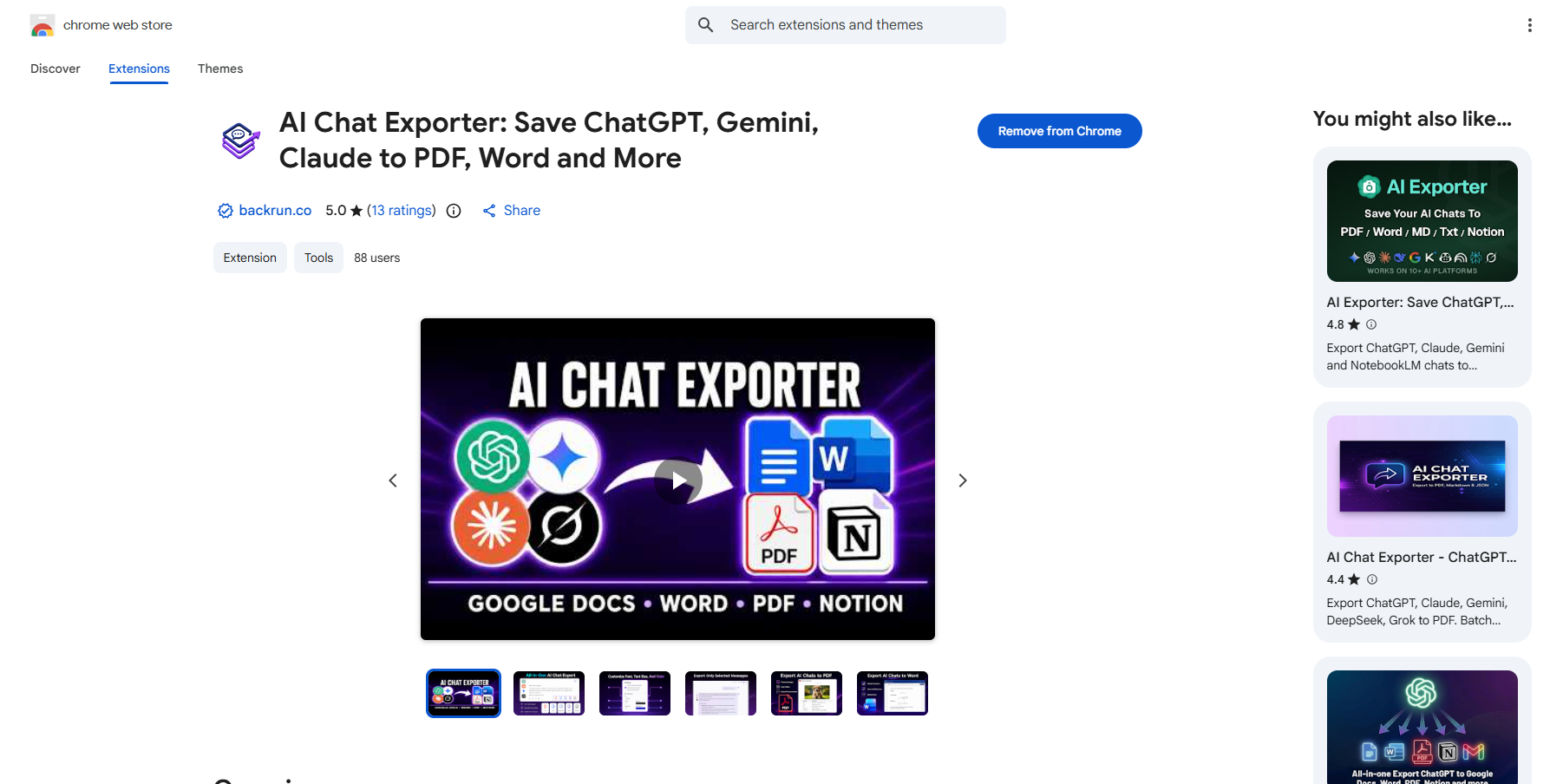
AI Chat Exporter lets you save conversations from ChatGPT, Gemini, Claude, and Grok in Markdown and other formats, including PDF, Word, Google Docs, Notion. It is especially useful when the conversation contains structured content such as headings, lists, links, tables, images, code blocks, or mathematical formulas.
Install AI Chat Exporter from the Chrome Web Store.
Open the ChatGPT conversation you want to save.
Choose the messages you want to export, or select the full conversation.
Choose Markdown from the available export formats.
Export the file and open it in your preferred Markdown editor.
Best for: Full conversations, research notes, coding sessions, client documentation, study materials, and recurring export workflows.
Advantage: It preserves the conversation structure and formatting while allowing you to export only the relevant messages.
Practical check: test the exporter on one small conversation that contains a heading, a table, a code block, and a link. If that sample imports cleanly into your Markdown editor, the workflow is safe to use for longer chats.
Good habit: Use descriptive file names such as client-research-chat-2026-07.md or api-debugging-session.md. Clear names make large Markdown archives much easier to organize and search.
2. Ask ChatGPT to Rewrite the Answer as Raw Markdown
Raw Markdown is the fastest route when you only need one clean answer.
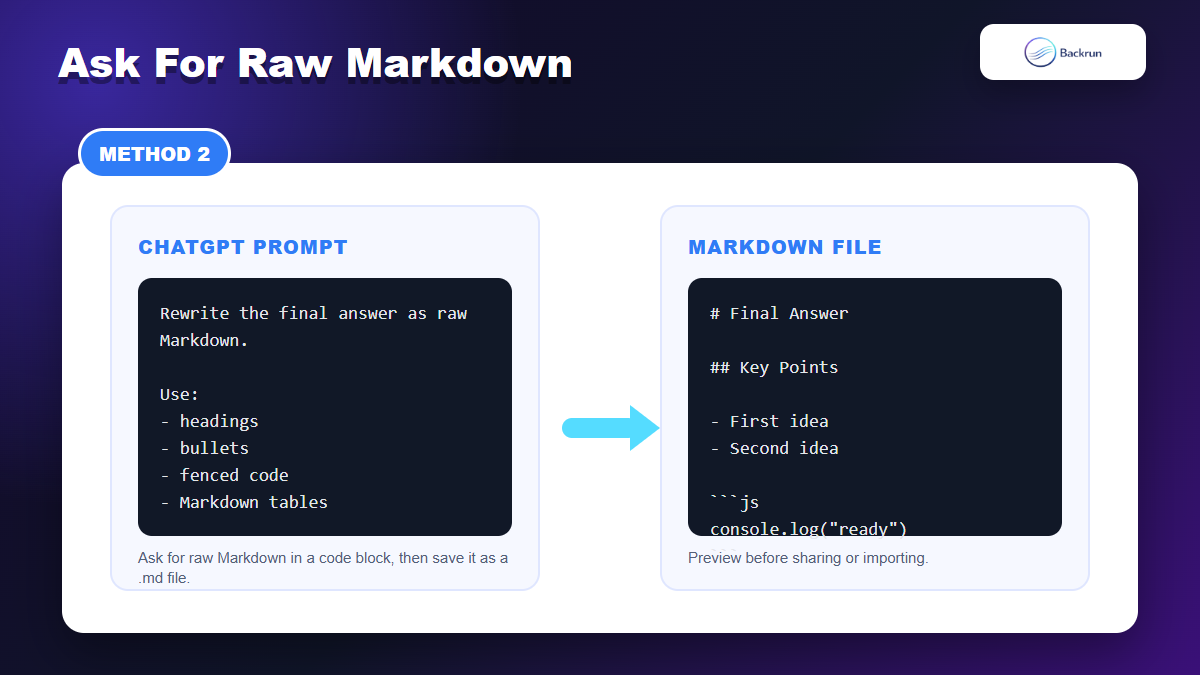
If you only need one final answer, the cleanest method is to ask ChatGPT to output raw Markdown in a code block. This avoids copying the rendered chat UI and gives you text that can be pasted directly into a .md file.
Open the answer you want to save.
Ask ChatGPT to rewrite it as Markdown. Example: Rewrite your final answer as clean raw Markdown. Use proper headings, bullets, Markdown tables, and fenced code blocks.
Ask for the Markdown inside a code block if the answer is being rendered instead of shown as raw syntax.
Copy the raw Markdown into VS Code, Obsidian, Typora, Logseq, or your documentation repo.
Preview the file before you commit, share, or publish it.
Best for: final answers, blog outlines, SOPs, prompts, study notes, and short technical explanations.
Advantage: no extension, no account-level data export, and no complicated conversion.
Limitation: this is a rewritten output, not an exact transcript. If the prompt history matters, use a full-conversation method instead.
Prompt detail that helps: ask ChatGPT to keep one blank line between blocks, use fenced code blocks with language labels, and avoid HTML unless you explicitly need it. Those three instructions prevent most Markdown preview problems.
Quality check: preview the note in the same app where you will use it. GitHub, Obsidian, Notion imports, and static-site generators can render tables, callouts, and checkboxes slightly differently.
3. Copy Code Blocks and Tables Into a Markdown Editor Carefully
Technical answers need extra care because code fences and tables are easy to break.
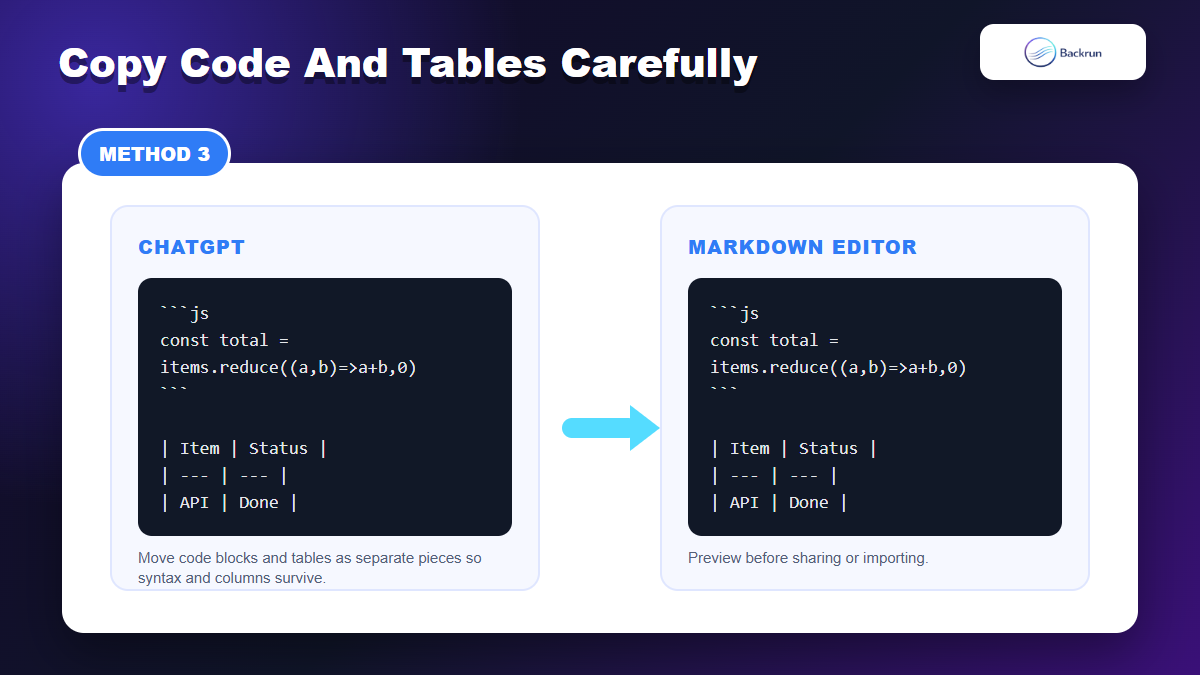
Technical conversations need a slightly different workflow. Code blocks, terminal logs, tables, formulas, and nested bullets often break when you copy a large rendered answer in one pass. The safer approach is to move each structured block separately.
Copy the normal explanation first and paste it into your Markdown editor.
Use the copy button on each ChatGPT code block instead of dragging across the browser page.
Paste code inside fenced Markdown blocks, then add the language name after the opening fence.
For tables, ask ChatGPT to regenerate the table as Markdown table syntax before copying it.
Preview the note and check column alignment, code indentation, and nested lists.
Best for: developer notes, API examples, command-line tutorials, Markdown tables, and documentation pages.
Advantage: it preserves the most fragile parts of the answer instead of relying on one giant browser copy.
Limitation: it is slower than using an exporter, and it does not preserve the entire conversation automatically.
Table tip: if the table is wide, ask ChatGPT to shorten column names before copying it. Markdown tables are plain text, so long headers often make the file difficult to read even when the preview renders correctly.
Reader check: if your end goal is Word rather than Markdown, use the separate ChatGPT to Word workflow. If you mainly need a PDF archive, the ChatGPT to PDF guide is a better fit.
4. Export ChatGPT Data and Convert the JSON to Markdown
Data export is best for bulk backup and conversion, not quick one-chat publishing.
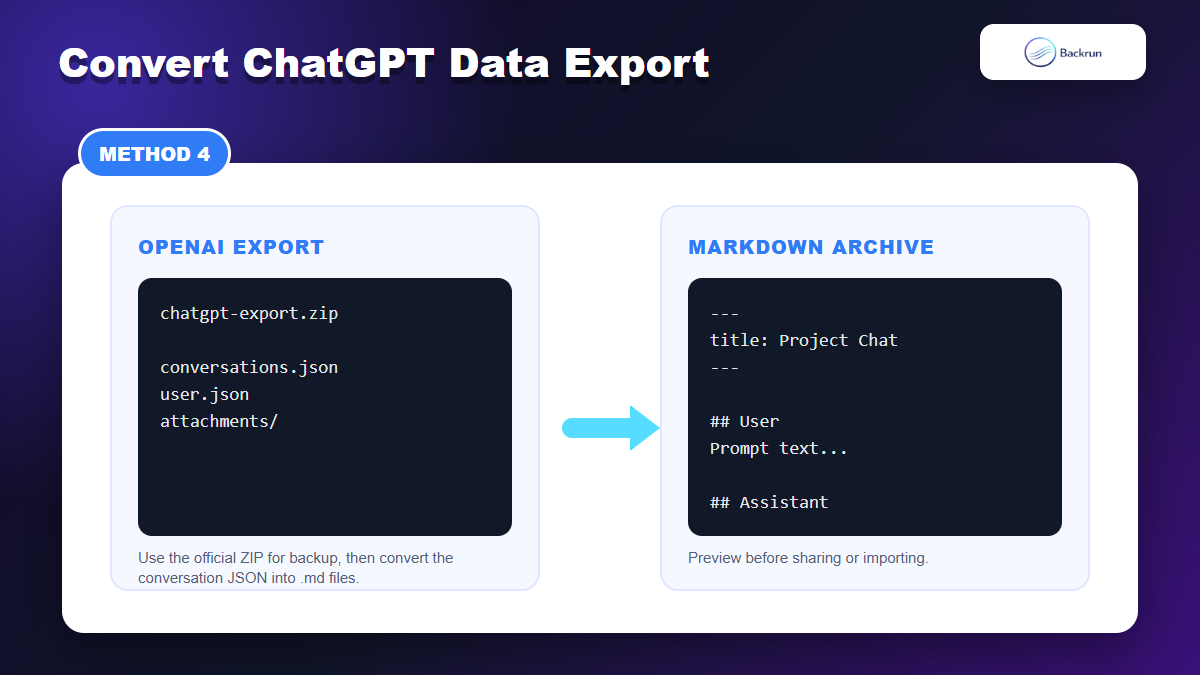
Use the official data export when you need an account-level backup or bulk conversion. OpenAI's Help Center says ChatGPT data can be requested through the Privacy Portal or from ChatGPT settings for eligible signed-in accounts, and the downloaded ZIP includes chat history and other relevant account data. It also notes that exports can take up to seven days and that the download link expires after 24 hours.
Sign in to ChatGPT with the account that owns the conversations.
Open Settings, then go to Data controls.
Choose Export data and confirm the export request.
Download the ZIP from the email or SMS link when it arrives.
Unzip the export and locate the conversation data.
Convert the conversation JSON to Markdown with a script or converter that maps each message role to headings such as ## User and ## ChatGPT.
Review the Markdown output before importing it into a vault or documentation site.
Best for: backups, migration, personal archives, and bulk conversion.
Advantage: it uses the official ChatGPT data export path instead of scraping the page.
Limitation: it is not instant, it is not a single-chat export button, and Business or Enterprise workspace availability can differ from consumer accounts. It also requires conversion work after you download the ZIP.
Developer note: add YAML frontmatter with title, date, conversation ID, and tags when converting many chats. That makes the resulting Markdown archive much easier to search later.
Privacy note: treat the ZIP as sensitive. It can include more than the one conversation you had in mind, so store it securely and delete intermediate conversion files after you finish.
If your workflow is Google Docs-first, use a dedicated Export ChatGPT to Google Docs workflow instead of converting everything to Markdown.
Quick Recap
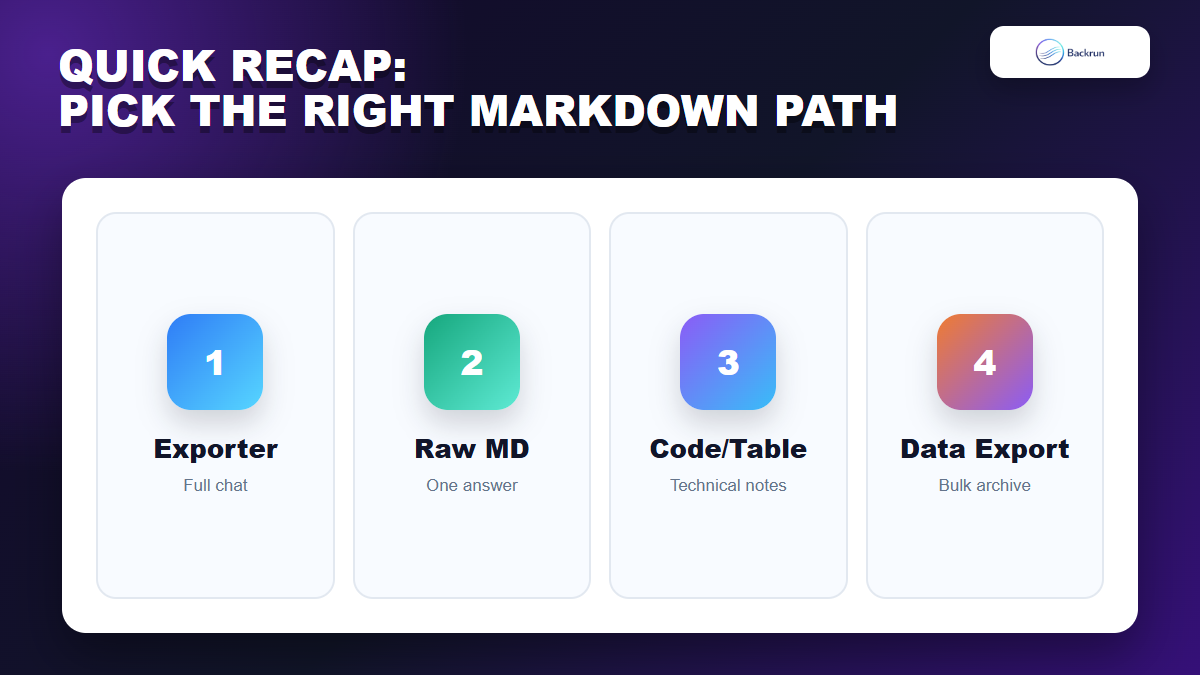
Choose the Markdown path based on whether you need a full chat, one answer, technical content, or a bulk archive.
The best way to export ChatGPT to Markdown depends on the size and purpose of the content.
Method
Use it when
Main strength
Main caution
Backrun ChatGPT Exporter
You need a full or selected chat
Fastest repeatable export workflow
Review extension permissions
Raw Markdown prompt
You need one clean answer
Simple and private
Not an exact transcript
Code/table copy workflow
You need technical accuracy
Protects fragile formatting
Manual and slower
OpenAI data export
You need a bulk archive
Official account export path
Requires conversion and review
For most readers, start with raw Markdown if you only need one answer and use Backrun ChatGPT Exporter when you need the full conversation. Use the code/table workflow for technical notes, and reserve the official data export for backup or bulk conversion. That keeps your Markdown files readable without pretending every ChatGPT export path works the same way.