5 Ways to Export Grok to Markdown Without Losing Structure
July 14, 20268 min read
If you want Grok to markdown, the real goal is usually not just getting text out of Grok. You want a clean .md file where headings, bullets, code blocks, links, and tables still make sense after the export.
Grok does not currently behave like a dedicated Markdown publishing tool. Some answers copy cleanly, some need a prompt, and long conversations are easier to save with an exporter. The right workflow depends on whether you need a full transcript, one answer, or a cleaned summary for your notes or documentation.
1. Use AI Chat Exporter to Export Grok to Markdown
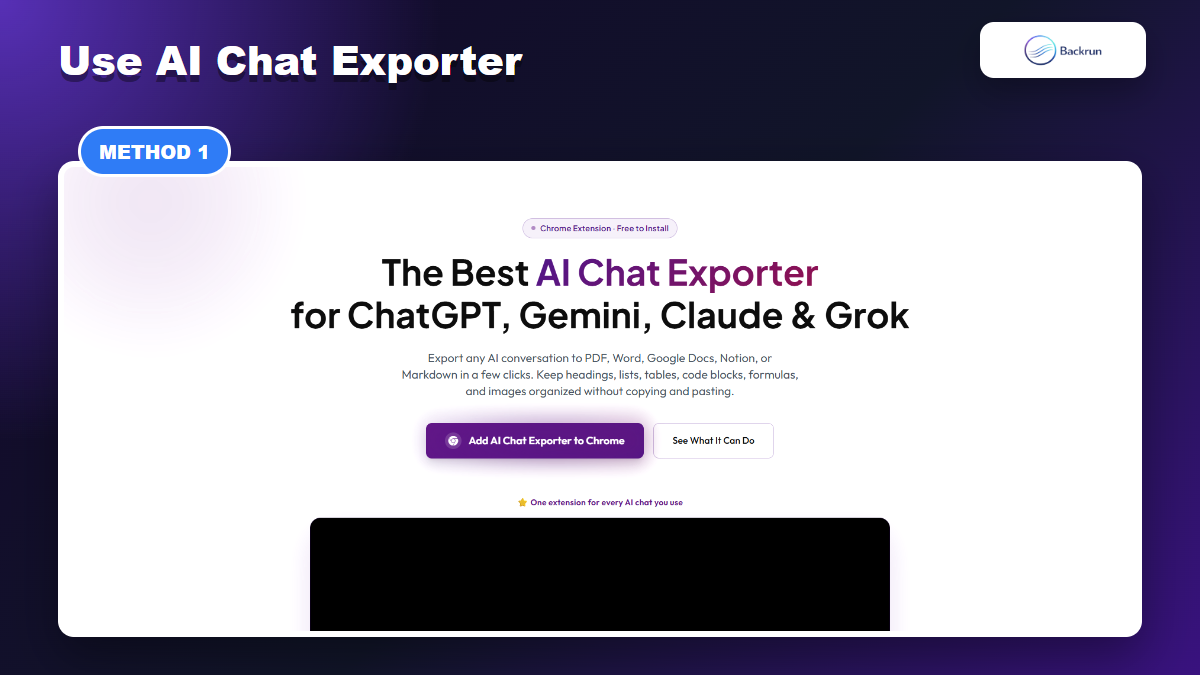
AI Chat Exporter is the most direct route when you want a full Grok conversation as Markdown.
The most direct method is to use AI Chat Exporter, Backrun's browser extension for saving AI conversations from ChatGPT, Gemini, Claude, and Grok. The product page lists Markdown as one of the export formats, alongside PDF, Word, Google Docs, and Notion.
Install AI Chat Exporter from the product page or Chrome Web Store.
Open Grok in your browser and load the conversation you want to save.
Choose whether to export the full conversation or selected messages.
Select Markdown as the output format.
Download the .md file and open it in your Markdown editor.
Preview the result before using it in a docs repo, Obsidian vault, static site, or internal knowledge base.
Best for: full Grok conversations, research archives, technical chats, prompt experiments, and anything too long to copy by hand.
Advantage: you avoid the most annoying manual cleanup work. A good exporter can keep headings, lists, tables, code blocks, formulas, and images more organized than browser copy-paste.
Limitation: always review the exported Markdown. Grok's interface and message structure can change, and complex content may still need small edits.
Practical check: test with one chat that contains a heading, table, link, and code block. If those pieces survive, the workflow is ready for real notes.
Experience note: do not judge an exporter with a plain paragraph-only chat. The real test is mixed content. If your Grok chat includes code, a comparison table, and a numbered process, the exported Markdown will show whether the tool is preserving structure or only saving text.
2. Ask Grok for Raw Markdown and Copy It
Raw Markdown is best when you only need one answer or one polished section.
If you only need one final answer, ask Grok to output raw Markdown directly. This is often faster than exporting the whole conversation, especially when the chat has a lot of exploratory turns that you do not want to keep.
Open the Grok response you want to save.
Ask Grok to rewrite the answer as raw Markdown. Example: Format the final answer as clean raw Markdown. Use headings, bullets, Markdown tables, and fenced code blocks. Do not use HTML.
Ask Grok to place the Markdown in one code block if the formatting renders visually instead of showing syntax.
Copy the raw Markdown.
Paste it into a .md file and preview it.
Best for: one answer, a short summary, a code explanation, a checklist, or a final research note.
Advantage: no extension is required. You also get a chance to make Grok simplify the answer before saving it.
Limitation: this is not a true transcript export. Grok may rewrite or compress earlier context unless you ask it to preserve specific details.
Prompt detail that helps: tell Grok exactly where the Markdown will go. GitHub, Obsidian, Notion import, and static-site generators can treat tables and callouts differently.
Quality check: look for broken nested bullets, missing blank lines before headings, and code fences without a language name.
When to avoid it: do not use this route for a conversation where the earlier prompts matter. Raw Markdown is excellent for a final answer, but it can hide the reasoning path, rejected options, or source details that appeared earlier in the chat.
3. Copy a Grok Answer Into a Markdown Editor
A Markdown editor helps you fix headings, lists, tables, and code fences after copying from Grok.
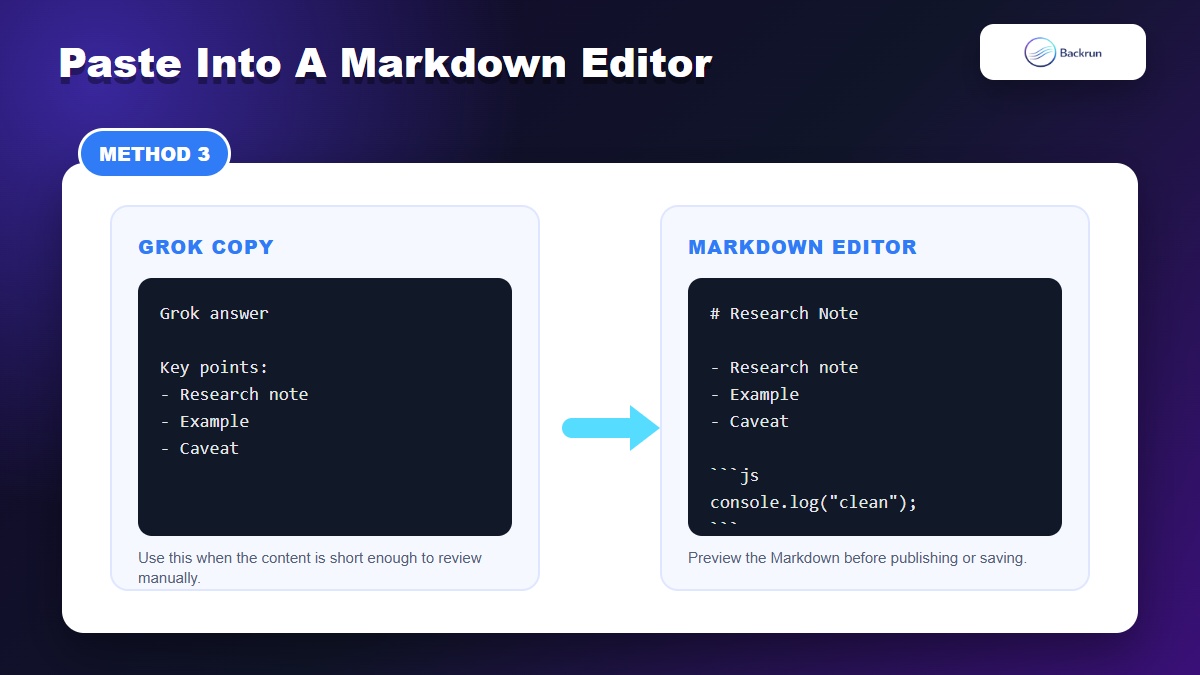
Manual copy still works when the content is short and you want full control. The difference between a messy paste and a useful Markdown file is the cleanup step. Paste into a real Markdown editor instead of a rich-text app, then fix the structure before saving.
Copy the useful Grok answer, not the whole thread.
Paste it into VS Code, Obsidian, Typora, or another Markdown editor.
Convert headings to #, ##, and ###.
Repair lists and tables so they render correctly in preview mode.
Wrap code in fenced code blocks and add the language name where useful.
Save the file as .md.
Best for: short Grok answers where accuracy matters more than speed.
Advantage: you can edit as you go. This is useful for developer notes, documentation snippets, and publishing drafts.
Limitation: it becomes slow for long chats. If you are copying more than a few screens, use AI Chat Exporter or create a handoff brief instead.
Editor tip: use split preview mode. You will catch missing spaces, broken tables, and code indentation problems immediately.
Accuracy tip: keep the original Grok tab open while editing. If a line looks suspicious after paste, compare it against the original answer before you commit the Markdown file to a docs repo or knowledge base.
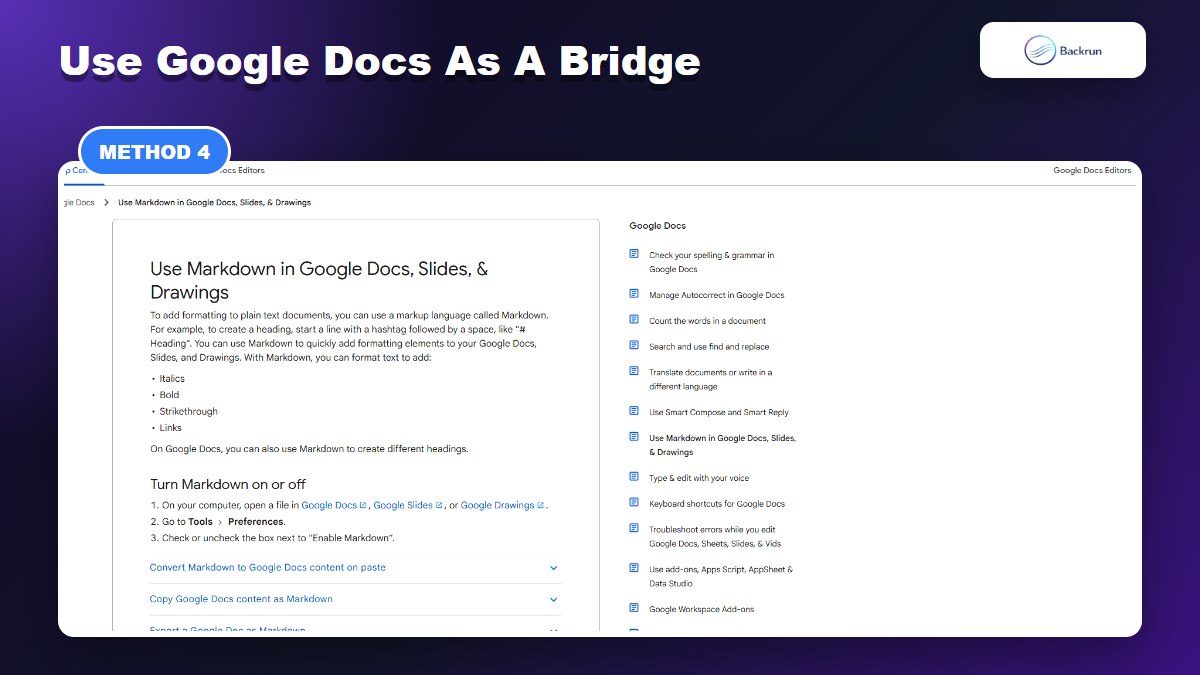
Google Docs can be a cleanup layer before copying or downloading Markdown.
Google Docs can work as a middle step when you want to review Grok's output visually before turning it into Markdown. Google's own Docs Help explains Markdown copy and export options, which makes Docs a useful bridge when the content needs human cleanup.
Copy the Grok answer into a Google Doc.
Clean the structure: headings, bullets, tables, links, and code sections.
Use copy as Markdown for a selected section if your workspace supports it.
Use File > Download > Markdown when you need the whole document as a .md file.
Open the downloaded Markdown and check the rendering.
Best for: writing drafts, meeting notes, research summaries, and content that benefits from editing before export.
Advantage: Google Docs gives you a familiar review layer before the final Markdown file.
Limitation: Docs can change spacing or code formatting. Inspect code blocks and tables before publishing.
Good habit: keep one source document and one final Markdown file. Do not keep editing both versions at the same time, or the content will drift.
Best fit: this method is strongest for editorial work. If you are turning a Grok answer into a blog draft, SOP, checklist, or research summary, the visual editing step usually saves time before the final Markdown export.
If your team already uses Gemini in Docs workflows, Backrun's Gemini to Markdown guide covers a similar Google Docs bridge from another AI platform.
5. Create a Clean Markdown Handoff Summary from Grok
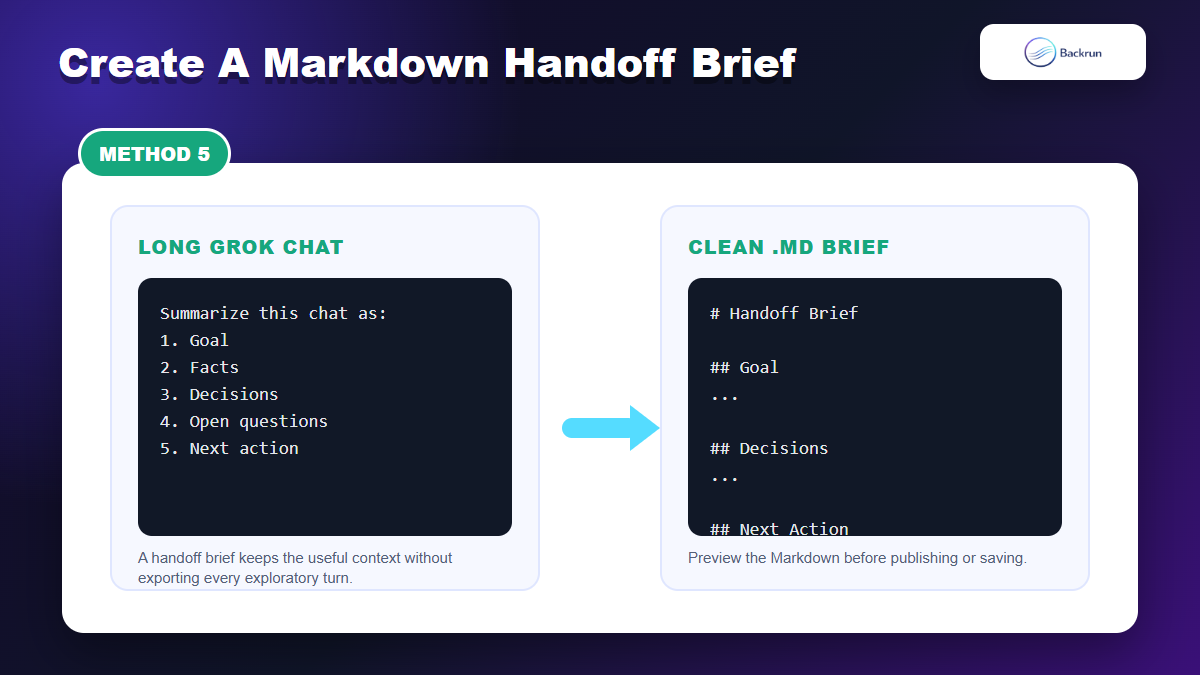
For long chats, a structured Markdown handoff is often cleaner than a raw transcript.
For long Grok conversations, exporting every message is not always the best answer. If the purpose is to continue the work elsewhere, ask Grok to create a Markdown handoff summary instead. This keeps the important decisions while removing trial-and-error prompts.
Return to the end of the Grok chat.
Ask Grok to summarize the conversation as Markdown.
Require clear sections: goal, facts, decisions, assumptions, examples, unresolved questions, and next actions.
Ask Grok to separate facts from guesses.
Copy the Markdown handoff into your notes, docs repo, or another AI tool.
Best for: research synthesis, strategy planning, coding context, content briefs, and any chat where the final state matters more than the full transcript.
Advantage: a handoff summary is shorter, cleaner, and easier to reuse than a raw chat export.
Limitation: summary quality depends on the prompt. If a detail is critical, include it manually or verify it against the original chat.
Reusable prompt:Create a clean Markdown handoff from this Grok chat. Include objective, source facts, decisions, constraints, rejected ideas, open questions, and the next action. Preserve important links and code blocks.
Review habit: scan for missing numbers, dates, tool names, and links. Those small details often change how useful the Markdown file is later.
Trust check: if the handoff will guide a business, technical, or client decision, ask Grok to list what it is uncertain about. A good Markdown handoff should make uncertainty visible instead of making the summary sound more complete than it is.
Quick Recap
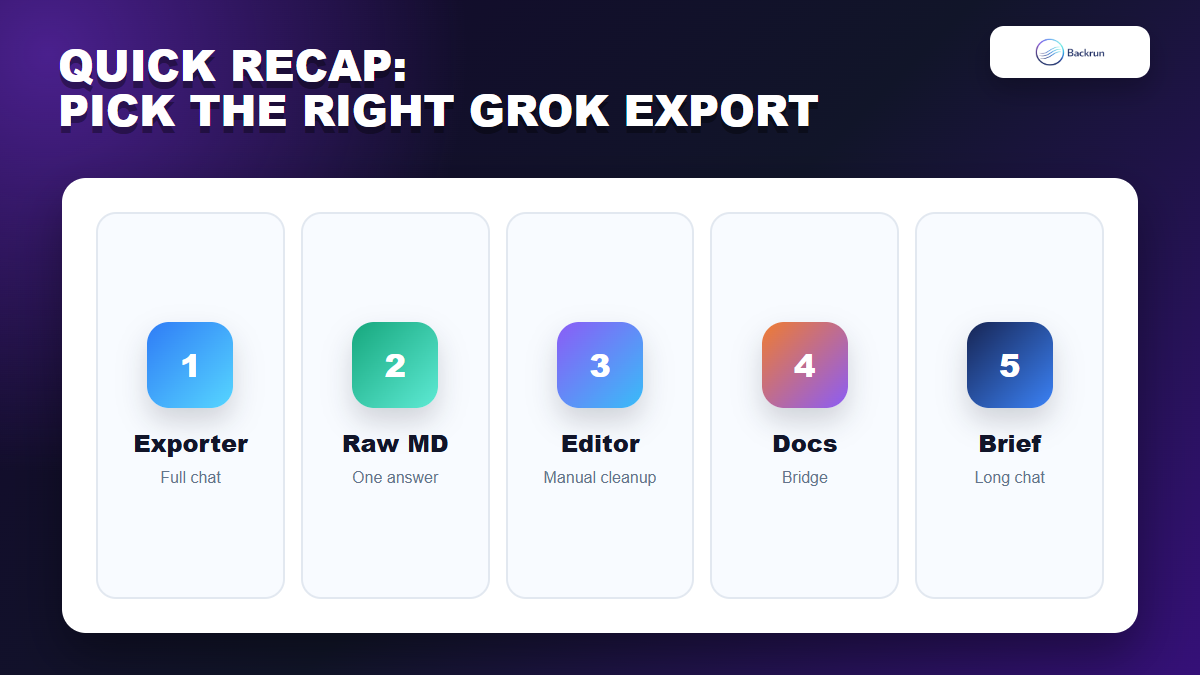
Choose the method based on whether you need the whole Grok chat, one answer, a cleaned note, or a compact project brief.
The best Grok to Markdown workflow depends on how much context you need and how much cleanup you are willing to do.
Method
Use it when
Main strength
Main caution
AI Chat Exporter
You need the full Grok chat
Direct Markdown export
Review complex formatting
Raw Markdown prompt
You need one answer
Fast and simple
Not a transcript
Markdown editor cleanup
You want manual control
Best accuracy for short content
Slow for long chats
Google Docs bridge
You need visual editing first
Good writing workflow
Check code and tables
Markdown handoff brief
You need reusable context
Cleanest for long chats
Requires review
Start with AI Chat Exporter when you need a full Grok conversation as Markdown. Use raw Markdown prompts for one answer, a Markdown editor for careful cleanup, Google Docs for content review, and a handoff brief when you want the useful context without saving every exploratory turn.