How to Export ChatGPT Conversations to Word Without Losing Formatting
July 03, 20267 min read
Moving ChatGPT to Word is easy if you only need one paragraph, but it gets messy when the conversation contains prompts, revisions, tables, code blocks, citations, and long answers. The right export method depends on whether you need the complete chat history or a polished Word document created from the final answer.
This guide compares the practical ways to export a ChatGPT conversation to Microsoft Word. Each method solves a different use case, so you can avoid rebuilding the document by hand or damaging the formatting during copy-paste.
Use ChatGPT Exporter to Save the Full Conversation as Word
Use a full-chat exporter when you need the conversation history, not just one answer.
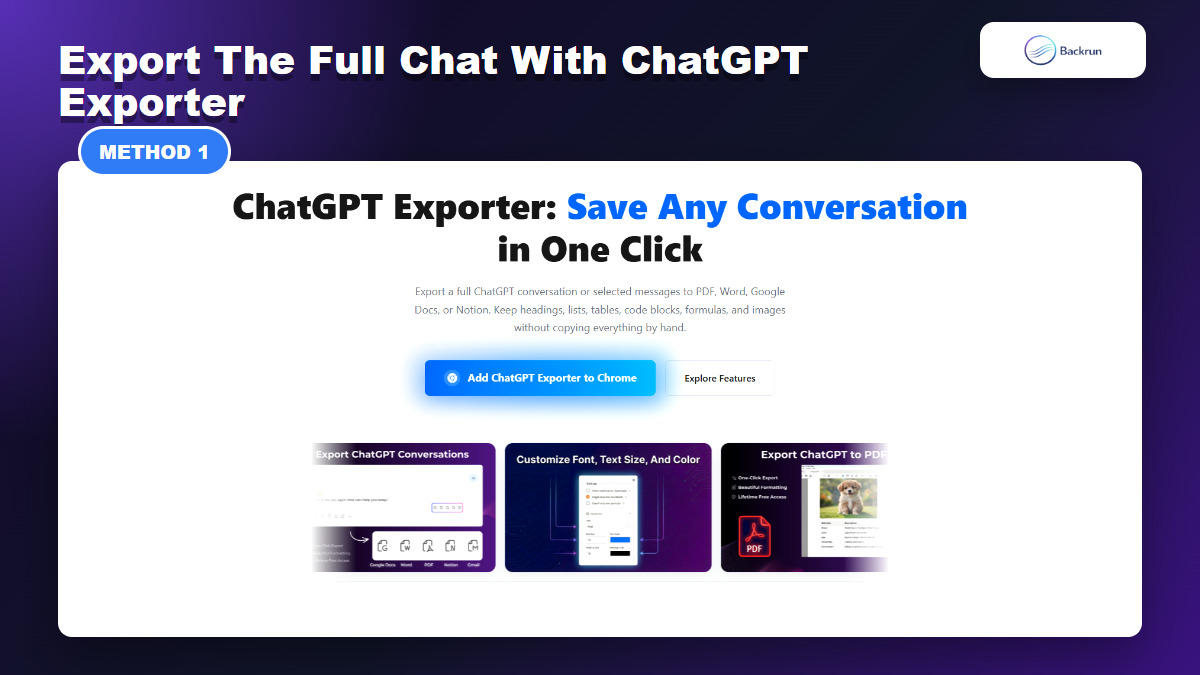
If you need the complete conversation, a dedicated exporter is the most direct workflow. Backrun ChatGPT Exporter is designed to save full or selected ChatGPT messages into formats such as Word, PDF, Google Docs, and Notion, which makes it useful when the back-and-forth context is part of the record.
Open the ChatGPT conversation you want to export.
Load the full thread so older messages are visible.
Open the exporter controls and choose the messages you need.
Select Word or DOCX as the output format.
Open the file in Microsoft Word and check headings, lists, tables, links, and code blocks.
Best for: research chats, client notes, study sessions, long planning conversations, and any workflow where prompt context matters.
Advantage: it avoids copying messages one by one and preserves more of the conversation structure.
Limitation: browser extensions require a trust decision. Review permissions and avoid exporting confidential content unless your workflow allows it.
Practical check: after opening the DOCX, compare the first and last messages with the original chat. That quick check catches incomplete exports before the file is forwarded to a client, teacher, or teammate.
Ask ChatGPT to Create a Word-Ready DOCX Draft
A Word-ready draft works best when the final document matters more than the raw chat transcript.
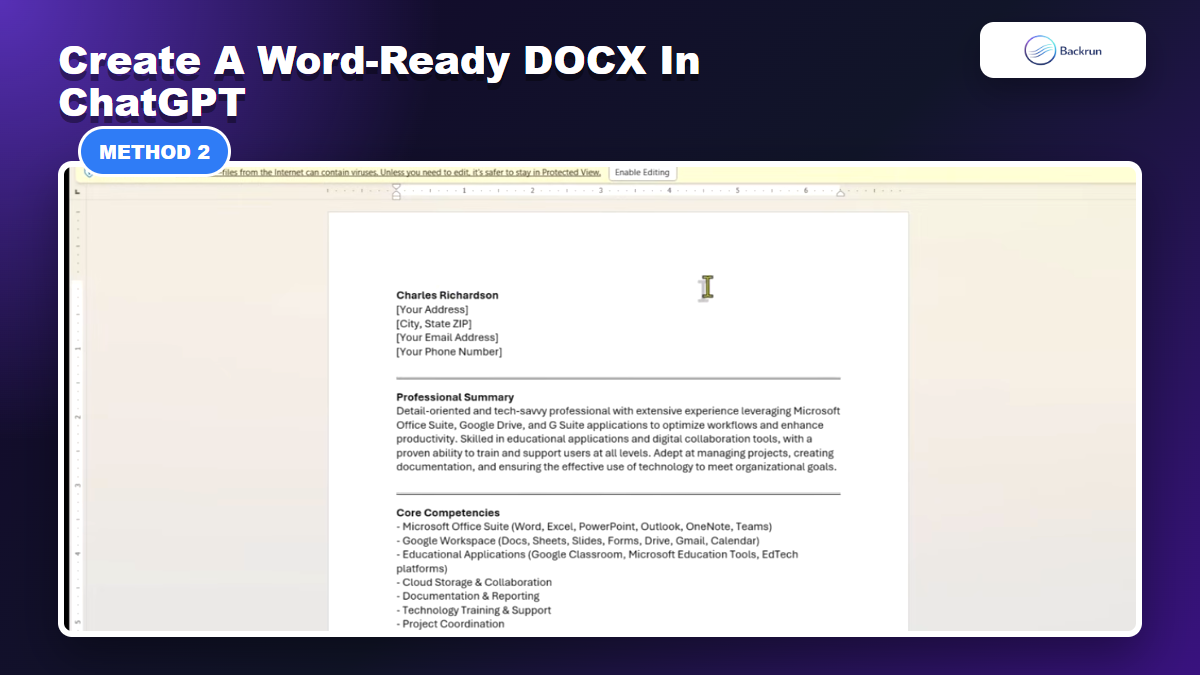
Sometimes you do not need a raw transcript. You need ChatGPT to turn the conversation into a clean document: a report, SOP, proposal, lesson plan, resume draft, content brief, or meeting summary. In that case, ask ChatGPT to consolidate the chat before you move it into Word.
Tell ChatGPT the final document type, such as report, checklist, brief, or SOP.
Ask for Word-ready structure with clear heading levels, short paragraphs, bullets, and simple tables.
Request a DOCX-style layout with no browser-only formatting.
Copy the final draft into Word, or download a file if your ChatGPT workspace provides file creation for that chat.
Apply Word styles such as Heading 1, Heading 2, Normal, List, and Table Design.
Best for: polished deliverables where the final document matters more than every message in the conversation.
Advantage: the document reads better because ChatGPT reorganizes the material before it reaches Word.
Limitation: this is not a complete archive. If you need every prompt and answer, use a full-chat export method.
Good prompt pattern: ask for a "Word-ready document with short paragraphs, real heading levels, simple tables, and a final checklist." This reduces the cleanup work after pasting into Word.
Copy Selected ChatGPT Messages Into Word Manually
Manual copy-paste is fast for short excerpts but weak for complex formatting.
Manual copy-paste is still the fastest route for a short answer. It works well when you only need one section, a small outline, or a few paragraphs inside an existing Word document.
Copy only the useful ChatGPT message, not the whole browser page.
Paste into Word and inspect whether headings, bullets, links, and tables survived.
Use Paste Options such as Keep Text Only when the imported styling looks inconsistent.
Rebuild headings with Word styles instead of relying on pasted bold text.
Check tables and code blocks separately, because they are the easiest parts to break.
Best for: short excerpts, one-off notes, quick outlines, and documents where you want full manual control.
Advantage: no extension, no file upload, and no conversion step.
Limitation: it does not scale. If your main problem is preserving table columns, use the more focused guide on how to copy a table from ChatGPT to Word.
Move ChatGPT to Google Docs First, Then Download as Word
Google Docs is useful as a cleanup step before downloading a DOCX file.
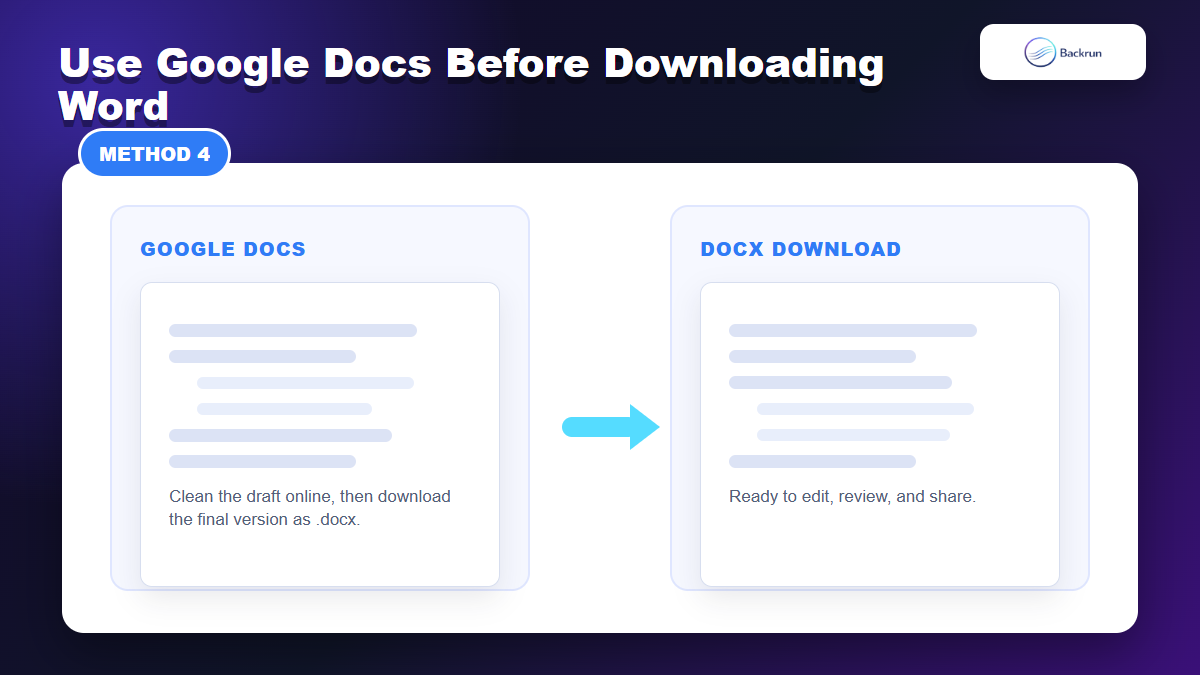
Google Docs can be a useful cleanup layer before Word. This method is helpful when you want to collaborate, review, or restructure the content online before downloading a DOCX file.
Move the ChatGPT content into Google Docs by copying it manually or using an export workflow.
Clean the headings, bullets, and tables while the document is easier to collaborate on.
Use comments or suggestions if someone else needs to review the draft.
Choose File > Download > Microsoft Word (.docx).
Open the DOCX in Word and check spacing, tables, and image placement.
Best for: collaborative editing, team review, and drafts that need cleanup before becoming a Word file.
Advantage: Google Docs gives you a flexible editing stage before the final DOCX download.
Limitation: two conversions can introduce formatting drift. If this is your main route, the dedicated guide on how to export ChatGPT to Google Docs explains the Docs-first workflow in more detail.
Save ChatGPT as PDF, Then Convert the PDF to Word
PDF-to-Word is a recovery path when you already saved the chat as a PDF.
PDF-to-Word is a fallback, not the cleanest starting point. Use it when you already saved a ChatGPT conversation as a PDF and later realize you need an editable Word document.
Save or print the ChatGPT conversation as PDF.
Open Microsoft Word and choose the PDF file.
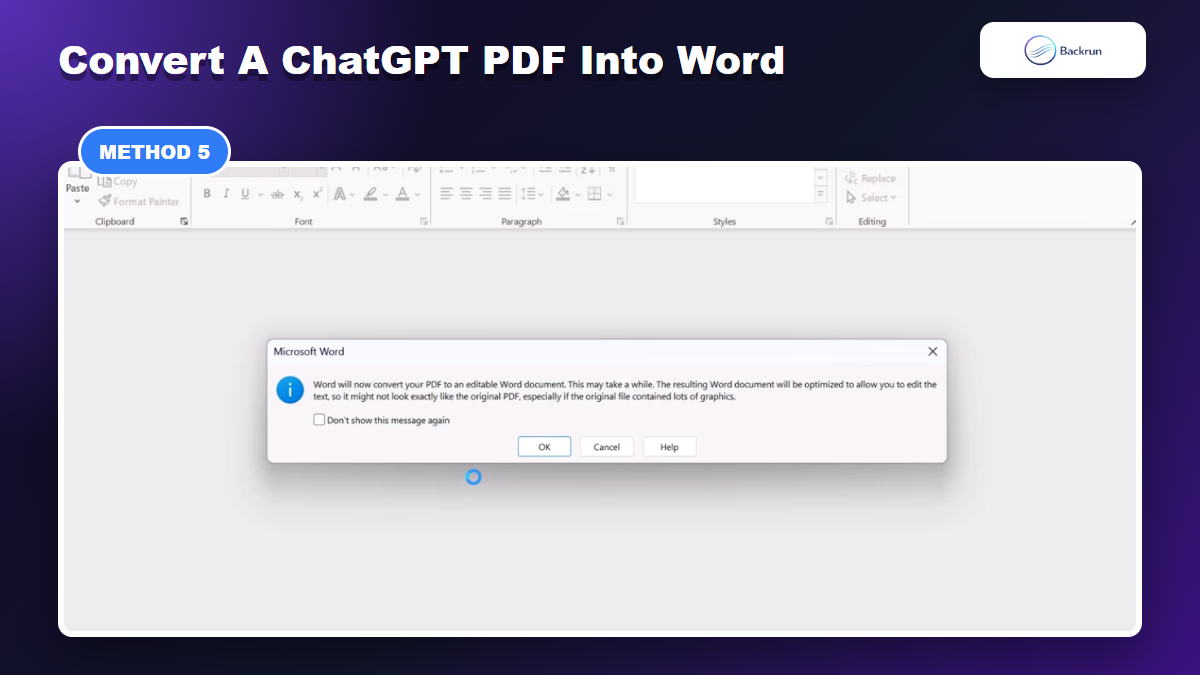
Accept the conversion notice when Word explains that it will create an editable document.
Save the converted file as DOCX.
Review the converted layout, especially tables, page breaks, images, and code blocks.
Best for: recovering an editable file from an old PDF archive.
Advantage: it can rescue a document when the original chat or export workflow is no longer convenient.
Limitation: PDF conversion can change layout. Microsoft notes that converted PDFs may not look exactly like the original, especially when the file contains complex formatting. If you need a PDF-first archive instead of Word, start with the ChatGPT to PDF workflow.
Quick Recap
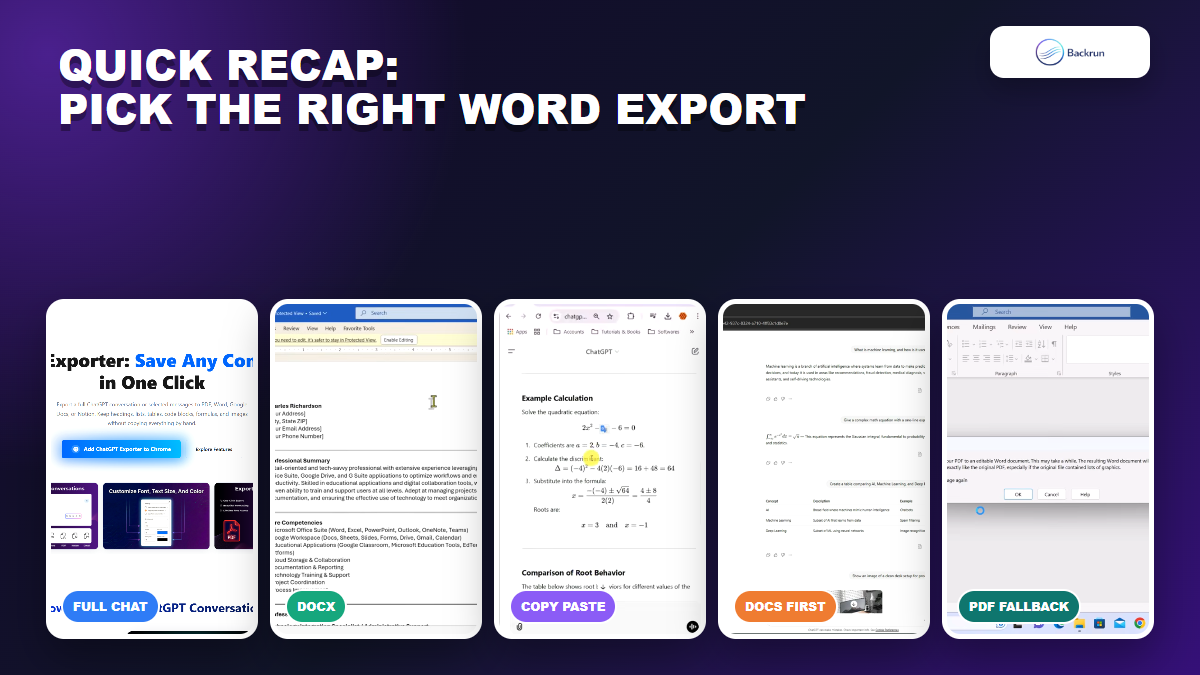
Choose the workflow based on whether you need a full chat, a polished DOCX, a short excerpt, a Google Docs cleanup step, or a PDF recovery path.
The best ChatGPT to Word workflow depends on what you need to preserve: the full conversation, a polished document, a short excerpt, a collaborative draft, or an old PDF archive.
Method
Use it when
Main strength
Main caution
ChatGPT Exporter
You need the full conversation
Best full-chat Word export
Review extension permissions
Word-ready DOCX draft
You want a polished deliverable
Cleaner document structure
Not a raw archive
Manual copy-paste
You only need a short section
Fast and transparent
Weak for tables and long chats
Google Docs first
You need collaboration before Word
Good cleanup layer
Extra conversion step
PDF to Word
You already saved a PDF
Good recovery path
Layout can shift
For a complete archive, use ChatGPT Exporter. For a polished deliverable, ask ChatGPT to restructure the conversation first. For one answer, copy it manually. For collaborative cleanup, use Google Docs before downloading DOCX. For old PDF files, convert them only after checking the layout. That gives you a practical way to move ChatGPT to Word without rebuilding the whole conversation by hand.