How to Export Gemini to Notion Without Losing Your Notes
August 11, 20266 min read
If you want to export Gemini to Notion, the goal is not just moving text from one tab to another. The useful part is keeping the conversation readable after it lands in your workspace: headings, lists, tables, code blocks, links, and the context behind the answer.
There are a few practical ways to do it. Some are good for a full Gemini conversation. Some only make sense for one response. And one method is better treated as a backup workflow, not a daily writing workflow. Below are the approaches that actually work.
1. Use Gemini Exporter to Send Gemini Directly to Notion
Use Gemini Exporter when you need a complete Gemini conversation inside Notion, not just one copied answer.
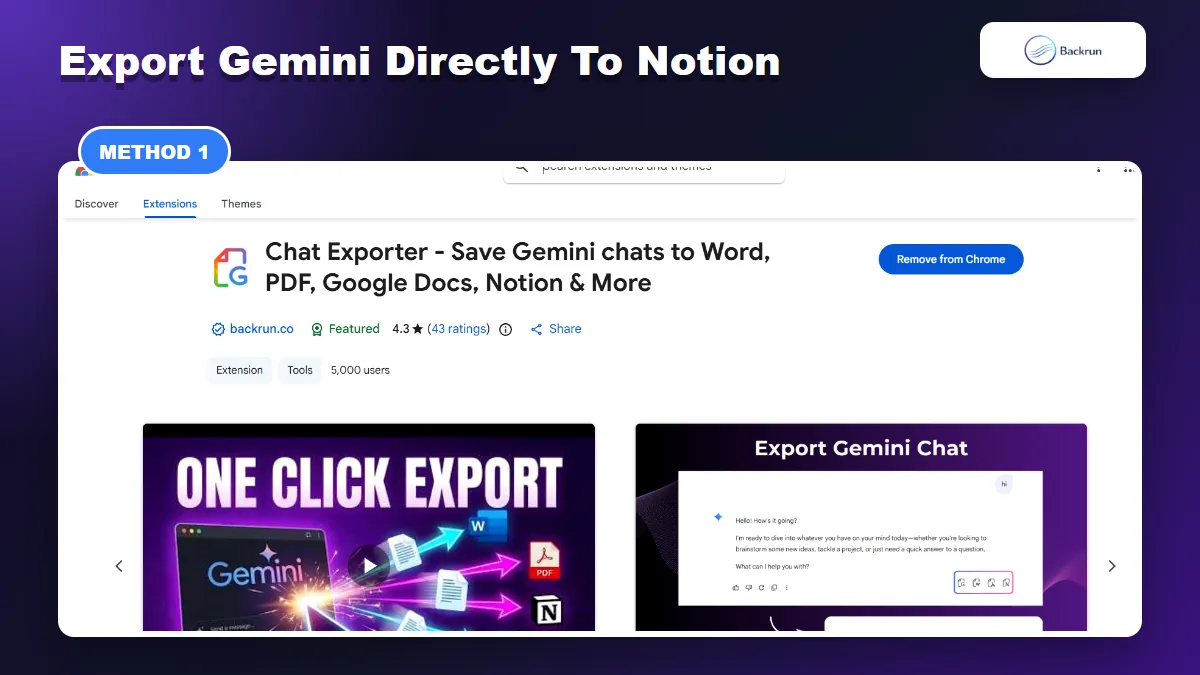
The most direct workflow is to use a browser extension built for AI chat exports. This is the best option when you want to move a complete Gemini conversation into Notion without rebuilding the page manually.
Here is the step-by-step workflow for exporting Gemini into Notion with Backrun.
Open Gemini and load the conversation you want to save.
Select the messages you need, or choose the full conversation if the whole thread matters.
Choose Notion as the export destination inside the exporter.
Authorize Notion if prompted, then select the page or workspace where the note should go.
Open the Notion page and check headings, lists, tables, code blocks, formulas, and links.
Best for: research chats, product notes, writing briefs, prompt libraries, technical explanations, and long Gemini threads where context matters.
Why it works: Gemini Exporter is designed for AI chat structure instead of generic webpage clipping. The Chrome Web Store listing describes exports to Word, PDF, Google Docs, Notion, and more.
Practical note: export the useful conversation, then add a short summary at the top of the Notion page. That makes the note searchable and easier to reuse later.
2. Export a Gemini Response to Google Docs, Then Move It Into Notion
Gemini can export one response to Google Docs, which you can then move into Notion.
Gemini has a built-in export option for Google Docs, but it is important to understand the limitation: this is usually a response-level workflow, not a full-conversation export.
Use this method when one Gemini answer is already polished and you want a quick editable document before moving it into Notion.
Open the exact Gemini response you want to save.
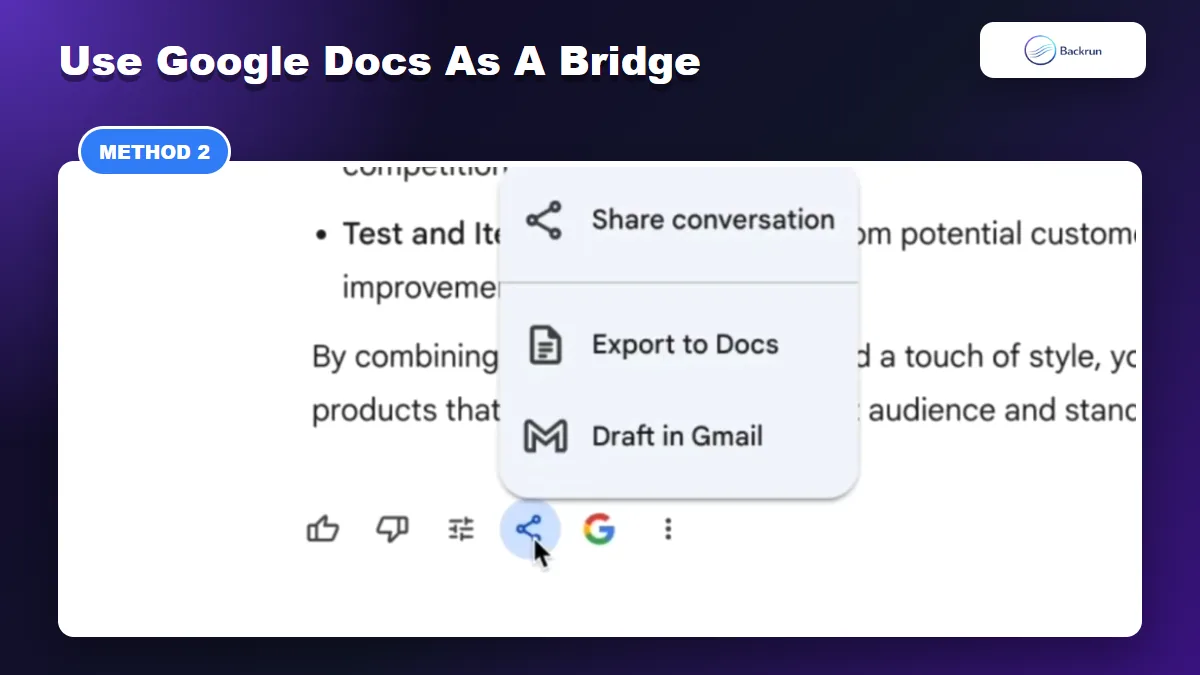
Click Share and export under the response.
Choose Export to Docs. Google says this creates a new document in Google Drive.
Open the Google Doc and clean up the title, headings, tables, and links.
Move the content into Notion by importing, copying, or placing it into the correct Notion page or database.
Best for: one final answer, a clean draft, a checklist, a client-ready explanation, or a section that needs light editing before Notion.
Limitation: this does not neatly export a whole Gemini conversation. If you need every prompt and reply, use Gemini Exporter or an archive workflow instead.
If you often use Google Docs as the middle step, this related Backrun guide on Gemini to Google Docs goes deeper into that workflow.
3. Export Gemini as Markdown, Then Import Markdown Into Notion
Markdown is a clean bridge when you want editable Gemini notes before importing them into Notion.
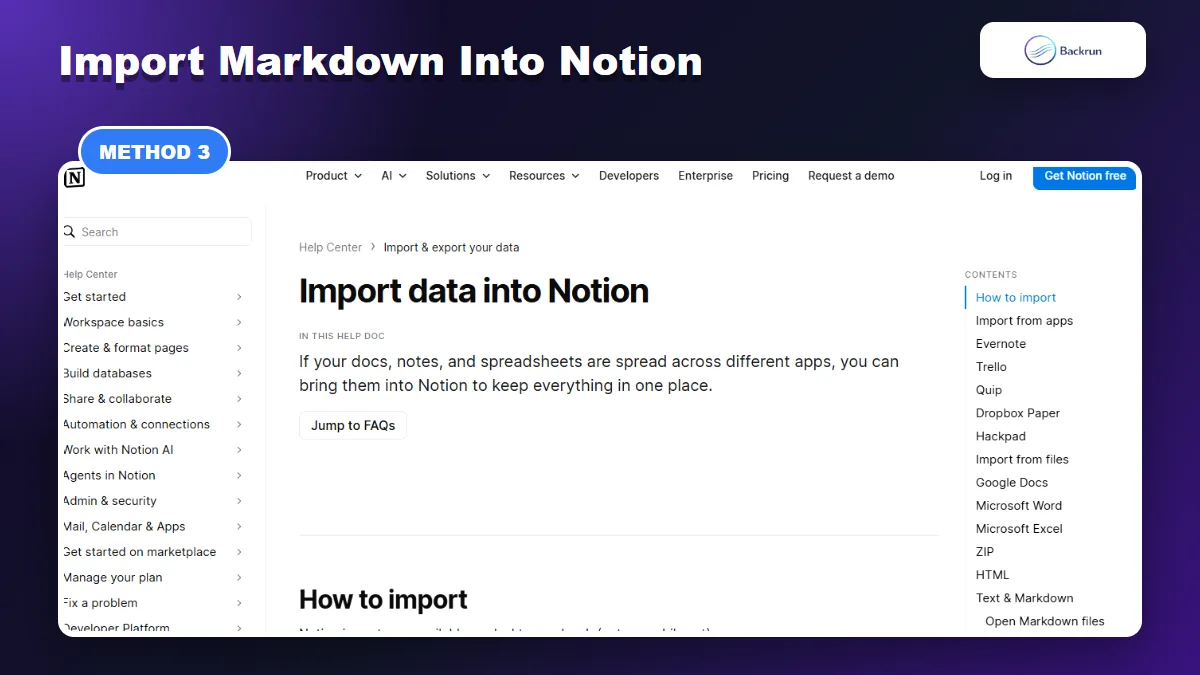
Markdown is a clean bridge when you want editable notes without trapping them inside a PDF. Notion's import documentation lists Text & Markdown as supported file types, alongside formats such as HTML, Word, PDF, and ZIP.
Use this workflow when the content should stay lightweight and easy to edit after it reaches Notion.
Export or generate the Gemini content as Markdown. You can use an exporter, or ask Gemini to create a Markdown version of the answer when that fits the workflow.
Review the Markdown file before importing. Check headings, nested lists, code fences, tables, and private information.
Open Notion on desktop or web. Notion says imports are supported on desktop and web, not mobile.
Use Notion's import option and choose Text & Markdown.
Upload the Markdown file, then inspect the imported page.
Split very long notes into smaller Notion pages if the imported page becomes difficult to scan.
Best for: documentation, developer notes, research summaries, prompt libraries, and workflows that also involve Obsidian, GitHub, or static docs.
Limitation: advanced Markdown extensions may not map perfectly to Notion blocks. Treat the imported page as a strong draft, then clean it.
If Markdown is your main destination before Notion, this related Backrun guide on Gemini to Markdown may be useful.
4. Use Google Takeout for a Gemini Archive, Then Import Selected Notes
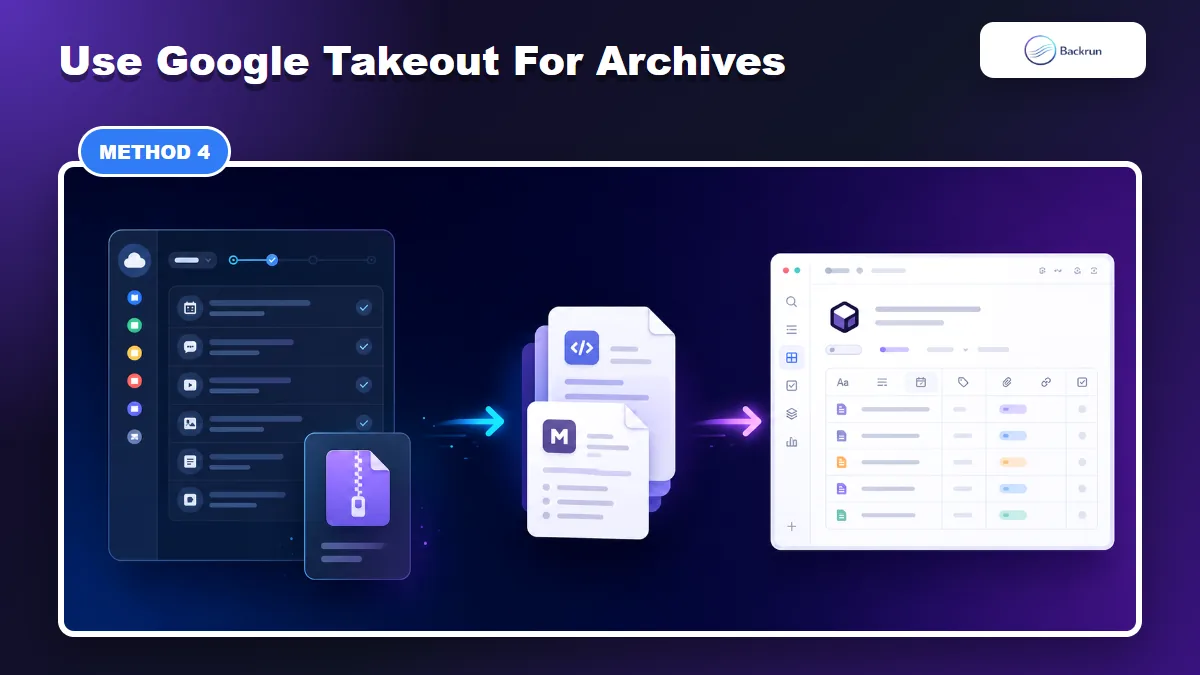
Google Takeout is useful for backups, but it is not a one-click Notion publishing workflow.
Google Takeout is useful when you want a backup of Gemini activity, but it is not a one-click way to create beautiful Notion pages. Treat it as an archive workflow.
Use this method when you need a bulk backup first, then want to move only useful conversations into Notion.
Click Deselect all so you do not export your entire Google account by accident.
Select Gemini or Gemini-related activity, depending on the options shown in your account.
Choose the delivery method and create the export.
Download the archive when Google sends the link.
Extract only the conversations you need, then convert useful sections into Markdown, HTML, or clean text.
Import those cleaned files into Notion in small batches.
Best for: backup, migration review, compliance, or long-term archive projects.
Limitation: Takeout exports can be technical and messy. Do not expect the archive to become a clean Notion knowledge base without filtering and conversion.
Security note: archive exports may contain private prompts, names, links, and sensitive context. Keep the original ZIP private and avoid uploading it to unknown converters.
Quick Recap
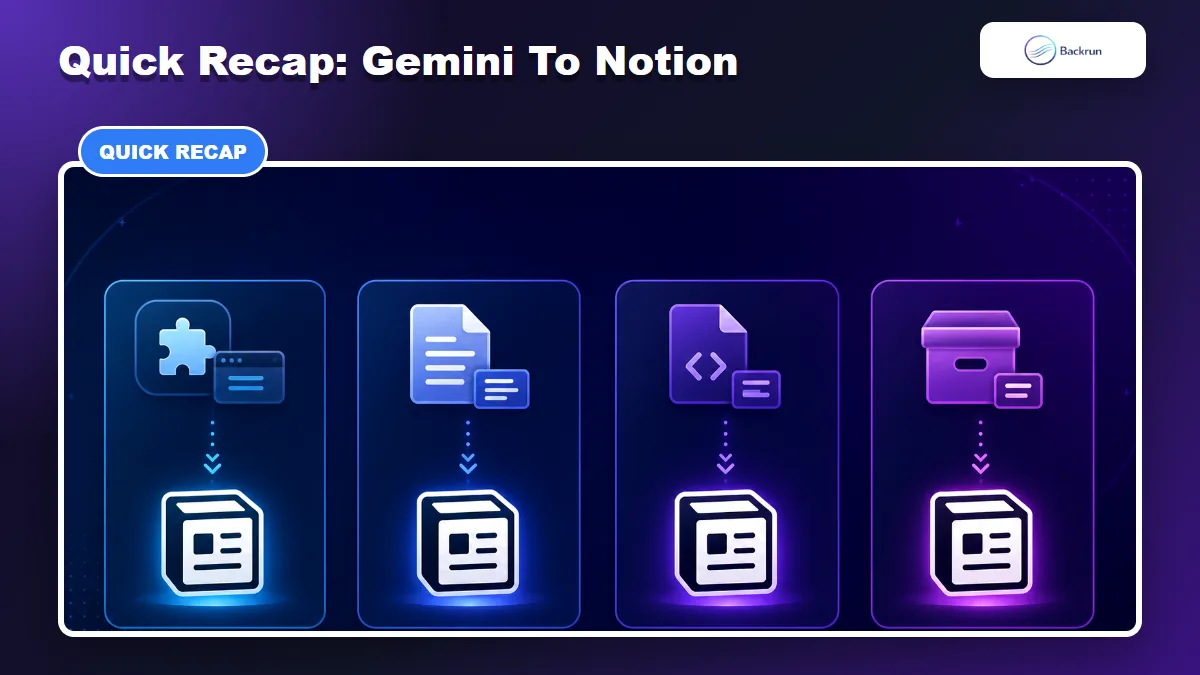
Choose the workflow based on whether you need a full chat, one answer, Markdown, or an archive backup.
Choose the workflow based on what you are trying to save.
Method
Best for
Main tradeoff
Gemini Exporter
Full conversations and selected messages
Requires installing an extension
Google Docs bridge
One polished Gemini response
Not ideal for full chat history
Markdown import
Editable notes and technical content
Needs cleanup for complex formatting
Google Takeout
Bulk backup and archive review
Technical export, not a direct Notion page
For most people who need to export Gemini to Notion, the simplest path is this: use Gemini Exporter for full conversations, use Export to Docs for one response, and use Markdown when you want a portable file before importing into Notion.