How to Export ChatGPT to Notion Without Messy Copy-Paste
August 10, 20267 min read
If you want to export chatgpt to notion, the biggest risk is not moving the text. It is losing the structure that makes the conversation useful: headings, lists, tables, code blocks, links, and the context behind each answer.
The best method depends on what you are saving. A single polished answer can be copied manually. A long research thread needs a cleaner export workflow. A full ChatGPT account archive needs conversion and review before it belongs in a Notion workspace. Below are the methods that actually make sense.
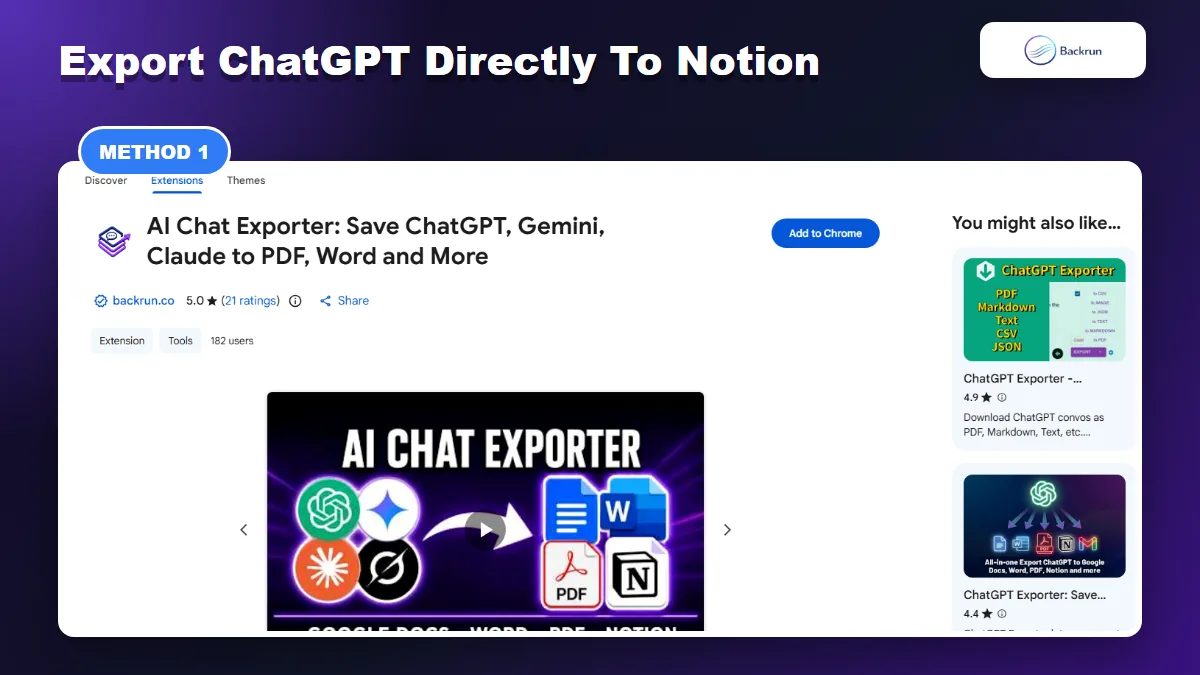
1. Use AI Chat Exporter to Send ChatGPT Directly to Notion
Use an exporter when you need a whole ChatGPT conversation inside Notion without rebuilding the page by hand.
The easiest workflow is to use a browser extension that can read the current ChatGPT conversation and create a Notion-ready export. This is the best option when you want the full thread, selected messages, or a page you can continue editing in Notion.
Here is the step-by-step workflow for exporting a ChatGPT conversation into Notion with Backrun.
Open ChatGPT and load the conversation you want to save.
Select the messages you need, or choose the full conversation if the whole thread matters.
Choose Notion as the export destination inside the exporter.
Authorize Notion if prompted and choose the target workspace or page location.
Open the Notion page and check headings, lists, code blocks, tables, formulas, and links.
Best for: research chats, client notes, planning sessions, meeting prep, long tutorials, and any ChatGPT conversation where context matters.
Why it works: Backrun's exporter is designed for AI chat structure, not just generic web clipping. The product page says it supports ChatGPT, Gemini, Claude, and Grok exports to PDF, Word, Google Docs, Notion, and Markdown.
Practical note: do not send every old chat to Notion. Export the useful thread, add a short summary at the top, and tag the page so it can be found later.
Quality check: before you rely on the export, test one difficult conversation that includes a table, a numbered list, a code block, and a few follow-up prompts. If those survive the export cleanly, the workflow is safe enough for regular notes.
2. Copy One ChatGPT Answer Into a Notion Page
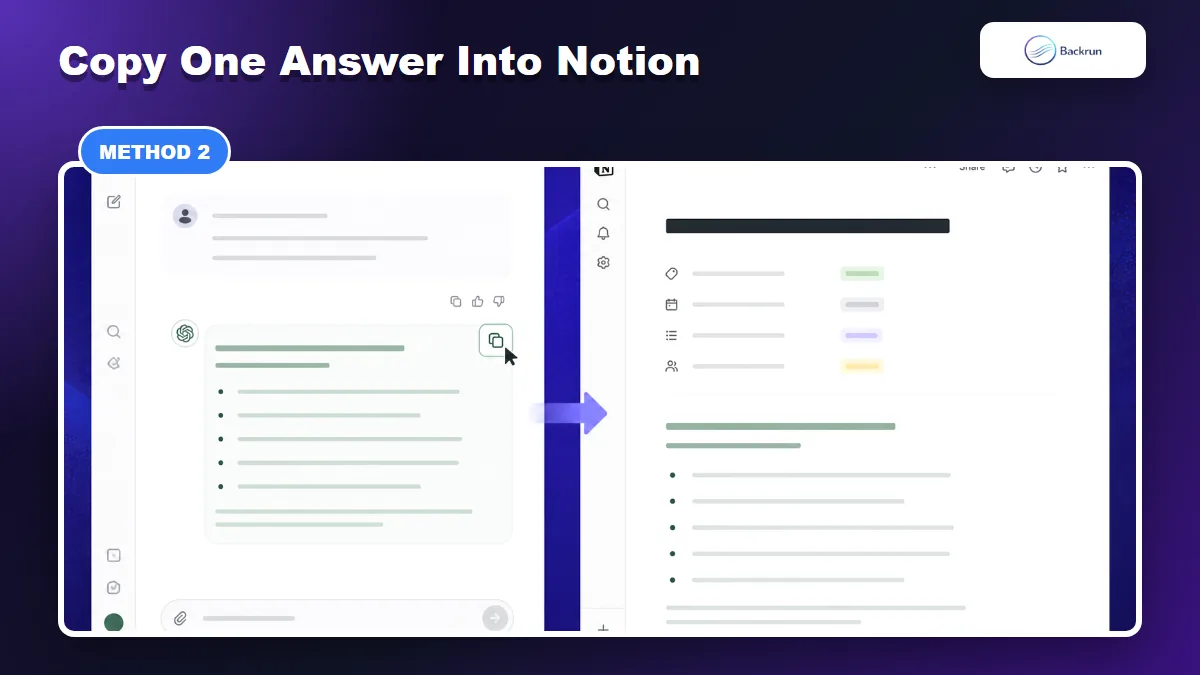
Manual copy is still useful when you only need one polished answer, not the full conversation.
Manual copy is still the fastest method when you only need one answer. It is not a full export workflow, but it is reliable for short notes, summaries, prompts, checklists, and reusable snippets.
Use this workflow when the ChatGPT answer is already clean enough to become a Notion note.
Ask ChatGPT to rewrite the answer for Notion. For example: Format this as a clean Notion page with headings, bullets, and a short summary.
Copy only the final answer, not the entire chat page.
Create a new Notion page in the right database, project, or private workspace.
Paste the answer and check whether Notion converts headings, bullets, links, and code blocks correctly.
Add properties, tags, and a short title so the page is useful later.
Best for: one polished response, a short how-to, a meeting summary, a small prompt library entry, or a reusable checklist.
Limitation: manual copy breaks down quickly with long chats. If the answer includes multiple tables, code blocks, images, or many follow-up prompts, use an exporter or Markdown import instead.
Reader check: after pasting, read the Notion page as if you found it two months later. If the page has no context, no title, and no tags, it is not really saved yet.
Small habit that helps: add a short "why I saved this" sentence at the top of the Notion page. That sentence often matters more than the copied answer because it explains the decision, project, or future use case behind the note.
3. Export ChatGPT as Markdown, Then Import It Into Notion
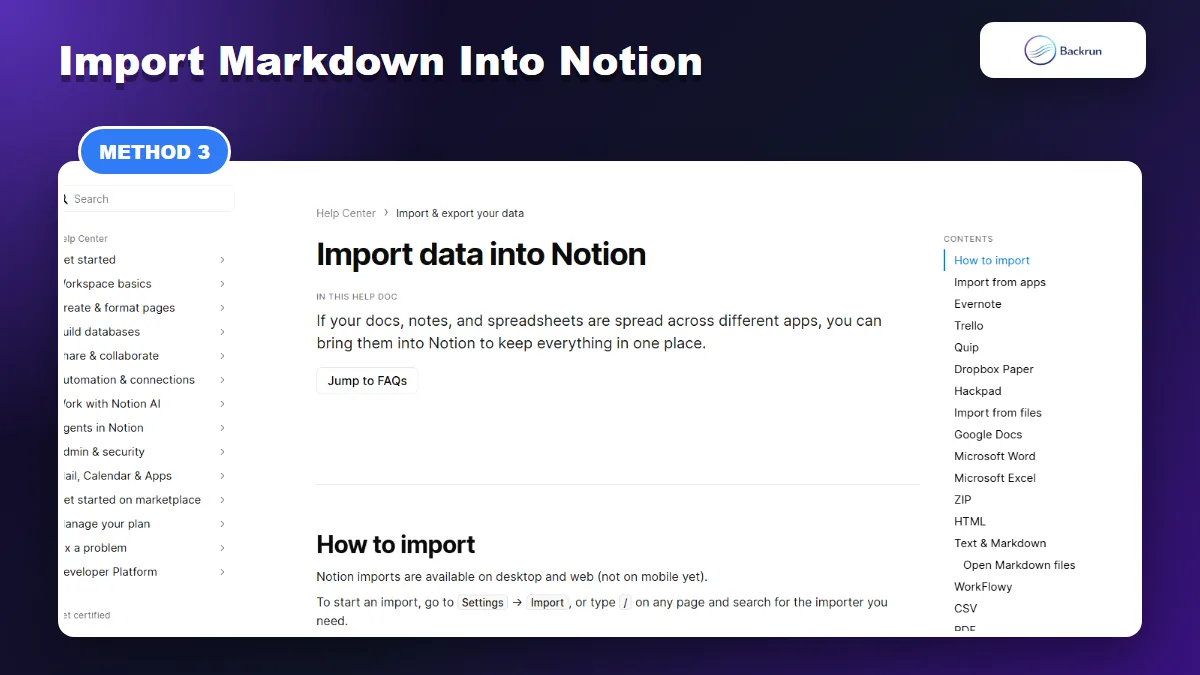
Notion supports Markdown import, which makes Markdown a good bridge between ChatGPT and Notion.
Markdown is a useful bridge between ChatGPT and Notion because it keeps headings, bullets, code fences, and plain text structure without locking the content into a PDF. Notion's import documentation lists Text & Markdown as supported file types, and it also supports HTML, Word, PDF, and ZIP imports.
Here is the workflow when you want a portable Markdown file before the content becomes a Notion page.
Export or copy the ChatGPT conversation as Markdown. An exporter is usually cleaner than selecting the whole browser page.
Review the Markdown file for private prompts, duplicated answers, broken tables, and overly long sections.
Open Notion on desktop or web. Notion notes that imports are available on desktop and web, not mobile.
Go to Settings → Import → Text & Markdown, or type / on a page and search for the importer.
Upload the .md file, then inspect the imported page.
Clean up nonstandard Markdown, anchors, complex tables, and any formatting that does not map cleanly to Notion blocks.
Best for: documentation, Obsidian-to-Notion workflows, developer notes, research archives, and teams that want a file checkpoint before importing.
Limitation: Notion warns that advanced or nonstandard Markdown extensions may not import perfectly. Treat the import as a strong first draft, not a guaranteed pixel-perfect conversion.
Practical note: if a ChatGPT conversation is very long, split it into smaller Markdown files before importing. A single giant Notion page is harder to search, link, and reuse than several focused pages with clear titles.
If Markdown is your main target before Notion, this related Backrun guide on ChatGPT to Markdown may be useful.
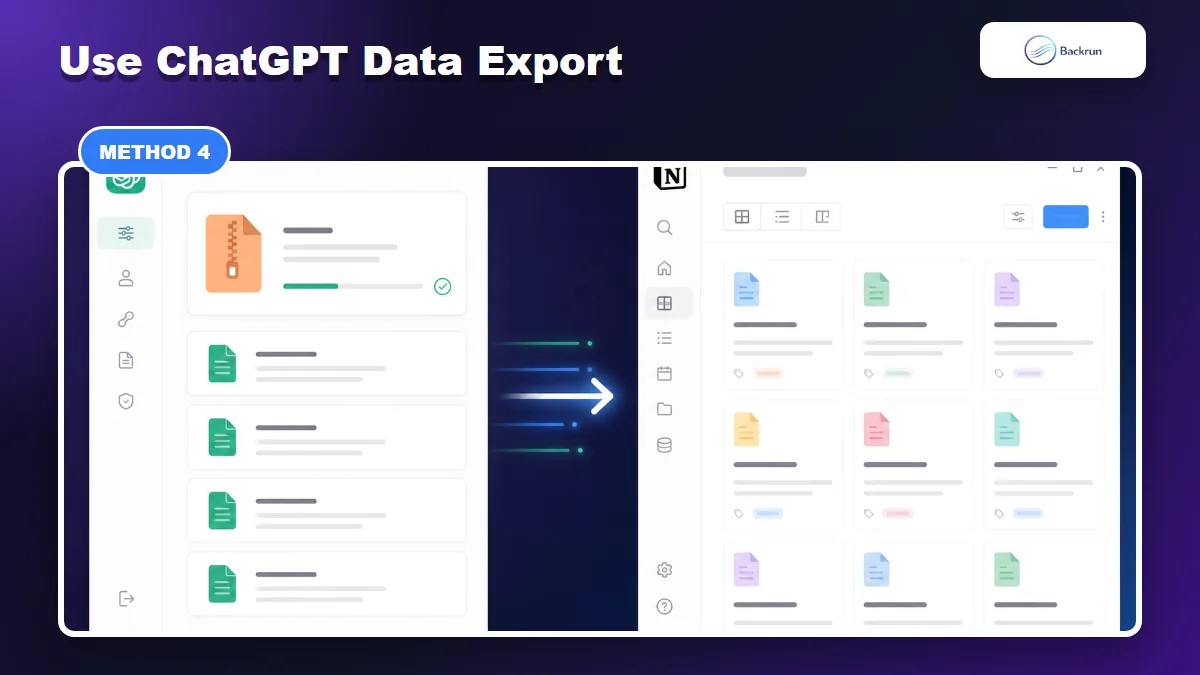
4. Use ChatGPT Data Export for a Full Archive
Use data export for bulk archives, then convert and import only the useful conversations.
ChatGPT Data Export is the right method when you want a backup of your account history, not one clean Notion page. OpenAI's help documentation says the export includes chat history and other account data in a ZIP file, and the download link expires after 24 hours.
Here is the workflow for turning a full ChatGPT archive into selected Notion pages without flooding your workspace.
Sign in to ChatGPT and open your profile menu.
Go to Settings → Data Controls.
Choose Export Data and confirm the export request.
Download the ZIP file from the email when it arrives.
Keep the original ZIP as a backup and work from a copy.
Convert only useful conversations into Markdown or HTML before importing them into Notion.
Import in batches and check page titles, tables, code blocks, and sensitive information.
Best for: account backup, migration, compliance review, and large personal archives.
Limitation: this is the most technical path. Raw exports are not designed as polished Notion pages. You may need to split conversations, rename files, remove private data, and convert JSON or HTML into cleaner content.
Security note: a full ChatGPT export can contain private prompts, names, links, client context, and old drafts. Avoid uploading the whole ZIP to random online converters.
Workspace hygiene: import archive content into a temporary Notion area first. Review, rename, and delete low-value pages there before moving anything into your main knowledge base.
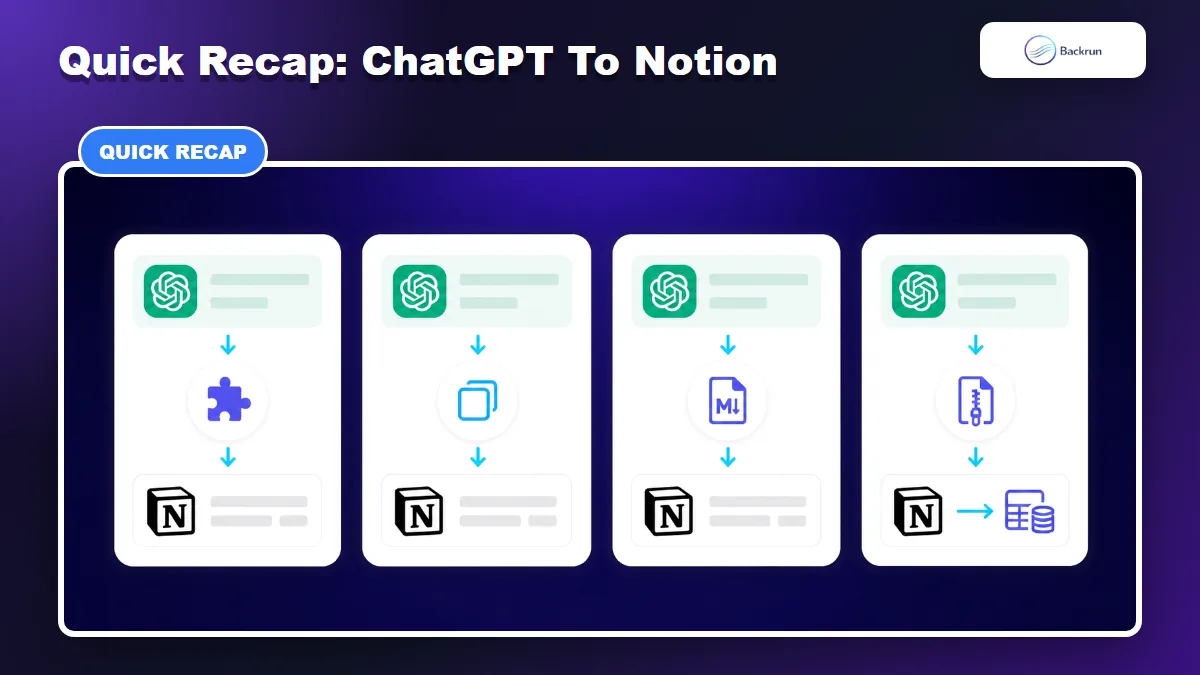
Quick Recap
Choose the workflow based on whether you need a full chat, one answer, Markdown import, or a bulk archive.
Choose the export path based on how much content you need and how clean the Notion page must be.
Method
Use it when
Main benefit
Main caution
AI Chat Exporter
You need a full ChatGPT thread in Notion
Fastest structured workflow
Review extension permissions and output quality
Manual copy
You need one polished answer
Simple and controlled
Not a full export
Markdown import
You want a portable file before Notion
Good structure and file checkpoint
Advanced Markdown may need cleanup
ChatGPT Data Export
You need a full archive
Best backup method
Requires conversion and privacy review
For most readers, the best way to export ChatGPT to Notion is AI Chat Exporter when the full conversation matters, and manual copy when only one answer matters. Use Markdown import when you want a clean file checkpoint, and reserve ChatGPT Data Export for bulk archive or migration work.