Copying a clean table from ChatGPT can produce loose text, missing borders, or uneven columns in Microsoft Word. This guide explains how to copy a table from ChatGPT to Word, how to rebuild the table when paste formatting fails, and when a direct DOCX export is the more reliable choice.
Why ChatGPT Tables Lose Formatting in Word
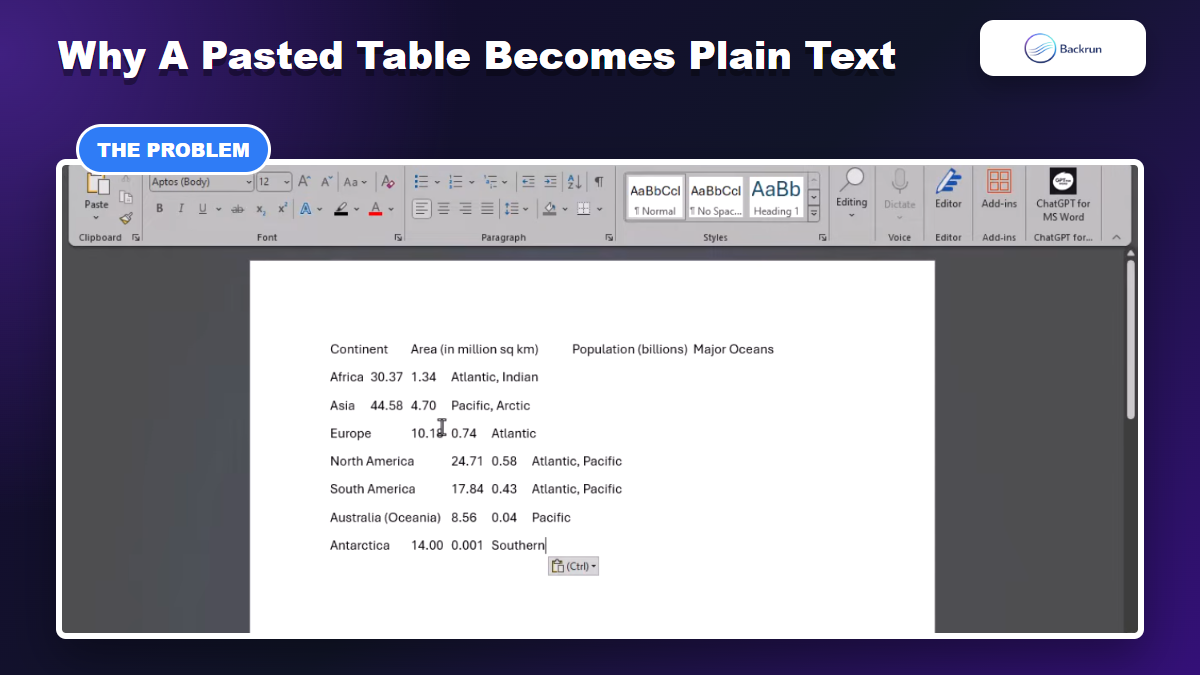
A normal paste can preserve the values while losing the visible table structure.
A ChatGPT table looks structured in the browser, but the visual grid is not always transferred as a native Word table. A regular copy operation may carry the text and tab spacing while leaving borders, column widths, and table styles behind.
This happens because the browser and Word interpret copied web content differently. Word may receive HTML, formatted text, or tab-separated values depending on the browser, Word version, and paste option. The result can vary even when the source table looks identical.
Before choosing a method, decide what the final document needs:
Editable cells: Use Word's table conversion tool or export to DOCX.
Exact visual appearance: A screenshot preserves the look but cannot be edited as table data.
Repeated exports: A dedicated exporter avoids rebuilding every table manually.
One small table: Manual copy and conversion is usually fast enough.
Practical check: Click inside the pasted content. If Word does not show the Table Design and Table Layout tabs, the content is not yet a real Word table.
How to Copy a Table From ChatGPT to Word Manually
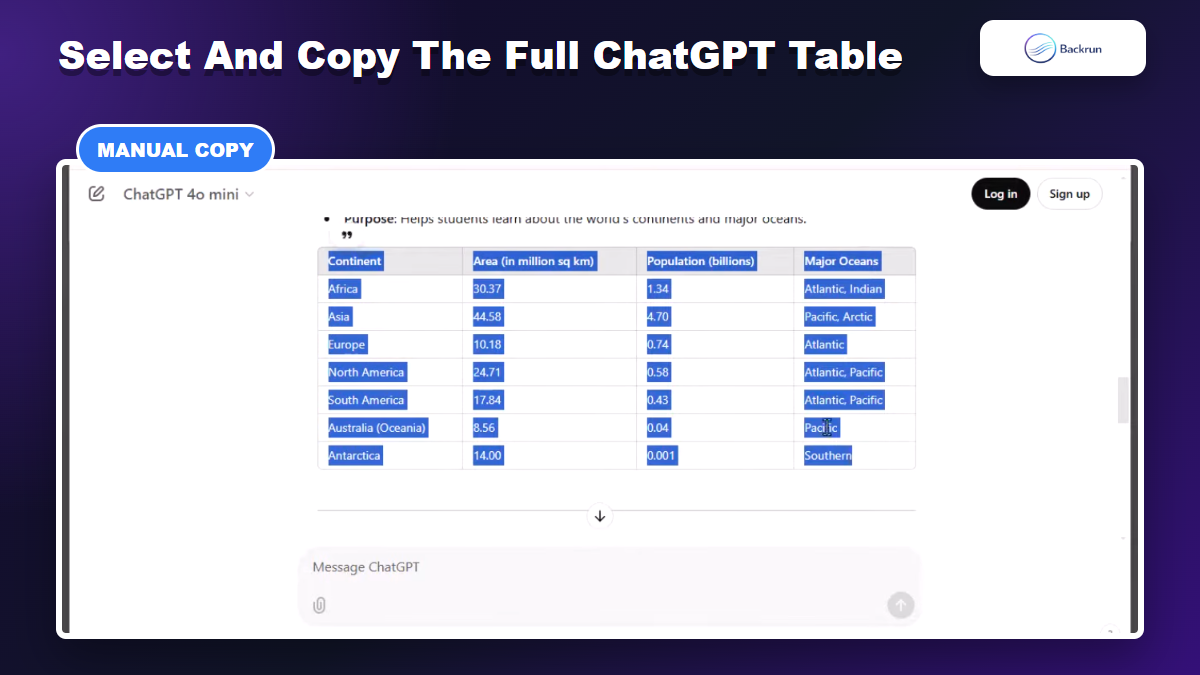
Select every header and row so Word receives a complete set of table data.
The manual method works well when you have one short table and want to avoid installing another tool. The important detail is selecting the complete table, including the header row, before copying.
Open the ChatGPT response and scroll until the entire table is visible.
Select every cell, starting with the first header and ending with the last value.
Copy the selection with Ctrl + C on Windows or Command + C on macOS.
Place the cursor in Word where the table should appear.
Paste normally with Ctrl + V or Command + V.
If the table appears with borders and editable cells, the transfer is complete. If it arrives as aligned text, do not start drawing borders manually. The values can usually be converted into a real table in the next step.
Avoid copying extra paragraphs before or after the table. Additional text can confuse Word when it calculates where rows and columns should begin.
Convert Pasted Text Into a Real Word Table
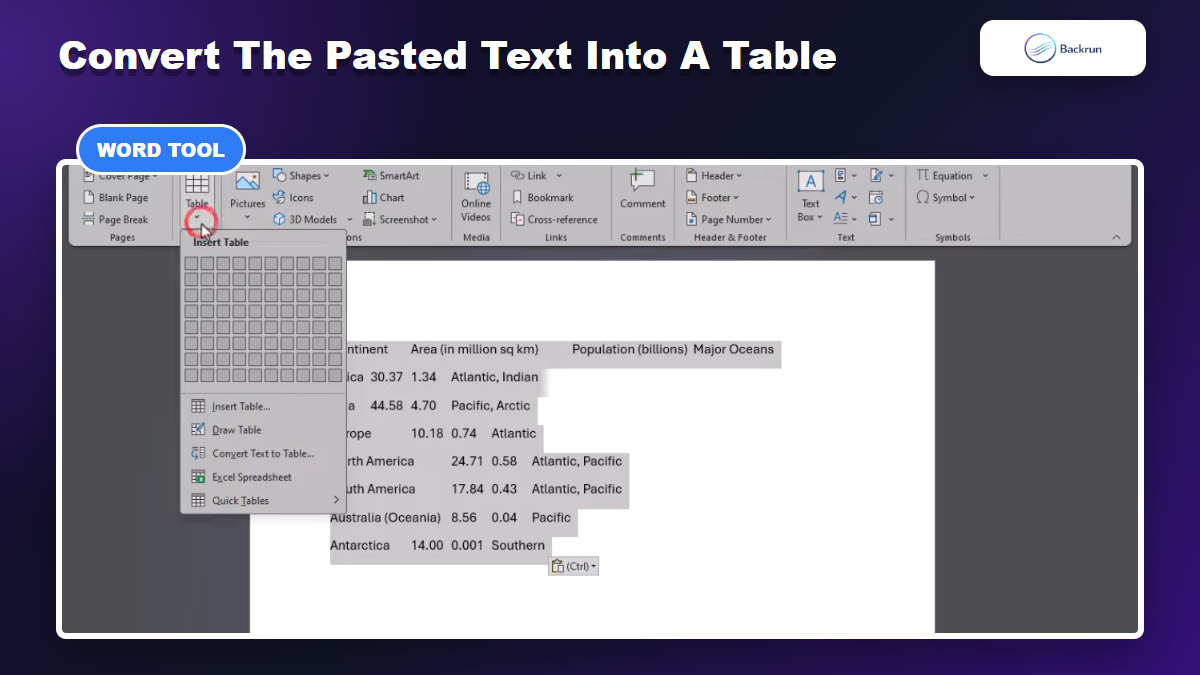
Convert Text to Table rebuilds the pasted values as editable rows and columns.
When the pasted values remain separated by tabs, Word can rebuild them with Convert Text to Table. This is the key recovery step for users learning how to copy a table from ChatGPT to Word without losing editability.
Select only the pasted table text, including all rows and headers.
Open the Insert tab on the Word ribbon.
Choose Table, then select Convert Text to Table.
Check the column count in the dialog before confirming.
Set Separate text at to Tabs when the copied values are tab-separated.
Select OK and verify every value appears in the correct cell.
Microsoft documents the same conversion feature for turning delimited text into a table. The command is most reliable when each row uses consistent separators. If one row contains extra tabs or line breaks, fix that row before conversion.
Desktop Word provides the clearest version of this workflow. Menu names and availability can differ in Word for the web or older Word releases.
Direct DOCX export avoids the manual paste and table reconstruction steps.
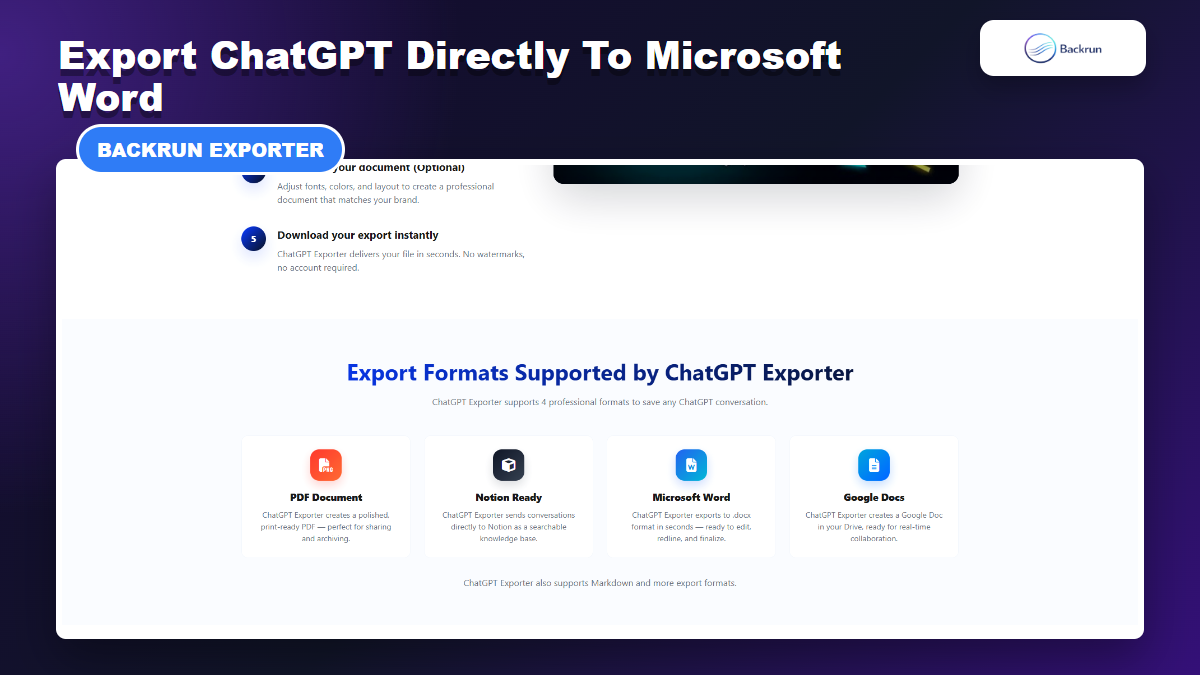
For long responses, multiple tables, or repeated documentation work, direct Word export removes several fragile copy-and-paste steps. Backrun ChatGPT Exporter creates an editable DOCX file and is designed to preserve tables, headings, lists, code blocks, and other conversation formatting.
Install ChatGPT Exporter in Chrome.
Open the ChatGPT conversation containing the table.
Open the exporter from its floating control or browser extension icon.
Select Microsoft Word as the export format.
Choose the messages you need, then download the DOCX file.
Open the document in Word and verify the table values and widths.
This method is especially useful when the conversation contains more than one table because each table does not need to be selected and reconstructed separately. It also reduces accidental omissions from long ChatGPT answers.
Verification still matters: Open the exported DOCX and check merged cells, very wide tables, equations, and long text fields before sharing the document.
Fix Width, Borders, and Readability in Word
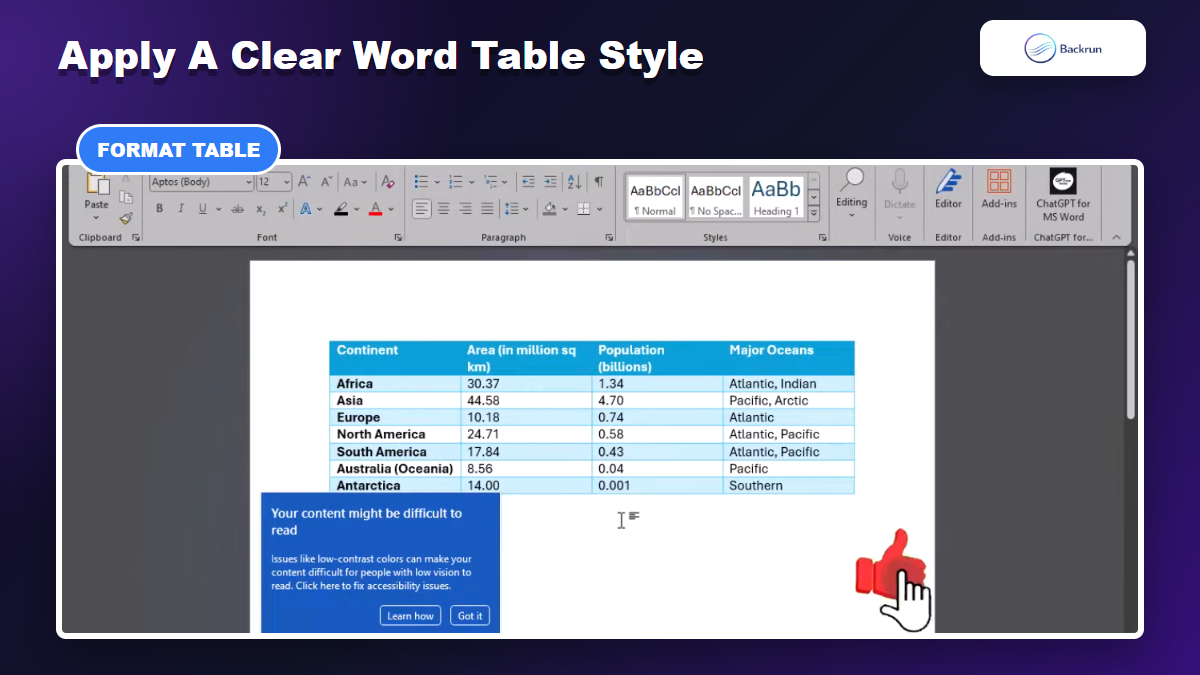
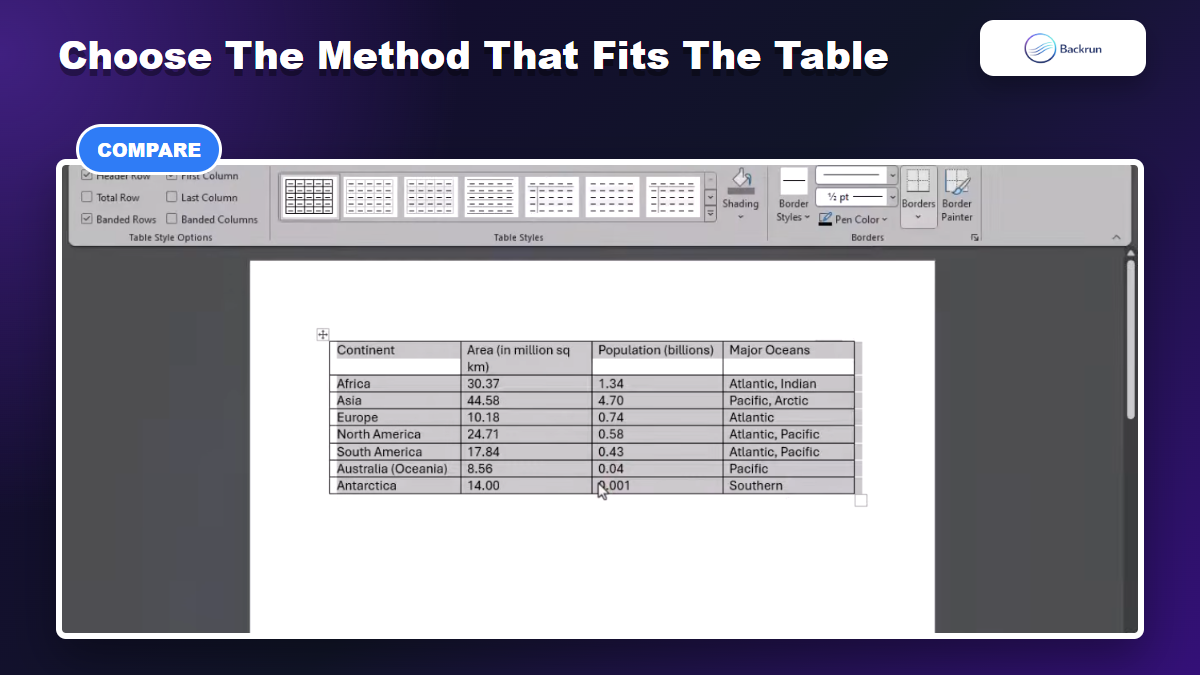
Use Table Design and Layout to improve borders, spacing, and readability.
A table can be technically correct and still be difficult to read. After copying or exporting, use Word's Table Design and Table Layout controls to make the result fit the page.
Use AutoFit to Window when the table extends beyond the page margins.
Use AutoFit to Contents when columns contain short values and should remain compact.
Apply a header style so column names are easy to distinguish from data rows.
Repeat the header row when the table continues onto another page.
Check text wrapping in columns that contain descriptions or URLs.
Review accessibility contrast before choosing dark fills or light text.
Do not judge the table only at 100 percent zoom. Use Print Preview to check page breaks, clipped columns, and rows split across pages. A table that looks fine in editing view may still print poorly.
If you need a fixed document instead of an editable Word file, finish the table in Word first and then follow Backrun's guide to convert ChatGPT content to PDF.
Choose the Best Method and Avoid Common Errors
Manual conversion offers control, while direct DOCX export saves time on repeated work.
The right method depends on the table size, how often you perform the task, and whether the document must remain editable.
Method
Best for
Editability
Main limitation
Normal copy and paste
Small tables that paste correctly
High when Word recognizes the table
Formatting varies by browser and Word version
Convert Text to Table
Pasted rows separated by tabs
High
Inconsistent separators can create wrong columns
ChatGPT Exporter to DOCX
Long chats, multiple tables, repeated exports
High
Requires installing a browser extension
Screenshot
Visual reference only
None
Data cannot be edited, sorted, or searched as cells
Why does my ChatGPT table paste without borders?
Word received the values as formatted text or tab-separated text instead of a native table. Select the pasted content and use Insert > Table > Convert Text to Table.
Why are all values placed in one Word column?
The separator setting does not match the copied content. Reopen Convert Text to Table and choose Tabs. If the source uses commas, choose Other and enter the correct delimiter.
Can I copy a large ChatGPT table into Word?
Yes, but wide tables may exceed the page width and long tables may split across pages. Use AutoFit to Window, repeat header rows, and inspect Print Preview. Direct DOCX export is usually more efficient for several large tables.
Is a screenshot a good way to move a table?
Only when the table is a visual reference and no editing is required. A screenshot prevents Word from treating the content as searchable, selectable table data.
For a small table, copy the complete grid and use Word's conversion tool if borders disappear. For recurring work or long conversations, direct DOCX export provides a cleaner path for how to copy a table from ChatGPT to Word while keeping the data editable.