How to Convert ChatGPT to PDF: 5 Methods That Actually Work
September 17, 20266 min read
A clean PDF is easier to share, archive, annotate, or submit than a long browser conversation. The best way to convert ChatGPT to PDF depends on whether you need the entire thread, an editable document, or a quick visual copy.
Below are five methods that currently work, with the limitations that matter before you choose one.
1. Use ChatGPT Exporter for Full Conversations
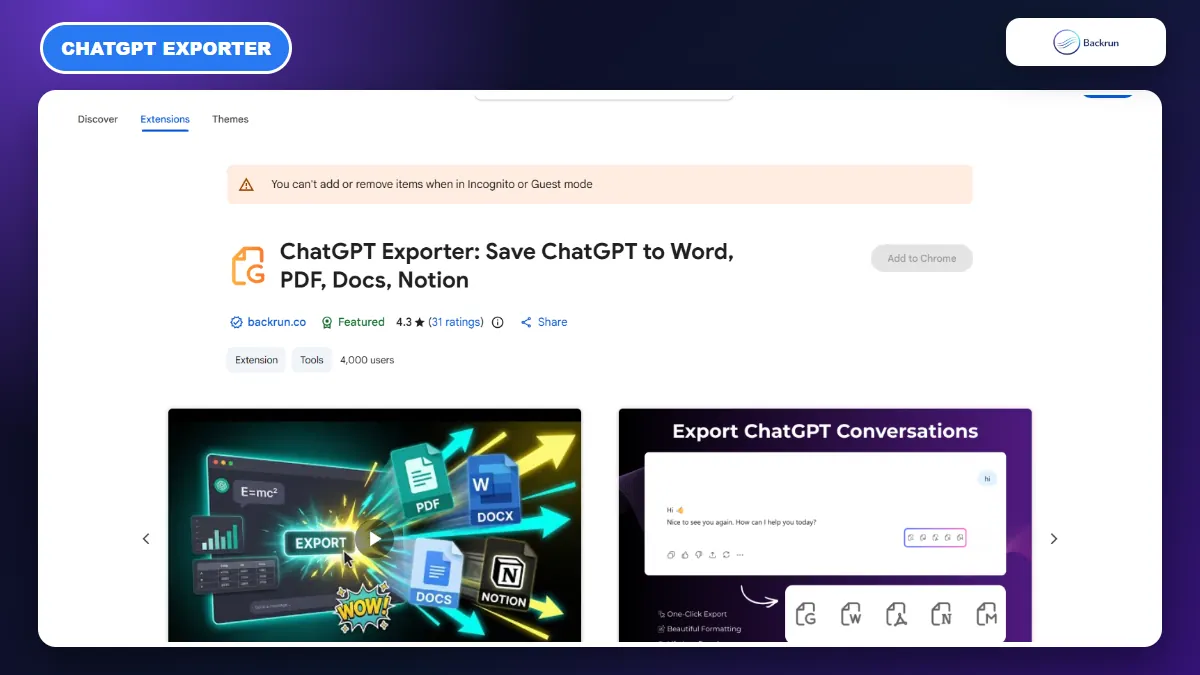
ChatGPT Exporter is designed for selected messages or complete conversations, with PDF among its export formats.
For a long conversation, an exporter is usually more reliable than printing the page because it can collect selected messages or the full thread into a structured document. The ChatGPT Exporter extension supports PDF as well as Word, Google Docs, and Notion.
Use the following workflow to save a conversation.
Open ChatGPT and load the conversation you want to keep.
Select the relevant messages, or choose the full-conversation option when the entire thread matters.
Choose PDF as the output format.
Export and review the file, checking tables, code blocks, formulas, images, and page breaks.
Best for: multi-message chats that need a readable record without rebuilding the content manually.
Practical note: the store listing says processing happens locally in the browser, but you should still review an extension's permissions before using it with sensitive material. Keep confidential chats out of third-party tools unless your organization's policy allows them.
If you want a closer look at its formats and controls, the Backrun guide to the ChatGPT Exporter Chrome extension covers the tool in more detail.
2. Download a Deep Research Report as PDF
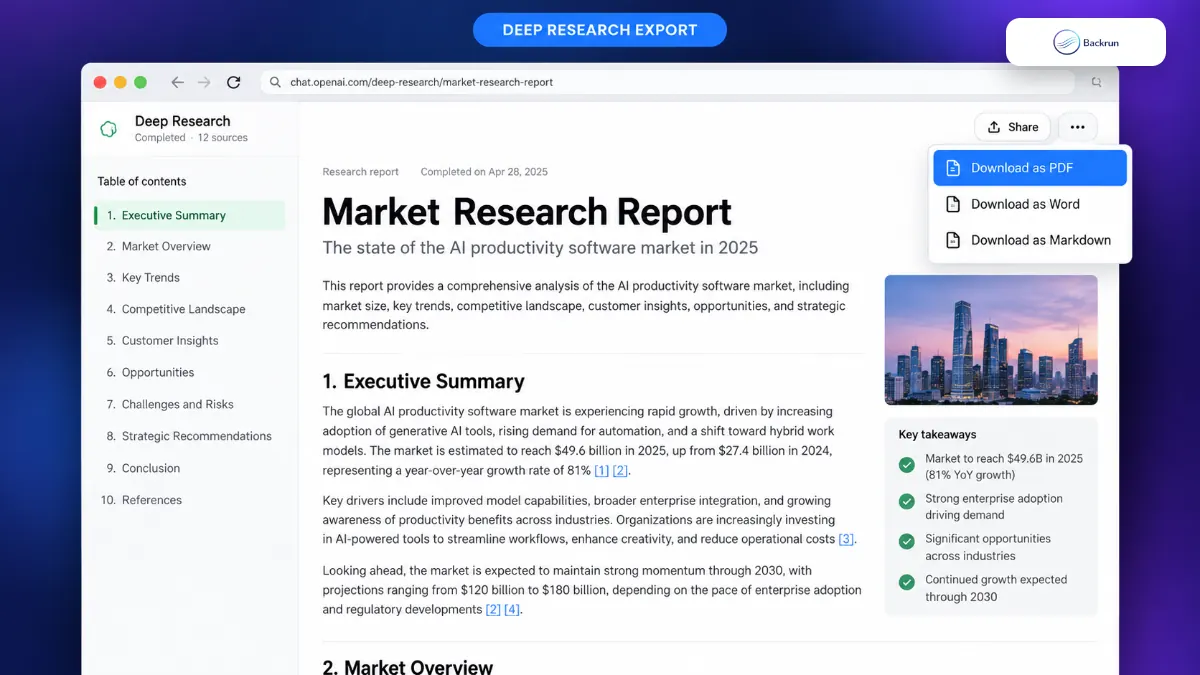
Completed Deep Research reports can be downloaded directly as PDF, Word, or Markdown.
ChatGPT has a native PDF download for completed Deep Research reports. This is the cleanest option when the content you need is a research report rather than an ordinary chat.
Follow these steps after the report finishes.
Open the completed Deep Research report in ChatGPT.
Open the report actions menu in the upper-right area.
Select Download as PDF.
Open the downloaded file and verify its citations, charts, tables, and page order.
Best for: source-backed reports created with Deep Research.
Important limitation: this control does not turn every normal ChatGPT conversation into a PDF. OpenAI's current Deep Research documentation describes PDF, Word, and Markdown download for completed reports. For a standard chat, use another method in this guide.
Before sharing the PDF, click several cited sources and confirm that the conclusions still match them. Exporting a report preserves the presentation, but it does not replace fact-checking.
3. Ask ChatGPT to Create a PDF File
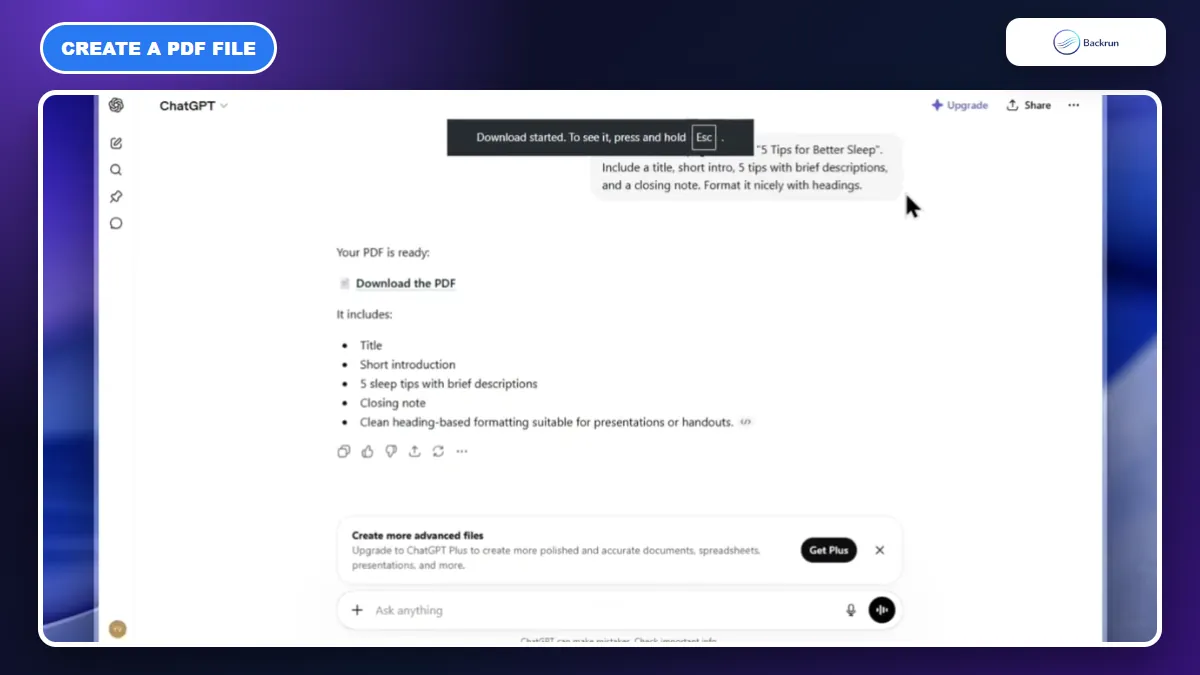
When file creation is available, ChatGPT can produce a downloadable PDF from content you specify.
If you need a polished handout rather than a transcript, ask ChatGPT to reorganize the information and create the PDF itself. This approach lets you define the title, sections, length, tone, and formatting before the file is generated.
Use a specific request so the result is predictable.
Tell ChatGPT what content to include, either by referencing the current conversation or pasting the final text.
Specify the document structure, such as title, summary, headings, numbered steps, table, and closing note.
Ask for a downloadable PDF file and state any page size or formatting requirements.
Download the generated file from the response.
Review the document for missing sections, unsupported claims, clipped text, and formatting errors.
A useful prompt is: Create a downloadable PDF from the final answer in this chat. Use a descriptive title, a short introduction, clear headings, numbered steps, and a one-paragraph summary. Keep links clickable and do not add facts that are not already present.
Best for: turning the substance of a chat into a concise report, checklist, lesson, or client-ready document.
Availability can vary: file creation depends on the model, account, plan, and workspace controls. OpenAI also provides a File Library for files uploaded to and created in ChatGPT where that feature is available. If ChatGPT does not produce a downloadable file, use the exporter or Docs workflow instead.
4. Use Browser Print for a Quick Snapshot
Browser Print is fast, but the preview should be checked before saving a long conversation.
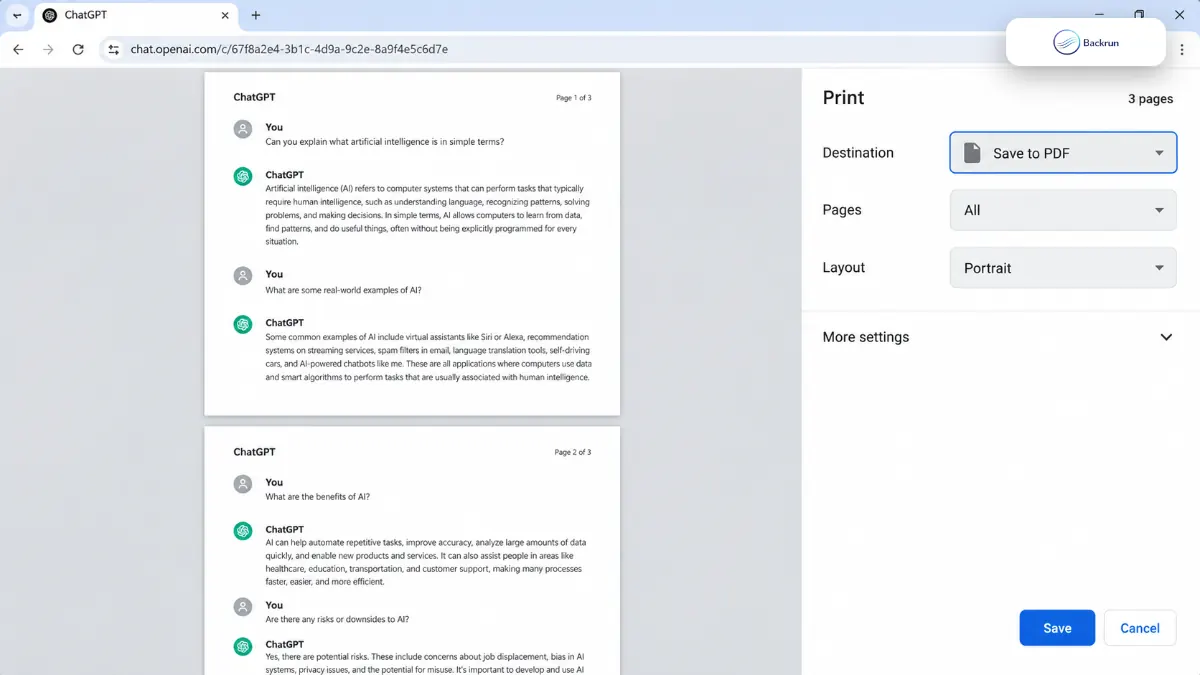
Browser Print requires no extension and works well for a short, fully loaded conversation. It captures the page as the browser sees it, so the result is closer to a visual snapshot than a purpose-built export.
Here is the quickest workflow.
Open the ChatGPT conversation you want to save.
Scroll from the beginning to the end so older messages and images have loaded.
Press Ctrl + P on Windows or Command + P on macOS.
Set Destination to Save to PDF.
Review every page, adjust scale or margins if necessary, then click Save.
Best for: short conversations when speed matters more than perfect formatting.
Main limitation: a long or dynamically loaded chat can be incomplete, split awkwardly, or include navigation elements. Always compare the first and last message in the preview with the live conversation, then check the final page count after saving.
Do not assume a successful download means the whole chat was captured. Open the PDF immediately and search for a phrase from the final response.
5. Edit in Google Docs or Word, Then Export to PDF
Google Docs and Microsoft Word add an editing stage before the final PDF is created.
Use a document editor when the ChatGPT answer needs cleanup, comments, a cover page, company branding, or consistent heading styles. This takes longer, but it gives you the most control over the final file.
Below is the editing-first workflow.
Copy the useful ChatGPT content or export it to Google Docs or Word.
Paste with matching or plain-text formatting, depending on how much of the original styling you want to keep.
Apply real heading styles, rebuild tables if needed, and add page breaks deliberately.
Check links, code blocks, equations, and images rather than trusting the pasted version.
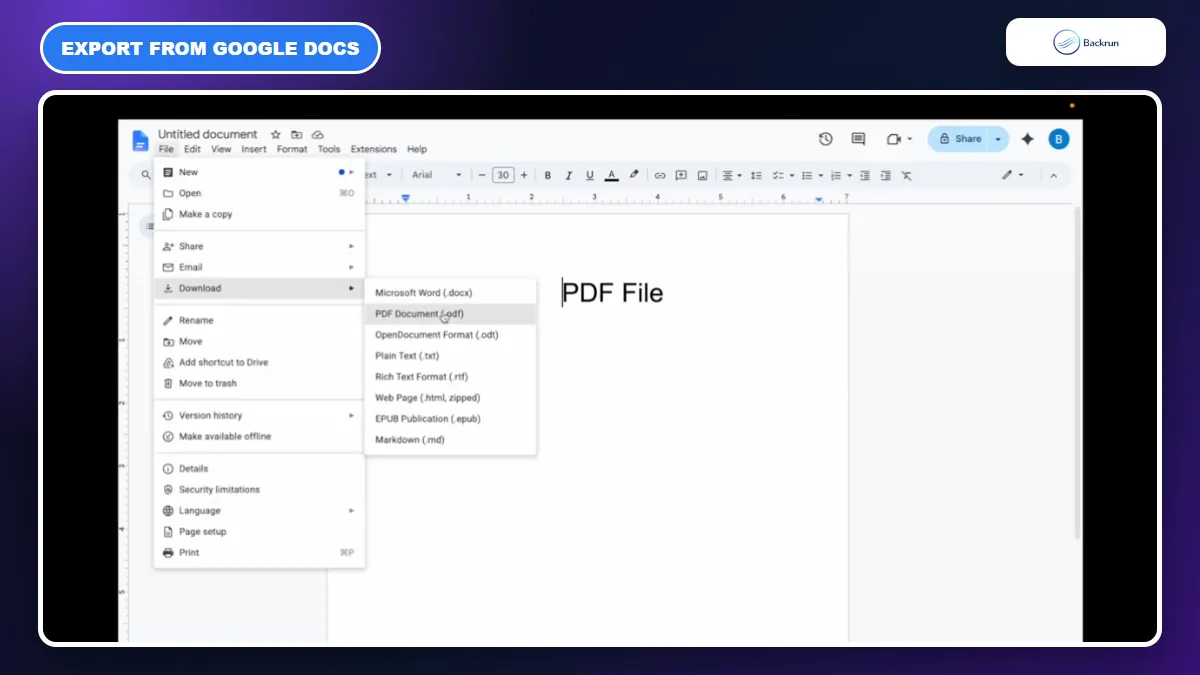
Export the document as PDF. In Google Docs, choose File → Download → PDF Document (.pdf). In Word, use Save As or Export and select PDF.
Best for: reports, proposals, assignments, and any document that must look intentional before it is shared.
Trade-off: this is the slowest method, and complex tables or equations may need manual repair. The extra editing step is worthwhile when accuracy and presentation matter more than one-click speed.
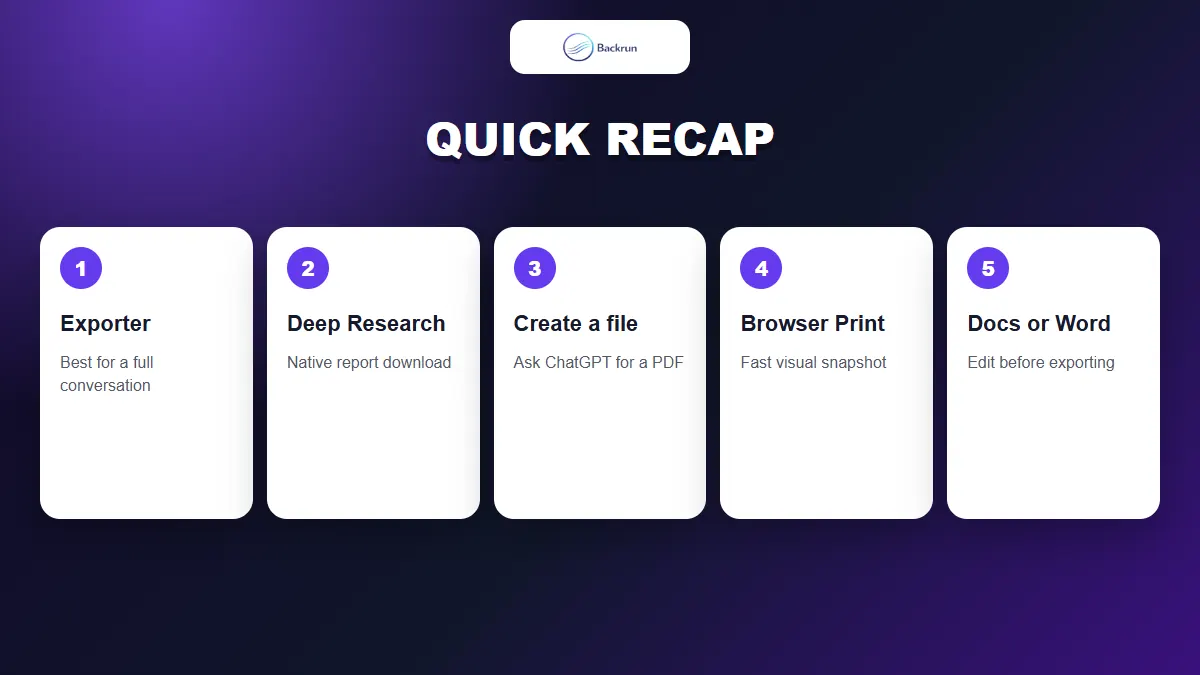
Choose the method according to whether you need a full chat, native report, generated file, quick snapshot, or editable draft.
Method
Best use
Main limitation
ChatGPT Exporter
Complete or selected chat messages
Requires a browser extension
Deep Research download
Completed research reports
Not available for ordinary chats
Ask ChatGPT to create a PDF
Polished documents built from chat content
Availability varies by account and model
Browser Print
Quick snapshots of short chats
Long chats can be clipped or poorly paginated
Google Docs or Word
Content that needs editing and branding
Requires manual cleanup
For a complete conversation, start with ChatGPT Exporter. Use the native Deep Research download for reports, Browser Print for a quick short-chat copy, and Docs or Word when the PDF must be edited before it is shared.