How to Export Claude to Notion Without Losing Useful Context
August 14, 20266 min read
If you want to export Claude to Notion, copying the text is only half the job. The real goal is keeping the conversation useful after it lands in your workspace: headings, lists, tables, code blocks, artifacts, links, and the decisions buried inside the chat.
Claude does not have a single native "send this whole chat to Notion" button. But there are several reliable workflows depending on what you need to save: a full conversation, one cleaned document, Markdown notes, or a bulk account archive.
1. Use Claude Exporter to Send Claude Directly to Notion
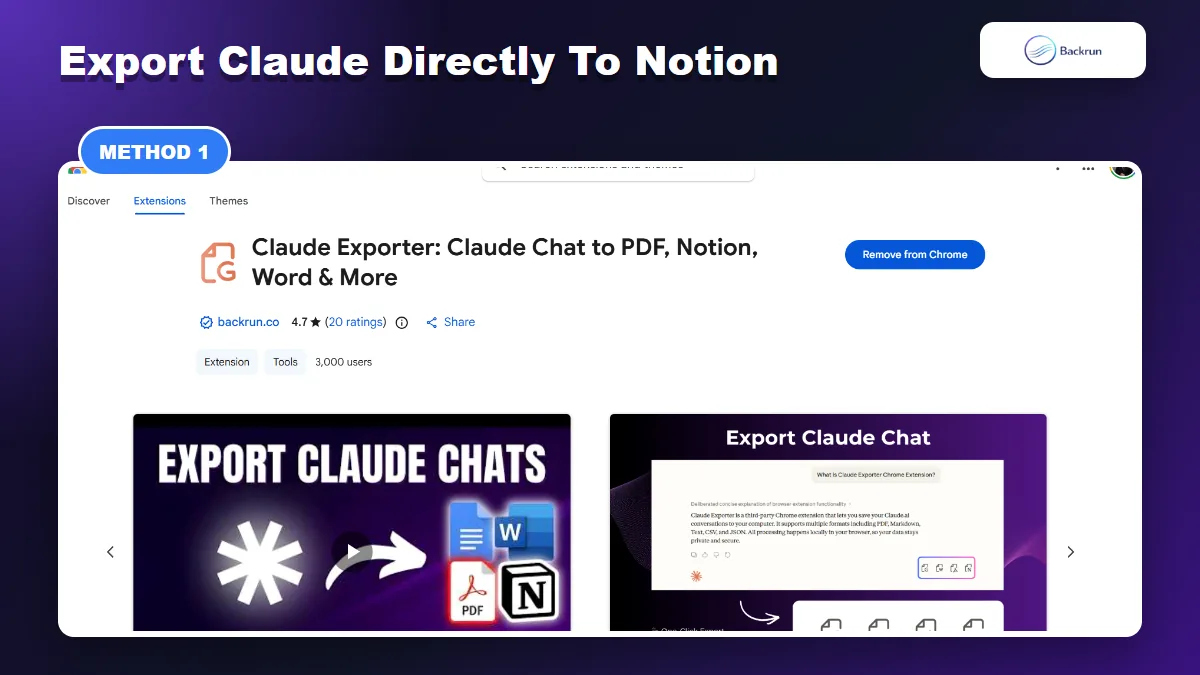
Claude Exporter is the most direct route when you want the whole Claude thread in Notion.
The most practical workflow is a browser extension that is built specifically for Claude chat exports. Use this when you want the full thread or selected messages moved into Notion without rebuilding the page by hand.
Here is the direct Claude-to-Notion workflow with Backrun.
Open claude.ai and load the conversation you want to save.
Select specific messages if you only need part of the thread, or choose the full conversation.
Choose Notion as the export destination inside Claude Exporter.
Authorize Notion if prompted and choose the target page or workspace.
Review the Notion page for headings, lists, tables, code blocks, artifacts, and links.
Best for: research chats, Claude Code notes, writing drafts, client work, long explanations, and conversations where the back-and-forth matters.
Why it works: the Chrome Web Store listing for Claude Exporter says it can export Claude chats to PDF, Notion, Word, and Google Docs, with support for selected messages or entire conversations.
Practical check: before using it for important work, test one hard conversation that includes a table, a code block, and an artifact. If those land cleanly in Notion, the workflow is safe for regular use.
2. Export Claude as Markdown, Then Import Markdown Into Notion
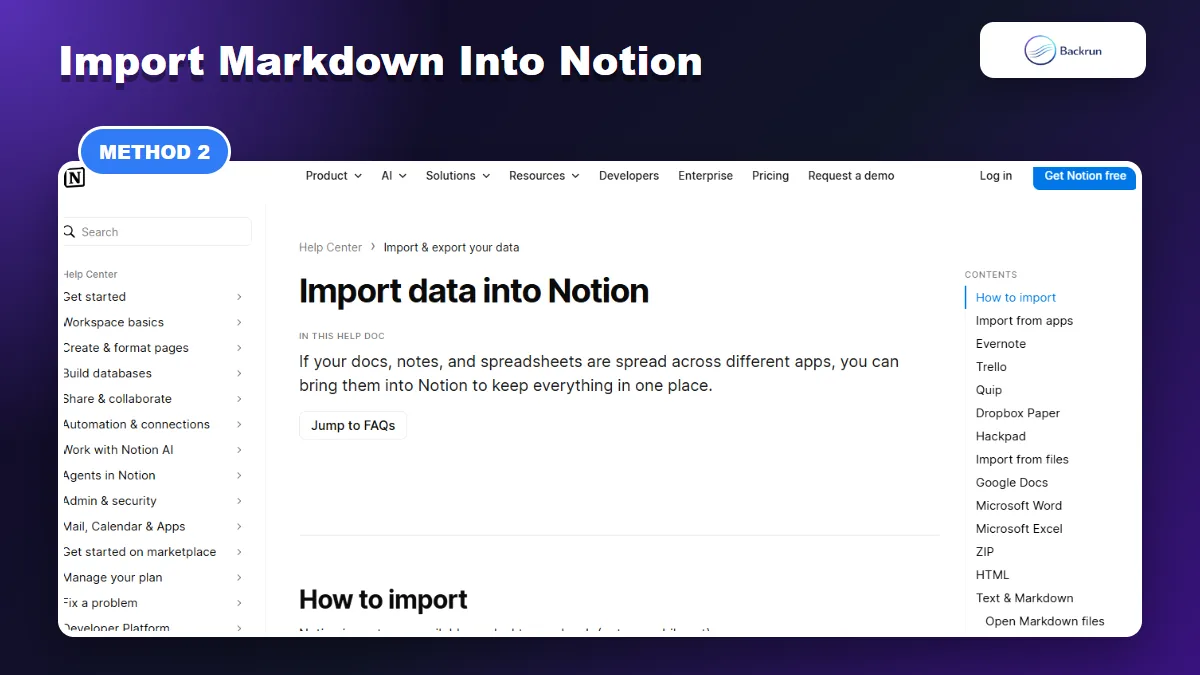
Notion can import Markdown and several document formats, which makes Markdown a strong Claude-to-Notion bridge.
Markdown is the cleanest file bridge when you want editable notes rather than a fixed PDF. Notion's import documentation lists Text & Markdown as supported file types, which makes this a strong workflow for documentation, prompts, and technical notes.
Use this method when you want a portable file before the content becomes a Notion page.
Export or copy the Claude content as Markdown. If the conversation is long, use an exporter instead of selecting the whole browser page.
Open the Markdown file and remove private prompts, duplicate replies, or unfinished branches.
Check the structure: headings, bullets, numbered lists, code fences, tables, and links.
Open Notion on desktop or web. Notion notes that imports are available on desktop and web, not mobile.
Use Notion's import option and choose Text & Markdown.
Inspect the imported page and clean up any tables or nested lists that did not map perfectly.
Best for: developer notes, SOPs, prompt libraries, research summaries, project docs, and Obsidian-to-Notion workflows.
Limitation: Markdown is good for structure, but it will not preserve every visual detail from Claude. Complex artifacts may need manual review.
If Markdown is your preferred intermediate format, this Backrun guide on Claude chat to Markdown explains that workflow in more detail.
3. Ask Claude to Create a Notion-Ready File First
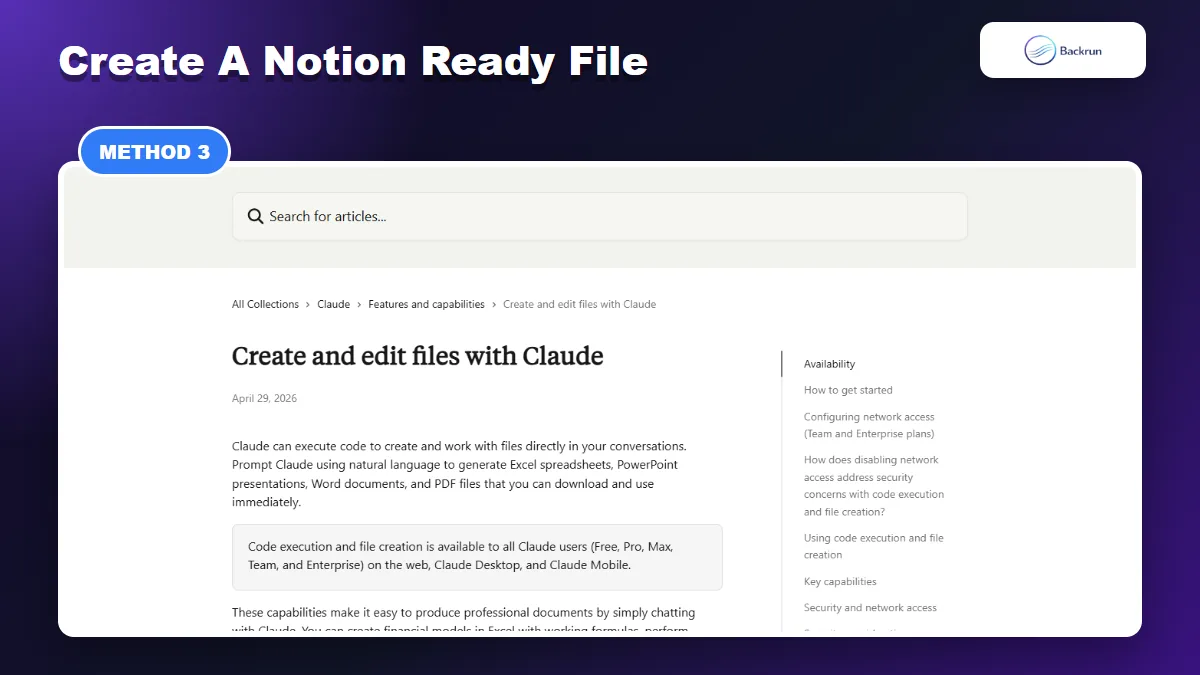
Claude can help turn a messy conversation into a cleaner file before you import it into Notion.
Sometimes the better move is not to export the raw conversation. Ask Claude to turn the useful parts into a clean document first, then import that document into Notion.
Use this workflow when the conversation is messy but the final content needs to become a clear Notion page.
Ask Claude to summarize the conversation into a Notion-ready document with sections, bullets, and action items.
Specify the target format, such as Markdown, plain text, or a downloadable document.
Ask Claude to preserve important details: links, code snippets, decisions, assumptions, and next steps.
Download or copy the cleaned file from Claude.
Import or paste it into Notion and add the right database properties.
Compare against the original chat before deleting anything, especially if the conversation included technical instructions.
Best for: long brainstorming sessions, product specs, meeting notes, content outlines, decision logs, and chats with many false starts.
Why it works: Anthropic's Claude support documentation says Claude can create and work with files directly in conversations, including downloadable documents. That makes Claude useful for turning raw chat into a cleaner import file.
Practical prompt:Turn this conversation into a Notion-ready Markdown document. Keep decisions, links, code blocks, assumptions, and next actions. Remove duplicate exploration.
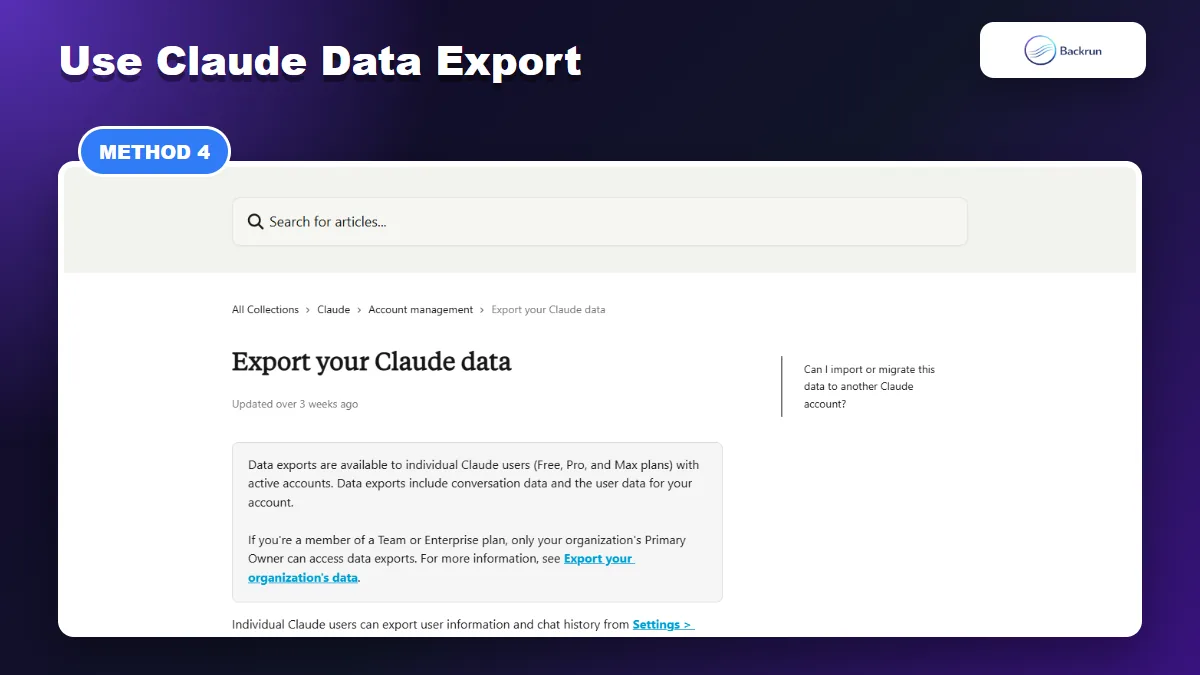
4. Use Claude Data Export for a Full Archive
Claude data export is best treated as an archive workflow, not a polished Notion publishing workflow.
Claude's official data export is the right option when you need a backup of your account history. It is not the best option for publishing polished notes into Notion every day.
Use this method when you need a complete archive first, then want to move only selected conversations into Notion.
Open Claude on web or Claude Desktop. Anthropic says data export is not available from Claude for iOS or Android.
Click your initials in the lower-left corner.
Open Settings and go to Privacy.
Click Export data.
Wait for the email link, then download the archive while the link is valid.
Extract and review the chat history before importing anything into Notion.
Convert only useful conversations into Markdown, HTML, or clean text, then import those files into Notion in small batches.
Best for: backup, migration review, compliance, audit trails, or long-term personal archives.
Limitation: Anthropic's export is an account archive, not a Notion-ready page. Expect to filter, rename, split, and convert files before importing them.
Security note: a full Claude export can contain private prompts, client names, credentials, URLs, and internal context. Keep the original archive private and avoid uploading it to random converters.
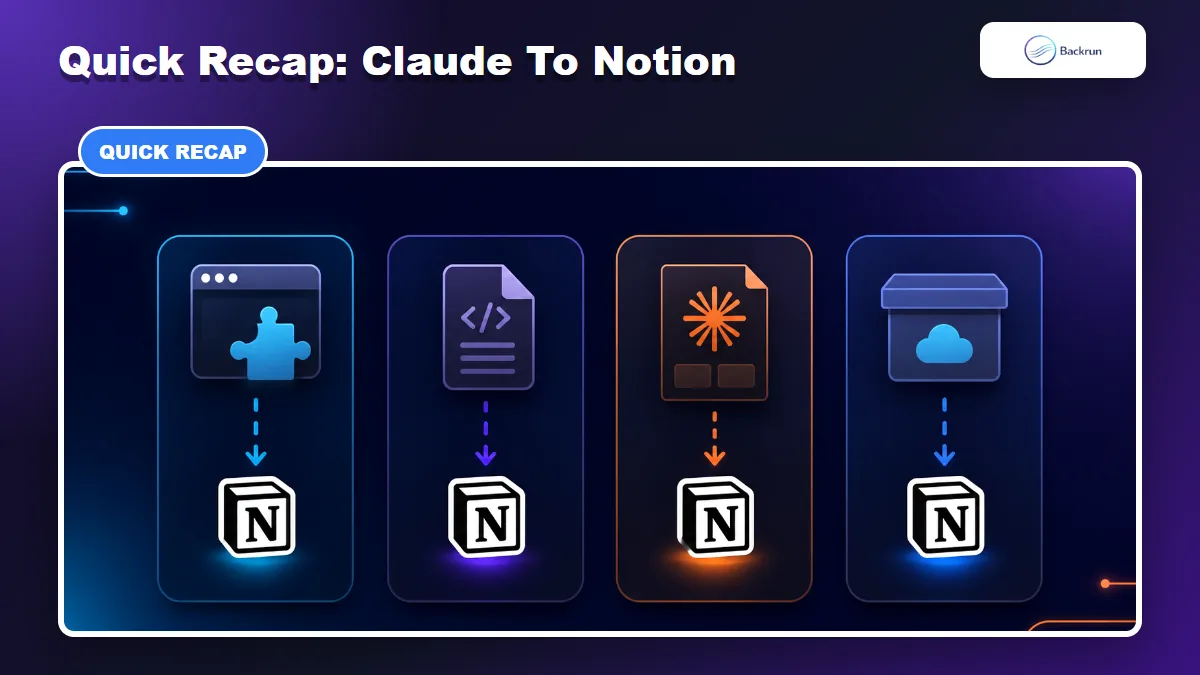
Quick Recap
Pick the export method based on whether you need a full chat, Markdown, a cleaned file, or a bulk archive.
Choose the workflow based on what you actually need to save.
Method
Best for
Main tradeoff
Claude Exporter
Full conversations and selected messages
Requires installing an extension
Markdown import
Editable notes and technical content
Needs cleanup for complex formatting
Notion-ready file
Messy chats that need a clean final page
May summarize away details if your prompt is vague
Claude Data Export
Bulk backup and archive review
Technical archive, not a direct Notion page
For most readers who need to export Claude to Notion, start with Claude Exporter for full chats, use Markdown for editable notes, and reserve Claude Data Export for backups.