How to Export ChatGPT to Google Docs Without Breaking Formatting
September 21, 20267 min read
A short ChatGPT answer can be pasted into Google Docs in seconds. A long conversation is harder: tables can flatten, code blocks can lose spacing, and repeated prompts can turn the document into a cleanup job.
This guide explains four reliable ways to export ChatGPT to Google Docs, including direct conversation export, manual copy, document conversion, and the newer ChatGPT Work workflow.
1. Use ChatGPT Exporter for a Complete Conversation
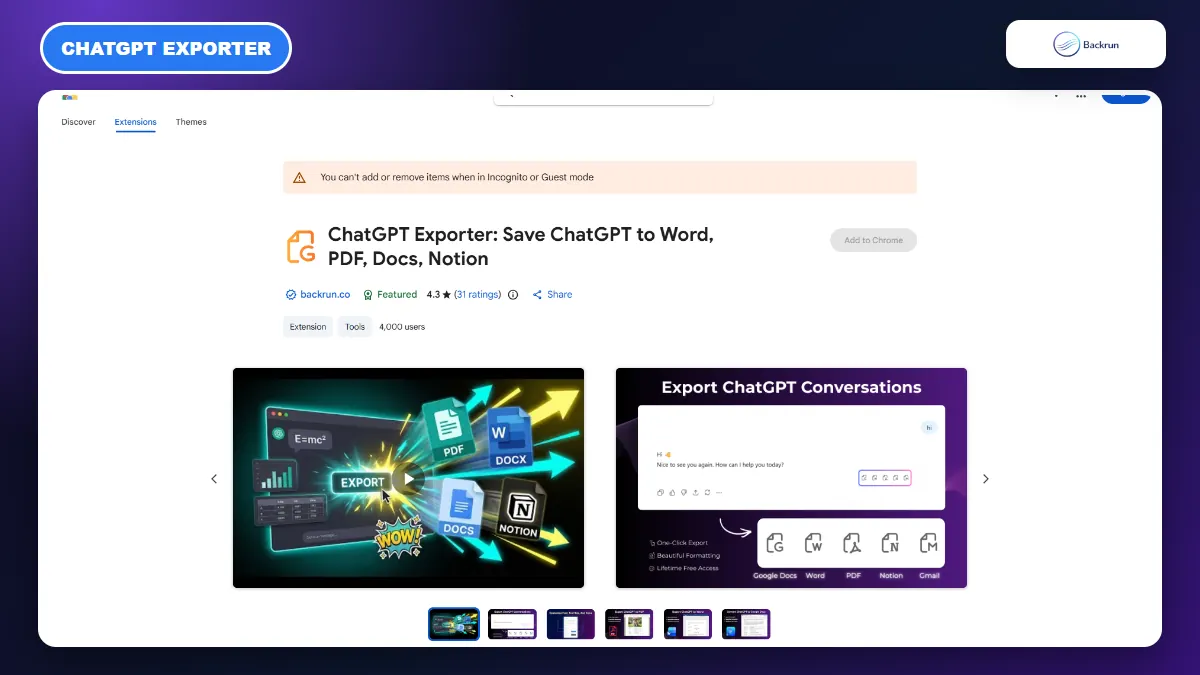
ChatGPT Exporter can move selected messages or a complete conversation directly into Google Docs.
If you need more than one answer, ChatGPT Exporter is the most direct option. It is designed to send selected messages or an entire ChatGPT thread to Google Docs while keeping the conversation readable.
Follow this process for a full or selective export.
Install ChatGPT Exporter from the Chrome Web Store and review the requested permissions.
Open ChatGPT and load the conversation you want to save.
Wait until the full thread is visible, especially if the conversation contains older messages that load while scrolling.
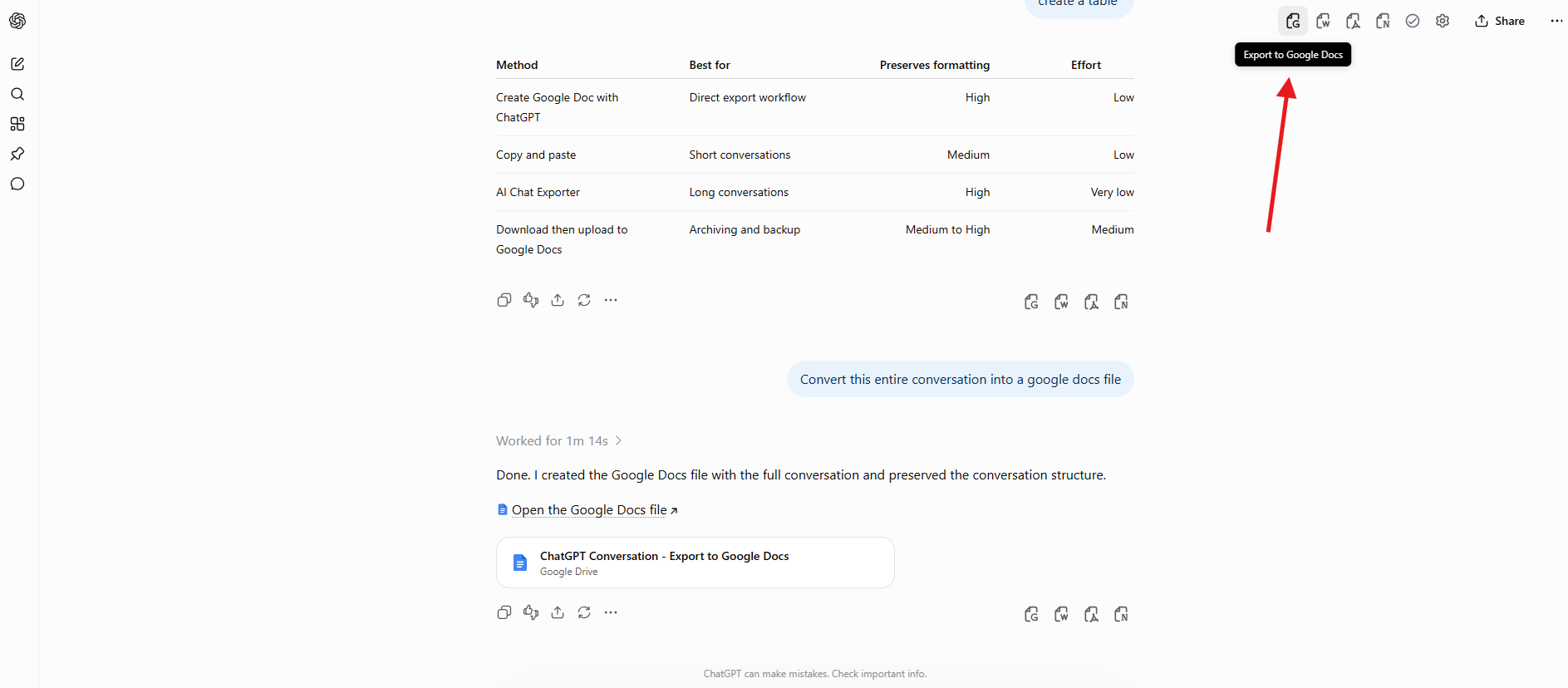
Choose individual messages with the selection controls, or use the full-conversation option when the complete sequence matters.
Review the document settings, including font, text size, and color where available.
Choose Google Docs as the destination and start the export.
Open the new document and check tables, equations, code blocks, images, headings, and generated links before sharing it.
Best for: research threads, project records, reusable SOPs, technical explanations, and conversations where the prompts are part of the context.
Why it works: the exporter reads the conversation structure instead of relying on a single browser copy operation. The current listing also supports exporting only selected passages, which is useful when the thread contains abandoned drafts or private prompts.
Practical check: run one harmless test conversation first. Include a table, a code block, a numbered list, and a link, then confirm that each element remains usable in Google Docs.
2. Copy and Paste a Short ChatGPT Answer
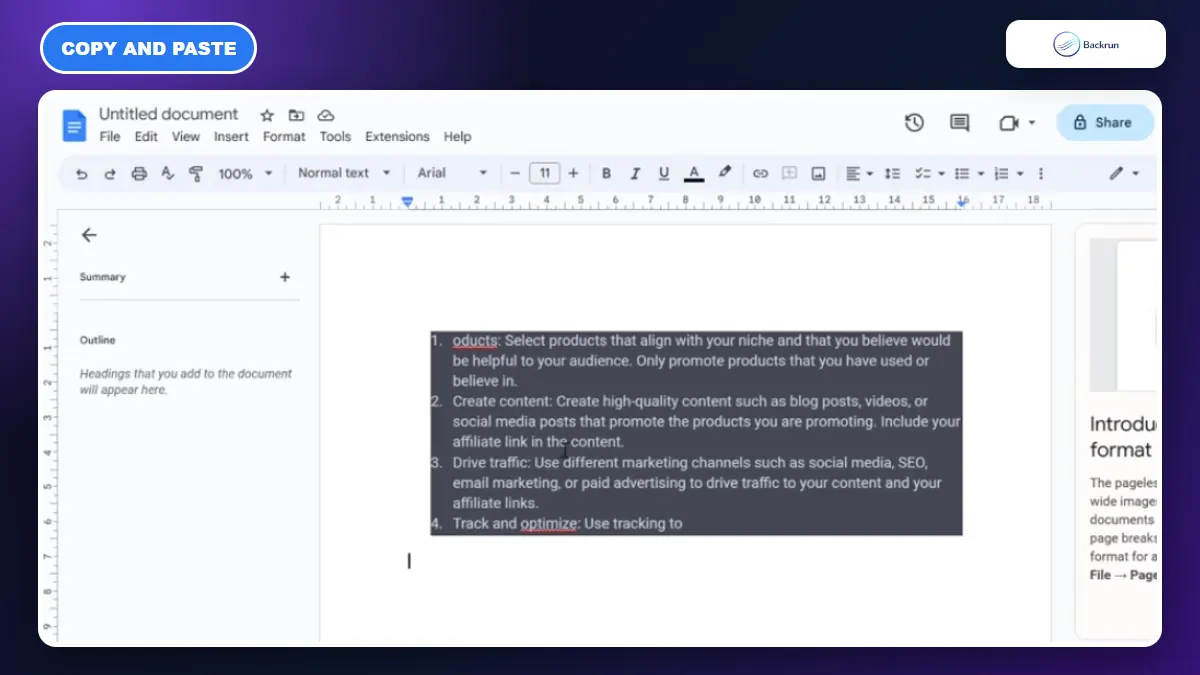
Manual copy works well when you only need one short answer and can review the formatting immediately.
Manual copy is still the fastest method for one answer, a short outline, or a few paragraphs. It also gives you complete control over which text enters the document.
Use the steps below to avoid carrying unnecessary formatting into Docs.
Select only the useful part of the ChatGPT response. Leave out repeated prompts, interface labels, and citations you do not need.
Paste normally into a blank Google Doc and inspect headings, lists, links, and spacing.
Use Paste without formatting when the normal paste brings unwanted fonts, background colors, or irregular spacing.
Apply Google Docs styles such as Title, Heading 2, Normal text, and numbered lists instead of manually changing every line.
Rebuild complex elements separately. Tables, equations, code blocks, and images deserve their own check rather than a blind bulk paste.
Move the cleaned content into the final shared document only after the structure looks correct.
Best for: summaries, email drafts, outlines, short reports, and content that will be edited heavily anyway.
Advantage: no extension or file conversion is required, and nothing beyond the selected text needs to leave the ChatGPT page.
Limitation: it is inefficient for long conversations. A table may paste as plain text, code indentation can shift, and equations may arrive as images or raw notation depending on the source answer.
Experience tip: paste into a temporary blank document first. Hidden formatting is easier to remove there than inside a branded report with existing styles.
3. Ask ChatGPT for a DOCX File, Then Open It in Google Docs
A DOCX checkpoint is useful for long deliverables that need headings, lists, and tables before collaboration begins.
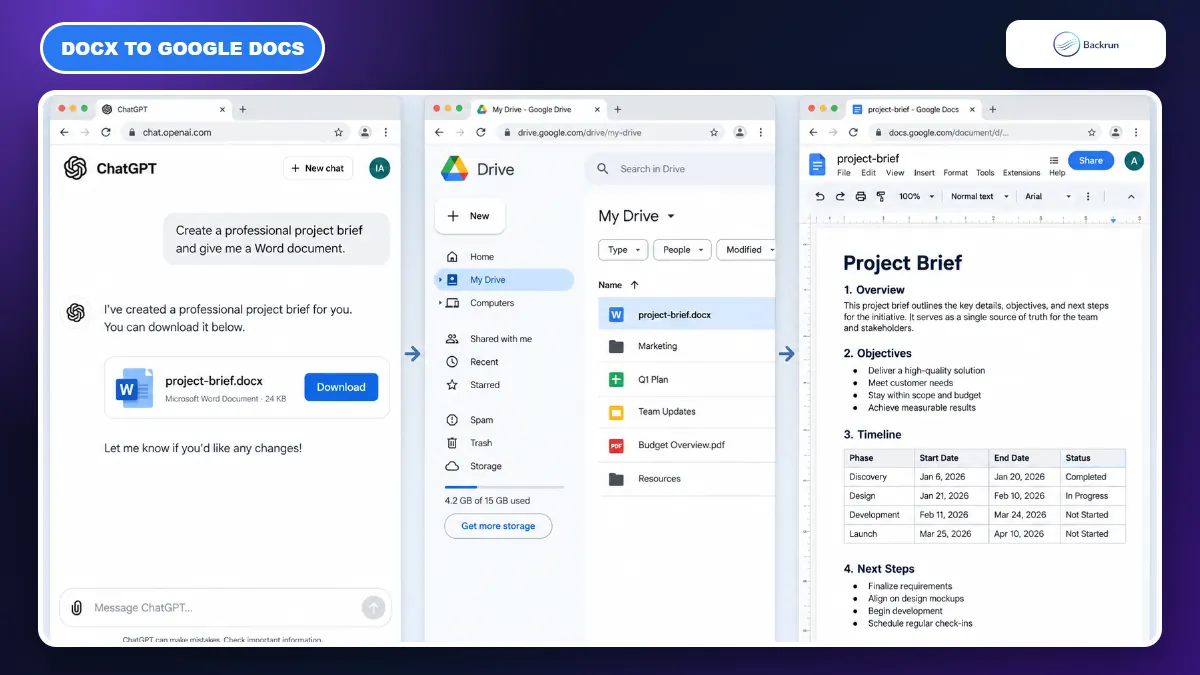
A Word file is a useful bridge when you want ChatGPT to assemble a polished deliverable rather than preserve the original back-and-forth conversation. This method works best for reports, briefs, proposals, and structured notes.
Here is the file-based workflow.
Tell ChatGPT what the document should contain and specify the structure: title, sections, headings, bullets, tables, captions, and any required order.
Ask for an editable Word document in .docx format, not a PDF.
Download the generated file and open it locally once to confirm that it is not empty or damaged.
Upload the DOCX to Google Drive.
Right-click the file and choose Open with Google Docs.
Review the converted document for page breaks, table widths, image placement, fonts, and list numbering.
Save a native Google Docs copy when you are satisfied with the conversion.
Google's official guidance confirms that Word files can be opened from Drive with Google Docs. The conversion is usually strong for ordinary text and tables, but very complex layouts can still shift.
Best for: long-form deliverables where the final document matters more than preserving every ChatGPT prompt.
Advantage: the DOCX acts as a backup and conversion checkpoint. If the Google Docs version changes the layout, you can return to the original file without regenerating the content.
Limitation: the file is a finished document, not a verbatim conversation archive. Ask ChatGPT to include source notes or prompt context explicitly when those details matter.
For workflows that end in a fixed file rather than a collaborative document, Backrun also explains how to convert ChatGPT to PDF.
4. Create a Native Google Doc With ChatGPT Work
Where Google Workspace is connected, ChatGPT Work can create a native Google Doc without a DOCX conversion step.
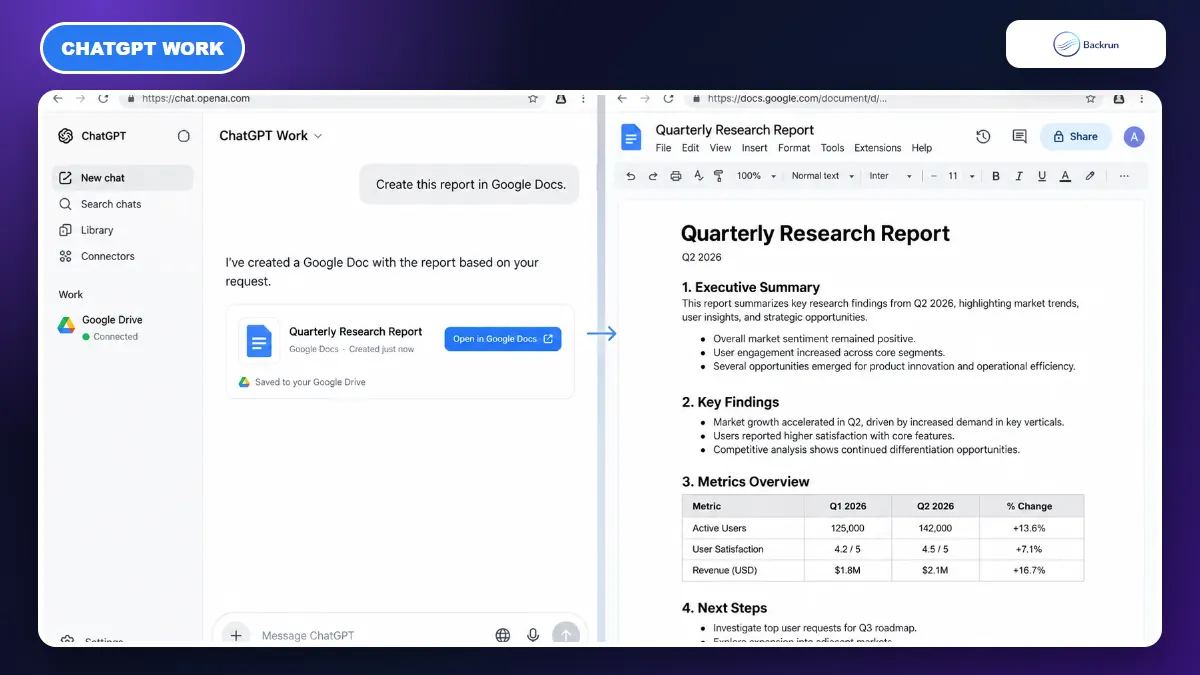
Some ChatGPT Work environments can create or edit native Google Docs when the relevant Google Workspace app is connected. This removes the download-and-upload step, but it is not available in every plan, account, or workspace configuration.
Use this route only when the Google Drive connection appears in your ChatGPT Work interface.
Open ChatGPT Work and confirm that Google Drive is connected and authorized for the account you intend to use.
Describe the document, including its purpose, audience, sections, and required formatting.
Ask ChatGPT to create the result in Google Docs rather than returning only a chat response.
Open the created document from the file card or Drive link.
Check the sharing settings. A newly created file may inherit access rules from the connected workspace or destination folder.
Review factual claims and formatting before inviting collaborators.
OpenAI's current ChatGPT Work documentation says native Google Docs actions depend on the relevant Google Workspace app being enabled and connected. Available actions can vary by plan, workspace settings, file type, and product surface.
Best for: teams already using ChatGPT Work and Google Workspace for shared reports, briefs, and recurring documents.
Advantage: the document starts in Google Docs, so there is no intermediate Word conversion.
Limitation: this is an availability-dependent creation workflow. If you do not see the connection or native file action, use ChatGPT Exporter for conversations or the DOCX method for a finished deliverable.
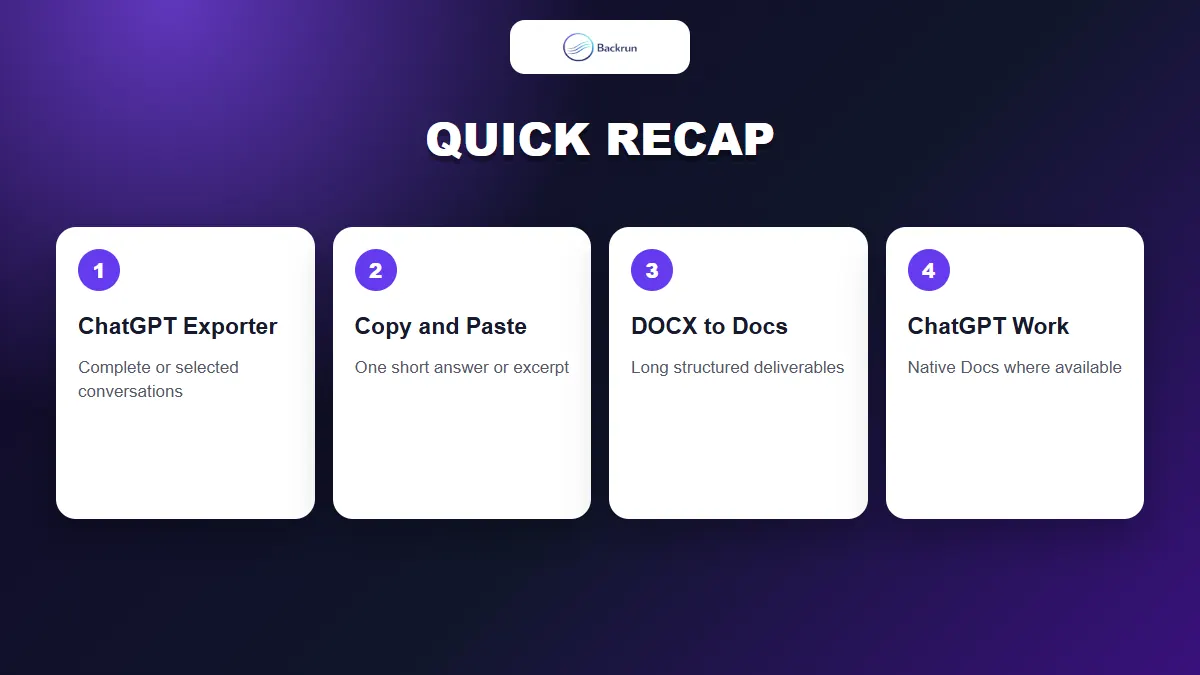
Quick Recap
Choose the workflow based on whether you need a complete chat, one answer, a polished file, or native Workspace creation.
Method
Use it when
Main strength
Main caution
ChatGPT Exporter
You need selected messages or the complete conversation
Direct and repeatable
Review extension permissions
Copy and paste
You only need one short answer
Fast and fully selective
Complex formatting may break
DOCX to Google Docs
You need a polished long-form document
Provides a backup file
Conversion can shift complex layouts
ChatGPT Work
Your workspace supports native Google Docs creation
No intermediate conversion
Availability varies
Use ChatGPT Exporter when the conversation itself matters, copy and paste for one short answer, and create a DOCX when you need a structured deliverable. Choose ChatGPT Work only when native Google Workspace actions are available in your account.