How to Transfer Gemini to Grok AI Without Losing Context
September 08, 20267 min read
If you want to transfer Gemini to Grok AI, the goal is not to recreate every Gemini screen inside Grok. The practical goal is to move the right context in a format Grok can understand, then tell Grok exactly what to do with it.
There is no official one-click migration button that turns a Gemini conversation into a Grok conversation with the same chat history, files, and memory. What works is a controlled handoff: export selected chats, send one response through Google Docs, summarize the project state, or use Google Takeout for an archive-first workflow.
For normal users, the safest rule is simple: move less context, but make it clearer. Grok will usually perform better with a well-labeled transcript, brief, or document than with a messy dump of every Gemini message you have ever written.
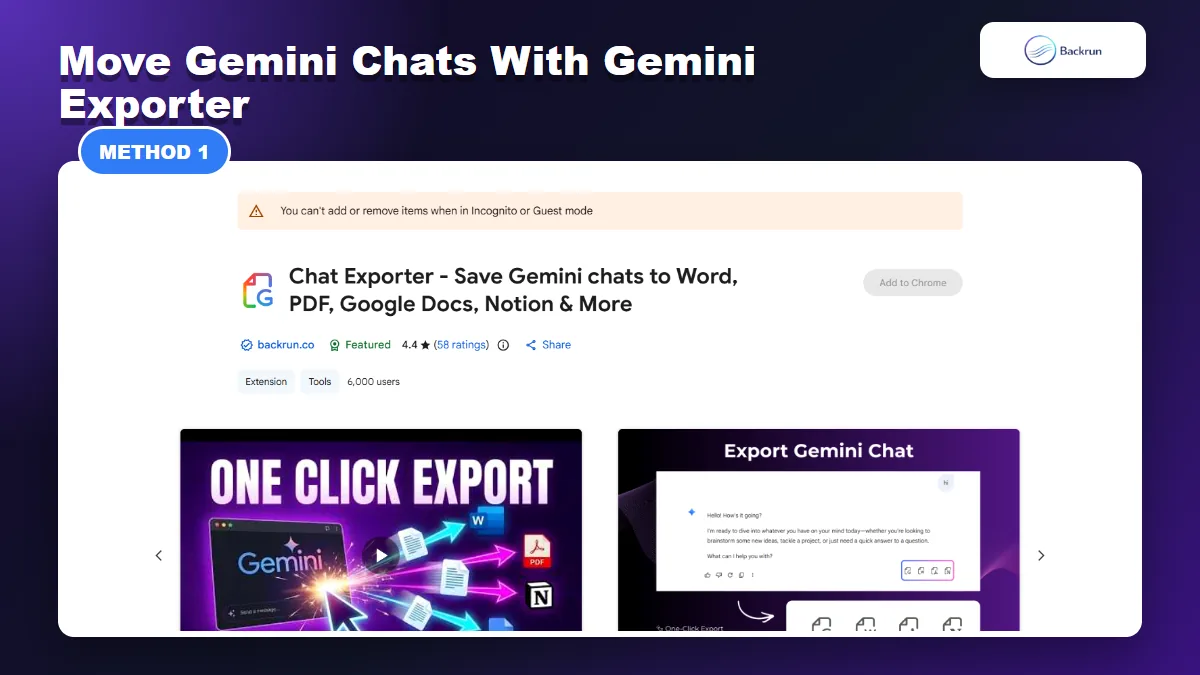
1. Use Gemini Exporter to Move Selected Gemini Chats Into Grok AI
Gemini Exporter is the cleanest method when you want selected Gemini conversations in a portable format before continuing the work in Grok AI.
This is the most direct method when the Gemini conversation itself matters. It is useful for research threads, client notes, coding explanations, prompt experiments, and long answers where copy-paste would lose structure.
Steps to follow
Use this workflow when you want a clean file before opening Grok.
Open Gemini and load the conversation you want to transfer.
Select the relevant messages, or export the whole thread if the order of the conversation matters.
Choose a format. Markdown or TXT is usually best for Grok to edit; PDF is better when you want Grok to read the chat as a fixed reference.
Open Grok AI and paste the exported text, or attach the prepared file if file upload is available in your account.
Tell Grok what to do next, such as summarize, continue the work, rewrite the output, compare options, or extract action items.
When this method works best
Use Gemini Exporter when you need formatting, message order, tables, code blocks, links, and headings to survive the move. It is also the better choice when you only need a few important Gemini chats instead of a full account archive.
What to check before using Grok
Review the exported file before pasting it into Grok. Remove private information, old false starts, repeated prompt attempts, and any data that does not help the next task. If you prefer Markdown-first workflows, this Backrun guide on Gemini to Markdown explains how to keep exported content easier to reuse.
2. Export One Gemini Response to Google Docs, Then Bring It Into Grok
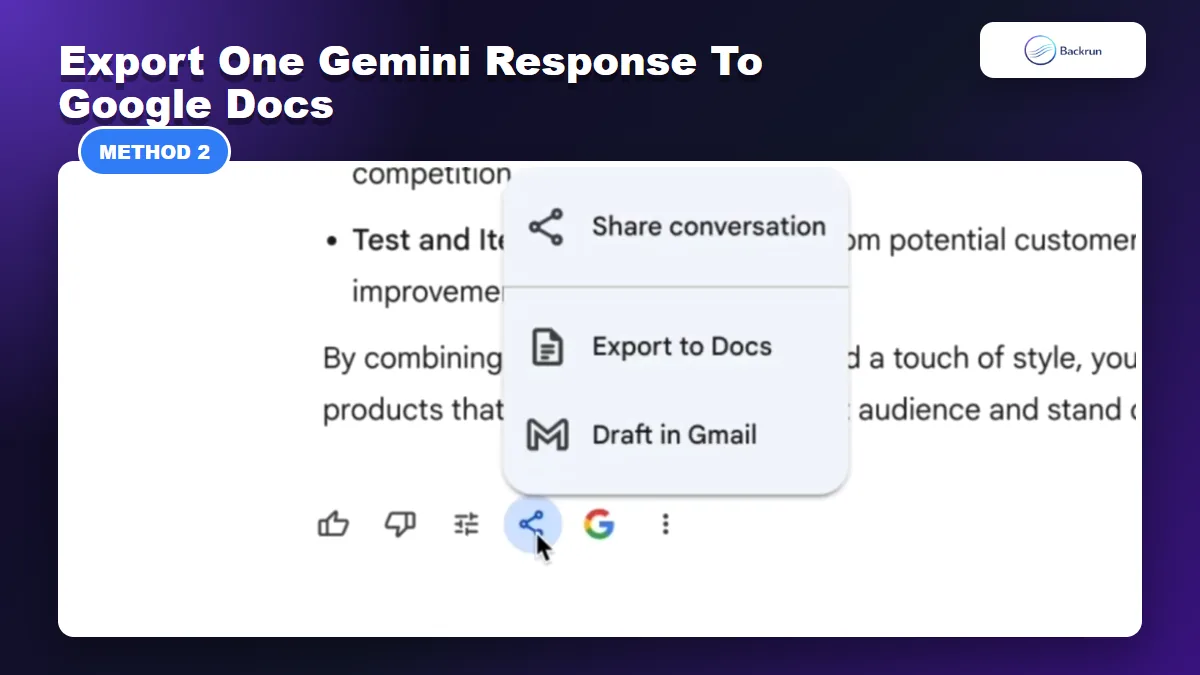
Gemini can export a single response to Google Docs, which is useful when only one answer needs to be cleaned before moving into Grok.
Gemini has a built-in export path for sending a single response to Google Docs. This is not a full conversation transfer, but it is useful when one Gemini answer already contains the useful context.
Steps to follow
Use this workflow when one response is enough and you want to clean it before sharing it with Grok.
Open the Gemini answer you want to reuse.
Use Gemini's share or export menu and choose the Google Docs option when it is available. Google's Gemini help page describes exporting responses to Docs or Gmail for supported surfaces.
Open the Google Doc and clean the structure: add headings, remove extra intro text, and keep only the useful parts.
Copy the polished document text, or download it as a file if you plan to attach it.
Open Grok AI and paste the cleaned text with a clear instruction.
Best for
This method is best for a polished Gemini answer: a plan, outline, explanation, checklist, or research summary. It is also useful when you want to edit the text in Google Docs before bringing it into Grok.
Limitations
The Google Docs export button does not move the full Gemini thread. It usually exports one response, so important earlier context can be missing. If the answer depends on previous prompts, add a short context note at the top of the document before using it in Grok.
3. Ask Gemini to Create a Grok AI Handoff Brief
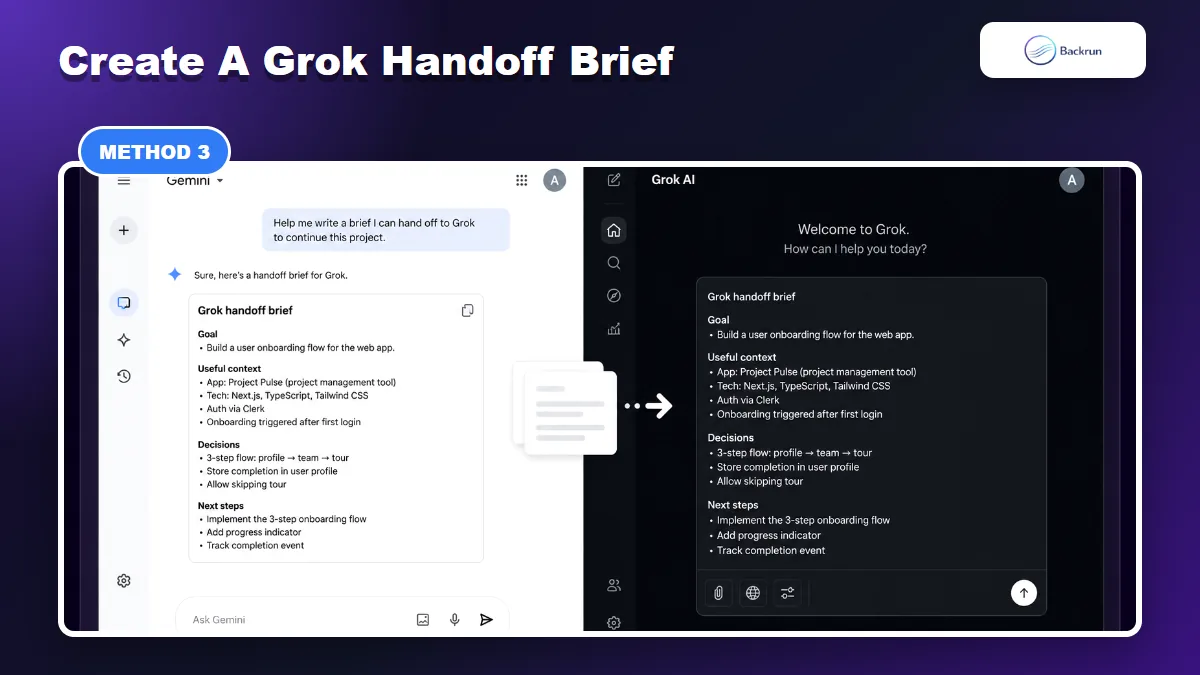
A handoff brief gives Grok the project state, decisions, constraints, and next step without forcing it to read every exploratory message.
Sometimes the best transfer is not a transcript. For an active project, Grok needs the current state of the work: what you are trying to do, what has already been decided, what constraints matter, and what the next step should be.
Prompt to use in Gemini
Use a prompt like this at the end of your Gemini conversation:
Create a concise handoff brief for Grok AI. Include the goal, important context, decisions made, constraints, links, files, output style, open questions, and recommended next steps. Remove duplicate exploration and keep only what Grok needs to continue the work.
Steps to follow
Use this workflow when you want Grok to continue one task without reading a long raw chat.
Ask Gemini for the handoff brief using the prompt above.
Review the brief and add any exact facts, URLs, file names, or requirements Gemini missed.
Paste the brief into Grok AI as the first message in a new chat.
Ask Grok to confirm its understanding before generating the next output.
Continue only after the summary is correct. If Grok misunderstands the project, fix the brief before asking for new work.
What to include
A useful handoff brief should include the project goal, audience, format, constraints, previous decisions, examples, references, and the exact next action. If you later want to export Grok's continuation, this Backrun guide on Grok to Markdown can help keep the next stage portable too.
4. Use Google Takeout When You Need a Full Gemini Archive
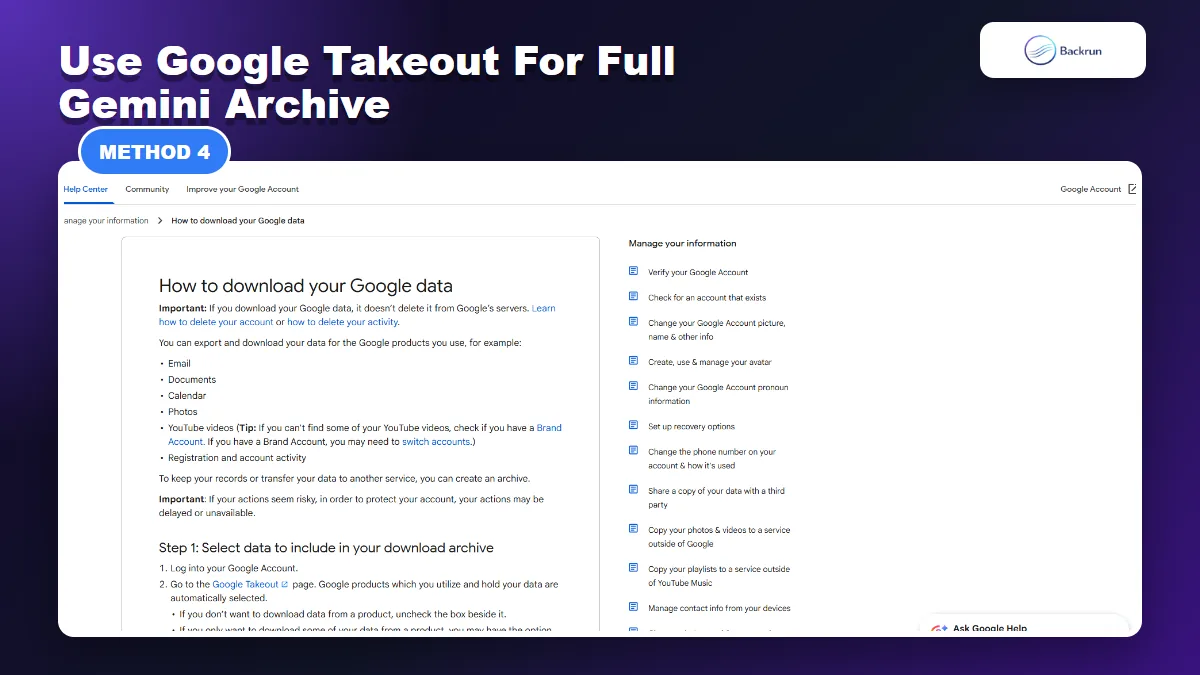
Google Takeout is the archive-first option. Use it for backup, then extract only the Gemini content Grok actually needs.
Google Takeout is the archive-first method. It is useful when you want a backup of Gemini-related activity before deciding what should move into Grok. It is not the easiest method for a single project, but it is the official backup route for Google account data.
Steps to follow
Use this workflow when you need a broader backup before extracting selected content.
Click Deselect all so you do not export unnecessary account data.
Select Gemini or relevant activity data if it is available in your account options.
Choose the delivery method, file type, and archive size.
Create the export and wait for Google to prepare the archive.
Download the archive privately and extract only the Gemini content that Grok needs.
Convert selected material into Markdown, TXT, or a clean document before pasting or attaching it in Grok.
How to clean the archive
Do not upload a full Takeout archive into Grok. Search for the relevant Gemini activity, copy only the useful parts, remove personal data, then organize the content under short headings such as Goal, Context, Decisions, Files, and Next steps.
When not to use this
Do not use Google Takeout for a quick transfer. It is slower, more technical, and easier to over-share. For one useful Gemini answer, use Google Docs. For selected conversations, use Gemini Exporter. For one active project, use a handoff brief.
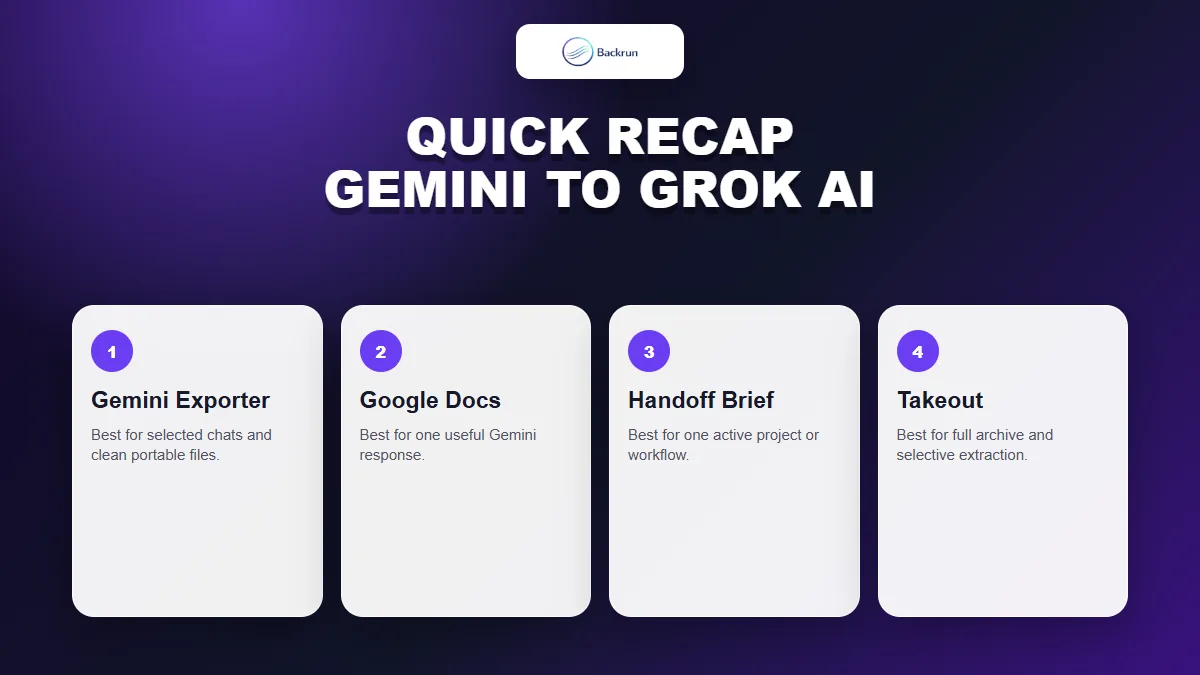
Quick Recap
Choose the transfer method based on whether you need selected chats, one response, one project brief, or a full archive.
The best way to transfer Gemini to Grok AI depends on how much context you need and how much cleanup you are willing to do.
Method
Best for
Main caution
Gemini Exporter
Selected Gemini chats
Review the exported file before sending it to Grok
Google Docs export
One polished Gemini response
Earlier chat context may be missing
Grok handoff brief
One active project
Check that the brief preserves key decisions
Google Takeout
Full archive and backup
Never upload the whole archive without cleanup
For most people, start with Gemini Exporter when the chat itself matters, use Google Docs when one response is enough, and use a handoff brief when Grok only needs the current state of a project.