3 Reliable Ways to Copy Equations From Grok to Word
September 09, 20266 min read
Copying a formula from Grok often leaves Word with raw LaTeX, broken fractions, or a flat image. To copy equations from Grok to Word successfully, choose a workflow based on whether you need one editable equation or an entire conversation.
The three methods below solve different problems. AI Chat Exporter is the quickest route for a complete chat, Word's Equation Editor is best for individual formulas, and Grok's file-generation workflow can prepare a downloadable DOCX when that feature is available. Each method includes a practical verification step so you can catch missing symbols before using the document.
1. Use AI Chat Exporter to Move Grok Equations Into Word
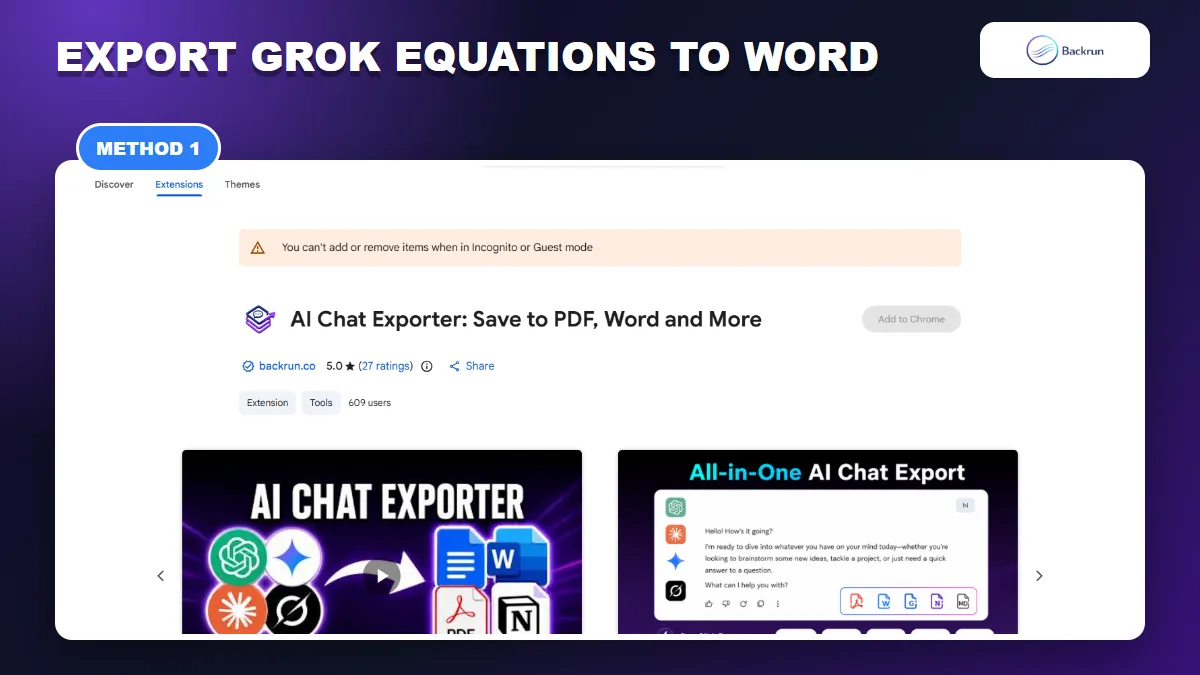
AI Chat Exporter is the fastest option when equations belong to a longer Grok conversation.
If the equations are part of a long explanation, copying each formula separately is slow and easy to get wrong. AI Chat Exporter by Backrun can export selected Grok messages or a complete thread to Word, keeping the surrounding headings, lists, tables, and formulas together.
Follow these steps when you want a reusable document instead of a one-off equation.
Open grok.com and load the conversation containing the equations.
Select the relevant messages with the checkboxes, or choose the full conversation from the export control.
Choose Word as the output format.
Download and open the DOCX file in the desktop version of Microsoft Word.
Check every formula, especially matrices, aligned expressions, subscripts, superscripts, and uncommon symbols.
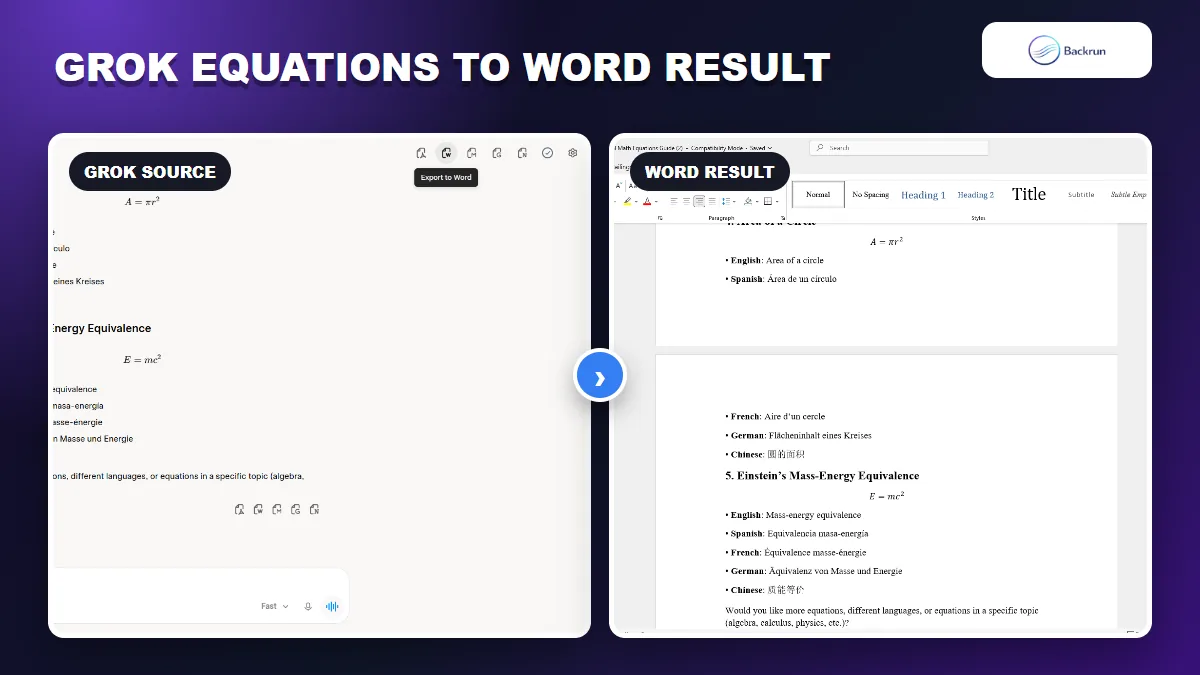
The Grok source and the exported Word document should contain the same equations, symbols, and supporting text.
Best for: research notes, homework explanations, technical reports, and chats containing several equations.
Limitation: the result depends on how Grok structured the original response. If the formula is malformed in Grok, ask it to regenerate the equation in standard LaTeX before exporting.
Experience tip: export a short sample first. Confirm that the equations remain readable in Word before exporting a very long thread. You can also compare other Grok-to-document tools in Backrun's guide to Grok to Word extensions.
Before exporting, it also helps to ask Grok to place each important equation on its own line and define every variable immediately below it. A cleaner source response gives the exporter clearer boundaries between prose and mathematics. After opening the DOCX file, click an equation and check whether Word treats it as an equation object or ordinary text. Ordinary text may still look correct, but it will be harder to edit and may reflow poorly when the page width changes.
2. Paste Grok LaTeX Into Word's Equation Editor
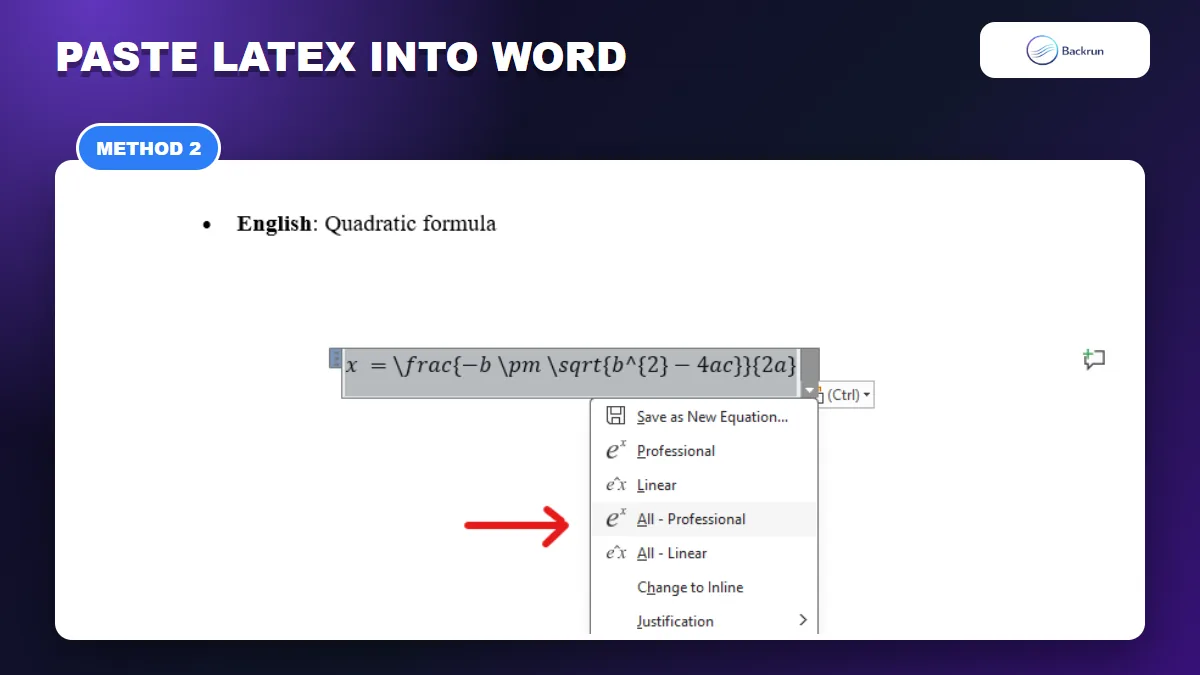
Choose All - Professional to turn the pasted LaTeX into a formatted Word equation.
For one or two formulas, Word's built-in Equation Editor gives you the cleanest editable result. Microsoft documents that Word desktop can accept supported LaTeX inside a math zone and convert it into Office Math.
Use the following workflow when you need to edit symbols, change variables, or restyle the equation later.
Ask Grok for the formula in LaTeX only. A useful prompt is: Return this equation as standard LaTeX only, without a code fence or explanation.
Copy the LaTeX expression. Remove surrounding triple backticks if Grok included them.
Open Word desktop and place the cursor where the formula should appear.
Press Alt + = on Windows, or choose Insert > Equation.
Set the equation input to LaTeX if Word does not recognize the expression automatically.
Paste the formula into the equation box, then use Convert > Professional when required.
Compare the result with Grok character by character before continuing.
Best for: individual equations that must remain editable, accessible, and consistent with Word's document styles.
Limitation: Word supports a substantial LaTeX subset, but not every package, macro, or environment. Microsoft's LaTeX support reference lists recognized syntax and known limitations.
Practical fix: if a complex environment fails, ask Grok to rewrite it as a simpler expression. For multi-line derivations, insert and verify each line separately instead of pasting a large block at once.
Watch for invisible copying problems as well. Smart quotes, Unicode minus signs, extra dollar-sign delimiters, and line breaks inside commands can stop Word from converting otherwise valid LaTeX. Paste the expression into a plain-text editor first when troubleshooting, remove decorative delimiters, and then copy the cleaned expression into the Word equation box. If the equation stays linear, select it and use the Professional conversion command rather than repeatedly pressing Enter.
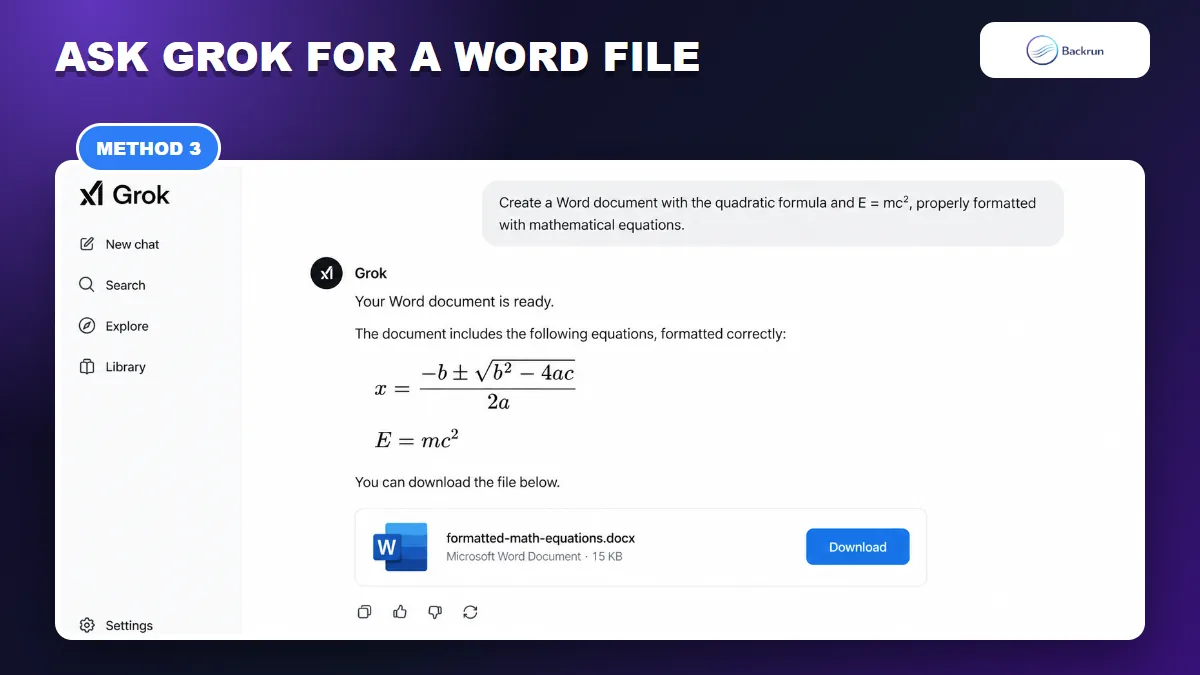
3. Ask Grok to Create a Word File With Formatted Equations
Grok can prepare a downloadable DOCX when the file-generation feature is available in your account.
Some Grok accounts and modes can create downloadable files directly from a prompt. When this feature is available, you can ask Grok to prepare a DOCX document and explicitly require the equations to be formatted as Word equations rather than pasted as raw LaTeX.
Use the following workflow when you want Grok to assemble the explanation and equations into one ready-to-download file.
Prepare the final content in Grok and make sure the equations are correct before asking for a file.
Ask Grok to create a Word document. For example: Create a downloadable Word file from this answer. Preserve all headings and lists, and format every mathematical expression as a proper editable equation.
Specify the document structure, including a title, section order, variable definitions, and whether equations should appear inline or on separate lines.
Download the DOCX file from the file card Grok returns.
Open the file in Word desktop and click several equations to confirm they are editable equation objects.
Compare the document with the Grok response before saving or sharing it.
Best for: a finished answer that should become a complete worksheet, report, study guide, or technical note in one step.
Limitation: direct file creation may not be available in every Grok plan, workspace, model, or session. If Grok cannot attach a DOCX file, use AI Chat Exporter or the manual LaTeX workflow instead.
Trust check: asking for “correctly formatted equations” is not a mathematical guarantee. Verify operators, signs, exponents, denominators, vector notation, and equation numbering against the source. Also check whether Word treats each expression as an editable equation rather than a screenshot or ordinary text.
Quick Recap
Choose the method by document length and whether the equations must remain editable.
Method
Best for
Main advantage
Main limitation
AI Chat Exporter
Full or selected Grok messages
Exports the conversation directly to Word
Requires a browser extension
Word Equation Editor
One or a few equations
Creates editable Office Math
Some LaTeX commands are unsupported
Ask Grok for a Word file
Complete worksheets and reports
Creates a downloadable DOCX in one workflow
File generation is not available in every account or mode
For most people, the safest way to copy equations from Grok to Word is to use Word's Equation Editor for a small number of formulas and AI Chat Exporter for a longer conversation. Asking Grok to build the file directly is convenient when the downloadable-file feature is available in your session.
Whichever method you choose, finish with a mathematical review rather than a visual glance. A missing minus sign, exponent, bracket, or denominator can change the meaning even when the document looks polished.