How to Copy Math Equations From ChatGPT to Google Docs
September 16, 20266 min read
Math that looks correct in ChatGPT can turn into raw LaTeX, flattened symbols, or broken fractions after a normal paste. This guide explains how to copy math equations from ChatGPT to Google Docs with four workflows that match different needs: complete answers, editable formulas, bulk LaTeX, and fixed visual output.
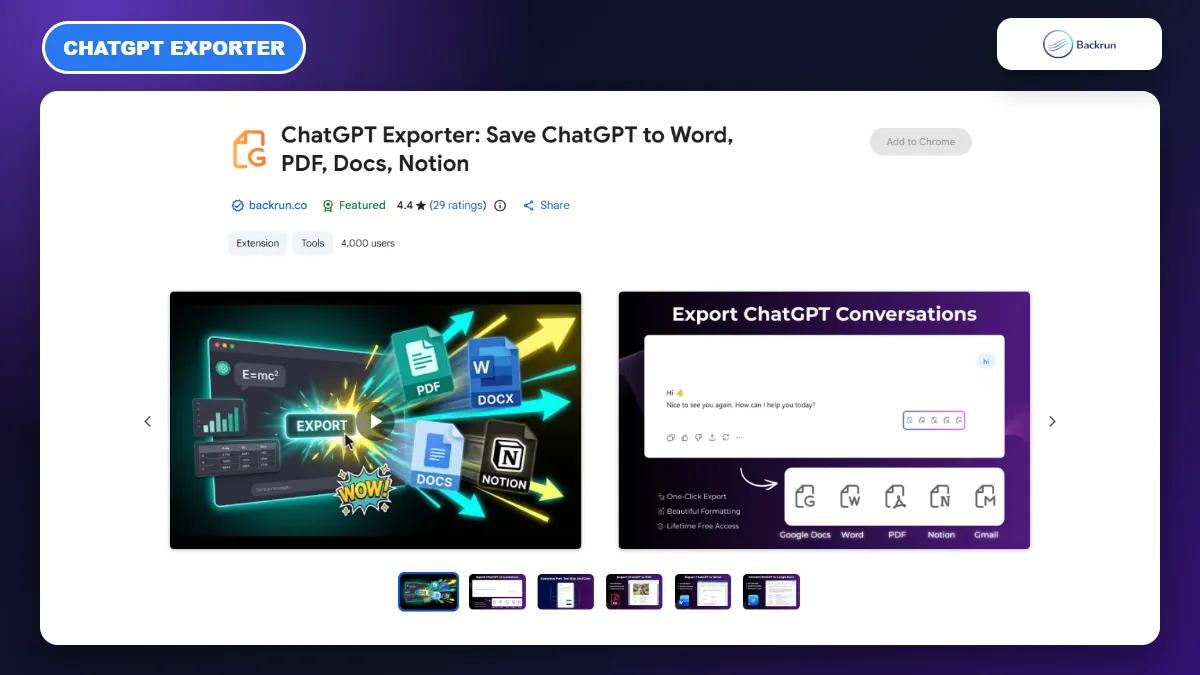
1. Export ChatGPT Equations With ChatGPT Exporter
ChatGPT Exporter is the most direct option when the equations belong to a longer answer or complete conversation.
Use ChatGPT Exporter when you want to preserve the explanation around the equations instead of rebuilding each formula manually. The extension can send selected messages or the complete conversation to Google Docs, which is useful for worked solutions, study notes, and technical research.
Open ChatGPT and load the conversation containing the equations.
Select the relevant response, or choose the full conversation when earlier prompts define variables or assumptions.
Choose Google Docs as the output destination.
Complete the Google authorization step if requested, then open the created document.
Compare every equation with ChatGPT, paying particular attention to minus signs, exponents, fractions, matrices, and aligned expressions.
Best for: a complete ChatGPT answer, several equations, or a chat that also contains headings, tables, lists, and explanatory text.
Advantage: the document is created without manually reconstructing each formula in Google Docs.
Limitation: it requires an extension and Google authorization. Review current permissions before exporting confidential coursework, client information, or internal company data.
Experience tip: export one short response first. Confirm that complex expressions survive before moving a long conversation. Backrun's broader guide to exporting ChatGPT to Google Docs covers the surrounding text and document workflow in more detail.
2. Rebuild a Few Formulas in Google Docs Equation Editor
Google Docs Equation Editor creates native, editable formulas and works best when only a few expressions need to be transferred.
Google Docs includes a native Equation Editor. It is the safest choice when you only need one or two formulas and want them to remain editable, searchable, and consistent with the document rather than becoming pictures.
Use this workflow for short equations.
Ask ChatGPT to return one expression only, without a code fence or explanatory paragraph.
Open Google Docs and place the cursor where the formula belongs.
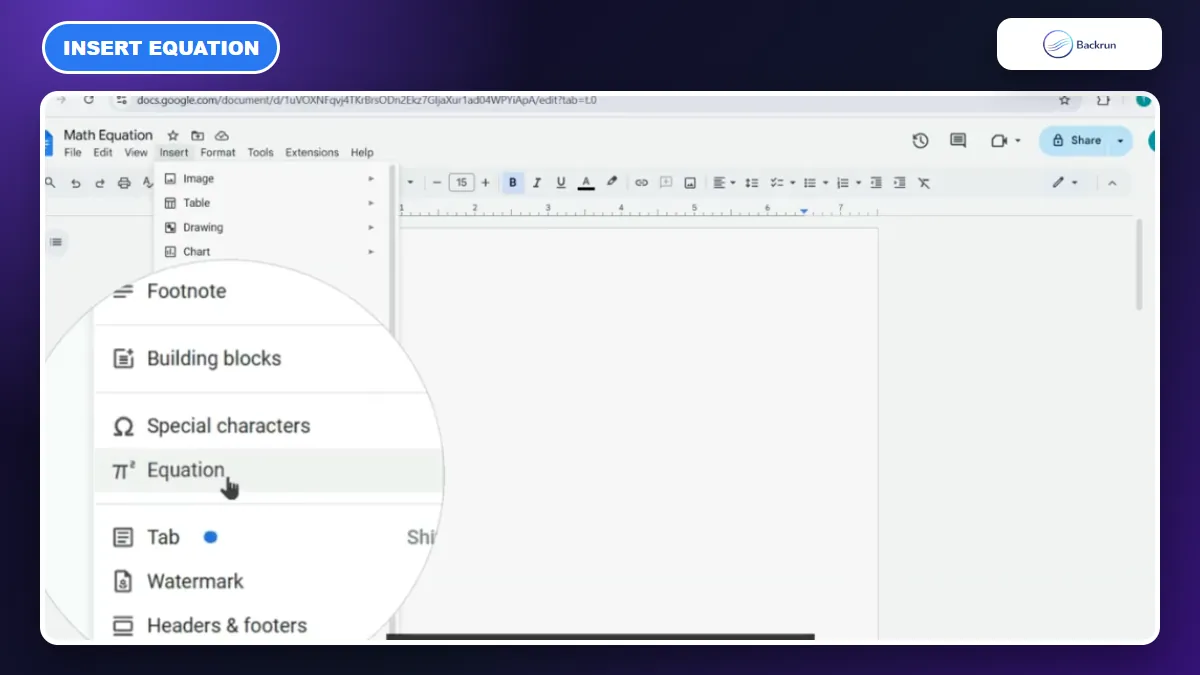
Choose Insert > Equation. The equation toolbar appears above the document.
Enter the basic variables and operators inside the equation box.
Use supported shortcuts: type a backslash followed by a symbol name, such as alpha, then press Space. Use ^ for superscripts and _ for subscripts.
Build fractions, roots, relations, and uncommon operators from the equation toolbar when a pasted LaTeX command is not recognized.
Check the result against the original before deleting the ChatGPT source.
Best for: a small number of equations that must stay editable in Google Docs.
Advantage: the result is a native Docs equation rather than an image.
Limitation: Google Docs uses LaTeX-like shortcuts, but it is not a full LaTeX compiler. Pasting a complex block such as an entire align environment will not reliably convert it. Google's official equation documentation lists the supported toolbar and shortcut behavior.
Practical fix: simplify a complex formula before transferring it. Ask ChatGPT to split a derivation into separate expressions, then create one equation box per line.
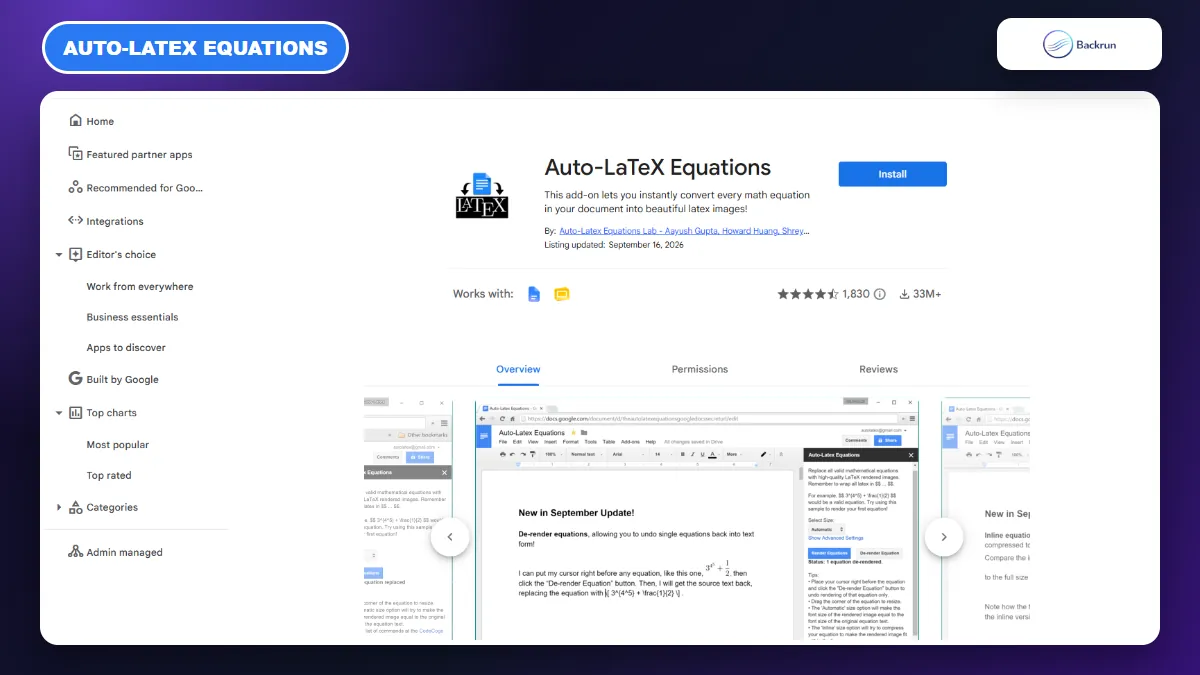
3. Render Multiple ChatGPT Equations With Auto-LaTeX Equations
Auto-LaTeX Equations converts LaTeX wrapped in dollar-sign delimiters into rendered equation images inside Google Docs.
Auto-LaTeX Equations is useful when a ChatGPT answer contains many formulas and manually recreating each one would take too long. Its Marketplace listing states that the add-on converts LaTeX expressions enclosed in double dollar signs into rendered math images.
Below is the bulk-render workflow.
Ask ChatGPT for standard LaTeX. A useful prompt is: Return the answer with every display equation wrapped in double dollar signs. Use standard LaTeX and avoid custom packages.
Paste the response into Google Docs and check that every formula has matching $$ delimiters.
Select the rendering size in the sidebar and click Render Equations.
Inspect the output for unsupported commands, missing braces, incorrect line breaks, and equations that are too small.
Best for: worksheets, technical notes, and long ChatGPT answers containing many LaTeX expressions.
Advantage: several equations can be rendered in one pass. The developer's tutorial documents the same delimiter-and-render workflow.
Limitation: the rendered equations are images, not native Google Docs equation objects. Editing usually means changing the underlying LaTeX and rendering again. Review the add-on's permissions and privacy policy before processing sensitive documents.
Experience tip: keep a copy of the original LaTeX below or in a separate document until the final review is complete. That makes corrections much faster than recreating an equation from the rendered image.
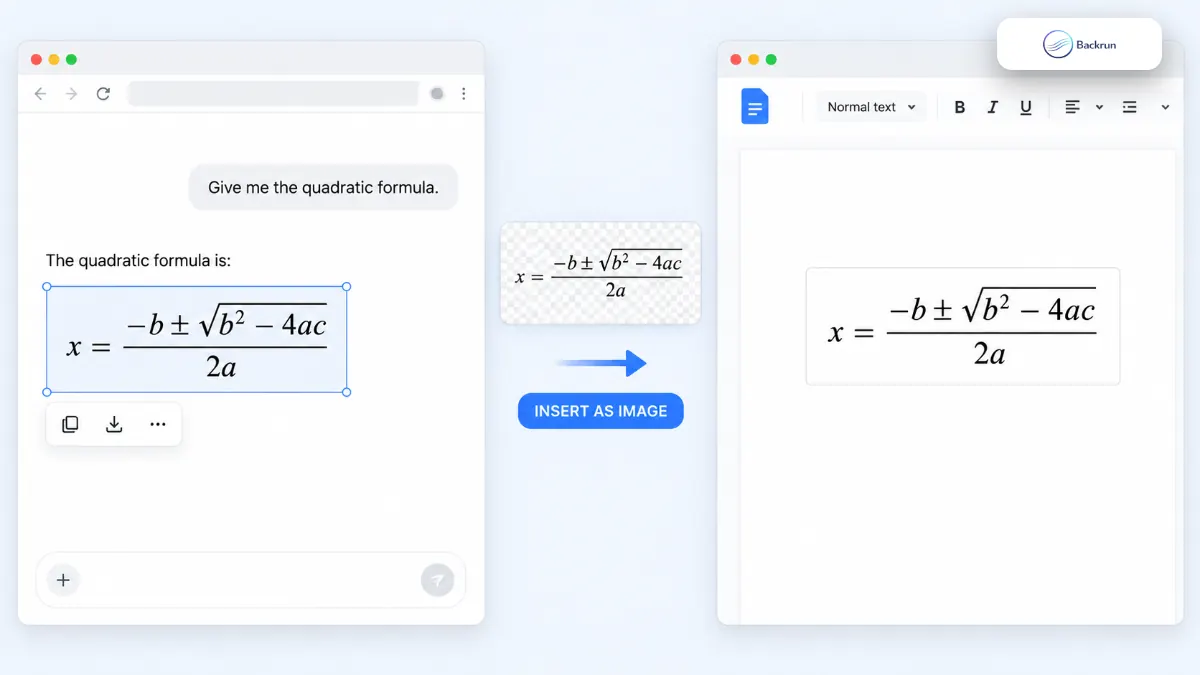
4. Insert the Equation as an Image
An equation image preserves the appearance exactly, but the formula cannot be edited as native mathematical notation.
If you need the equation to look exactly as it does in ChatGPT and do not need to edit its symbols later, a cropped image is the most predictable fallback. It avoids LaTeX compatibility problems and works even with matrices or layouts that Google Docs cannot reproduce cleanly.
Use these steps for a fixed visual result.
Zoom the ChatGPT page until the equation is large and sharp.
Capture only the equation with Windows Snipping Tool, macOS Screenshot, or another trusted screen-capture tool.
Save the crop as PNG to keep text and thin mathematical strokes crisp.
In Google Docs, choose Insert > Image and upload the file, or paste the screenshot directly from the clipboard.
Resize from a corner so the aspect ratio remains intact.
Add descriptive alt text and keep the source LaTeX nearby when accessibility or future editing matters.
Best for: a final report, presentation handout, or equation with a complex layout that only needs to be viewed.
Advantage: the visual appearance is preserved exactly and does not depend on Google Docs equation syntax.
Limitation: the equation is not editable or naturally readable by assistive technology. It can also become blurry when enlarged, so capture at a larger size than the final display.
Trust check: do not rely on appearance alone. Compare the screenshot with the original equation before inserting it, especially when similar symbols such as 0 and O, or 1 and l, appear.
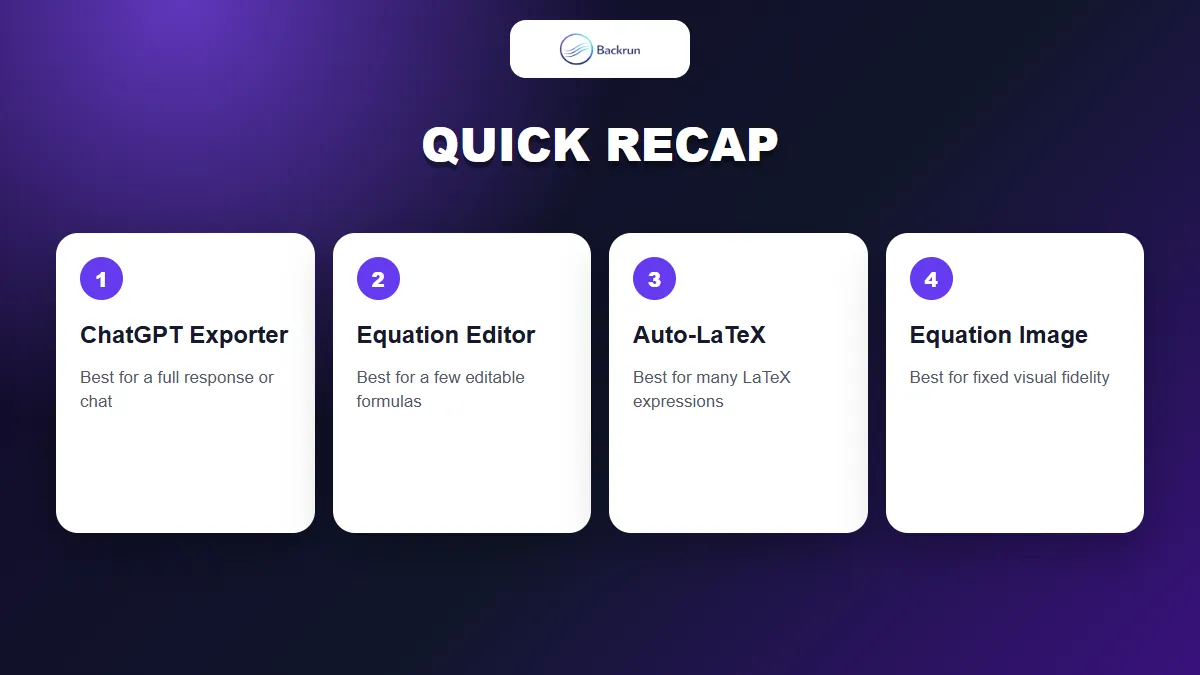
Quick Recap
Choose the method according to document length, editability, and the complexity of the mathematical notation.
Method
Best for
Editable?
Main limitation
ChatGPT Exporter
Full answers and conversations
Depends on the exported equation format
Requires extension and authorization
Google Docs Equation Editor
One or two formulas
Yes
Limited LaTeX compatibility
Auto-LaTeX Equations
Many LaTeX expressions
Re-render from LaTeX
Output is image-based
Equation image
Exact fixed appearance
No
Weak accessibility and resizing
For a complete answer, start with ChatGPT Exporter. Use Google Docs Equation Editor for a few formulas that must remain editable, Auto-LaTeX for a document full of LaTeX, and a cropped image only when visual fidelity matters more than editing. If Word is your destination, Backrun also has a separate guide to writing math equations in Word.