How to Write Math Equations in Word: 6 Reliable Methods
June 17, 20266 min read
If your document includes formulas, fractions, symbols, or technical notation, plain text is not enough. The reliable way to write math equations in Word is to choose the right Word tool for the kind of equation you are building, then check that the result stays editable.
Start With the Equation Box for Editable Math
The equation box is the safest place to start when you need editable Word math.
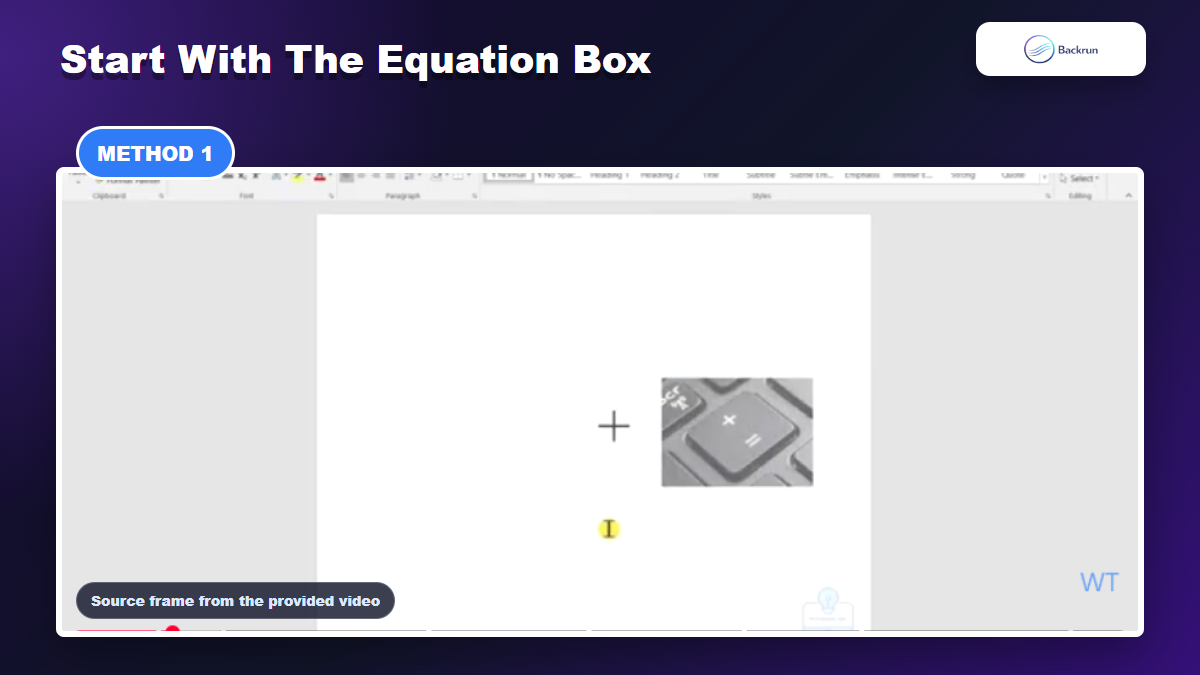
The easiest starting point is Word's built-in equation box. Microsoft documents the direct shortcut as Alt + =, and the menu path as Insert > Equation. Both create a math zone where Word understands the content as an equation instead of regular text.
Use this method when you need to write a formula from scratch and keep it editable later:
Place the cursor where the formula should appear.
Press Alt + = on Windows, or use Insert > Equation.
Type the equation inside the equation box.
Use Professional view when the equation should display as formatted math.
This is the safest default for students, teachers, researchers, and anyone preparing a document that may need revisions.
If you only remember one way to write math equations in Word, remember the equation box because it works for short formulas and longer technical expressions.
Use Ink Equation When Drawing Is Faster Than Typing
Ink Equation helps when handwriting is faster than typing symbols one by one.
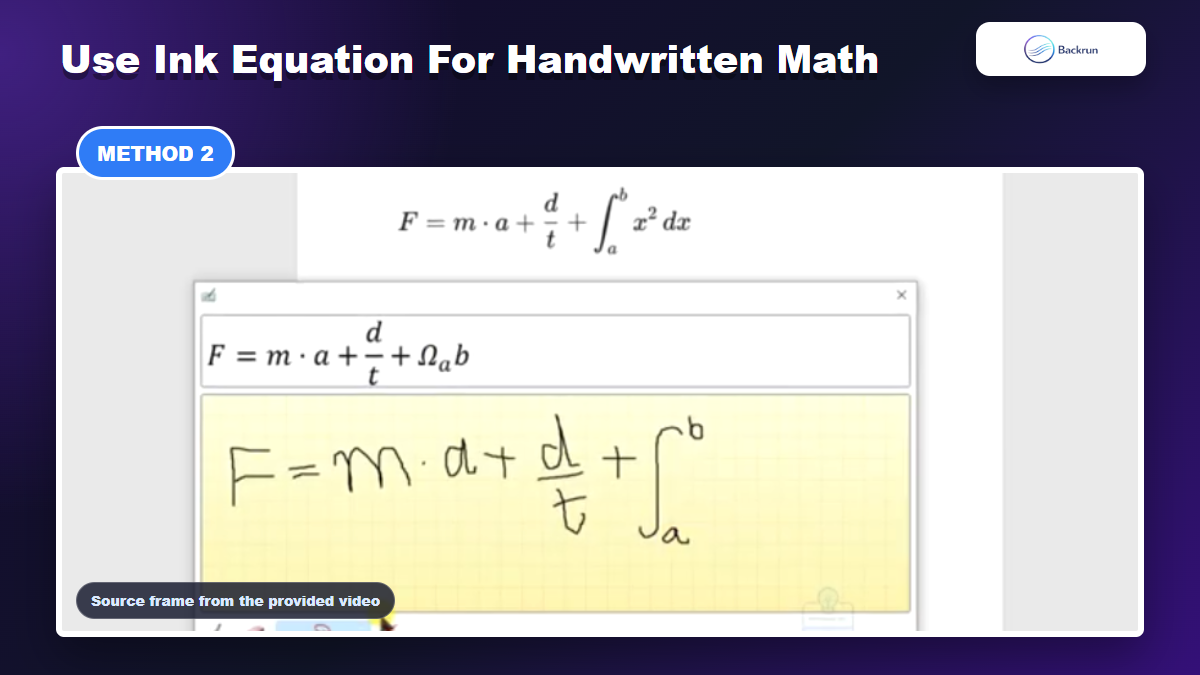
Some equations are hard to type because they use unusual symbols, stacked expressions, or handwritten notation. In that case, Ink Equation can be faster. Microsoft says you can use a stylus, finger, or mouse to write the equation, preview the recognition, then insert it into the document.
Use Ink Equation when:
You are on a touch device and can write naturally with a pen.
The formula has symbols that are slower to find in the ribbon.
You want to convert handwriting into editable Word math.
Always review the preview before inserting. Recognition is helpful, but one misread symbol can change the meaning of the formula.
For tablet users, this can be the most natural way to write math equations in Word without hunting through symbol menus.
Build Complex Formulas With Equation Tools
Equation Tools are best for fractions, radicals, matrices, integrals, and other structured formulas.
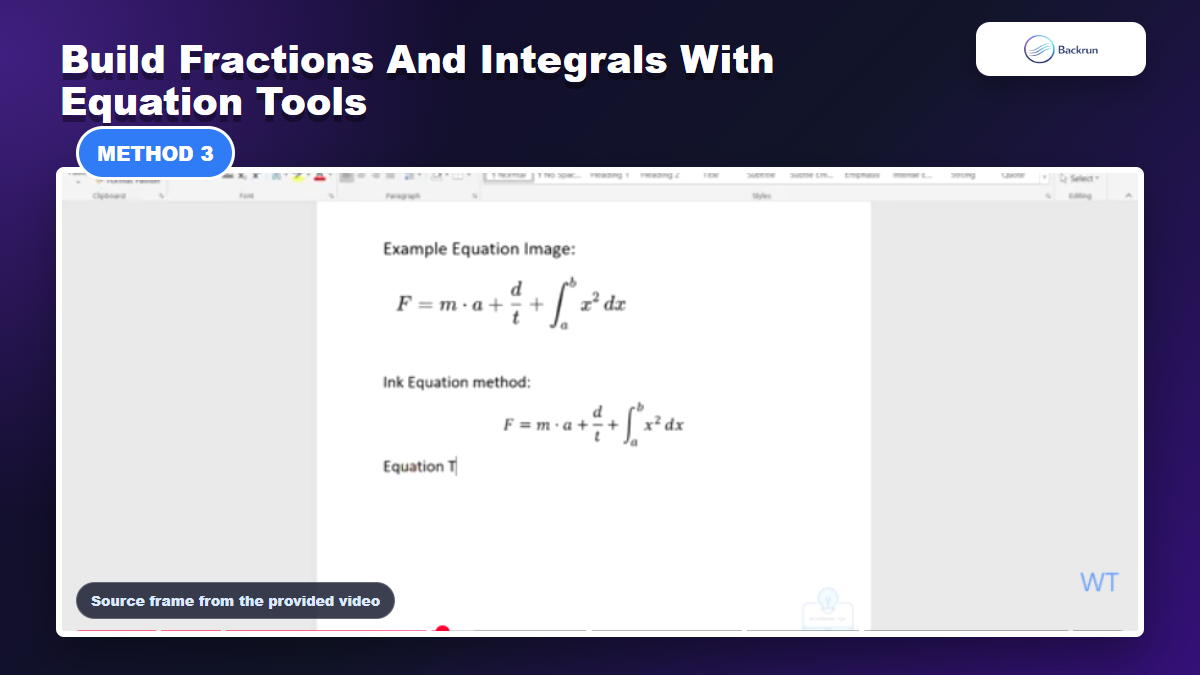
When an equation contains fractions, radicals, limits, matrices, scripts, or integrals, the Equation Tools Design tab is usually cleaner than manual typing. Microsoft explains that the Symbols group contains math symbols, while the Structures group inserts placeholders for common equation layouts.
A practical workflow is:
Insert an equation box first.
Choose a structure, such as Fraction, Radical, Integral, or Matrix.
Replace the placeholders with your own variables and numbers.
Switch between Linear and Professional if you need to edit the source-style version.
This method is best for polished academic documents because Word controls the spacing and visual structure.
When you need to write math equations in Word for a report or thesis, Equation Tools usually produces the cleanest structure.
Type Faster With Linear Formatting Shortcuts
Linear format is the fastest method when you already know common math syntax.
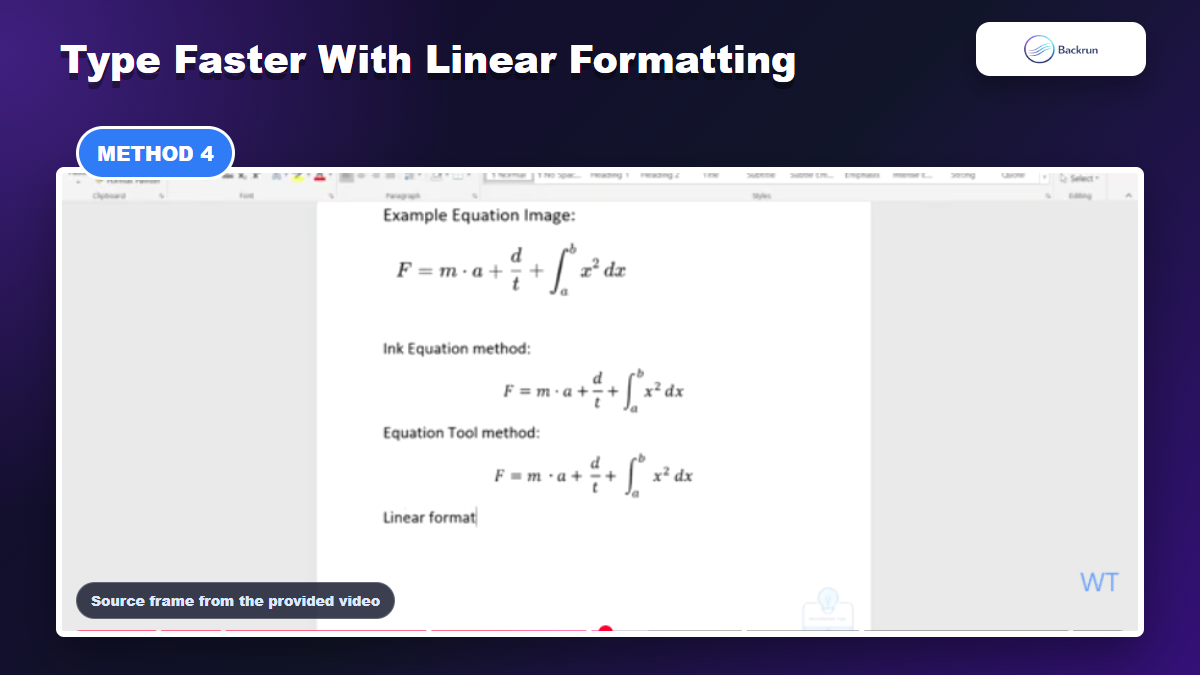
Linear formatting lets you type equation source text and convert it into professional math. Microsoft notes that Word can display equations in Linear or Professional form, and that linear equations can use UnicodeMath or LaTeX-style input depending on the conversion setting.
Use linear formatting when you already know the formula syntax. For example, writing a fraction, sum, or square root as source text can be much faster than opening several ribbon menus.
Accuracy note: Linear formatting is fast, but it is not the same as compiling a full LaTeX document. For Word, test the final equation in the document instead of assuming every LaTeX command will convert perfectly.
Reuse Built-In Equations and Save Your Own
Built-in equations save time for common formulas and templates.
Word includes built-in equations for common formulas and also lets you save your own equation to the gallery. Microsoft describes the process as selecting an equation, choosing the down arrow, and saving it as a new equation building block.
This is useful when you regularly reuse:
Standard formulas, such as quadratic equations or identities.
Classroom templates for assignments, tests, and worksheets.
Research notation that appears many times in one document set.
If you write similar documents every week, saving reusable equations is a small setup step that removes a lot of repeated formatting work.
This is also useful for teams that need a consistent way to write math equations in Word across shared templates.
Use ChatGPT to Draft Equations, Then Check Them in Word
AI tools can help draft math expressions, convert plain-language requirements into formulas, or produce Word-friendly equation text. This is useful when you know the math goal but do not want to build every symbol manually.
A reliable prompt looks like this:
Convert this formula into a Microsoft Word equation-friendly format. Give me a version I can paste into Word's equation box and explain any symbols that may need checking.
For workflows that start in ChatGPT, a dedicated extension such as ChatGPT Exporter can reduce copy-paste cleanup.
The important part is verification. AI can create a plausible formula, but Word compatibility and mathematical correctness still need a human check before the document is shared.
For AI-assisted documents, the best workflow is to draft first, paste into the equation box, then check whether Word converts the expression correctly.
Frequently Asked Questions
What is the fastest way to write math equations in Word?
For most users, press Alt + = to open an equation box, then type the formula. It is faster than opening the ribbon and keeps the equation editable.
Can I handwrite equations in Word?
Yes. Use Ink Equation or Ink to Math on supported versions of Word. You can write with a stylus, finger, or mouse, then insert the recognized equation.
Does Word support LaTeX-style equations?
Word supports linear equation input and can use UnicodeMath or LaTeX-style conversion settings, but it does not behave exactly like a full LaTeX compiler. Always test the output.
Should I use ChatGPT for Word equations?
Use ChatGPT to draft or convert formulas, especially when starting from plain language. Then paste into Word's equation box and verify both formatting and mathematical accuracy.
The best way to write math equations in Word is not memorizing one tool. Use the equation box for everyday formulas, Ink Equation for handwritten input, Equation Tools for complex structures, linear formatting for speed, built-in equations for reuse, and ChatGPT when you need help drafting the expression.