How to Delete Gemini Chat History: 5 Controls That Actually Work
September 16, 20267 min read
Gemini gives you separate controls for removing one conversation, clearing a time range, deleting everything, and changing how future activity is stored. This guide explains how to delete Gemini chat history without confusing a tidy sidebar with a complete account-level deletion.
1. Delete One Chat From Gemini's Recent List
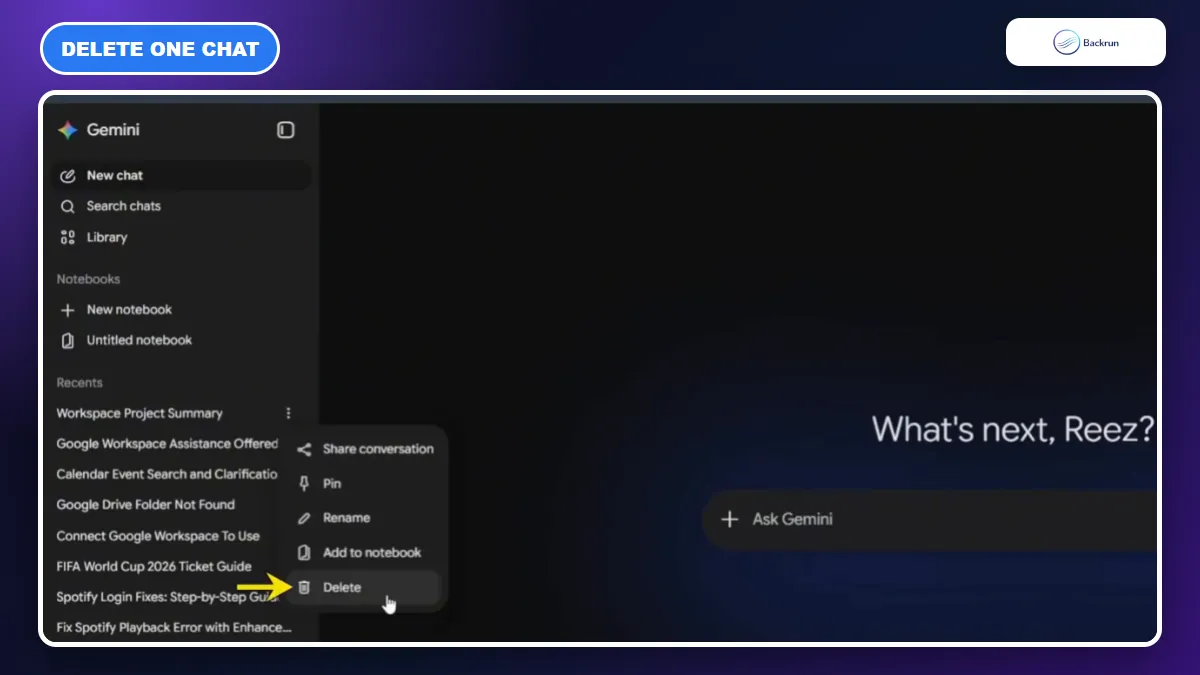
Use the conversation menu when you only need to remove one item from Gemini Recents.
This is the quickest method when one test prompt, personal question, or outdated conversation should disappear but the rest of your history can stay.
Follow these steps on the Gemini web app.
Open Gemini and sign in to the Google Account that owns the conversation.
Expand the sidebar so the Recent list is visible.
Find the chat you want to remove and open its three-dot menu.
Select Delete, then confirm the action if Gemini asks.
Refresh the list and make sure the conversation no longer appears.
On mobile, open the chat list, use the conversation's menu, and choose Delete. The wording can move as Gemini's interface changes, but the scope remains one conversation.
Best for: cleaning up a few conversations without changing your account retention settings.
Important: deleting a conversation does not remove a public link you previously created for that chat. Google says the public link must be deleted separately. Deleting a conversation made with a Gem also does not delete the Gem itself.
If the chat used Gemini Live, removing its activity also removes the related audio, transcript, and any video or screen-sharing data stored with that activity. This makes the single-chat option more consequential than merely hiding a title from the sidebar, so confirm that the selected item is the one you intend to remove.
2. Delete Specific Gemini Activity or a Date Range
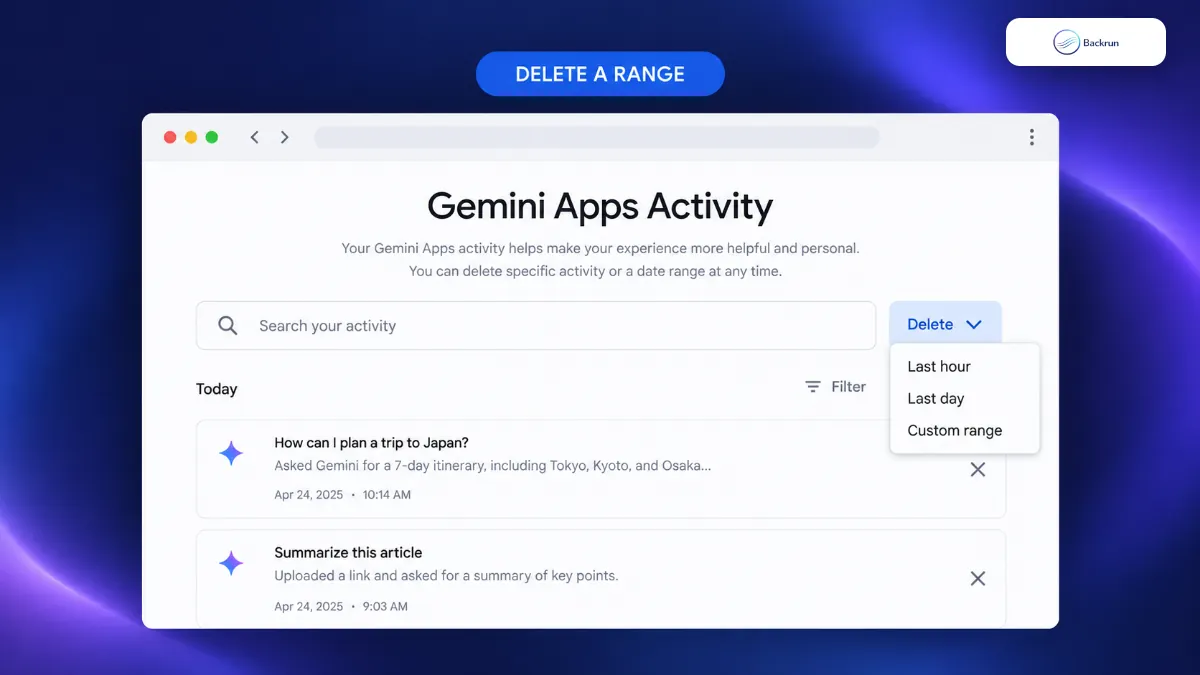
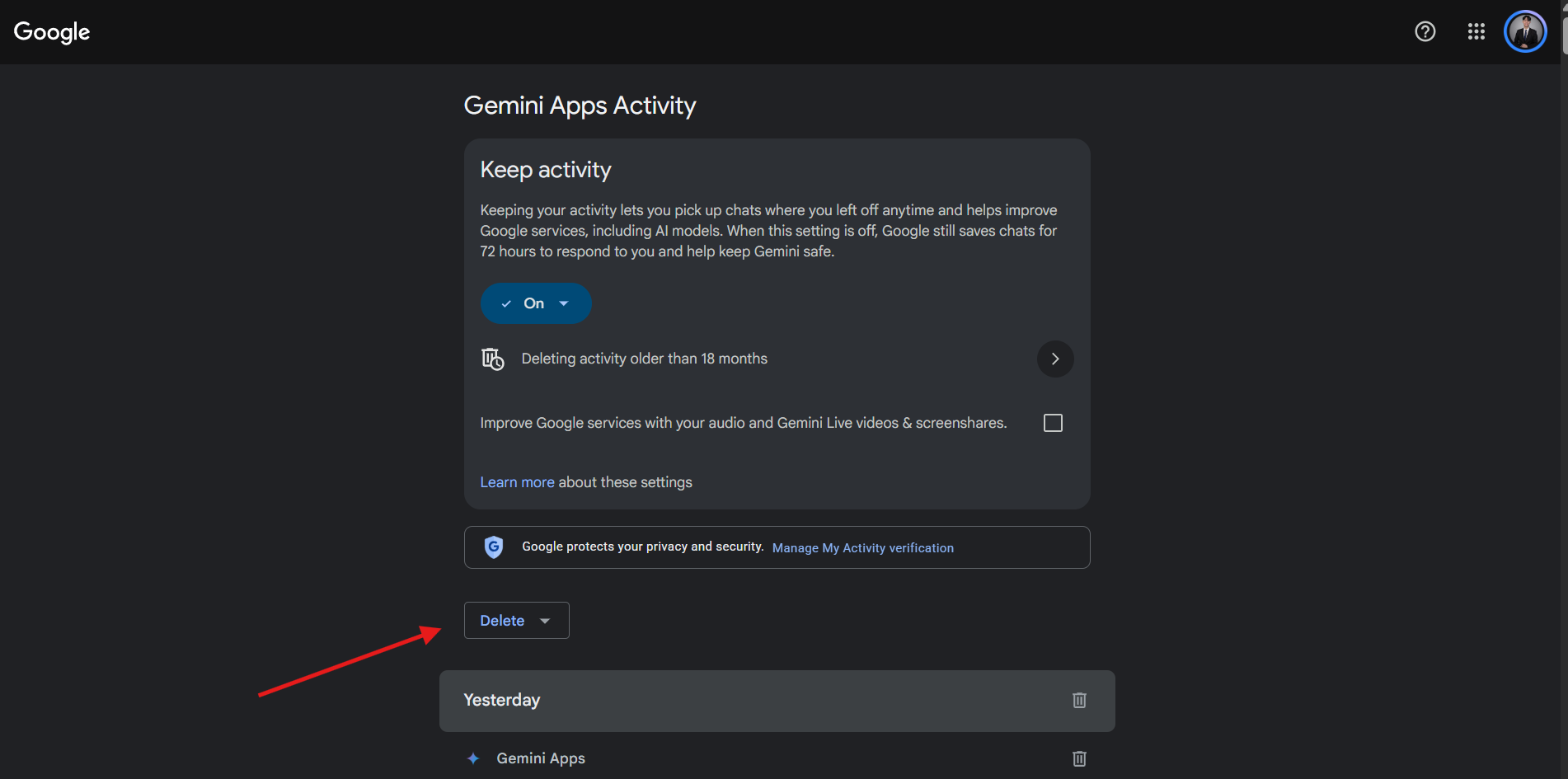
Gemini Apps Activity lets you remove an individual item, one day, or a custom date range.
Use the account activity page when the sidebar is too limited or when you need to remove everything from a particular period. This view gives you more precise controls than deleting chats one at a time.
Below is the date-range workflow.
Open Gemini, choose Settings & help, and select Activity. You can also open the official Gemini Apps Activity page directly.
Confirm the Google Account shown in the upper-right corner before deleting anything.
Delete one item with the remove control beside that activity, or remove a whole day with the date-level delete control.
Open Delete and choose Last hour, Last day, or Custom range.
Review the dates, confirm the deletion, and reload the page to verify the result.
Best for: removing a sensitive session, a day of testing, or a known period without wiping older useful conversations.
Experience tip: delete a small test range first if the account contains work you may need later. The activity page can include more than the conversation titles visible in the sidebar.
3. Delete All Gemini Chat History
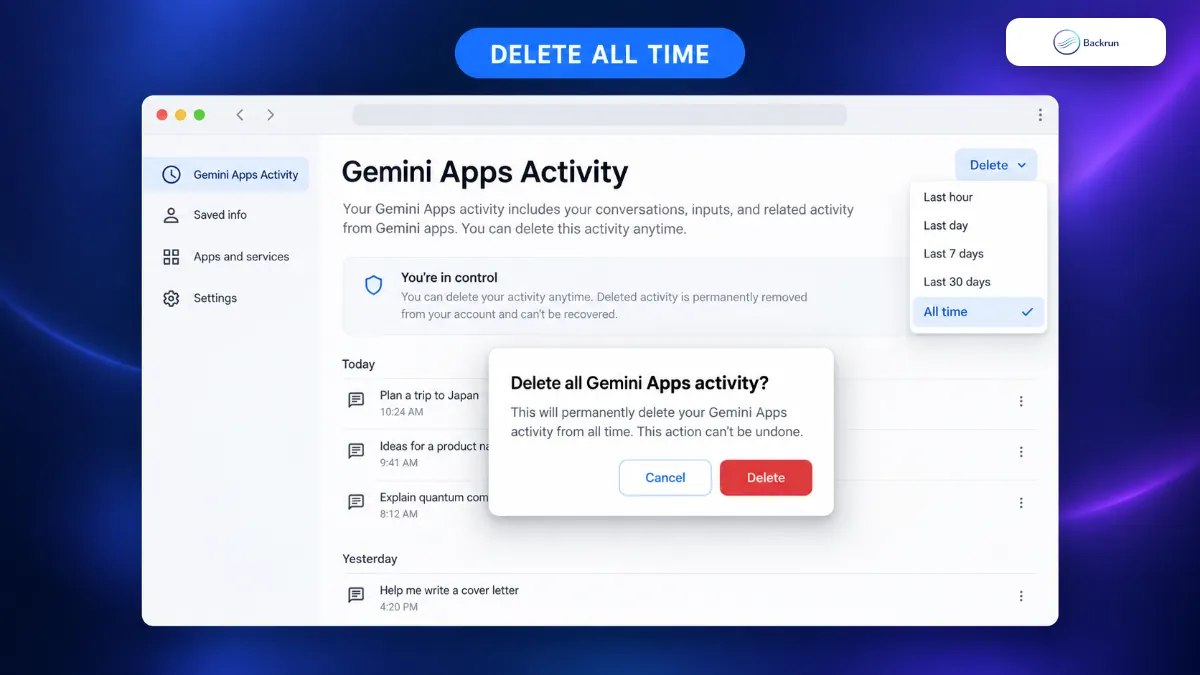
Choose All time only after checking the account and saving anything you may need later.
Choose this method when you want to clear the Gemini activity visible in your personal Google Account rather than tidy individual items. Treat it as an irreversible cleanup.
Use the following steps to delete the full visible history.
Read the confirmation screen and verify that the correct account is active.
Confirm Delete, then revisit Gemini to check the Recent list.
If you may need a backup, visit Google Takeout before deleting. For a readable copy of selected conversations rather than a raw archive, Backrun's guide to exporting Gemini chat compares the practical export options.
Before confirming All time, check three places: the Gemini Recent list for conversations you still use, shared links that may need separate removal, and any connected Google service where exported content may have been saved. Clearing Gemini Apps Activity is not a substitute for deleting copies stored elsewhere.
Deletion scope matters: Google explains that removing Gemini activity does not automatically erase data saved by other Google services. Shared public links also require separate deletion, and data already separated from your account for abuse prevention or human review follows different retention rules.
4. Set Gemini Chat History to Auto-Delete
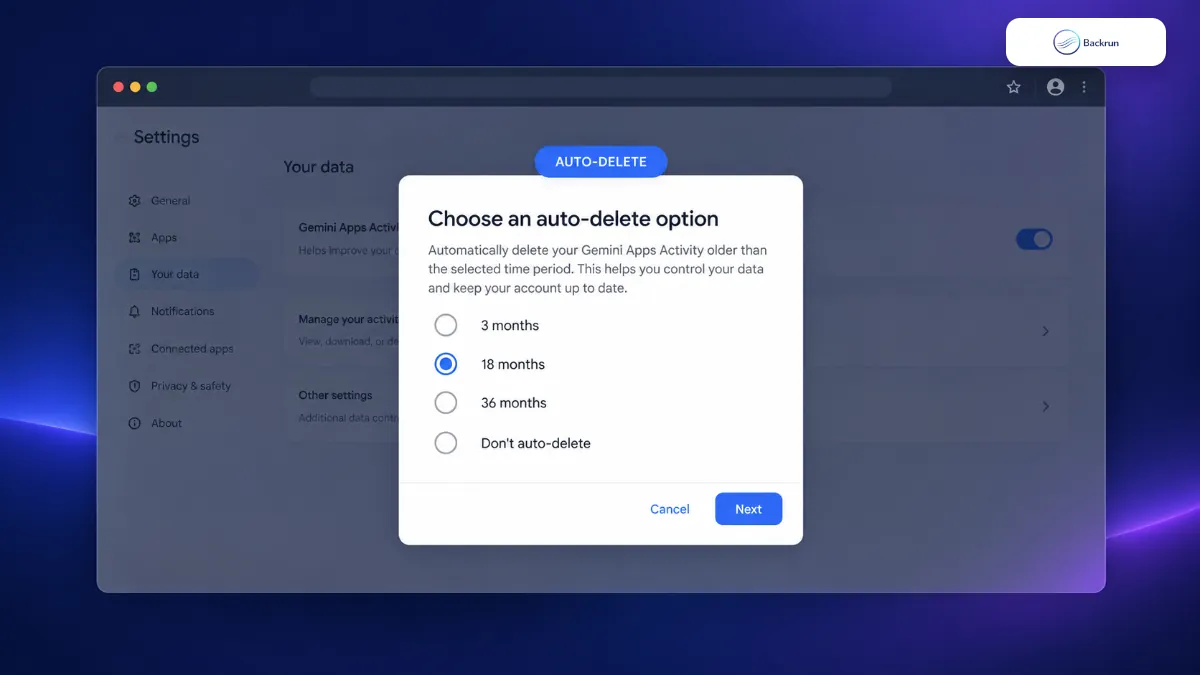
Auto-delete applies a rolling retention period instead of requiring repeated manual cleanups.
Auto-delete is the better long-term choice when you want useful recent context but do not want activity kept indefinitely. It creates a predictable retention window for Gemini Apps Activity.
Here is how to configure it.
Open Gemini Apps Activity.
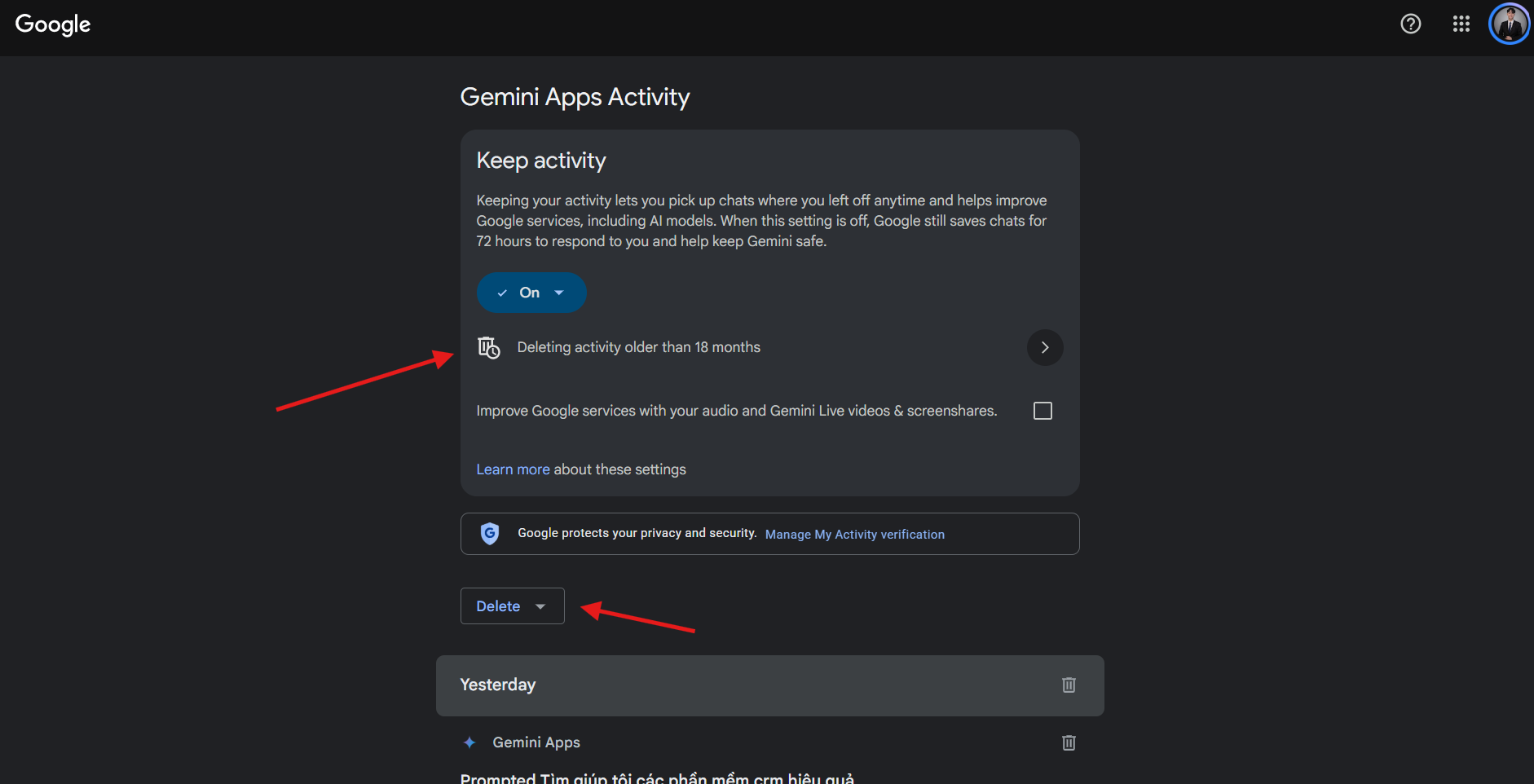
Select the auto-delete setting near the top of the page.
Choose 3 months, 18 months, or 36 months. Google currently documents 18 months as the default for personal accounts, while Don't auto-delete keeps activity until you remove it.
Click Next, review the setting, and confirm it.
Return to the activity page and verify the retention period shown.
Best for: people who still want recent chats available but prefer routine cleanup without remembering to delete them manually.
Trade-off: a shorter window improves data minimization, while a longer window makes old research and recurring prompts easier to find. Pick the shortest period that still supports your real workflow.
After changing the period, inspect the activity page rather than assuming the setting applied. Account policies and interface rollouts can differ, especially when the Google Account is managed by an organization.
5. Turn Off Keep Activity for Future Chats
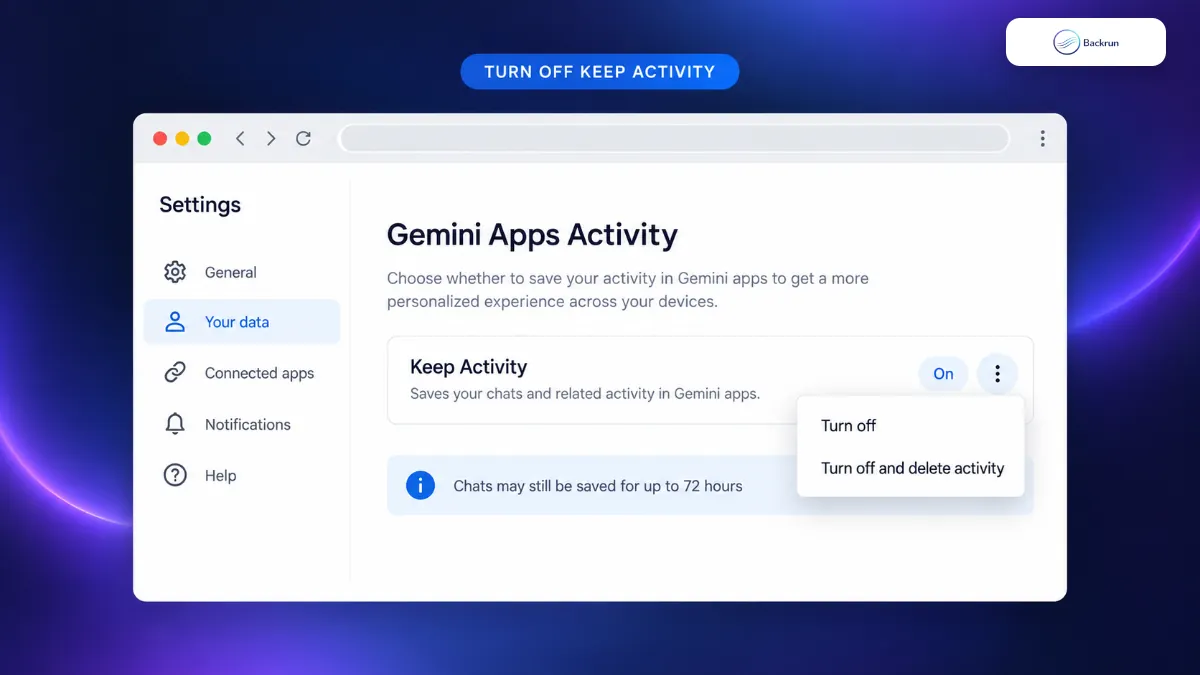
Turn off stops future activity from appearing in Gemini Apps Activity; the second option also clears existing activity.
Turn off Keep Activity when the goal is to change what happens to future conversations, not only delete what is already listed. Google provides two choices with different effects.
Use these steps for future activity.
Open Gemini Apps Activity.
Click the current On status beside Keep Activity.
Choose Turn off to stop saving new activity while leaving existing history in place.
Choose Turn off and delete activity if you also want to remove the history currently associated with the account.
Read the confirmation message carefully and complete the action.
Even after Keep Activity is off, Google says conversations may be retained with the account for up to 72 hours so Gemini can provide the service, process feedback, and protect users. Those temporary chats do not appear in Gemini Apps Activity.
Work and school accounts: retention may be controlled by a Google Workspace administrator, so some personal-account switches may be unavailable. Google's current Gemini activity documentation explains the account-specific controls.
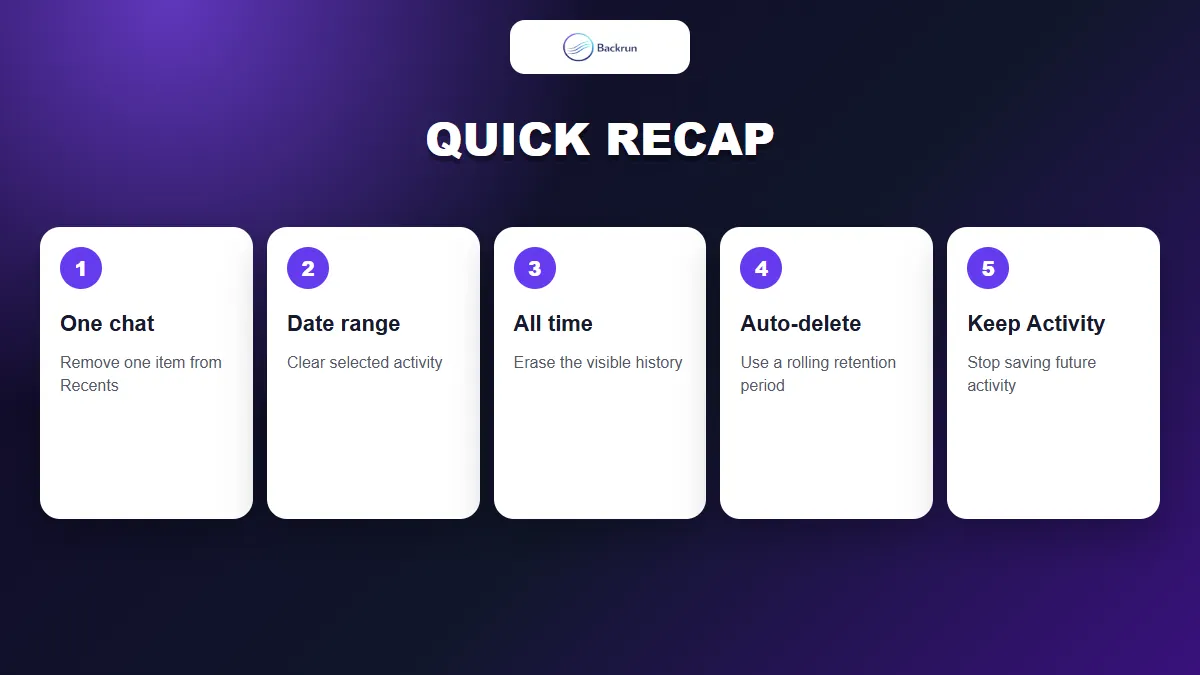
Quick Recap
Choose the control according to whether you are removing one chat, a period, all activity, or future storage.
Control
Use it when
What it changes
Delete one chat
Only one conversation should go
One item in Recents
Delete a range
A session or date period should go
Selected Gemini Apps Activity
Delete all time
You want a broad account cleanup
Visible Gemini activity for the account
Auto-delete
You want rolling retention
Activity older than the chosen period
Turn off Keep Activity
You want to stop future saving
Future Gemini Apps Activity behavior
Deleting a sidebar chat is not the same as changing account retention. Use Gemini Apps Activity for date ranges, all-time deletion, auto-delete, and future storage controls. For privacy expectations beyond the visible history, Google's Gemini Privacy Hub notes that reviewed data may be retained separately for up to three years and is not removed simply by deleting activity.