4 Ways to Import Claude Chat to Gemini Without Losing Context
August 26, 20267 min read
If you want to import Claude chat to Gemini, the cleanest workflow is usually not a blind copy-paste. Claude and Gemini handle chats, files, memory, and long-term context differently, so the right method depends on whether you need a full conversation, a memory profile, or just enough context to continue a project.
There is no magic button that perfectly recreates every Claude thread inside Gemini with all attachments and metadata intact. What does work is a practical transfer: export the Claude conversations you need, move durable preferences into Gemini memory, or create a focused handoff brief for one task.
Below are the methods worth using, with the limits called out plainly so you can choose the safest path.
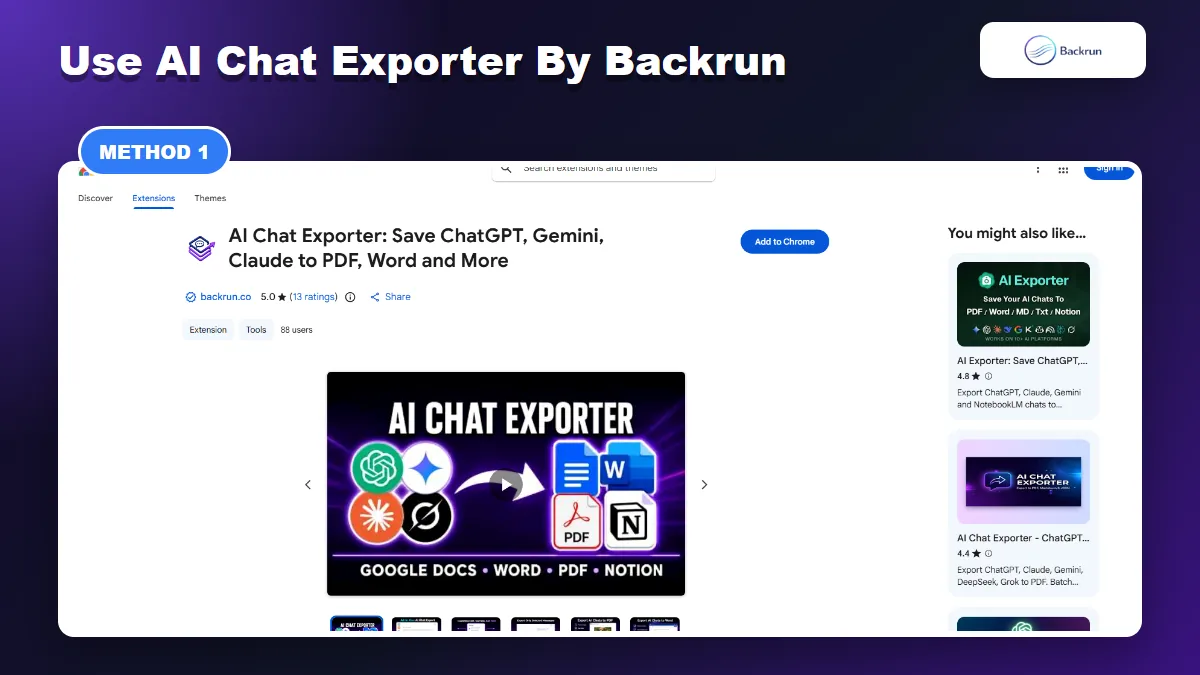
1. Use AI Chat Exporter by Backrun for Selected Claude Chats
AI Chat Exporter is useful when you want to move selected Claude conversations into a clean reusable format before opening them in Gemini.
Use this method when the original Claude conversation matters: message order, code blocks, tables, links, research notes, or a long back-and-forth that Gemini should read before continuing.
Here is the cleaner workflow for moving selected Claude conversations into Gemini.
Open Claude and load the conversation you want to reuse in Gemini.
Select the relevant messages, or export the full thread if the order of the conversation matters.
Choose a portable format, such as Markdown, Word, PDF, Google Docs, or Notion.
Open Gemini and paste the exported Markdown text, upload a supported document, or use the exported Google Docs/Notion page as reference material.
Ask Gemini to continue from the context, summarize decisions, extract next actions, or rewrite the output in a new format.
Best for: selected Claude chats where formatting and exact context matter.
Limitation: this does not turn the Claude thread into a native Gemini conversation history item. It gives Gemini clean content to read and continue from.
Practical tip: Markdown is usually the easiest bridge when you want Gemini to edit or continue the content. If you need a deeper workflow, this Backrun guide on Claude chat to Markdown pairs well with this method.
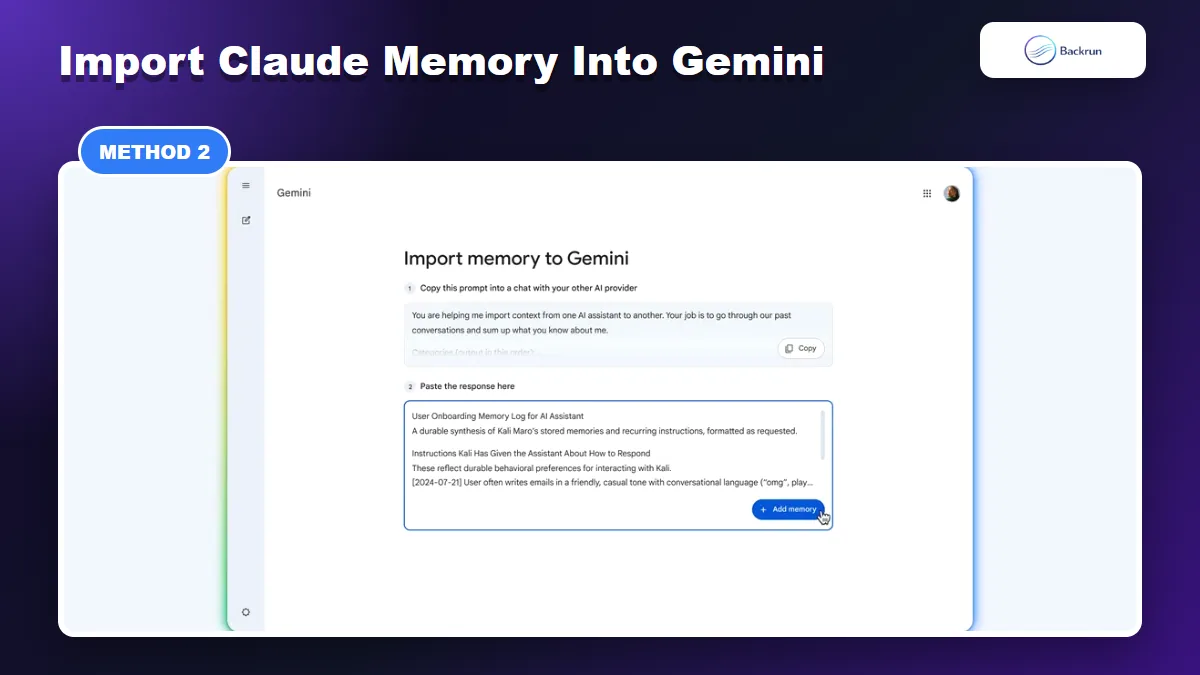
2. Import Claude Memory Into Gemini With Gemini's Memory Import Flow
Gemini memory import is best for moving preferences, tone, recurring instructions, and stable working context from Claude.
If your goal is not to move old conversations but to make Gemini understand your preferences, tone, recurring tasks, and work style, use Gemini's memory import flow instead.
Use this workflow when you want to transfer durable context from Claude into Gemini memory.
Copy the prompt Gemini provides. It asks your other AI provider to summarize what it knows about you.
Paste that prompt into Claude.
Ask Claude to include stable preferences only: writing tone, role context, preferred formats, recurring constraints, tools, and important workflow rules.
Review the response and remove anything private, temporary, outdated, or too project-specific.
Paste the cleaned response into Gemini and add it to memory.
Test with one real prompt to confirm Gemini applies the imported context correctly.
Best for: moving preferences and long-term working style from Claude to Gemini. In plain terms, this is the safest way to import Claude memory to Gemini without dragging full chat history along with it.
Limitation: memory import is not chat history import. It will not bring every Claude conversation into Gemini.
Trust check: Anthropic also documents memory import/export separately from general data export, so keep memory, files, and chat archives as different migration tasks.
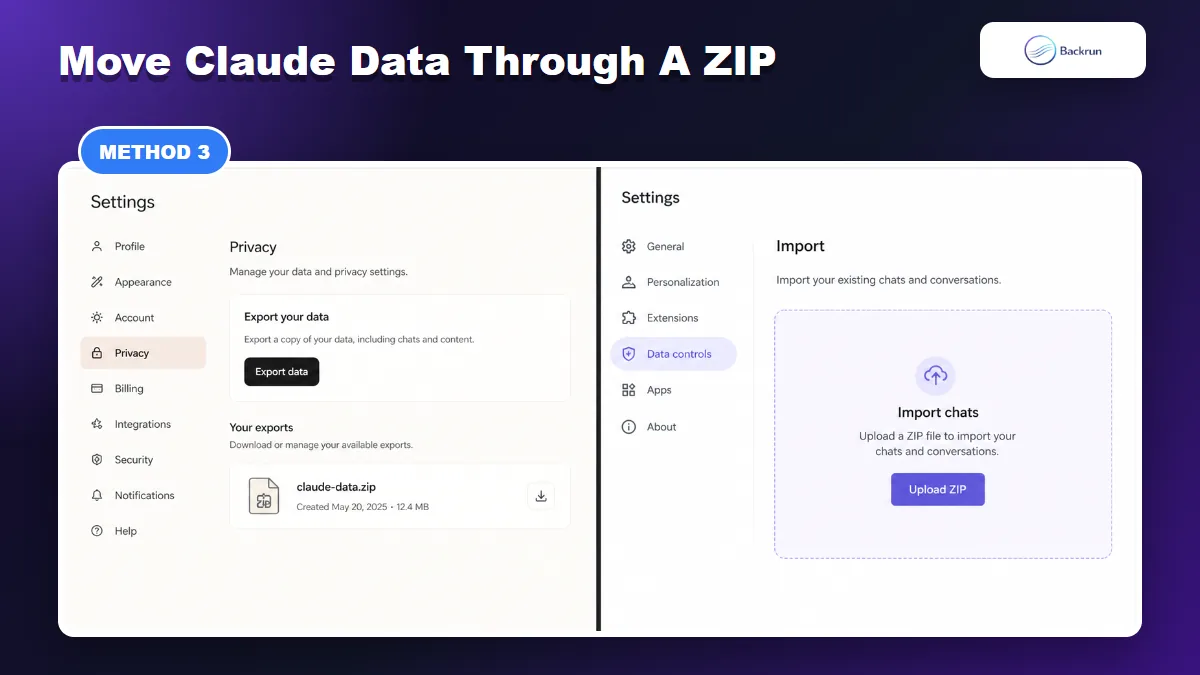
3. Export Claude Data, Then Bring Only Useful Chats Into Gemini
Claude data export is better treated as a private archive first, then curated before you bring selected content into Gemini.
Use this method when you want a full Claude backup before deciding what should go into Gemini. Claude's data export is useful, but the archive should be treated as a private source library rather than something to upload blindly.
Below is the safer workflow for archive-based migration.
Open Claude settings.
Go to the privacy or account data area and request your Claude data export.
Download the export archive when it is ready.
Store a private backup before editing or extracting anything.
Find the specific Claude chats Gemini actually needs.
Convert those chats into clean Markdown, TXT, or a document format.
Paste or upload the selected content into Gemini, then ask Gemini to summarize, continue, or restructure it.
Best for: backup, audit, old conversation search, and careful migration of selected Claude chats. If someone says they want to import Claude data to Gemini, this is the method that keeps the archive step explicit and reviewable.
Limitation: Claude data exports may include private prompts, old drafts, files, or context Gemini does not need. Review before importing or uploading anything.
Experience note: smaller, cleaner files work better than one massive dump. Gemini is more useful when it receives the relevant conversation plus a clear instruction about what to do next.
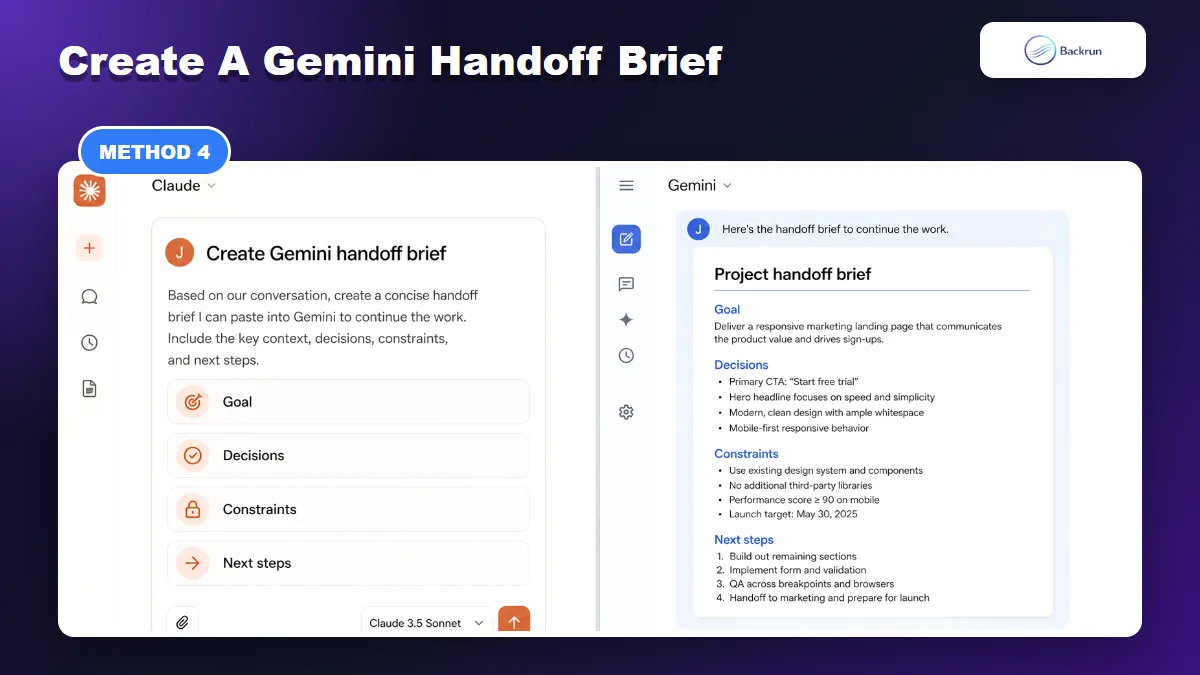
4. Ask Claude to Create a Gemini Handoff Brief
A focused handoff brief is often the cleanest way to continue one Claude project in Gemini without importing old noise.
If you only need to continue one piece of work, a handoff brief is often better than exporting the whole chat. It removes duplicated exploration and gives Gemini the current state of the project.
Use this method when the goal is continuity, not archival migration.
Open the Claude conversation or Claude Project you want to continue.
Ask Claude for a Gemini handoff brief. Use a prompt like: Create a concise handoff brief for Gemini. Include the goal, decisions, constraints, links, files, output style, open questions, and next steps. Remove duplicate exploration.
Review the brief and add any missing files, links, or exact snippets.
Open Gemini and paste the handoff brief as the first message in a new chat.
Ask Gemini to restate the project context before it starts new work.
Continue the task, then save only stable preferences to Gemini memory if they should apply beyond this one project.
Best for: one active workflow, one writing project, one coding task, one research thread, or one client brief.
Limitation: this is a controlled context transfer, not a true chat import. That is why it works well for focused work: Gemini starts with the useful state, not the entire historical trail.
If you later want Gemini outputs to stay portable, this Backrun guide on Gemini to Markdown can help keep future exports cleaner.
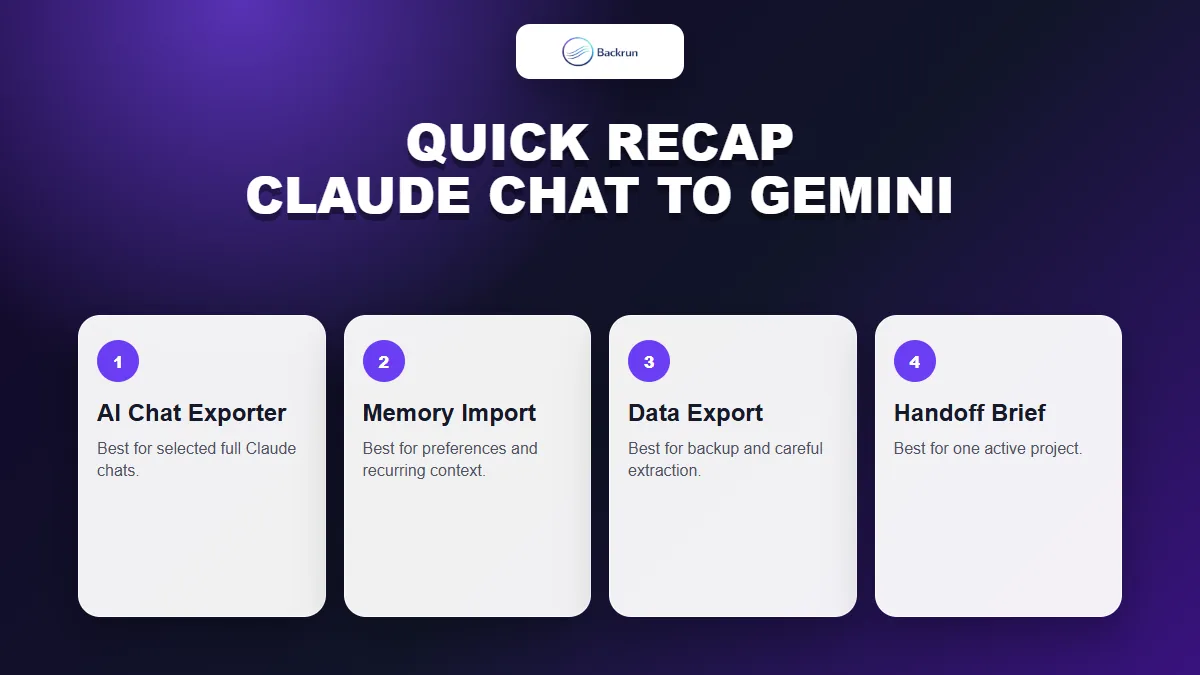
Quick Recap
Choose the transfer method based on whether you need selected chats, memory, an archive, or one focused project handoff.
The best way to import Claude chat to Gemini depends on what you want Gemini to inherit.
Method
Best for
Main caution
AI Chat Exporter
Selected Claude conversations
Does not recreate native Gemini history
Gemini memory import
Preferences, tone, recurring context
Not full chat history
Claude data export
Private backup and selective extraction
Do not upload the entire archive blindly
Gemini handoff brief
One active project or workflow
Requires manual review
For most users, the strongest setup is simple: use AI Chat Exporter for the Claude chats worth preserving, use Gemini's memory import for durable preferences, and use a handoff brief when you only need Gemini to continue one project.