4 Ways to Export a Claude Chat to Markdown Without Losing Structure
July 30, 20266 min read
Turning a claude chat to markdown file is useful when you want searchable notes, clean code blocks, Obsidian pages, GitHub-friendly documentation, or a local archive that is easier to edit than PDF.
The right method depends on how much context you need. Use an exporter when you need the full conversation, use raw Markdown for one useful answer, ask Claude for a file when you want a cleaner document, and use Claude's data export when you need an account-level backup.
A good rule is to decide what you are trying to preserve before choosing the workflow. If you need the exact back-and-forth, preserve the transcript first and edit later. If you only need the final answer, clean Markdown is enough. If the content will become documentation, spend an extra minute checking headings, code fences, tables, and links before you store it.
1. Using AI Chat Exporter Chrome Extension
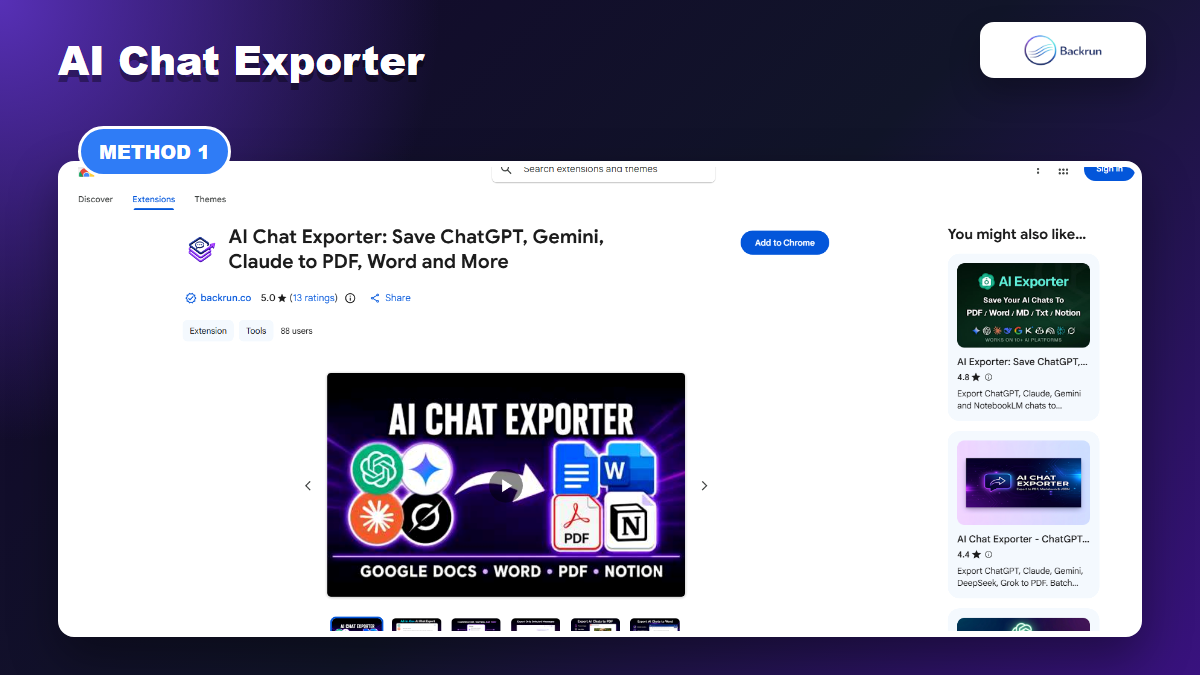
AI Chat Exporter is the first method to try when you want to save a full Claude conversation as reusable notes.
AI Chat Exporter is the most practical first option when you want the full Claude conversation instead of one cleaned-up answer. Backrun's product page says it can export AI conversations from Claude, ChatGPT, Gemini, and Grok to PDF, Word, Google Docs, Notion, or Markdown, while keeping headings, lists, tables, code blocks, formulas, and images organized.
Open Claude and load the conversation you want to save.
Select only the useful messages, or choose the full conversation if the back-and-forth matters.
Choose Markdown when you want a note, documentation draft, README, Obsidian page, or static-site source file.
Open the exported Markdown and check headings, tables, code fences, links, artifacts, and message order before importing it into your notes or repo.
Best for: full Claude chats, research archives, developer notes, repeated exports, and conversations where message order matters.
Advantage: it avoids copy-paste cleanup and gives you a consistent export workflow across multiple AI tools, not just Claude.
Limitation: any browser extension is a permissions decision. Start with a harmless test conversation and review the Chrome Web Store listing before using it on client, company, or personal data.
Practical test: export one Claude chat with a table, a code block, a link, and an artifact. If those survive in your Markdown editor, the workflow is much more likely to hold up for real research notes.
2. Copy a Selected Claude Answer as Clean Markdown
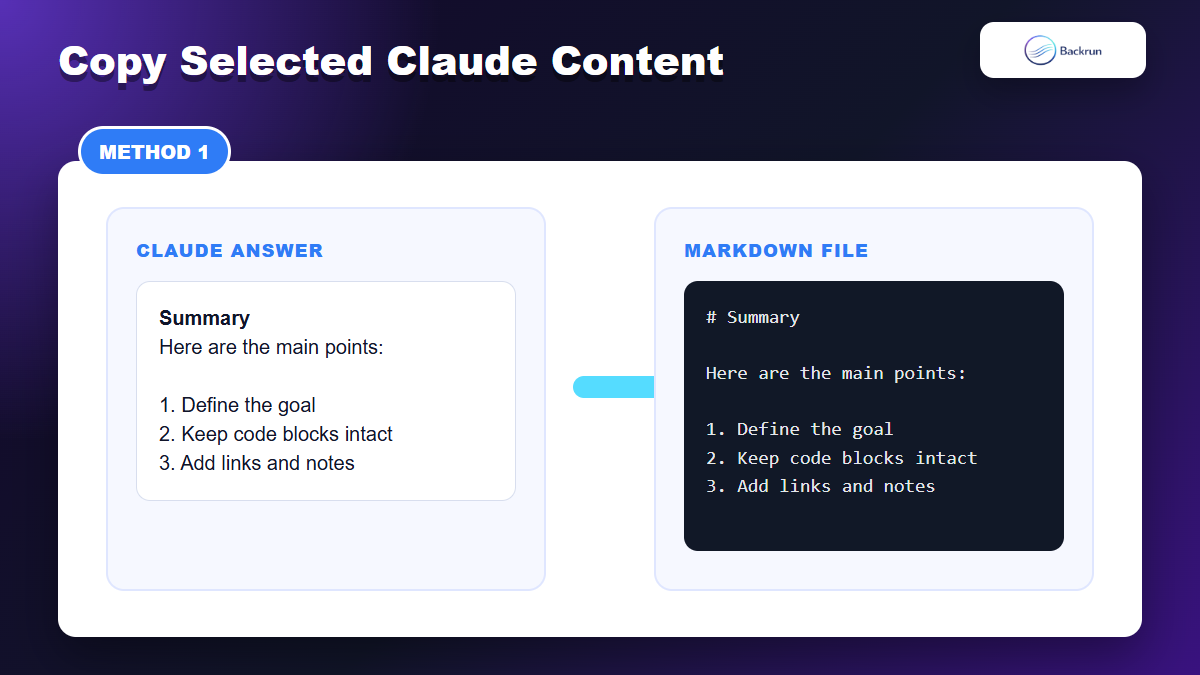
Manual Markdown copy is best for one answer or a short useful section.
If you only need one answer, manual Markdown is still the fastest route. Ask Claude to restate the useful response as raw Markdown, then save it in your editor. This is not a transcript, but it is simple and reliable for outlines, code explanations, checklists, prompts, and short notes.
Open the Claude chat and identify the answer worth saving.
Ask Claude to rewrite it as Markdown: Rewrite the final answer as clean Markdown with headings, bullets, fenced code blocks, and tables where needed.
Ask for one code block if Claude renders the Markdown instead of showing the syntax.
Copy the Markdown into VS Code, Obsidian, Typora, Notepad, or your repository.
Save it as .md and preview it before archiving or sharing.
Best for: one useful answer, a code snippet, a checklist, or a short research summary.
Advantage: no extension, no account export, and no extra tool setup.
Limitation: Claude may rewrite or condense context. If you need the exact conversation, use AI Chat Exporter or data export instead.
3. Ask Claude to Create a Downloadable Markdown File
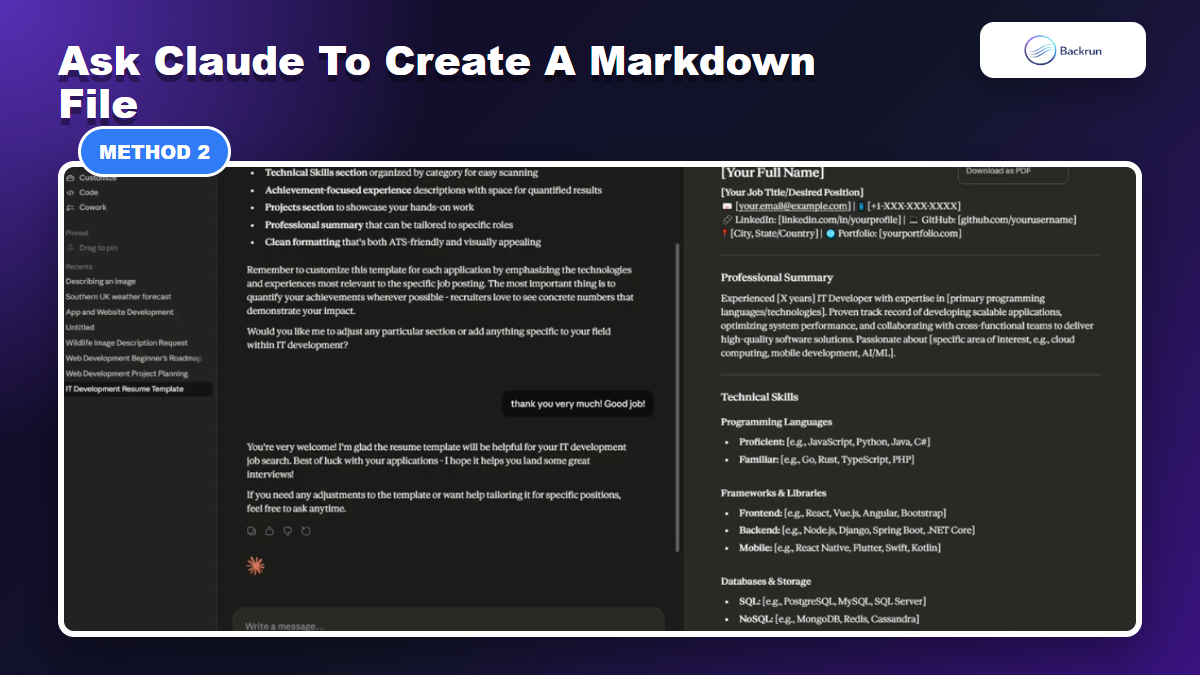
Claude can help shape one useful answer into a Markdown-style file when file creation is available.
When file creation or artifacts are available in your Claude account, you can ask Claude to create a Markdown file directly. This is helpful when the content needs a document shape: title, summary, sections, decisions, code examples, and next actions.
Enable file creation if needed in Claude settings or your organization's capability settings.
Ask Claude for a Markdown file, not just Markdown text. Example: Create a downloadable Markdown file named research-notes.md from this conversation.
Specify the structure: title, summary, key points, prompts, final answer, code blocks, links, and next actions.
Download or copy the generated Markdown from the artifact or file panel.
Compare it with the original chat before treating it as an archive.
Best for: polished documentation drafts, client notes, research summaries, and long answers that need cleanup.
Advantage: Claude can turn a messy discussion into a readable document faster than manual formatting.
Limitation: this is a generated document, not a guaranteed exact record of every message.
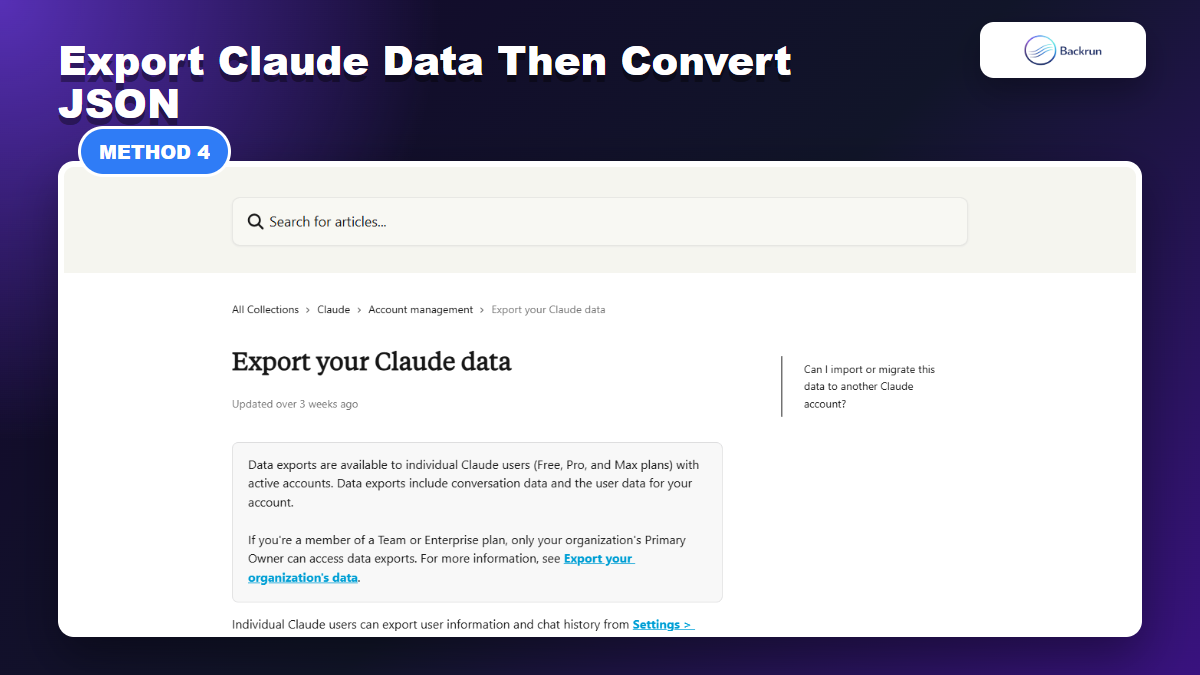
4. Export Claude Data and Convert the JSON to Markdown
Claude data export is better for account-level backup and conversion, not quick one-chat sharing.
Claude's official data export is better for bulk backup than quick one-chat sharing. It gives you account data that can be converted into Markdown later, but it usually requires more cleanup than a normal exporter.
Open Claude on web or Claude Desktop.
Go to Settings, then open Privacy.
Click Export data and wait for the email link.
Download and unzip the export.
Find the conversation data file.
Convert the JSON to Markdown with a script, converter, or your own mapping from role, timestamp, and message body into Markdown headings.
Review the output manually, especially if the conversations include attachments, artifacts, tables, or code.
Best for: backups, compliance, personal archives, and bulk conversion.
Advantage: it uses Claude's account export instead of scraping the visible chat page.
Limitation: it is slower and more technical. For a single conversation, AI Chat Exporter is usually faster.
Developer note: a simple converter usually maps each message to a heading such as ## User or ## Claude, then writes the message below it. For large archives, add title and date frontmatter so your Markdown vault stays searchable.
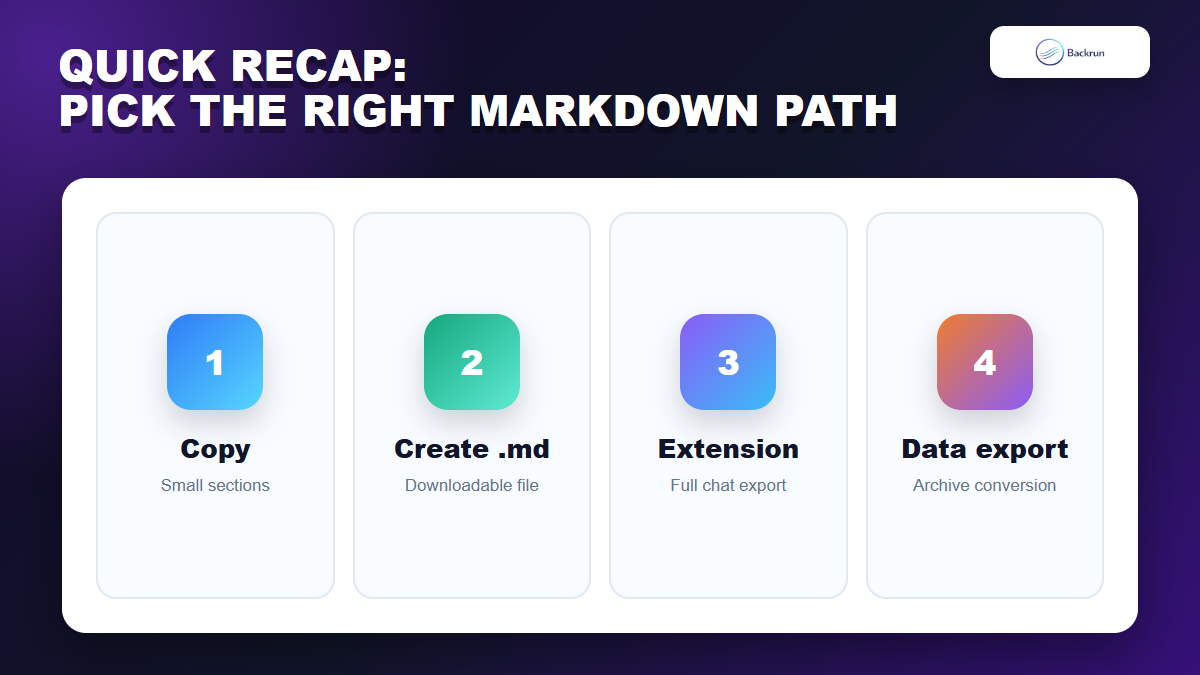
Quick Recap
Choose the Markdown path based on whether you need a full chat, one answer, a clean file, or a backup.
The right Claude-to-Markdown workflow depends on whether you need a full transcript, a single useful answer, a polished document, or a larger backup.
Method
Best for
Main strength
Main caution
AI Chat Exporter
Full conversations and repeatable exports
Best full-chat workflow
Review extension permissions
Copy selected answer
One useful answer or section
Fast and private
Not a full transcript
Create a Markdown file with Claude
Polished notes or documentation
Clean structure
Generated summary, not exact archive
Claude data export
Bulk backup and conversion
Official account export path
Requires conversion and review
Start with AI Chat Exporter when the whole Claude conversation matters. Use manual Markdown copy for one answer, ask Claude for a downloadable file when you want a cleaned-up document, and use data export when you need a larger backup that you can convert later.