How to Download Claude Artifacts: 4 Practical Ways to Save Your Work
August 25, 20267 min read
If you use Claude for code, documents, dashboards, or interactive prototypes, you eventually need to download Claude artifacts instead of leaving them inside one chat.
Claude artifacts are separate outputs that open in a workspace beside the conversation. They can be web pages, React components, Markdown drafts, diagrams, tables, code files, or interactive demos. Anthropic's artifact documentation describes them as standalone content that can be viewed and edited separately from the main chat.
The important detail is that artifacts do not all export the same way. In many cases, the download option is inside the dropdown next to the Copy button. In other cases, you may need to publish the artifact, print it from the browser, export the surrounding chat, or ask Claude to package the source files for you.
1. Use the Dropdown Beside Copy to Download the Artifact File
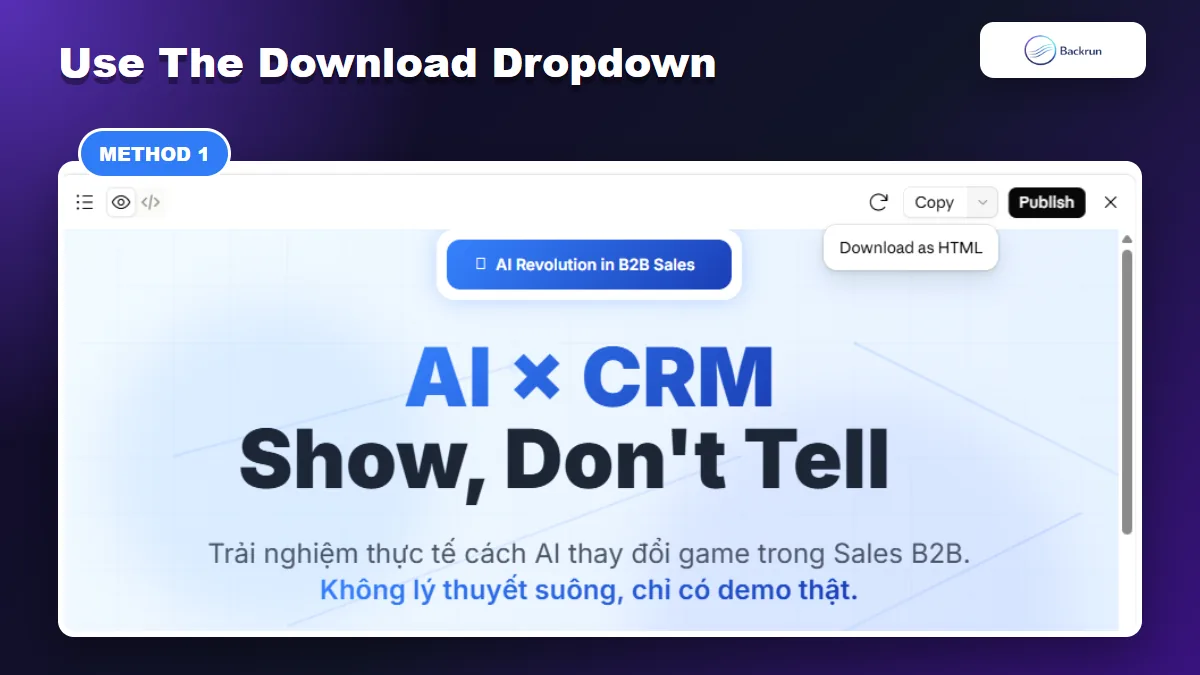
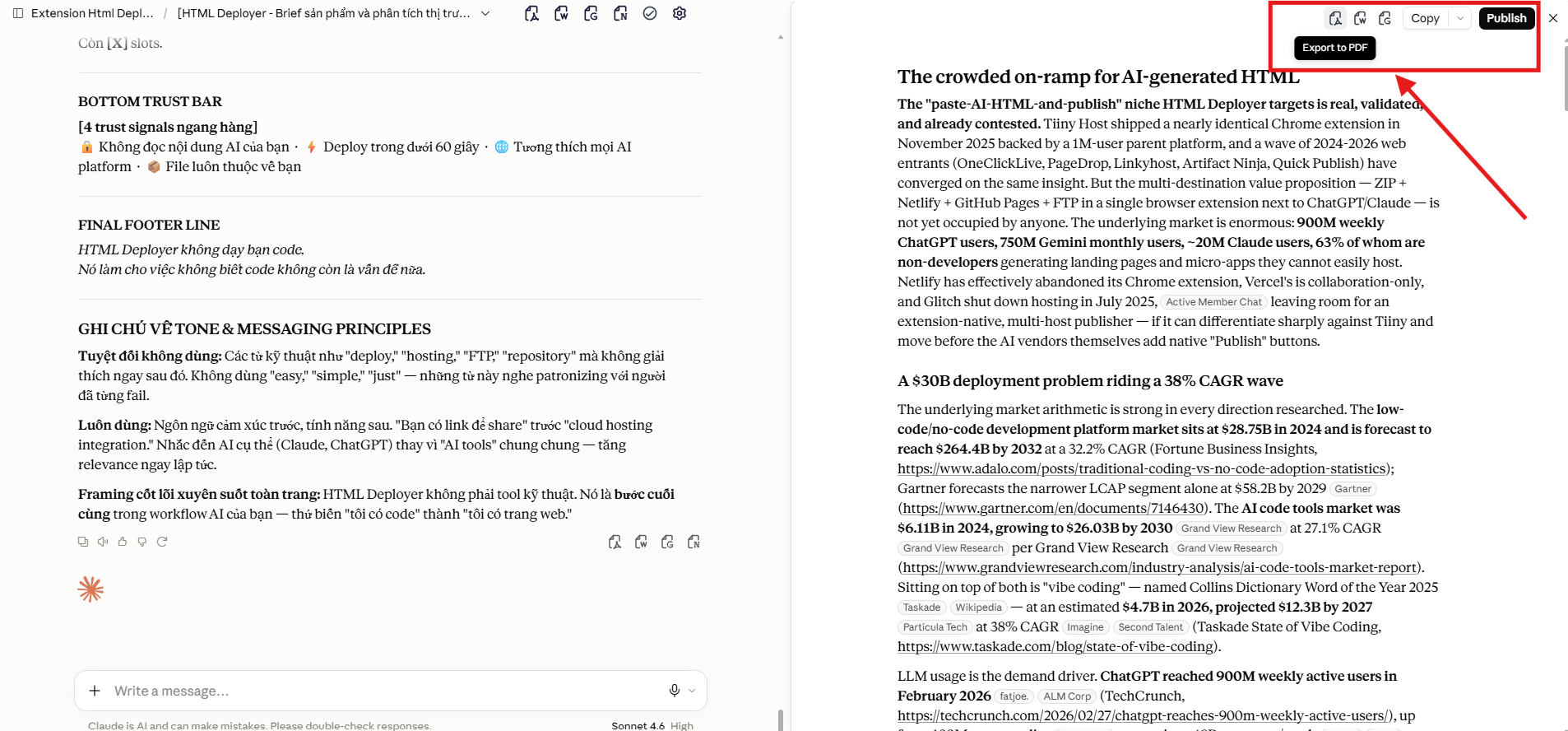
In Claude artifacts, the file download option can live inside the dropdown beside Copy, not on a standalone download button.
The first method is not simply clicking a generic download button. In Claude's artifact panel, the file export option often sits inside the small dropdown beside Copy. The exact wording depends on the artifact type, such as Download as HTML for an HTML artifact.
Use this workflow when the artifact itself is the deliverable.
Open the Claude conversation that contains the artifact.
Click the artifact card so it opens in the right-side artifact panel.
Check that you are viewing the correct artifact version, especially if Claude revised it several times.
Find the Copy button in the artifact toolbar.
Click the small dropdown beside Copy.
Choose the download option, such as Download as HTML, or the equivalent option Claude shows for that file type.
Open the downloaded file locally to confirm it works before you close the Claude tab.
Best for: HTML artifacts, single-file previews, landing pages, simple code outputs, and artifacts where Claude exposes a clear download format.
Limit: the downloaded file is only the artifact. It does not include the prompt, Claude's explanation, follow-up corrections, or the surrounding conversation context.
Practical check: if you download an HTML artifact, open it in your browser and test the visible page. If styles, scripts, or interactions are missing, ask Claude to package the full file bundle instead of relying on one exported file.
2. Publish the Artifact, Then Save It from the Browser
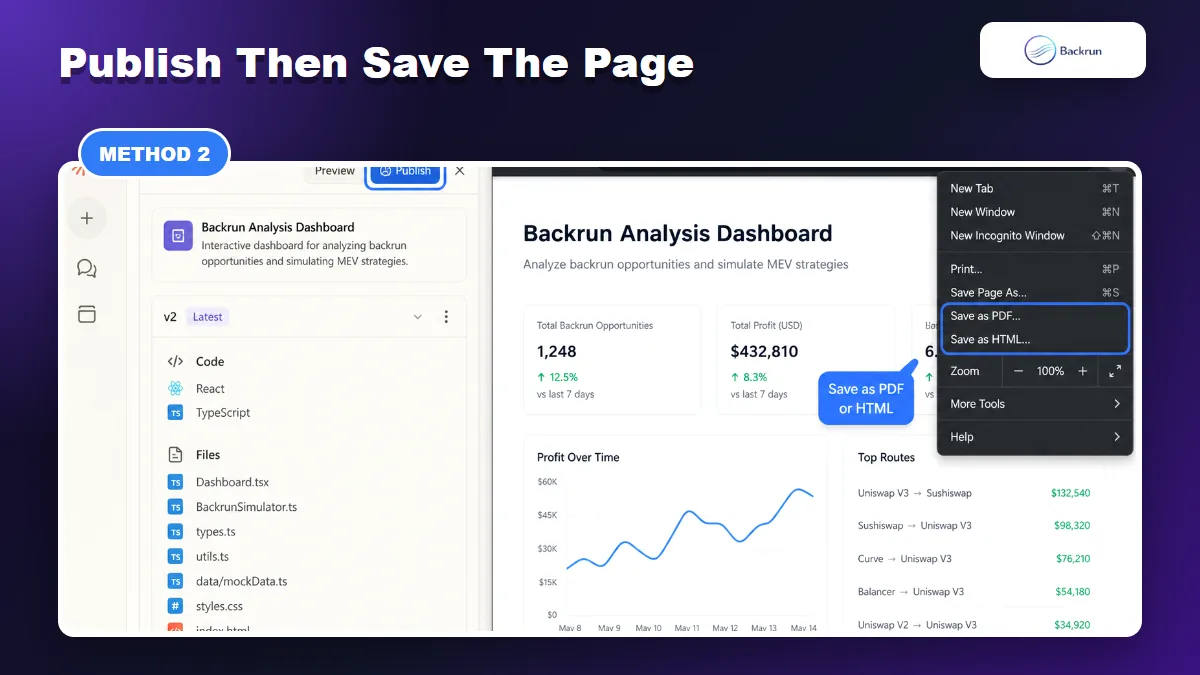
Publishing creates a viewable artifact page, which is useful when an interactive artifact needs to be shared or printed.
Publishing is useful when the artifact is interactive or visual, and you want to preserve the experience rather than only the raw source file. Anthropic's artifact sharing guide explains that you can publish an artifact from a selected version and copy a public link.
Use this method when the artifact behaves like a web page, app, dashboard, calculator, or demo.
Open the artifact and make sure you are on the version you want to keep.
Click Publish in Claude.
Copy the public artifact link.
Open the artifact in your browser and test the page.
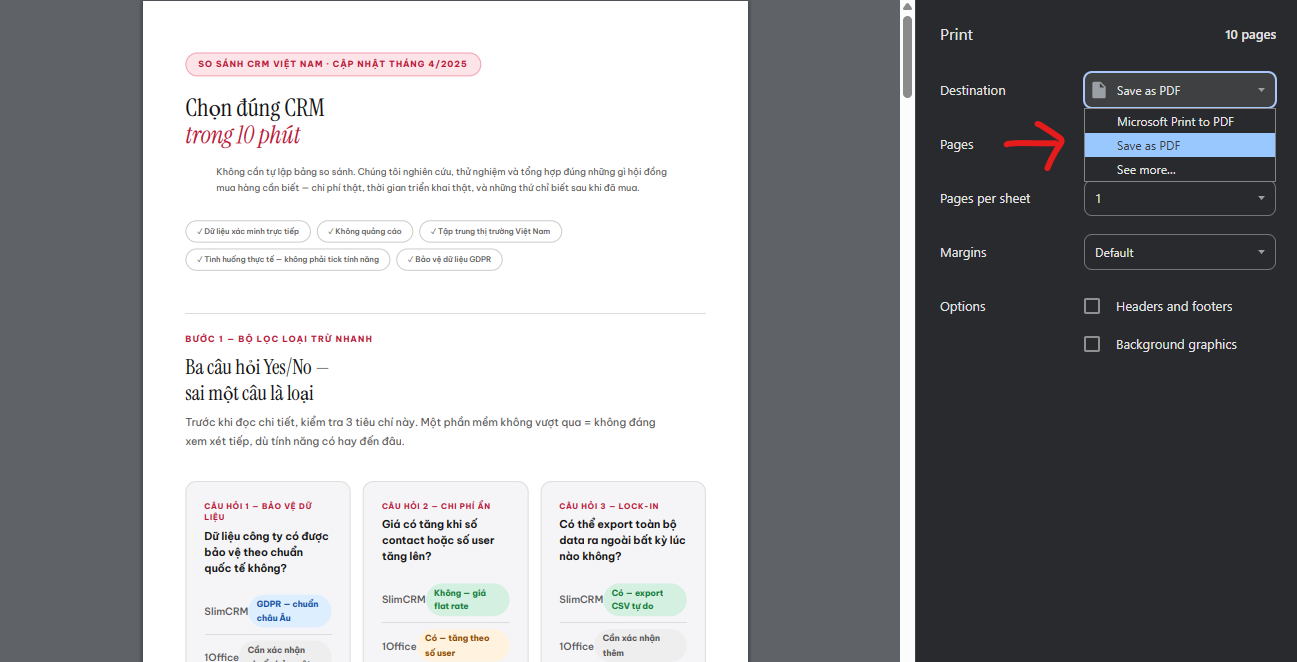
Press Ctrl + P on Windows, or use the browser print menu.
Choose Save as PDF in the destination field if you want a PDF copy.
Use Save Page As if you need an HTML copy instead.
Best for: interactive dashboards, web prototypes, calculators, UI demos, visual explainers, and artifacts you need to share with another person.
Limit: a published artifact may expose the artifact content through a shareable link. Remove private names, client details, credentials, internal URLs, and sensitive screenshots before publishing.
3. Use AI Chat Exporter by Backrun When You Need the Artifact Context
AI Chat Exporter is helpful when you need the artifact plus the Claude conversation around it.
A downloaded artifact does not always explain why it exists. If the artifact came from a long Claude conversation, you may need the prompts, constraints, corrections, code notes, and final instructions around it. That is where AI Chat Exporter by Backrun is useful.
Use this workflow when the artifact and the conversation context belong together.
Open claude.ai and load the conversation that contains the artifact.
Select the relevant messages, or export the full thread if the context matters.
Choose the output format, such as PDF, Word, Markdown, Google Docs, or Notion.
Review the export for artifact references, code blocks, links, tables, and final instructions.
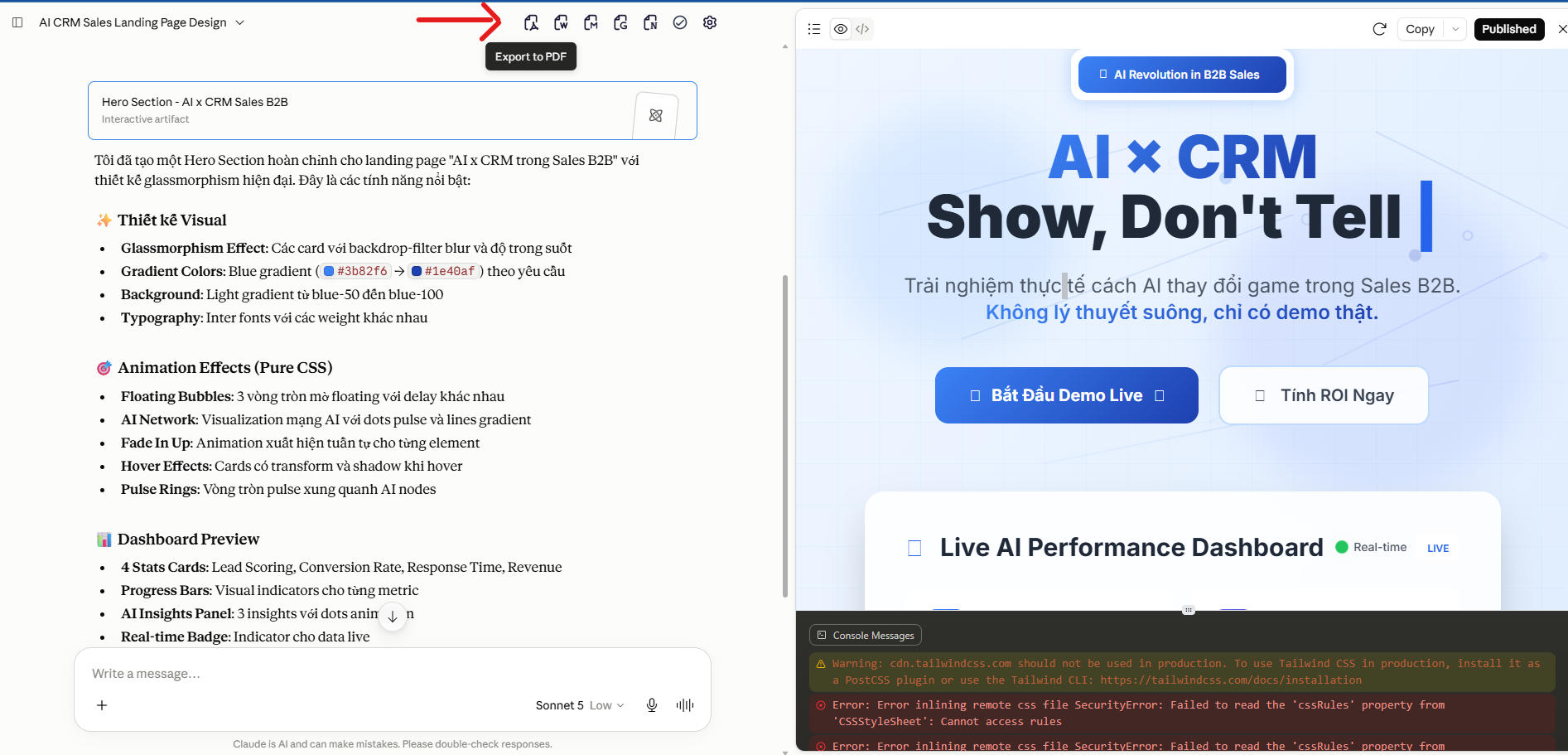
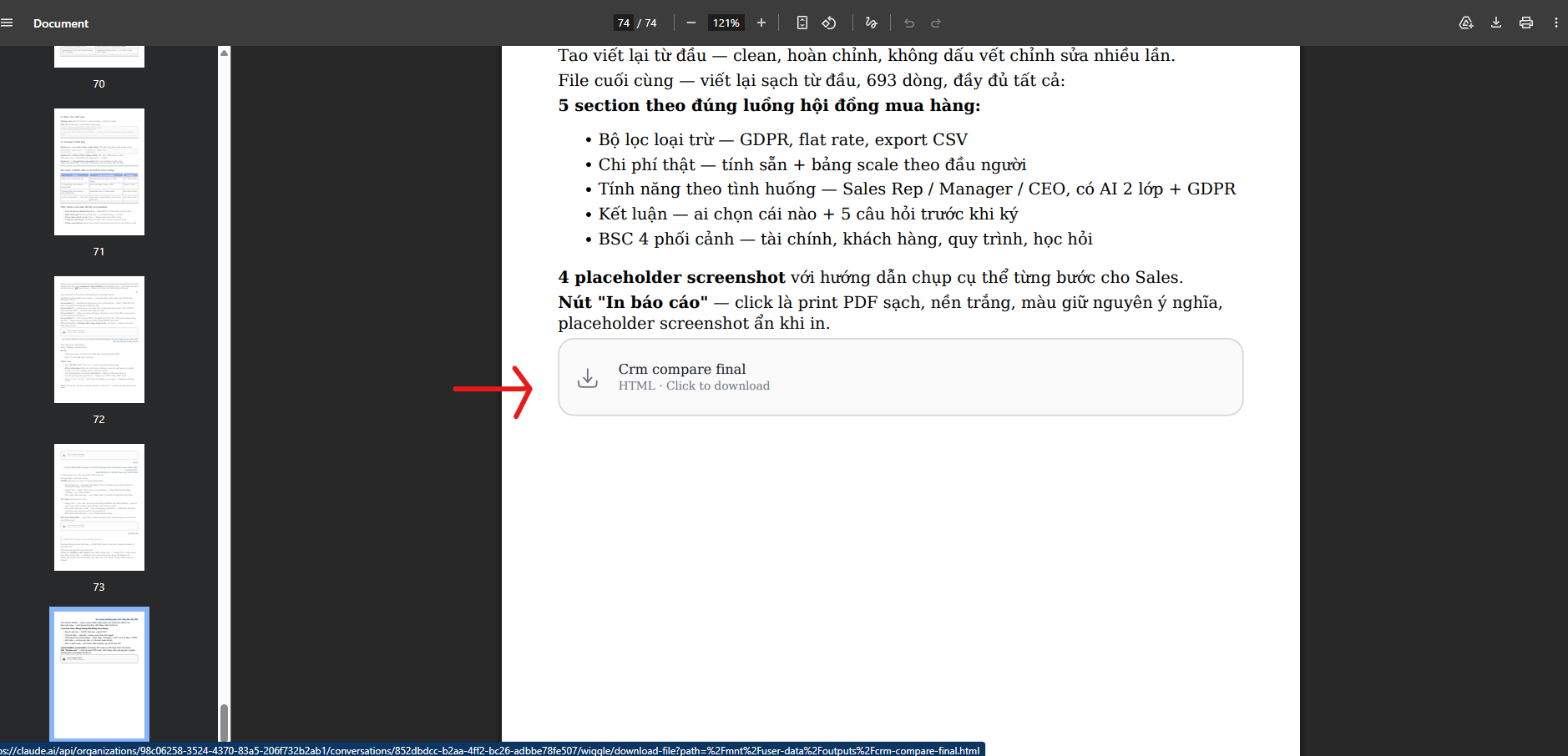
If you want to download each artifact separately: open the file, click the download button that appears inside the artifact file view, then open the artifact in your browser. Press Ctrl + P and choose Save as PDF in the destination field if you need a PDF version.
Best for: project handoff, client proof, development notes, long Claude chats with several artifacts, and documentation where the reasoning matters.
Limit: AI Chat Exporter exports the conversation context. If you also need the working artifact file, download or publish the artifact separately and store both files together.
Practical pairing: save the artifact file with Method 1 or by opening the artifact and printing it to PDF, then export the surrounding Claude conversation with AI Chat Exporter. If the final output needs to be a PDF, Backrun also has a focused guide on Claude to PDF.
4. Ask Claude to Package the Artifact as Files
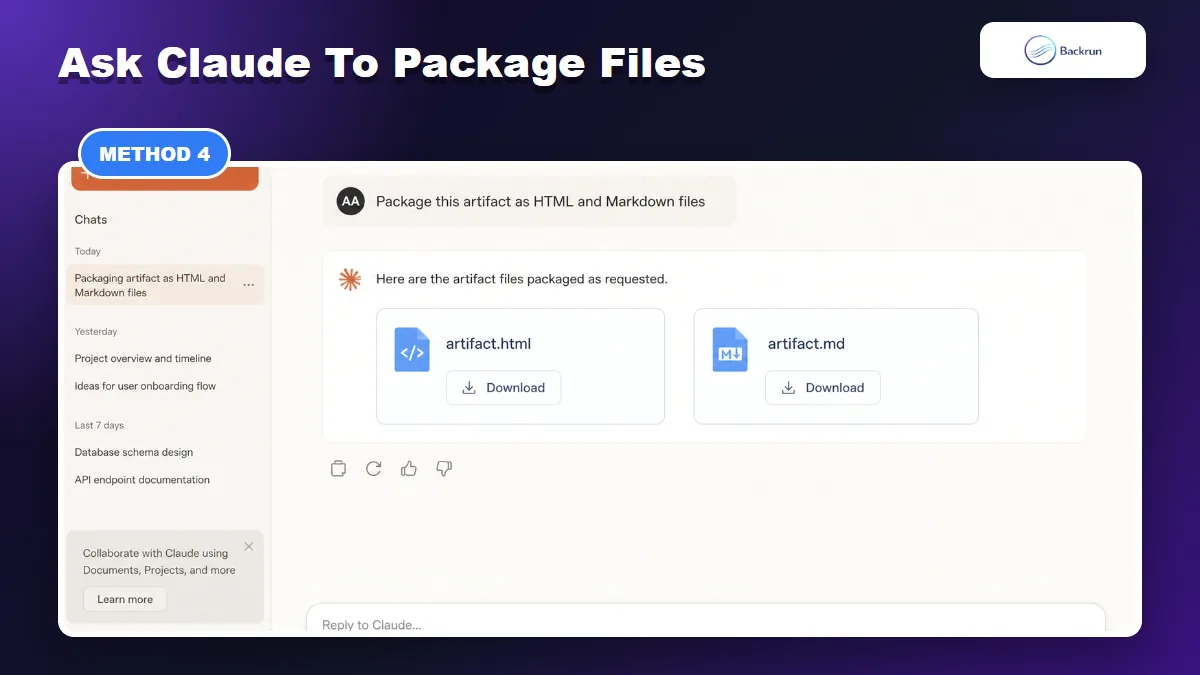
When the artifact UI does not give you the file shape you need, ask Claude to package it as HTML, Markdown, or a zip.
Sometimes the artifact panel does not give you the format you need. In that case, ask Claude to package the artifact into clean files: HTML, Markdown, TXT, JSON, CSS, JavaScript, or a zipped folder structure.
This is the safest method when the artifact contains multiple pieces or dependencies.
Open the artifact conversation.
Ask Claude to package the artifact. For example: Package this artifact as downloadable HTML and Markdown files.
List the exact formats you need, such as .html, .md, .css, .js, or .json.
Ask Claude to include dependencies or notes if the artifact needs them.
Download the generated file cards.
Open the files locally and compare them with the original artifact preview.
Best for: multi-file web artifacts, documentation bundles, structured data, code prototypes, and artifacts you want to commit into a repo.
Limit: Claude may simplify an interactive artifact when turning it into files. Ask for a file manifest and verify every piece.
Useful prompt:Create a file bundle for this artifact. Include a README, all source files, dependencies, and instructions to run or edit it locally.
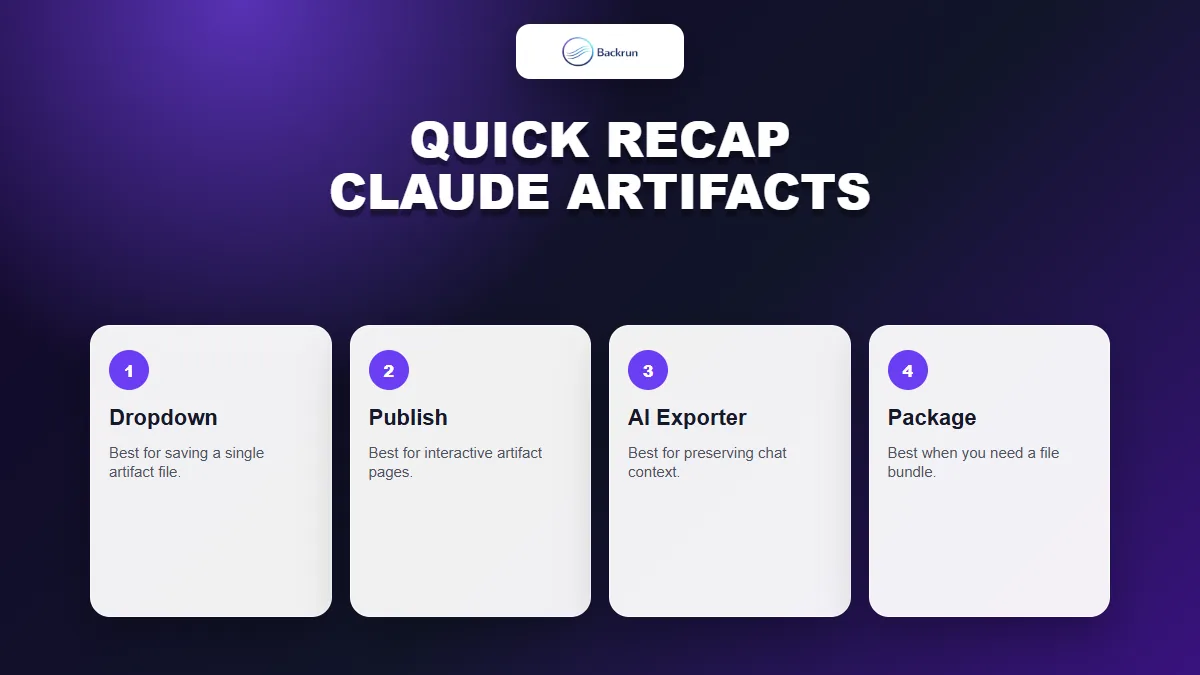
Quick Recap
Pick the saving method based on whether you need a file, a browser-rendered page, the chat context, or a full file bundle.
There is no single best way to save every Claude artifact. Choose based on the artifact type and what you need to do next.
Method
Use it when
Main caution
Dropdown download
The artifact has a built-in option like Download as HTML
Only saves the artifact, not the full chat
Publish then save
The artifact is interactive or visual
Review privacy before publishing
AI Chat Exporter
You need the artifact plus conversation context
Download the working artifact separately
Ask Claude to package files
You need HTML, Markdown, source files, or a bundle
Verify the package against the preview
For most readers, the safest workflow is simple: download Claude artifacts from the dropdown when the file option is available, publish and print interactive artifacts when you need a PDF view, and use AI Chat Exporter when the surrounding Claude conversation is part of the deliverable.