3 Ways to Transfer Claude Chat to Grok AI Without Losing Context
August 28, 20266 min read
If you want to transfer Claude chat to Grok AI, the safest approach is to move the conversation content in a format Grok can actually read, then give Grok a clear instruction about what to do with it.
There is no perfect native button that recreates a Claude conversation as a Grok conversation with every message, file, and setting intact. What works is a practical transfer: export the Claude chat into a clean format, prepare selected content from a Claude data archive, or ask Claude to create a focused handoff brief.
Grok can work with pasted text and, depending on your account surface, attached documents. xAI's developer docs describe document reasoning over attached files, and Grok release notes mention support for pasting non-image files into the query bar. Still, for a normal blog reader, the important rule is simple: keep the transferred context clean, small, and clearly labeled.
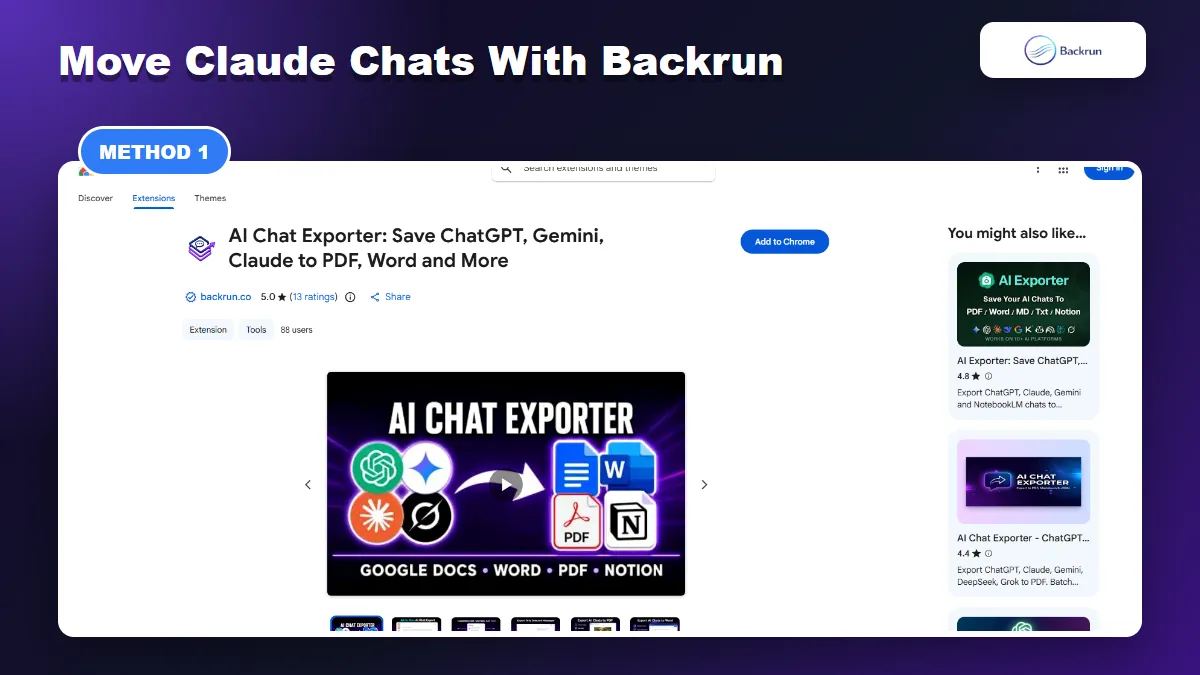
1. Use AI Chat Exporter by Backrun for Selected Claude Chats
AI Chat Exporter is the cleanest option when you need selected Claude conversations in a portable format before opening them in Grok AI.
This is the best method when you need more than a quick paste. It helps preserve message order, headings, tables, code blocks, links, and long-form research notes before you continue the work in Grok.
Use this workflow when the original Claude conversation is still valuable as a source document.
Open Claude and load the conversation you want to move.
Select the relevant messages, or export the full thread if the order of the back-and-forth matters.
Choose an output format. Markdown or TXT is usually easiest for Grok to reason over; PDF works better when you want a read-only reference.
Open Grok AI and paste the exported text or attach the prepared file if file upload is available in your account.
Give Grok a specific instruction, such as summarize this Claude chat, continue the project, extract action items, or rewrite the answer for a new audience.
Best for: selected Claude chats that need formatting, structure, or message order preserved.
Limitation: this does not create a native Grok chat history entry from Claude. It gives Grok a clean conversation document to read.
Practical tip: if the Claude chat is long, export only the relevant messages first. Grok will usually perform better with one focused file than with an entire unfocused transcript. For Markdown-heavy workflows, this Backrun guide on Claude chat to Markdown is a useful companion.
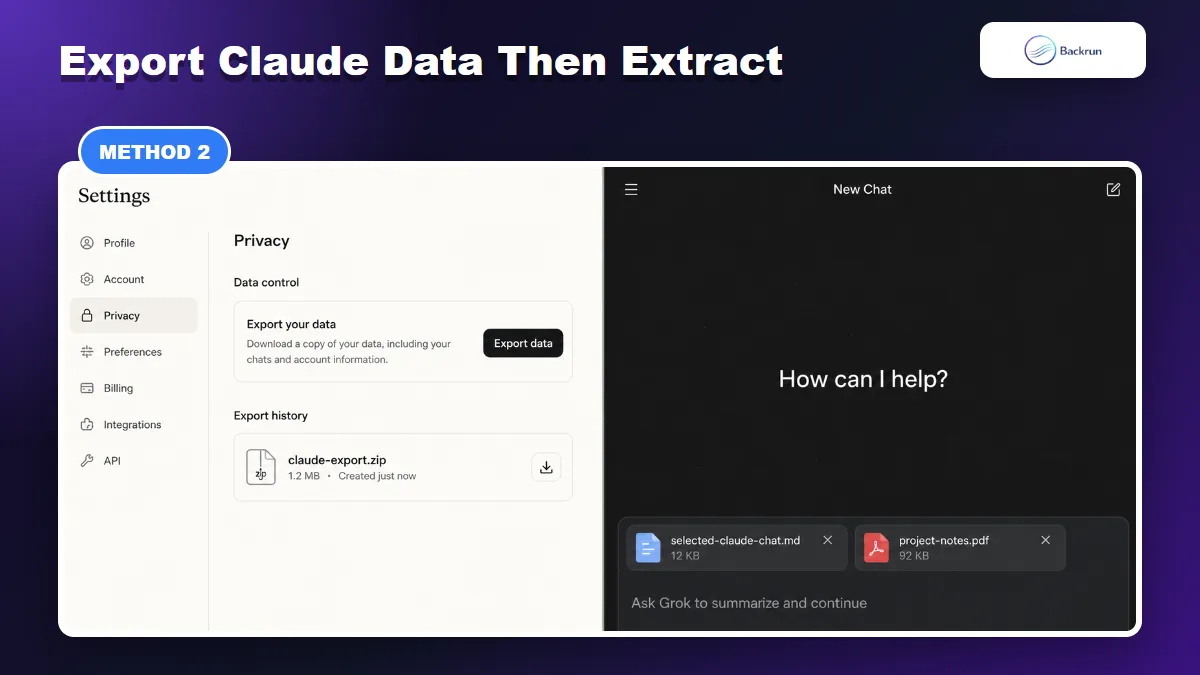
2. Export Claude Data, Then Extract What Grok AI Needs
Claude data export is useful for backup first, then selected chats can be cleaned into Markdown, TXT, or PDF before using them with Grok.
If you want a full Claude backup first, use Claude's official data export path. This is better for archival migration than for everyday transfer, because you still need to extract the specific chats that Grok should read.
Below is the safer archive-based workflow.
Open Claude settings.
Go to Privacy and use Claude's data export option.
Download the export archive when Claude emails or provides the file.
Keep a private backup before editing the archive.
Find the conversations that matter and extract only those parts.
Convert selected content into Markdown, TXT, or PDF with clear headings and dates.
Paste or attach the cleaned file in Grok AI, then ask Grok to summarize, continue, or compare the Claude context.
Best for: people leaving Claude, auditing old work, or moving several important chats into Grok over time.
Limitation: a Claude data archive can include private prompts, old drafts, project details, and files that do not belong in Grok. Review before uploading or pasting anything.
Trust check: use official Claude export for the backup, but treat the Grok input as a curated file. For Grok-side file behavior, check xAI's Files documentation and current Grok release notes, because supported surfaces can change by account and rollout.
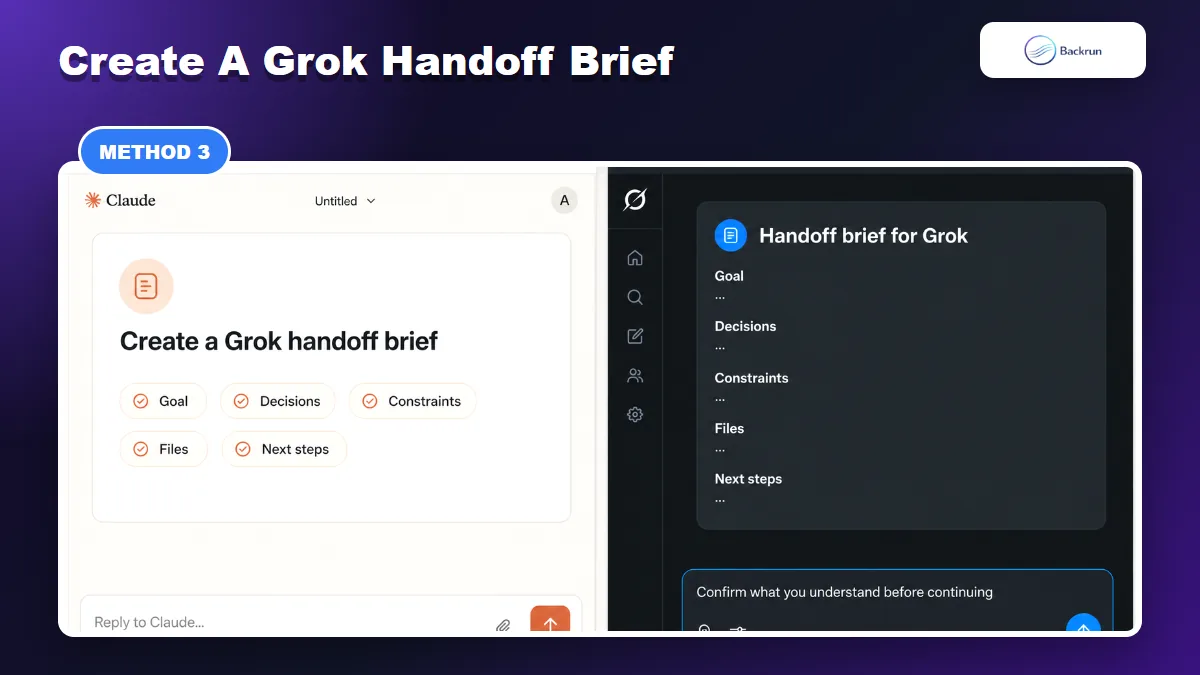
3. Ask Claude to Create a Grok AI Handoff Brief
A handoff brief is often better than a raw transcript when Grok only needs the project state, decisions, constraints, and next step.
For an active project, a handoff brief is often better than a raw transcript. Grok usually needs the current goal, constraints, decisions, files, and next step, not every exploratory message that happened along the way.
Use this workflow when you want Grok to continue one focused task.
Open the Claude conversation or Claude Project you want to continue in Grok.
Ask Claude for a Grok handoff brief. Use a prompt like: Create a concise handoff brief for Grok AI. Include the goal, decisions, constraints, links, files, output style, open questions, and next steps. Remove duplicate exploration.
Review the brief and add exact snippets, file names, links, or requirements that Claude may have compressed too much.
Paste the brief into Grok AI as the first message in a new chat.
Ask Grok to confirm what it understands before generating new work.
Continue the task only after Grok's summary matches the project state.
Best for: one coding task, one content project, one research thread, one client brief, or one strategic plan.
Limitation: this is not a full transfer of Claude chat history. It is a controlled context handoff, which is exactly why it works well for focused tasks.
If your final output needs to stay portable after Grok edits it, this Backrun guide on Grok to Markdown can help you keep future exports clean.
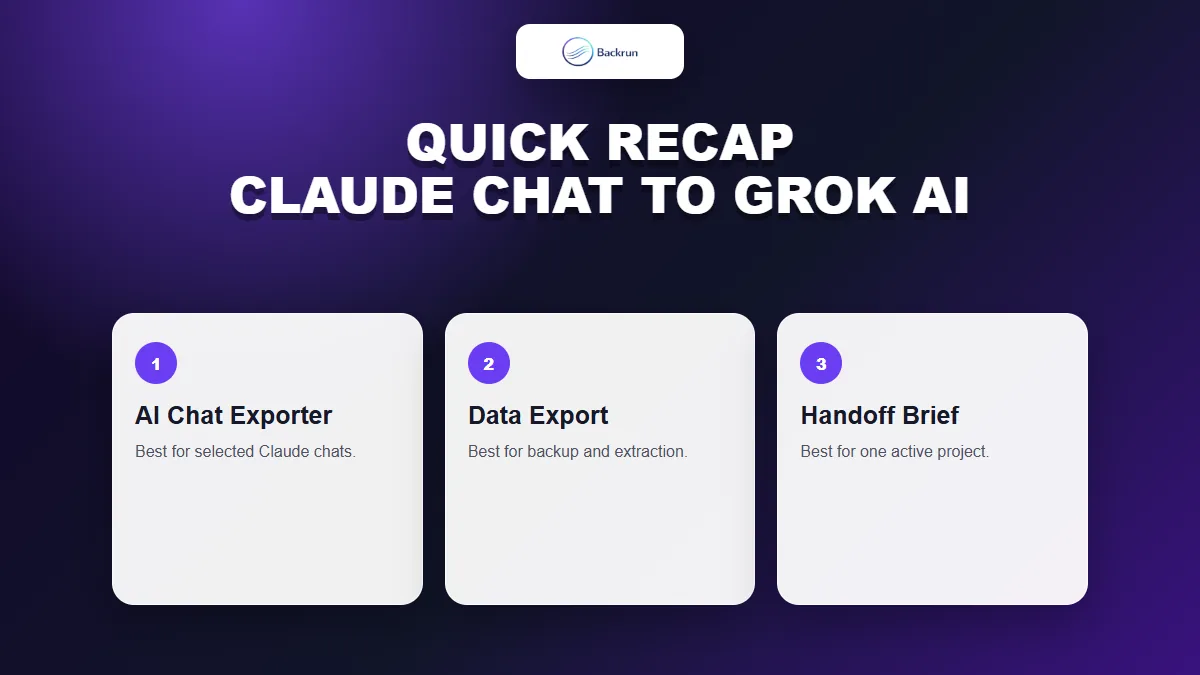
Quick Recap
Choose the transfer method based on whether you need selected chats, an archive, or a clean project handoff.
The best way to transfer Claude chat to Grok AI depends on how much context you need.
Method
Best for
Main caution
AI Chat Exporter
Selected Claude chats with structure
Choose Markdown or TXT when Grok needs to edit the content
Claude data export
Backup and selective extraction
Do not upload the full archive blindly
Handoff brief
One active project
Review the summary before using it
For most workflows, start with AI Chat Exporter when the Claude thread is worth preserving, use Claude data export for a private backup, and use a handoff brief when Grok only needs the current state of a project.