5 Claude Exporter Chrome Extensions for Saving Chats Cleanly
July 30, 20268 min read
A claude exporter chrome extension helps turn useful Claude conversations into files you can edit, share, archive, or move into your knowledge base.
The right tool depends on what you need after the chat is finished. Some users want a polished PDF for sharing, others need Word or Google Docs for editing, and technical users often prefer Markdown, JSON, HTML, or ZIP archives. A good claude chat exporter chrome extension should preserve headings, lists, code blocks, tables, artifacts, and long conversation structure without forcing you to rebuild the document manually.
This roundup compares Chrome Web Store extensions that clearly support Claude export workflows. Before installing any exporter, review Chrome's guidance for installing and managing extensions, then test with a non-sensitive Claude conversation that includes a long answer, a table, a code block, and an artifact if your workflow uses artifacts.
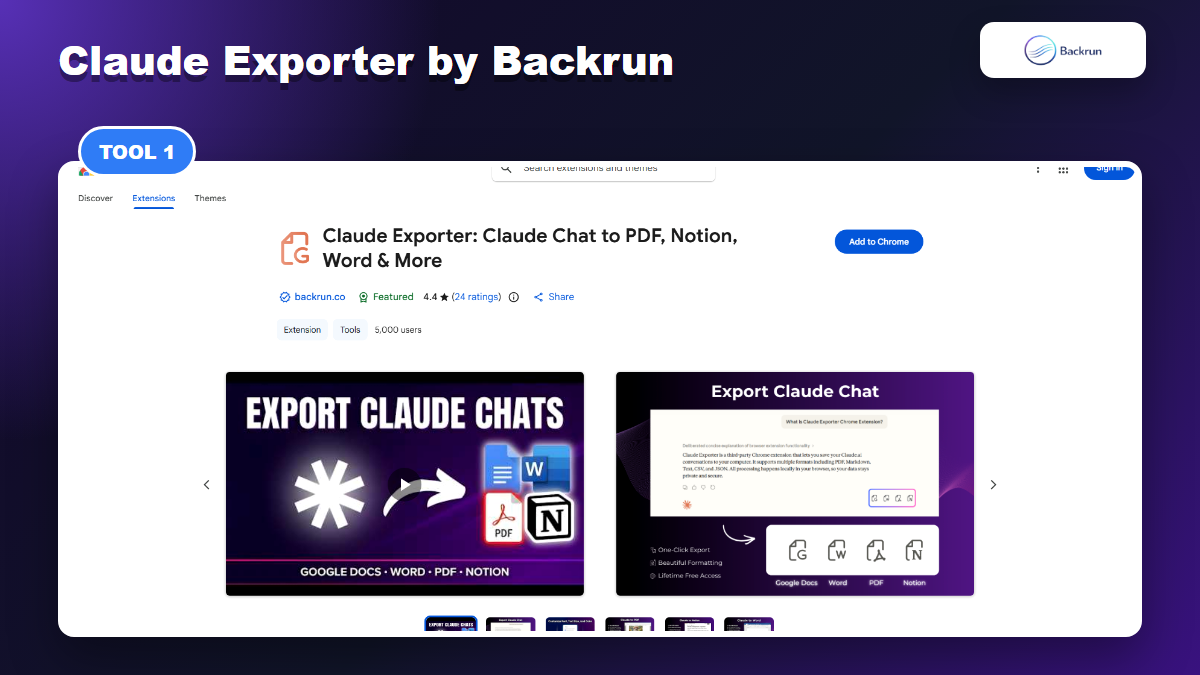
1. Claude Exporter by Backrun
Claude Exporter by Backrun supports Claude exports to PDF, Word, Google Docs, and Notion with selected or full-thread export.
Claude Exporter by Backrun is the best first option if you want a work-document exporter rather than a raw backup utility. The Backrun product page describes exports to PDF, Word, Google Docs, and Notion, plus support for full conversations, selected messages, code sessions, research, and readable formatting. The Chrome Web Store listing also highlights custom font, font size, and text color controls before export.
Best for: users who want Claude chats to become polished documents for clients, internal notes, team collaboration, or Notion knowledge bases.
Useful formats: PDF, Word, Google Docs, and Notion.
Good workflow: export the whole conversation when context matters, or export selected messages when you only need the final answer, code block, or research summary.
Practical check: open a Claude chat with code, a table, and headings, then compare the PDF and Word output for spacing, code readability, and table width.
Watch out for: Google Docs and Notion exports may require account authorization with those destinations. For confidential content, start with a local PDF or Word file and review permissions before connecting cloud services.
This is the most product-led pick in the list because it is built around the common business workflow: save the useful parts of a Claude conversation and keep them editable. If you often turn Claude answers into reports, SOPs, support documentation, or internal research notes, the selected-message workflow matters more than having every possible archive format.
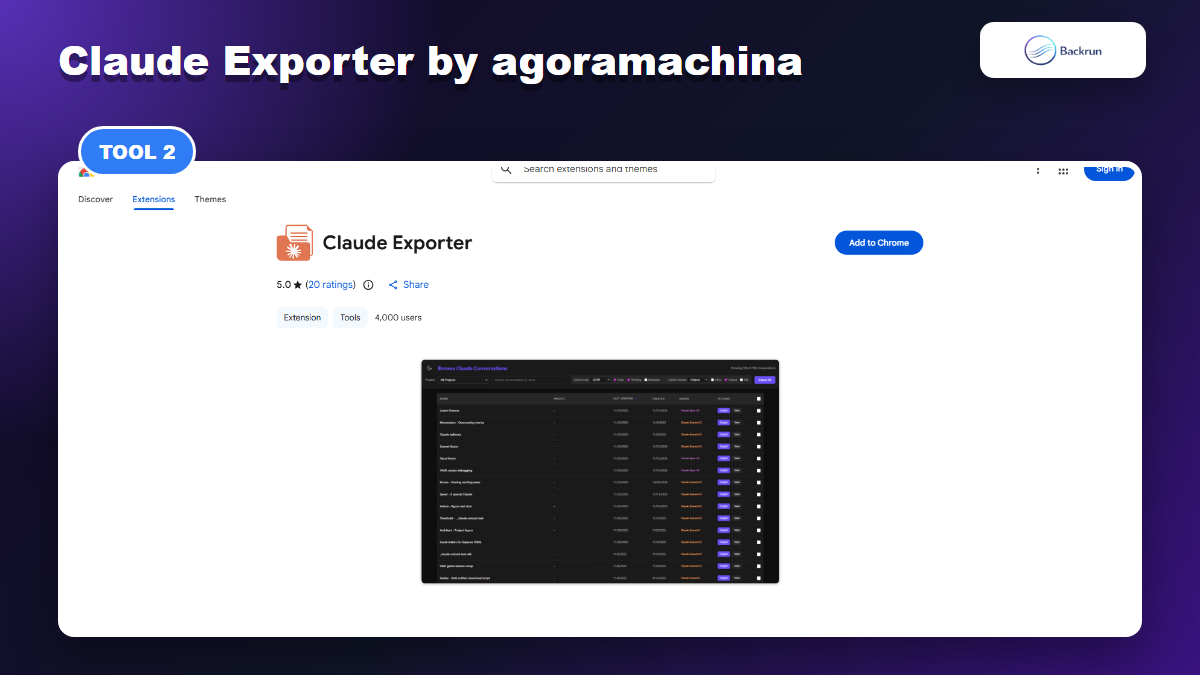
2. Claude Exporter by agoramachina
Claude Exporter by agoramachina focuses on searchable Claude backups, artifacts, bulk export, and local archives.
Claude Exporter by agoramachina is a stronger fit for people who care about backups and conversation management. Its listing describes individual conversation export, bulk export, searchable browsing, sorting by metadata, project organization, artifact extraction, ZIP archives, and formats such as JSON, Markdown, and plain text.
Best for: researchers, developers, and power users who need to preserve many Claude conversations instead of exporting one polished deliverable at a time.
Useful formats: JSON, Markdown, plain text, and ZIP archives.
Good workflow: browse or filter your Claude history, select the conversations worth keeping, then export them into a local archive that can be searched or processed later.
Practical check: export one project with artifacts and confirm that the artifact files are separated, named clearly, and easy to map back to the original conversation.
Watch out for: this is more of an archive tool than a polished PDF or Word document tool. If your final destination is a client-ready DOCX, compare the output with Backrun's document-oriented workflow before standardizing on it.
The main advantage is coverage. Bulk export and searchable browsing can save hours when your Claude account has become a working memory for code, research, or product decisions. The tradeoff is that JSON and ZIP archives are excellent for preservation but less friendly for non-technical teammates who simply want a clean document.
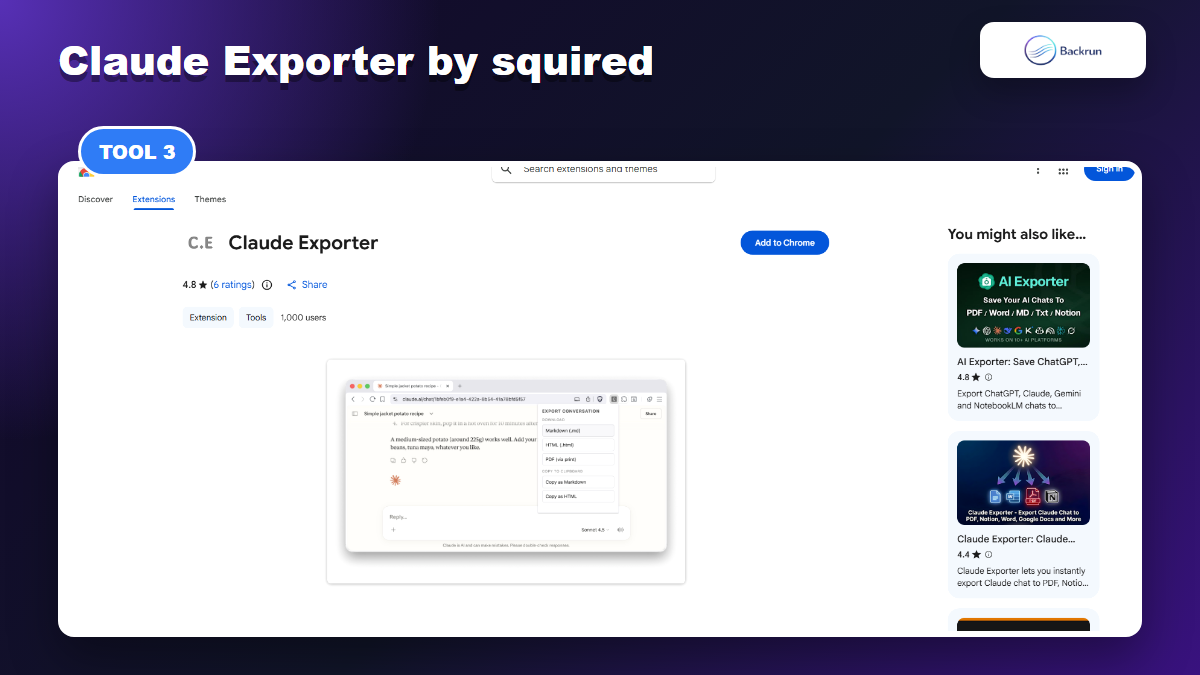
3. Claude Exporter by squired
Claude Exporter by squired is an open-source local exporter for Markdown, HTML, PDF, and clipboard workflows.
Claude Exporter by squired is a privacy-first, open-source option for users who prefer local processing and auditable code. The listing describes Markdown, self-contained HTML, PDF, and clipboard export, with code blocks, artifacts, tool calls, attachments, Unicode, long conversations, and active conversation branches handled in the output.
Best for: technical users who want a lightweight local exporter and are comfortable reviewing an open-source project before trusting it with important conversations.
Useful formats: Markdown, HTML, PDF, copy as Markdown, and copy as HTML.
Good workflow: use Markdown for documentation, HTML for offline reading, and PDF when you need a shareable file with cleaner pagination than printing the live Claude page.
Practical check: try a branched Claude conversation and confirm that the exported file follows the active branch you were actually reading.
Watch out for: it does not aim to cover Word, Google Docs, or Notion as directly as Backrun. If your team edits in DOCX or collaborates in Docs, the extra conversion step may erase the simplicity gained from local export.
This tool is attractive when trust and inspectability are high priorities. Open-source code and local processing are useful signals, but they do not replace testing. Export a long technical conversation, inspect code fences, page breaks, and attachments, then decide whether the output fits your archive style.
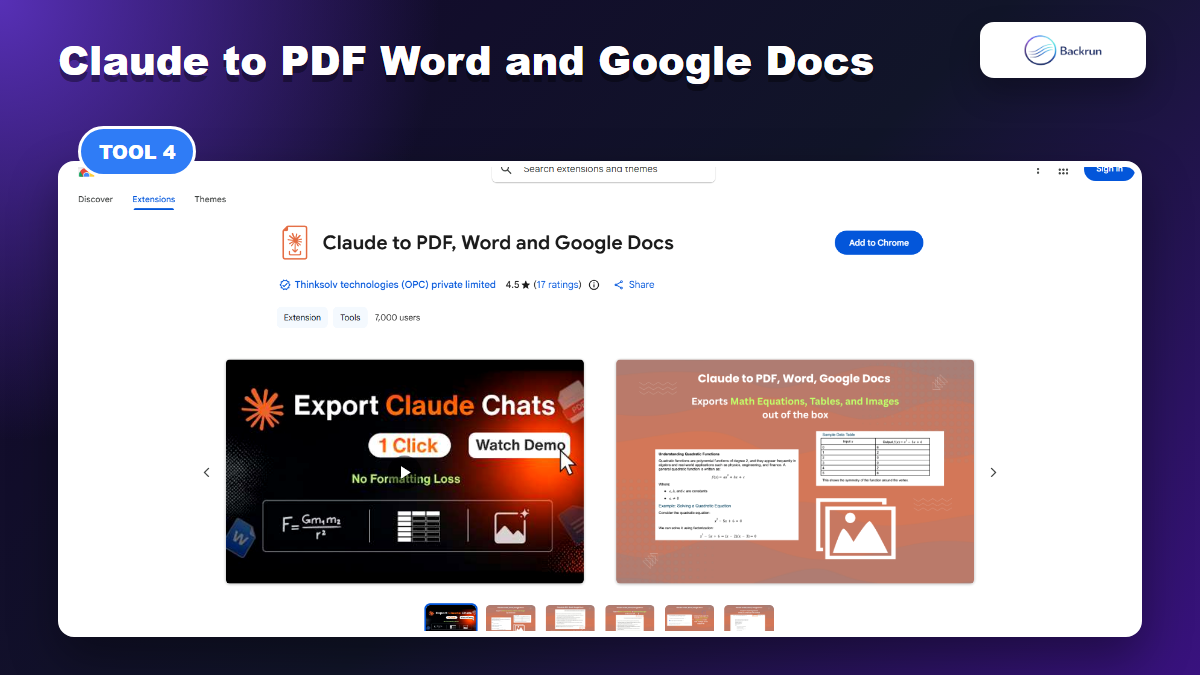
4. Claude to PDF Word and Google Docs by Thinksolv
Claude to PDF Word and Google Docs by Thinksolv focuses on one-click exports and Claude artifact support.
Claude to PDF Word and Google Docs by Thinksolv is positioned around simple document conversion. The listing says it can convert Claude content into PDF, Word, or Google Docs in a single click, and it also mentions Claude artifact export for generated code, documents, diagrams, charts, and interactive outputs.
Best for: users who mainly need the three practical document destinations: PDF for sharing, Word for editing, and Google Docs for collaboration.
Useful formats: PDF, Word, and Google Docs.
Good workflow: export a response or artifact into the format your team already uses, then review the resulting file before sending it onward.
Practical check: test an artifact-heavy Claude conversation and verify that diagrams, generated files, and code snippets remain understandable after export.
Watch out for: one-click exporters are convenient, but they can hide formatting choices. If you need custom fonts, selected-message control, or Notion output, compare it against Claude Exporter before choosing.
This extension is useful when you want a short path from Claude to a normal office document. The limitation is narrower workflow control. If your exported documents need to match a company style guide or separate prompts from answers, check those controls carefully instead of assuming the one-click output will be ready for publication.
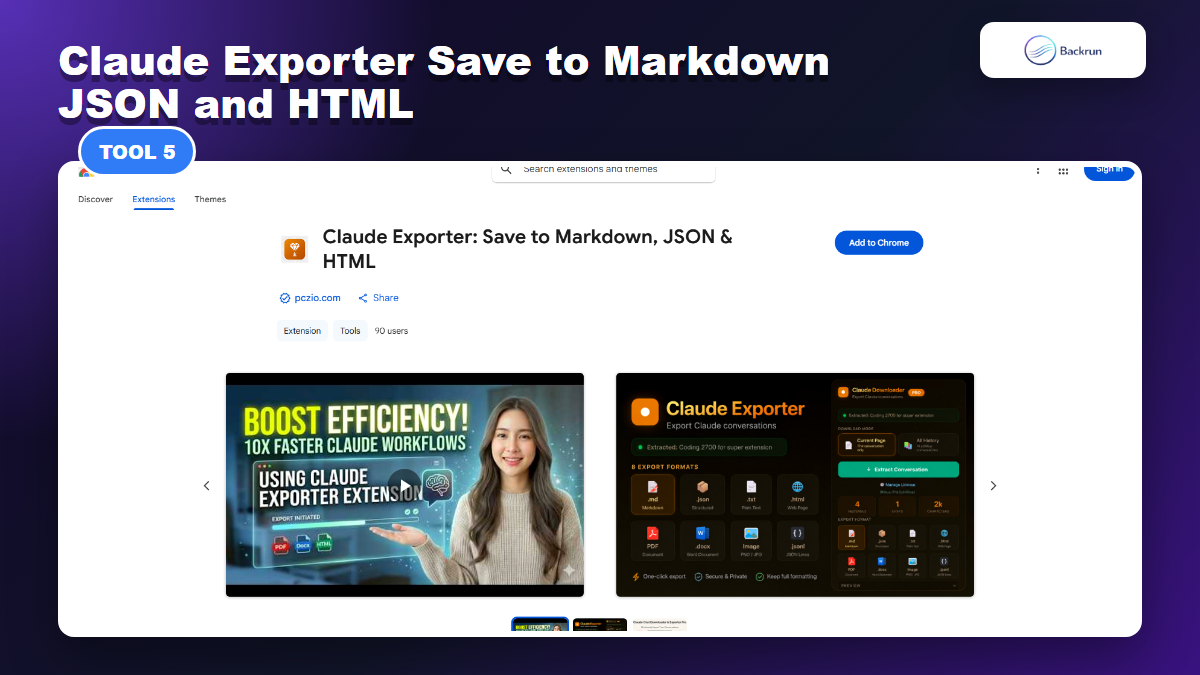
5. Claude Exporter Save to Markdown JSON and HTML by pczio
Claude Exporter by pczio is aimed at Markdown, JSON, text, HTML, batch export, and local backup workflows.
Claude Exporter by pczio focuses on local backups and developer-friendly formats. Its listing describes one-click export, batch export from chat history, Markdown, JSON, plain text, and HTML, plus clean code extraction and local processing. That makes it more useful for archives and note systems than for finished office documents.
Best for: users who save Claude conversations into Obsidian, local folders, technical documentation, or structured backups.
Useful formats: Markdown, JSON, text, and HTML.
Good workflow: export current chats as Markdown for notes, use JSON for structured preservation, and use HTML when you want an offline version that opens in a browser.
Practical check: export a code-heavy conversation and inspect whether indentation, lists, and headings survive without manual repair.
Watch out for: the listing mentions free and pro versions, so check current limits before using it for recurring bulk export work. Also remember that JSON is excellent for machines but not ideal for teammates who expect a clean PDF or Word file.
This tool is most compelling when Claude has become part of your personal knowledge workflow. If you need lightweight files for search, grep, Git, or static documentation, Markdown and HTML can be more durable than proprietary document formats. If you need polished handoff files, choose a PDF, Word, or Google Docs focused exporter instead. For a broader document workflow, Backrun also has a guide on exporting Claude to Word.
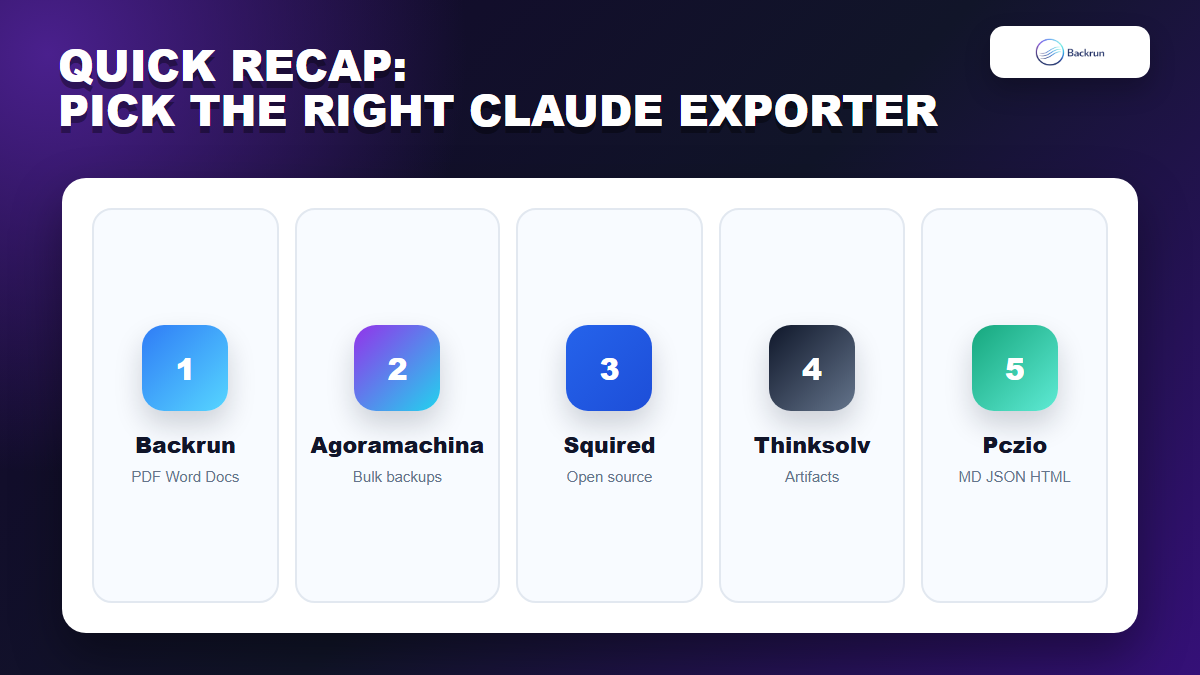
Quick Recap
Quick Recap helps match each Claude exporter Chrome extension to the workflow it fits best.
Extension
Publisher
Best Fit
Main Formats
Claude Exporter
Backrun
Polished documents, selected-message export, Docs and Notion workflows
Open-source local export and clean Markdown or HTML archives
Markdown, HTML, PDF, clipboard
Claude to PDF Word and Google Docs
Thinksolv
Simple office-document export and artifact conversion
PDF, Word, Google Docs
Claude Exporter Save to Markdown JSON and HTML
pczio
Developer-friendly backups and local note workflows
Markdown, JSON, Text, HTML
If you want the cleanest all-purpose starting point, choose Backrun for PDF, Word, Google Docs, and Notion with selected-message control. Choose agoramachina when the job is bulk preservation. Choose squired when open-source local export is the priority. Choose Thinksolv when you only need common office formats. Choose pczio when Markdown, JSON, and local archive workflows matter most.
The best Claude exporter is the one that preserves your real content with the least cleanup. Test each candidate with the same messy conversation, inspect the exported file, and keep the extension that matches your privacy expectations, output format, and editing workflow.