How to Copy Text from ChatGPT to Word Without Breaking Formatting
August 06, 20267 min read
If you are wondering how to copy text from chatgpt to word, the real challenge is not the copy button. It is keeping the text readable after it lands in Word: headings, bullets, spacing, links, code blocks, and tables can all shift if you paste the wrong way.
There are only a few methods that are worth using in real work. You can copy and paste directly with Word's paste controls, use an exporter when the chat is long, ask ChatGPT to rewrite the answer before copying, or move structured content separately when the answer contains code, lists, or tables.
1. Direct Copy and Paste Into Word, or Paste as Plain Text and Rebuild Styles
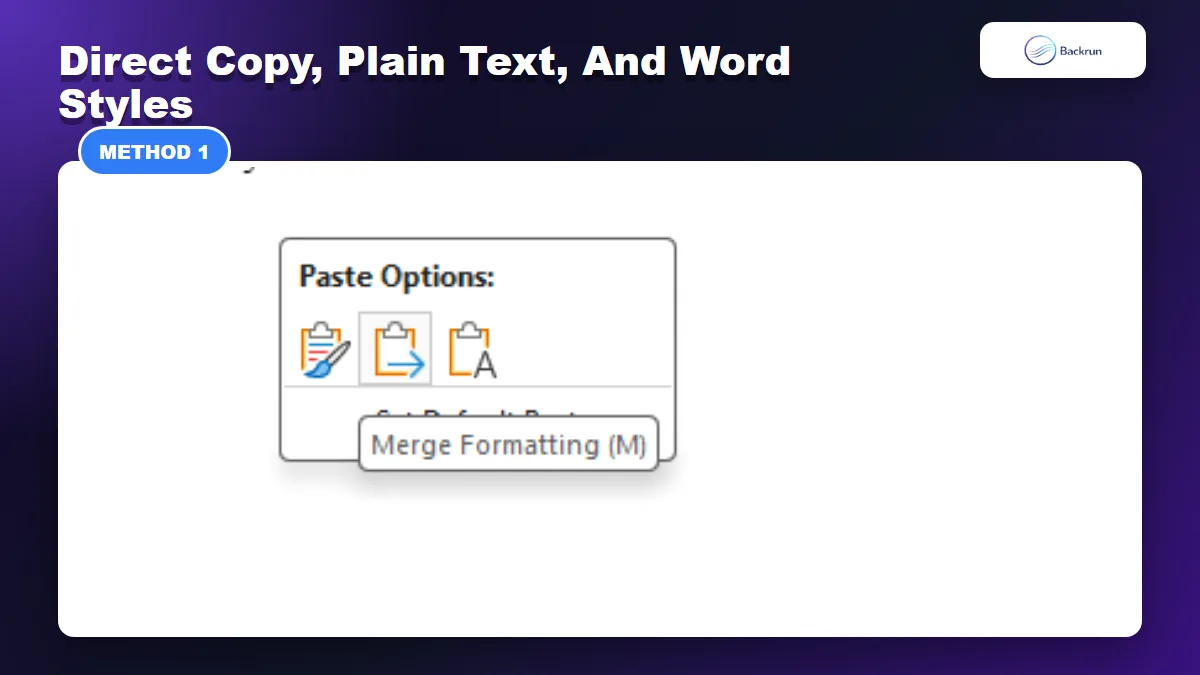
Word Paste Options let you choose Merge Formatting or plain text when moving ChatGPT text into Word.
This is the simplest method and it works well for short answers, summaries, outlines, emails, and checklist-style content. The important part is to copy only the actual ChatGPT answer, not the whole browser page, then choose the right paste behavior inside Word.
Open the ChatGPT conversation and scroll to the answer you want to move into Word.
Use ChatGPT's copy button under the answer, or select only the answer text manually.
Open Microsoft Word and place the cursor where the answer should appear.
Paste with Ctrl+V on Windows or Command+V on Mac.
Choose Merge Formatting if the answer should blend with your document, or Keep Text Only if the pasted formatting looks messy.
Rebuild Word styles such as Heading 1, Heading 2, Normal, and bullets when you use plain text.
Best for: one answer, a short explanation, a small list, or a section you plan to edit manually.
Why it works: Word's Paste Options are built for this exact situation. Microsoft explains that Word can keep source formatting, merge with the destination formatting, or keep text only. For most ChatGPT answers, Merge Formatting gives the cleanest balance because it keeps useful emphasis while adapting to your document style.
Practical check: after pasting, scan headings, bullets, links, and paragraph spacing. If the pasted text looks like it came from a browser instead of a Word document, undo and try the plain-text method below.
Real-world note: paste into a temporary Word file first when the final document is important. It gives you a safe place to compare paste options before touching the actual report, proposal, or client document. This is especially useful when the ChatGPT answer has many bold phrases, nested bullets, or copied links.
2. Use ChatGPT Exporter When Copy-Paste Is Too Slow
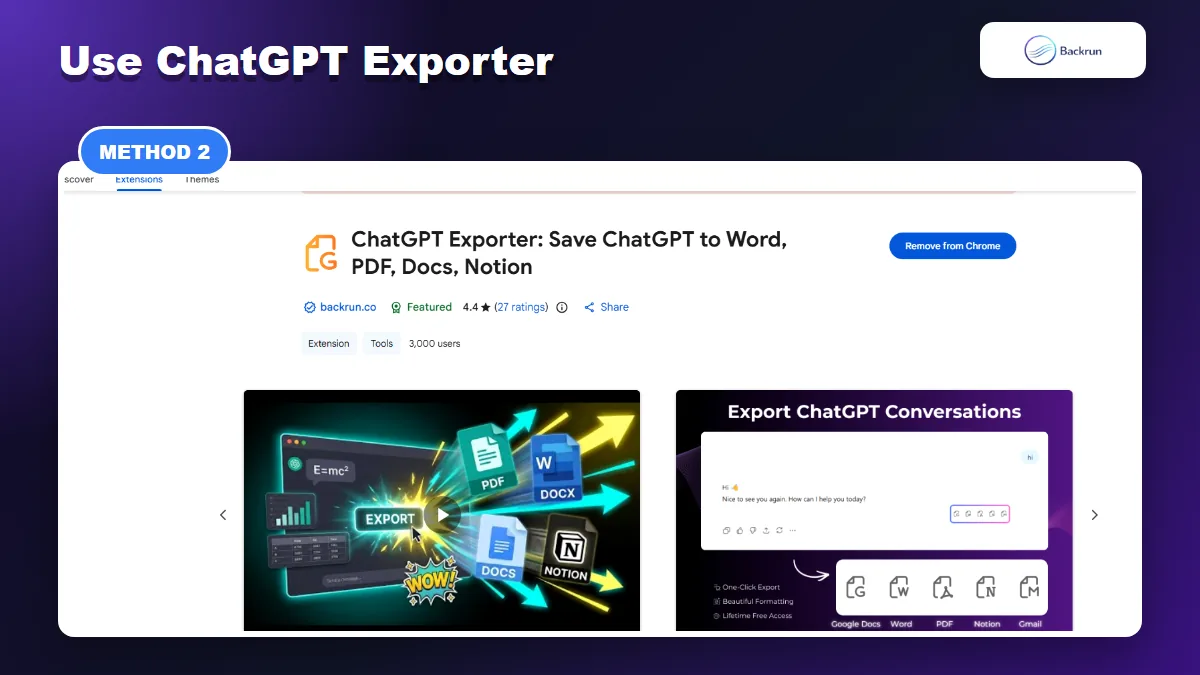
ChatGPT Exporter is the practical option when the conversation is too long for manual copy-paste.
Manual copy is perfect for one answer, but it becomes painful with long chats. If you need the whole conversation, selected messages, or a reusable file, ChatGPT Exporter is the better route because it is built for exporting ChatGPT content into document workflows instead of relying on browser copy-paste.
Install the exporter and open the ChatGPT conversation.
Select the messages you want, or export the full thread when context matters.
Choose Word if you need an editable file.
Open the exported document and verify headings, lists, tables, and code blocks.
Edit the DOCX in Word like a normal document.
Best for: long research chats, interview notes, client reports, classroom material, and any case where copying one answer at a time would waste time.
Why it works: instead of relying on the browser clipboard, the exporter creates a document workflow around the conversation. That is more practical when you need several messages, selected answers, or a complete chat archive.
Trust check: browser extensions are powerful, so review permissions and start with a non-sensitive chat. Chrome's own extension guidance is a useful baseline before installing any exporter.
Editing tip: treat the exported Word file as a first draft. Open it, check section order, remove repeated prompts if they are not needed, and apply your final document template before sharing.
If you want a broader export workflow instead of simple copy-paste, Backrun also has a full guide to exporting ChatGPT to Word.
3. Ask ChatGPT to Rewrite the Answer as a Word-Ready Draft
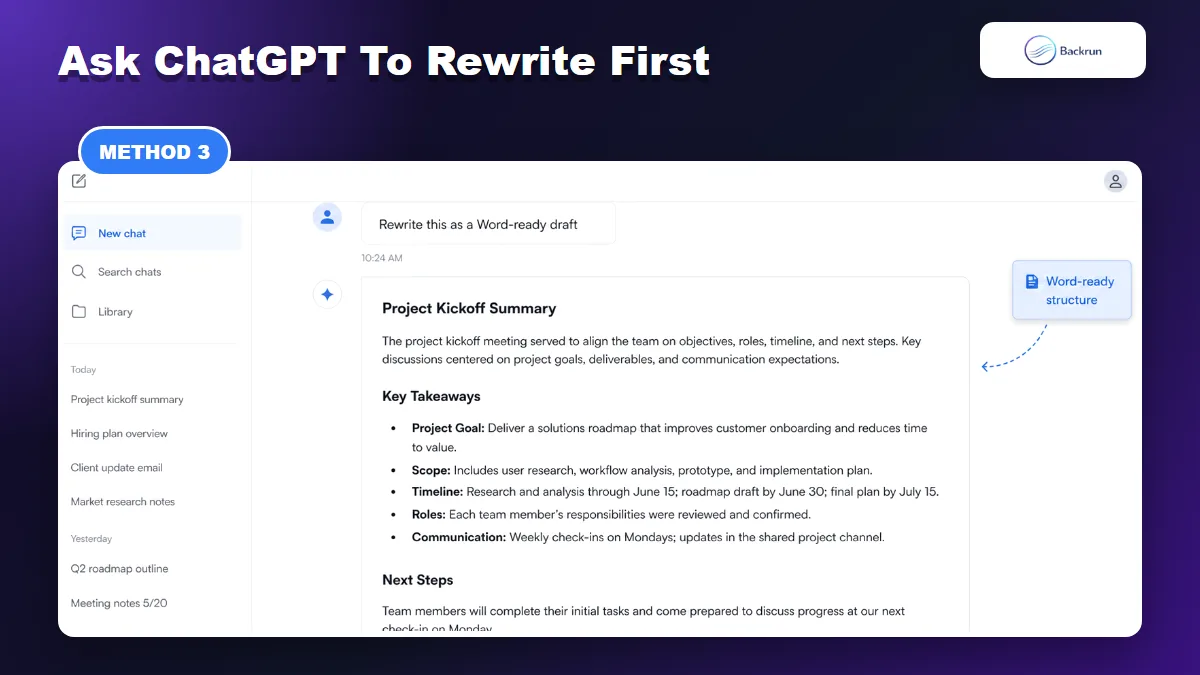
A rewrite-first workflow works when the answer should become a clean Word section rather than a raw transcript.
This method works when the ChatGPT answer is useful but not yet shaped like a document. Instead of copying a raw answer, ask ChatGPT to rewrite it into a structure that is easier to paste into Word.
Tell ChatGPT the final document type, such as a report, proposal, lesson note, checklist, SOP, or meeting summary.
Ask for Word-ready formatting: short paragraphs, clear section headings, simple bullets, and simple tables only when needed.
Ask ChatGPT to avoid Markdown clutter if you do not want symbols such as ### or excessive bold text.
Copy the rewritten answer into Word.
Apply Word styles and do one pass for spacing, links, and headings.
Best for: turning a messy conversation into a clean document section.
Prompt you can use:Rewrite this answer as a Word-ready document section with clear headings, short paragraphs, concise bullets, and no unnecessary Markdown symbols.
Limitation: this method creates a polished version, not an exact transcript. If you need every prompt and answer preserved, use the exporter method.
Practical check: ask ChatGPT to keep any facts, numbers, names, and links unchanged while rewriting. Then compare the rewritten draft with the original answer before you paste it into Word.
This approach is also helpful when the original answer sounds conversational. A rewrite prompt can turn it into a cleaner section with a beginning, useful subpoints, and a natural ending.
4. Handle Code Blocks, Lists, and Tables Separately
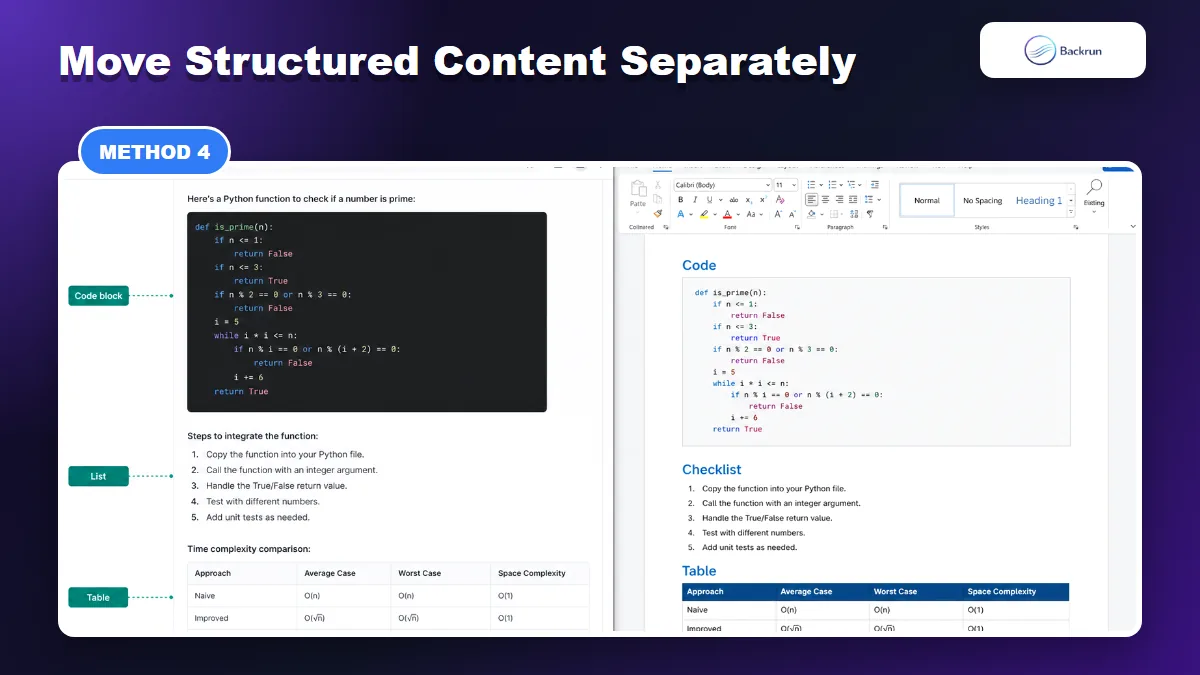
Structured content such as tables, code, and lists needs separate handling before it becomes a clean Word document.
This method works when the answer contains structured content. Plain paragraphs can move in one paste, but code blocks, numbered lists, and tables often need separate handling.
Copy normal paragraphs first and paste them into Word with Merge Formatting or Keep Text Only.
Copy code blocks separately and apply a monospace font such as Consolas or Courier New.
Paste numbered lists separately if Word restarts numbering incorrectly.
Recreate important tables in Word when columns collapse or alignment breaks.
Check links manually because pasted links can lose anchor text or carry tracking parameters.
Best for: technical tutorials, documentation, comparison tables, lesson notes, and research summaries.
Why it works: different content types need different formatting rules inside Word. Treating code, lists, and tables separately prevents one broken paste from damaging the whole document.
Practical check: after moving structured content, select the table or code block in Word and make sure it is still editable text, not an image or flattened layout that will be hard to revise later.
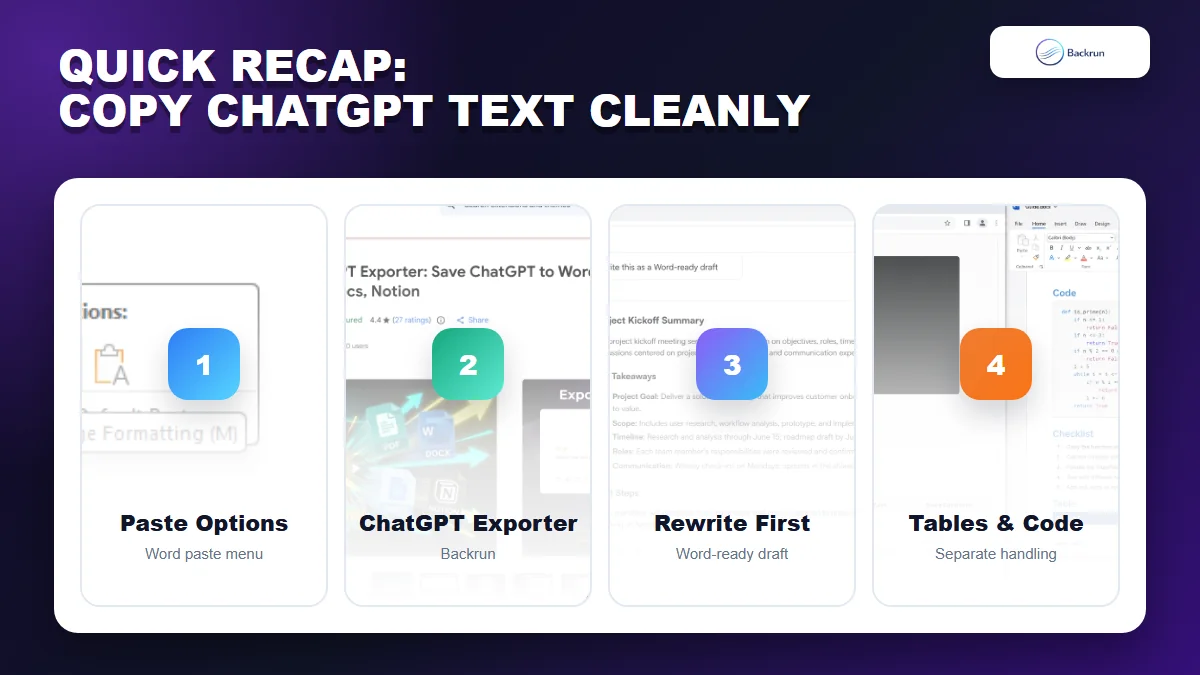
Quick Recap
Use the method that matches the content type: simple text, long chat, rewritten draft, or structured content.
The right copy method depends on how much ChatGPT content you need and how polished the Word document must be.
Method
Use it when
Main benefit
Main caution
Direct paste or plain text + styles
You need one clean answer
Fastest real method with formatting control
Needs a quick paste-options check
ChatGPT Exporter
You need a long chat or complete document
Better than copying message by message
Review extension permissions
Word-ready rewrite
The answer needs to become a document section
Cleaner structure before paste
Not an exact transcript
Structured content separately
The answer has code, lists, or tables
Prevents broken layout
Takes more manual care
For most short answers, use direct copy-paste with Merge Formatting or Keep Text Only plus Word styles. If the chat is long, use ChatGPT Exporter. If the answer is messy, ask ChatGPT to rewrite it as a Word-ready draft before copying. If the content contains code, lists, or tables, move those sections separately.