3 Ways to Save ChatGPT to Obsidian as Clean Markdown Notes
August 06, 20266 min read
If you want to save chatgpt to obsidian, the easiest path is to work with Markdown from the start. Obsidian notes are plain Markdown files, so a good workflow should preserve headings, lists, code blocks, links, and enough context for the note to still make sense later.
The practical choice depends on what you are saving. A long research conversation needs a different workflow from one useful answer. A full account archive needs even more cleanup before it belongs in a daily Obsidian vault. Below are the three methods that actually make sense for most users.
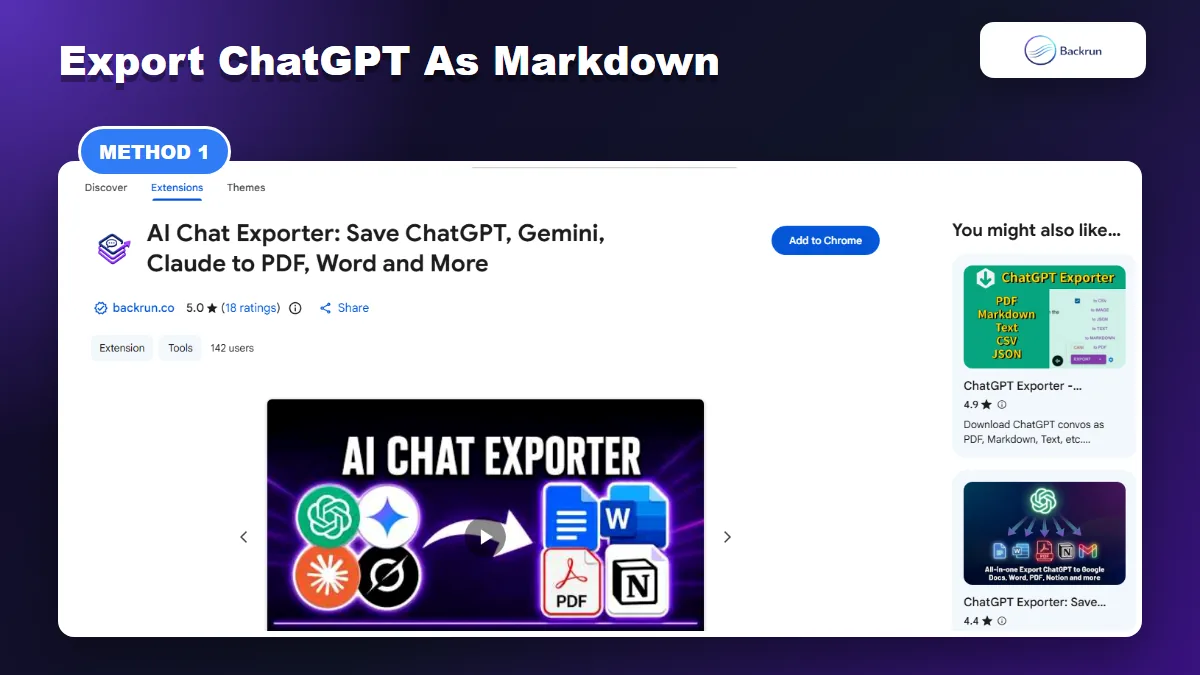
1. Use an Exporter to Save ChatGPT as Markdown
Use an exporter when you need a reusable Markdown file instead of a one-time copy.
The cleanest workflow is to export the conversation as a Markdown file, then place that file inside your Obsidian vault. This is the best fit when you want a whole thread, selected messages, code blocks, tables, and links to remain readable after export.
Here is the step-by-step workflow for turning a ChatGPT conversation into an Obsidian-ready Markdown note.
Select only the messages you need instead of exporting every prompt by default.
Export as Markdown or copy the formatted Markdown output.
Move the .md file into your Obsidian vault, or paste the Markdown into a new note.
Open the note in Obsidian and check headings, links, code fences, tables, and any images.
Best for: long conversations, research chats, coding sessions, study notes, and repeatable workflows where manual copy-paste would be too slow.
Why it works: Obsidian can read Markdown files directly, so an exporter that produces clean Markdown gives you a note that feels native inside the vault. It also reduces the chance of losing code fences, nested lists, and headings.
Practical note: do not export everything blindly. A long ChatGPT thread often contains repeated prompts, failed attempts, or private context that does not belong in a permanent knowledge base. Select the useful parts, then add your own short summary at the top.
If your main goal is Markdown rather than Obsidian specifically, Backrun also has a focused guide on ChatGPT to Markdown.
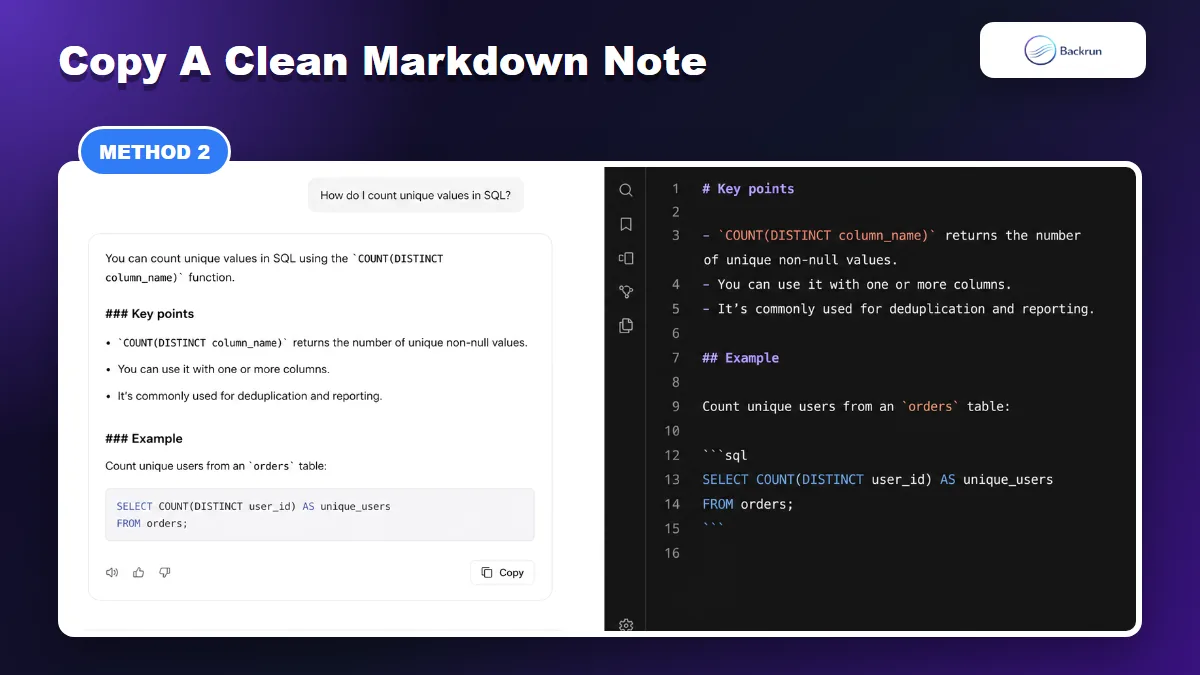
2. Copy One Answer as a Clean Markdown Note
Manual copy works well when you only need one answer or one polished note.
Manual copy is still the fastest method when you only need one answer. It works especially well for definitions, checklists, code snippets, outlines, prompts, meeting summaries, or short research notes.
Use this workflow when you want to save one useful ChatGPT response as a polished Obsidian note instead of archiving the whole chat.
Ask ChatGPT for a Markdown-ready answer. Example: Rewrite this as a clean Obsidian note in Markdown. Use headings, bullets, code fences, and internal-link-friendly wording.
Ask for raw Markdown if the rendered answer hides the syntax.
Copy the final answer, not the entire chat page.
Create a new note in Obsidian with a clear title.
Paste the content and switch between editing and reading view to check formatting.
Add your own links and tags, such as [[Project name]], #research, or #prompt-library.
Best for: saving a single useful answer as a polished permanent note.
Limitation: this is not a full conversation archive. It is a curated note. That is often a strength, because Obsidian works best when notes are edited, titled, linked, and cleaned up.
Practical note: if the answer contains code, ask ChatGPT to use fenced code blocks with the language name, such as ```js or ```python. Obsidian will display those blocks much more cleanly than pasted rich text.
Reader check: after pasting, read the note as if you found it three months later. If the title is vague, the first paragraph has no summary, or the note has no internal links, clean it up before you consider it saved.
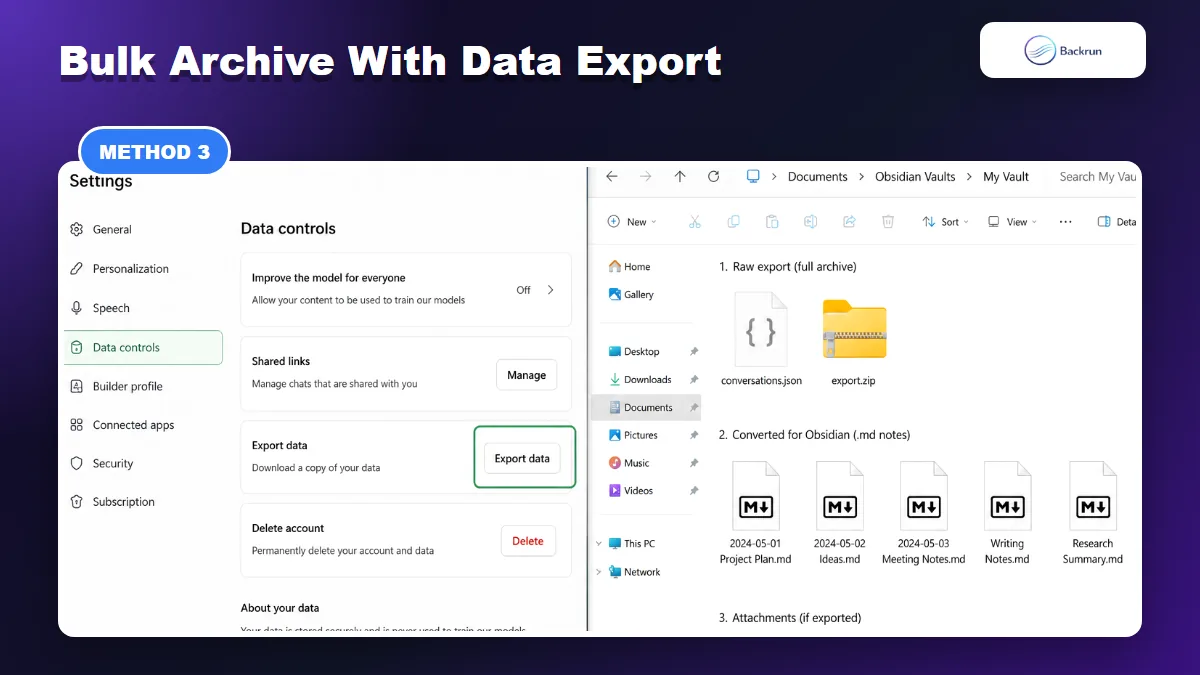
3. Use ChatGPT Data Export for a Full Archive
Use data export for backups, not for a quick one-note Obsidian workflow.
Data export is the right method when your goal is backup, compliance, or migration, not a quick Obsidian note. OpenAI's data export sends a ZIP file with your ChatGPT history and related account data, but the raw export is not automatically a clean Obsidian vault.
Here is the workflow for exporting your full ChatGPT history before converting the useful parts into Obsidian notes.
Open ChatGPT settings from your signed-in account.
Go to Data controls and request an export.
Wait for the export email or message. OpenAI notes that exports can take time, and the download link expires.
Download the ZIP file and keep the original as a backup.
Convert the conversation JSON into Markdown with a trusted local script or converter.
Import the Markdown files into Obsidian by moving them into your vault folder.
Best for: full-history backup, bulk migration, or creating a searchable archive from many old conversations.
Limitation: this is the most technical method. You may need to clean filenames, split long conversations, remove private data, and convert JSON fields into readable Markdown sections.
Practical note: do not convert a full export directly into your main vault without reviewing it first. Use a temporary vault, inspect the output, then move only the useful notes into your real knowledge base.
Security note: a full export can include old prompts, names, URLs, and context you no longer want in an everyday vault. Treat the ZIP as sensitive and avoid uploading it to random online converters.
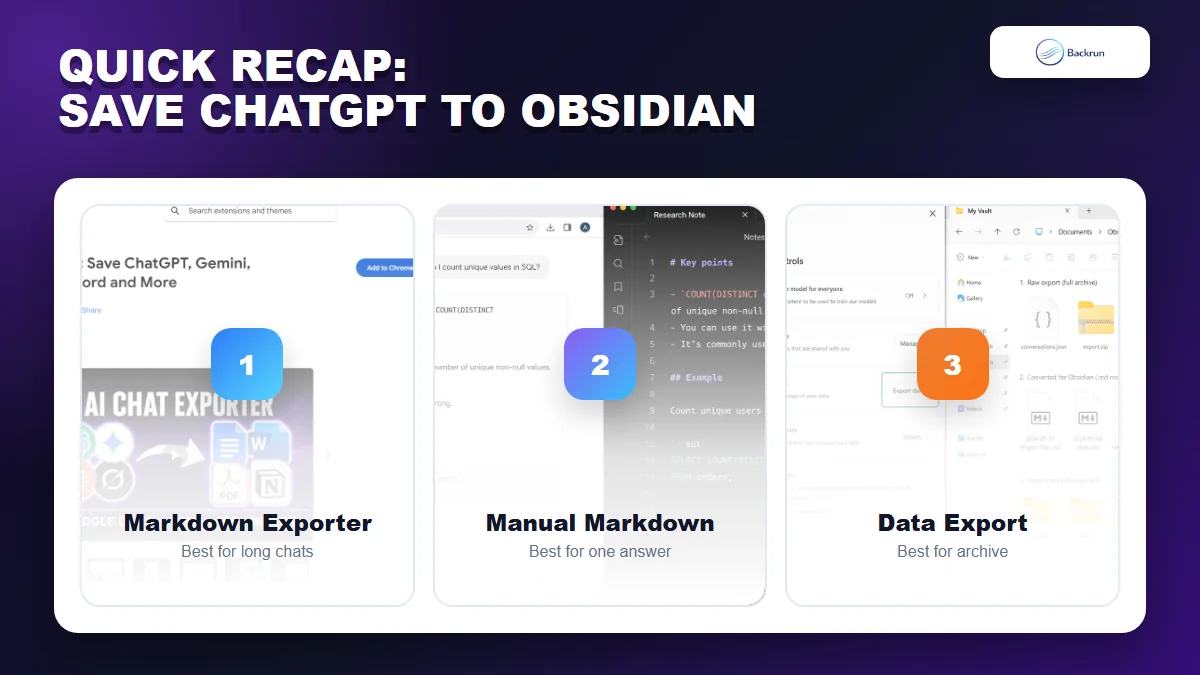
Quick Recap
Choose the workflow based on whether you need one answer, a clean note, or a full archive.
Choose the method based on how much ChatGPT content you want to keep and how clean the final Obsidian note needs to be.
Method
Use it when
Main benefit
Main caution
Markdown exporter
You need a whole chat or selected messages
Fast and Obsidian-friendly
Review extension permissions and exported content
Manual Markdown copy
You need one useful answer
Cleanest curated note
Not a full archive
ChatGPT data export
You need a full backup
Best for bulk archive
Requires conversion and cleanup
For most people, the best way to save ChatGPT conversations to Obsidian is either a Markdown exporter for full conversations or a manual Markdown copy for one polished answer. Reserve data export for backup and migration work, then import only the notes that deserve a permanent place in your vault.