How to Import Grok AI to Claude Without Losing Useful Context
September 18, 20267 min read
Moving from Grok to Claude does not require carrying every old message into a new chatbot. The useful part is the context: your preferences, confirmed decisions, project files, and the conversations that still affect what happens next.
This guide explains four practical ways to import Grok AI to Claude. There is no native one-click account clone, so each method is designed for a different type of information.
1. Import Grok Memory With Claude's Built-In Import Flow
Claude provides a built-in flow for importing memories and learned context from another AI provider.
Use Claude's memory import when you want to carry over preferences and recurring context rather than reproduce a Grok transcript. This is the most direct method for response style, work background, ongoing goals, frequently used tools, and standing instructions.
Follow this workflow in Claude and Grok.
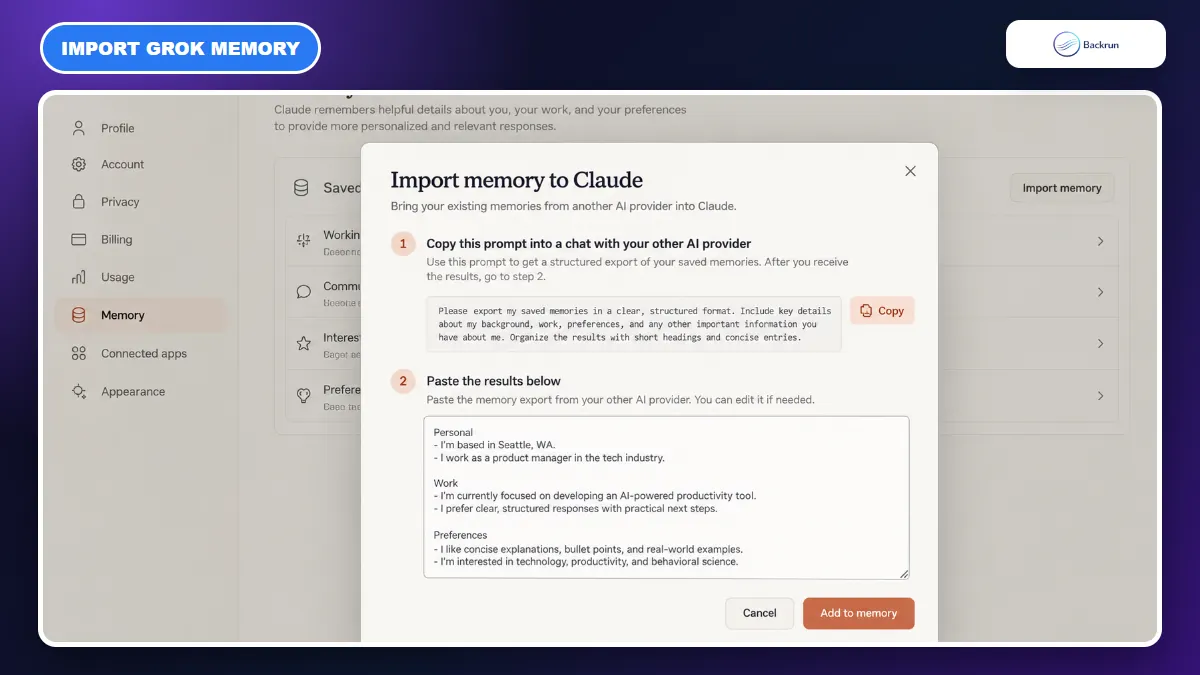
Open Claude Settings and go to Memory, then select Start import. Some accounts with the legacy interface may still show the control under Settings → Capabilities.
Copy Claude's import prompt. It asks the previous AI provider to list stored memories and context learned from earlier conversations.
Paste the prompt into Grok and ask it to return the result in one clean code block.
Review Grok's output before moving it. Remove passwords, private client data, financial details, personal addresses, and anything unrelated to your work.
Paste the cleaned result into Claude and click Add to memory.
Verify the import by asking Claude: “What did you learn about my work, preferences, and current projects?” Correct or remove inaccurate entries.
Anthropic's current memory import documentation says the feature is available across Free, Pro, Max, and Team plans on the web and Claude Desktop. It also describes the feature as experimental, so verification is part of the process rather than an optional extra.
Best for: tone preferences, tools, workflows, professional context, and recurring project information.
Not suitable for: preserving an exact Grok conversation. Claude extracts memory entries from the pasted text; it does not rebuild the original messages, dates, or Grok sidebar. Anthropic also notes that Claude's memory prioritizes work-related information, so unrelated personal details may not be retained.
2. Use AI Chat Exporter for a Complete Grok Conversation
AI Chat Exporter offers portable formats for selected messages or an entire Grok conversation.
When message order matters, export the conversation instead of asking either model to summarize it. AI Chat Exporter is the practical option for moving a selected section or complete Grok thread into a format Claude can read.
Here is the step-by-step process.
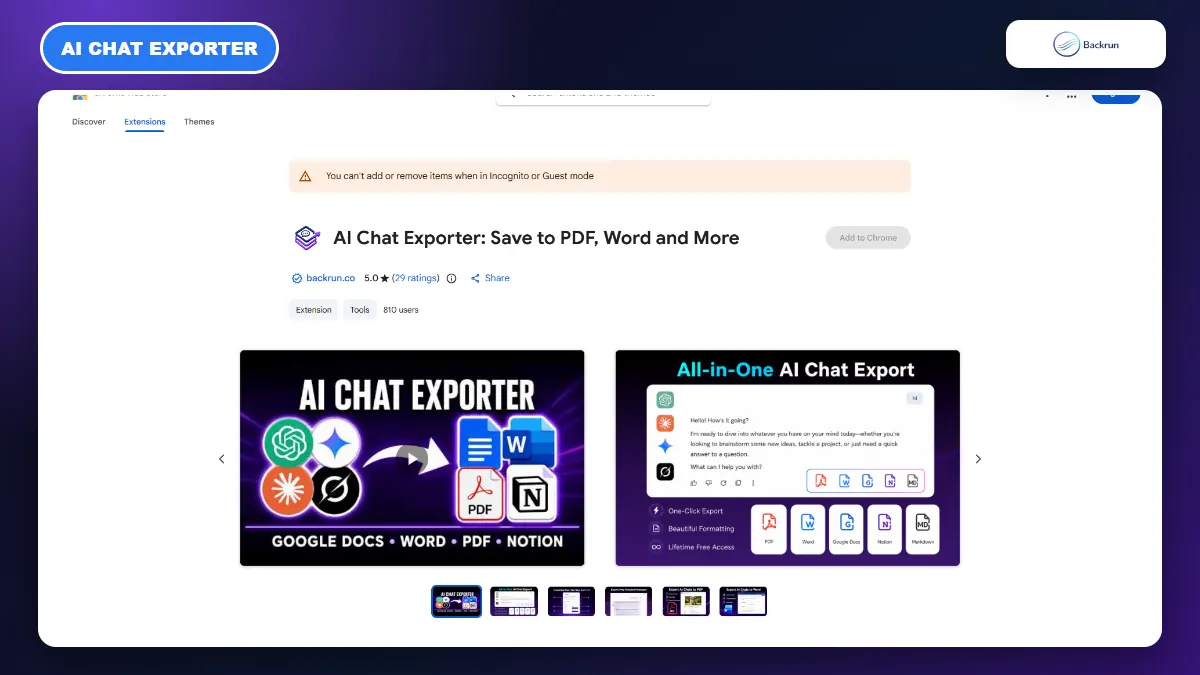
Install AI Chat Exporter from the Chrome Web Store and review its requested permissions.
Open Grok.com and load the conversation you want to continue.
Select only the relevant messages, or choose the whole thread when earlier prompts determine the meaning of later answers.
Choose an output format. Use PDF or Word for upload, or export Markdown and paste its contents directly into Claude.
Open a new Claude chat or Project, attach the exported document, and explain what Claude should do with it.
Ask Claude to restate the current state: the goal, confirmed decisions, unresolved questions, and next action.
A good instruction is: Read this Grok conversation as background. Separate confirmed decisions from discarded ideas, identify anything that needs verification, and continue only from the latest accepted direction.
Best for: research threads, coding discussions, writing projects, or any conversation where prompts and answers must stay in sequence.
Experience tip: more context is not always better. Remove failed attempts, duplicated answers, temporary credentials, and obsolete requirements before importing. A focused 20-message export is often more reliable than a 200-message archive full of contradictory directions.
For a text-first archive, Backrun's guide to exporting Grok to Markdown explains why Markdown is useful for code, headings, and long-form notes.
3. Ask Grok to Create a Claude Handoff Brief
A structured handoff brief moves the current project state without making Claude read every exploratory message.
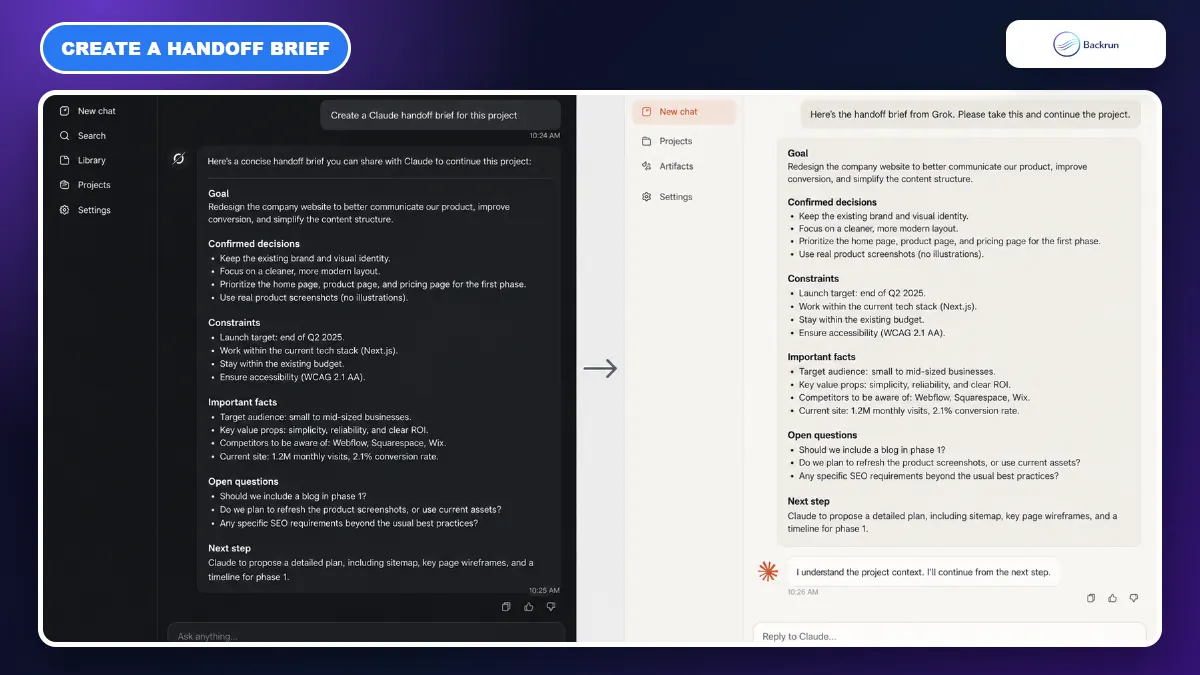
A handoff brief is the fastest option when one active project matters more than the full chat history. Grok condenses the conversation into a controlled structure, and Claude starts from the current state instead of repeating earlier exploration.
Use the following process.
Open the relevant Grok chat and ask it to prepare a handoff specifically for Claude.
Require fixed sections: Goal, Background, Confirmed decisions, Constraints, Important facts, Files and links, Open questions, and Next step.
Tell Grok to label uncertainty and exclude options that were discussed but rejected.
Compare the brief with the original conversation. Repair missing numbers, filenames, URLs, technical requirements, and final decisions.
Paste the brief into Claude, preferably in a new Project if you expect multiple follow-up sessions.
Ask Claude to summarize its understanding before it creates new work.
You can use this prompt in Grok:
Create a handoff brief for Claude. Preserve verified facts and final decisions, label assumptions, remove duplicate exploration, list all open questions, and finish with the exact next action. Do not invent missing context.
Best for: continuing a report, development task, content plan, research project, or business workflow without transferring every message.
Main limitation: this is a summary, not an archive. Grok can omit a detail or misclassify an early idea as a final decision. Keep the original conversation until Claude has repeated the brief accurately and you have checked the important details.
For ongoing work, a Claude Project can hold supporting documents and context that should remain available across related conversations.
4. Download Grok Account Data, Then Upload Selected Files
Request the Grok archive for backup, then share only the conversations Claude actually needs.
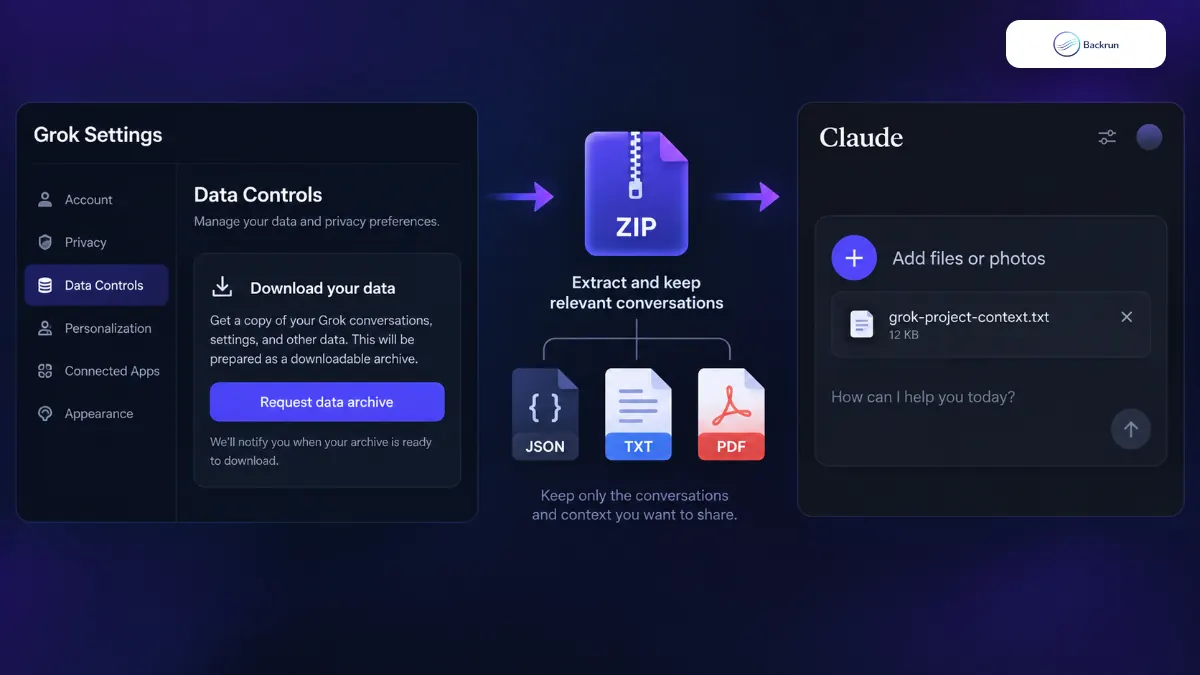
Use the account-data route when you need a private backup or must review many Grok conversations before deciding what belongs in Claude. This is an archival workflow, not a shortcut for importing the entire ZIP into one Claude chat.
Below is the safer process.
Open Grok Settings on Grok.com or the Grok app.
Go to Data Controls and request a download of your data.
Wait for the archive notification, download the ZIP, and keep an untouched backup in a private location.
Extract the archive locally and identify the conversations related to the work you are moving.
Create a small migration set using supported files such as JSON, TXT, PDF, or DOCX. Remove unrelated account data and sensitive records.
Upload the selected files to Claude with the plus button, or add them to a Project for continuing reference.
Give Claude a migration instruction that explains which files are authoritative, which content is historical, and what outcome you need.
xAI's consumer FAQ states that users can access and download their data through Grok's Settings → Data Controls. The exact archive structure can change, so inspect the files rather than assuming every JSON object is a clean standalone conversation.
Claude currently accepts common document formats including PDF, DOCX, TXT, HTML, JSON, CSV, and others. Anthropic's file upload guide also documents file and page limits, so split a large migration into focused files instead of uploading an entire account dump.
Best for: backup, compliance review, and selective migration across many Grok chats.
Privacy rule: never upload the raw archive without reviewing it. It may contain personal prompts, old experiments, account information, generated media references, or conversations unrelated to the Claude project.
Choose the method according to whether you need memory, a full chat, one project, or an account-level backup.
Method
Best for
What it does not preserve
Claude Memory Import
Preferences and recurring work context
Exact Grok conversation history
AI Chat Exporter
Selected messages or a complete thread
Native Grok message objects inside Claude
Handoff brief
One active project
Every exploratory detail
Grok data archive
Backup and selective large-scale migration
A ready-to-use Claude conversation without cleanup
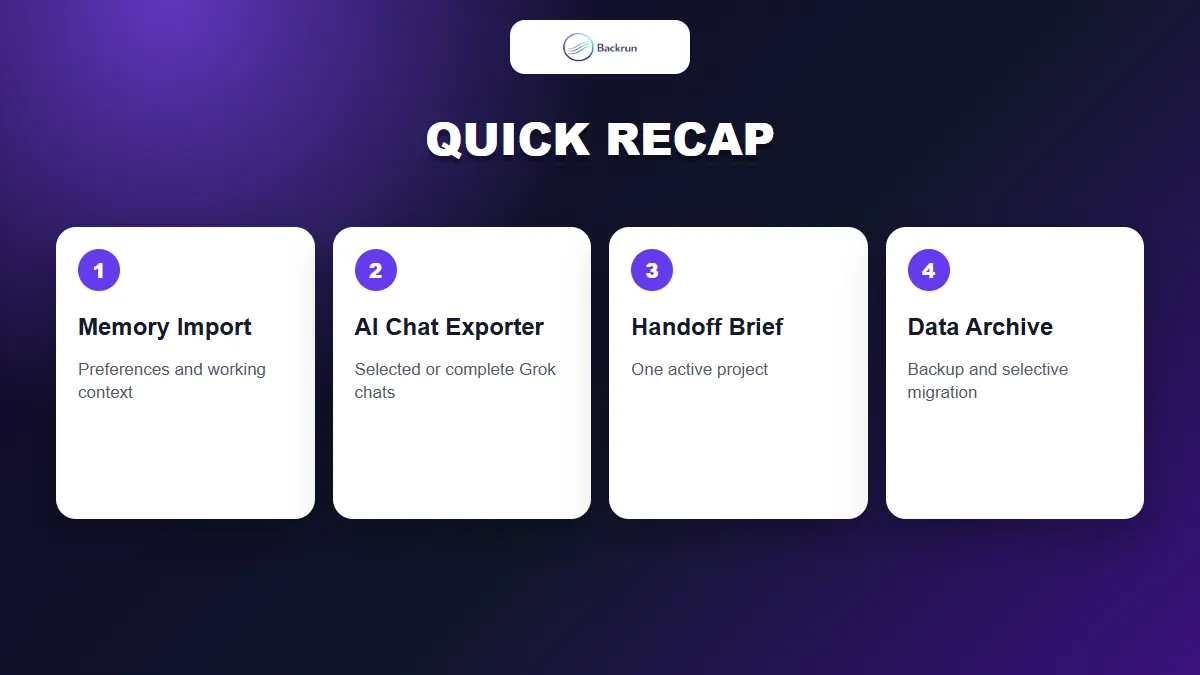
Start with Claude Memory Import for preferences, AI Chat Exporter when the conversation itself matters, and a handoff brief for one active project. Use the Grok archive only when you need a broader backup and have time to curate the files before sharing them with Claude.