How to Delete All Claude Chats on Desktop, iPhone, and Android
November 12, 20267 min read
If old conversations contain sensitive details or make Claude difficult to navigate, you can remove them from chat history. This guide explains how to delete all Claude chats with the current desktop interface and how deletion works on iPhone and Android.
Claude's current Chats and tasks page includes a bulk-selection workflow: open the full history, enter selection mode, choose every chat, and delete the selection. Mobile controls are different, so the steps below use the latest interface shown on each platform.
1. Back Up Important Chats Before Deleting Them
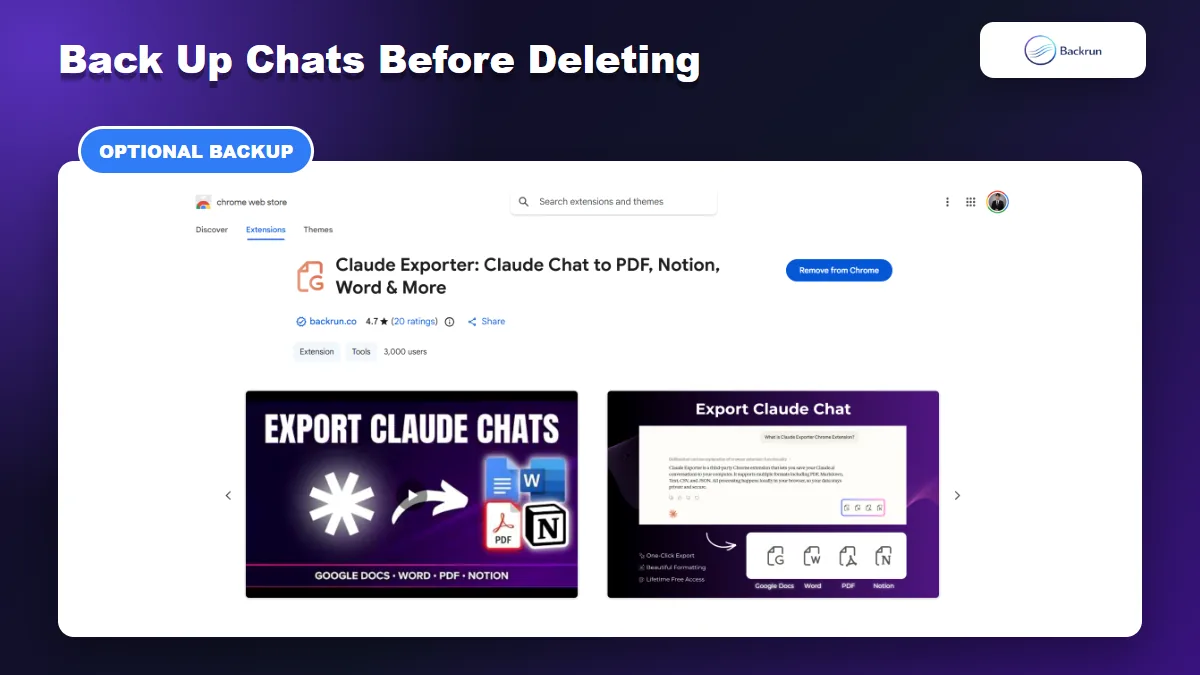
Export any important conversation before deleting it permanently.
Claude chat deletion is permanent, so first decide whether any conversation contains material you may need again. A useful thread can hold project requirements, prompts, source links, code, tables, uploaded-file references, or decisions that are hard to reconstruct later.
Use the following checklist before you delete Claude chats:
Open important conversations and check the first and last messages.
Save reusable outputs, including code, tables, summaries, and source links.
Download artifacts or files that exist only inside the conversation.
Verify the backup by opening the exported file before removing the original chat.
For a searchable copy, you can use Claude Exporter to save a selected conversation in PDF, Word, Markdown, Notion, or another supported format. A screenshot may be enough for a short receipt, but it is not a practical backup for a long conversation because the text is harder to search and reuse.
Privacy note: an export creates another copy of the conversation. Store it securely and remove it later if the purpose of deleting Claude chat history is to reduce retained data.
2. How to Delete All Claude Chats on Desktop
The current Claude interface puts bulk controls on the complete Chats and tasks page rather than in Settings. Start from the chat list in Claude on desktop.
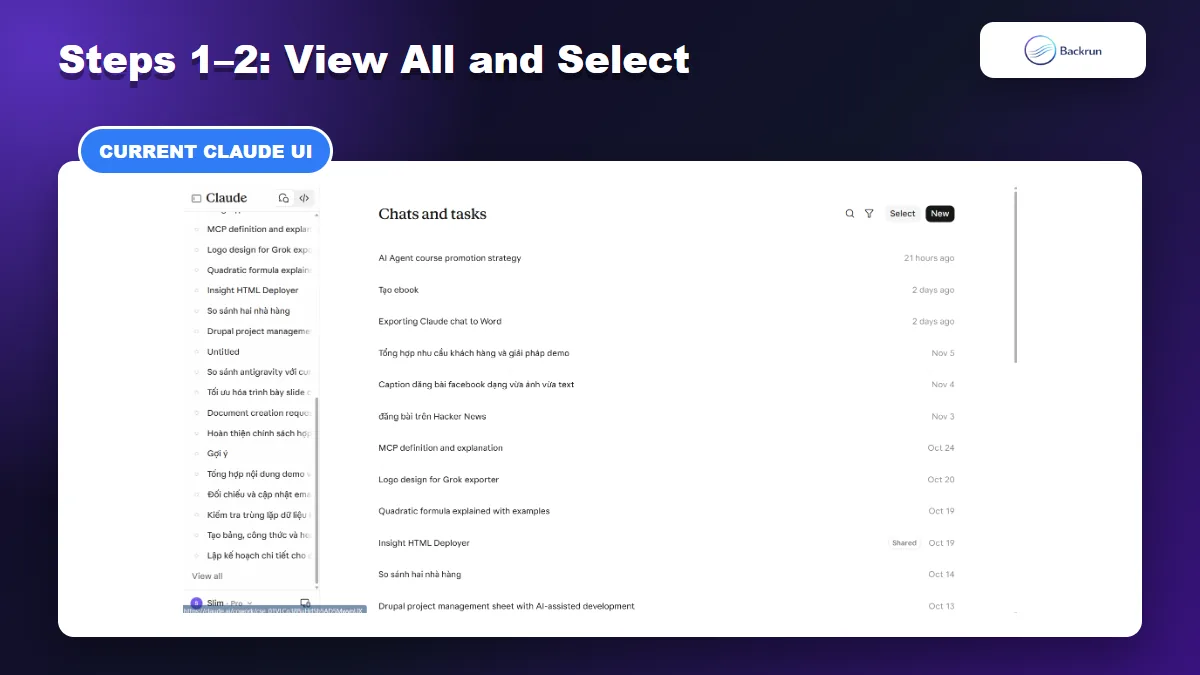
Scroll to the bottom of Chats and tasks in the left sidebar and click View all.
On the full history page, click Select in the top-right corner.
Open the full Chats and tasks history with View all, then click Select.
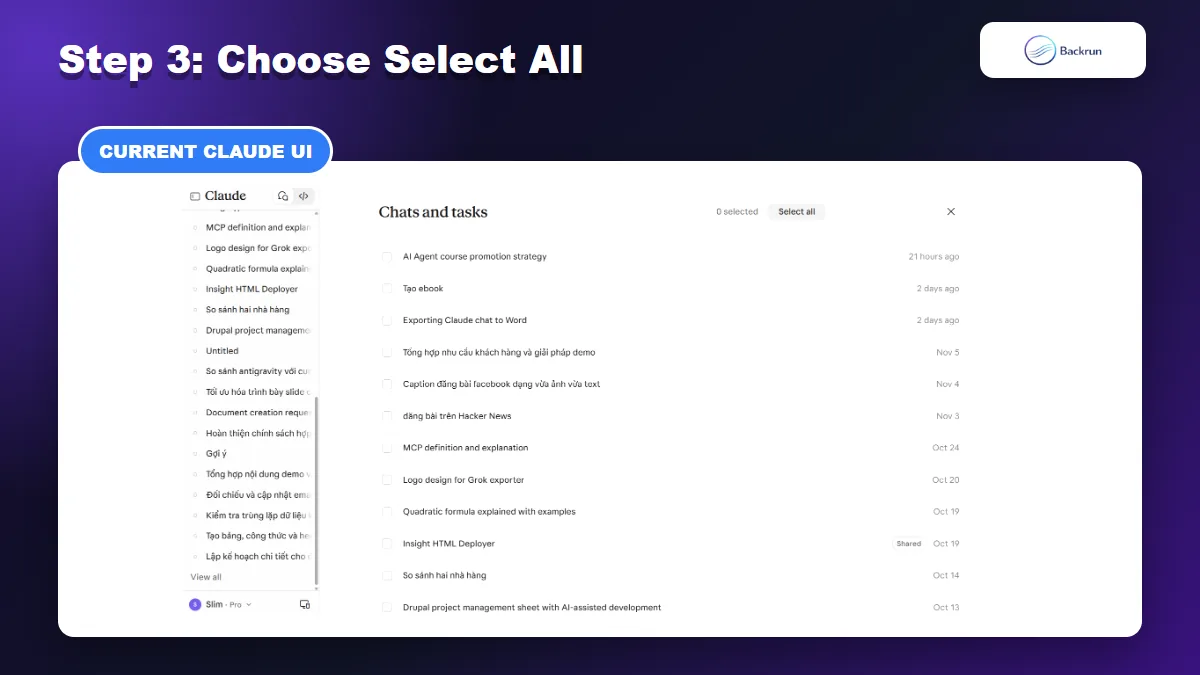
Click Select all. Claude checks every conversation currently listed and shows the selected count.
In selection mode, use Select all to check every conversation in the history list.
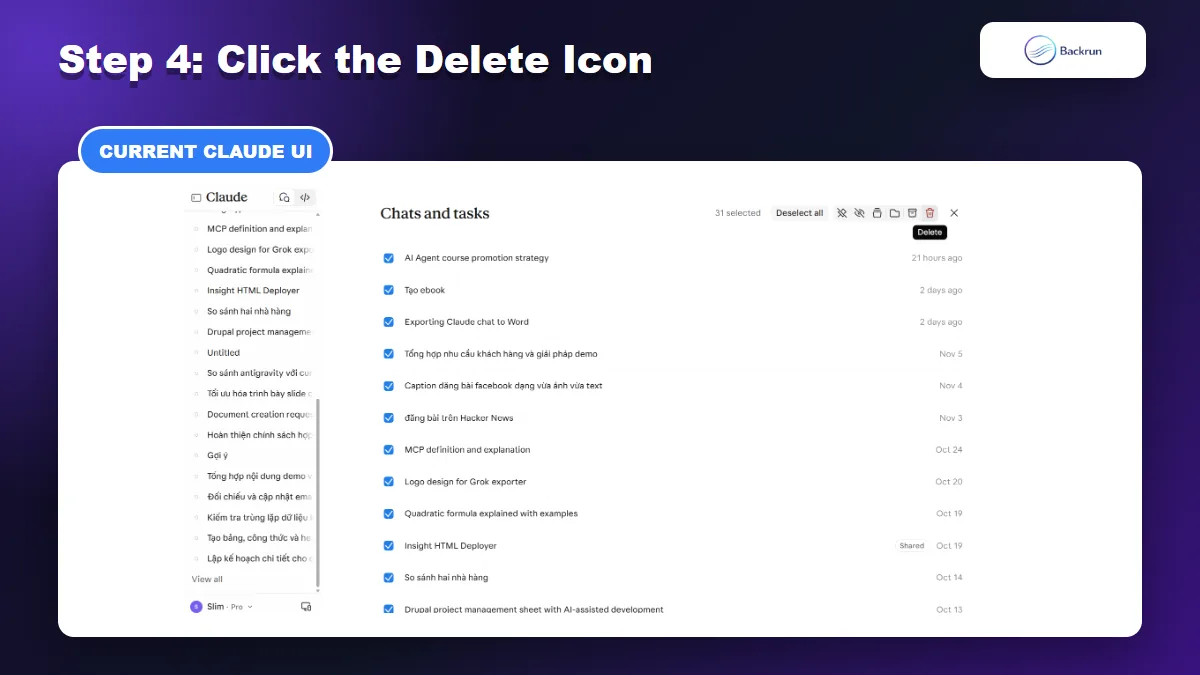
Click the red Delete trash icon in the action bar.
Review the warning and confirm the deletion.
After all chats are selected, click the red trash icon and confirm the deletion.
After confirmation, the conversations disappear from your history immediately. Anthropic says deleted conversations are removed from its backend systems within 30 days. Treat the action as irreversible because the interface does not provide a restore option for deleted chats.
Check before confirming: make sure you are in the intended Claude account and have not selected a conversation that belongs to an active project or client workflow. If you only want to remove a few chats, leave Select all unchecked and select them individually.
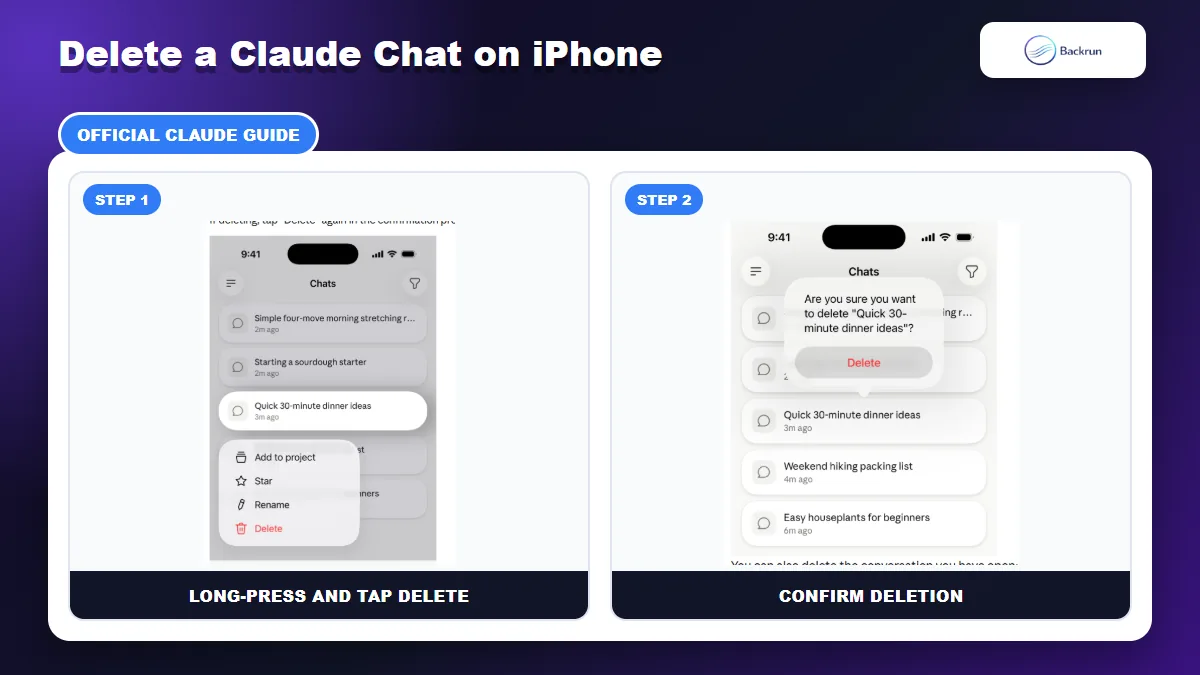
On iPhone, long-press a conversation, tap Delete, and confirm.
Anthropic's current iOS instructions describe deleting one conversation at a time. This is slower than the web bulk workflow, but it reduces the chance of removing every chat accidentally.
Open the Claude app on your iPhone.
Open the chat list.
Touch and hold the conversation you want to remove.
Tap Delete.
Confirm the deletion.
You can also open a conversation, tap the three-dot menu in the top-right corner, and choose Delete. Repeat the process for each chat you want to remove.
If you need to clear a large history, the desktop workflow is more efficient because it includes Select all. Sign in to Claude with the same account on a computer to manage the synced conversation history.
Common mistake: confirm the conversation title before deleting it. On a small screen, similar titles can be easy to confuse, and a deleted chat cannot be recovered from the app.
4. How to Delete Multiple Claude Chats on Android
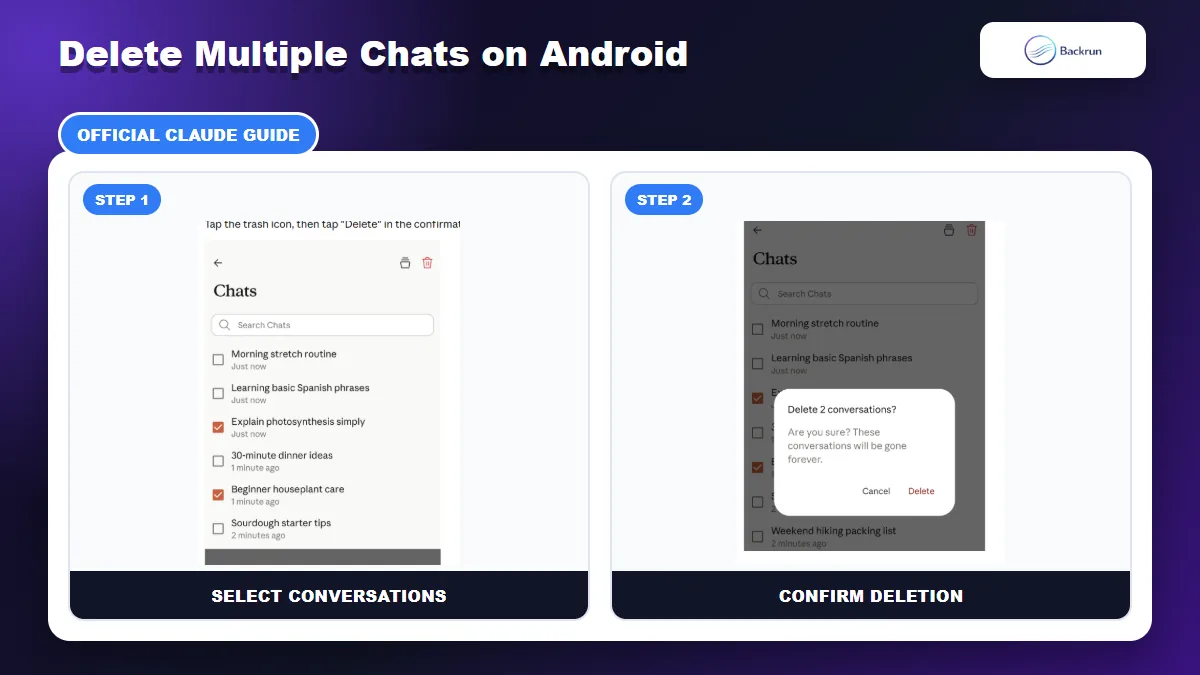
Android lets you select multiple conversations before using the trash icon.
The Android app supports multi-select, which is useful when you want to clear several conversations without moving to a desktop browser.
Open the Claude app and display the chat list.
Tap the checklist icon in the top-right corner.
Select each conversation you want to remove.
Tap the trash icon.
Review the selected count and confirm the deletion.
Anthropic's instructions describe selecting multiple chats, but they do not promise a Select all control on Android. If your app does not show one, select conversations manually or use Claude on desktop for a complete cleanup.
To delete only one open Android conversation, tap the three-dot menu in the top-right corner, choose Delete, and confirm. If the checklist icon is missing, update the Claude app and reopen the chat list before trying again.
Verification step: return to the chat list after confirmation and search for one of the deleted titles. This confirms that the intended conversations are gone and helps catch a failed sync before you close the app.
5. What Happens After You Delete Claude Chat History?
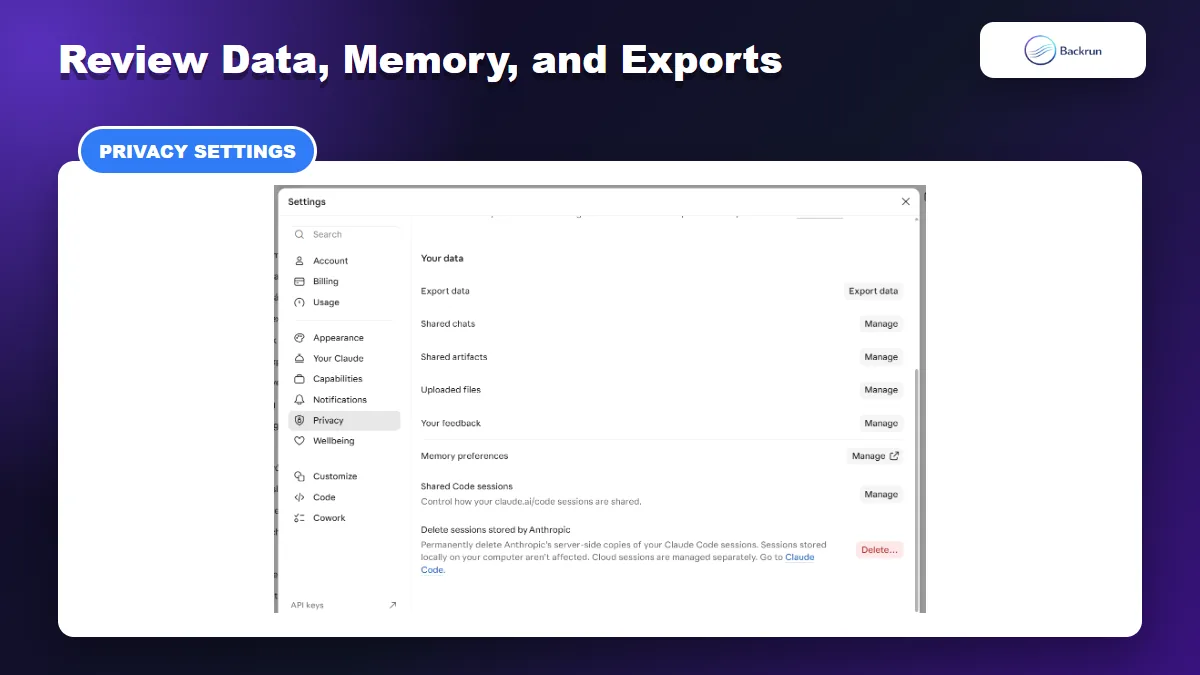
Claude Privacy settings manage exports, shared content, uploaded files, and memory separately from chat deletion.
Deleting a conversation removes it from your chat history immediately. According to Anthropic, the associated data is deleted from backend systems within 30 days. That does not mean every type of Claude data is removed at the same time.
Memory is separate: deleted conversations do not automatically remove information already stored in Claude's memory.
Projects remain: deleting chats does not delete a project, its instructions, or separately stored project files.
Your account remains active: deleting chat history is different from deleting your Claude account.
Exports remain outside Claude: any PDF, Word, Markdown, or other backup you created must be managed separately.
To review saved memory, open Claude Settings and go to Your Claude > Manage or the Memory area shown in your version of the interface. You can delete an individual memory or reset memory if you want to clear all stored memories. Anthropic's chat search and memory guide confirms that deleting a chat alone does not remove separate memory entries.
For future sensitive sessions, consider using an incognito chat. Anthropic says incognito conversations are not saved to chat history or memory, which reduces the cleanup required later.
If your goal is to remove all Claude account data rather than only conversations, use the separate account-deletion process. That action is broader and should not be used merely to clean up the sidebar.
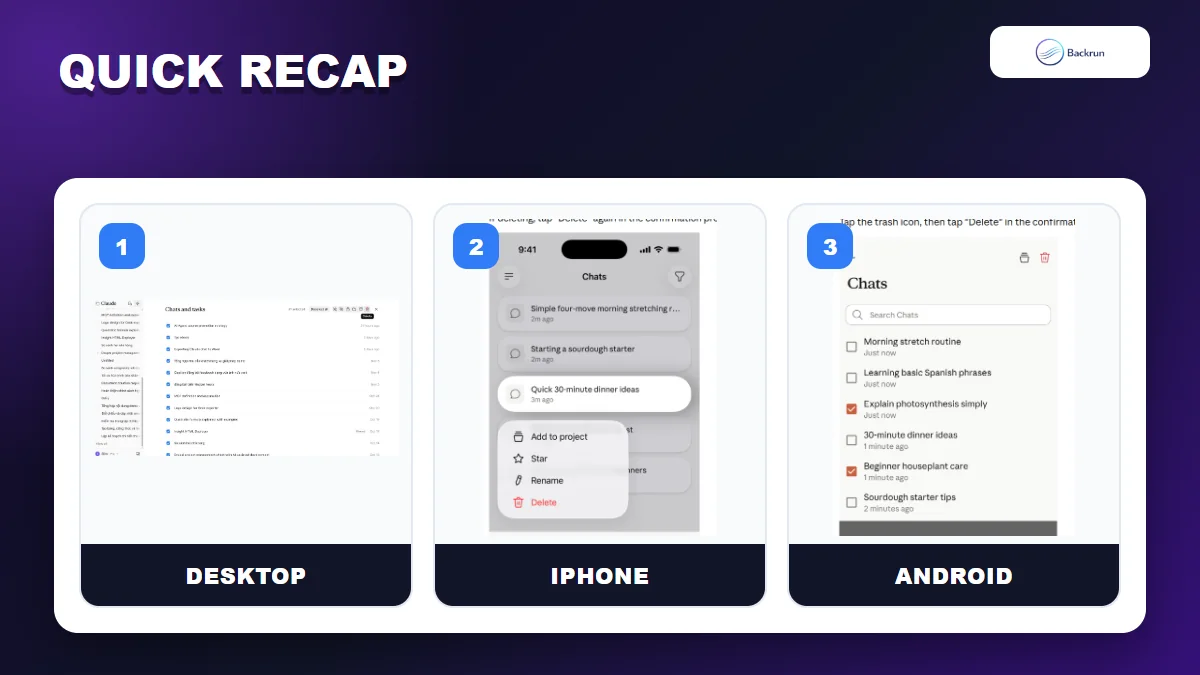
Quick Recap
Claude provides bulk selection on desktop and different deletion controls in its mobile apps.
The correct method depends on the device and how many conversations you want to remove:
Goal
Best method
Important limitation
Delete all Claude chats
Desktop: View all > Select > Select all > Delete
The action is permanent
Delete chats on iPhone
Long-press each chat > Delete
Current official instructions are one chat at a time
Delete several Android chats
Checklist icon > select chats > trash icon
Select all may not be available
Remove learned information
Settings > Your Claude > Manage memory
Chat deletion alone does not clear memory
For a complete cleanup, open View all on desktop, choose Select all, and delete the selection. Back up anything important first and review Claude memory separately if you also want to remove stored context.