5 Ways to Copy a Table From Gemini to Word Without Breaking Formatting
July 07, 20268 min read
If you are searching for how to copy table from gemini to word, the real problem is usually not the copy action. It is keeping the columns, borders, bullets, code, and row spacing intact after the table lands in Microsoft Word.
This guide covers five practical ways to move a Gemini table into Word. Use the fastest method for a small table, and switch to a cleaner workflow when the pasted result breaks or when the table is part of a longer Gemini conversation.
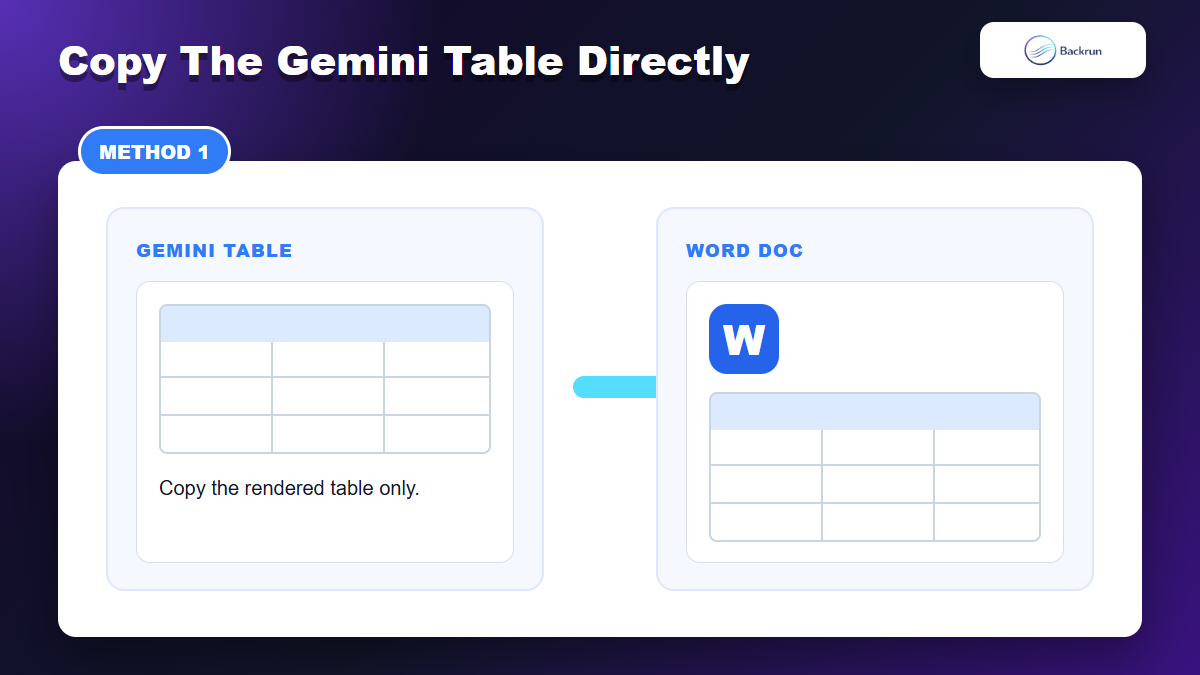
1. Copy the Gemini Table Directly Into Word
Direct copy works best when the Gemini table is short and already rendered cleanly.
Direct copy-paste is the fastest method when Gemini already displays the answer as a clean table. It works best for small tables with simple text, short numbers, and no merged cells.
Ask Gemini for a table with clear column names and short row values.
Select only the rendered table, not the entire answer or page.
Copy the selection with Ctrl + C on Windows or Command + C on Mac.
Paste into Word and test both Keep Source Formatting and Merge Formatting.
Use Table Design and Layout in Word to fix borders, autofit width, and row spacing.
Best for: simple comparison tables, small checklists, pricing tables, and short research summaries.
Advantage: no extra tool, no conversion step, and very fast.
Limitation: if the table has wide columns, long text, or code snippets, Word may flatten columns or create uneven row heights.
Practical check: after pasting, click inside the table. If Word shows the table handles and table layout tools, the structure survived. If it behaves like plain text, use the TSV method below.
Small Word fix: if the table is real but too wide, select it and use Layout > AutoFit > AutoFit Window. That usually solves the most common page-width problem without rebuilding the table.
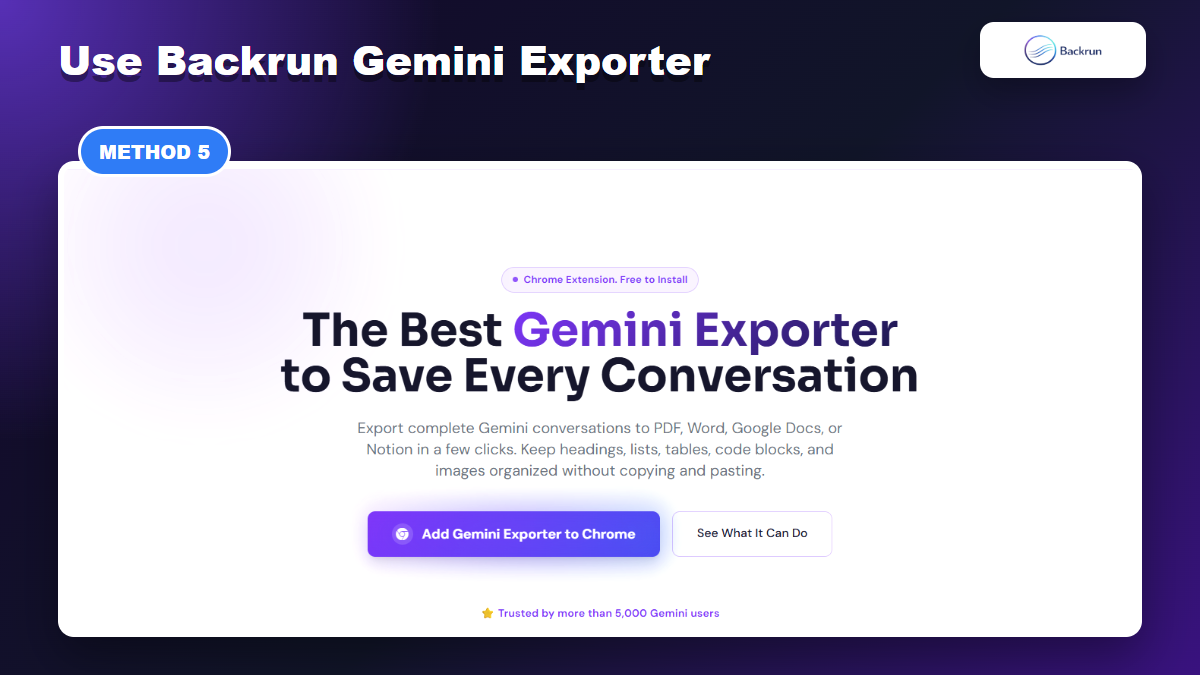
2. Use Gemini Exporter for the Full Conversation
Gemini Exporter is best when you need the table plus the surrounding conversation preserved.
If the table is only one part of a longer Gemini conversation, use a browser extension instead of copying pieces manually. Gemini Exporter is built to export Gemini chats to formats such as Word, Google Docs, PDF, and Notion, and its Chrome Web Store listing shows Word and Google Docs support for Gemini conversations.
Load the full conversation if the table appears earlier in the thread.
Choose Word or Google Docs as the export target.
Export the chat, then open the file and inspect the table.
Compare the exported table with Gemini before sharing the Word document.
Best for: long Gemini chats, repeated exports, research sessions, and cases where the table needs the surrounding prompts or explanation.
Advantage: it avoids copying the table, caption, prompt context, and follow-up notes one piece at a time.
Limitation: every browser extension is a trust decision. Review permissions before exporting sensitive business, client, or personal data.
If you also move tables from ChatGPT, Backrun has a separate guide on how to copy a table from ChatGPT to Word; the cleanup logic is similar, but the Gemini interface and export options are different.
Best practice: export once to Word and once to Google Docs for a complex table, then compare which output keeps the table structure cleaner. Use the better file as your working copy.
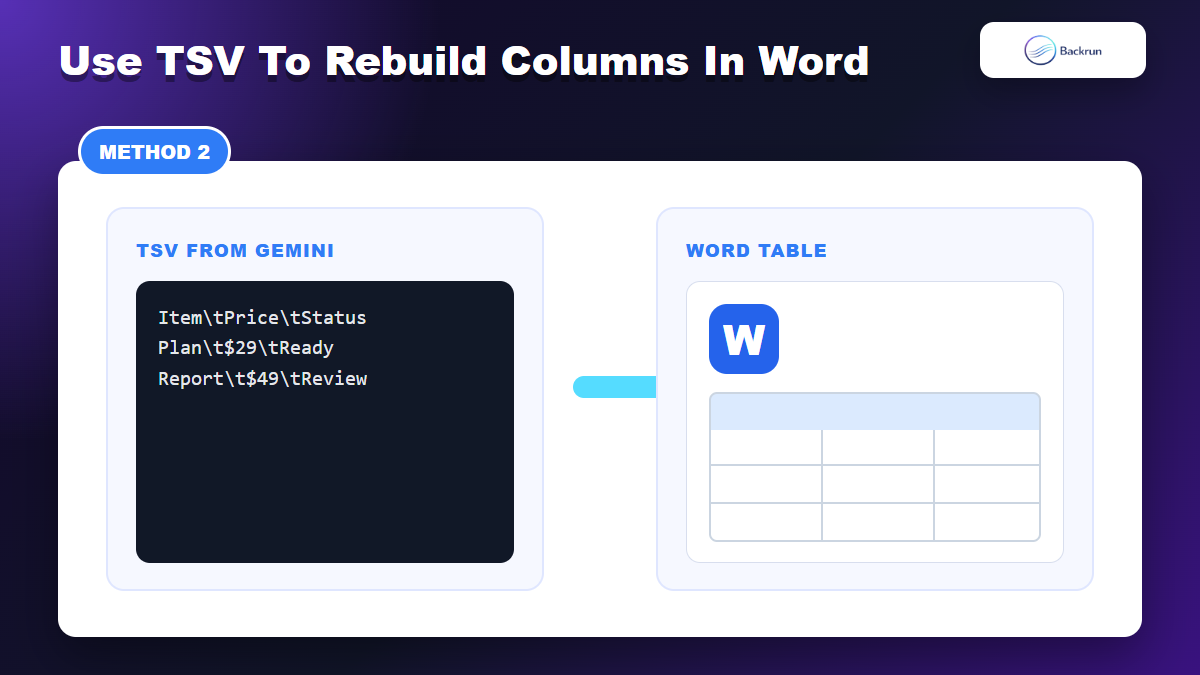
3. Use TSV and Word Convert Text to Table
TSV is the safest cleanup route when pasted columns collapse in Word.
When direct paste breaks the layout, ask Gemini to output the table as tab-separated values. TSV is plain text, but Word can turn it back into a real table with reliable column boundaries.
Ask Gemini to rewrite the table as TSV. Example: Convert this table to tab-separated values. Keep one row per line and do not add extra commentary.
Copy the TSV block from Gemini.
Paste into Word as plain text.
Select the pasted text, then go to Insert > Table > Convert Text to Table.
Choose Tabs as the separator and confirm the number of columns.
Apply Word table styling after the structure is correct.
Best for: tables where columns collapse, rows paste as paragraphs, or the Gemini table is too wide for the page.
Advantage: predictable column separation. It is also easy to inspect because each tab represents a column.
Limitation: TSV does not preserve colors, borders, or rich formatting. You rebuild the visual style in Word.
Experience note: this is the method to use when accuracy matters more than keeping Gemini's visual styling.
Prompt detail that helps: tell Gemini not to put tabs inside a cell. If one cell needs a list, ask for semicolons instead of line breaks. Clean separators are what make Word's conversion reliable.
4. Export the Gemini Answer to Google Docs, Then Download Word
Google Docs gives you a cleanup layer before the table becomes a DOCX file.
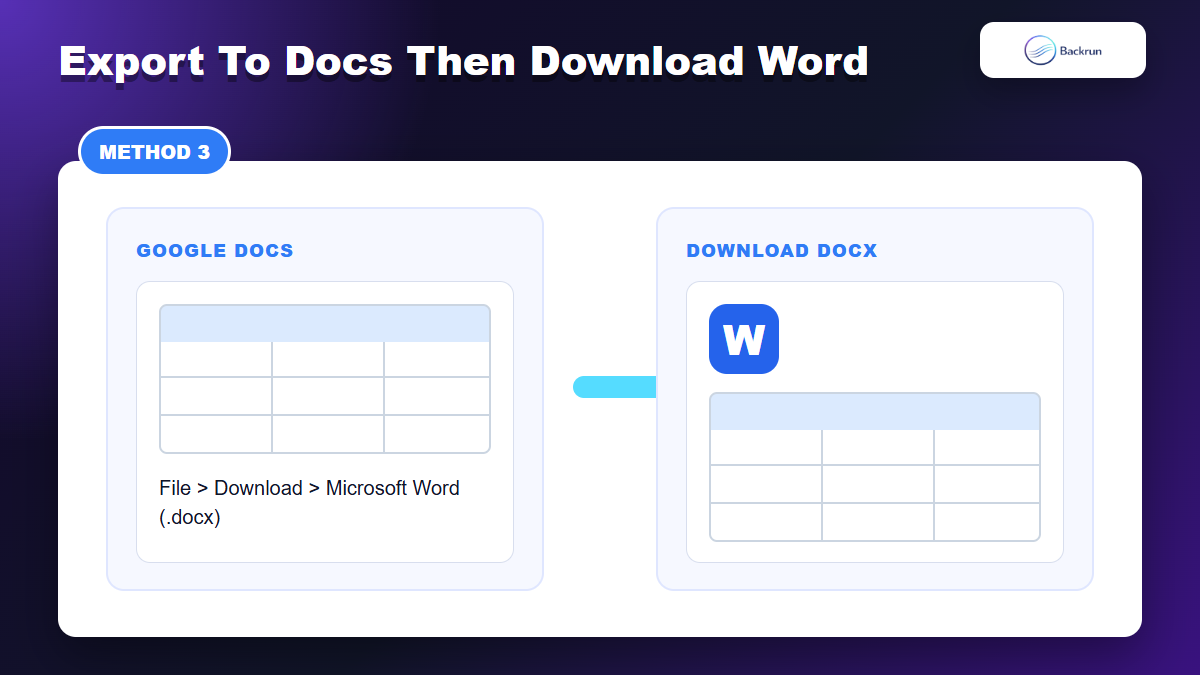
Gemini's built-in export-to-Docs style workflow is useful when you want a cleanup stage before Word. Google Docs can preserve a table more gracefully than direct browser-to-Word paste, and you can fix the table before downloading a DOCX file.
Open the Gemini answer that contains the table.
Use the export or share option to move the response into Google Docs, if that option appears in your Gemini account.
Open the Google Doc and inspect the table before downloading.
Fix column widths, headers, and line breaks in Google Docs.
Choose File > Download > Microsoft Word (.docx).
Open the DOCX in Word and check table handles, borders, and page width.
Best for: tables that need a little cleanup before becoming a Word document.
Advantage: Google Docs gives you an editable bridge instead of forcing Word to interpret browser formatting directly.
Limitation: built-in export usually works at the response/document level, not necessarily as a perfect full-chat archive. If your main workflow is Docs-first, the detailed guide on Gemini to Google Docs is the better companion.
Quality check: before downloading the DOCX, drag the table borders in Google Docs and make sure each column responds like a real table. If it behaves like a screenshot or pasted text, rebuild it before exporting to Word.
5. Ask Gemini to Create a Word File With the Table
If file generation is available, asking Gemini for a DOCX can avoid manual paste work.
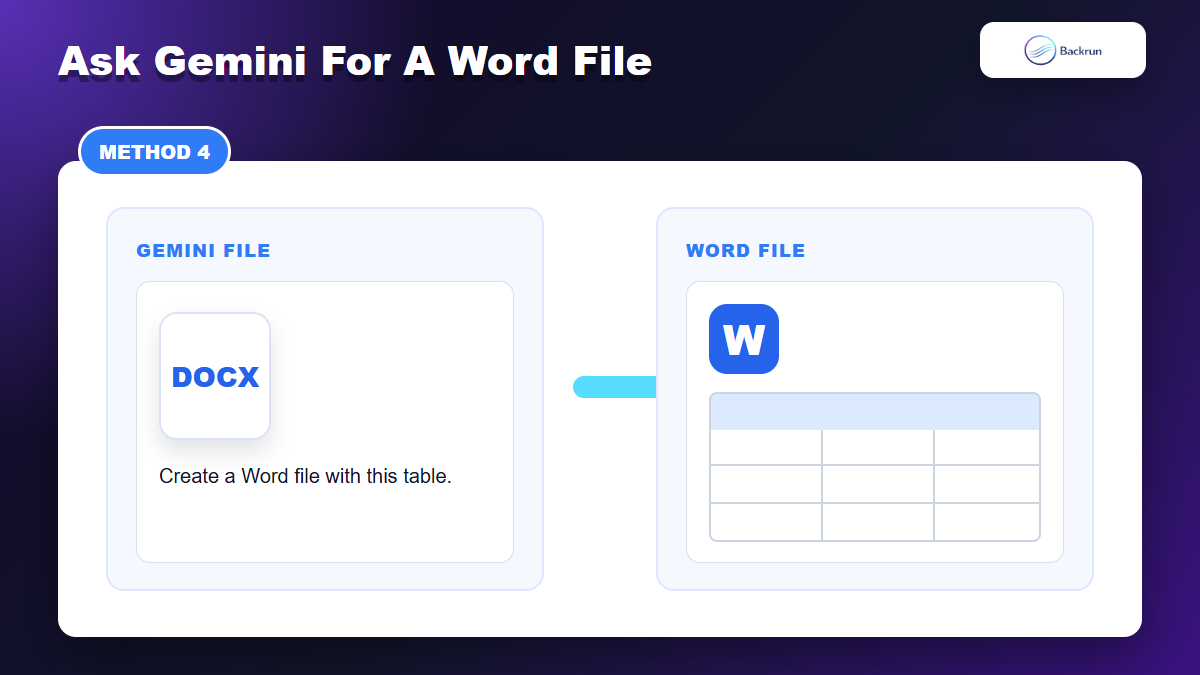
If your Gemini account has downloadable file generation available, you can ask Gemini to create a Word document containing the table. This is different from copying the table into Word yourself: Gemini prepares a file and you review the final DOCX.
Ask Gemini to create a Word document with the table. Example: Create a .docx file with this table, using a header row and autofit columns.
Specify the table format: header row, column names, row order, currency/date formatting, and whether long text should wrap.
Download the generated DOCX if Gemini provides the file.
Open it in Word and check the table layout.
Save a cleaned version after fixing styles, margins, or page orientation.
Best for: users whose Gemini account can create files directly and who want a ready-to-edit Word file.
Advantage: it can skip browser copy-paste entirely.
Limitation: file generation availability can vary by account, region, and rollout. If you do not see a downloadable file option, use the Google Docs or TSV method instead. Reports in 2026 noted Gemini file generation support for formats such as DOCX, PDF, XLSX, CSV, TXT, RTF, and Markdown, but the practical test is whether your own Gemini interface offers it.
Related workflow: for broader document exports beyond tables, see Backrun's guide to Gemini to Word.
Prompt detail that helps: include page orientation if the table is wide. Asking for a landscape Word document often prevents cramped columns and tiny font sizes.
Quick Recap
Choose the route based on table size, formatting risk, and whether you need the full Gemini conversation.
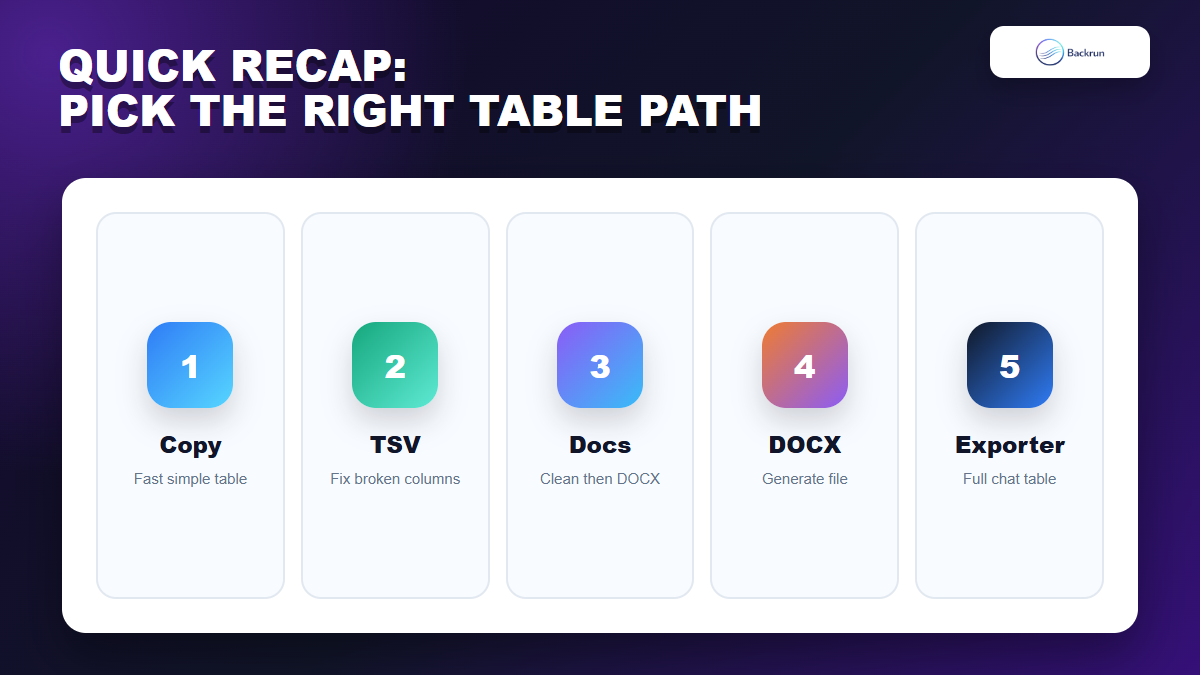
The best way to copy a Gemini table to Word depends on whether you need speed, structure, editability, or the full conversation.
Method
Use it when
Main strength
Main caution
Direct copy-paste
The table is short and simple
Fastest route
Formatting can break
TSV to Word table
Columns collapse after paste
Best structural recovery
Requires restyling
Google Docs bridge
You want cleanup before DOCX
Editable middle step
Extra conversion step
Gemini-created DOCX
Your account supports file generation
Can skip manual paste
Availability can vary
Gemini Exporter
You need full chat context
Best repeatable export workflow
Review extension permissions
Final check: after importing, click inside the Word table and confirm every row has the same number of columns. This catches most copy problems before you share the document.
For a small table, copy it directly. For a broken table, use TSV and Word's Convert Text to Table. For a polished document, go through Google Docs or ask Gemini for a DOCX. For long conversations, use Backrun Gemini Exporter so the table and its surrounding context stay together.