How to Delete Grok Chat History on Web, Mobile, and X
November 20, 20267 min read
To delete a Grok chat, open Grok History, find the conversation, and choose Delete. To erase everything, open Settings > Data Controls > Delete All Conversations.
The correct path depends on whether you used grok.com, the Grok mobile app, or Grok inside X. The steps below cover each surface, explain why Archive is not deletion, and show what to check after Grok deleted chats disappear from the conversation list.
1. How to Delete One Grok Chat on the Web
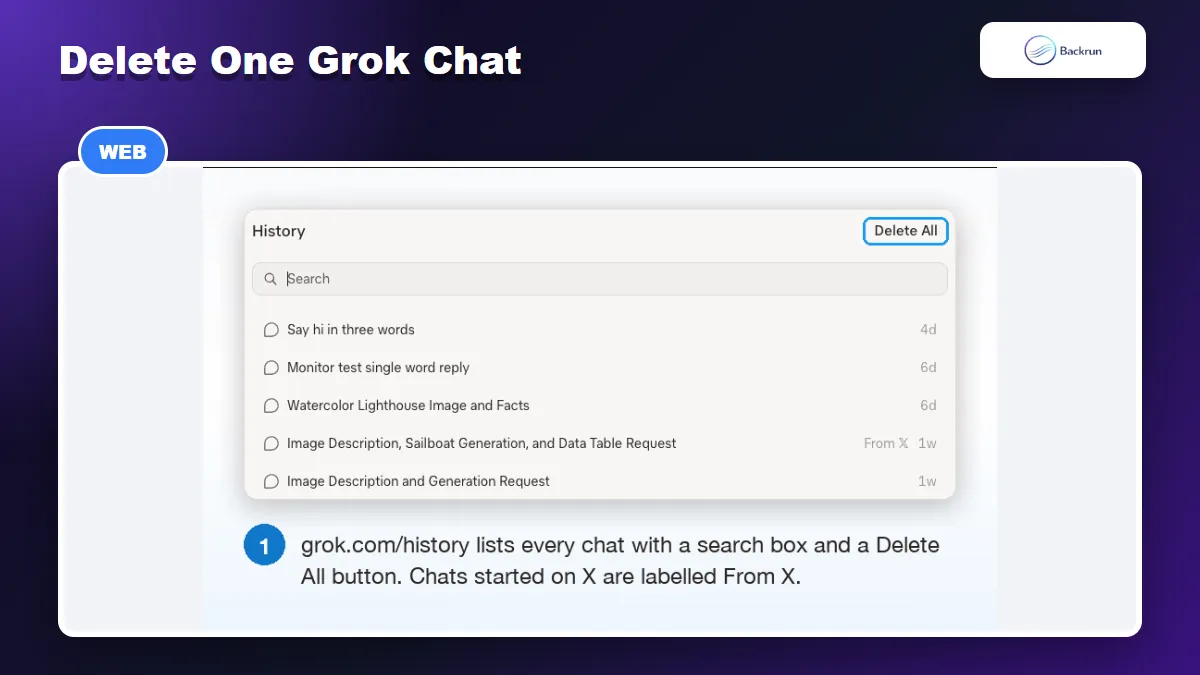
The Grok History page is the reliable place to delete one conversation when the sidebar only shows Archive.
If you want to remove one private or outdated thread while keeping the rest of your history, use the dedicated History page rather than the conversation sidebar.
Delete a Single Conversation
Sign in to grok.com with the account that owns the conversation.
Find the conversation by scrolling or using search.
Hover over the row and select the trash icon or open the three-dot menu.
Choose Delete and confirm the warning.
Recent Grok versions may show an Undo toast immediately after deletion. Use it at once if you removed the wrong chat. You may also see a Deleted Conversations area in Data Controls, although availability and recovery options can change by account and release.
If You Only See Archive
The menu beside a chat in the sidebar can show Archive without showing Delete. Archive only hides the thread from the main list. It does not erase the conversation. Open the History page above and use the row-level Delete control instead.
Grok currently offers a practical choice between deleting one conversation and deleting all conversations. If you need to remove several but not all chats, delete them individually from History rather than assuming an archived thread is gone.
If the chat is missing from History, first check the account selector and the Archived list. A conversation created under another Google, Apple, or X sign-in will not appear in the account you are viewing. Refresh the page after switching accounts. If the Delete control is temporarily unavailable, do not use Archive as a workaround; return to History after updating the browser or try the same account in a private browser window.
2. How to Delete All Grok Chat History
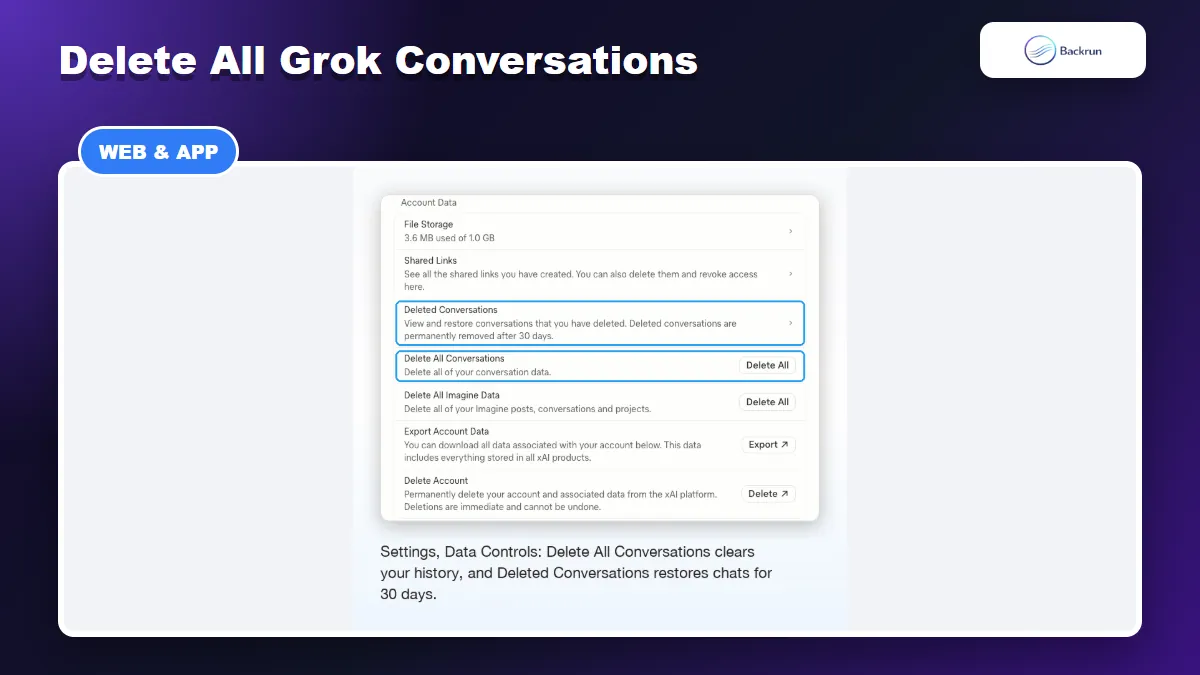
Grok Data Controls separates conversation deletion from shared links, deleted conversations, files, and Imagine data.
Use this method when you want a clean start on grok.com or in the Grok app. The command applies to the Grok account you are signed into, so confirm the account before continuing.
Delete Every Conversation
Open Grok Settings.
Select Data Controls.
Choose Delete All Conversations.
Read the confirmation carefully and complete the deletion.
You can also open the History page and choose Delete All. Both paths are intended to clear the full conversation history for grok.com and the Grok app.
Back Up Anything You Need First
Deletion is the wrong first step if a chat contains research, prompts, code, or decisions you may need later. Export or save those conversations first. Backrun also has a guide on how to save Grok conversations as PDF before clearing the account.
Do not assume this action also clears conversations created through Grok on X. The xAI Consumer FAQ and X Help document separate controls, so users who have used both surfaces should follow both deletion paths.
Before confirming, compare the email or account shown in Grok Settings with the account where the chats were created. This prevents a common failure: completing the delete Grok chat process successfully in an empty secondary account while the original history remains untouched.
3. How to Delete a Grok Chat in the Mobile App
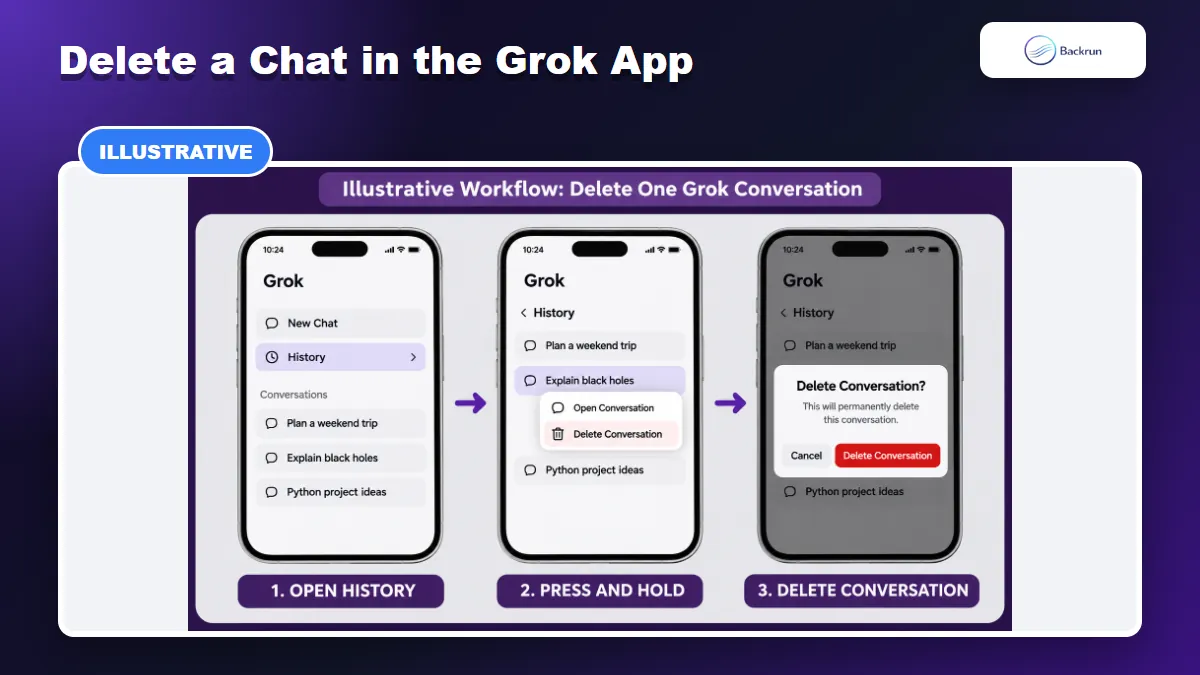
Illustrative workflow based on xAI’s current Consumer FAQ: open history, press and hold a conversation, then choose Delete Conversation.
The mobile app uses a press-and-hold gesture for individual conversations. The wording may vary slightly between iOS and Android, but the workflow documented by xAI is the same.
Delete One Chat on Mobile
Open the Grok app and tap your profile picture.
Open conversation history.
Press and hold the conversation you want to remove.
Tap Delete Conversation and confirm.
Delete All Mobile History
Open Settings > Data Controls, then choose Delete All Conversations. Because the app and grok.com use the same xAI account history, the deletion should be reflected across those signed-in Grok surfaces.
If the expected menu does not appear, update the app, restart it, and verify that you are signed into the correct account. Avoid uninstalling the app as a deletion method; removing the local app does not instruct xAI to erase server-side conversation history.
4. How to Delete Grok Chat History on X
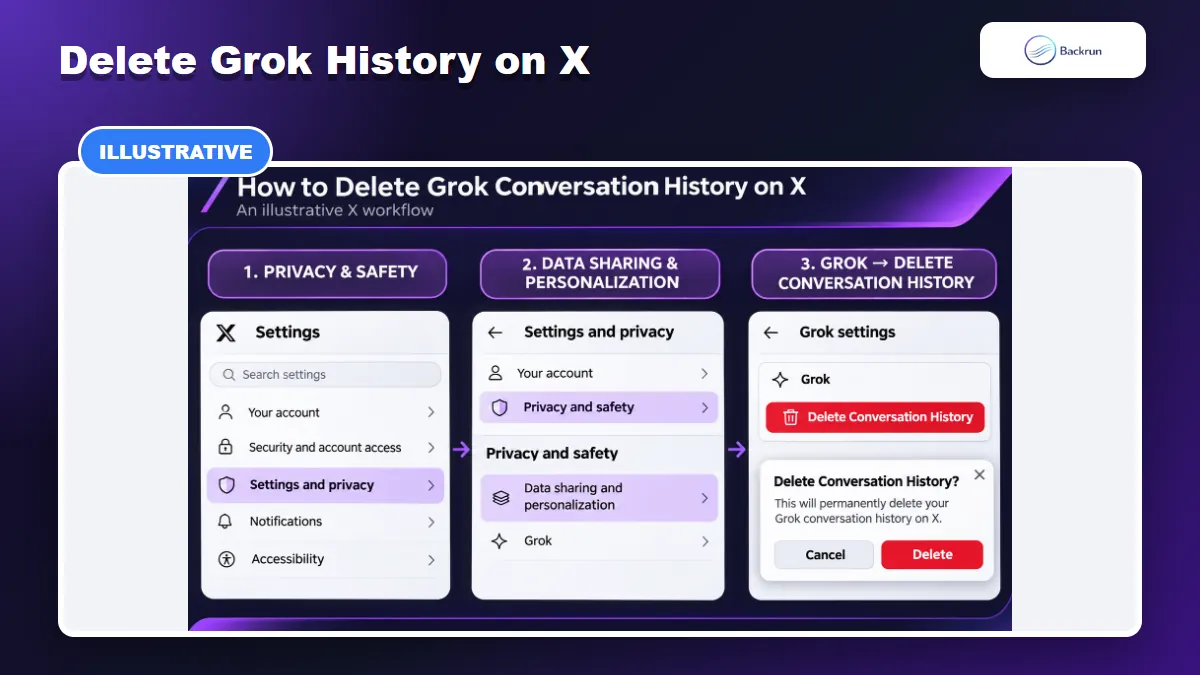
Illustrative X settings path based on the current official X Help instructions.
Grok conversations created inside X use X privacy controls. This is the important difference most short guides omit: deleting history on grok.com does not automatically prove that your Grok history on X was cleared.
Delete the Full Grok History on X
Open X Settings and privacy.
Select Privacy and safety.
Open Data sharing and personalization.
Select Grok or Grok & Third-party Collaborators, depending on the current label.
Choose Delete Conversation History.
Confirm the deletion.
The official X Help page for Grok documents this as a history-wide action. It does not document a reliable per-conversation delete control for Grok inside X. If you only need to remove one chat, check the current interface carefully before confirming a full wipe.
Clear Both Surfaces When Necessary
If you used Grok through both X and grok.com, delete history in both places. Then reopen each history list and verify the conversations are no longer visible. Turning off data sharing or model training is a separate privacy preference; it does not replace the Delete Conversation History command.
5. What Happens to Grok Deleted Chats?
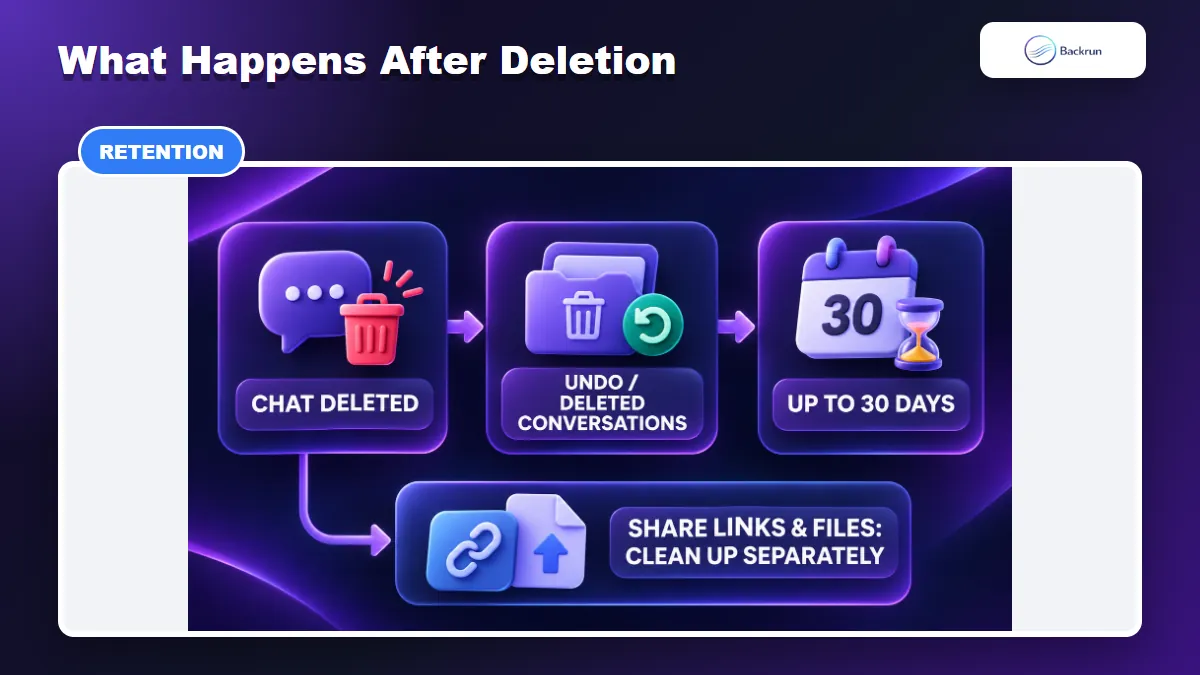
Deletion, restoration, retention, shared links, and uploaded files are separate parts of the cleanup process.
According to the current xAI Consumer FAQ and privacy policy, deleted conversations are removed from xAI systems within up to 30 days. Limited retention may continue when required for legal, compliance, security, or safety reasons.
Deletion Is Not Always Immediate or Universal
Archive is not delete. Archived chats remain part of your account until deleted.
Undo or Deleted Conversations may be available. Restore promptly if the current interface offers that option.
Uploaded files are separate. Review account files at grok.com/files.
Imagine media can have its own control. Data Controls may provide a separate deletion command for generated media.
Use Private Chat for Future Sensitive Sessions
xAI describes Private Chat as a mode that does not appear in visible history and is deleted from its systems within the same stated retention window. It reduces future cleanup, but it should not be treated as a substitute for avoiding highly sensitive input.
After you delete Grok chat history, sign out and back in or refresh the relevant history page. Check History, Archived items, Deleted Conversations, shared links, and files. This verification step is the best way to catch content that was hidden rather than erased.
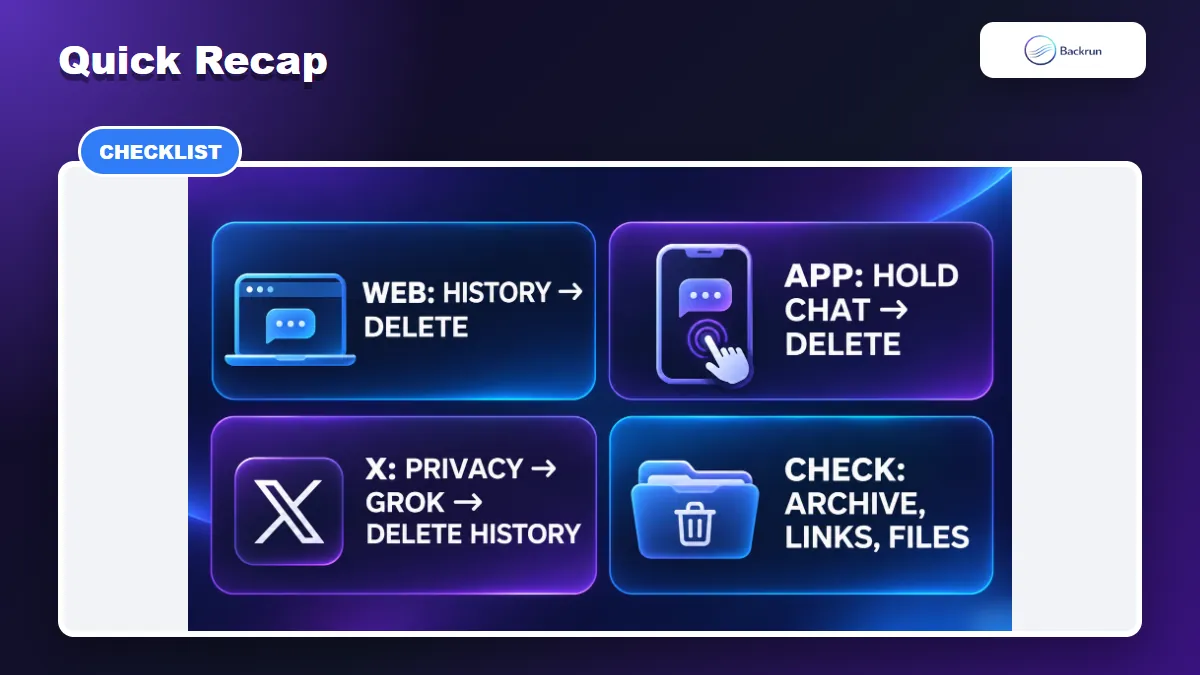
6. Quick Recap
Use the deletion path for the surface where the conversation was created, then check archives, links, and files separately.
The fastest correct route depends on where the conversation lives:
Surface
Delete one chat
Delete all chats
Important note
grok.com
History > row menu or trash > Delete
Settings > Data Controls > Delete All Conversations
Archive does not delete
Grok mobile app
Profile > History > press and hold > Delete Conversation
Settings > Data Controls > Delete All Conversations
Uninstalling the app is not deletion
Grok on X
No official per-chat path documented
X Settings > Privacy and safety > Data sharing and personalization > Grok > Delete Conversation History
Clear X separately from grok.com
In short, use Grok History to delete one Grok chat, Data Controls to clear the entire Grok account history, and X privacy settings to remove Grok history created on X. Back up important work first, then check archives, links, files, and the relevant history page after deletion.