How to Delete a ChatGPT Conversation on Desktop and Mobile
November 11, 20267 min read
If your sidebar is crowded or a conversation contains information you no longer need, ChatGPT lets you remove one chat or clear the entire history. This guide explains how to delete ChatGPT conversation records on desktop and mobile, plus what deletion does and does not remove.
Deletion is permanent. Before confirming it, export anything you may need later and verify that you are working in the correct account or workspace.
1. Delete One ChatGPT Conversation on Desktop
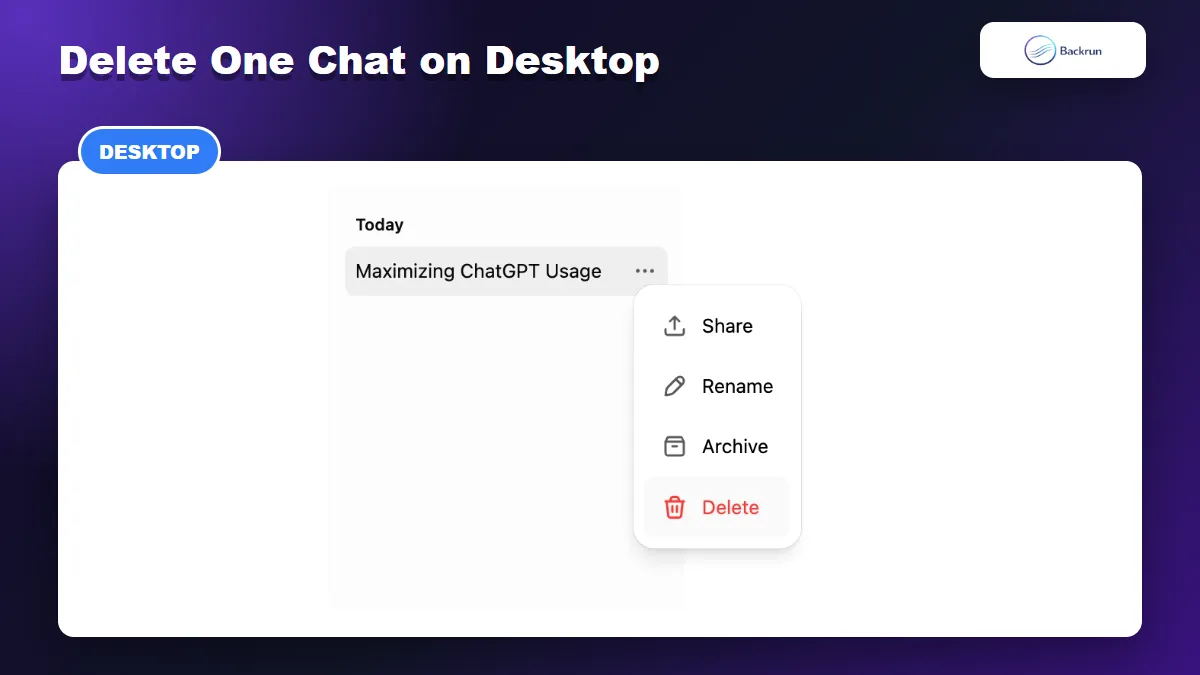
Open the three-dot menu beside a conversation, choose Delete, and confirm the action.
The desktop workflow is the fastest option when you only want to remove one conversation. The control appears in the chat history sidebar rather than inside the message area.
Open ChatGPT and display the chat history sidebar.
Hover over the conversation you want to remove.
Click the three-dot menu beside the chat title.
Select Delete.
Read the confirmation message, then confirm the deletion.
The conversation disappears from your account view immediately. OpenAI states that a deleted chat cannot be restored through the interface or by Support, so treat the confirmation as final.
Before you delete: reopen the conversation and check whether it contains a useful answer, uploaded file reference, source link, prompt template, or project decision. If it does, save the important material first. A tool such as ChatGPT Exporter can preserve selected messages or the complete thread in Word, PDF, Google Docs, Notion, or another supported format.
A screenshot is enough for a short receipt or visual reference, but it is a poor backup for a long conversation because the text cannot be searched or reused easily. For an important thread, prefer an editable export and open the resulting file before deleting the original. Confirm that the first and last messages, links, tables, code blocks, and uploaded-file references are present.
Common mistake: choosing Archive when you intended to delete, or choosing Delete when you only wanted a cleaner sidebar. Archive keeps the conversation in your account; Delete schedules permanent removal.
2. Delete a ChatGPT Conversation on iPhone or Android
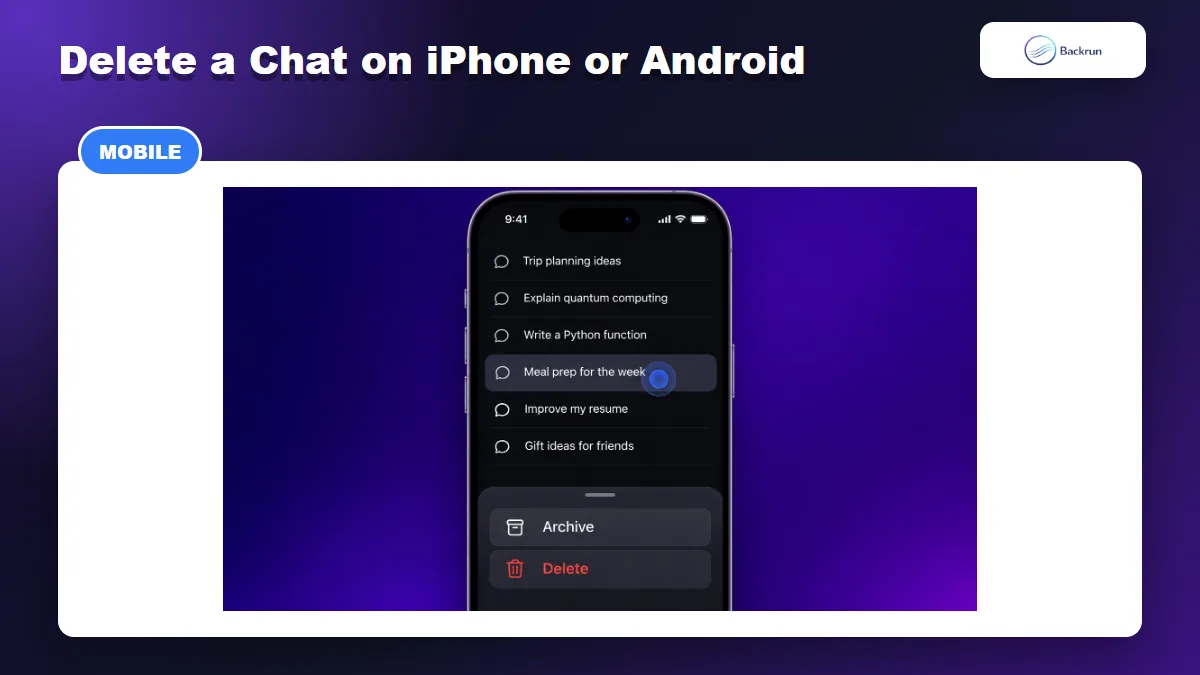
On mobile, press and hold a conversation title, then choose Delete.
The mobile app uses a long-press gesture instead of the desktop three-dot menu. The same steps apply to the current iOS and Android chat history.
Open the ChatGPT app.
Tap the menu icon with two horizontal lines to open your chat history.
Find the conversation and press and hold its title.
Select Delete from the action menu.
Confirm when the app asks whether you want to delete the chat.
If the action menu does not appear, update the ChatGPT app, reopen the history panel, and long-press the title rather than the message content. On a small screen, confirm the chat title carefully before tapping the red Delete action.
Mobile check: after deletion, use Search or reopen the sidebar to confirm that the correct conversation is gone. If a chat seems missing before you delete anything, check Archived chats first because an archived conversation is still stored and can be restored.
3. Delete All ChatGPT Conversations at Once
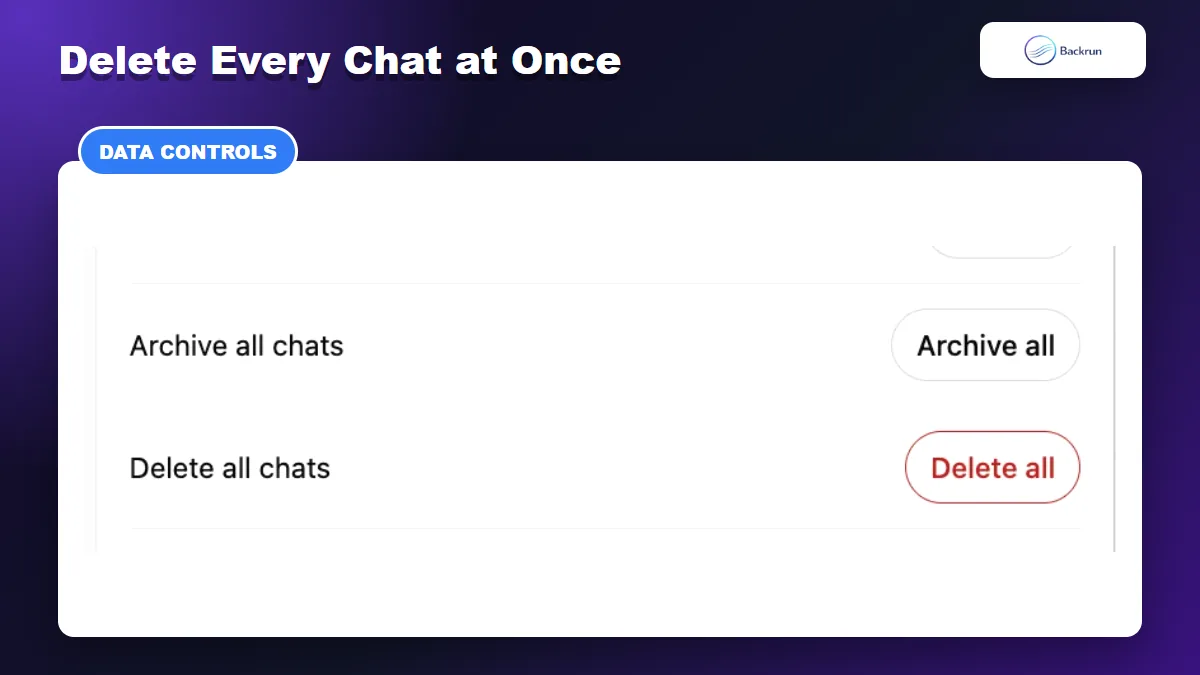
Delete all chats is available in Settings under Data controls.
Use the bulk control only when you are certain that every conversation in the current account or workspace can be removed. This action can also affect chats stored inside projects.
Open your profile menu and select Settings.
Choose Data controls.
Find Delete all chats and select Delete all.
Review the warning and confirm the action.
Do not rush this step. Check the active email address, sign-in method, and workspace name before confirming. Delete all chats cannot be undone, and there is no supported method to recover selected conversations afterward.
People who belong to more than one workspace should switch through each workspace deliberately rather than assuming the bulk action covers every account context. Organization-managed workspaces may also apply retention or compliance rules that differ from a personal account, so follow the policy supplied by your administrator when business records are involved.
If the goal is only to declutter the sidebar, choose Archive all chats instead. If the goal is a privacy cleanup, remember that chats, saved files, saved memories, and connected-app data can be managed in different places.
Recommended backup: export important conversations before using Delete all. A backup gives you a searchable record outside ChatGPT, but it also creates another copy that you must store securely or delete later.
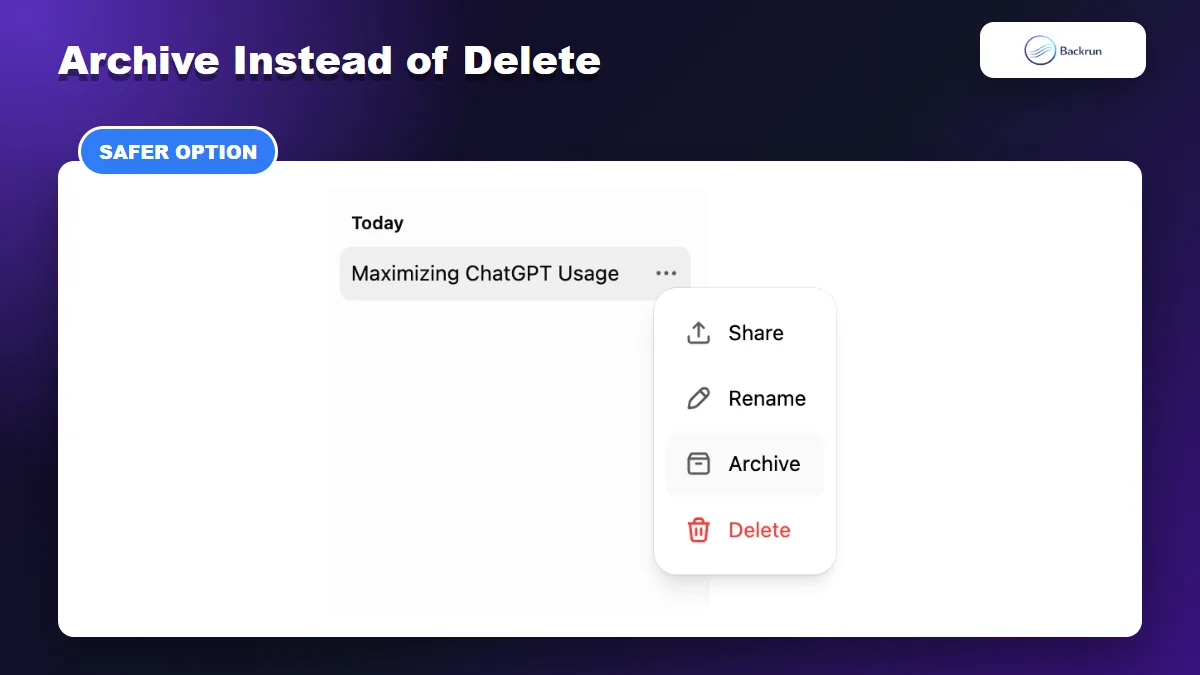
4. Archive a Chat Instead of Deleting It
Archive hides a conversation from the regular sidebar without deleting it.
Archiving is the safer choice when you want a shorter sidebar but may need the conversation again. It removes the chat from regular history without permanently deleting it.
Open the three-dot menu beside the conversation.
Select Archive. No deletion confirmation is required.
To find it later, open Settings > Data controls.
Select Archived chats, View archived chats, or Manage, depending on the interface shown.
Choose Unarchive to return it to normal history, or Delete to remove it permanently.
Archived chats remain saved under the same retention rules as regular conversations and remain searchable. Archiving is therefore organization, not deletion.
Choose Archive when: the chat contains useful research, an unfinished workflow, a recurring prompt, or decisions you may revisit. Choose Delete when you no longer need the conversation and accept that it cannot be recovered.
5. What Happens After You Delete a ChatGPT Conversation?
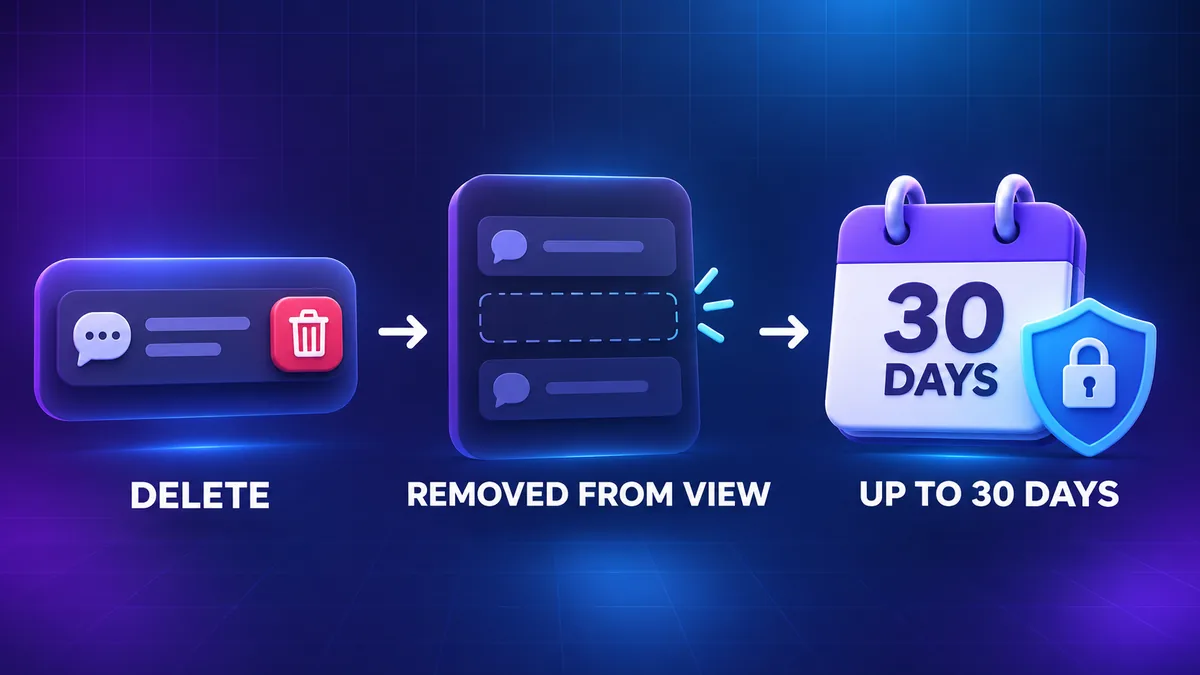
Deleted chats disappear from your account view immediately and are scheduled for permanent deletion within 30 days, subject to stated exceptions.
According to OpenAI's current chat and file retention guidance, a deleted chat is removed from your account view immediately and scheduled for permanent deletion from OpenAI systems within 30 days. Exceptions apply when the content has already been de-identified and separated from the account, or when longer retention is required for security or legal obligations.
Several related items need separate attention:
Saved files: deleting a conversation does not delete a file that remains saved separately in Library or Space. Remove that saved copy separately.
Saved memories: a memory created from a conversation can be stored separately. OpenAI's Memory guidance says that deleting the chat alone does not necessarily delete that memory. Remove it from Settings > Personalization > Memory as well.
Connected apps: deleting the chat removes connected-app data retained within that conversation, subject to standard retention rules. It does not delete the original file, email, or event from the connected service.
Temporary chats: they stay out of regular history unless saved. OpenAI may retain a copy for up to 30 days for safety purposes.
For a thorough privacy cleanup, remove the conversation, separately saved files, relevant memories, and any original content in connected services. Turning off model improvement or Memory changes future behavior but does not by itself delete existing chats.
Likewise, deleting a chat is different from deleting your OpenAI account. Chat deletion removes selected conversation content; account deletion removes access to the account and follows a separate confirmation process. Do not delete an account merely to clean up one conversation or reduce sidebar clutter.
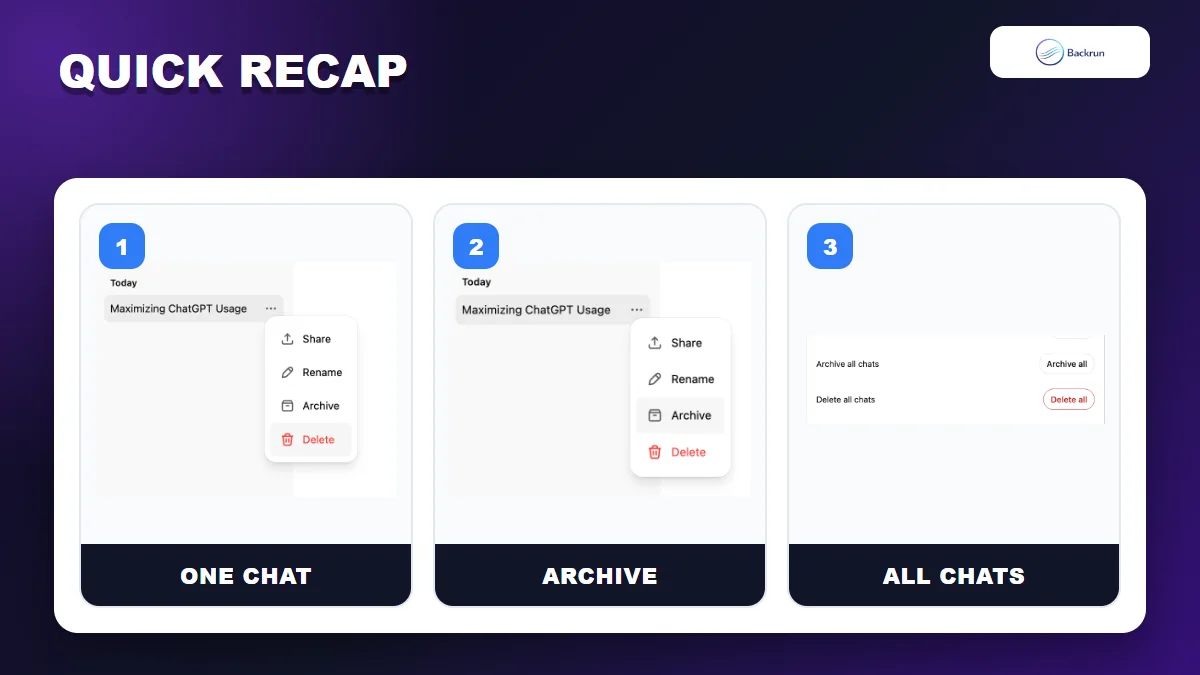
Quick Recap
Delete one chat, archive it, or remove every chat depending on the result you need.
Use the option that matches the result you actually need:
Goal
Correct action
Can you restore it?
Remove one conversation permanently
Three-dot menu > Delete
No
Remove one mobile conversation
Long-press title > Delete
No
Clear the complete history
Settings > Data controls > Delete all chats
No
Hide chats without losing them
Archive or Archive all chats
Yes, by unarchiving
To delete a single ChatGPT conversation, open its options menu, select Delete, and confirm. Use Delete all chats only after checking the active account and saving anything important. When you only want a cleaner sidebar, archive the chat instead.