How to Transfer Gemini Chat to Claude Without Losing Context
August 20, 20266 min read
If you need to transfer Gemini chat to Claude, the safest method depends on what you are moving: a full conversation, a memory-style summary, one polished answer, or a complete archive.
There is no perfect one-click migration that moves every Gemini chat into Claude as native Claude conversations. The practical workflow is to export Gemini into a clean format, remove anything private or outdated, then give Claude the context in a way it can actually use.
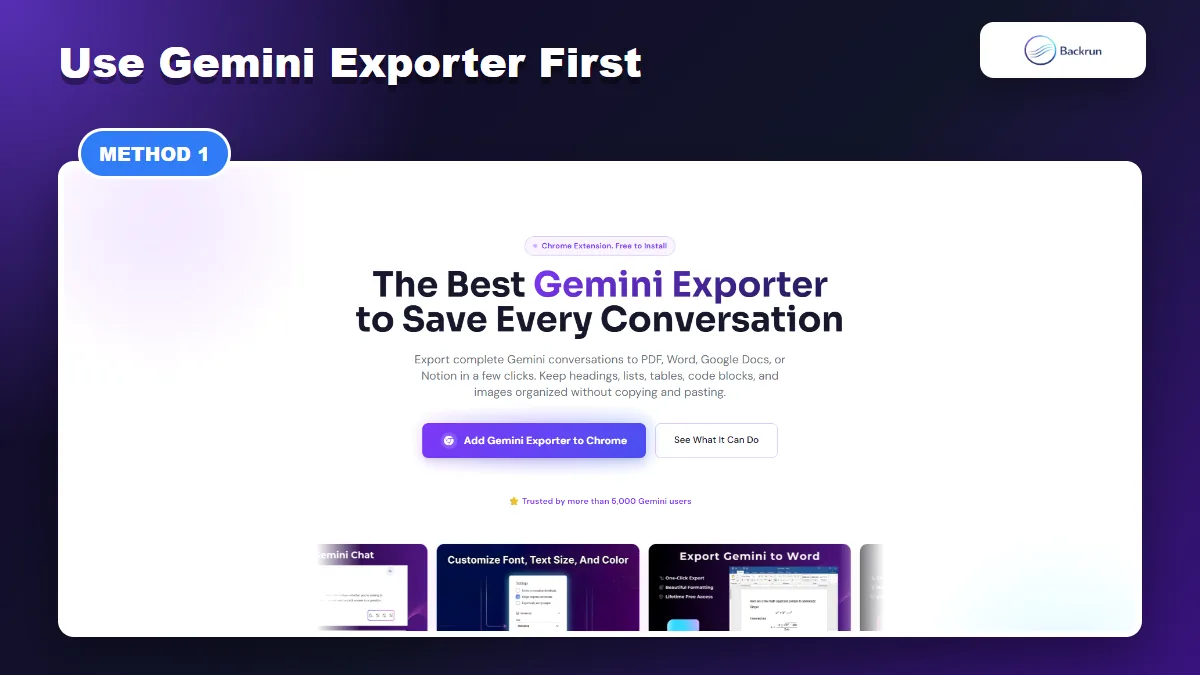
1. Use Gemini Exporter to Move the Full Conversation Into Claude
Gemini Exporter is the cleanest path when you want to move a complete Gemini conversation into a reusable document before opening it in Claude.
This is the most practical method when the Gemini conversation has multiple turns, tables, code blocks, or decisions that would be painful to copy by hand.
Use this workflow when you want a complete chat in a reusable file before continuing in Claude.
Open Gemini and load the conversation you want to move.
Select the messages you need, or export the whole thread if the reasoning chain matters.
Export to a Claude-friendly format. Markdown, Google Docs, Word, or plain text usually works better than a visual PDF when you want Claude to continue editing.
Open Claude and paste the exported content, or upload the file if your Claude plan supports file uploads.
Ask Claude to continue from the imported context, then tell it what output you need next.
Best for: long Gemini threads, research notes, coding explanations, blog outlines, tables, prompts, and conversations where formatting matters.
Limitation: this does not create native Claude chat history. It transfers the useful content so Claude can read and continue from it.
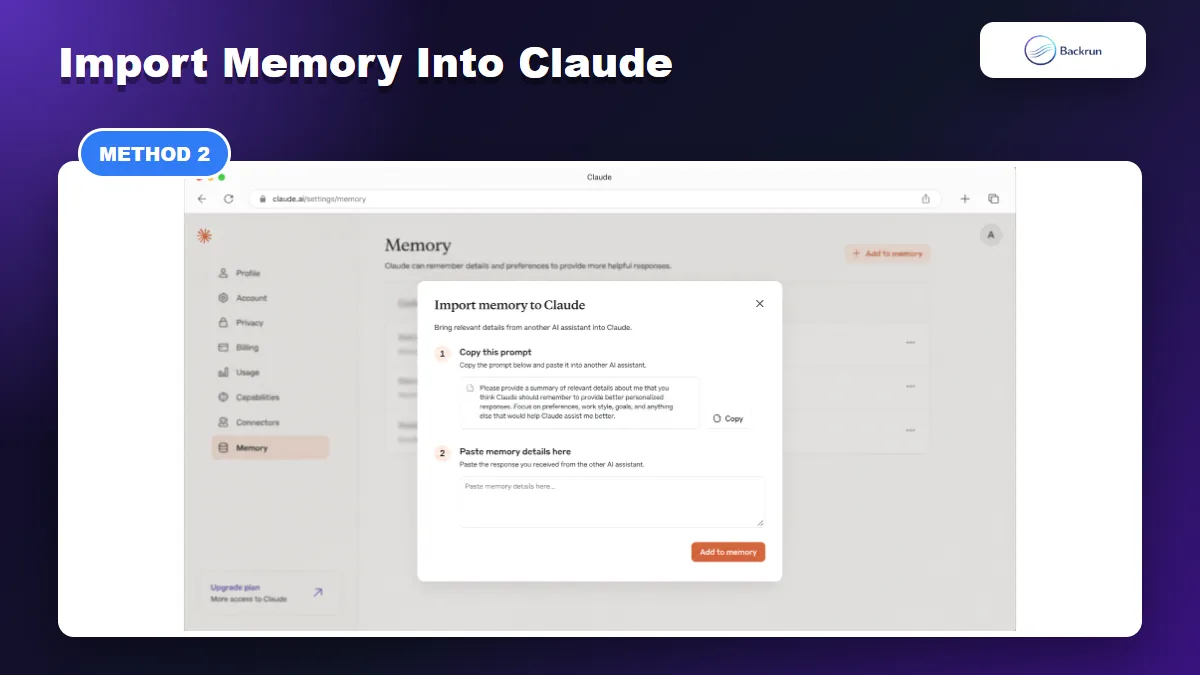
2. Import Gemini Memory Into Claude
Claude memory import is useful when you want to transfer durable context, preferences, and working style from Gemini rather than every message.
Use this method when you care less about one exact transcript and more about what Gemini has learned about your preferences, tone, workflows, and recurring projects.
Claude’s memory import flow is built for this kind of assistant-to-assistant context transfer.
Open Claude settings.
Go to Memory or Capabilities and choose the option to import memory.
Copy Claude’s import prompt.
Paste that prompt into Gemini and ask Gemini to summarize durable context: your preferences, writing style, audience, recurring instructions, project constraints, and things to avoid.
Review the Gemini output. Remove sensitive data, old preferences, client names, credentials, and anything Claude should not remember.
Paste the cleaned summary into Claude and save it as memory.
Test with one real task to make sure Claude applies the imported context correctly.
Best for: moving work style, preferred formatting, audience notes, project rules, and long-term preferences.
Limitation: memory import is not a full chat migration. It should summarize durable context, not dump entire conversations.
3. Export a Gemini Response to Google Docs or Markdown, Then Upload It to Claude
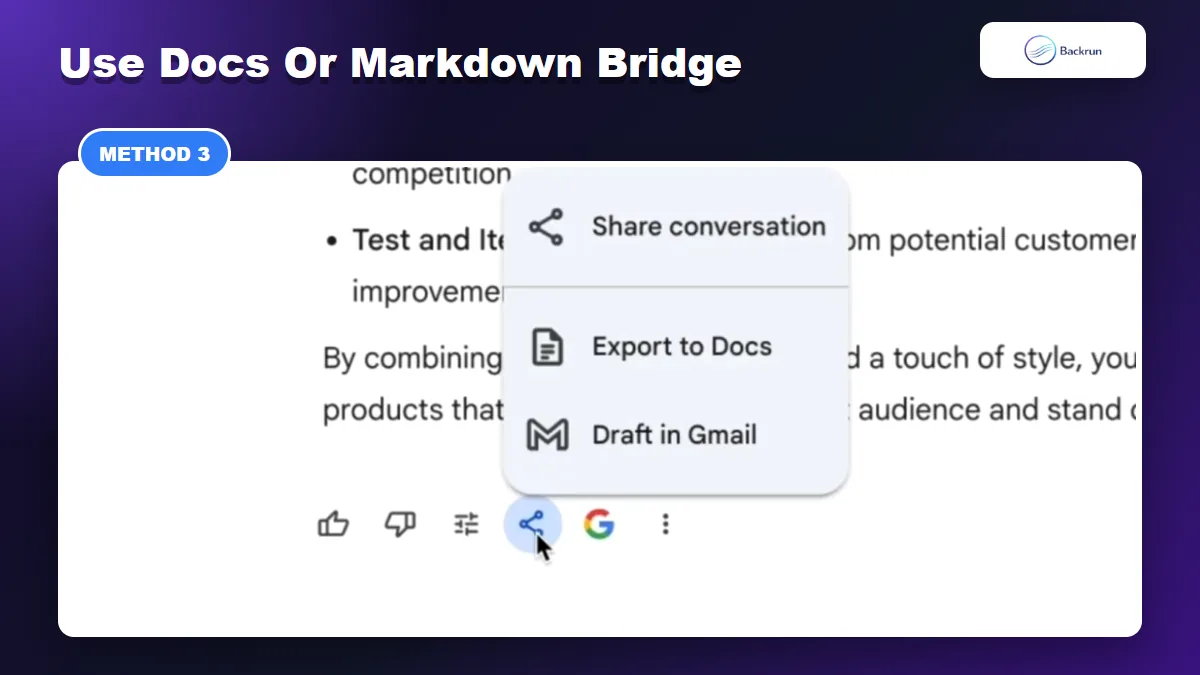
Gemini can send a single response to Google Docs, which works well as a clean bridge document for Claude.
This method is useful when the Gemini output is already polished: a report, draft, table, strategy note, or instruction set that Claude should rewrite or continue.
Here is the clean bridge workflow for one answer or one document-like result.
Open the Gemini response you want to move.
Use Gemini’s share/export option and choose Export to Docs when available.
Clean the Google Doc: remove repeated prompts, fix headings, and keep only the parts Claude should use.
Download as DOCX, copy as Markdown, or paste the text directly into Claude.
Tell Claude the job: continue the draft, rewrite it, fact-check it, convert it into a plan, or compare it with another source.
Best for: one strong Gemini answer, a finished draft, a table, or a document that needs Claude’s editing style.
Limitation: Gemini’s native Docs export is response-level, not a full-conversation exporter. If you need the whole thread, use Gemini Exporter instead.
If you want to keep Markdown as the bridge format, this related guide on Gemini to Markdown explains the formatting tradeoffs.
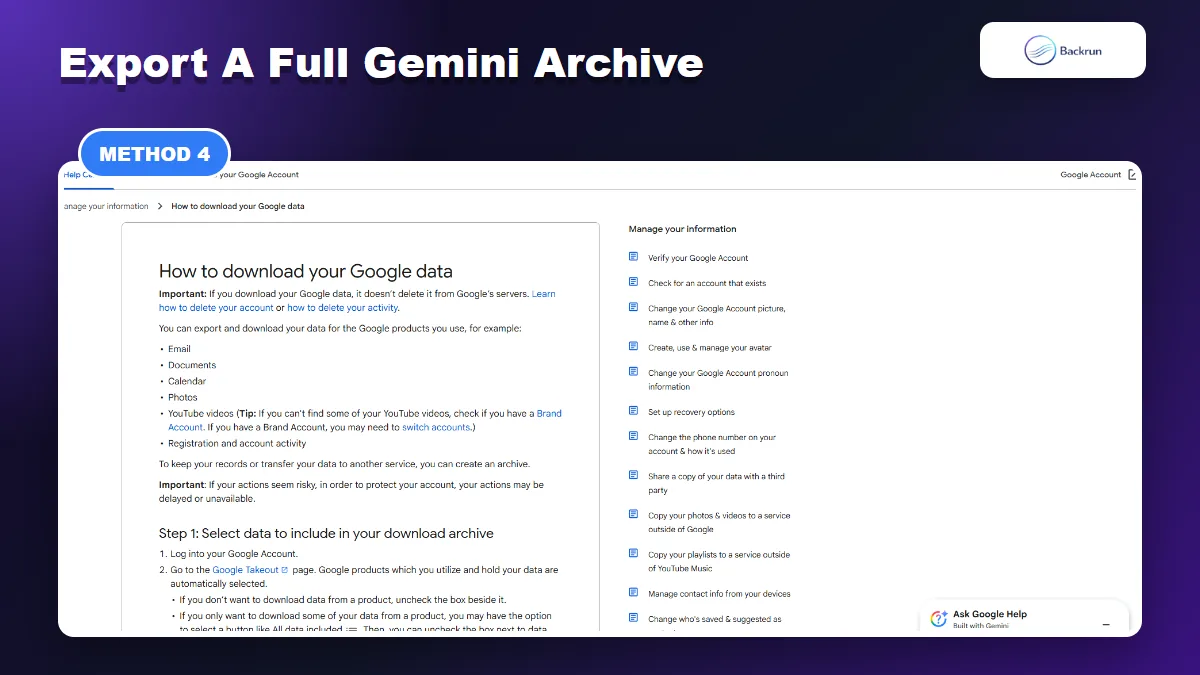
4. Use Google Takeout for a Full Gemini Archive
Google Takeout is the official archive route, but it produces technical export files that usually need cleanup before Claude can use them well.
Use Google Takeout when your goal is backup or bulk archival first, then selective transfer into Claude later.
This is the official Google data export path, but it is not the cleanest day-to-day workflow.
Select Gemini or Gemini-related activity. In some accounts, Gemini data may appear through My Activity filters.
Click Next step and choose your delivery method.
Create the export and download the archive when Google finishes preparing it.
Extract only the useful Gemini data. Expect technical files such as JSON or HTML-like records, not a polished Claude-ready document.
Convert important parts to Markdown or plain text, then paste or upload that cleaned context into Claude.
Best for: backing up Gemini history, auditing old AI work, or transferring selected parts from a large archive.
Limitation: Google Takeout is not a direct “Gemini to Claude” import button. Treat it as an archive source, then curate what Claude should actually read.
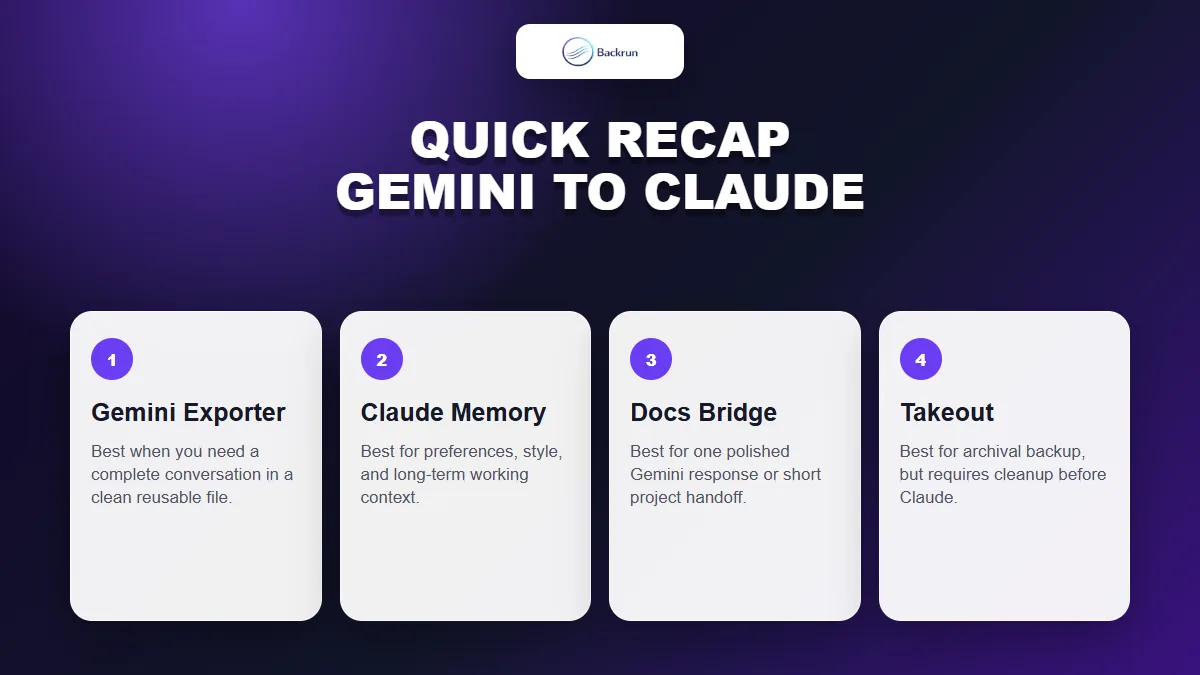
Quick Recap
Choose the transfer method based on whether you need the whole conversation, durable memory, one clean answer, or a full archive.
If you want the least friction, start with Gemini Exporter for complete conversations. Use Claude memory import when the goal is preferences and working style. Use Google Docs or Markdown for one polished answer. Keep Google Takeout for backup or bulk review.
Method
Use it when
Main limitation
Gemini Exporter
You need the whole Gemini conversation in a clean reusable format
It transfers content, not native Claude chat history
Claude memory import
You want Claude to learn your style, preferences, and durable context
It should be a summary, not a transcript dump
Docs or Markdown bridge
You only need one polished Gemini response
Native Docs export is usually response-level
Google Takeout
You need a bulk archive before curating what to move
Exports are technical and require cleanup
For most work, the best way to transfer Gemini chat to Claude is not to move everything. Export the useful context, clean it, then give Claude a clear instruction for what to do next.