How to Import ChatGPT to Gemini Without Starting Over
August 19, 20266 min read
If you want to import ChatGPT to Gemini, choose the method based on what you are moving: memory, a few useful conversations, or your entire ChatGPT history. Gemini now supports both memory import and chat history import, but each path has different limits.
The practical difference is simple: memory import teaches Gemini your preferences and working style, while chat history import brings over previous conversations. If you only need one project, a focused handoff is often cleaner than importing everything.
1. Import ChatGPT Memory Into Gemini With Google's Official Prompt
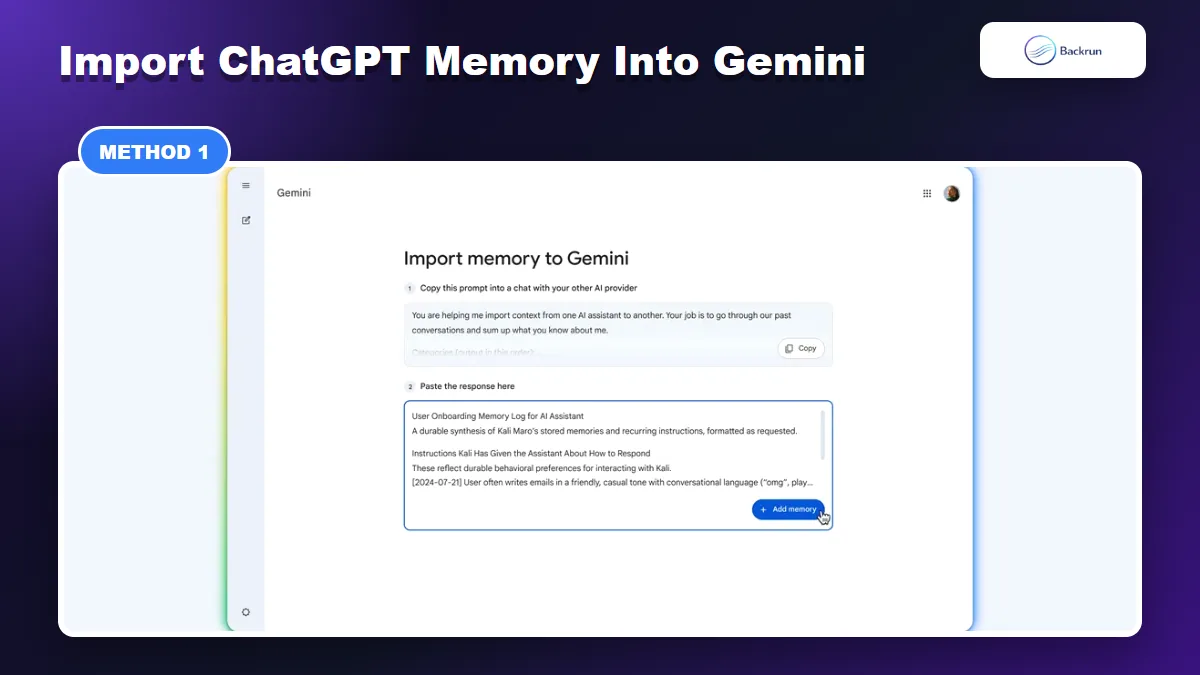
Use Gemini memory import when you want Gemini to understand your preferences, tone, and recurring work context.
Use this method when you want Gemini to understand your writing style, preferences, recurring instructions, and long-term work context. This is not the same as importing every ChatGPT conversation. It is for memory.
Here is the clean workflow for moving ChatGPT memory-style context into Gemini.
Copy the prompt Gemini provides. The prompt asks your other AI provider to summarize what it knows about you.
Paste that prompt into ChatGPT. If ChatGPT Memory or custom instructions are enabled, ask it to include preferences, tone, recurring tasks, and durable context.
Review the output carefully. Remove private details, outdated preferences, credentials, client names, or anything Gemini should not remember.
Paste the cleaned response into Gemini and click Add memory.
Test with one real task to confirm Gemini uses the imported style correctly.
Best for: tone preferences, work style, recurring business context, favorite formats, audience notes, and personal instructions.
Limitation: this does not move full chat history. It gives Gemini a compressed memory profile. If you need old conversations searchable in Gemini, use the ZIP import method below.
2. Use AI Chat Exporter for Useful ChatGPT Conversations
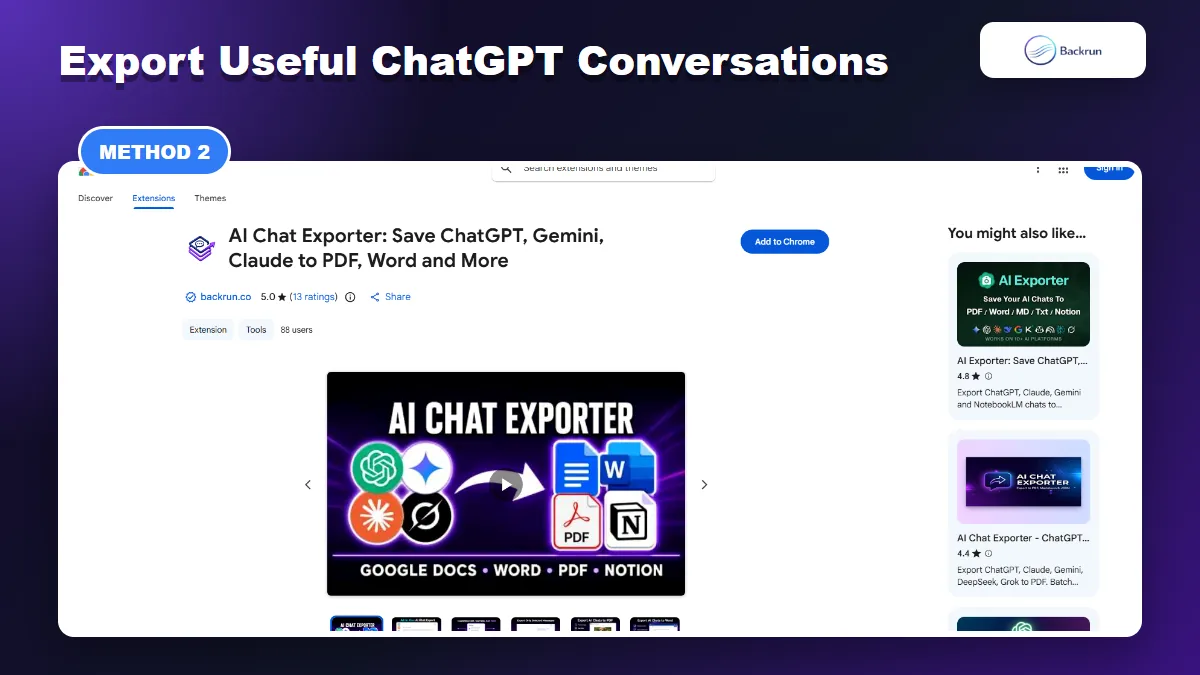
AI Chat Exporter is useful when you want to move selected ChatGPT conversations into a reusable format before opening them in Gemini.
Use this method when you do not need your entire account history, but you do want to preserve a useful ChatGPT conversation before continuing the work in Gemini.
A browser extension is helpful here because manual copy-paste often breaks tables, code blocks, lists, and message order.
Open the ChatGPT conversation you want to reuse in Gemini.
Select only the useful messages, or export the full thread if the back-and-forth matters.
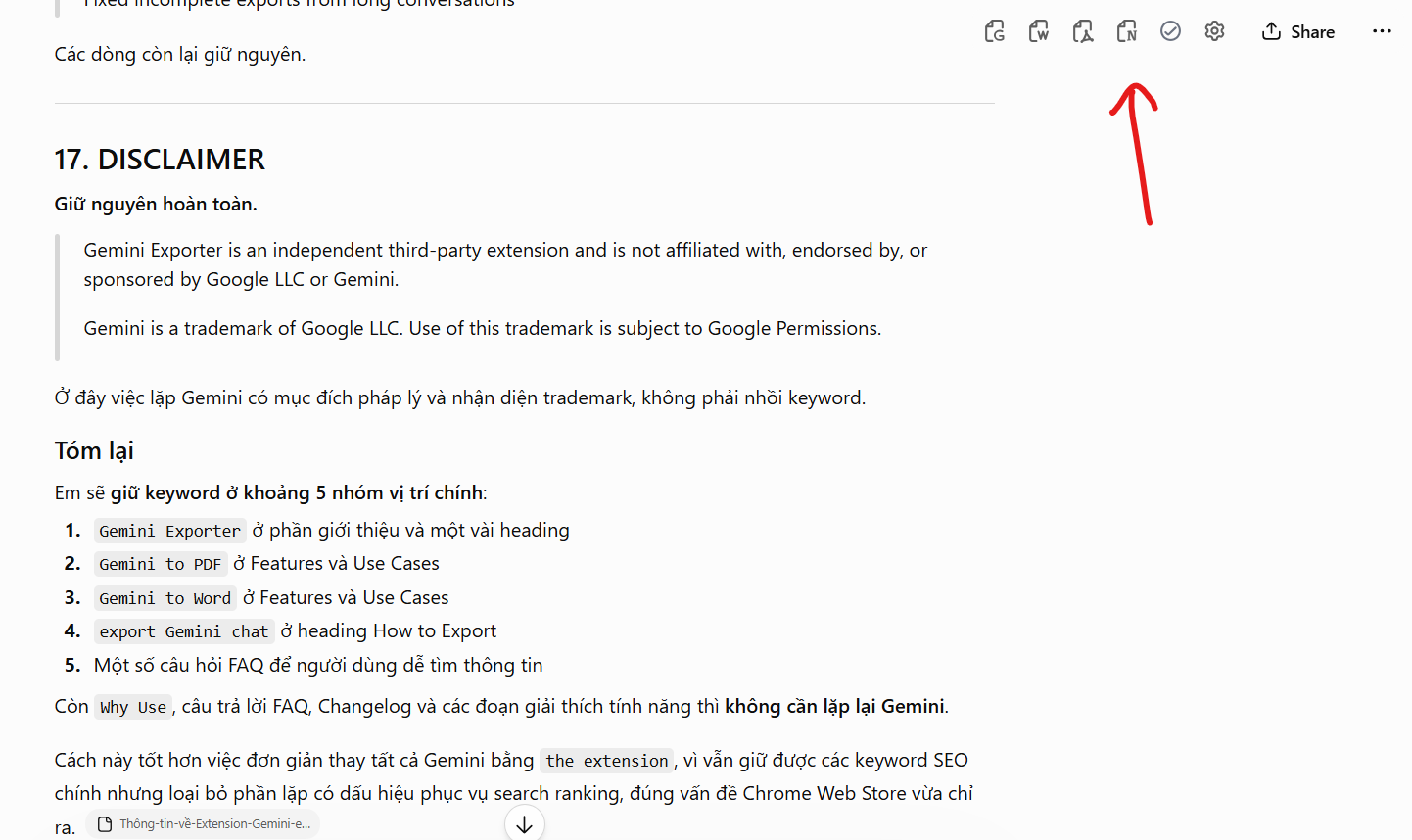
Export to a reusable format, such as Markdown, Google Docs, Word, PDF, or Notion.
Open Gemini and paste the cleaned content, upload the supported file, or use the exported document as reference context.
Ask Gemini to continue from that context, not to blindly repeat the old conversation.
Best for: one research thread, a coding discussion, a content outline, a sales script, a support SOP, or any chat worth preserving without importing your whole account.
Practical check: after export, inspect headings, tables, code fences, links, and message order before using the file in Gemini.
If you mainly want a Markdown bridge before using Gemini, this Backrun guide on ChatGPT to Markdown is a useful companion.
3. Export All ChatGPT History, Then Upload the ZIP to Gemini
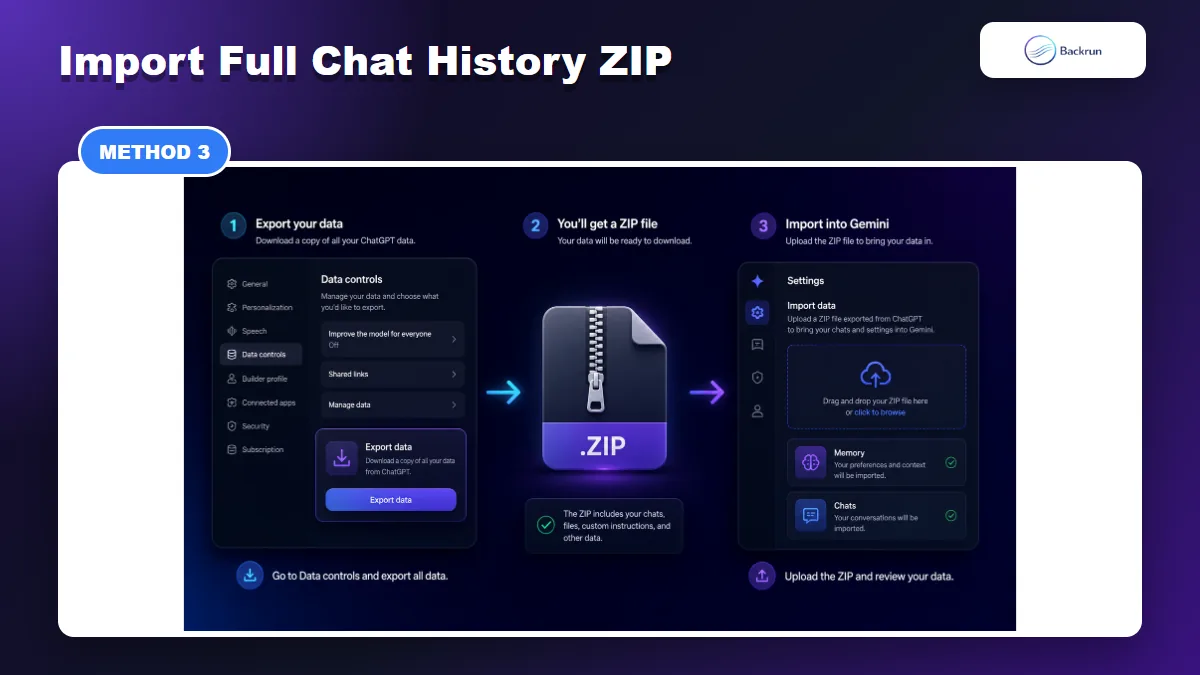
For full history, export ChatGPT data first, then upload the ZIP file through Gemini import settings.
This is the closest option to a full migration. Gemini's official import page says you can export data from another AI provider, then upload the .zip file to Gemini so it can organize previous chat threads.
Use this method when you really want your ChatGPT history available inside Gemini, not just a memory summary.
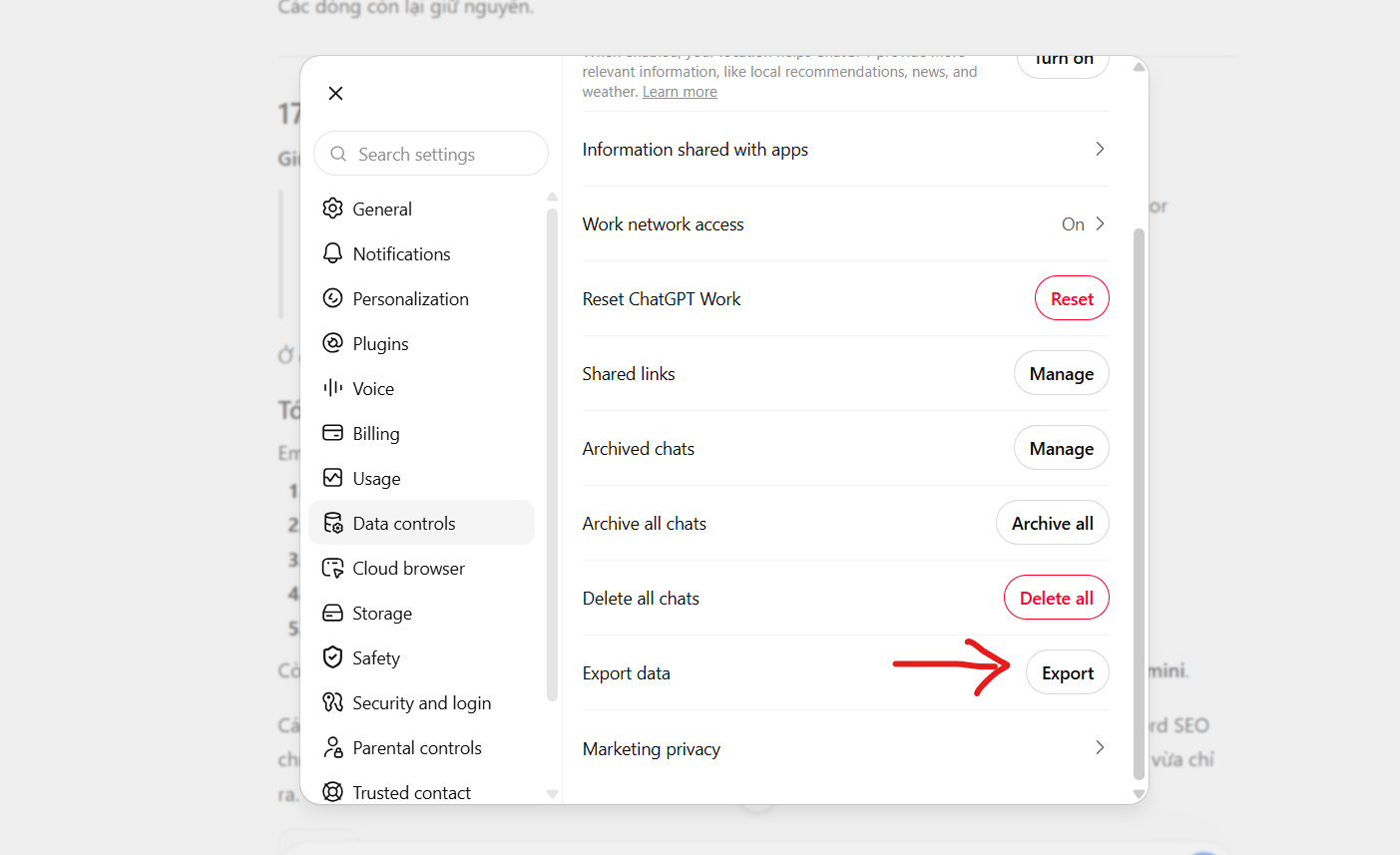
Open ChatGPT settings.
Go to Data controls and choose Export data.
Wait for the export email and download the ZIP file from ChatGPT.
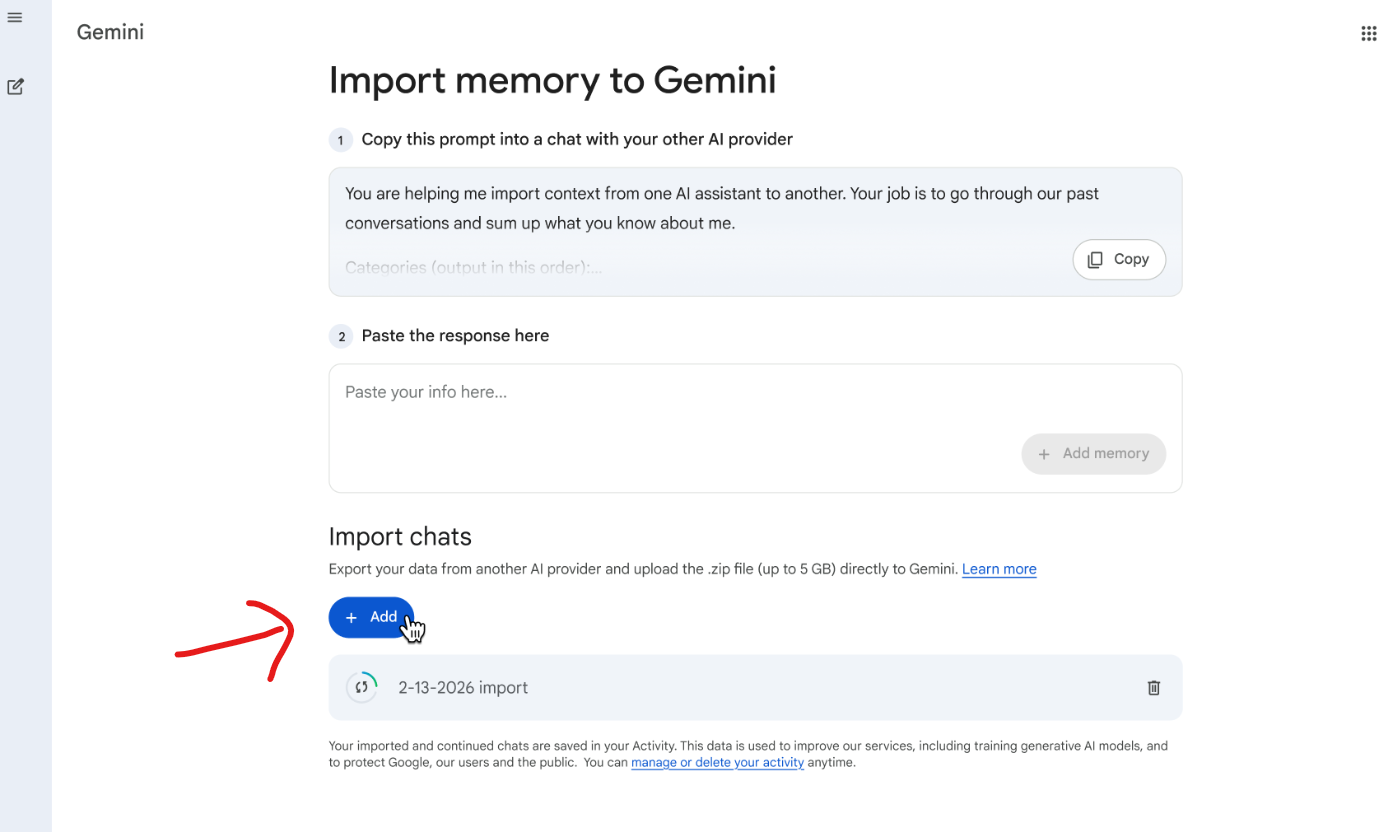
Open Gemini settings and go to Import memory to Gemini.
Choose Import chat history.
Upload the ChatGPT export ZIP. Gemini currently supports .zip files for chat history import up to 5 GB.
Wait for processing, then check the imported conversations in Gemini's conversation list.
Best for: account migration, long-term research history, switching primary assistants, and bringing old conversations into Gemini for reference.
Important limitation: Google's FAQ says generated images and files from the previous AI app are not imported as part of chat history. If a project depended on attachments, save those files separately.
Privacy check: a ChatGPT data export can include sensitive prompts, private links, client information, and old drafts. Review what you are uploading before importing everything.
4. Use a Focused Handoff Prompt for One Project
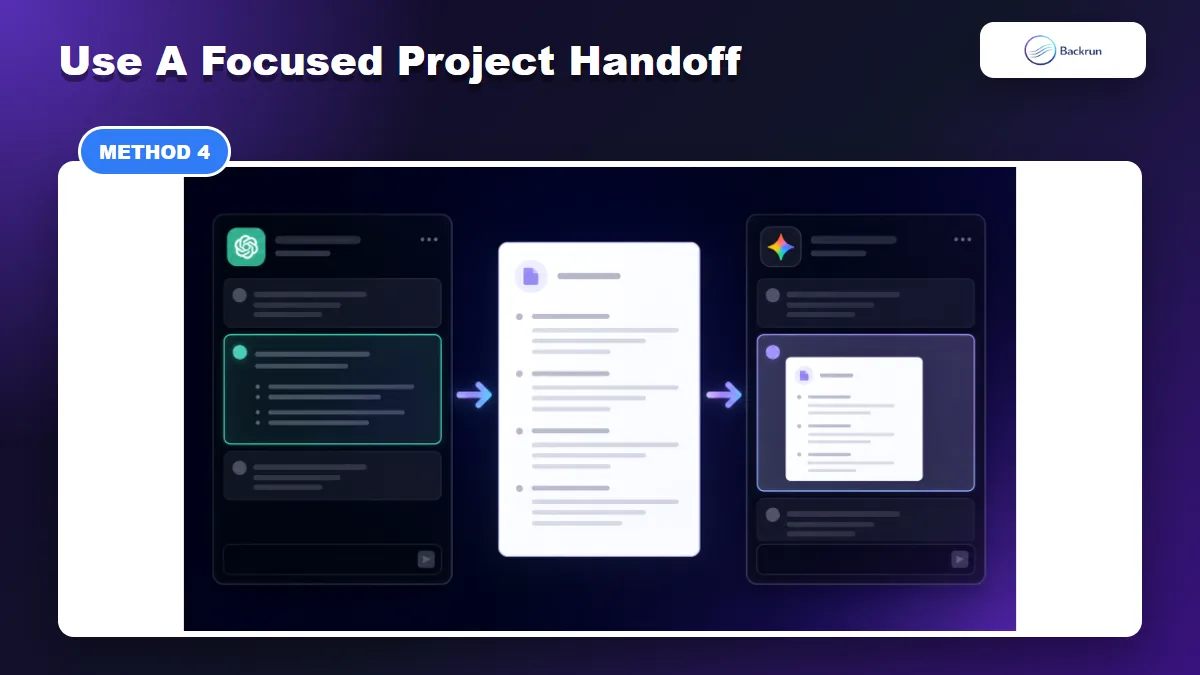
A focused handoff is not a full import, but it works well when you only need one project context in Gemini.
If you only need one project in Gemini, do not overcomplicate the migration. A focused handoff prompt is often cleaner than importing memory or uploading a full ZIP archive.
This method works because Gemini does not always need the entire historical transcript. It often needs the decisions, constraints, files, style, and next steps.
Open the relevant ChatGPT conversation.
Ask ChatGPT to create a Gemini handoff brief.
Include the key parts: project goal, audience, decisions made, rejected options, links, prompts, outputs, tone, open questions, and next action.
Paste the brief into Gemini as the first message of a new chat.
Ask Gemini to confirm the context and list anything missing before continuing.
Save recurring preferences as Gemini memory only if they should apply beyond this one project.
Best for: one client project, one coding task, one content plan, one research thread, or one workflow where you need a clean restart.
Limitation: this is not a true import. It is a controlled context transfer. That is exactly why it works well for small projects: you avoid carrying old noise into Gemini.
A useful prompt is: Create a concise handoff brief for Gemini. Preserve goals, decisions, constraints, links, code snippets, output style, and next steps. Remove duplicate exploration.
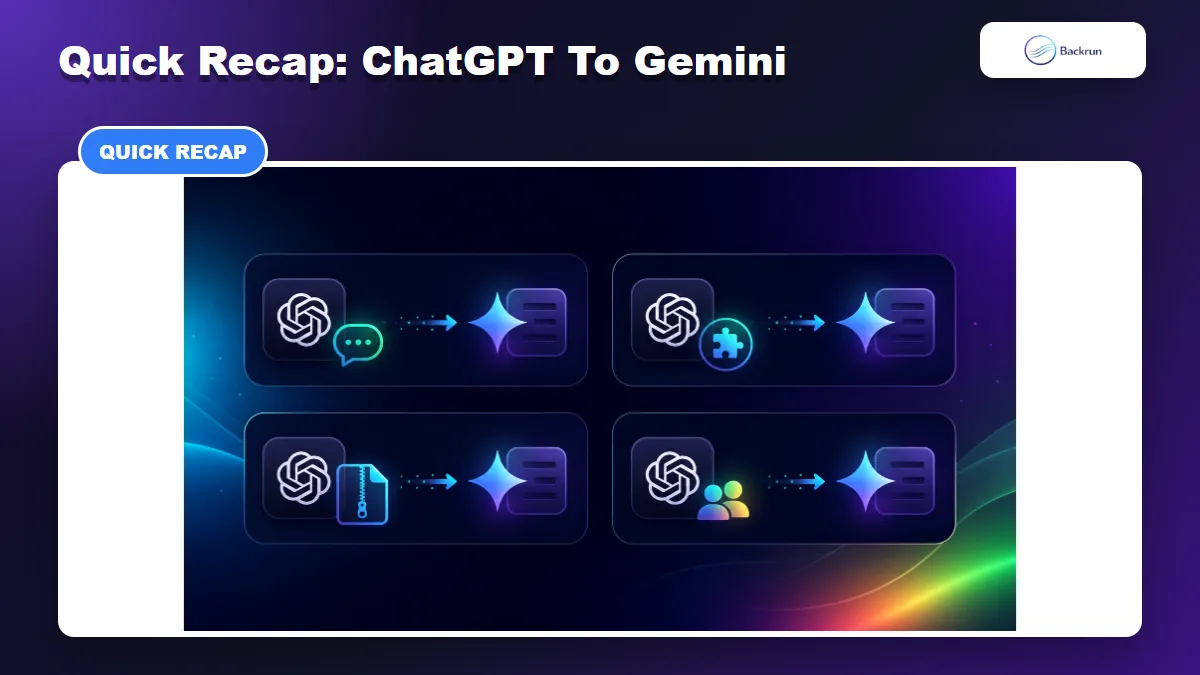
Quick Recap
Choose between memory import, conversation export, full history import, and a focused project handoff.
Choose the import path based on the amount of context you need.
Method
Best for
Main caution
Gemini memory import
Preferences, tone, recurring context
Not full chat history
AI Chat Exporter
Selected useful ChatGPT conversations
Review exported formatting before using it
ChatGPT data export ZIP
Full chat history migration
Files and generated images may not import
Focused handoff prompt
One project or one conversation
Not a real import, just clean context transfer
For most people who need to import ChatGPT to Gemini, start with memory import for personal preferences, use AI Chat Exporter for valuable individual chats, and use the ZIP import only when you truly want the whole history moved over.