How to Transfer ChatGPT to Claude Without Losing Your Context
August 21, 20267 min read
If you want to transfer ChatGPT to Claude, start by deciding what you actually need to move: memory, full chats, project context, or a full account backup.
The cleanest migration is not one giant copy-paste. Claude can import memory from other AI providers, but that only moves durable context such as preferences and work style. If you also need to transfer ChatGPT chats to Claude, use an exporter or a clean project handoff.
Before you start, separate your ChatGPT data into three groups: memories that should follow you everywhere, specific chats that Claude should read as source material, and project context that belongs inside a Claude Project. That split prevents Claude from remembering noisy or outdated details globally.
1. Import ChatGPT Memory Into Claude
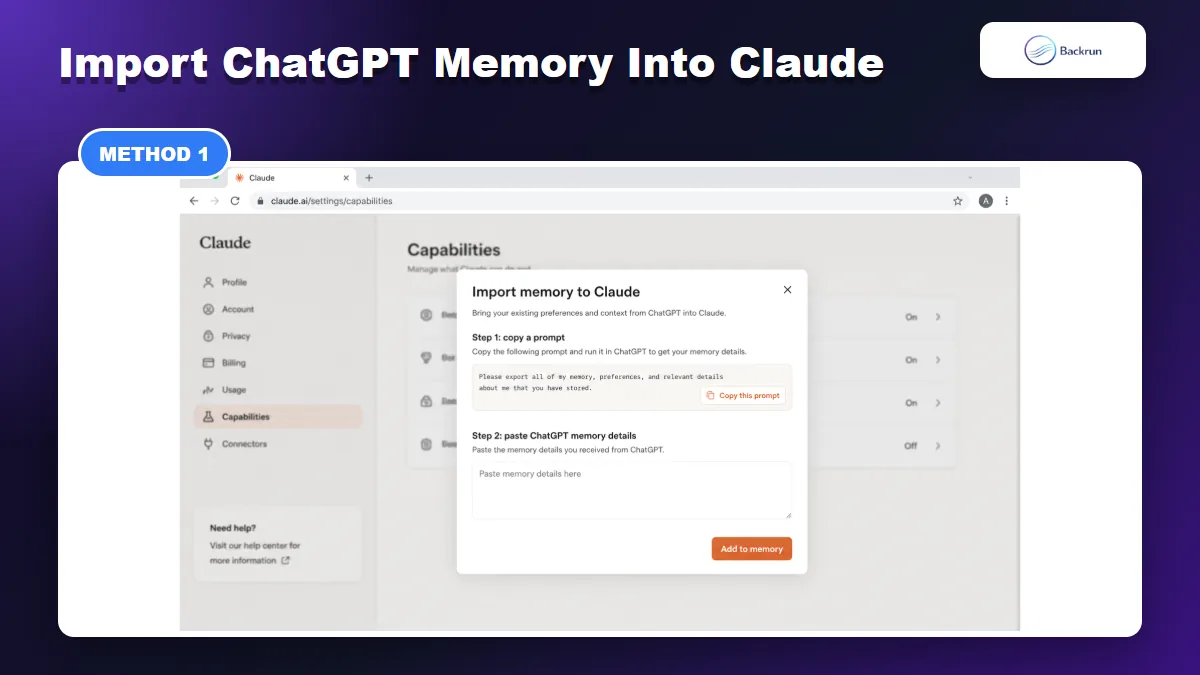
Claude memory import is the fastest way to move durable ChatGPT context such as preferences, tone, and recurring instructions.
This is the fastest way to move ChatGPT's saved context into Claude. It is best for preferences, tone, recurring instructions, and personal work patterns.
Here is the practical workflow from the video transcript, cleaned up into reliable steps.
Open Claude and click your profile picture.
Go to Settings, then open Capabilities.
Click Start import under the memory import option.
Copy Claude's prompt. This prompt asks another AI assistant to summarize saved memories and durable context.
Open ChatGPT and go to personalization settings.
Turn on memory and history references if they are available in your account, including saved memories and chat history references.
Choose a stronger reasoning model when possible, then paste Claude's prompt into ChatGPT.
Copy the structured output from ChatGPT and paste it back into Claude's import field.
Click Add to memory.
Best for: people who mainly want to transfer ChatGPT memory to Claude so Claude understands their style and recurring preferences.
Limitation: this does not move every old conversation as a native Claude chat. It creates Claude memories from a summary.
Experience tip: do not paste Claude's import prompt into a random old ChatGPT chat. Start a fresh ChatGPT conversation so the model focuses on your saved memory and account-level context instead of the topic of the current chat.
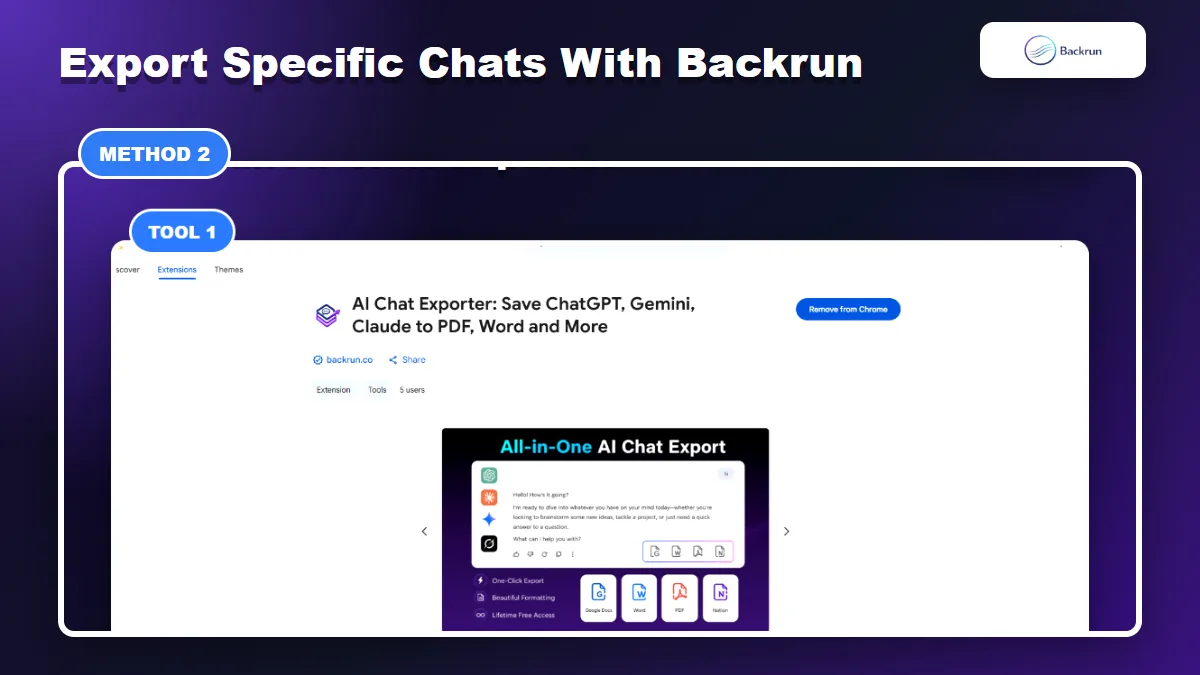
2. Use AI Chat Exporter by Backrun for Specific ChatGPT Chats
AI Chat Exporter is useful when you need to transfer selected ChatGPT chats to Claude, not just memory summaries.
Memory import is not enough when the conversation itself matters. For example, a long coding thread, research brief, table-heavy answer, or client draft should be transferred as a readable file.
Select the messages you need, or export the full conversation if the sequence matters.
Export to Markdown, Word, PDF, Google Docs, or Notion.
Open Claude and paste the cleaned content, or upload the exported file if your Claude plan supports it.
Tell Claude what to do next, such as continue the work, summarize it, rewrite it, or turn it into project instructions.
Best for: moving individual conversations without losing headings, tables, code blocks, and message order.
Practical note: Markdown or Google Docs is usually better than PDF if you want Claude to continue editing the content. This related Backrun guide on ChatGPT to Markdown explains why Markdown is often the cleaner bridge format.
Privacy check: if a conversation contains API keys, client names, personal notes, or private links, clean those parts before uploading the export into Claude. A targeted export is powerful because you can curate only what Claude needs.
3. Move ChatGPT Projects Into Claude Projects
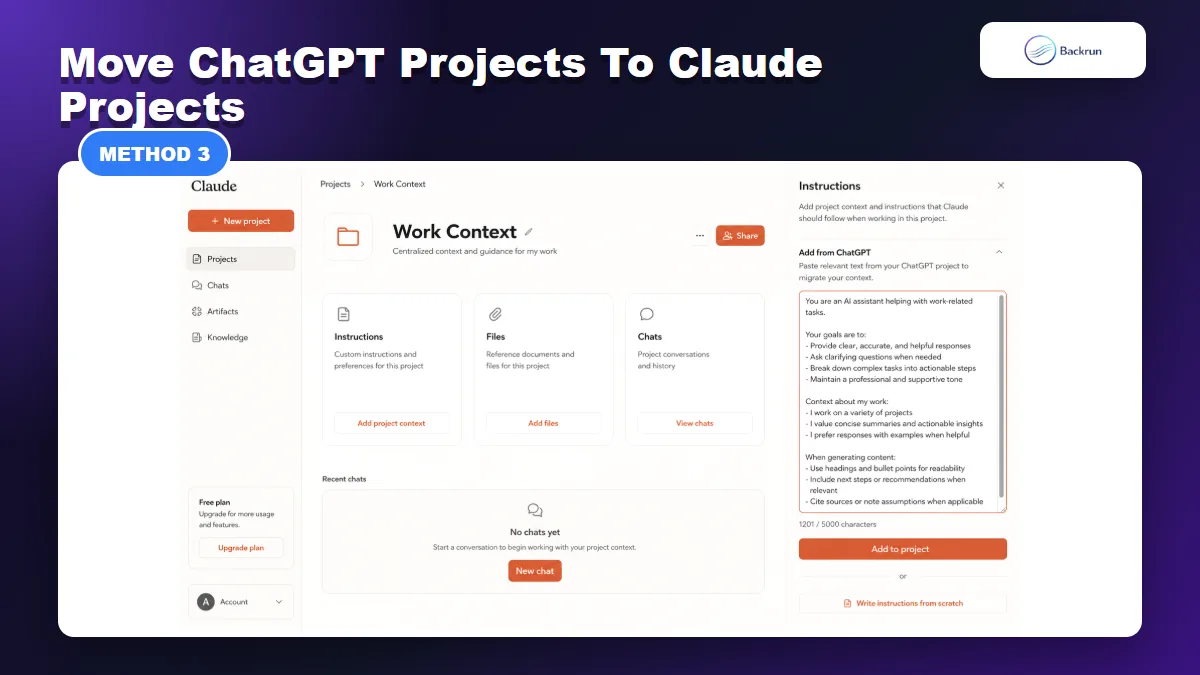
Claude Projects are the better destination when your ChatGPT context belongs to a specific work container.
If your ChatGPT context is organized in projects, do not dump everything into global Claude memory. Project context belongs in a Claude Project.
Use this method when a set of chats, files, and instructions should stay attached to one workstream.
Open the ChatGPT project you want to migrate.
Run Claude's memory import prompt inside that project, preferably with a stronger reasoning model.
Ask ChatGPT to produce a project handoff with instructions, active files, decisions, constraints, recurring prompts, and next steps.
Create a new Claude Project with the same project name or a clearer one.
Paste the handoff into project instructions.
Upload key files manually if they still matter.
Start one test chat inside the Claude Project and ask Claude to confirm what it understands before continuing.
Best for: work projects, coding apps, content pipelines, research folders, and anything that should not become global memory.
Limitation: attached files and project-specific chats usually require manual selection. Do not assume Claude will understand files that were only present in ChatGPT.
Accuracy check: after creating the Claude Project, ask Claude to summarize the project rules back to you. If it misses a constraint, fix the project instructions before you continue doing real work there.
4. Export Your Full ChatGPT Data Archive
ChatGPT data export is best treated as a backup archive, then cleaned before giving selected context to Claude.
Use this method when you want a backup first. A full ChatGPT export is useful for records, compliance, or manually extracting older conversations later.
Here is the official export path from ChatGPT.
Open ChatGPT settings.
Go to Data controls.
Choose Export data.
Confirm the export request and wait for the email.
Download the archive and keep it somewhere private.
Extract only the relevant conversations before giving content to Claude.
Best for: backup, auditing, long-term migration planning, and finding old conversations you may want to transfer later.
Limitation: the archive is not a polished Claude import file. It may contain sensitive prompts, private files, and outdated context. Curate it before use.
Important: use the full archive as a source library, not as a direct memory dump. Claude will perform better if you extract the few relevant conversations and turn them into a concise brief.
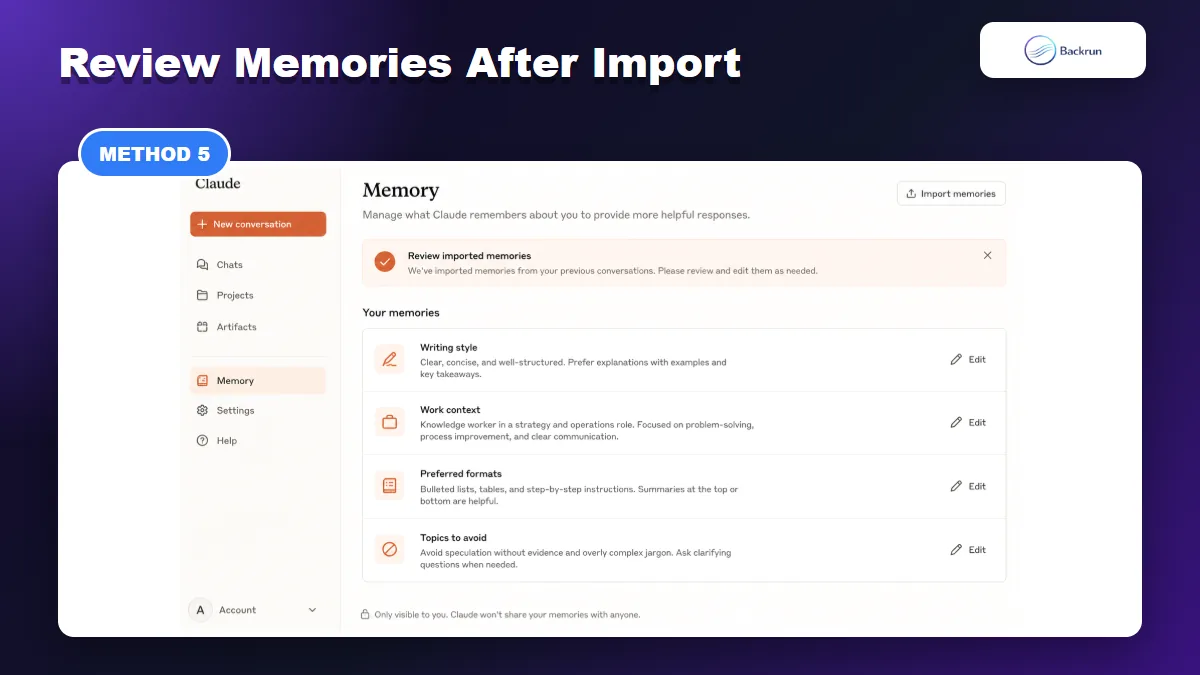
5. Review and Clean Claude Memories After Import
After importing, review Claude memories and edit anything outdated, private, or incorrectly inferred.
The transcript makes one point that matters more than it sounds: after the import, read through the memories. AI-generated memory summaries can be useful, but they can also be too broad, outdated, or slightly wrong.
Use this review workflow after you move ChatGPT to Claude.
Open Claude memory settings.
Read every imported memory, especially anything about work, clients, tone, or preferences.
Edit incorrect memories with the pencil/edit control.
Delete anything too private, too old, or too vague.
Run one real task and check whether Claude applies the imported context correctly.
Best for: preventing bad personalization and keeping Claude focused on what actually matters.
Limitation: memory improves future answers, but it is not a substitute for clear instructions in each important chat or project.
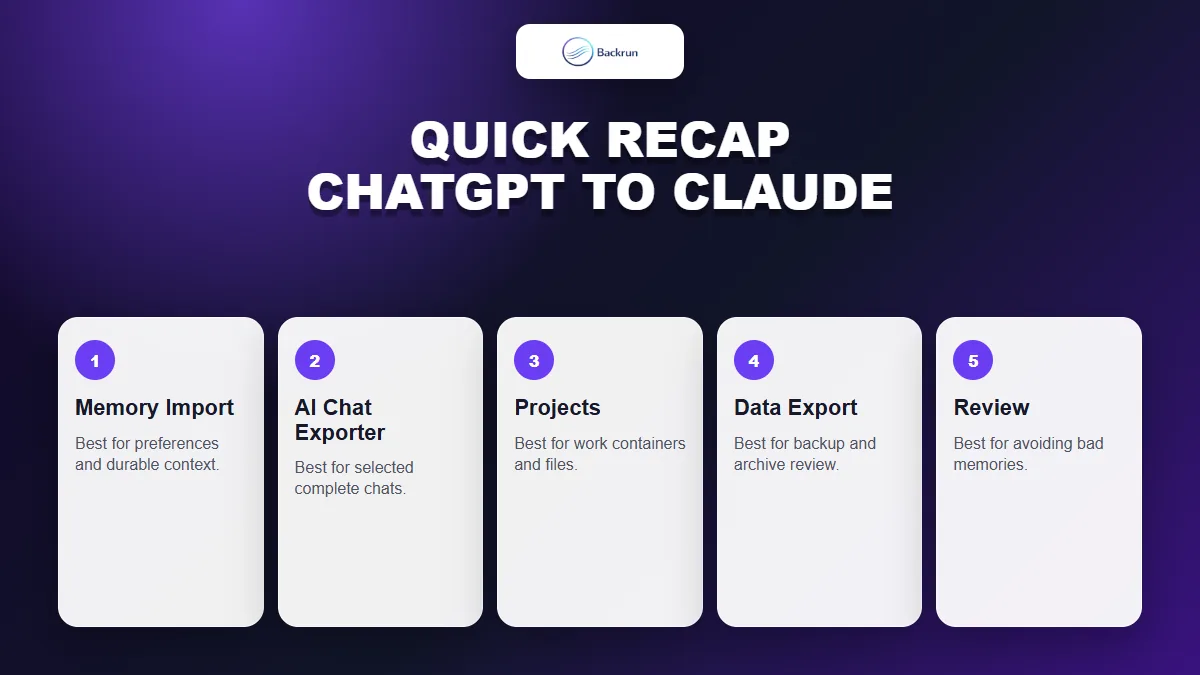
Quick Recap
Use the right migration path based on whether you need memory, selected chats, project context, a backup archive, or cleanup after import.
For most users, the best path is simple: use Claude's memory import for durable preferences, use AI Chat Exporter for specific conversations, move project-specific context into Claude Projects, and keep ChatGPT data export as a backup.
Method
Use it when
Main caution
Claude memory import
You want Claude to remember your preferences and work style
It summarizes memory, not full chat history
AI Chat Exporter
You need to transfer selected ChatGPT chats to Claude
Review formatting before pasting/uploading
Claude Projects
You have project-level context, files, and instructions
Move files and instructions deliberately
ChatGPT data export
You need a full backup archive
It requires cleanup before Claude can use it well
Memory review
You already imported memory
Delete or edit anything wrong or too private
The safest way to transfer ChatGPT to Claude is not to move everything blindly. Move durable memory, export the chats that matter, and keep project context inside projects where Claude can use it accurately.