When you copy table from Claude AI to Word, the hard part is not getting the text out of Claude. It is keeping the rows, columns, line breaks, and formatting editable once the content lands in Word.
Sometimes Word preserves the table automatically. Other times it turns the table into plain text, collapses columns, or keeps the pipe characters from Markdown instead of creating a real table. The right fix depends on the table size and how clean the Claude response is.
Below are the methods that actually work. Start with the first method when the table is part of a longer Claude conversation. Use the manual methods when you only need one small table or need to repair a messy paste.
1. Use AI Chat Exporter by Backrun for Long Claude Tables
AI Chat Exporter is the most reliable option when the Claude table is part of a long conversation or needs to stay editable in Word.
This is the most reliable route when the table is inside a long Claude thread, a research summary, a project brief, or a response with lists and code around it. Instead of manually selecting the table and hoping Word understands it, you export the useful Claude content into a document-friendly format.
Use this workflow when the table must stay editable and the surrounding context still matters.
Open Claude and load the conversation that contains the table.
Select the messages that contain the table, or export the full thread if the table depends on earlier context.
Choose Word as the output format when you want an editable .docx file.
Open the exported file in Word and check the table width, header row, links, and wrapped text.
Save a cleaned copy before sharing it with a client, teacher, or team.
Best for: long Claude conversations, multi-section answers, tables with notes, and reports you want to edit later.
Limitation: any exporter still depends on the structure Claude produced. If the original answer is visually confusing, ask Claude to regenerate the table cleanly before exporting.
Experience note: this method saves time when you need more than one table. For a full conversation workflow, this Backrun guide on Claude to Word is a useful next read.
2. Ask Claude for a Clean Markdown or HTML Table, Then Paste Into Word
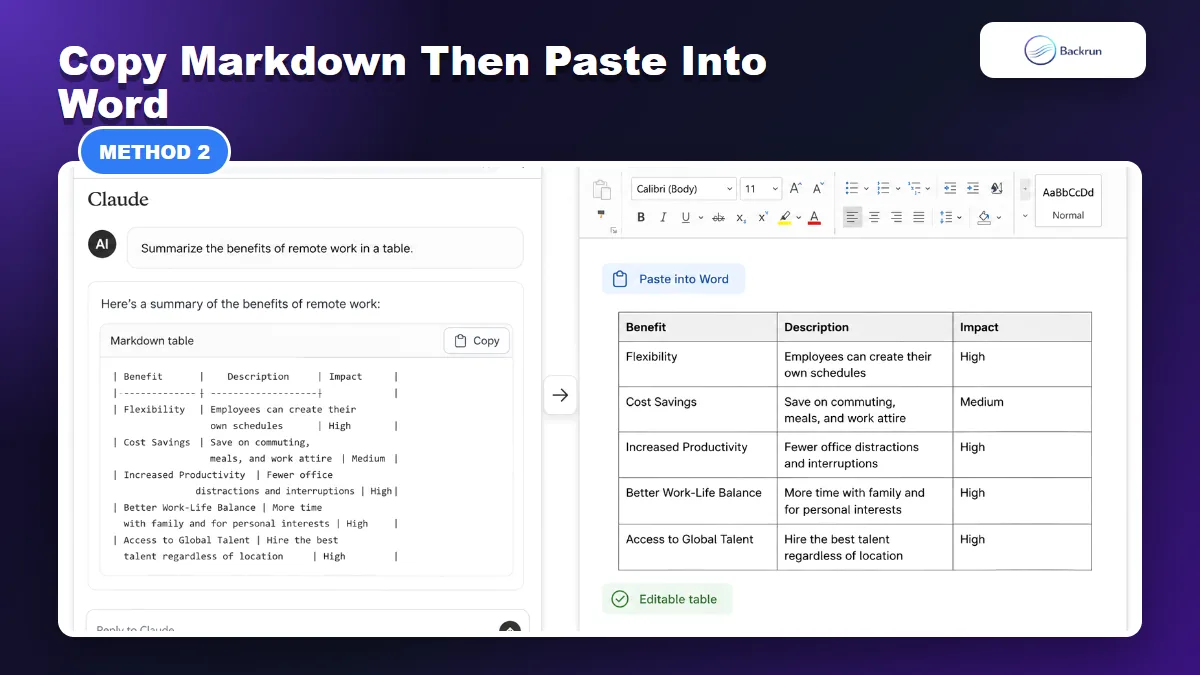
A clean Markdown or HTML table gives Word a better structure to interpret than a visually aligned block of spaces.
If you only need one table, manual copy and paste can work well. The trick is to make Claude output a table format that Word has a better chance of interpreting.
Use this workflow when the table is short, simple, and does not need a full conversation export.
Ask Claude to rebuild the table cleanly. A good prompt is: Rewrite this as a clean table with a header row. Keep each cell short and do not merge cells.
If Word keeps breaking the layout, ask for HTML instead: Return the table as simple HTML with <table>, <tr>, <th>, and <td> tags only.
Copy only the table output, not the explanation before or after it.
Paste into Word. Try normal paste first. If the result looks too styled, use Word's paste options and choose a cleaner formatting option.
Click inside the table and adjust Table Design, AutoFit, borders, and header row styling.
Check every wrapped cell, especially if the table contains long sentences, line breaks, currency, dates, or formulas.
Best for: small tables, comparison tables, short research summaries, and content briefs.
Limitation: Markdown tables with very long cells often paste poorly. Keep cells concise or use the spreadsheet method below.
Practical tip: if Word pastes the table as text with pipe characters, do not fight it manually. Ask Claude for a tab-separated version or move to Method 3.
3. Use Word's Convert Text to Table Feature
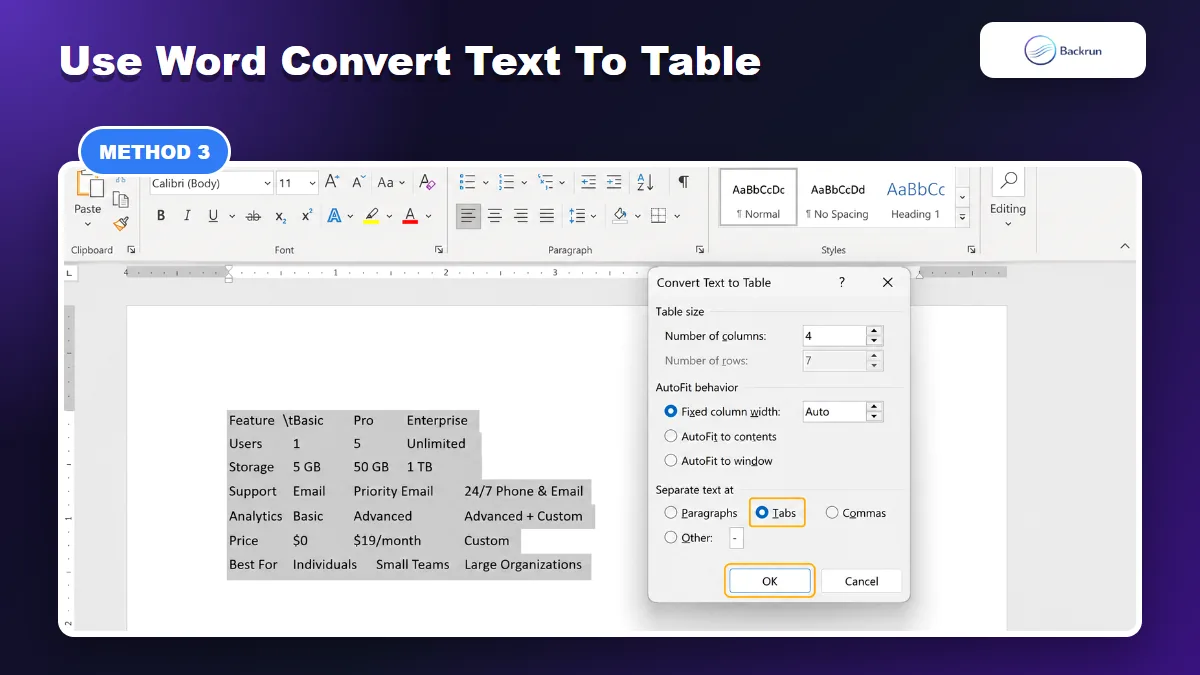
When a Claude table becomes plain text, Word can rebuild it if the columns are separated with tabs or commas.
This is the repair method for the common failure case: Claude gives you a table, but Word receives it as plain text. Word can convert text into a real table if the column separators are consistent.
Use this workflow when the paste has rows and columns, but it is not yet an editable Word table.
Ask Claude to output the table as tab-separated text. Use: Convert this table to tab-separated text. One row per line. Do not use Markdown pipes.
Copy the tab-separated text from Claude.
Paste it into Word as plain text.
Select the pasted text.
Go to Insert > Table > Convert Text to Table.
Choose Tabs under Separate text at, then click OK.
Format the new Word table with header styling, borders, and AutoFit to window if needed.
Best for: tables that pasted as text, data tables with consistent columns, and content that needs to become a real Word table after cleanup.
Limitation: this fails when cells contain random tabs, inconsistent row lengths, or paragraph breaks inside cells. Clean the source text first.
Trust check: Microsoft documents this workflow directly: insert separator characters such as tabs, select the text, then use Convert Text to Table in Word.
4. Clean the Claude Table in Sheets or Excel Before Moving It to Word
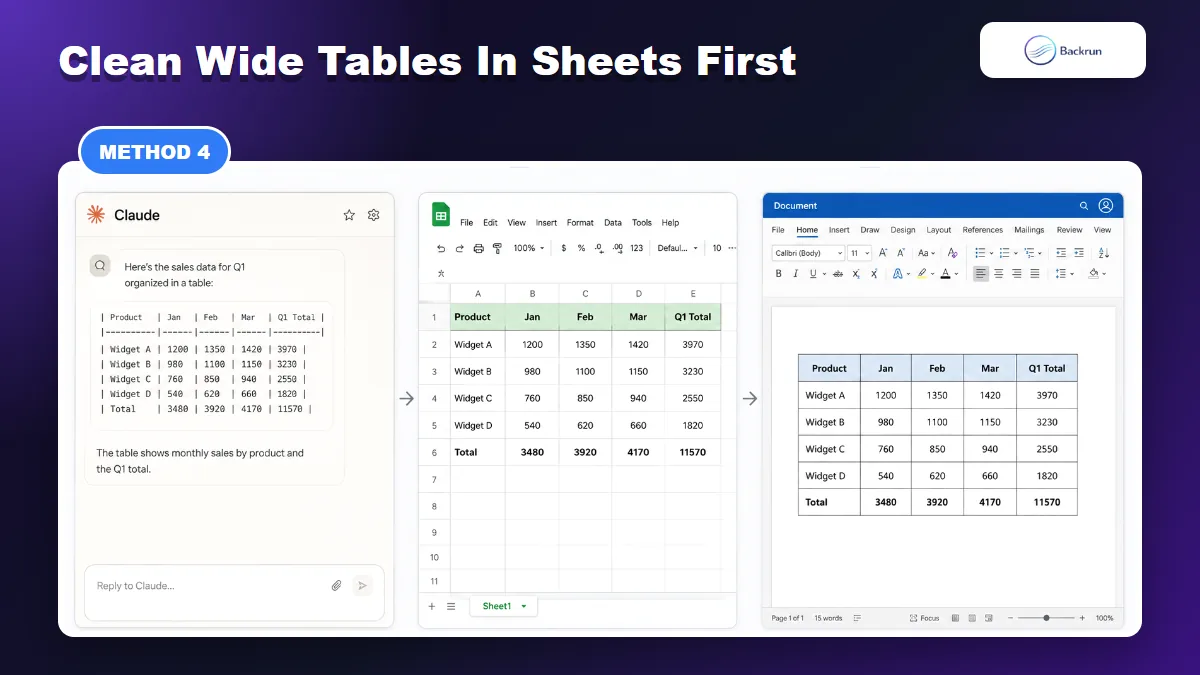
For wide tables, a spreadsheet gives you a safer place to fix rows and columns before pasting into Word.
Wide tables are where Word struggles most. If your Claude table has many columns, numbers, formulas, long cells, or inconsistent rows, clean it in a spreadsheet first and paste the finished table into Word afterward.
Use this workflow when accuracy matters more than speed.
Ask Claude for CSV or tab-separated text. For most data tables, tab-separated text is safer if cells contain commas.
Paste the result into Google Sheets or Excel.
Check every column. Make sure dates, currencies, percentages, and wrapped text did not split into the wrong cells.
Fix merged cells, blank rows, and long labels before sending the table to Word.
Copy the cleaned spreadsheet range.
Paste into Word and choose the paste option that keeps a Word-editable table instead of an image.
Use AutoFit to Window if the table is too wide for the page.
Best for: financial tables, feature matrices, survey summaries, comparison tables, and anything with more than five columns.
Limitation: this adds one extra step, but it prevents the most painful Word cleanup later.
Practical tip: when the final Word document is for print, check the table in landscape orientation before shrinking fonts. A readable table is better than a table squeezed onto a portrait page.
Quick Recap
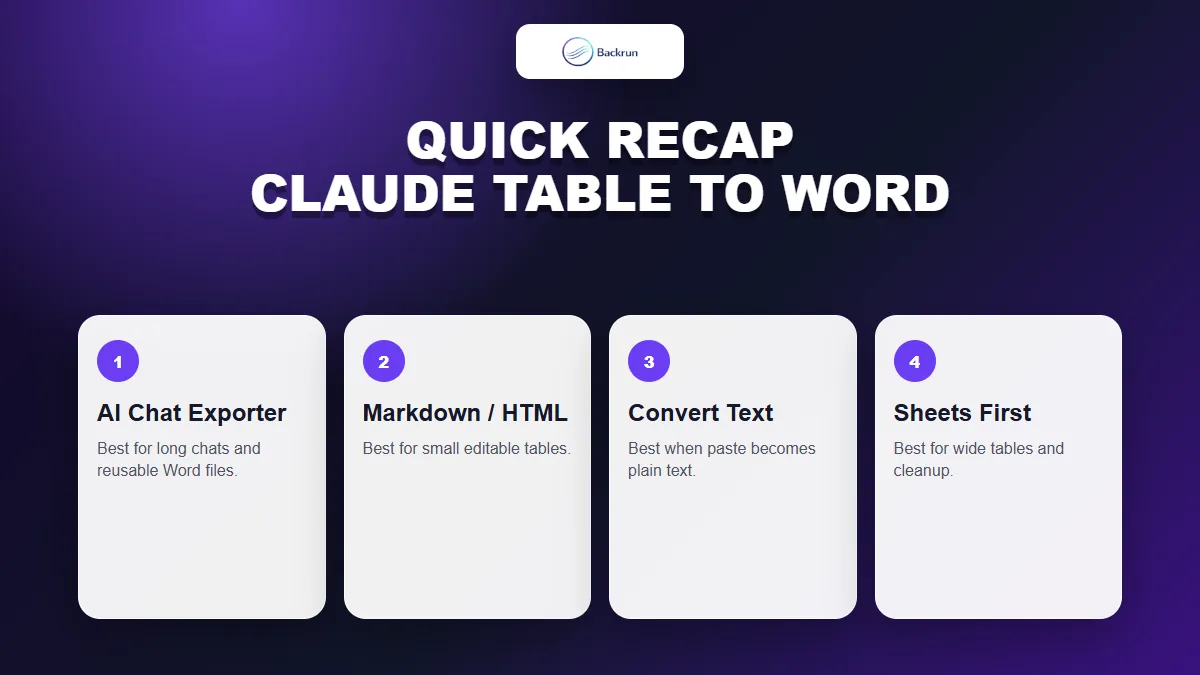
Choose the method based on table size, formatting complexity, and whether the table belongs to a longer Claude conversation.
The best way to copy table from Claude AI to Word depends on what broke during the paste.
Method
Best for
Main caution
AI Chat Exporter by Backrun
Long conversations and editable Word exports
Clean the Claude response first if the table is messy
Markdown or HTML table
Small tables and quick copy-paste
Long cells can break the layout
Convert Text to Table
Plain text pasted with consistent separators
Tabs or commas must be consistent
Sheets or Excel first
Wide tables and data cleanup
Adds an extra step before Word
For most everyday cases, ask Claude to regenerate the table cleanly, then paste it into Word. For long threads or repeated work, export through AI Chat Exporter. For broken pastes, use Word's Convert Text to Table feature or clean the data in Sheets first.