How to Import Grok AI to Google Gemini (Step-by-Step)
September 21, 20267 min read
Switching from Grok to Gemini is less about copying every old message and more about preserving the context that still matters: your preferences, active projects, decisions, and useful conversations.
This guide explains four practical ways to import Grok AI to Google Gemini, from Gemini's built-in memory tool to a selective Grok data migration.
1. Import Grok Memory With Gemini's Built-In Tool
Gemini provides a prompt-based workflow for transferring preferences and recurring context from Grok.
Gemini's memory import is the best starting point when you want the new assistant to understand how you work. It transfers a structured summary of preferences and background information, not the original Grok message history.
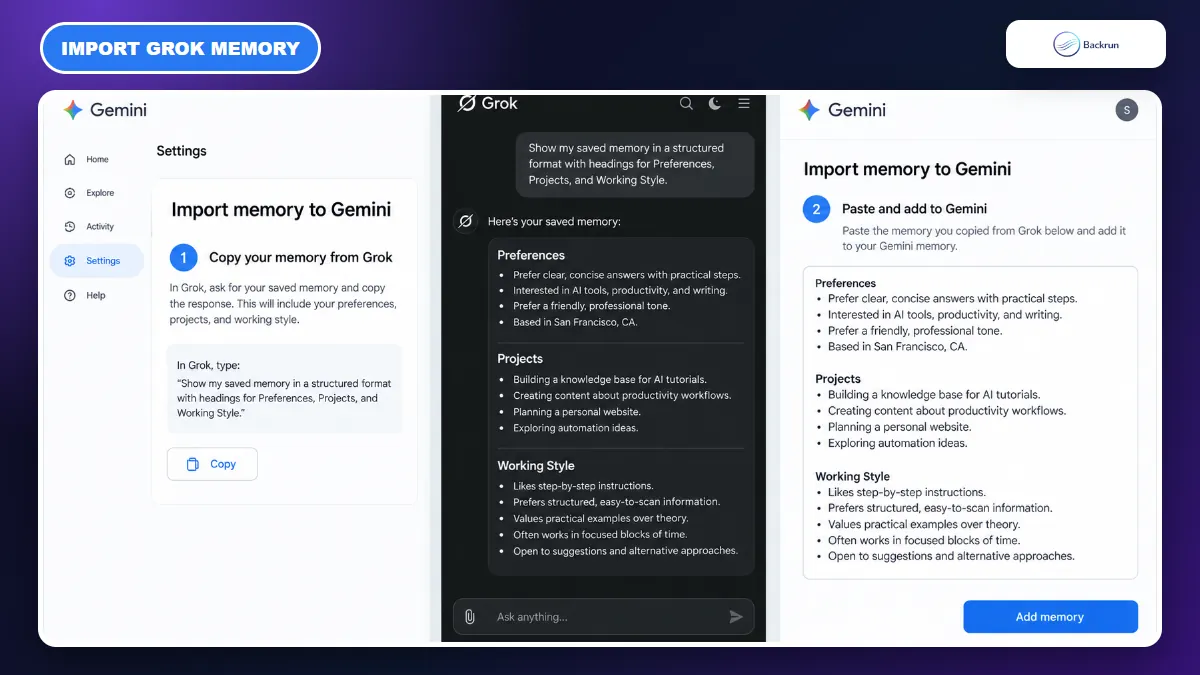
Here is how to import Grok memory into Gemini.
Open Gemini on the web with a personal Google Account.
Click Settings and help in the lower-left corner, then choose Import memory to Gemini.
Copy the prompt supplied by Gemini. The prompt asks another AI provider to summarize what it remembers about you.
Open Grok, paste that prompt into a new chat, and let Grok create the requested memory summary.
Review the response carefully. Remove passwords, private client details, payment information, home addresses, and any fact you do not want stored in Gemini.
Return to Gemini, paste the cleaned response into the import field, and click Add memory.
Check the result by asking Gemini to list the preferences, projects, and instructions it has just learned.
Google's official import guide for Gemini Apps says the feature is for users aged 18 or older who are signed in with a personal Google Account. It is not available for work, school, or supervised accounts, and Google currently excludes the EEA, Switzerland, and the United Kingdom.
Best for: preferred tone, formatting habits, recurring tasks, professional background, frequently used tools, and current goals.
Main limitation: this method does not recreate Grok chats in the Gemini sidebar. Grok generates a memory summary, so verify dates, names, project status, and any claim that could have been inferred incorrectly.
2. Use AI Chat Exporter for a Complete Grok Conversation
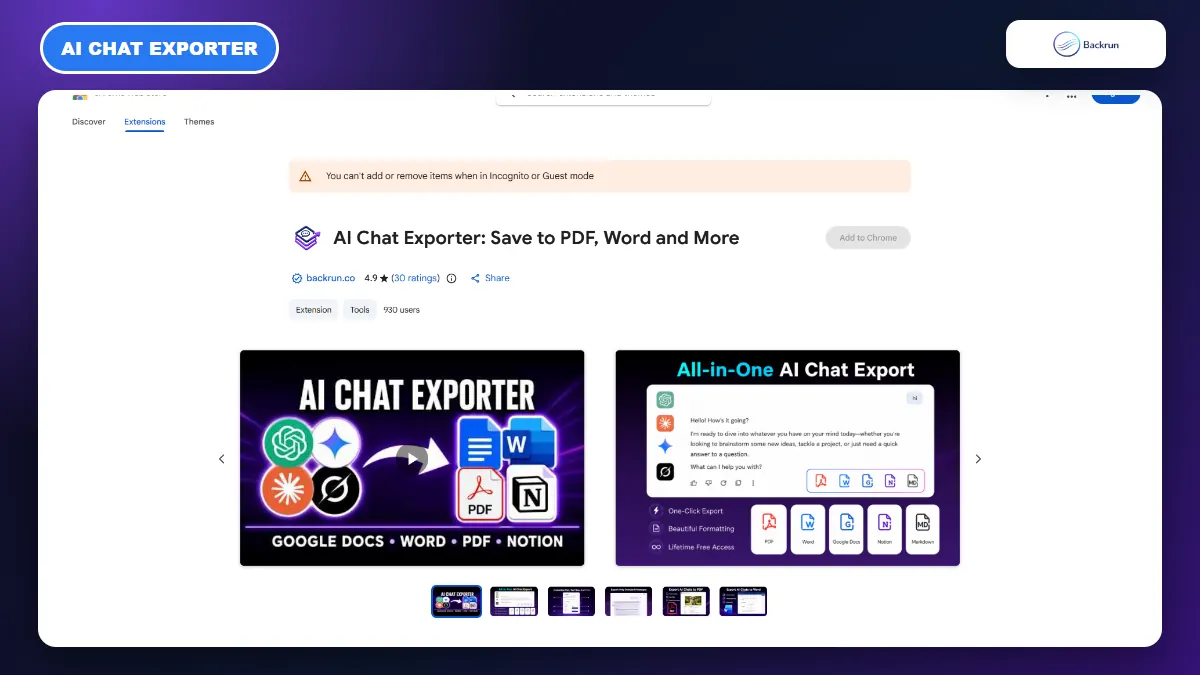
The live Chrome Web Store listing confirms that AI Chat Exporter supports Grok and multiple reusable document formats.
Use this method when Gemini needs the actual sequence of prompts and answers. AI Chat Exporter can save a selected part of a Grok conversation or the complete thread, which is more reliable than manually copying a long chat.
Follow these steps to move the conversation.
Install AI Chat Exporter from its Chrome Web Store page and review the extension permissions before enabling it.
Open Grok.com and load the conversation you want Gemini to read.
Select the relevant messages, or choose the whole conversation when earlier prompts affect later answers.
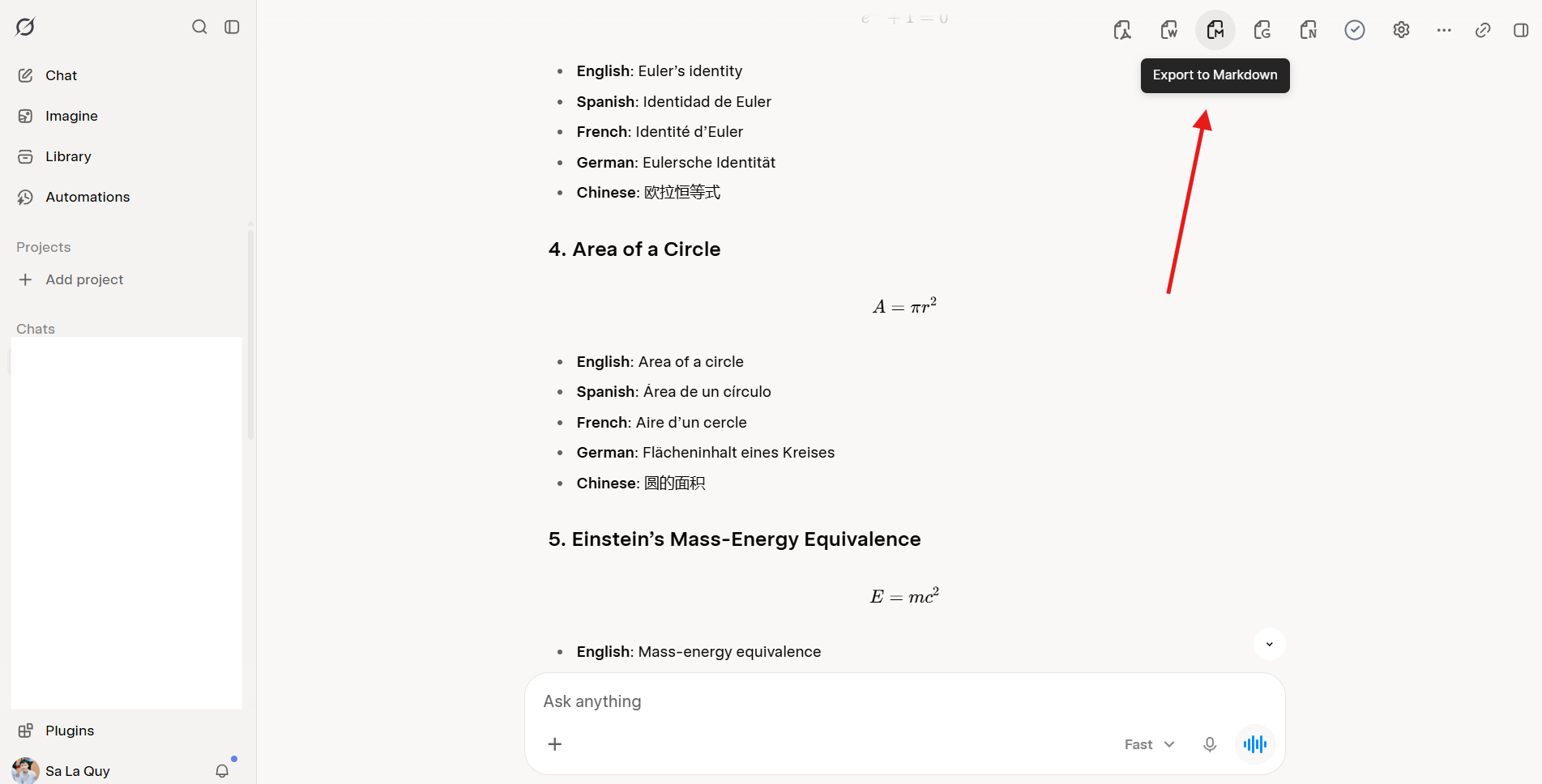
Choose a useful export format. Markdown is compact and keeps headings and code readable; PDF or Word works well when you want a document to upload; Google Docs is convenient for editing before the transfer.
Open Gemini and attach the exported file, paste the cleaned Markdown, or provide the Google Docs content that Gemini should use.
Give Gemini a precise instruction, such as: Use this Grok conversation as background. Identify the latest accepted decisions and continue from the final unresolved task.
Ask Gemini to restate its understanding before it produces new work. Correct any decision, date, or requirement it misread.
Best for: research, writing, coding, calculations, tables, and long chats where message order matters.
Experience tip: do not export more than the task requires. Delete repeated answers, failed approaches, outdated requirements, and sensitive values first. A focused transcript gives Gemini fewer conflicting instructions and makes verification faster.
If you want a portable text archive before the move, the Backrun guide to exporting Grok to Markdown explains why Markdown works well for headings, code, links, and structured notes.
3. Ask Grok to Create a Gemini Handoff Brief
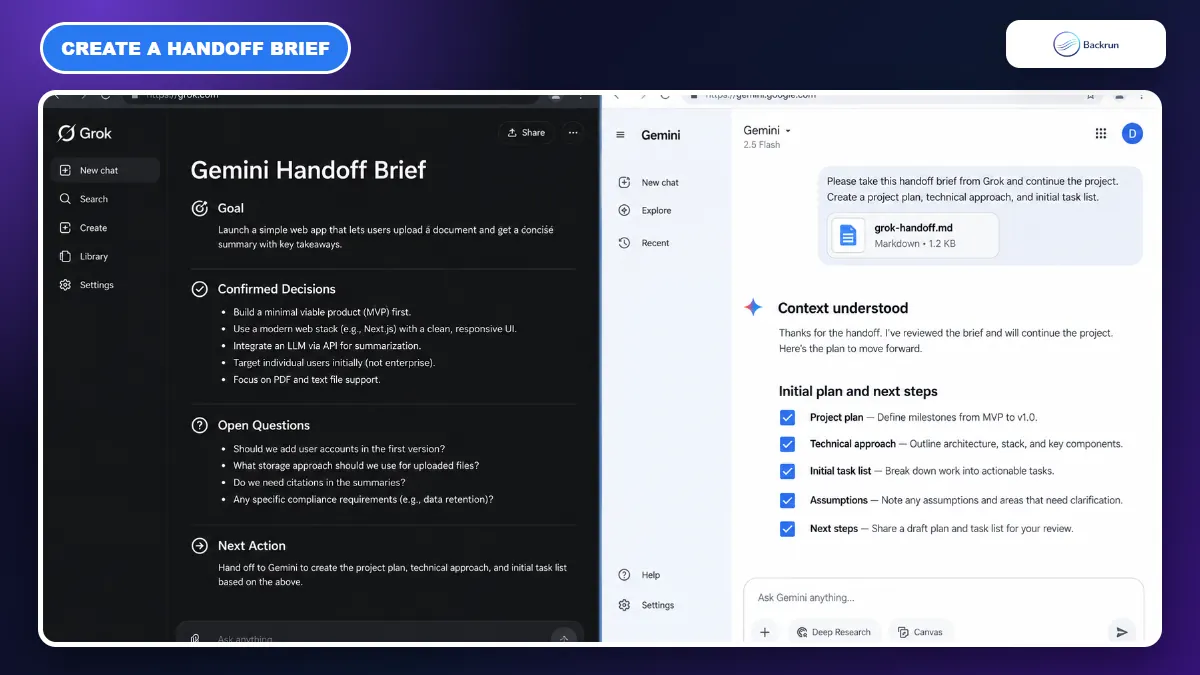
A handoff brief gives Gemini the current project state without transferring every exploratory message.
A handoff brief is usually the cleanest method for one active project. Instead of moving an entire conversation, you ask Grok to separate final decisions from abandoned ideas and create a compact document that Gemini can continue.
Use the workflow below.
Open the Grok chat that contains the project you want to continue.
Ask Grok for a structured handoff with these sections: Goal, Background, Confirmed Decisions, Constraints, Important Facts, Files and Links, Open Questions, and Next Action.
Tell Grok to label uncertainty and explicitly exclude options that you discussed but rejected.
Compare the brief with the original thread. Repair missing numbers, names, URLs, filenames, deadlines, and technical requirements.
Paste the brief into Gemini or save it as Markdown and attach the file to a new Gemini chat.
Ask Gemini to summarize the handoff in its own words and list anything that remains ambiguous.
Continue only after the summary is accurate. This prevents Gemini from building new work on a mistaken assumption.
You can paste this prompt into Grok:
Create a handoff brief for Google Gemini. Preserve verified facts and final decisions, label assumptions, remove duplicate exploration, list unresolved questions, include all important files and links, and finish with the exact next action. Do not invent missing context.
Best for: an active report, content plan, development task, research project, or workflow that has a clear current state.
Main limitation: a handoff brief is a summary. Grok may omit a small detail or mistake an early suggestion for an approved decision. Keep the original chat available until Gemini has repeated the brief accurately.
4. Download Grok Data and Move Only What Gemini Needs
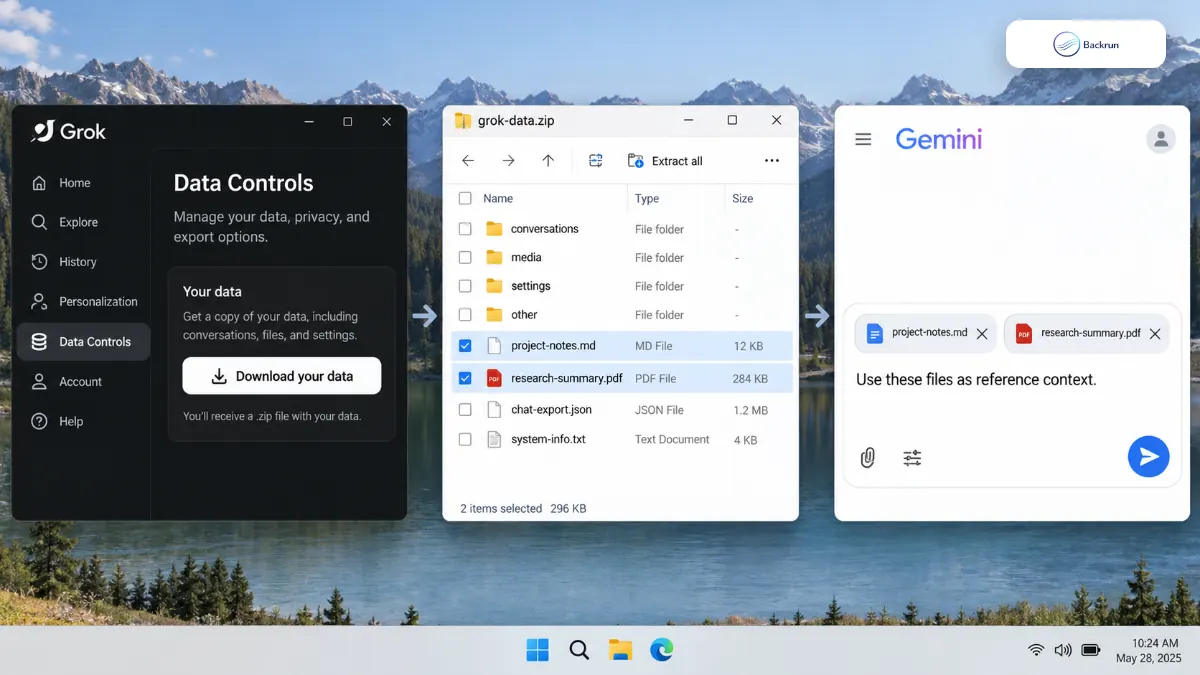
Use the Grok archive as a backup, then move only the conversations and files that Gemini actually needs.
The account-data route is useful when you need a private backup or must search across many Grok conversations. It requires more preparation than the other methods because a raw archive can contain technical files, unrelated chats, and sensitive account information.
Below is the safer migration process.
Open Grok Settings on Grok.com or in the Grok mobile app.
Go to Data Controls and request a download of your data.
Wait for the download notification, save the archive, and keep one untouched copy in a private location.
Extract the ZIP locally and inspect the folder structure before uploading anything.
Identify only the conversations and project files that still matter. Convert technical records into a readable Markdown, TXT, PDF, or document file when necessary.
Remove sensitive and irrelevant material, including account metadata, temporary credentials, personal information, abandoned projects, and duplicate exports.
Open Gemini, attach the selected files to a new conversation, and explain which file is authoritative and what Gemini should do next.
Validate the result by asking Gemini to list the imported goals, decisions, open questions, and missing information.
xAI's consumer FAQ directs users to Settings → Data Controls to access or download their Grok data. The archive format can change, so treat it as a backup until you have inspected its contents.
Google also documents a ZIP-based chat-history importer inside Import memory to Gemini. The official instructions specifically describe exports from ChatGPT and Claude; they do not document Grok's archive structure. A raw Grok ZIP may therefore fail validation or import incorrectly. The dependable Grok workflow is to extract and curate readable files before using them as Gemini reference context.
Best for: private backup, compliance review, and selecting useful material from many Grok chats.
Privacy rule: never upload the complete archive without reviewing it. Imported data becomes part of your Gemini activity and is handled under Google's Gemini data policies.
Quick Recap
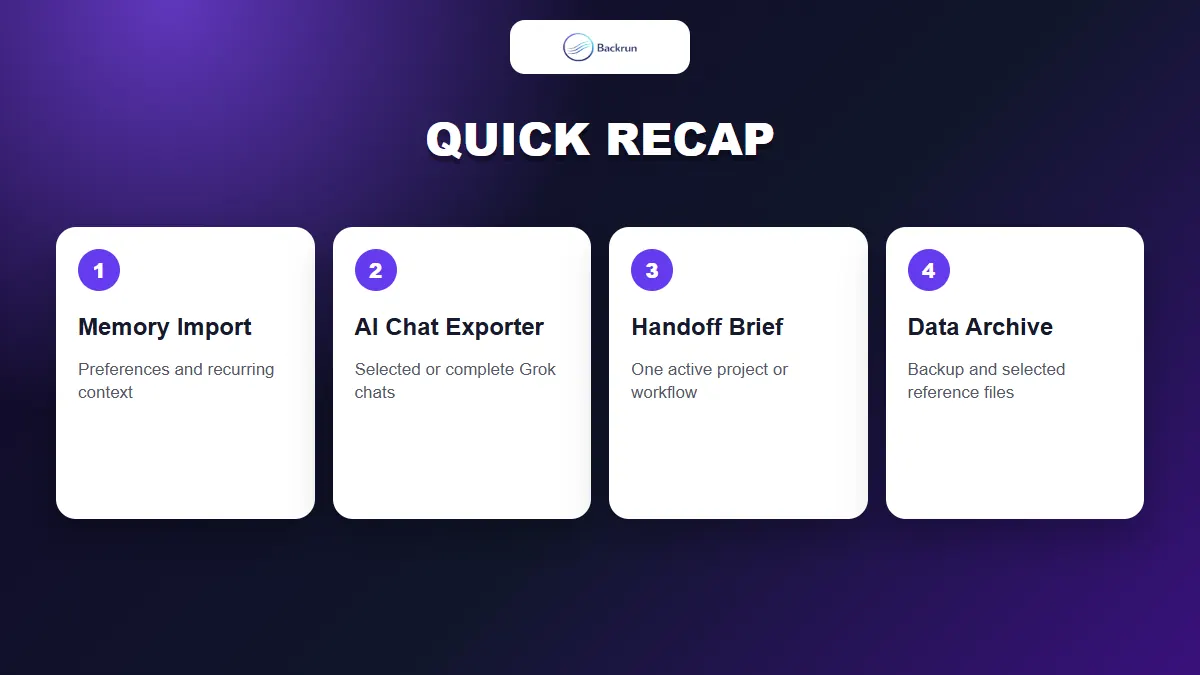
Choose memory import, a full conversation export, a project handoff, or a curated account archive based on the context you need.
Method
Best for
Main limitation
Gemini Memory Import
Preferences and recurring context
Does not recreate Grok chat history
AI Chat Exporter
Selected messages or a complete conversation
Creates reference content, not native Grok message objects
Gemini handoff brief
One active project or workflow
May omit exploratory details
Grok data archive
Backup and selective migration across many chats
Requires cleanup; raw ZIP compatibility is not documented
For most users, start with Gemini's memory import for long-term preferences, use AI Chat Exporter when the conversation itself matters, and choose a handoff brief for one active project. Keep the Grok archive as a backup and move only the files Gemini genuinely needs.