How to Import Claude to ChatGPT Without Losing Useful Context
August 24, 20267 min read
If you want to import Claude to ChatGPT, the useful question is not whether ChatGPT has a perfect one-click Claude importer. It does not. The useful question is how to move the Claude context that ChatGPT actually needs.
Claude and ChatGPT store conversations, memory, files, and project context differently. That means a clean migration is usually selective: export the Claude chats that matter, ask Claude to summarize durable context, and move project files into the right ChatGPT workspace.
This guide focuses on methods that work in real workflows. You can use an exporter for full Claude chats, a handoff brief for active work, Claude's official data export for backup, and ChatGPT Memory or Projects for longer-term context.
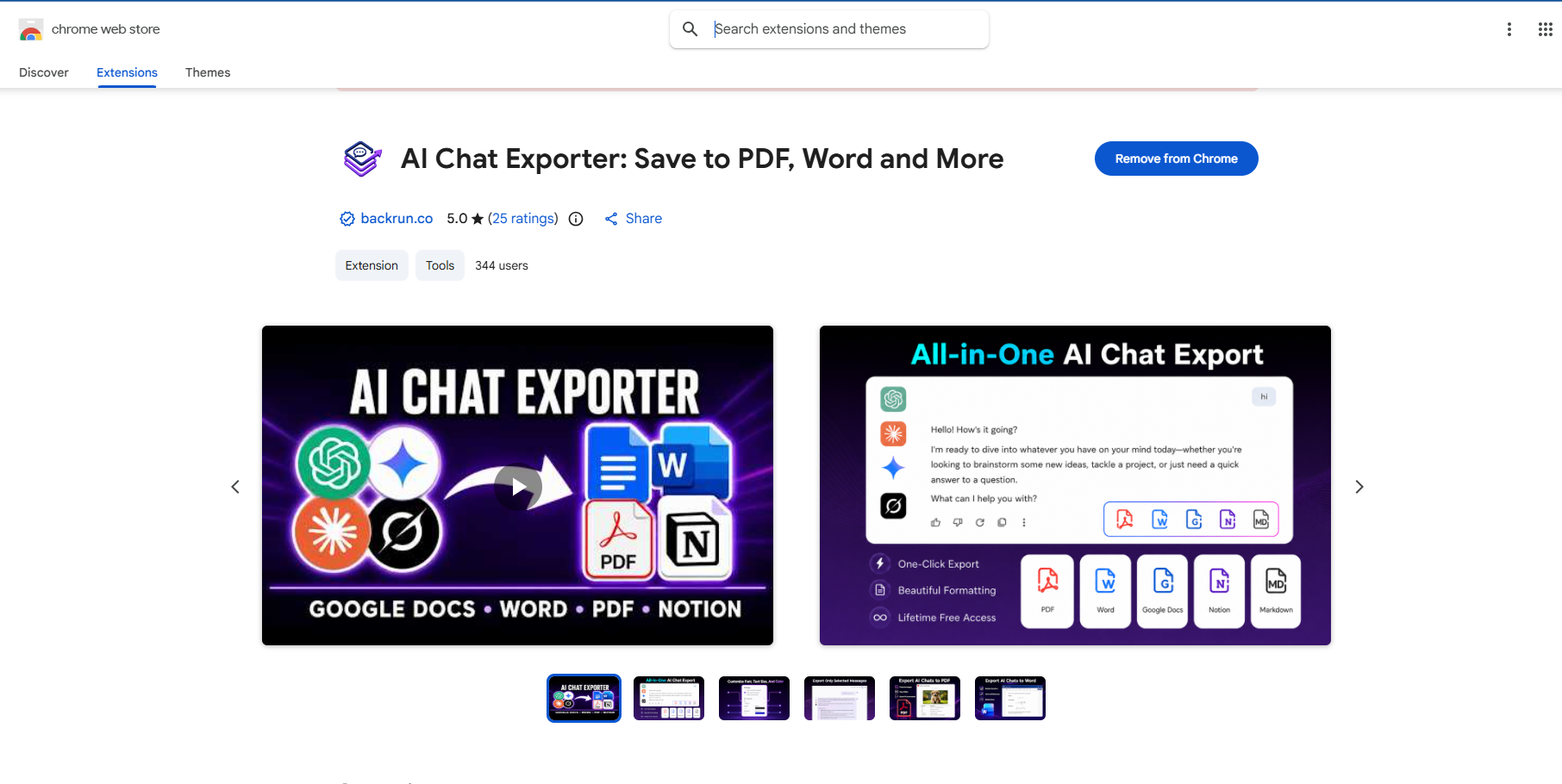
1. Use AI Chat Exporter by Backrun for Selected Claude Chats
This is the best method when you need to import Claude chat to ChatGPT with the conversation structure still readable. It is especially useful for coding threads, research notes, tables, outlines, and long drafts that would be painful to copy by hand.
Use this workflow when the original Claude conversation matters, not just the summary.
Select the messages you need, or export the full thread if the sequence matters.
Export to Markdown, Word, PDF, Google Docs, or Notion.
Open ChatGPT and paste the clean Markdown text, or upload the file if your ChatGPT plan supports file uploads.
Tell ChatGPT what to do with it, such as summarize, continue, rewrite, compare, or extract next actions.
Best for: selected Claude chats where exact context, formatting, or message order matters.
Limit: this does not recreate the Claude chat as a native ChatGPT conversation history. It gives ChatGPT the content to read and continue from.
Experience tip: Markdown usually works better than PDF when you want ChatGPT to keep editing the content. If you need cleaner Markdown workflows, this Backrun guide on Claude chat to Markdown pairs well with this method.
2. Ask Claude to Create a ChatGPT Handoff Brief
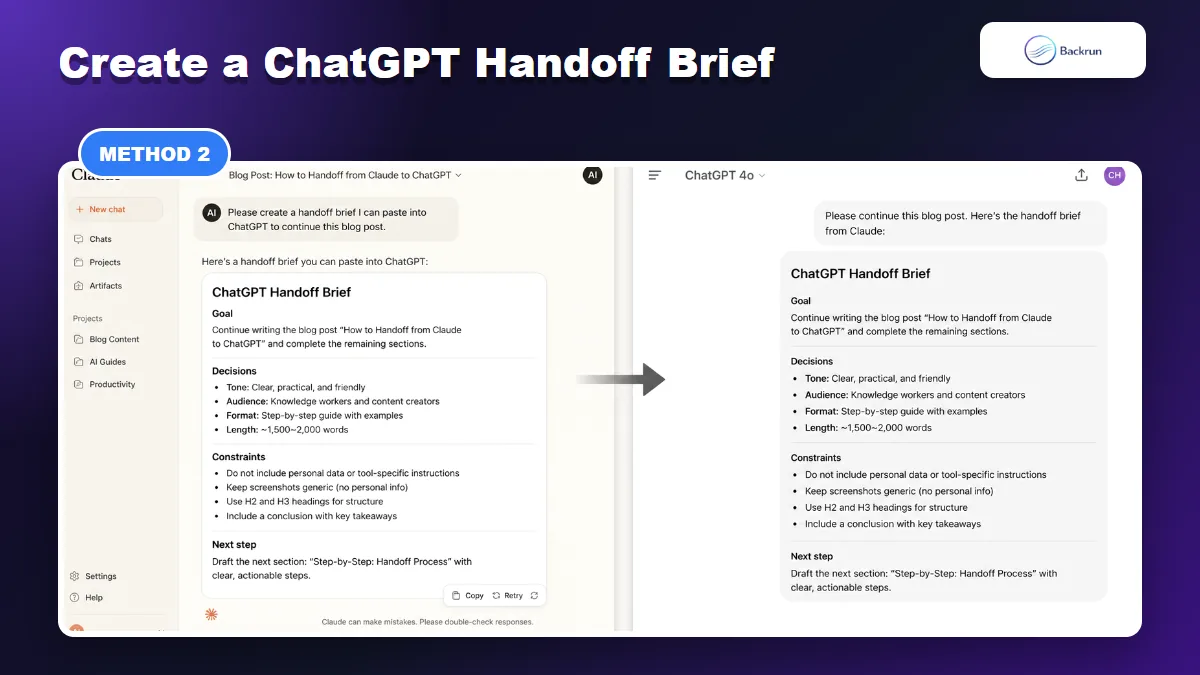
A handoff brief is often better than a raw transcript when ChatGPT only needs the current goal, decisions, constraints, and next step.
If the full Claude transcript is not necessary, a handoff brief is faster and often more useful. Instead of making ChatGPT read everything, ask Claude to compress the conversation into the information ChatGPT needs next.
Here is the practical version.
Open the relevant Claude chat.
Ask Claude for a ChatGPT handoff brief. Use a prompt like: "Summarize this conversation so I can continue it in ChatGPT. Include the goal, decisions, constraints, important context, open questions, and next step."
Review the brief and remove private, outdated, or irrelevant details.
Open a new ChatGPT conversation.
Paste the handoff brief and ask ChatGPT to restate what it understands before continuing.
Best for: active work where ChatGPT only needs the useful context, not every line of the Claude chat.
Limit: summaries can drop exact code, quotes, equations, or table structure. If precision matters, export the chat instead.
Good handoff briefs include: the goal, what has already been decided, what should not change, unresolved questions, and the next action. That gives ChatGPT a clean starting point.
3. Export Claude Data, Then Upload Only the Useful Parts
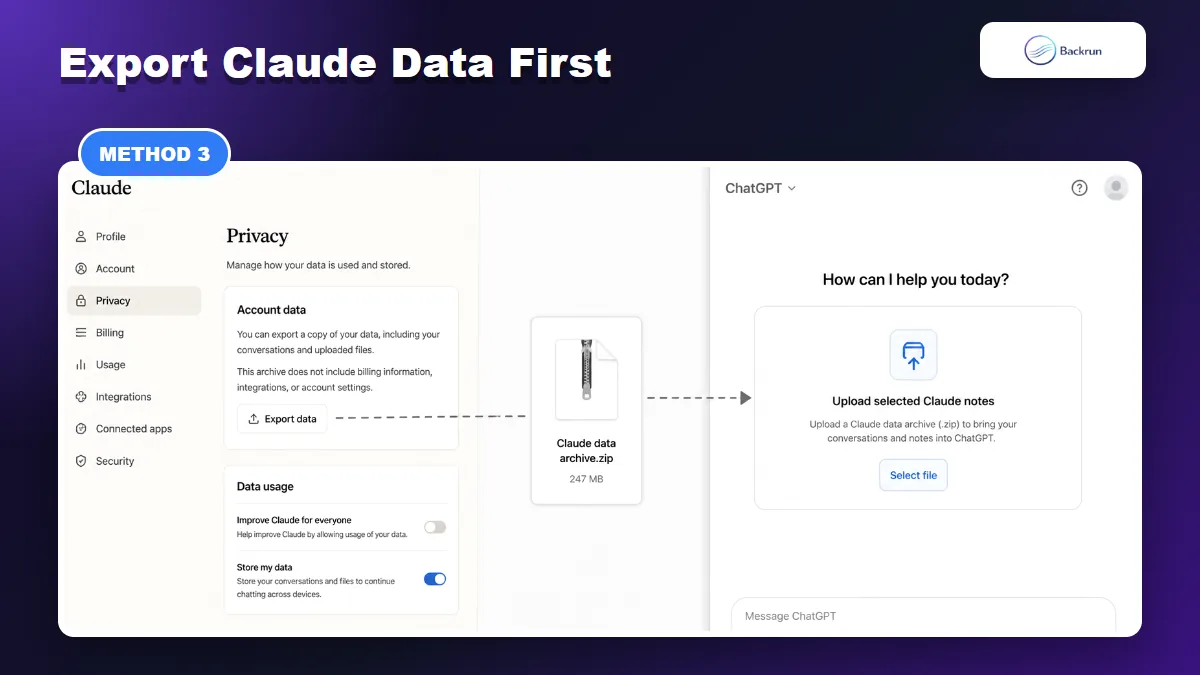
Claude data export is best treated as a private archive, then curated before selected notes are uploaded or pasted into ChatGPT.
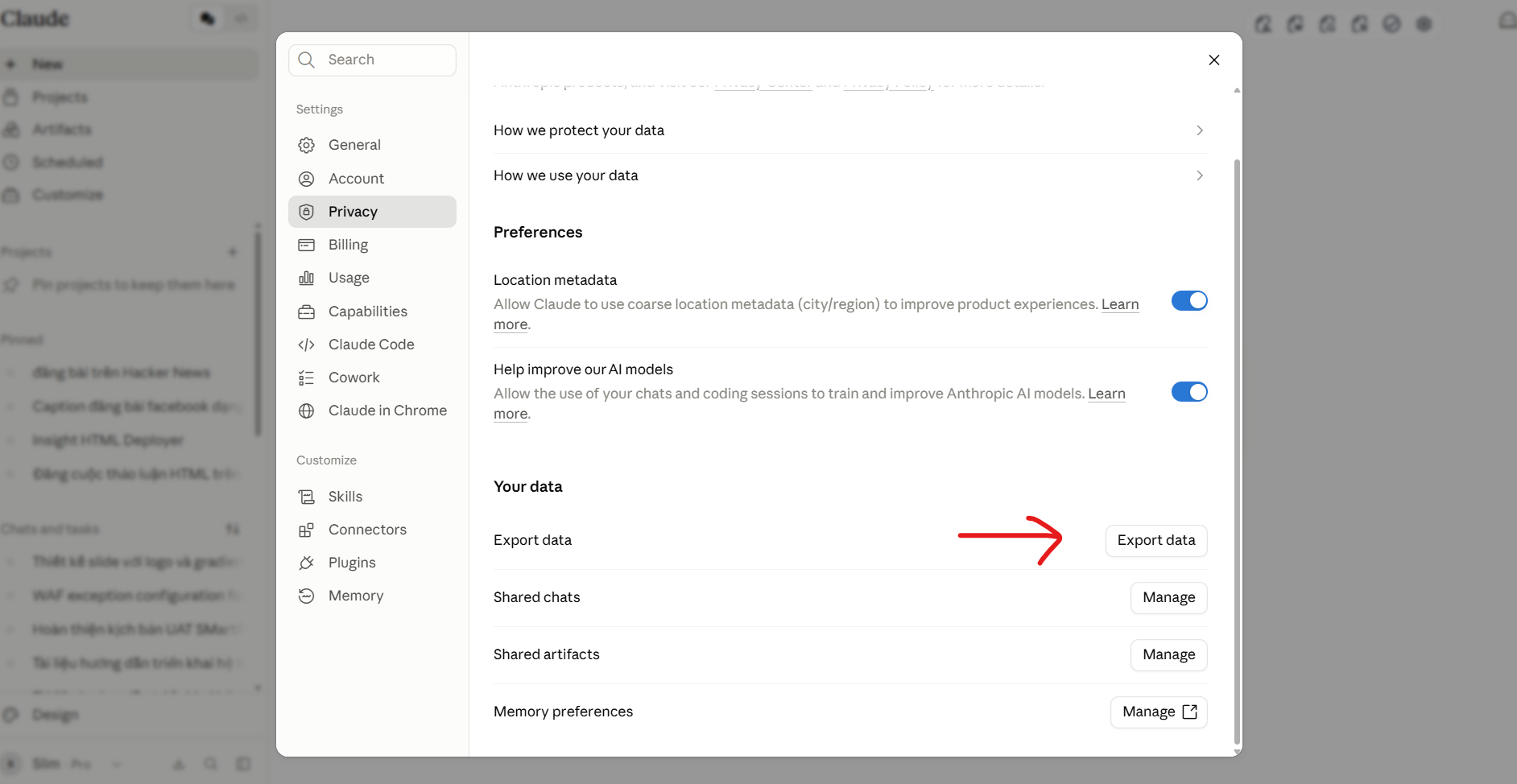
Use this method when you want a complete Claude backup before deciding what to move. Anthropic provides an official Claude data export path, but the archive should be treated as a source library, not a polished ChatGPT import file.
This is the safer way to import Claude data to ChatGPT.
Open Claude settings.
Find the Data export option in the Privacy section.
Request your Claude data export and wait for the archive.
Download the archive and store it privately.
Extract only the conversations or notes ChatGPT needs.
Convert those parts to Markdown, TXT, or a clean document.
Paste or upload the selected file into ChatGPT, then ask ChatGPT to summarize or continue from it.
Best for: backup, compliance, old conversation search, or moving a small number of important Claude chats after reviewing the archive.
Limit: do not upload your whole Claude data archive blindly. It may contain private details, old mistakes, internal files, or context ChatGPT does not need.
Trust check: use Anthropic's official export for the backup, then curate the content before giving it to ChatGPT. Smaller, cleaner inputs are easier to audit.
4. Import Claude Memory to ChatGPT Manually
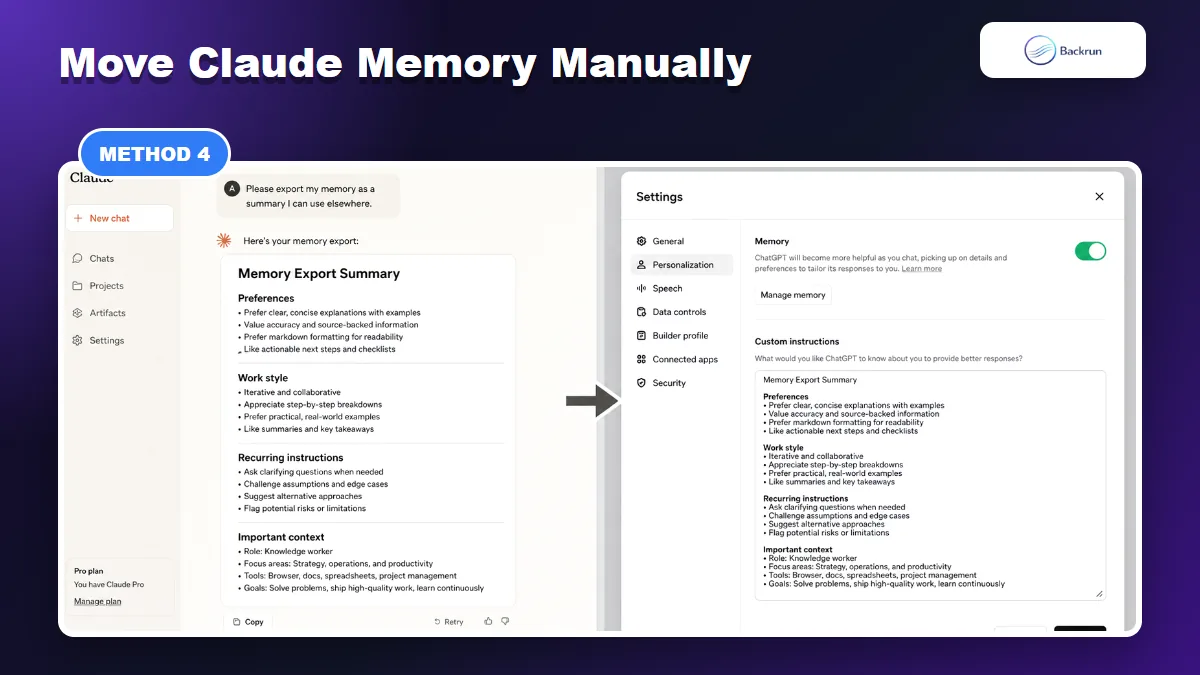
Claude memory can be summarized and moved into ChatGPT Memory or Custom Instructions, but it is not a one-click native import.
There is no clean native button that transfers Claude memory directly into ChatGPT Memory. The practical workaround is to ask Claude to export or summarize the memory, then add the right parts to ChatGPT Memory or Custom Instructions.
Use this method when the goal is to import Claude memory to ChatGPT, not move old chat transcripts.
Ask Claude to summarize durable memory: preferences, work style, writing tone, recurring instructions, tools, and important constraints.
Remove anything too private or temporary.
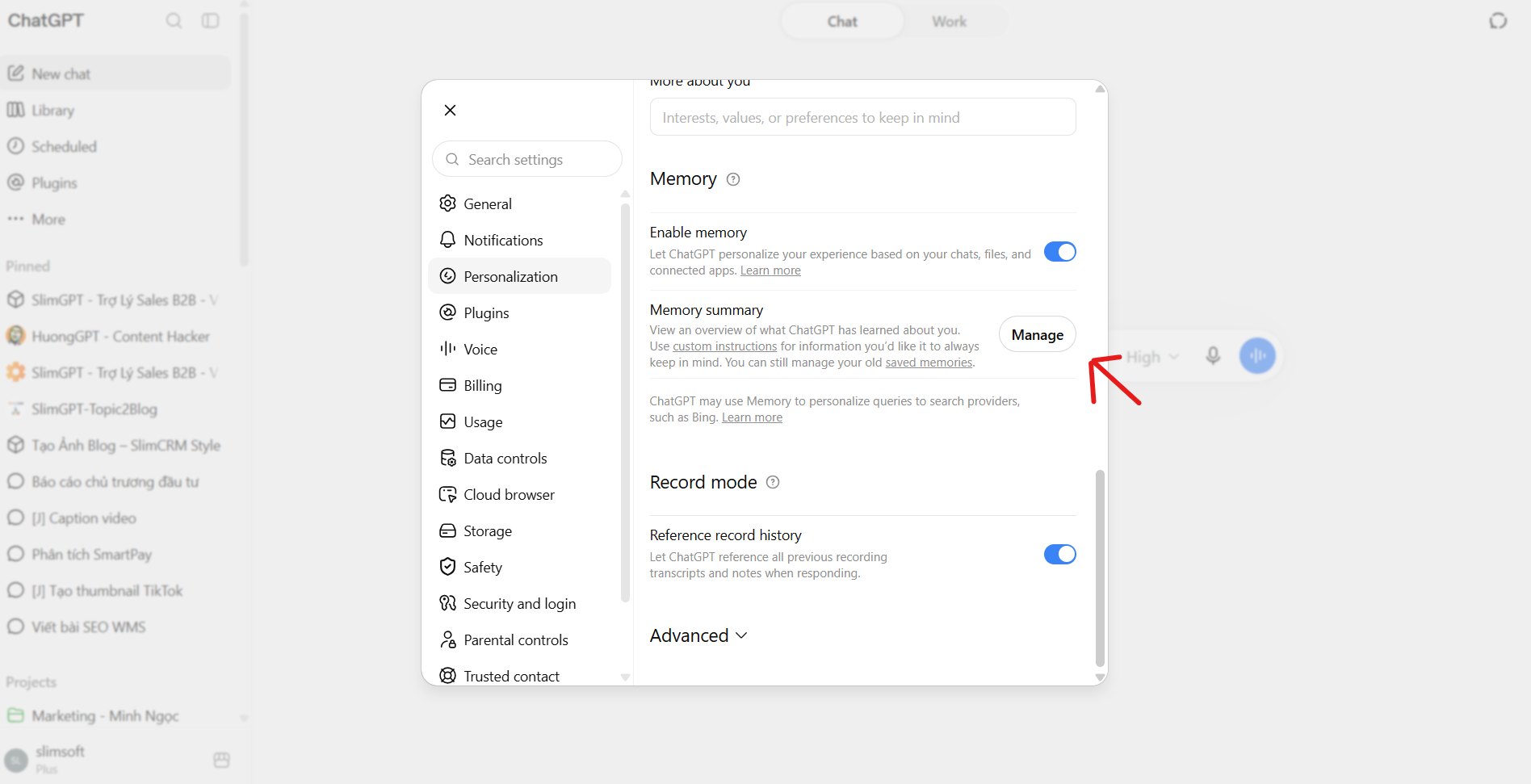
Open ChatGPT settings.
Select the Personalization section.
Use Memory or Custom Instructions, depending on what is available in your account.
Add only stable preferences, such as preferred tone, output format, role context, and recurring workflow rules.
Run one test prompt and check whether ChatGPT applies the imported context correctly.
Best for: style, preferences, reusable workflow rules, and durable personal context.
Limit: do not turn every Claude memory into ChatGPT memory. Some details belong in a specific project or chat, not in global personalization.
Practical note: ChatGPT Memory is useful, but it is not a universal knowledge base. Keep global memory short and put project-specific context inside a ChatGPT Project or the opening message of a chat.
5. Move Claude Projects Into ChatGPT Projects One by One
Project-by-project migration keeps ChatGPT focused and avoids mixing unrelated Claude history into one chat.
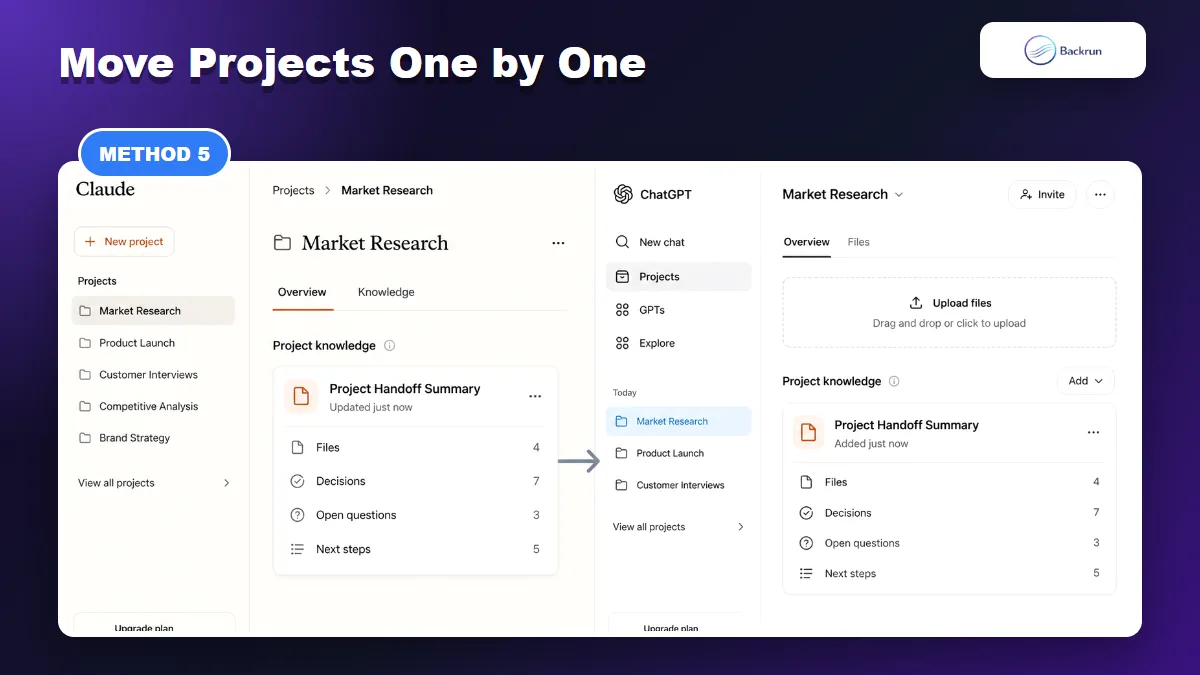
If your Claude context belongs to a project, do not dump it into one general ChatGPT chat. Move each project separately so ChatGPT has a focused workspace and clean files.
Here is the project-by-project workflow.
Open the Claude Project or the set of Claude chats that belong together.
Ask Claude for a project handoff summary with files, decisions, constraints, unresolved questions, and next steps.
Download or copy important files from the Claude project.
Create a new ChatGPT Project with the same project name or a clearer one.
Upload the files and paste the handoff summary.
Ask ChatGPT to restate the project brief before doing new work.
Best for: client work, research, code projects, content pipelines, and anything with multiple files or long-running context.
Limit: this takes more time than a single paste, but it prevents unrelated Claude history from polluting ChatGPT's context.
If the project output will keep moving between tools, this Backrun guide on ChatGPT to Markdown can help keep future ChatGPT outputs portable.
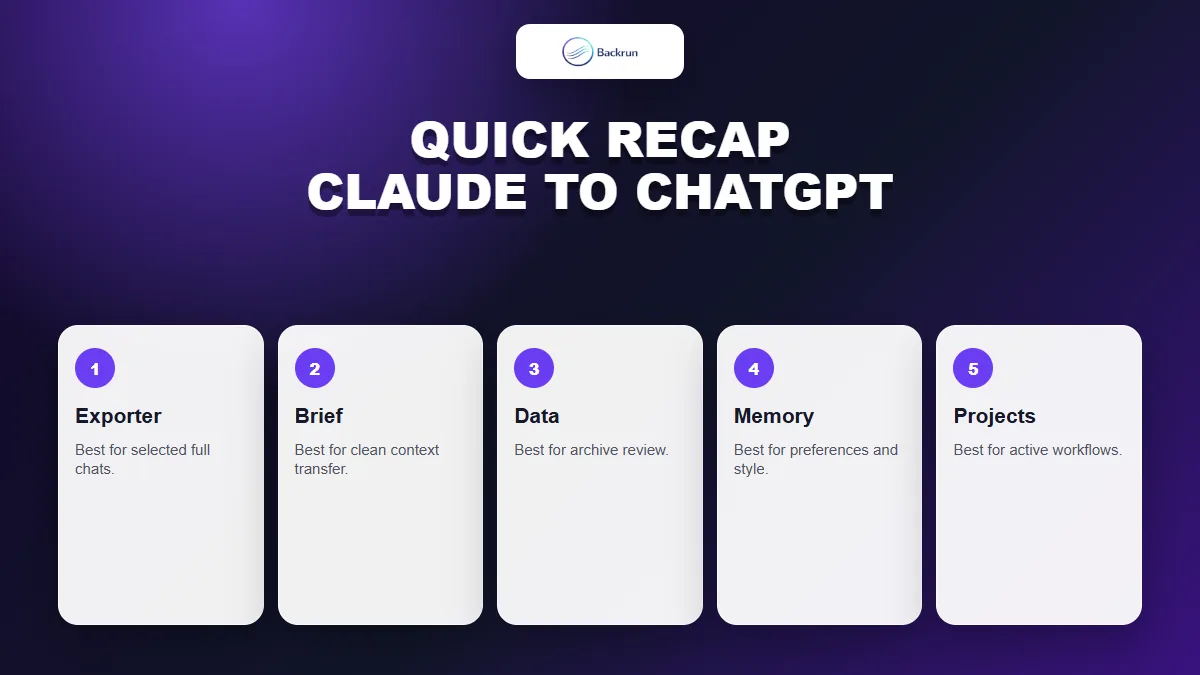
Quick Recap
Choose the import method based on whether you need selected chats, a short brief, a full archive, memory, or project-level context.
The best way to import Claude to ChatGPT is to move the right type of context to the right place. Full chats belong in an export file. Durable preferences belong in Memory or Custom Instructions. Project context belongs in ChatGPT Projects.
Method
Use it when
Main caution
Claude Exporter
You need selected full chats
Export only the conversations ChatGPT needs
Handoff brief
You need the useful context, not the raw chat
Review the summary before pasting
Claude data export
You want a full backup first
Do not upload the whole archive blindly
Memory transfer
You want ChatGPT to learn your durable preferences
Keep global memory short and stable
Projects
You are moving an active workflow
Keep unrelated projects separate
For most people, the strongest workflow is simple: export the Claude chats that matter, create a short handoff brief, move stable preferences into ChatGPT Memory or Custom Instructions, and create a ChatGPT Project for any workflow that has files or long-running context.