How to Import ChatGPT to Grok Without Losing Useful Context
August 24, 20267 min read
If you want to import ChatGPT to Grok, the realistic goal is not to press one magic migration button. The useful goal is to move the right ChatGPT context into Grok in a format Grok can actually read and continue from.
At the moment, there is no dependable native tool that imports your full ChatGPT account, memory, and chat history directly into Grok as editable Grok conversations. That means the best workflow is selective: export the conversations that matter, summarize durable context, and bring only the useful parts into Grok.
This guide focuses on methods that actually work in practice. Use the extension method when you need full conversations, use a handoff brief when you only need context, and use ChatGPT's data export when you want a private archive before deciding what to move.
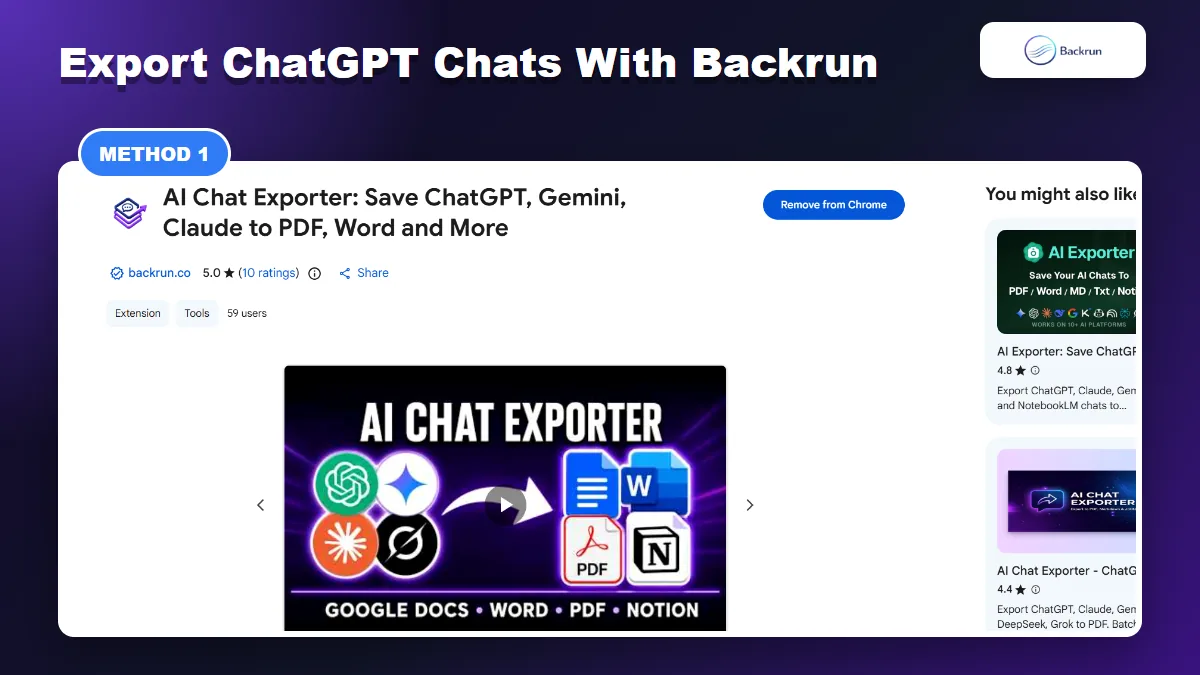
1. Use AI Chat Exporter by Backrun to Move Selected Chats
AI Chat Exporter is the cleanest method when you need to move selected ChatGPT conversations into Grok as readable files or text.
This is the cleanest method when you want Grok to read a real ChatGPT conversation instead of a short summary. It is especially useful for research chats, coding sessions, long strategy threads, tables, and answers with formatting you do not want to rebuild manually.
Open the ChatGPT conversation you want to move into Grok.
Select the messages you need, or export the full thread if the order of the discussion matters.
Choose an export format. Markdown is usually best for editable context, while PDF is better for a read-only record.
Open Grok and paste the cleaned Markdown text, or upload the exported file if file upload is available in your Grok interface.
Give Grok a clear instruction, such as: "Read this ChatGPT conversation and continue the work from the latest decision."
Best for: moving selected ChatGPT chats into Grok while keeping headings, lists, code blocks, tables, and message order more readable.
Limit: this is still a content transfer, not a native account migration. Grok will not automatically recreate your old ChatGPT sidebar or memory from the export.
Experience tip: export only the section Grok needs. A focused export usually produces a better Grok answer than uploading months of unrelated chat history.
If your workflow depends on Markdown, this related Backrun guide on ChatGPT to Markdown is useful before you move the content into Grok.
2. Ask ChatGPT to Create a Grok Handoff Brief
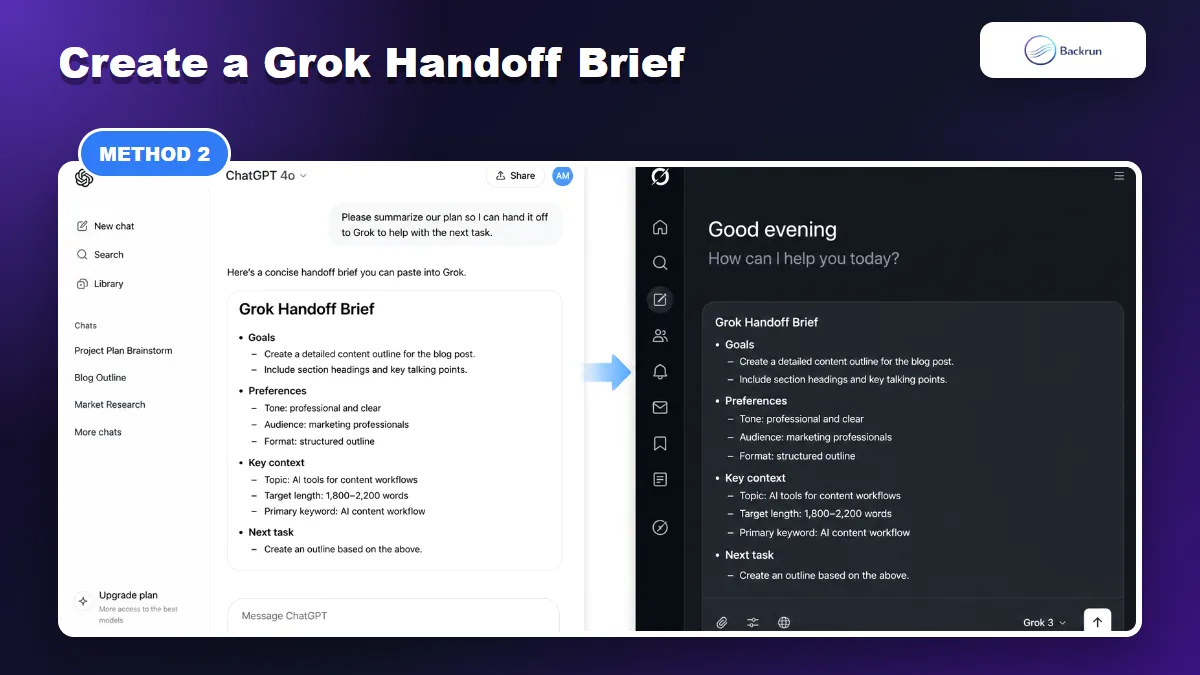
A handoff brief works well when Grok only needs the useful context, not the full raw conversation.
If the full conversation is not important, a handoff brief is faster and often more accurate. Instead of making Grok read a long transcript, ask ChatGPT to compress the context into a structured brief.
Use this method when you want to move working context, personal preferences, or a project direction from ChatGPT to Grok.
Open the relevant ChatGPT conversation or project.
Ask ChatGPT to create a Grok handoff brief. Use a prompt like: "Summarize the useful context from this conversation so I can continue it in Grok. Include goals, decisions, constraints, open questions, preferred tone, and next steps."
Review the brief and remove anything private, outdated, or irrelevant.
Open a new Grok chat.
Paste the handoff brief and ask Grok to confirm what it understands before continuing.
Best for: moving useful context quickly without carrying over the noise of the entire ChatGPT thread.
Limit: ChatGPT may summarize too aggressively. If the exact wording, code, or table matters, use the exporter method instead.
Good handoff structure: include what we are trying to do, what has already been decided, what Grok should avoid, and what the next action is. That gives Grok a clear runway instead of a vague history dump.
3. Export Your Full ChatGPT Data Archive, Then Extract What Grok Needs
The official ChatGPT data export is best used as a private backup, then cleaned before selected content is brought into Grok.
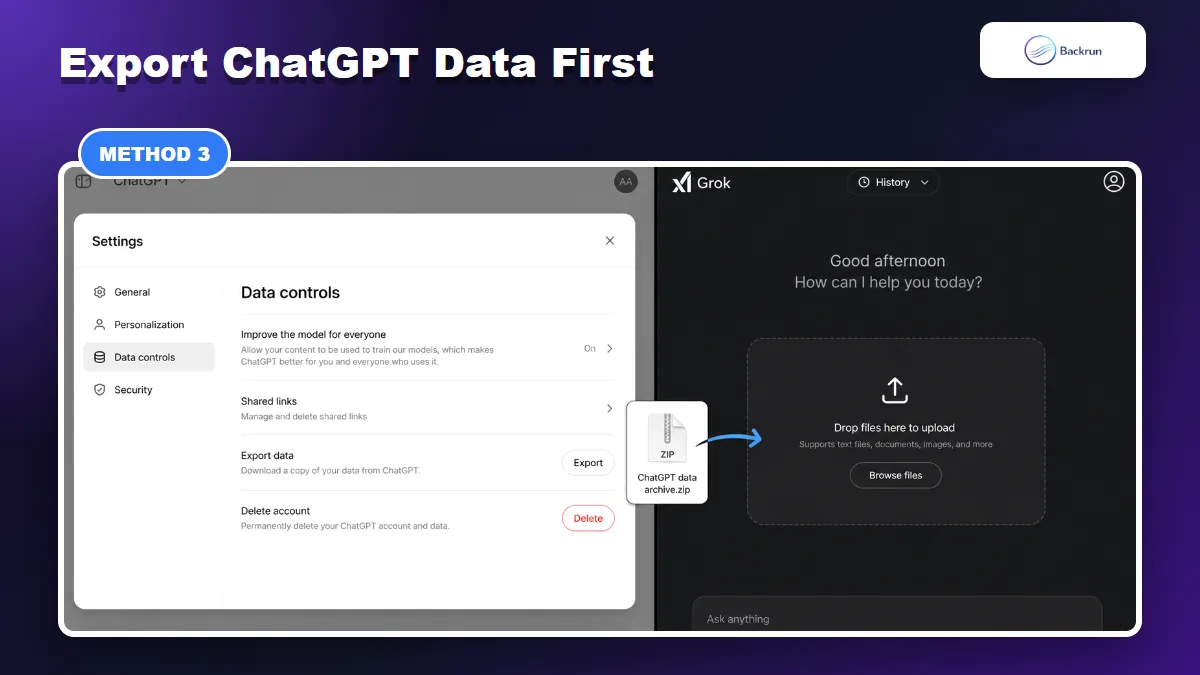
Use this method when you want a backup of your ChatGPT history before moving anything. OpenAI provides a data export path through ChatGPT settings, but the result should be treated as an archive, not as a clean Grok import file.
Below is the safer workflow for full-history migration.
Open ChatGPT settings.
Go to Data controls.
Request Export data, then wait for the download email.
Download the archive and store it privately.
Search the archive for the conversations you actually need.
Convert selected conversations into Markdown or plain text before pasting or uploading them into Grok.
Ask Grok to summarize, continue, or extract next actions from the selected conversation.
Best for: people who want a full backup first, then want to import only selected ChatGPT content to Grok.
Limit: do not upload your entire archive blindly. It may contain private details, old mistakes, API keys, client names, or content Grok does not need.
Trust check: the official ChatGPT export path is documented by OpenAI. Use it for backup, then curate a smaller file for Grok. Smaller files make Grok's answer easier to audit.
4. Move One ChatGPT Project or Workflow at a Time
Project-by-project migration keeps Grok focused and avoids turning old ChatGPT history into noisy global context.
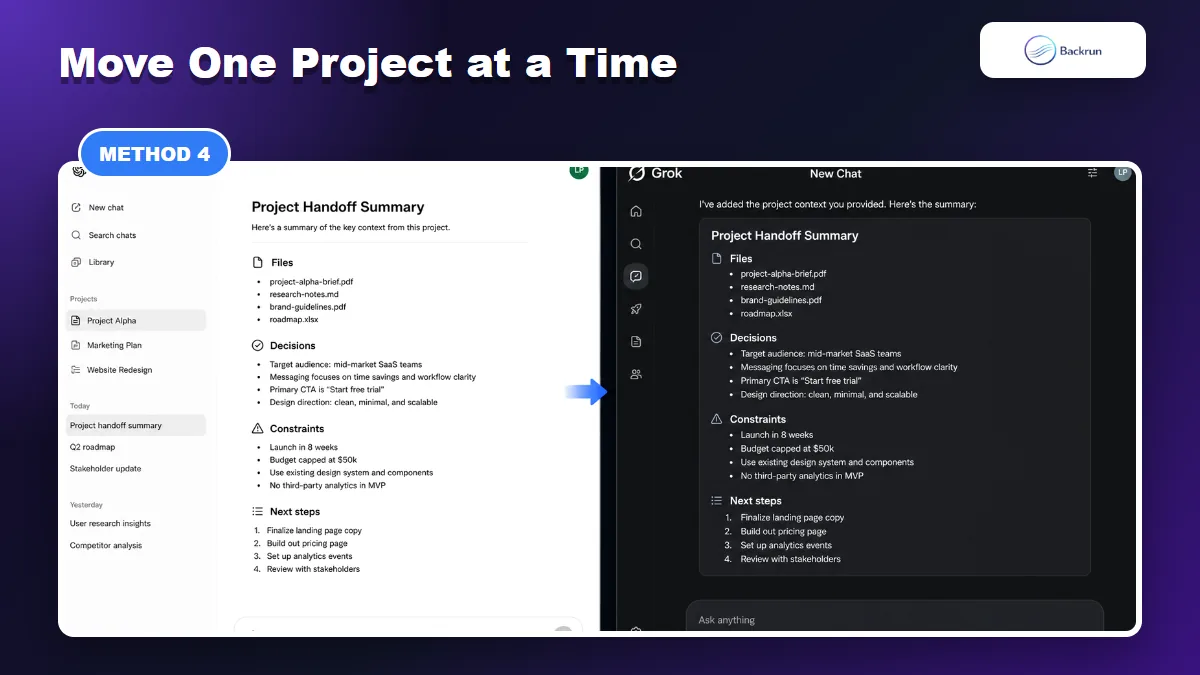
If your ChatGPT history contains many different topics, do not migrate everything in one Grok chat. Move one project at a time so Grok has a clean context window and a clear task.
This method is best when you are switching an active workflow, not archiving old history.
Choose one ChatGPT workflow, such as a writing project, coding task, research thread, or business plan.
Ask ChatGPT for a project handoff summary with files, decisions, constraints, unresolved questions, and next steps.
Export or copy only the supporting chats that Grok needs.
Start a fresh Grok chat for that project.
Paste the handoff summary first, then attach or paste supporting material.
Ask Grok to restate the project brief before doing new work.
Best for: avoiding context pollution when you move from ChatGPT to Grok for active work.
Limit: this requires a little manual organization, but it prevents Grok from mixing unrelated tasks together.
Reader's shortcut: if the destination work is Markdown-heavy, this Backrun guide on Grok to Markdown can help you keep Grok outputs easier to reuse after the migration.
Quick Recap
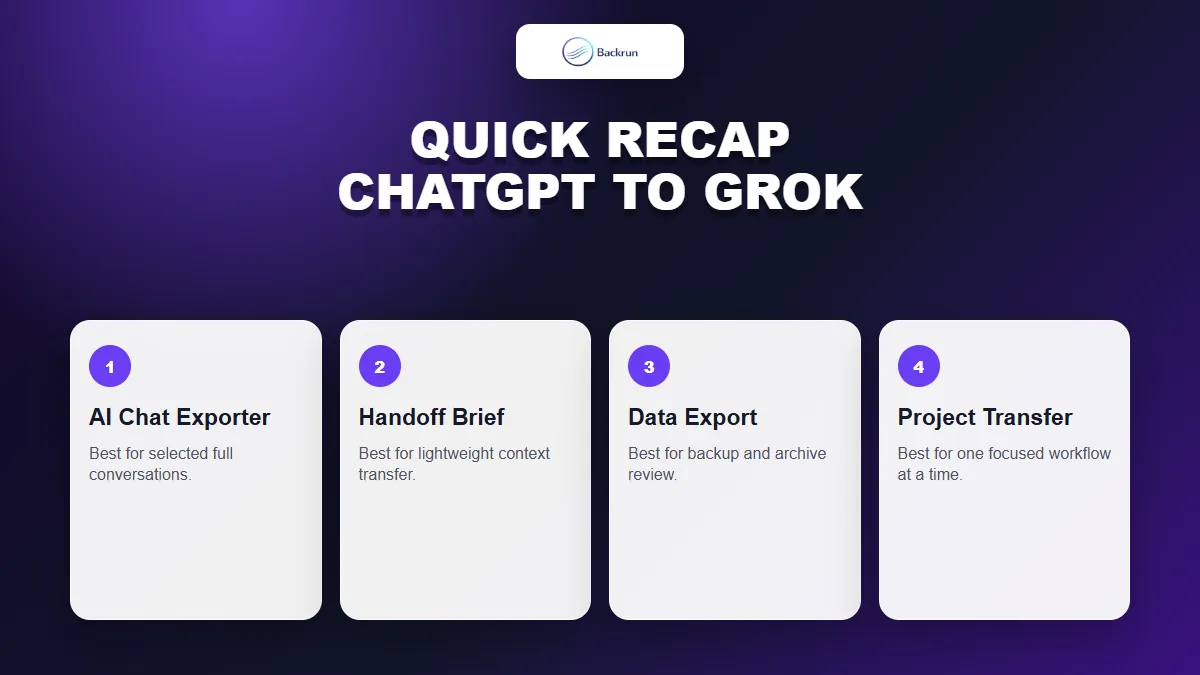
Pick the method based on whether you need selected chats, a short brief, a full archive, or one active project moved into Grok.
The best way to import ChatGPT to Grok is to move useful context deliberately, not to dump your entire ChatGPT history into one new chat.
Method
Use it when
Main caution
AI Chat Exporter
You need selected full conversations
Export only the chats Grok needs
Grok handoff brief
You only need goals, decisions, preferences, and next steps
Check that the summary did not remove key details
ChatGPT data export
You want a private full backup first
Clean sensitive data before giving anything to Grok
Project-by-project migration
You are moving an active workflow
Keep unrelated projects in separate Grok chats
For most people, the strongest workflow is: export important conversations with AI Chat Exporter, create a short handoff brief for Grok, and keep the full ChatGPT data export as a private backup rather than a direct import file.