GitHub Pages is a free hosting service from GitHub that allows you to publish personal websites, blogs, portfolios, and documentation pages. In this guide, you will learn what GitHub Pages is, how it works, and how to deploy GitHub Pages for a static website.
What Is GitHub Pages?
Introduction
GitHub Pages is a hosting service provided by GitHub that turns a Git repository into a public website.
It allows you to manage your source code with Git while providing a simple way to publish your website online. GitHub Pages is suitable for static projects built with HTML, CSS, and JavaScript. It also supports Jekyll themes for blogs and documentation websites.

Benefits of Using GitHub Pages
- Free and easy to deploy: GitHub Pages allows you to host static websites for free without setting up a traditional web server.
- Supports static web technologies: You can publish websites created with HTML, CSS, JavaScript, and static site generators supported by GitHub Pages.
- Easy GitHub integration: GitHub Pages is built directly into GitHub, allowing you to manage your source code and website from the same repository.
How to Deploy GitHub Pages
This guide focuses on deploying static projects created with HTML, CSS, and JavaScript.
For projects that use frameworks such as Next.js or require a build process, you may need to configure GitHub Actions before publishing the website.
Prerequisites
Before learning how to deploy GitHub Pages, make sure you have:
- A GitHub account
- A repository containing your static website
- An
index.html file that serves as the homepage
After uploading your project to GitHub, open the repository and select Settings.
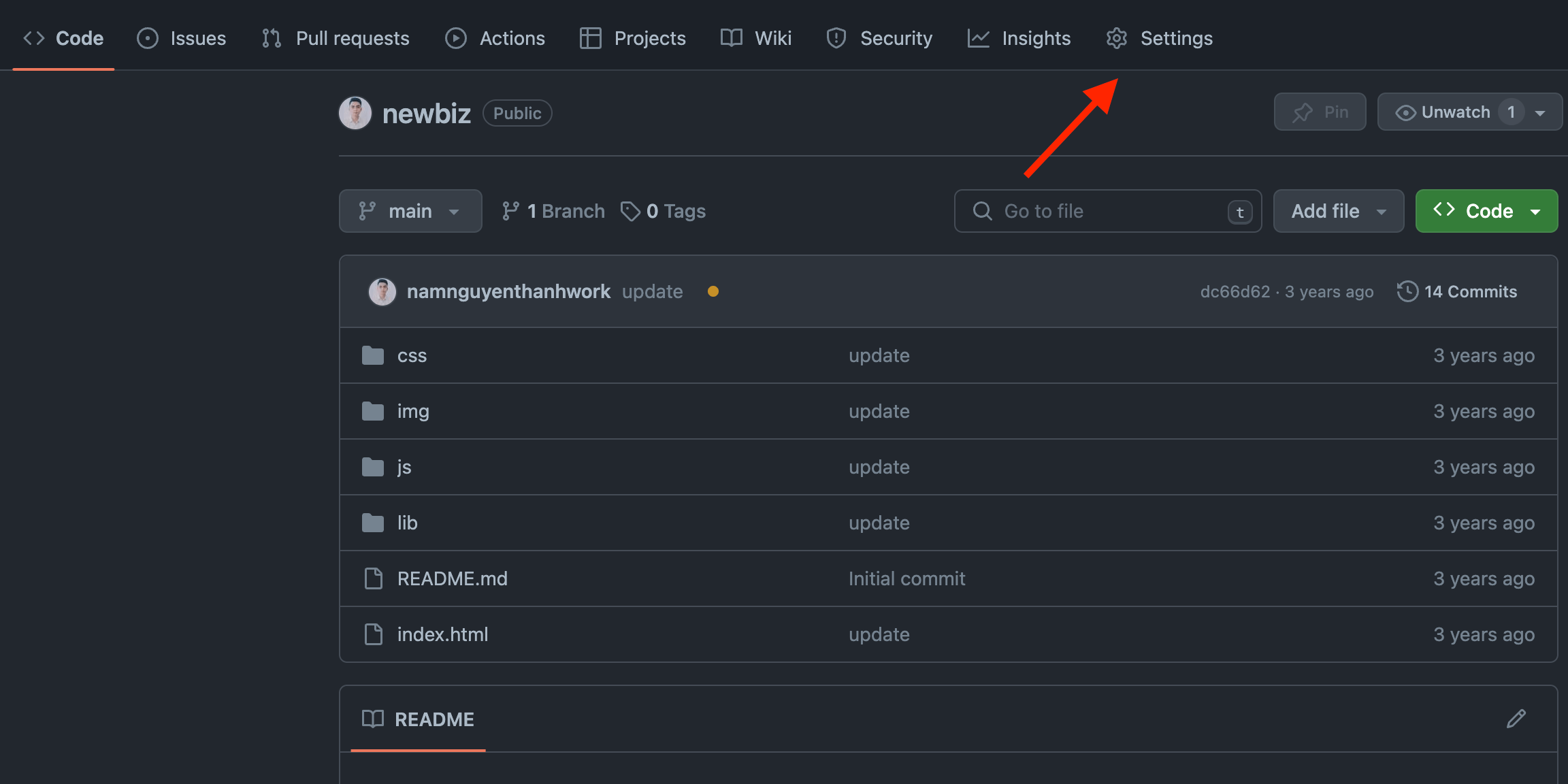
Step 1: Open the GitHub Pages Settings
In the repository settings, select Pages from the sidebar.
Under Build and deployment, choose the option to deploy from a branch.
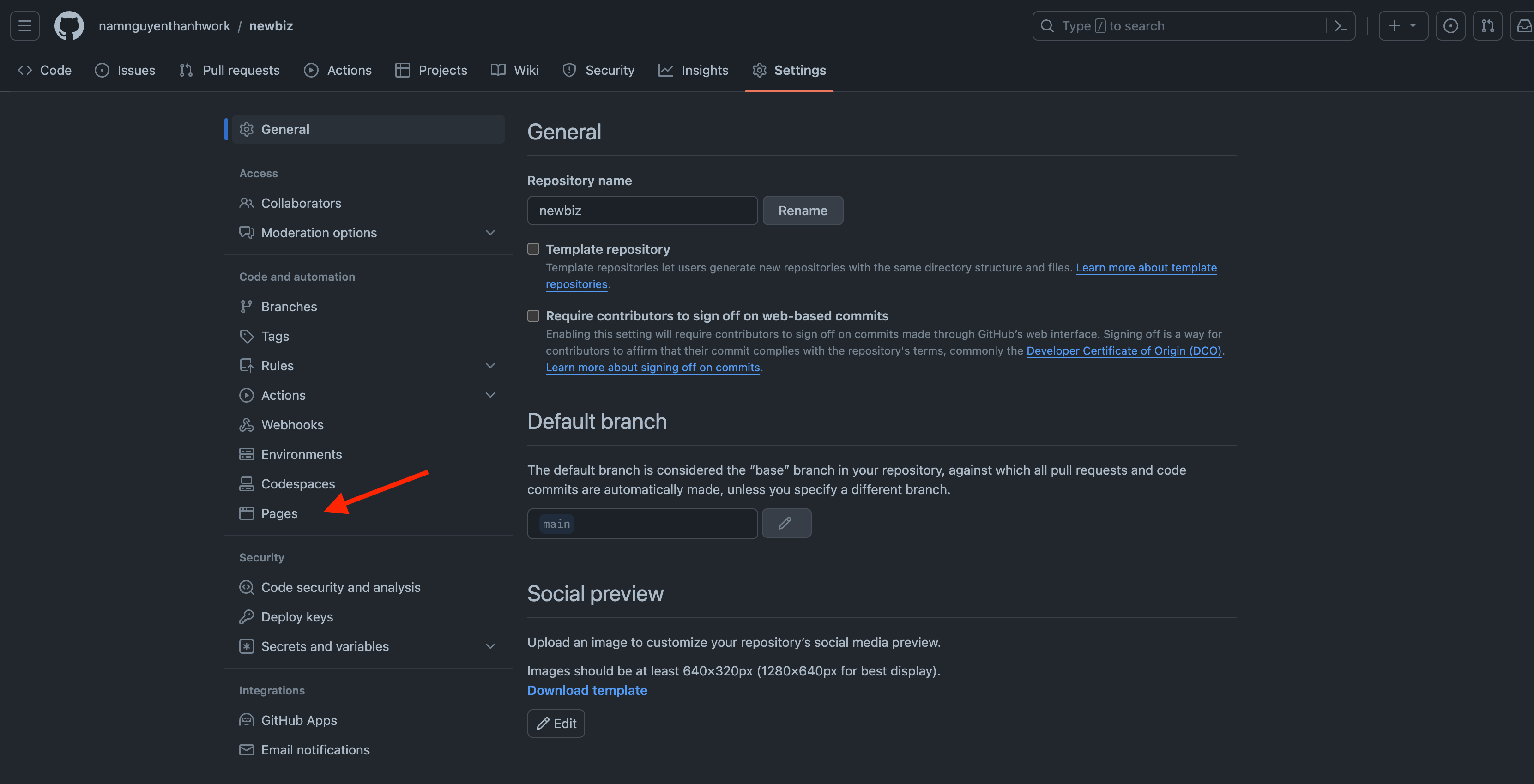
Step 2: Select a Branch
Choose the branch that contains your website files. In most cases, this will be the main or master branch.
Step 3: Select the Publishing Folder
Use the folder menu to choose where your website files are located.
The default option is usually the root folder. You can also select the /docs folder if your website files are stored there.
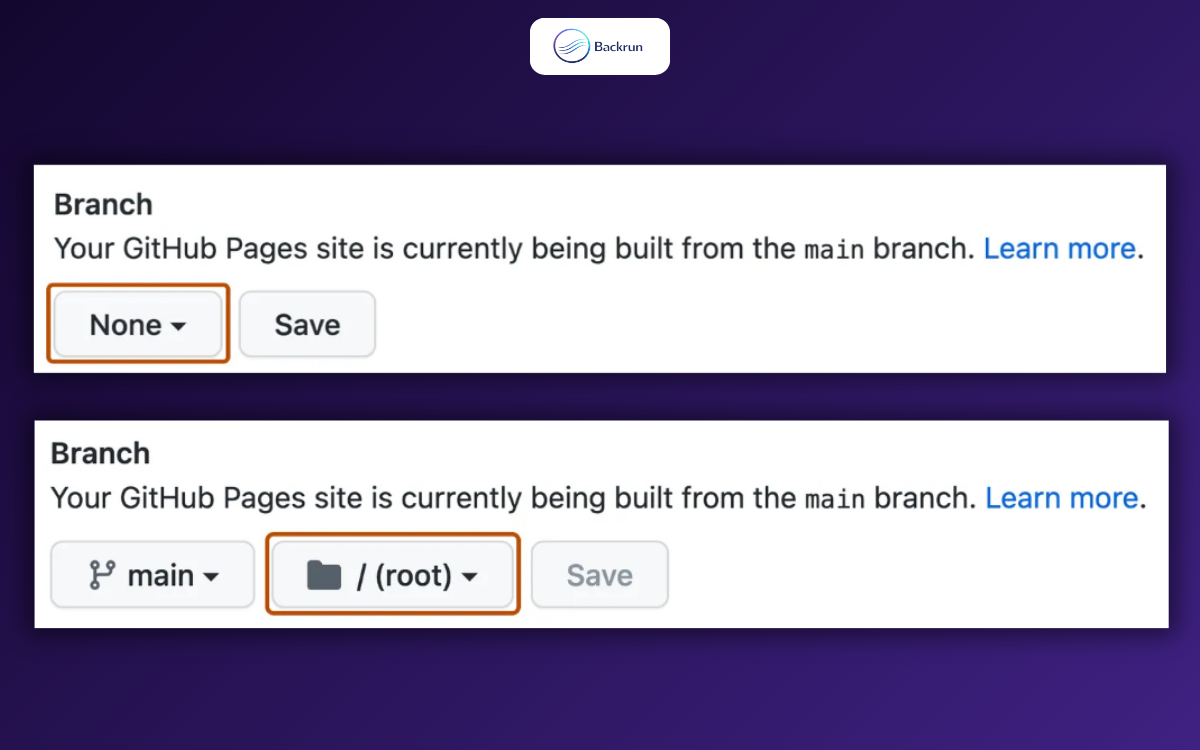
Step 4: Save the Settings
Click Save and wait while GitHub Pages builds and deploys your website.
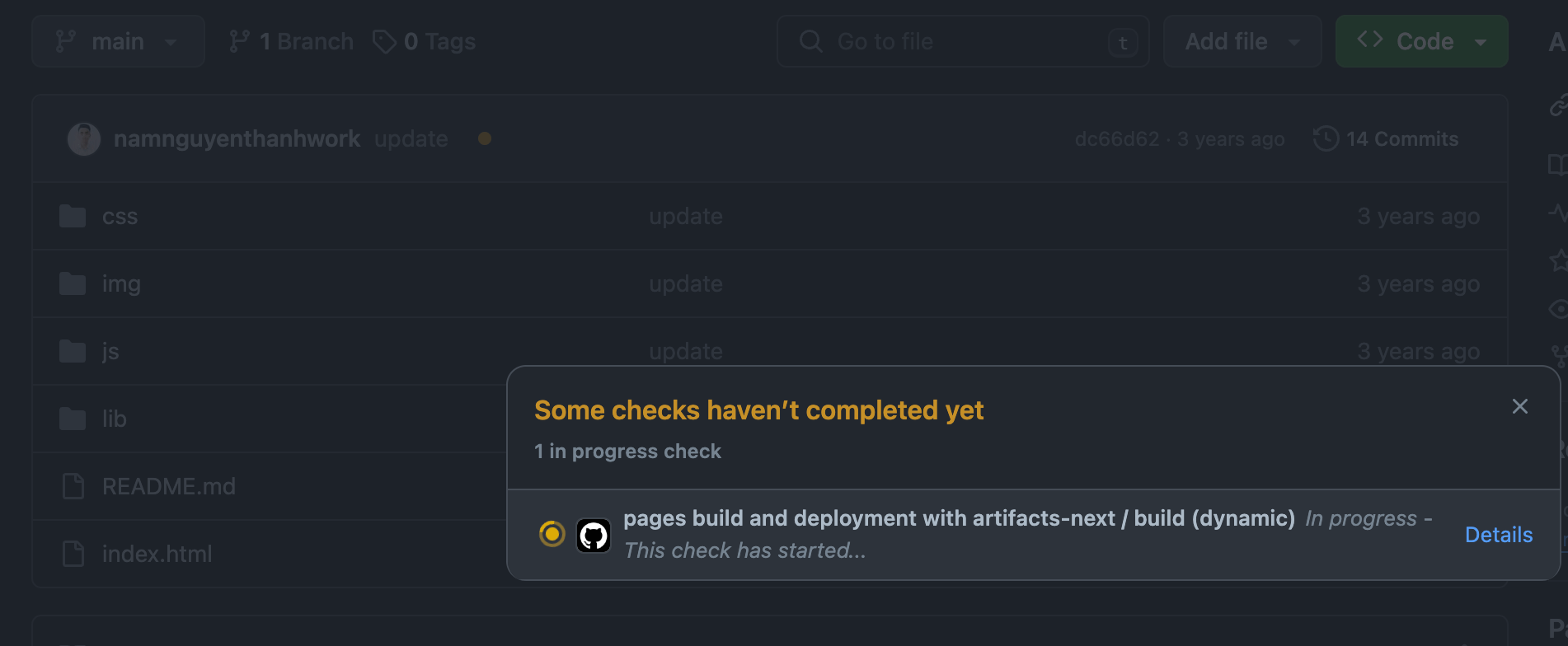
Once the process is complete, GitHub will display a message confirming that your website has been published.

Step 5: Open Your GitHub Pages Website
Your website will normally be available at:
https://username.github.io/project-name/
Replace username with your GitHub username and project-name with the name of your repository.
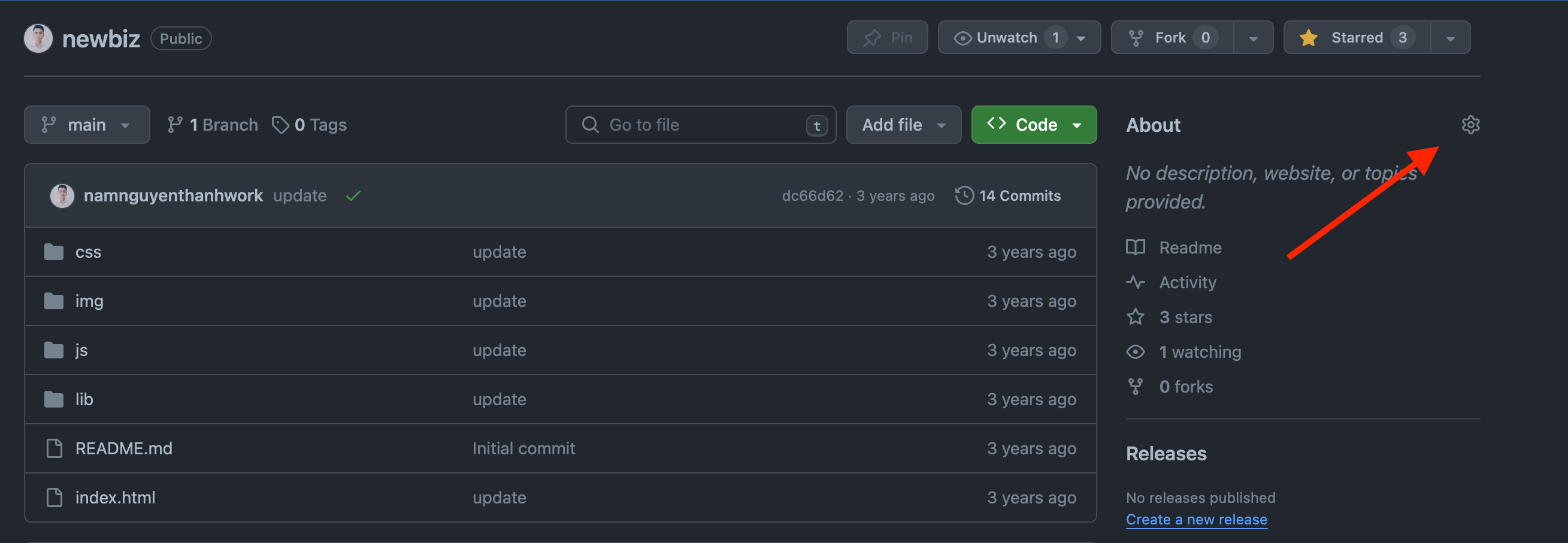
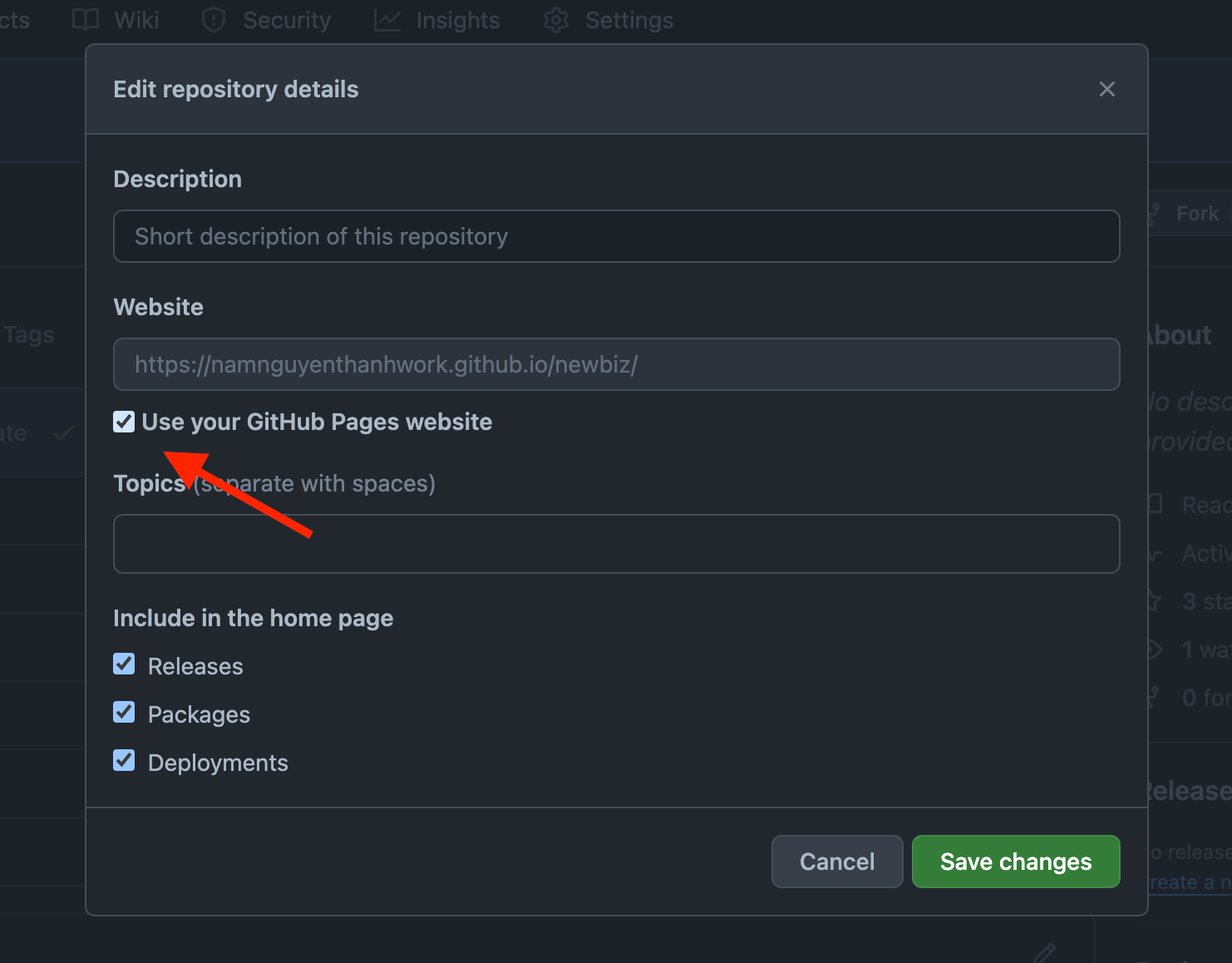
You can also return to the GitHub Pages settings to find and open the published website link.
Deploy to GitHub Pages with HTML Deployer
If you generated a static HTML page with ChatGPT, Claude, or Gemini, you can also use HTML Deployer to publish it to GitHub Pages.
HTML Deployer is a Chrome extension that detects AI-generated HTML, lets you preview the page, and helps you publish it without manually moving the code between multiple tools.

The process is simple:
- Generate an HTML page with ChatGPT, Claude, or Gemini.
- Click the HTML Deployer button beside the HTML code.
- Select GitHub Pages as the publishing target.
- Deploy the page and open the published website.
GitHub Pages may take a few minutes to go live the first time. You can read the full HTML Deployer GitHub Pages setup guide here: https://backrun.co/htmldeployer/help.html#github
This method is useful when you want to publish AI-generated HTML to GitHub Pages without manually copying files between different tools.
Conclusion
GitHub Pages is a simple and powerful solution for publishing static websites without configuring a hosting server.
It combines Git version control with an easy deployment process, making it suitable for portfolios, documentation, personal websites, and project demos.
Once you understand how to deploy GitHub Pages, you can update your website by pushing new changes to the selected branch. GitHub Pages will then publish the latest version of your project automatically.
You can also explore other deployment platforms, such as: