How to Copy Text from Claude AI to Word Without Losing Formatting
November 04, 20267 min read
Moving a Claude response into Microsoft Word sounds simple until headings, lists, links, or spacing arrive in the wrong format. The right way to copy text from Claude AI to Word depends on whether you need one answer, selected messages, a collaborative document, or a finished DOCX file.
The four methods below are distinct workflows that currently work. Start with direct copy for a short response, then switch to an export method when the conversation is too long to rebuild by hand.
1. Copy and Paste One Claude Response Into Word
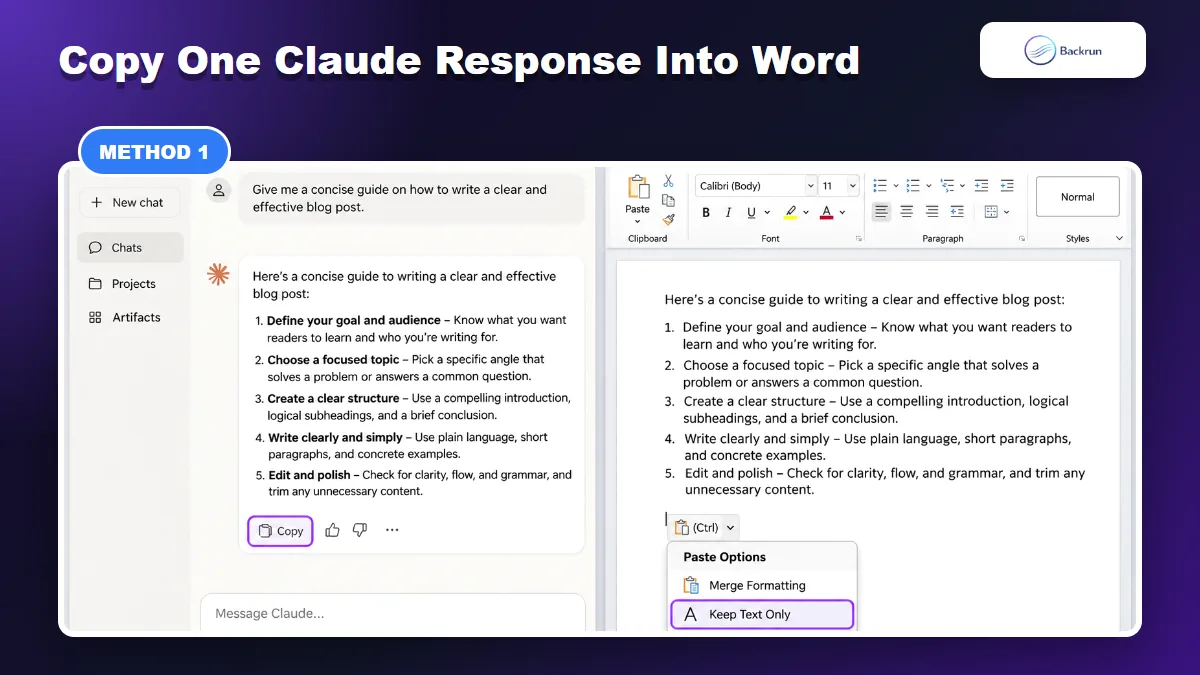
Copy one Claude response, then choose Merge Formatting or Keep Text Only in Word.
Direct copy is the fastest option when you only need one answer, a short outline, or a few paragraphs. The key is not the copy action itself; it is choosing the Word paste behavior that gives you clean, editable text.
Open the Claude conversation and locate the response you want to reuse.
Click the Copy button below that response. For a smaller excerpt, select only the required text and press Ctrl+C.
Open Microsoft Word, place the cursor where the text belongs, and press Ctrl+V.
Choose Merge Formatting when the pasted text should match your Word document, or Keep Text Only when browser styling creates inconsistent fonts and spacing.
Reapply Word styles such as Heading 2, Normal, List Bullet, and Quote instead of formatting every paragraph manually.
Best for: one Claude answer, short excerpts, email drafts, summaries, and content that will be rewritten inside an existing document.
Practical note: Word offers several paste modes. Microsoft's official paste guide explains how Keep Source Formatting, Merge Formatting, and Keep Text Only behave. If a paste looks wrong, undo it immediately and try a different option instead of cleaning every line by hand.
What to check: compare the pasted result with Claude before moving on. Verify heading levels, numbered lists, bullet indentation, links, quotation marks, superscripts, and paragraph spacing. Tables and code blocks often need a dedicated export workflow because ordinary paste can flatten their structure.
Editing tip: when the destination uses a company template, paste into a blank temporary Word file first. Remove unwanted browser formatting there, then move the clean text into the final document and apply the template's built-in styles.
2. Use Claude Exporter for Selected Messages or the Full Chat
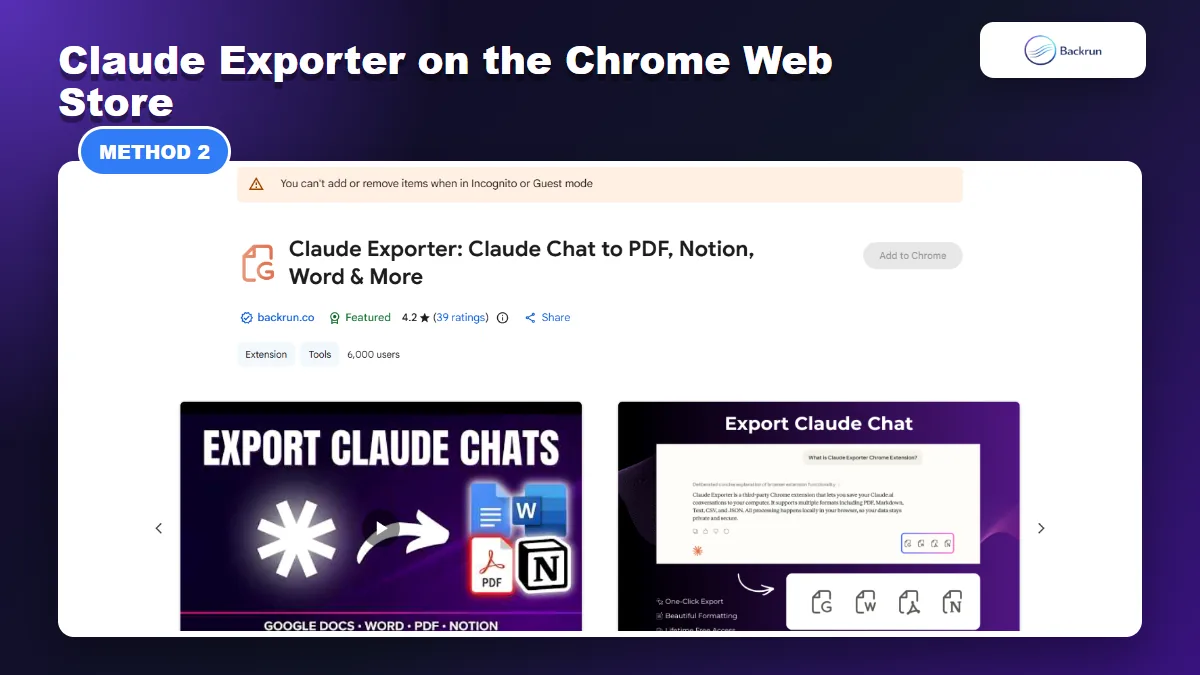
Claude Exporter can save selected messages or the complete conversation as an editable Word file.
Copying each response separately becomes inefficient when useful content is spread across a long conversation. Claude Exporter is designed for that case because it can move selected messages or the complete chat into Word while keeping the conversation order.
Install Claude Exporter from its Chrome Web Store page and review the requested permissions.
Open claude.ai and load the conversation you want to save.
Select the relevant messages, or choose the full conversation when prompts and earlier context matter.
Choose Microsoft Word as the destination and adjust available font, text-size, or color settings when needed.
Export the file, open it in Word, and verify the first and last messages, tables, links, code blocks, formulas, and images.
Best for: research threads, project records, lesson material, client conversations, technical discussions, and any chat where the back-and-forth must remain readable.
Advantage: the workflow avoids repeated copy-and-paste actions and is better suited to preserving message order. It also lets you exclude irrelevant turns before the file is created.
Limitation: this is a third-party browser extension, so installation requires a trust decision. Review its permissions and privacy information before exporting confidential material, and follow your organization's data policy.
3. Turn the Content Into a Claude Doc and Export It as Word
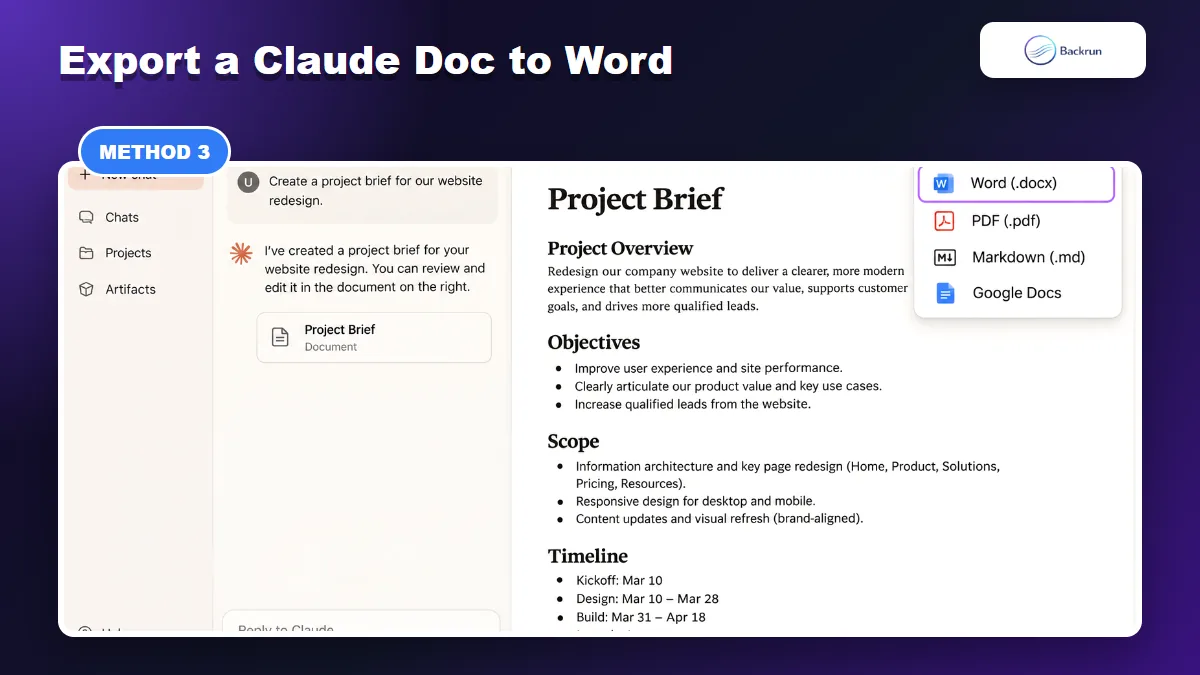
Claude Docs can export a reviewed document directly as Word (.docx).
Claude Docs is the strongest native option when the conversation needs another editing pass before it becomes a Word file. Instead of exporting a raw transcript, you create a living document, review it, and then download the approved version as DOCX.
Ask Claude to turn the useful content into a doc. You can also start with /docs or select Output and then Docs from the message box.
Tell Claude what the doc is for, who will read it, and which sections, facts, links, tables, or quotations must remain unchanged.
Edit the document directly or ask Claude to tighten the structure, add missing sections, and correct formatting.
Click Export in the document panel.
Select Word (.docx), download the file, and open it in Microsoft Word.
Best for: proposals, briefs, SOPs, project plans, reports, and content that needs collaboration or revision before it reaches Word.
Advantage: you can review the document as a document, not as a chat. According to Anthropic's current Claude Docs guide, Docs can be exported to Word, PDF, Markdown, or Google Docs.
Limitation: a Claude Doc is normally a rewritten deliverable rather than an exact transcript. If wording must remain verbatim, say so in the prompt and compare the export with the source conversation before sharing it.
Quality check: inspect the downloaded DOCX for page breaks, table widths, heading hierarchy, comments, images, and linked text. Word may paginate the file differently from the Claude document panel.
4. Ask Claude to Create a Downloadable DOCX File
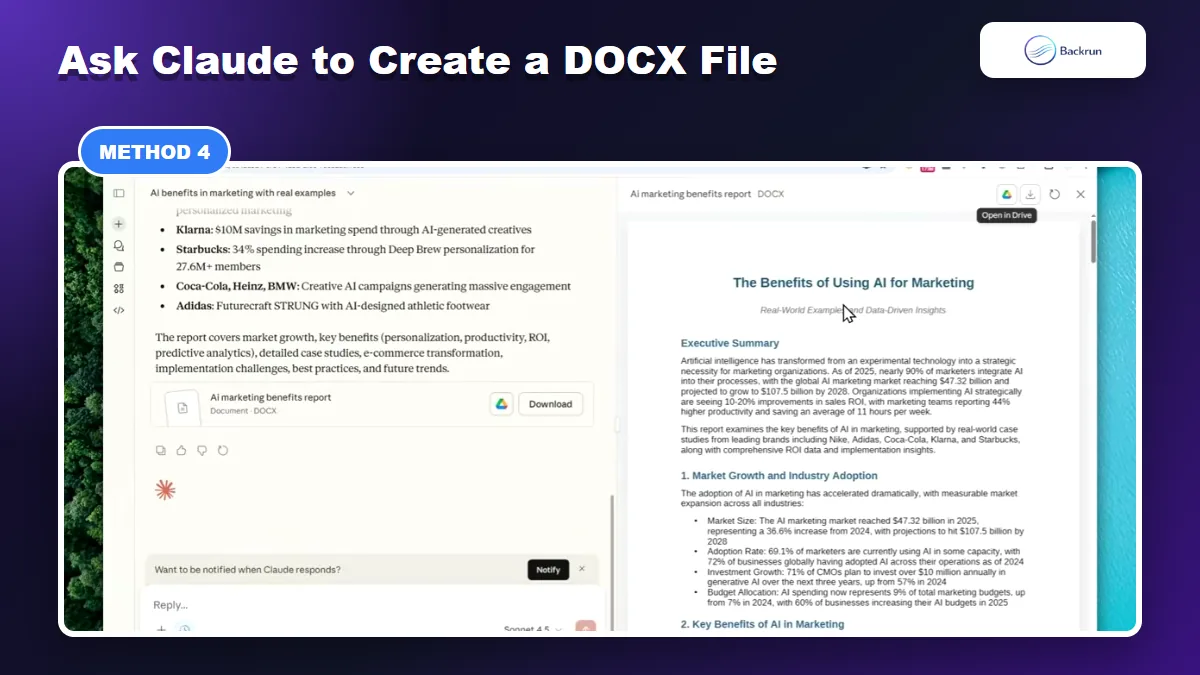
Claude can build a downloadable DOCX when you need a polished document rather than a literal transcript.
When you already know the final deliverable, Claude can create a Word file directly in the conversation. This method is useful when you want a finished report or template instead of a saved chat.
Describe the Word document, including its purpose, audience, title, sections, length, and any tables or callouts.
Request the format explicitly. For example: Create a downloadable Word (.docx) file from the useful content in this conversation. Use clear heading styles, short paragraphs, bullet lists, and a summary. Keep names, figures, quotations, and URLs unchanged.
Wait for the file card to appear in the conversation.
Download the DOCX, or save it to Google Drive when that option is available.
Open the file in Word and compare important facts with the original Claude responses.
Best for: a polished report, meeting summary, lesson plan, proposal, checklist, or reusable template.
Advantage: Claude can organize the material and generate the file in one workflow. Anthropic's file-creation documentation confirms that Claude can create downloadable Word documents and that the current maximum file size is 30 MB.
Limitation: the generated DOCX is not automatically a faithful chat archive. Claude may summarize, reorganize, or omit earlier details unless the prompt defines exactly what must be preserved.
Verification step: check names, dates, figures, quotations, links, and any compliance-sensitive language. For a long conversation, give Claude a short checklist of required sections before it starts building the file.
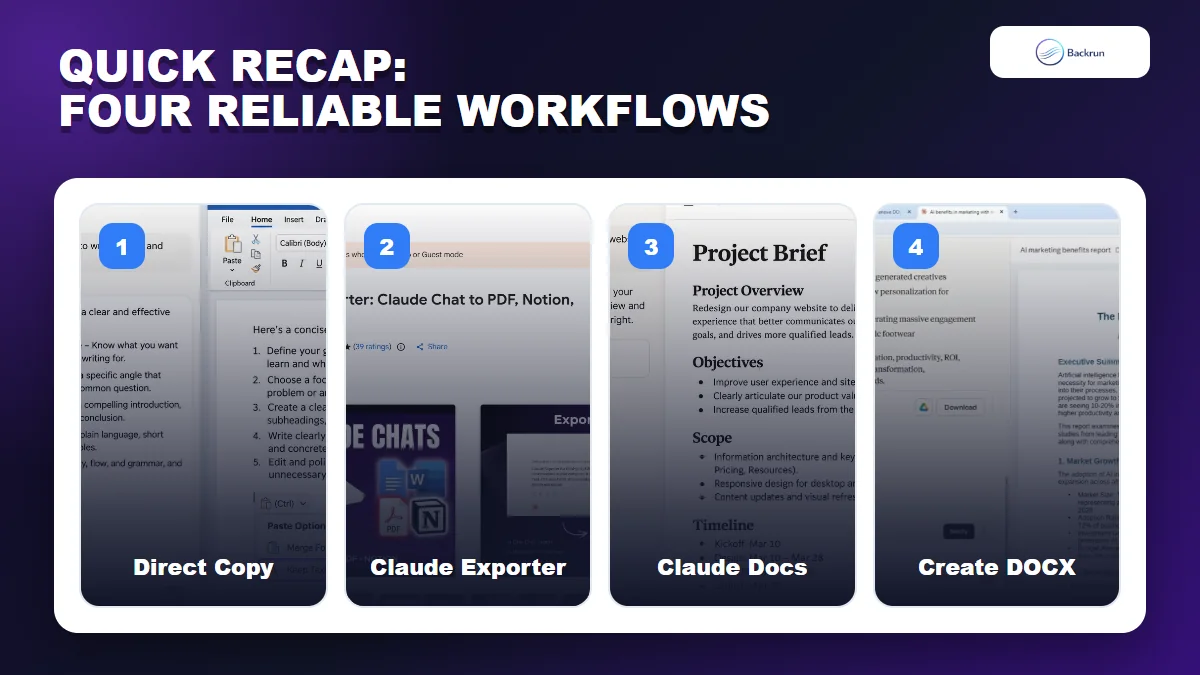
Quick Recap
Choose direct copy for one response, an exporter for a full chat, Claude Docs for collaborative editing, or file creation for a finished DOCX.
Use the method that matches the amount of Claude content you need and the kind of Word document you want to receive.
Method
Best use
Main benefit
Main limitation
Direct copy and paste
One answer or short excerpt
Fast and built in
May require Word style cleanup
Claude Exporter
Selected messages or a full chat
Preserves conversation order
Requires a browser extension
Claude Docs
A reviewed, collaborative document
Native DOCX export after editing
Usually not a verbatim transcript
Claude-created DOCX
A polished final deliverable
Creates a ready-to-download file
Must be checked for omissions
For one response, copy it directly and choose the right Word paste option. Use Claude Exporter for a long conversation, Claude Docs when the content needs editing first, or direct DOCX creation when the goal is a finished document.