5 Gemini to Notion Extensions Compared for Chat Exports
October 07, 20268 min read
A good Gemini to Notion extension should do more than paste plain text into a page. It should preserve useful structure, let you choose the right messages, and place the result in a Notion page or database without hours of cleanup.
We compared five current Chrome extensions that explicitly support both Gemini and Notion. The right choice depends on whether you need occasional exports, a full chat archive, multi-platform backup, or a two-way prompt workflow.
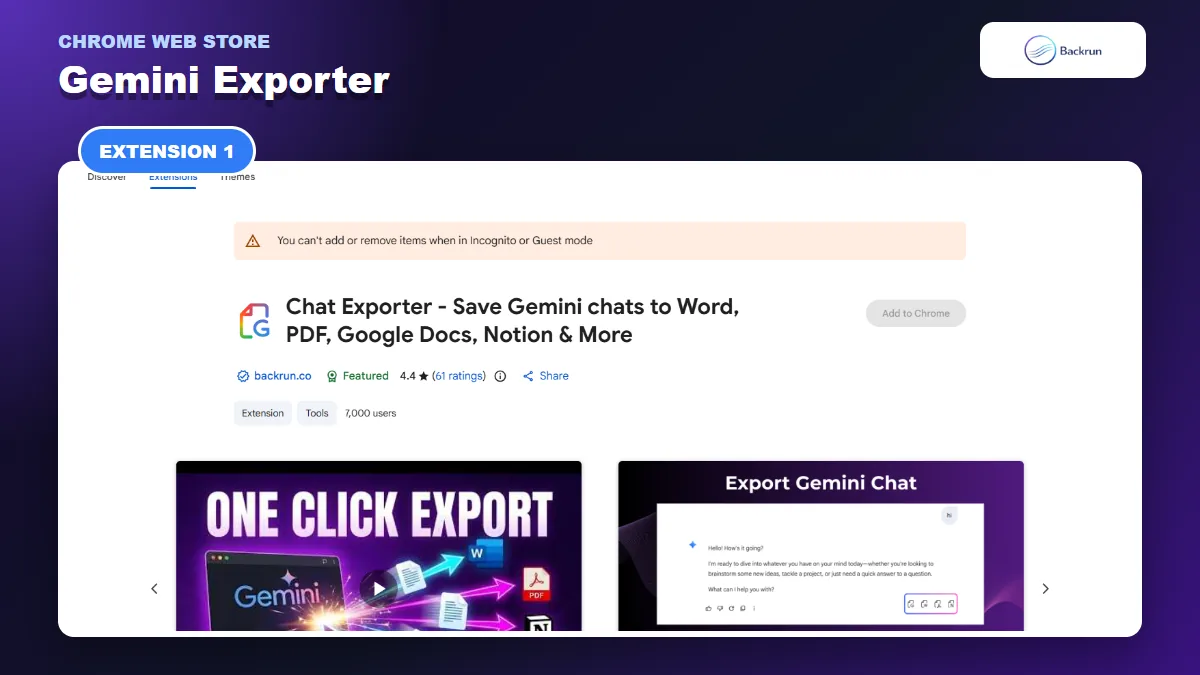
1. Gemini Exporter
Gemini Exporter can send selected messages or a complete conversation to Notion while preserving structured content.
Gemini Exporter is the most balanced option for everyday use. It can export selected messages or an entire Gemini conversation to Notion, while also supporting PDF, Word, and Google Docs. The current Chrome Web Store listing states that headings, lists, code blocks, tables, equations, links, and images are preserved.
Best for: users who want a straightforward Gemini-specific exporter with control over what enters Notion.
Here is the practical workflow:
Install Gemini Exporter from the Chrome Web Store.
Open Gemini and load the conversation you want to keep.
Select individual messages if only the final answer matters, or choose the full conversation when the surrounding prompts provide necessary context.
Choose Notion as the destination. You can also adjust the font family, size, and text color before export.
Authorize the Notion connection when prompted, select the destination, and complete the export.
Review the page for code, equations, image references, and wide tables before relying on it as an archive.
Selected-message export is particularly useful because Gemini chats often contain drafts, follow-up corrections, and abandoned directions. Sending only the useful prompt-answer pairs creates a cleaner knowledge base than moving every message.
Important limitation: the listing currently describes a monthly free allowance of seven full-conversation exports and ten selected-message exports. Plans and limits can change, so check the listing before choosing it for a high-volume workflow.
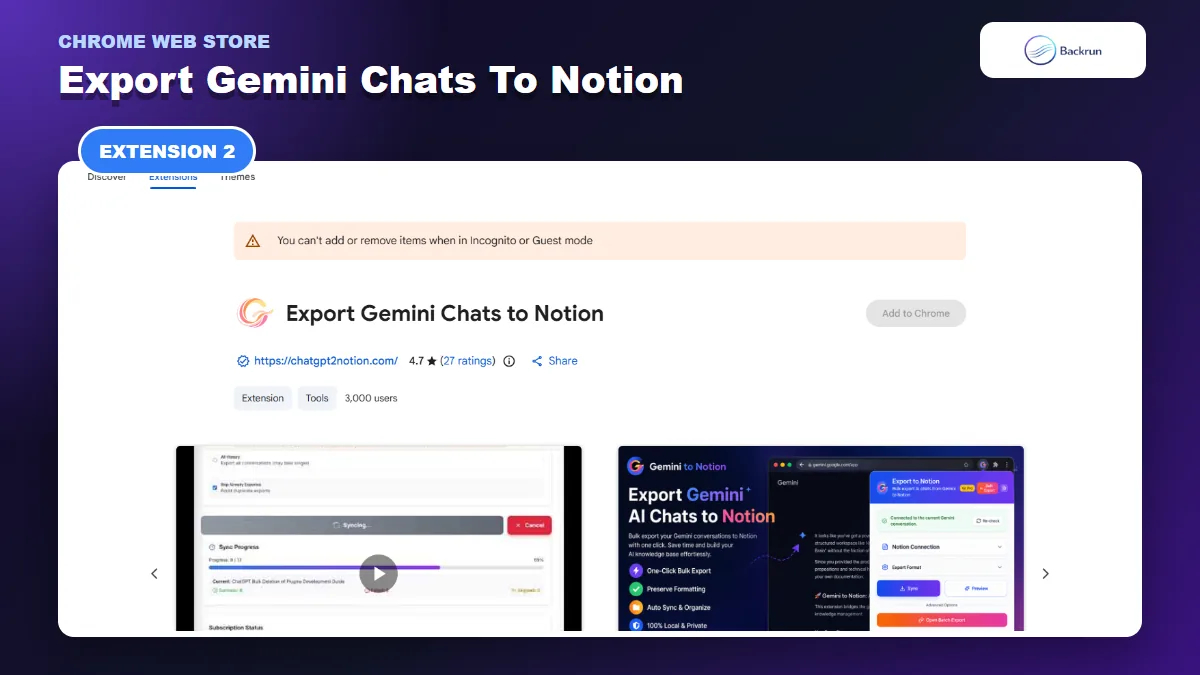
2. Export Gemini Chats to Notion
Export Gemini Chats to Notion is designed for current chats, selected conversations, Gems, and bulk history syncing.
Export Gemini Chats to Notion is the strongest specialist option for bulk organization. It supports the current page, selected conversations, full history, specific Gems, and Gemini Spark conversations. It can also split long chats into child pages and add custom Notion tags.
Best for: researchers and knowledge-management users who want multiple Gemini chats organized in a Notion database.
Use it as follows:
Install the extension and open a Gemini conversation.
Open the extension popup and connect the Notion workspace and database you intend to use.
Choose the export scope: the current chat, selected conversations, conversations from a Gem, or full history.
Use Custom Preview when you need only certain prompts or responses.
Choose formatting options such as child pages, message filters, role colors, and custom tags.
Export or sync, then inspect the resulting database entries and page hierarchy.
This extension is more suitable than a simple one-click exporter when Notion is the permanent destination. Its listing specifically mentions database organization, automatic syncing, Deep Research sub-pages, Markdown rendering, and LaTeX support.
Important limitation: bulk access creates a larger permission and review surface. Start with two non-sensitive chats and a test database. Confirm titles, tags, page hierarchy, equations, and message order before syncing a large history. Some advanced features may also depend on a subscription.
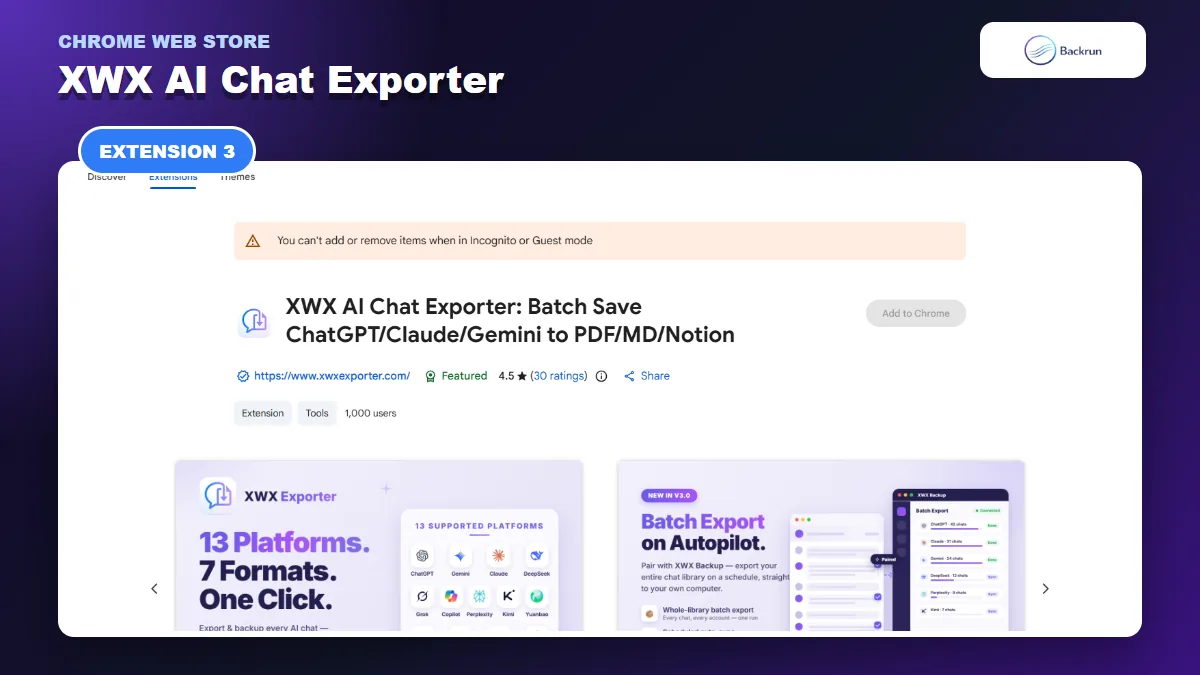
3. XWX AI Chat Exporter
XWX supports Gemini and other AI platforms, with direct Notion pages plus optional batch backup tools.
XWX AI Chat Exporter works across Gemini, ChatGPT, Claude, Grok, and other AI platforms. It can save a Gemini conversation directly to Notion or create PDF, Word, Markdown, text, and JSON files. Optional metadata, tags, and summaries make it useful when the same archive needs to work outside Notion too.
Best for: people who use several AI assistants and want one export system rather than a Gemini-only tool.
The basic Notion workflow is short:
Install XWX AI Chat Exporter and open the target Gemini chat.
Click the floating save control added to the chat page.
Select the messages you need, or keep the full conversation.
Choose Notion as the output destination and connect the workspace.
Add tags or metadata if they help your database views.
Save the page and verify the output in Notion.
The optional Windows companion app focuses on batch backup and scheduled local archives. That is useful for disaster recovery, but it is not required for an occasional Gemini-to-Notion export.
Important limitation: the listing says Notion exports include a free daily quota, while heavier use requires a paid plan. It also distinguishes local file generation from other rendering paths, so read the current privacy details for the exact output format you plan to use.
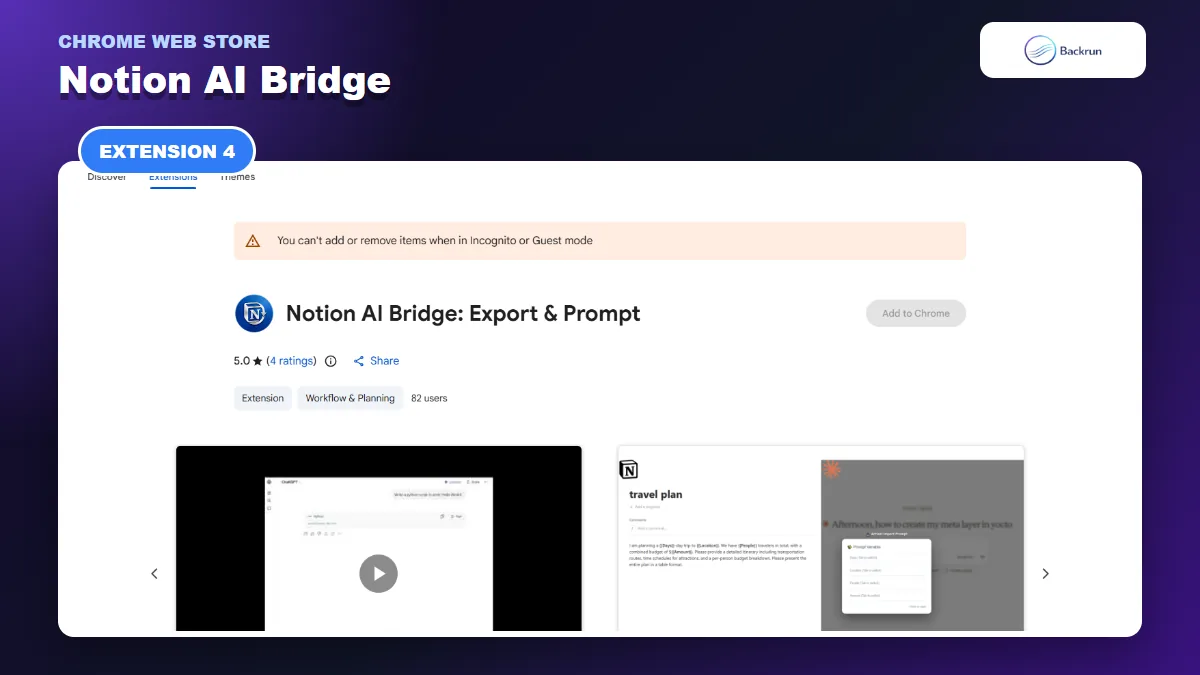
4. Notion AI Bridge
Notion AI Bridge combines Gemini-to-Notion export with reusable prompts stored in a Notion database.
Notion AI Bridge treats Notion as both a destination and a prompt library. It can save one Gemini question and answer, capture a full conversation with a long press, and insert reusable prompts from a Notion database back into Gemini.
Best for: writers, consultants, and teams that repeatedly reuse structured prompts as well as save final answers.
To set it up:
Install the extension and connect the Notion database used for AI notes or prompts.
Open Gemini and navigate to the response you want to retain.
Use a normal export click to save the current question-answer pair.
Hold the export button for about 1.5 seconds when you need the complete conversation, according to the listing.
Use the prompt search when you want to pull a saved template from Notion into a new Gemini message.
Check the created page for tables, nested lists, code, math, and inline images.
The keyboard shortcuts are useful for frequent users: the listing documents /e for a single exchange, /e@ for a full chat, and /p for prompt search.
Important limitation: this extension has a small visible user and rating sample compared with the first two options. Its workflow is distinctive, but test it with a separate Notion database before connecting a business knowledge base.
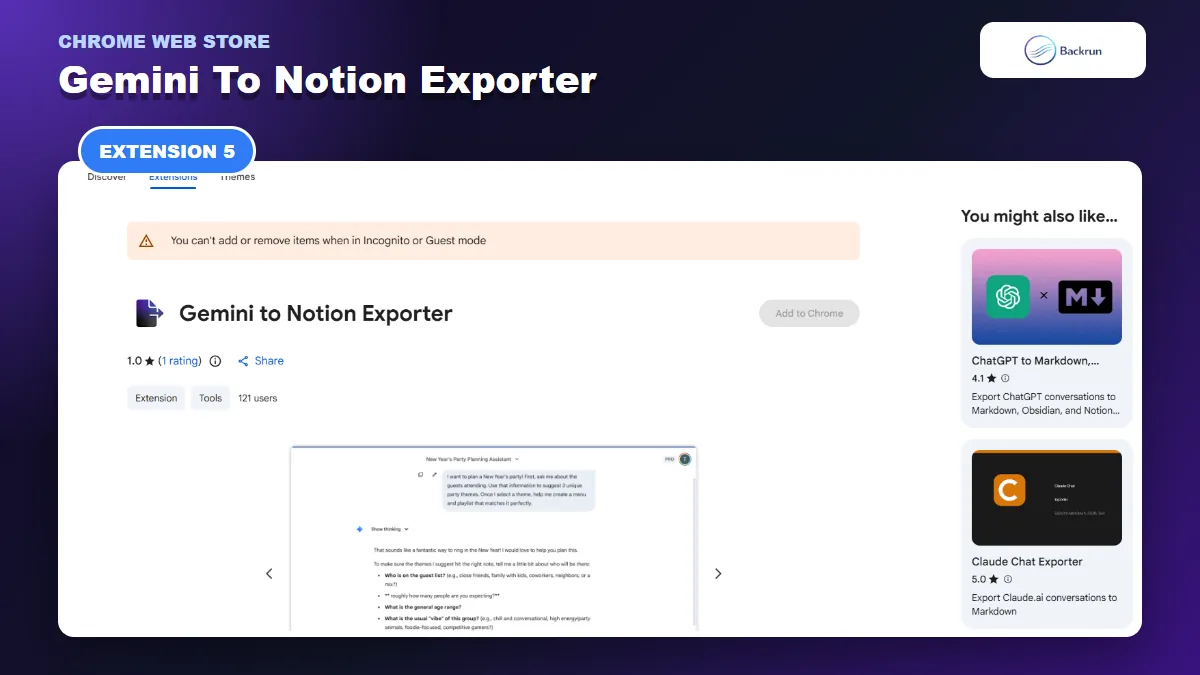
5. Gemini to Notion Exporter
Gemini to Notion Exporter offers direct Notion and Markdown output, but its current rating history calls for careful testing.
Gemini to Notion Exporter offers a narrow feature set: export a Gemini chat to a Notion page or download it as Markdown. Its listing says it preserves prompts, responses, formatting, and Gemini thinking sections.
Best for: users who want a minimal direct-export interface and are willing to test the result carefully.
The expected workflow is:
Install the extension and open the Gemini conversation.
Start the export from the extension interface.
Choose Notion for a direct page or Markdown for a local fallback.
Review the exported structure, especially thinking sections, lists, and message labels.
Keep the original Gemini chat until you have confirmed the Notion page is complete.
The Markdown fallback is useful if direct Notion authorization fails, because you can still import or paste a cleaned local file into your workspace.
Important limitation: the listing currently shows a 1.0 rating based on one review. That sample is too small for a reliable quality conclusion, but it is a clear reason not to start with sensitive data. Test a disposable chat, review the requested permissions, and compare every section with the source before adopting it.
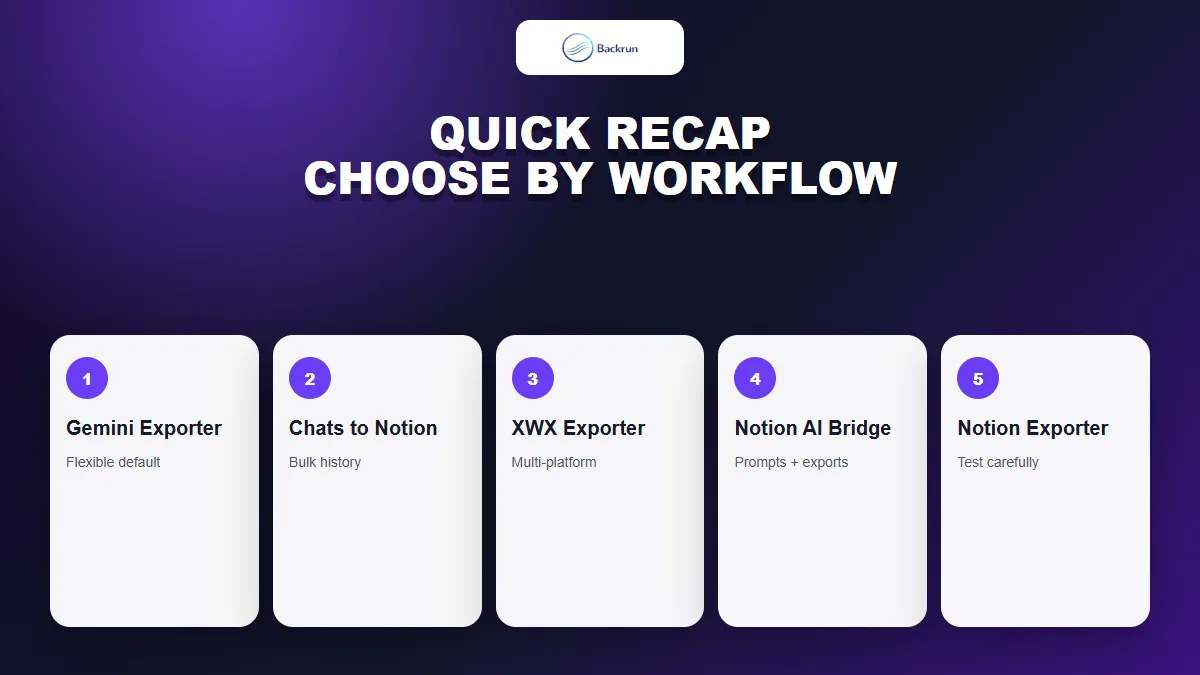
Quick Recap
Choose the extension by export scope, Notion workflow, and review burden rather than by feature count alone.
Extension
Best use
Export scope
Main caution
Gemini Exporter
Clean everyday exports
Selected messages or full chat
Monthly free allowance
Export Gemini Chats to Notion
Database and bulk organization
Current, selected, Gems, or history
Test permissions and advanced features
XWX AI Chat Exporter
Multi-platform archives
Selection, full chat, optional batch
Daily quota for Notion exports
Notion AI Bridge
Reusable prompts and saved answers
One exchange or full chat
Small adoption sample
Gemini to Notion Exporter
Simple Notion or Markdown output
Conversation export
Low current rating; test first
For most users, Gemini Exporter is the simplest place to start. Choose Export Gemini Chats to Notion when you need bulk database organization, XWX when your chats span several AI platforms, or Notion AI Bridge when prompts need to travel back from Notion into Gemini.
The deciding factor should be the page you receive, not the number of formats shown on the store listing. A usable Notion export has a clear title, correct message order, readable headings, intact links, properly nested lists, and tables that do not collapse into plain paragraphs. If the extension creates a database item, also check its properties, tags, source URL, and created date. For long research chats, verify whether the exporter creates one very large page or sensible child pages. These checks take only a few minutes and reveal more about day-to-day usefulness than a feature checklist or star rating alone.
Before granting access, review Google's guidance on installing and managing Chrome extensions. Run one test chat containing a table, code block, list, image, equation, and link, then compare the Notion page with Gemini. If you prefer workflows that do not depend on extensions, see our broader guide to exporting Gemini to Notion.