5 ChatGPT to Notion Extensions Compared for Clean Exports
October 08, 20268 min read
A reliable ChatGPT to Notion extension should preserve more than plain text. It should keep the prompt-answer order, headings, lists, tables, code, equations, links, citations, and useful media while letting you decide what belongs in your workspace.
We compared five current Chrome extensions that explicitly support both ChatGPT and Notion. Some are designed for one clean conversation, while others handle selected answers, archived chats, project history, files, or reusable prompts.
1. AI Chat Exporter
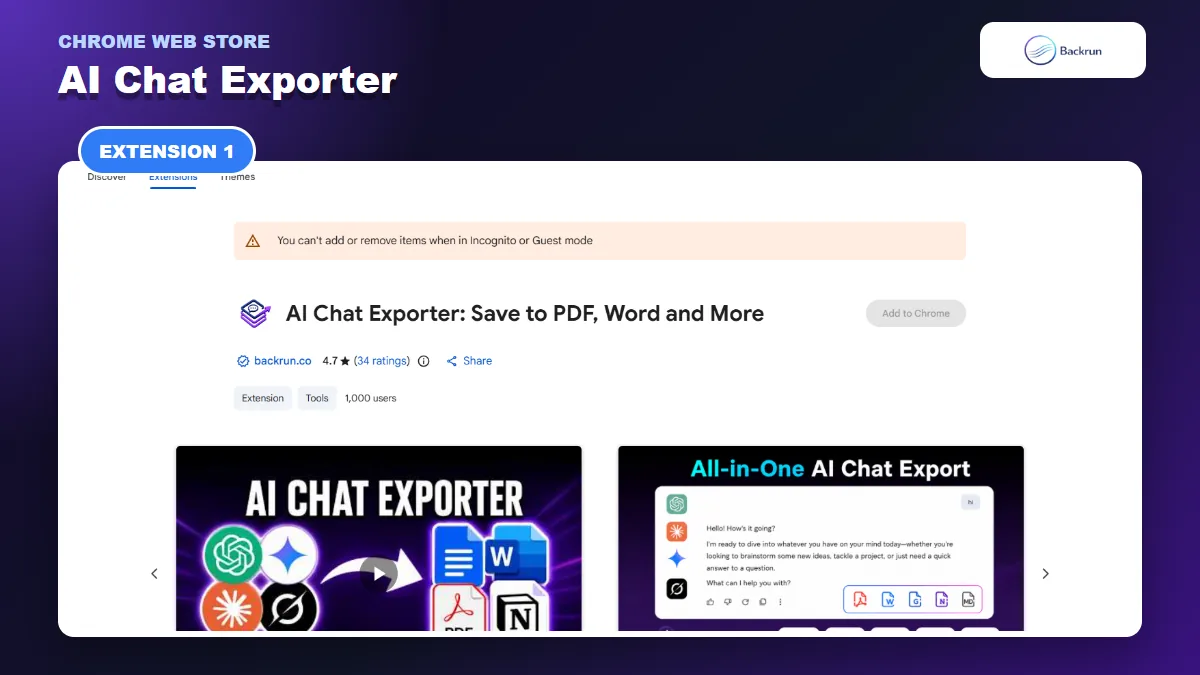
AI Chat Exporter supports selected-message and full-conversation exports from ChatGPT to Notion.
AI Chat Exporter is the most flexible default when Notion is only one of several destinations you use. Its current Chrome Web Store listing supports ChatGPT, Gemini, Claude, and Grok, with output to Notion, PDF, Word, Google Docs, and Markdown.
Best for: users who need selected-message control and may reuse the same conversation in documents as well as Notion.
The Notion workflow is straightforward:
Install AI Chat Exporter and open the ChatGPT conversation you want to keep.
Select individual messages when only the final answer or a few exchanges matter. Choose the full thread when the earlier prompts provide necessary context.
Choose whether to include prompts, responses, or both.
Select Notion as the destination and authorize the workspace when requested.
Complete the export, then open the created page and compare it with ChatGPT.
Check complex blocks, especially wide tables, equations, code fences, links, and images.
The main advantage is scope control. Long ChatGPT sessions often include retries, bad drafts, and side questions. Exporting only the final useful exchanges usually produces a better knowledge-base page than preserving every message.
Important limitation: the listing currently states a free monthly allowance of seven full-conversation exports and ten selected-message exports. It also notes that results can vary by platform, conversation type, and destination. Run a formatting test before using it for a large research thread.
2. Chat to Notion
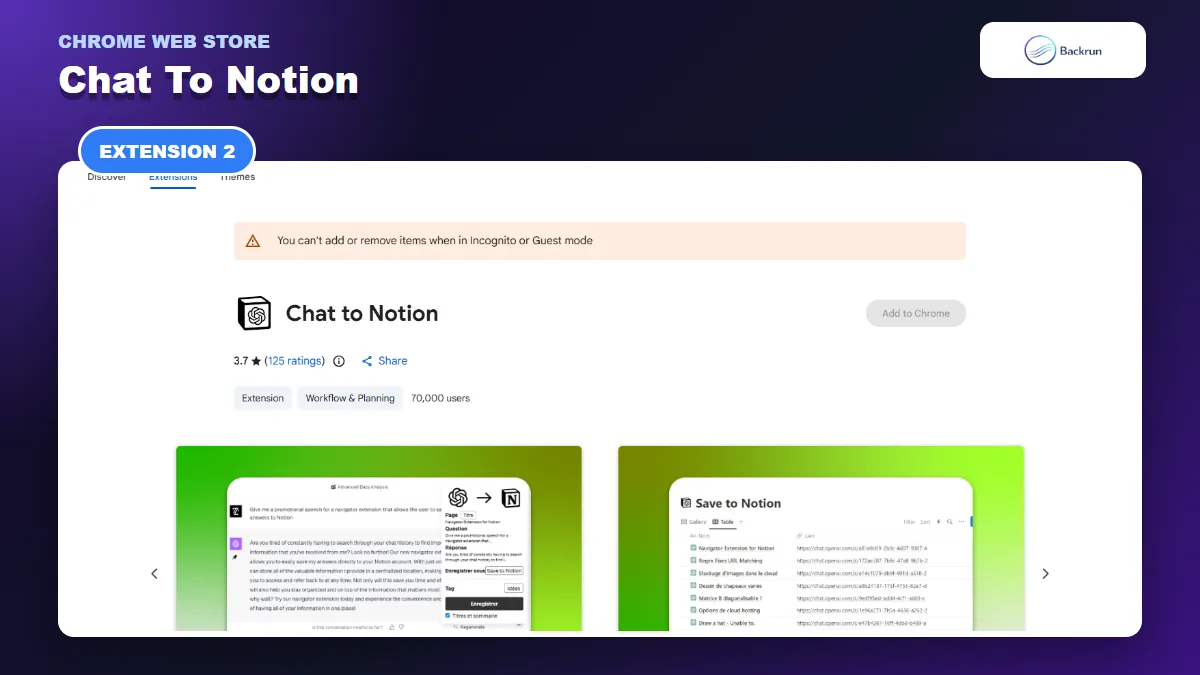
Chat to Notion is an established extension for pinning one answer or saving a complete ChatGPT discussion.
Chat to Notion is the most established listing in this comparison. The Chrome Web Store currently shows about 70,000 users and more than 100 ratings. It adds a pin control beneath ChatGPT answers, so you can save one answer and its prompt without exporting the entire conversation.
Best for: people who collect individual answers in structured Notion databases and want tags, custom titles, or autosave.
Use it as follows:
Install the extension and connect one or more Notion databases.
Open ChatGPT and locate the answer you want to save.
Click the pin icon beneath the answer to capture that answer and its related prompt.
Choose the destination database, page title, and tags.
Use the extension popup instead when you need the full discussion or chat history.
Open the Notion entry and verify LaTeX, code, and database properties.
This answer-level workflow is efficient for a reading list, prompt library, technical reference database, or research inbox. Each useful result becomes one focused Notion item instead of a very long page.
Important limitation: the listing explains that some Notion identifiers and the workspace access key are stored on a remote service, while the project publishes source code for review. That model differs from extensions that send content directly to the Notion API. Read the current privacy notes and revoke the Notion connection when you stop using it.
3. ChatGPT to Notion - Batch Export
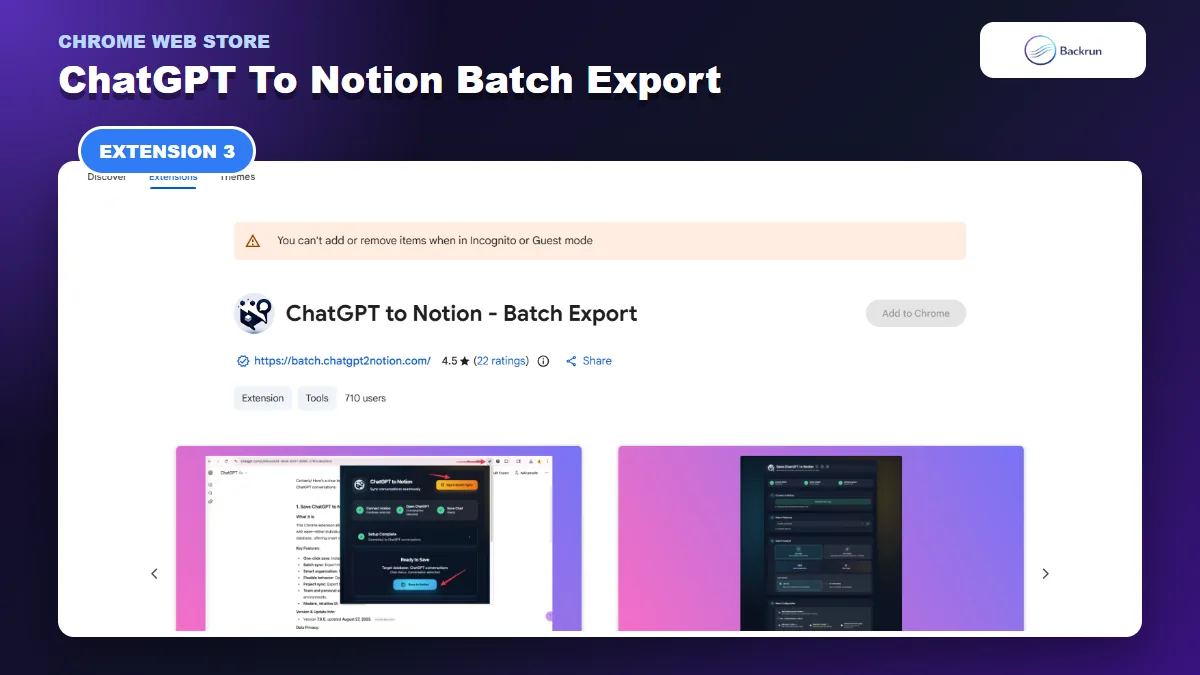
ChatGPT to Notion - Batch Export focuses on projects, archived chats, selected turns, media, and large history migrations.
ChatGPT to Notion - Batch Export is built for volume. It supports the current conversation, selected chats, project conversations, group chats, archived history, selected turns, files, images, Deep Research reports, and TextDocs.
Best for: migrating a large ChatGPT library or maintaining a searchable Notion archive over time.
The setup requires more decisions than a one-click exporter:
Connect the Notion workspace and choose the target database.
Select the export mode: current chat, multiple conversations, project chats, group chats, selected turns, or archived history.
Open Custom Export when you need to preview and control the selection before syncing.
Choose duplicate behavior, such as skipping, overwriting, or creating another copy.
Add tags and split-page rules for long conversations.
Start the export and review the success, skipped, failed, and canceled counts.
Inspect the Notion pages before deleting or reorganizing the originals.
Its child-page workflow is useful for Deep Research and long documents because one oversized Notion page can become slow and difficult to scan. The current listing also includes a file library for downloading images and attachments separately.
Important limitation: bulk exports have the largest blast radius. Start with a small test database and two conversations. Confirm database fields, titles, source URLs, tags, page hierarchy, media, and duplicate behavior before granting the extension access to a full history.
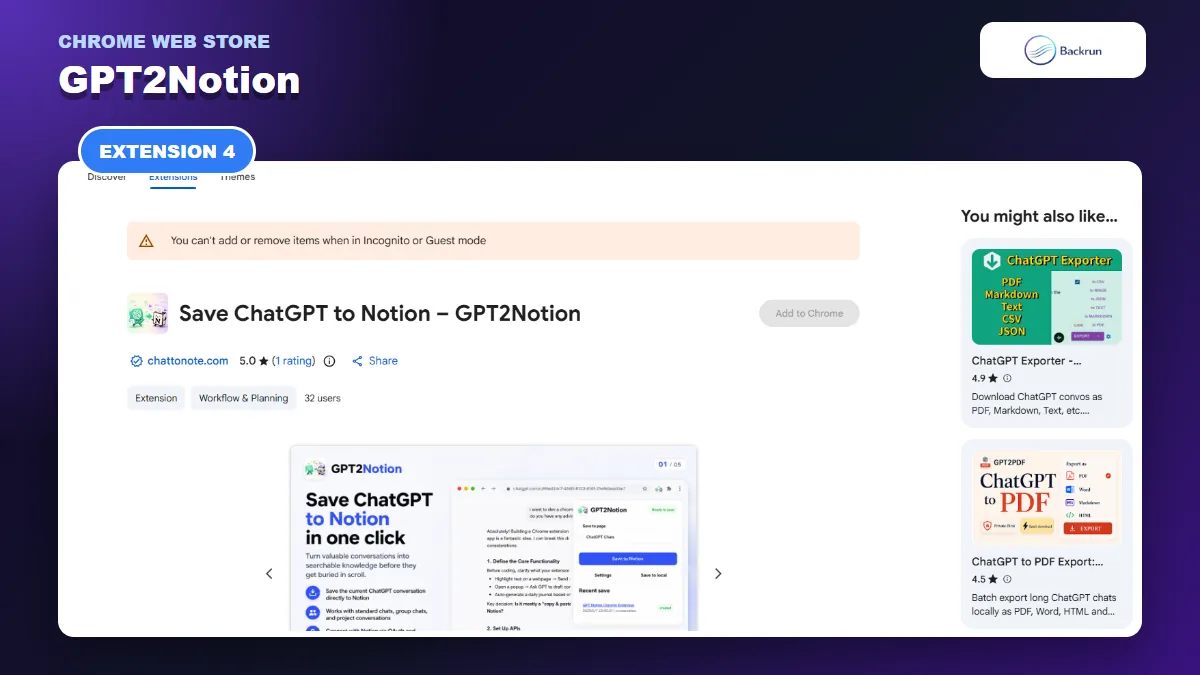
4. GPT2Notion
GPT2Notion preserves selected or complete ChatGPT conversations, including files, images, equations, citations, and local backups.
GPT2Notion is a newer extension focused on high-fidelity ChatGPT content. Its listing describes complete or selected-message exports with speaker labels, nested lists, quotes, code, rich-text tables, citations, source cards, equations, images, and file attachments.
Best for: technical, academic, and research chats where files, math, citations, or a local backup matter.
Here is the normal workflow:
Open the ChatGPT conversation and launch GPT2Notion.
Connect the Notion workspace through OAuth.
Choose an existing page or create a destination for the export.
Export the full conversation or select the specific messages you want.
Review Sync History for warnings, completion status, and destination links.
Create a local Markdown backup when you also want structured JSON and an assets folder on your device.
The local knowledge pack is the feature that separates GPT2Notion from simpler direct exporters. A Markdown copy gives you a portable checkpoint if you later leave Notion or need to compare the page with the source data.
Important limitation: this is still a small listing with a limited rating sample. Available files and images may require an active ChatGPT session, and export time depends on media count and Notion API limits. Test equations, citations, downloads, and overwrite behavior before trusting it with an important archive.
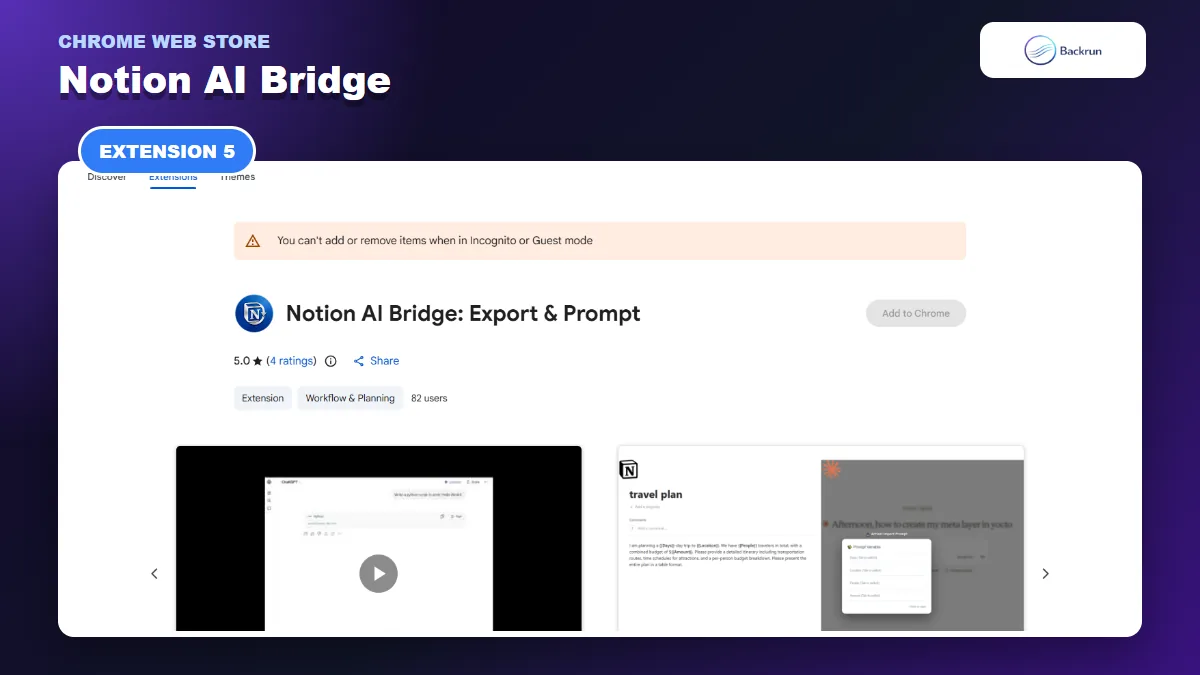
5. Notion AI Bridge
Notion AI Bridge combines ChatGPT-to-Notion export with reusable prompts stored in a Notion database.
Notion AI Bridge is different because it moves information in both directions. It can save a ChatGPT question and answer to Notion, capture the full conversation with a long press, and pull reusable prompts from a Notion database back into ChatGPT.
Best for: writers, consultants, developers, and teams that maintain a prompt library alongside saved AI answers.
To use the bridge:
Install the extension and connect the Notion database used for notes or prompts.
Open ChatGPT and navigate to the response you want to retain.
Use a normal export click to save the current question-answer pair.
Hold the export control for about 1.5 seconds when you need the complete conversation, according to the listing.
Use prompt search to find a saved Notion template and insert it into ChatGPT.
Review the created page for tables, images, code, math, and nested lists.
The listing also documents shortcuts: /e for a single exchange, /e@ for a full chat, and /p for prompt search. Variables such as {{client_name}} can turn a stored prompt into a reusable template.
Important limitation: the visible adoption and rating sample are small compared with Chat to Notion. Its two-way workflow is useful, but connect it to a test database first and check whether its tagging and variable features require a paid plan.
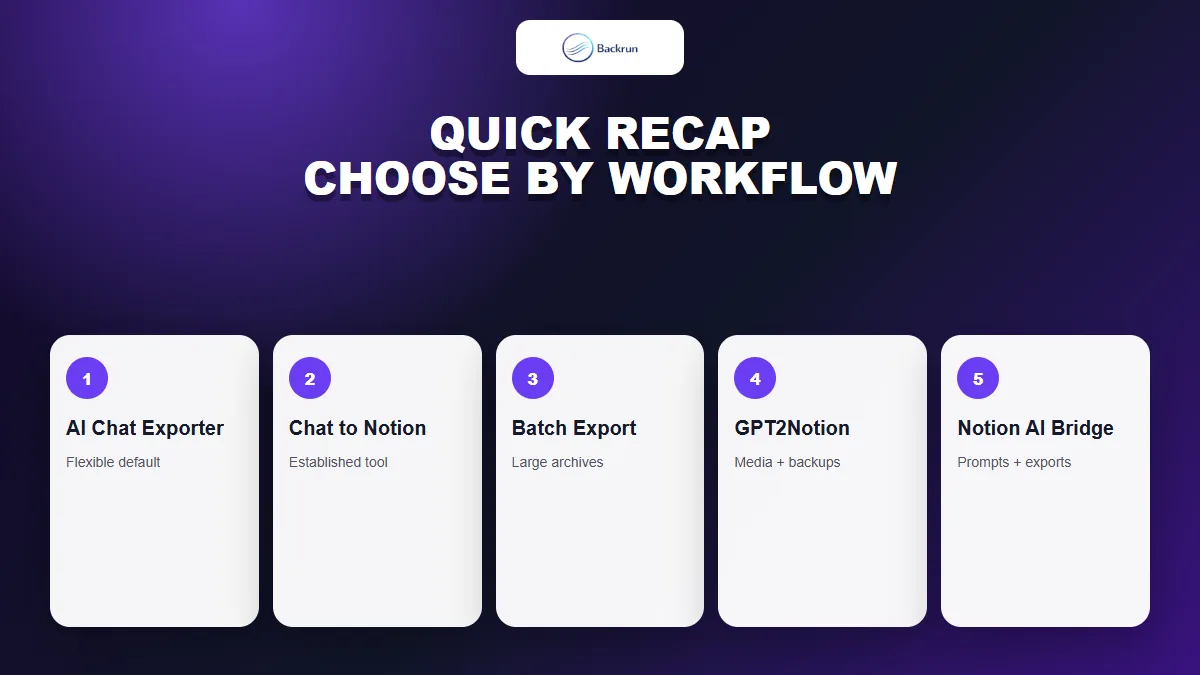
Quick Recap
Choose by export scope and knowledge-management workflow, then verify the result with a realistic test conversation.
Extension
Best use
Export scope
Main caution
AI Chat Exporter
Flexible everyday exports
Selected messages or full chat
Monthly free allowance
Chat to Notion
Saving individual answers into databases
One answer, full discussion, or history
Review remote key-storage model
ChatGPT to Notion - Batch Export
Projects, archives, and bulk migration
Selected chats, projects, groups, archives, or turns
Test a small batch first
GPT2Notion
Media, equations, citations, and local backup
Selected messages or full chat
Small current rating sample
Notion AI Bridge
Saved answers plus reusable prompts
One exchange or full chat
Small adoption sample
AI Chat Exporter is the most flexible starting point when you also need Word, PDF, Docs, or Markdown. Chat to Notion is the established answer-level option. Choose Batch Export for a large history, GPT2Notion for rich media and portable backups, or Notion AI Bridge when prompts need to travel back from Notion into ChatGPT.
Whichever tool you choose, test the page rather than trusting the feature list. Use a conversation containing a nested list, three-column table, code block, equation, citation, link, and image. Verify the title, message order, database properties, source URL, tags, and attachment access. A successful status is not enough if the page is hard to search or loses the context you will need later.
Before granting access, review Google's guidance on installing and managing Chrome extensions. Use a non-sensitive test chat first and disconnect unused integrations. For manual copy, Markdown import, and account-archive workflows, see our broader guide to exporting ChatGPT to Notion.