4 Gemini to Google Docs Extensions That Actually Work in 2026
October 05, 20267 min read
A good Gemini to Google Docs extension should move more than plain text. It should preserve message order, headings, tables, equations, code blocks, images, and links while giving you control over whether to export one answer, selected messages, or the complete conversation.
Google's built-in Export to Docs command is useful for a single Gemini response, but it is not designed as a full-chat exporter. The four extensions below add direct Google Docs export for selected messages, complete conversations, or richer document workflows.
1. Gemini Exporter
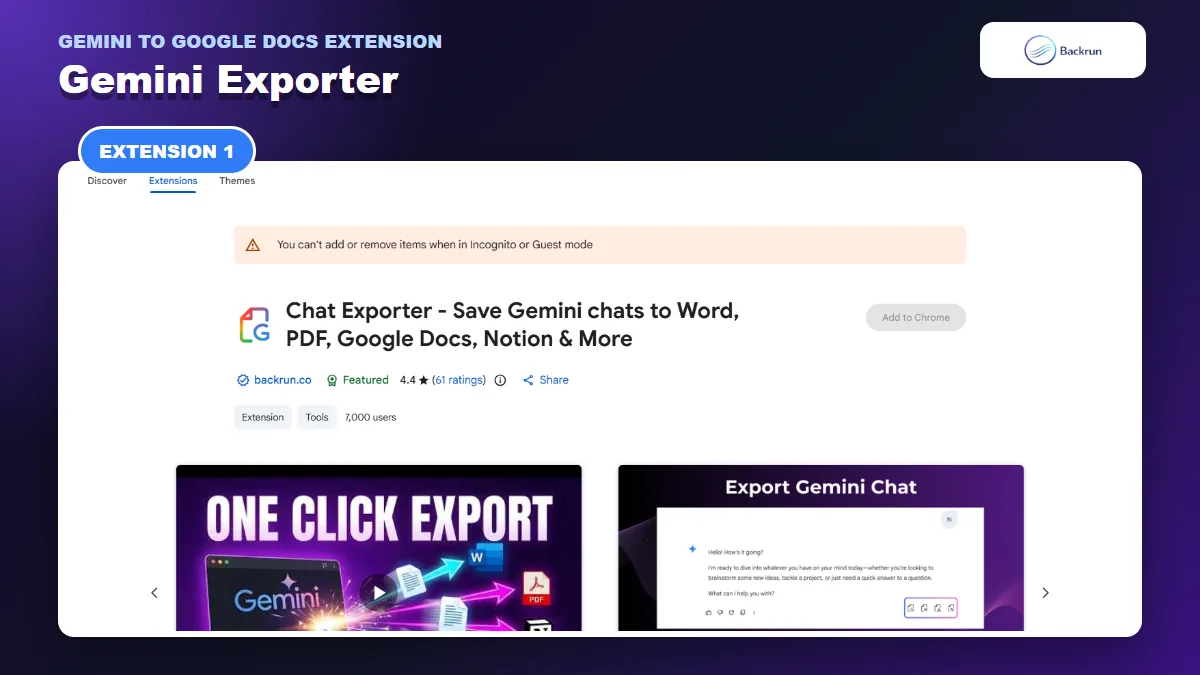
Gemini Exporter supports direct Google Docs export for selected messages or a complete Gemini conversation.
Gemini Exporter is the strongest all-round option when you need either selected messages or an entire Gemini conversation in Google Docs. Its current Chrome Web Store listing describes direct exports to Google Docs, Word, PDF, and Notion, plus automatic scrolling that loads the available history before a long-chat export.
Best for: long research sessions, project handoffs, technical conversations, and any workflow where both prompts and answers provide necessary context.
Export scope: selected messages or the full conversation.
Google Docs path: direct export after Google authorization.
Customization: font family, font size, and text color before export.
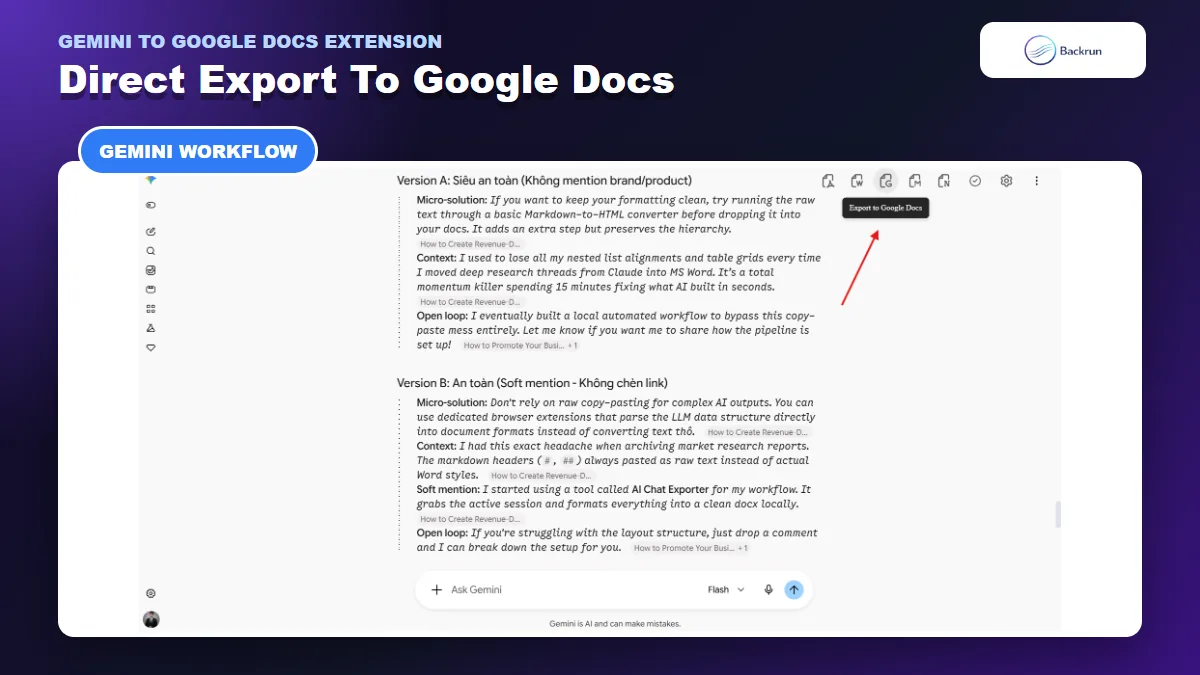
After choosing the document style, use the Google Docs export button to create an editable document.
The selection controls are useful when a chat contains several failed drafts before the final answer. Exporting only the confirmed messages creates a cleaner document and reduces the amount of sensitive prompt content sent to Google Docs.
What to verify: open the new Doc and compare message order, equations, wide tables, citations, and images with Gemini. The listing says exports are processed locally and that no separate account is required, but Google Docs still requires authorization to create a file in your Google account. Review those permissions before using a work account.
2. AI Chat to Word, PDF and Google Docs for Gemini
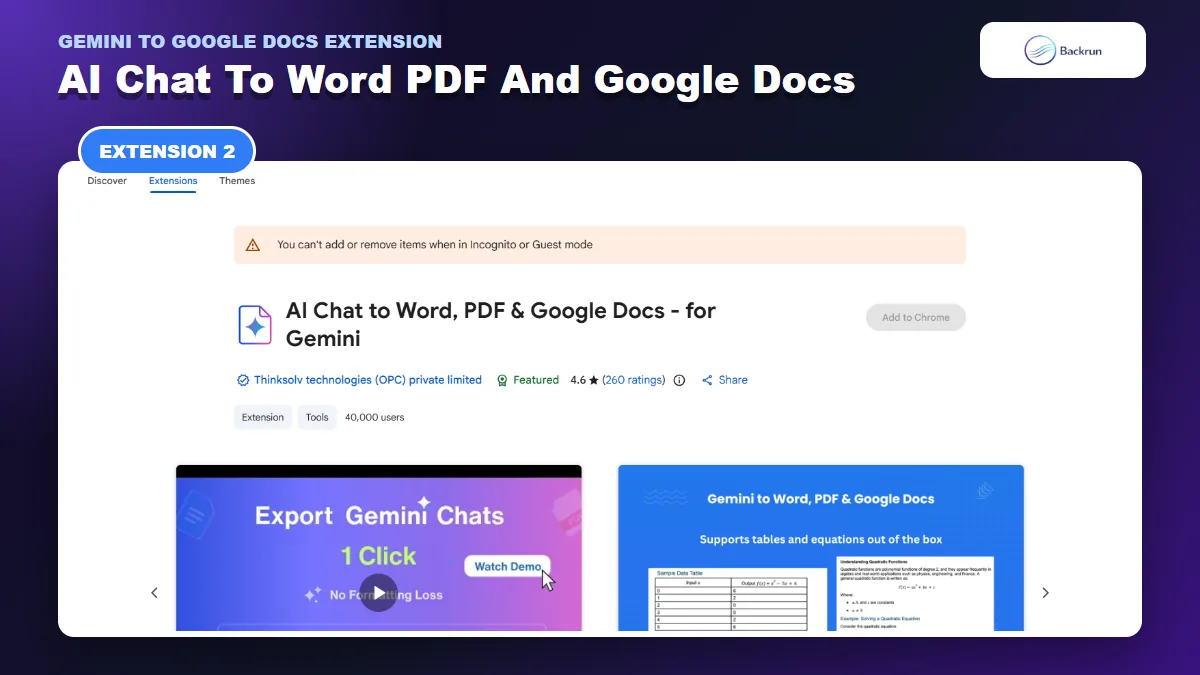
This established extension emphasizes tables, equations, images, Deep Research documents, and assistant-only exports.
AI Chat to Word, PDF and Google Docs for Gemini has the largest public usage footprint in this comparison. Its current listing shows a Featured badge and focuses on direct conversion of Gemini content into Google Docs, Word, PDF, or Markdown.
Best for: tables, mathematics, code, images, and Gemini Deep Research documents that need further editing in Google Docs.
Export scope: one response, a complete conversation, or assistant responses without user prompts.
Google Docs path: direct one-click conversion.
Rich content: equations, tables, inline code, code blocks, images, and other formatted elements.
Special workflow: Gemini Deep Research documents can be moved into Docs, Word, or PDF.
The assistant-only option is valuable when prompts contain rough notes, personal instructions, or irrelevant revisions. It produces a more presentable Google Doc without manually deleting every prompt after export.
What to verify: the Chrome Web Store privacy section says the extension handles personally identifiable information and website content. That is a disclosure, not proof of misuse, but it makes permission review important. Test a non-sensitive conversation first, then inspect equation editability, merged table cells, footnotes, source links, and Deep Research citations.
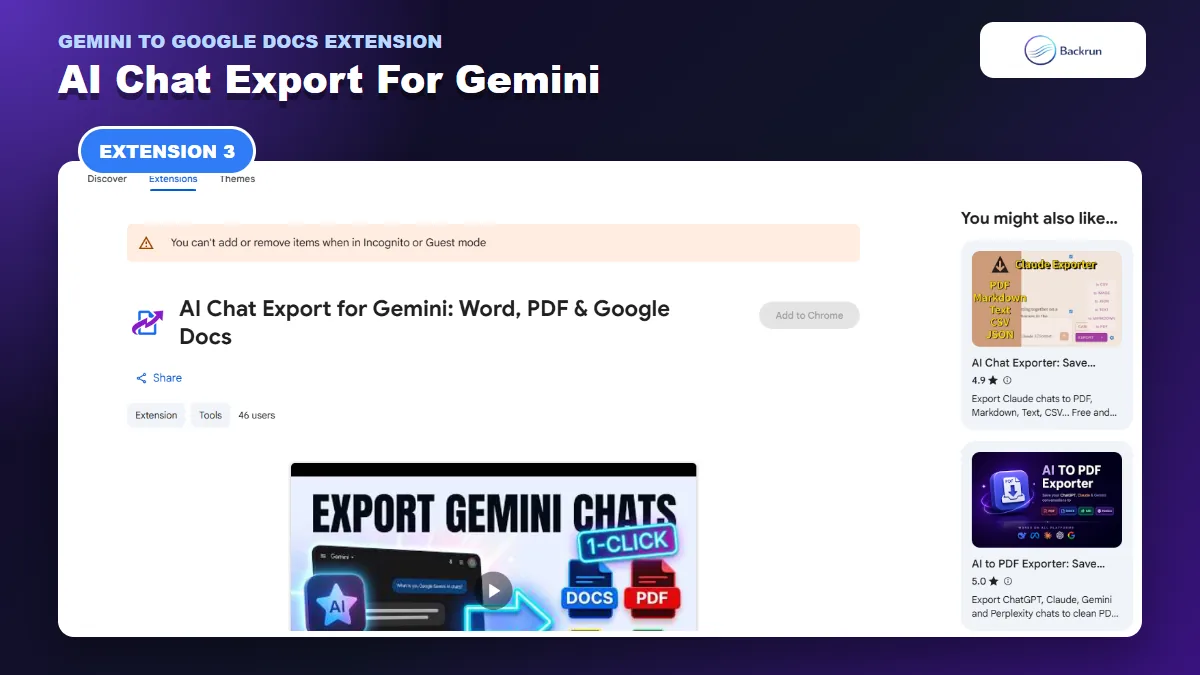
3. AI Chat Export for Gemini
AI Chat Export for Gemini adds response-level export buttons and a floating full-thread export widget.
AI Chat Export for Gemini adds export buttons beneath Gemini responses and a floating widget for the full thread. Its listing describes direct Google Docs integration alongside DOCX, PDF, Markdown, and plain-text formats.
Best for: users who want a lightweight, visible export control next to each Gemini answer instead of opening a larger selection interface.
Export scope: individual responses through inline buttons or the whole thread through the floating widget.
Google Docs path: direct creation in Google Drive.
Other formats: Word, PDF, Markdown, and text.
Processing claim: the listing says processing happens in the browser and Google account.
The per-response control makes it practical for short tasks. For example, you can send only a finished content brief or calculation to Docs without moving the exploratory discussion around it.
What to verify: this is a newer listing with a small user base and limited rating history. Treat its feature description as a claim to test, not an established reliability record. Check the extension's host permissions, Google Drive access, support contact, and behavior with a long thread before connecting an organization account.
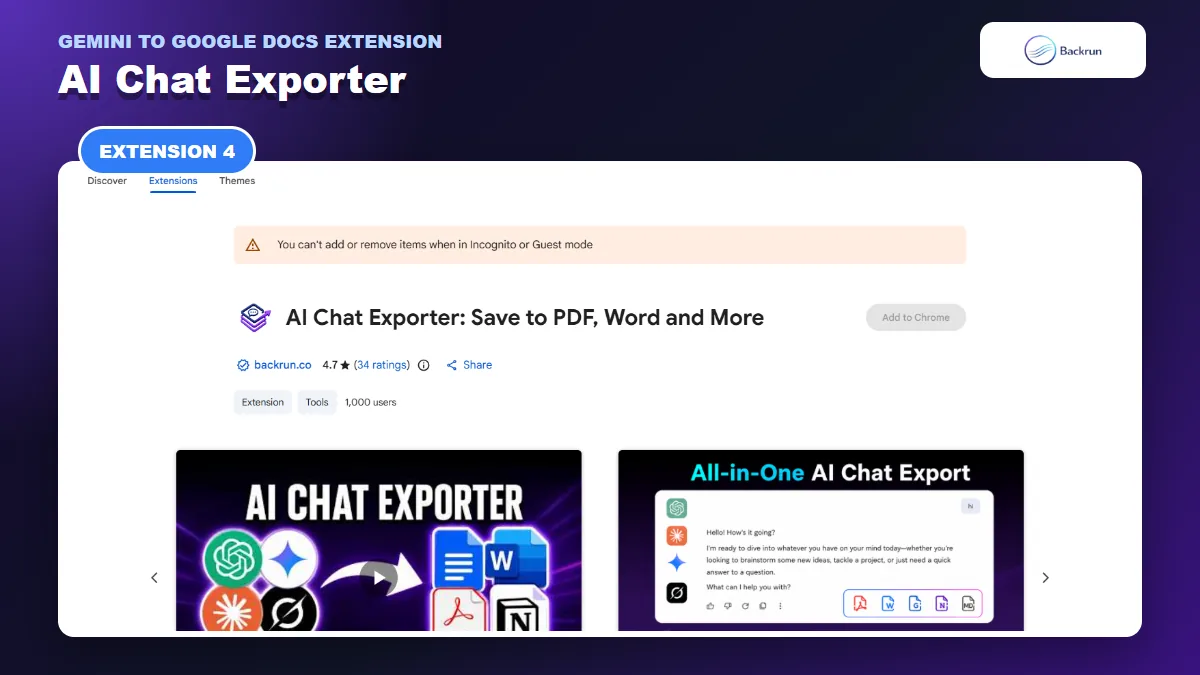
4. AI Chat Exporter
AI Chat Exporter moves selected Gemini messages or a complete conversation directly to Google Docs.
AI Chat Exporter is the broadest cross-platform option in this list. It works with Gemini, ChatGPT, Claude, and Grok, then sends selected messages or a complete conversation to Google Docs, Word, PDF, Markdown, or Notion.
Best for: people who use more than one AI assistant and want one consistent export workflow instead of installing a separate extension for each platform.
Export scope: selected messages or the full conversation, with prompts, AI responses, or both.
Google Docs path: direct export after choosing Google Docs as the destination.
Customization: font family, font size, and text color before export.
Its main advantage is consistency. A team can archive Gemini research in Google Docs and use the same controls when a project later moves to Claude or ChatGPT.
What to verify: the current listing says local file exports are processed on the device, while Google Docs exports send the required content to Google. Review its website access and Google authorization, then test a non-sensitive conversation containing a table, equation, code block, and image before using it with client material.
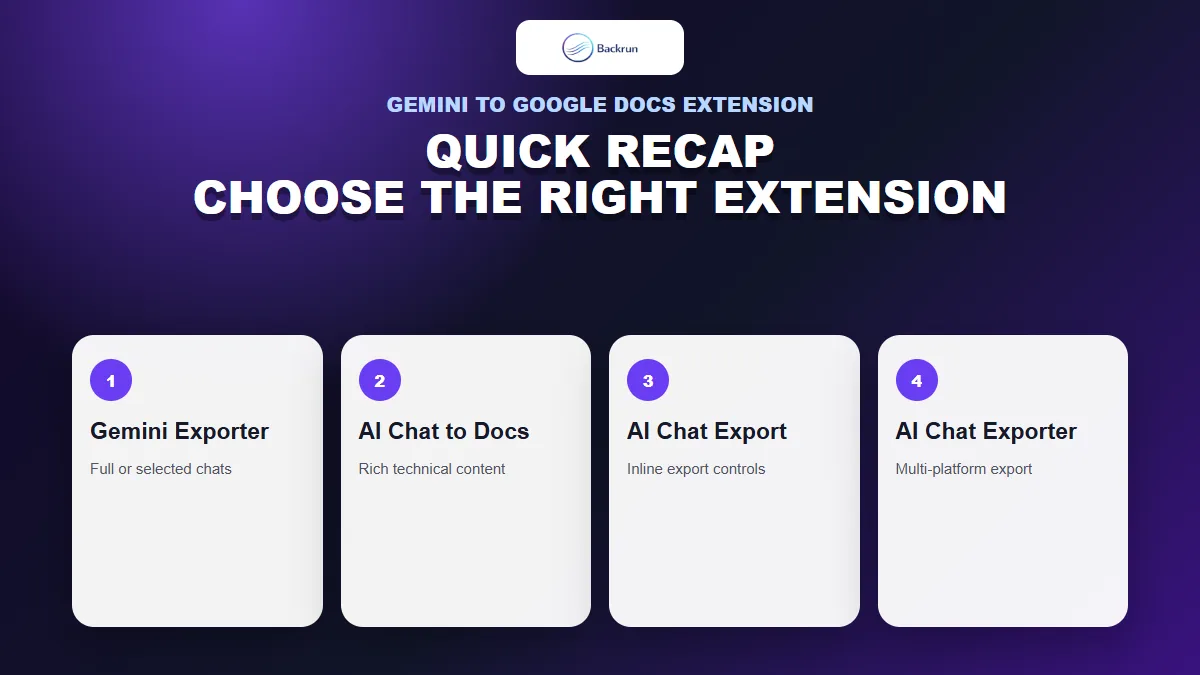
Quick Recap
Compare export scope, rich-content handling, interface style, and platform support before choosing an extension.
The best option depends on what you are exporting and how much trust evidence you need.
Before choosing one for regular work, test every candidate with the same short Gemini conversation. Include a heading, numbered steps, a three-column table, one equation, a code block, an image, and two source links. Export it to a temporary Google Doc, then compare the result with Gemini. Check whether text remains editable, table columns stay aligned, equation symbols survive, code keeps line breaks, images appear at usable resolution, and links point to the correct sources. Finally, revoke the extension and Google authorization to confirm you know where both controls live. This repeatable test is more useful than comparing marketing screenshots alone.
Extension
Best fit
Docs workflow
Main caution
Gemini Exporter
Selected messages or complete long chats
Direct Google Docs export
Review Google authorization and complex formatting
AI Chat to Word, PDF and Google Docs
Equations, tables, code, and Deep Research
Direct Google Docs export
Review privacy disclosures and rich-content conversion
AI Chat Export for Gemini
Fast response-level export buttons
Direct Google Drive/Docs integration
Newer listing with limited track record
AI Chat Exporter
One workflow across Gemini and other AI platforms
Direct Google Docs export
Review both website and Google authorization
Start with Gemini Exporter for a focused Gemini workflow. Choose the Thinksolv extension when equations and tables are the priority, the inline exporter for short answers, or AI Chat Exporter when you also work with ChatGPT, Claude, or Grok. Always test one non-sensitive conversation and review the current Chrome extension permissions before exporting confidential material.
For a method-by-method workflow that also covers Gemini's native response export, see our guide to moving Gemini to Google Docs.