5 Gemini to Markdown Extensions That Preserve Formatting in 2026
October 06, 20268 min read
A reliable Gemini to Markdown extension should preserve more than visible text. It needs to keep headings, lists, code fences, tables, links, citations, and mathematical notation usable after the chat leaves Gemini.
The five extensions below solve different parts of that job. Some export selected messages, one is built around Deep Research reports, another can back up chat history, and one focuses specifically on LaTeX-heavy technical conversations.
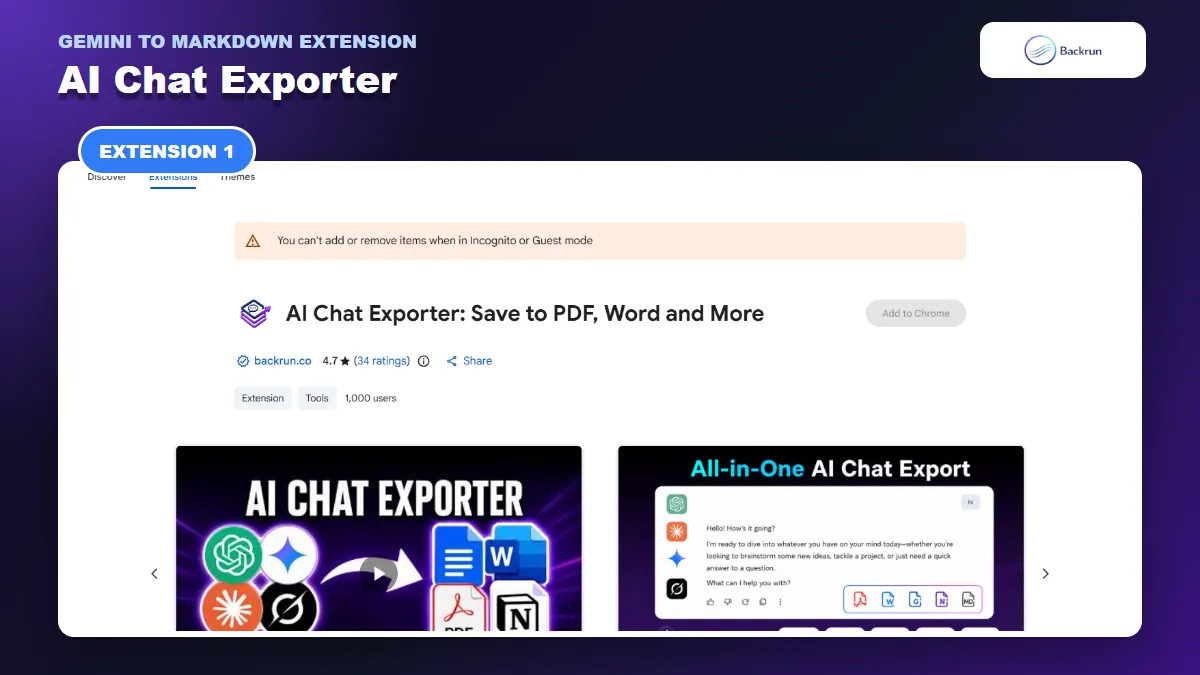
1. AI Chat Exporter
AI Chat Exporter supports selected-message or full-conversation Markdown exports across Gemini and other AI platforms.
AI Chat Exporter is the broadest option in this comparison. It works with Gemini, ChatGPT, Claude, and Grok, then exports selected messages or an entire conversation to Markdown, PDF, Word, Google Docs, or Notion. Its Chrome Web Store listing also describes controls for exporting prompts, AI responses, or both.
Best for: people who use several AI assistants and want one consistent exporter instead of a separate extension for every platform.
Markdown scope: selected Gemini messages or the full thread.
Other destinations: PDF, Word, Google Docs, and Notion.
Current free allowance: the listing states seven full-conversation exports and ten selected-message exports per month.
The selected-message workflow matters when a conversation contains false starts. Instead of cleaning ten exploratory prompts from the Markdown file, you can export only the final answer, its supporting table, and the prompt that provides context.
What to verify: export a short technical conversation first and open the .md file in the editor you actually use. Confirm that fenced code includes a language label, equations remain editable text rather than screenshots, image references resolve, and nested lists keep their indentation. Local file exports are described as device-processed, but you should still review the extension's Gemini page access before using confidential chats.
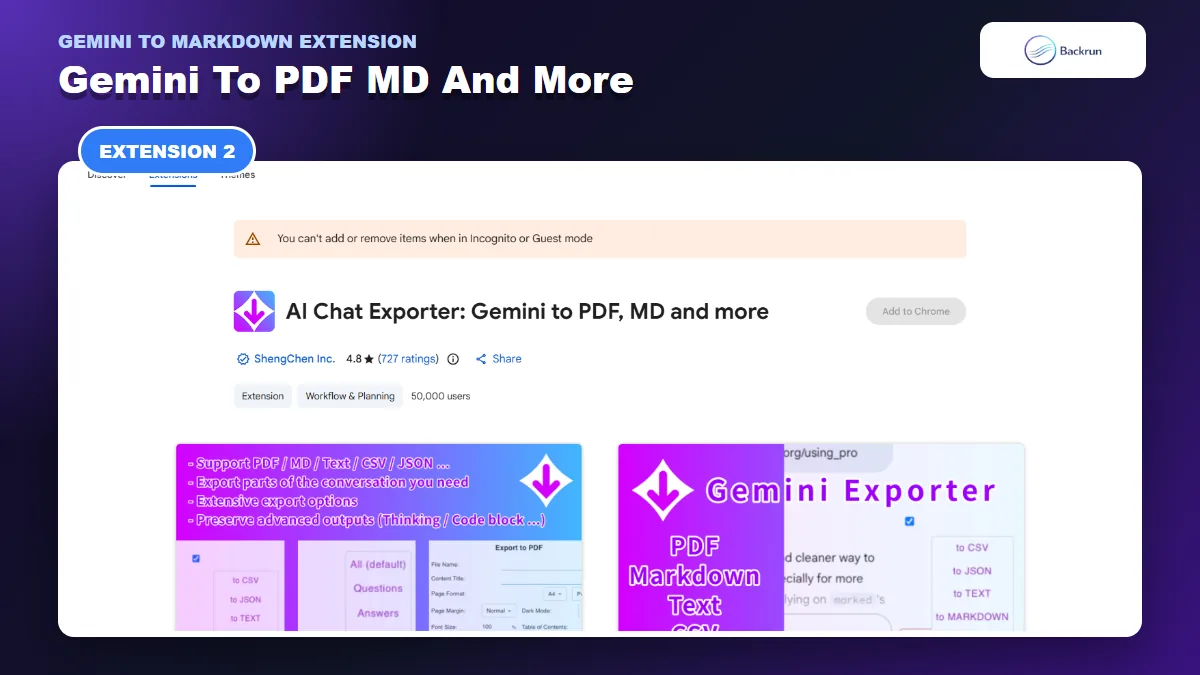
2. AI Chat Exporter: Gemini to PDF, MD and More
The ShengChen extension offers granular message selection and unlimited Markdown exports from Gemini.
AI Chat Exporter: Gemini to PDF, MD and More by ShengChen Inc. has the largest visible adoption in this list. The current listing shows 50,000 users and more than 700 ratings, while its Markdown, text, CSV, and JSON exports are described as unlimited and free.
Best for: regular Gemini users who want granular selection controls, timestamp options, and several local export formats.
Markdown scope: all messages, questions only, answers only, or a manually selected subset.
Metadata controls: created, updated, and exported timestamps can be included or removed.
Other formats: PDF, text, CSV, and JSON.
This is the strongest candidate when you need repeated Markdown exports without a monthly Markdown quota. The role filters are also useful for building a prompt library: export questions only, then store the resulting Markdown in Obsidian, VS Code, or a Git repository.
What to verify: the extension has many PDF-specific controls, but Markdown quality is a separate issue. Test tables with aligned columns, long code blocks, citations, and any visible thinking section you intend to keep. Remove timestamps unless they add value, because repeated metadata can make a knowledge note harder to scan.
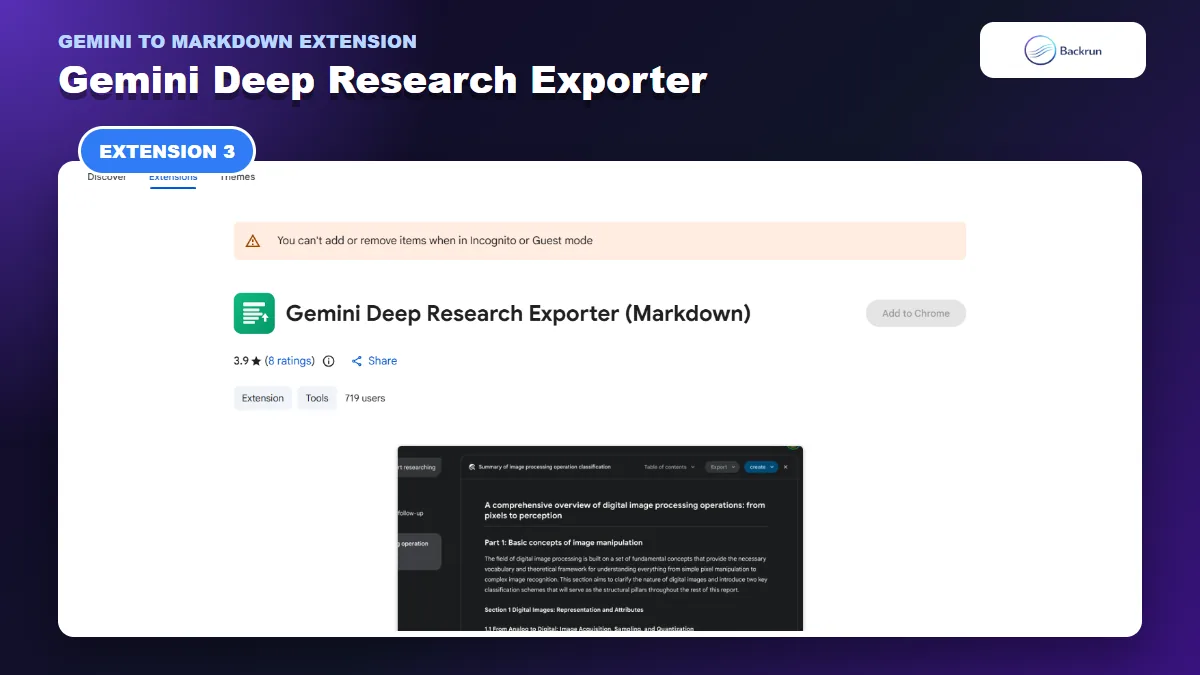
3. Gemini Deep Research Exporter (Markdown)
Gemini Deep Research Exporter focuses on citations, source lists, tables, code, images, and mathematical content.
Gemini Deep Research Exporter (Markdown) is more specialized than the first two tools. It adds a floating Markdown download control and focuses on long Gemini Deep Research answers, including citations, source lists, mathematical blocks, tables, images, code, and blockquotes.
Best for: researchers who need a report and its references in one editable Markdown document.
Export scope: selected content when text is highlighted, or the visible answer area when nothing is selected.
Research support: footnotes, source links, and full citation lists.
Privacy claim: the listing says no data is sent elsewhere and no extra permissions are required.
The selection behavior makes it useful for removing Gemini's preamble or excluding a section you do not trust. However, it is primarily an answer exporter, not the best choice for preserving a long back-and-forth conversation with every prompt.
What to verify: open the Markdown in a renderer that supports your citation and math syntax. A source list may be present but still use link formatting that your publishing system handles differently. Check footnote anchors, table width, image URLs, inline dollar signs, and display equations before deleting the original Gemini report.
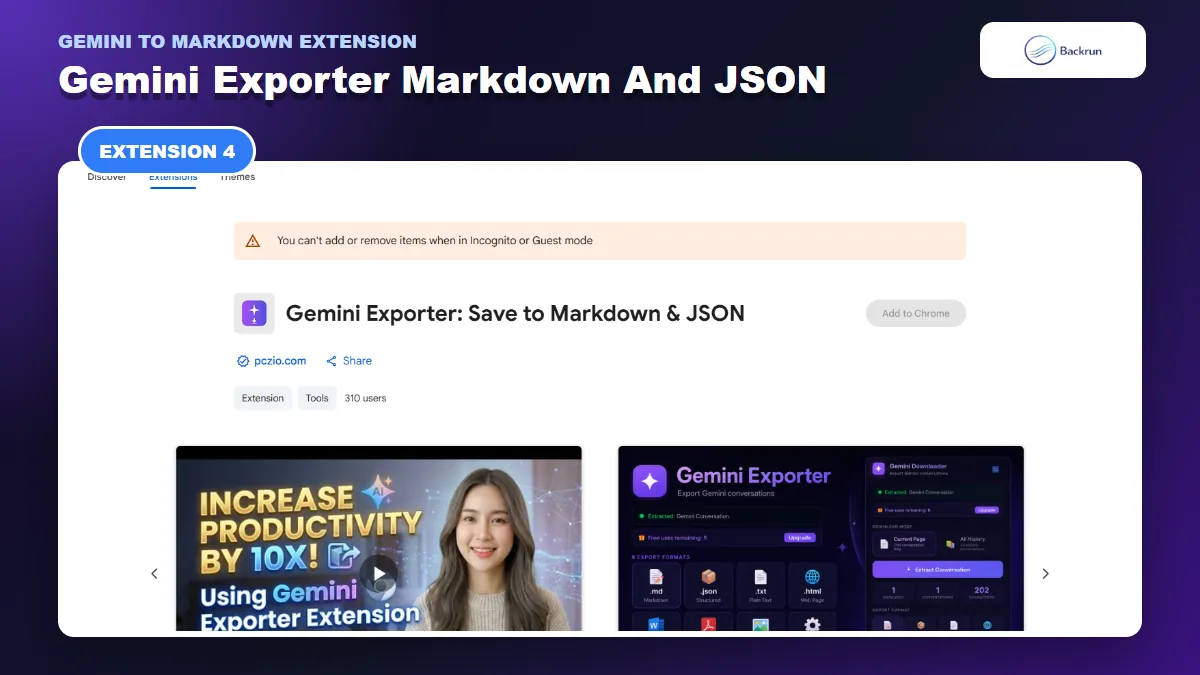
4. Gemini Exporter: Save to Markdown and JSON
The pczio exporter combines current-chat Markdown export with a batch history backup mode.
Gemini Exporter: Save to Markdown and JSON by pczio.com combines a normal current-conversation exporter with a History Mode that scans the Gemini sidebar for batch backups. It supports Markdown, JSON, plain text, and HTML, so it is aimed as much at archiving as at producing a single polished note.
Best for: users who want to back up multiple Gemini conversations or keep both readable Markdown and structured JSON copies.
Current chat: extract the conversation open in Gemini and download it immediately.
Batch workflow: scan chat history from the sidebar and export more than one conversation.
Formats: Markdown, JSON, text, and HTML.
Free limit: the listing currently states five free conversation downloads before a paid lifetime upgrade is required.
Markdown is convenient for reading and search, while JSON is better if you plan to parse the archive with a script. Keeping both can be sensible for an important project: use Markdown today, but retain JSON in case you later need message-level migration.
What to verify: batch export is a larger operation than saving one open chat. Start with two non-sensitive conversations, confirm that titles map to the correct files, check whether sidebar pagination or lazy loading skips older chats, and inspect code blocks before running a full backup. Do not assume that a completed progress indicator guarantees every historic thread was captured.
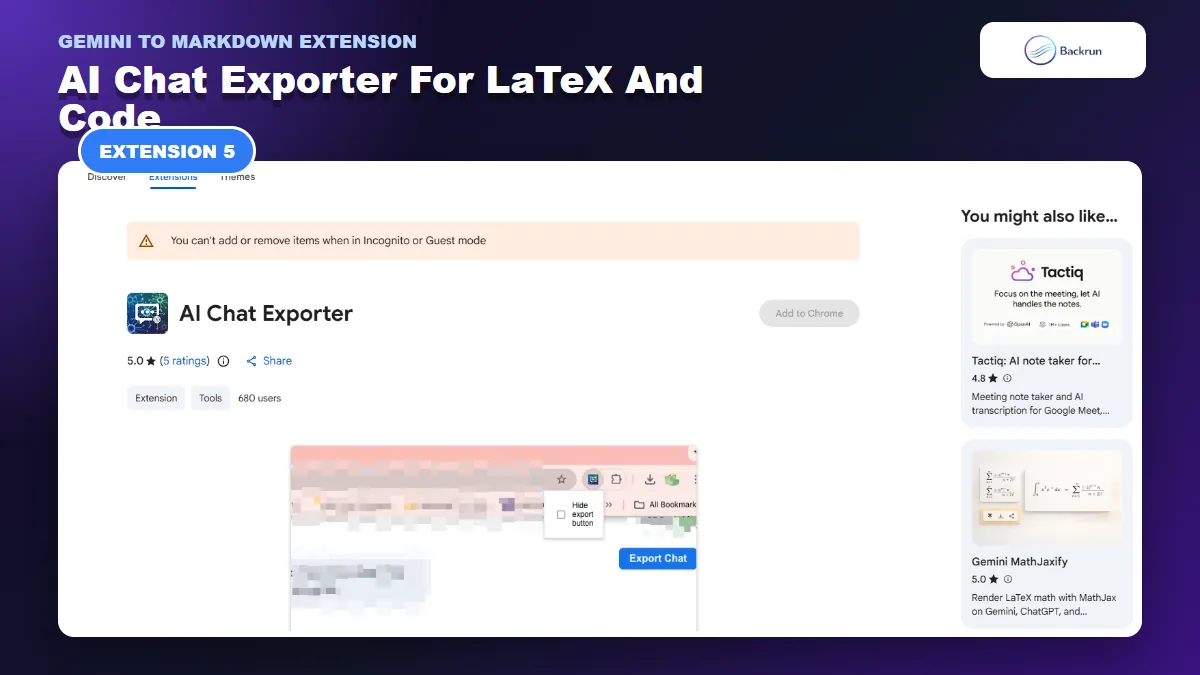
5. AI Chat Exporter for LaTeX and Code
This open-source exporter is designed for technical Gemini chats containing LaTeX, code, tables, and links.
AI Chat Exporter by the amazingpaddy project is built for Gemini and ChatGPT conversations containing LaTeX, code, tables, links, and technical formatting. It can download a Markdown file or copy the result directly to the clipboard, and its listing links to the public source repository on GitHub.
Best for: scientific, mathematical, and programming chats where editable LaTeX matters more than extra document formats.
Export scope: full or partial Gemini chats.
Output: Markdown file with a custom name or Markdown copied to the clipboard.
Transparency: the project is open source, which makes its implementation available for review.
Clipboard export is convenient when the destination is already open. You can copy Markdown from Gemini and paste it into an Obsidian note or repository file without creating an intermediate download.
What to verify: “preserves LaTeX” does not mean every Markdown renderer will display the result identically. Test inline math, display math, matrices, aligned equations, escaped currency symbols, and code that contains dollar signs. The Chrome listing currently has a small rating sample, so treat the open-source code and your own output tests as more useful evidence than the score alone.
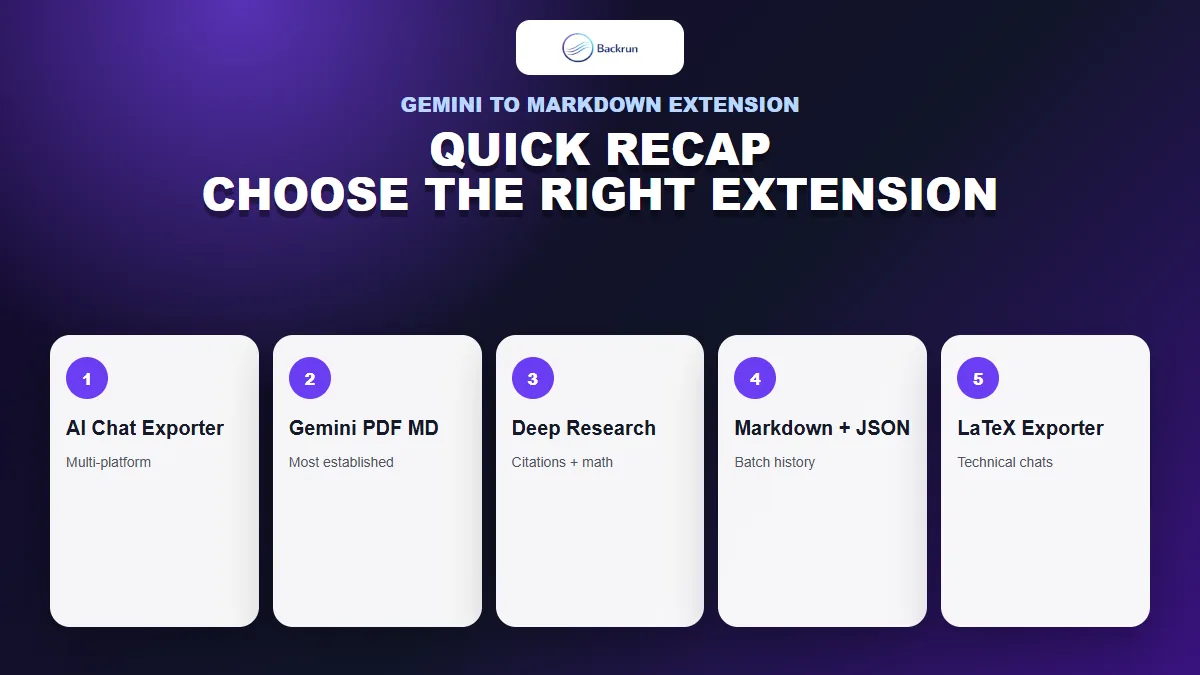
Quick Recap
Choose by export scope and content type rather than installing the extension with the longest feature list.
Extension
Best fit
Markdown scope
Main limitation
AI Chat Exporter
One workflow across Gemini and other AI assistants
Selected messages or full thread
Monthly free allowance
Gemini to PDF, MD and More
Frequent Gemini exports and role filters
All, questions, answers, or selection
Test Markdown separately from PDF settings
Deep Research Exporter
Reports with citations and math
Selection or visible answer
Not designed for full chat history
Save to Markdown and JSON
Batch history backup
Current chat or multiple conversations
Five free downloads listed
LaTeX and Code Exporter
Technical and scientific chats
Full or partial chat
Renderer compatibility still needs testing
For a flexible default, start with AI Chat Exporter if you also work in ChatGPT, Claude, or Grok. Choose the ShengChen extension for frequent Gemini-only Markdown exports, Deep Research Exporter for citation-heavy reports, the pczio tool for batch backup, or the open-source LaTeX exporter for technical content.
Whichever tool you choose, run the same test chat through it before committing. Include a nested list, a three-column table, a fenced code block, two links, one image, inline math, and a display equation. Open the result in your real Markdown editor and compare it with Gemini. Also review Google's guidance for managing Chrome extensions before giving an exporter access to work conversations.
A clean export should also remain portable. Preview the same file in at least two destinations, such as VS Code and Obsidian, because one editor may support math, image paths, or footnotes that another does not. If the Markdown only looks correct inside one proprietary preview, it is less useful as a long-term archive.
For non-extension workflows such as manual copy, Google Docs conversion, and direct .md creation, see our guide to moving Gemini to Markdown.