5 Claude Toolbox Chrome Extensions and Alternatives Compared
October 14, 20268 min read
Searching for a Claude Toolbox Chrome Extension is more confusing than it should be because several unrelated tools use almost the same name. Some organize chat histories, one creates polished document exports, another focuses on Claude artifacts, and one only saves favorite prompts.
This comparison separates five current Chrome Web Store tools by their actual capabilities, maturity, privacy disclosures, and best-fit workflow. The figures below reflect the listings checked on October 14, 2026 and can change over time.
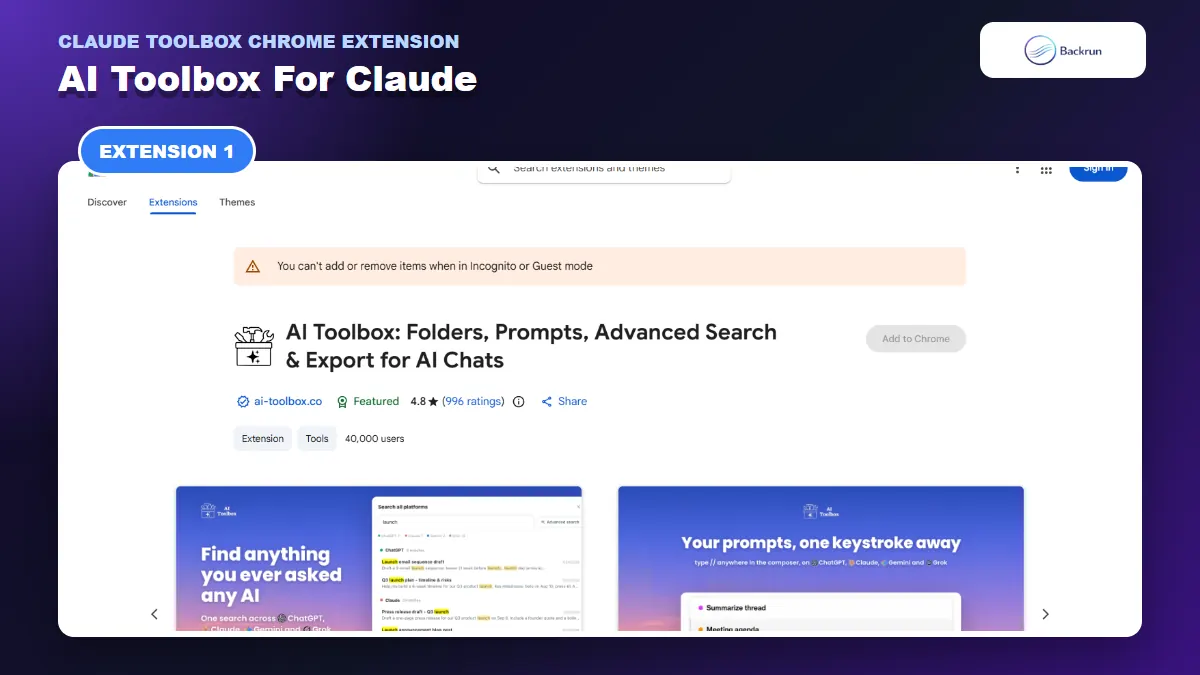
1. AI Toolbox for Claude
AI Toolbox combines Claude folders, full-text search, bookmarks, Artifact Vault, prompt workflows, and bulk export in one multi-platform extension.
AI Toolbox is the broadest and most mature option here. Its current Chrome Web Store listing shows a 4.8 rating from 996 reviews and 40,000 users. The extension supports ChatGPT, Claude, Gemini, and Grok, but Claude gets a dedicated Artifact Vault alongside folders, full-text search, bookmarks, prompt tools, context monitoring, and single or bulk export.
Best for: people who use Claude every day and want one organized workspace rather than a narrow utility.
To start with the Claude module:
Install AI Toolbox from the Chrome Web Store.
Open the extension popup and enable Claude. The listing says other platforms remain off until you grant their optional permissions.
Open claude.ai and allow the extension to index the conversations available to your signed-in session.
Use folders, full-text search, bookmarks, or the Artifact Vault according to the work you need to recover.
Test one export before relying on bulk export or deleting conversations.
The Claude module documentation says the free plan includes limited search results, folders, bookmarks, recent artifacts, saved prompts, and unlimited TXT exports. Markdown, JSON, PDF, the full Artifact Vault, and broader bulk tools require a paid plan. That makes the free tier useful for evaluating the interface, but not a complete free archive system.
Important limitation: this extension covers four AI platforms and has a large feature surface. Enable only the sites you use, review what syncs across devices, and test its local search index with non-sensitive chats first. The listing says conversation content stays in the browser while organization data such as folders and prompts can sync to the account.
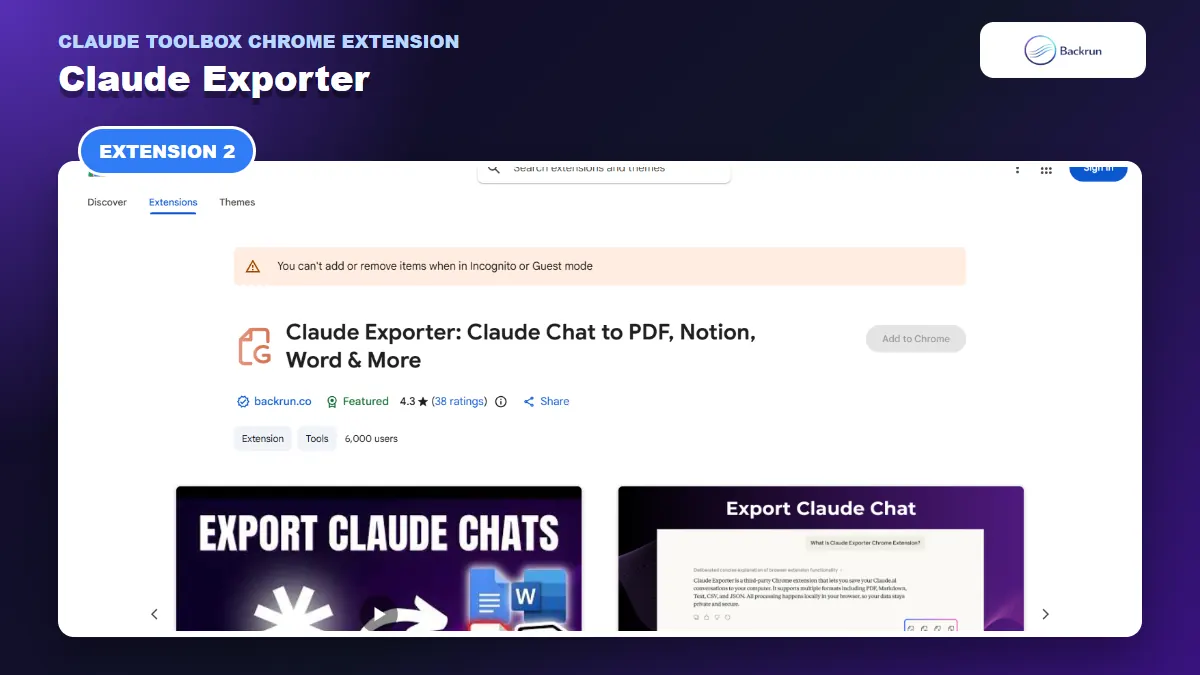
2. Claude Exporter
Claude Exporter turns selected messages or an entire Claude conversation into PDF, Word, Google Docs, or Notion content.
Claude Exporter is the focused alternative for people who want to turn a Claude conversation into a finished document rather than organize a long-term chat library. The current Chrome Web Store listing supports selected-message or full-conversation exports to PDF, Word, Google Docs, and Notion, with controls for font family, size, and text color.
Best for: sharing Claude research, reports, meeting notes, code explanations, or formatted answers outside Claude.
A practical export workflow is:
Install Claude Exporter and open the Claude conversation you need.
Select individual messages, or choose the complete conversation when the surrounding context matters.
Review the content for code blocks, tables, artifacts, extended thinking, and messages that should remain private.
Adjust the typography before export when the document needs a specific font, size, or text color.
Choose PDF, Word, Google Docs, or Notion, then inspect the exported document before sharing it.
The extension is useful when raw TXT or JSON is not reader-friendly enough. It can preserve structured content in a document format while avoiding the manual cleanup that usually follows copying a long Claude chat into Word or Google Docs.
Important limitation: Claude Exporter is not a folder system, full-history search engine, or prompt library. Cloud destinations may require authorization, and free usage limits can change, so check the current listing and test one non-sensitive conversation before exporting important work.
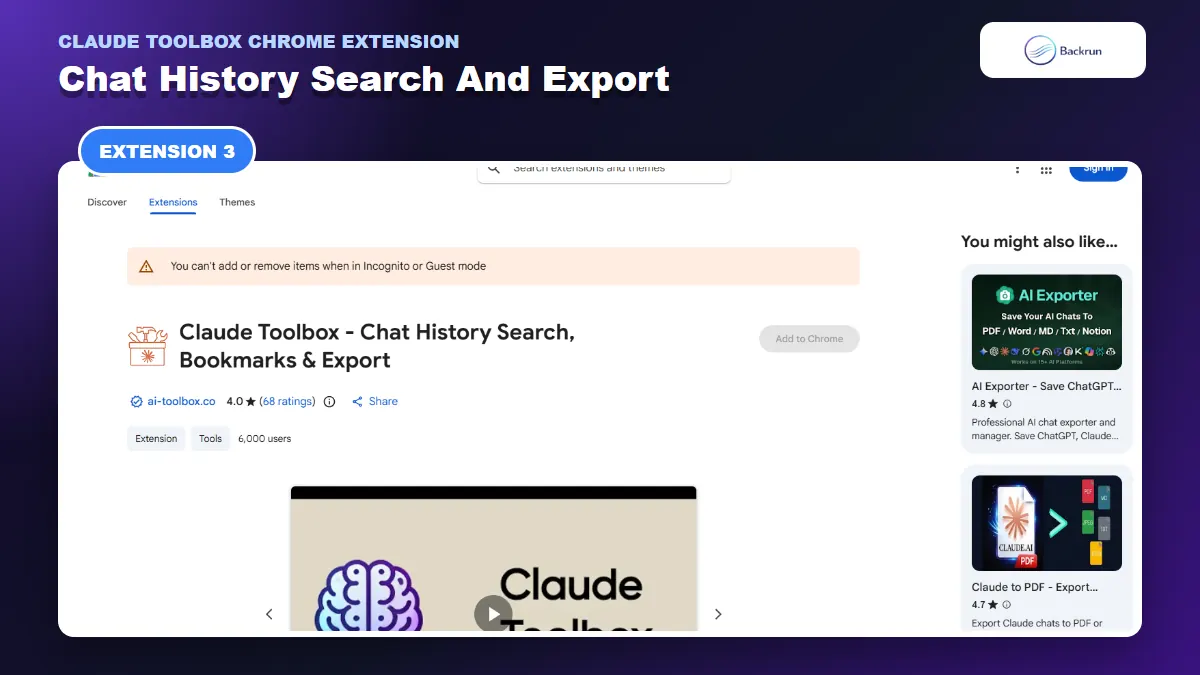
3. Claude Toolbox: Chat History Search, Bookmarks and Export
This Claude Toolbox focuses on local history search, message bookmarks, TXT or JSON export, and plan-usage visibility.
Claude Toolbox: Chat History Search, Bookmarks and Export is a Claude-specific extension with about 6,000 users and a 4.0 rating from 68 reviews. Its feature set is much smaller than AI Toolbox: local history search, message bookmarks, TXT or JSON export, usage visibility, themes, and a multilingual interface.
Best for: users who mainly need to find an old Claude message, bookmark important answers, or create a lightweight TXT or JSON backup.
A practical workflow is:
Install the extension and reopen Claude.
Run an exact or partial history search for a phrase you remember from the conversation.
Open the matching chat and bookmark the response you need to revisit.
Export the conversation as TXT or JSON when you need a portable copy.
Open the exported file and confirm that the beginning, ending, and expected messages are present.
The narrow scope can be an advantage. There are fewer controls to learn, and TXT or JSON works well for raw backup, search, or processing. However, those formats are less suitable than PDF, Word, or Google Docs when the document must be shared with non-technical readers.
Important limitation: the listing was last updated on May 22, 2026 and its privacy disclosure covers personally identifiable information, authentication information, personal communications, and website content. Read the current permission prompt carefully instead of assuming that “stored locally” means the extension needs no sensitive access.
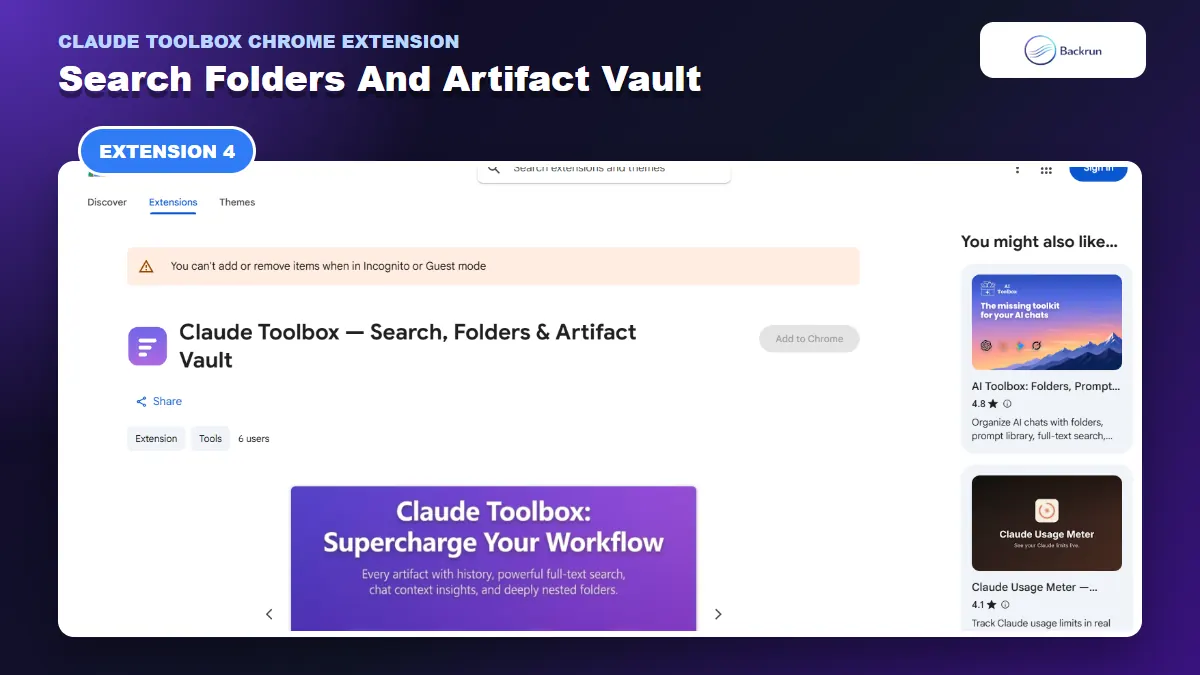
4. Claude Toolbox: Search, Folders and Artifact Vault
The newer Claude-only toolbox adds query filters, unlimited folders, artifact version history, export, and context handoff tools.
Claude Toolbox: Search, Folders and Artifact Vault is a newer Claude-only product. Its listing describes full-text query syntax, unlimited nested folders, message bookmarks, artifact version history, side-by-side comparison, export, a context-usage meter, and a one-click handoff into a fresh chat.
Best for: developers, researchers, and creators whose Claude work depends on artifacts and who want deeper organization without enabling support for other AI websites.
Use it carefully in this order:
Install the extension and open a non-sensitive Claude account first.
Let it index a small set of conversations, then test search operators such as an exact phrase, project, role, folder, or date.
Create a folder and bookmark one message to confirm navigation works as expected.
Open the Artifact Vault, inspect version history, and test one artifact export.
Back up the extension data before committing a large archive to a newly released tool.
The listing supports Markdown, text, JSON, PDF, and ZIP exports, including a folder, project, or selected set of conversations with their artifacts. It also states that the index lives in the browser, with no separate account, server, or analytics.
Important limitation: this extension currently has only six users and no public ratings. Version 1.0.0 was updated on September 10, 2026, so its feature list is ambitious relative to its public adoption. Treat it as an early-stage tool: export a backup, verify restore behavior, and do not make it the sole location for important artifacts.
5. Claude Toolbox: Prompt Manager
The lightweight prompt manager saves favorite Claude prompts and exposes them in the Claude sidebar for quick reuse.
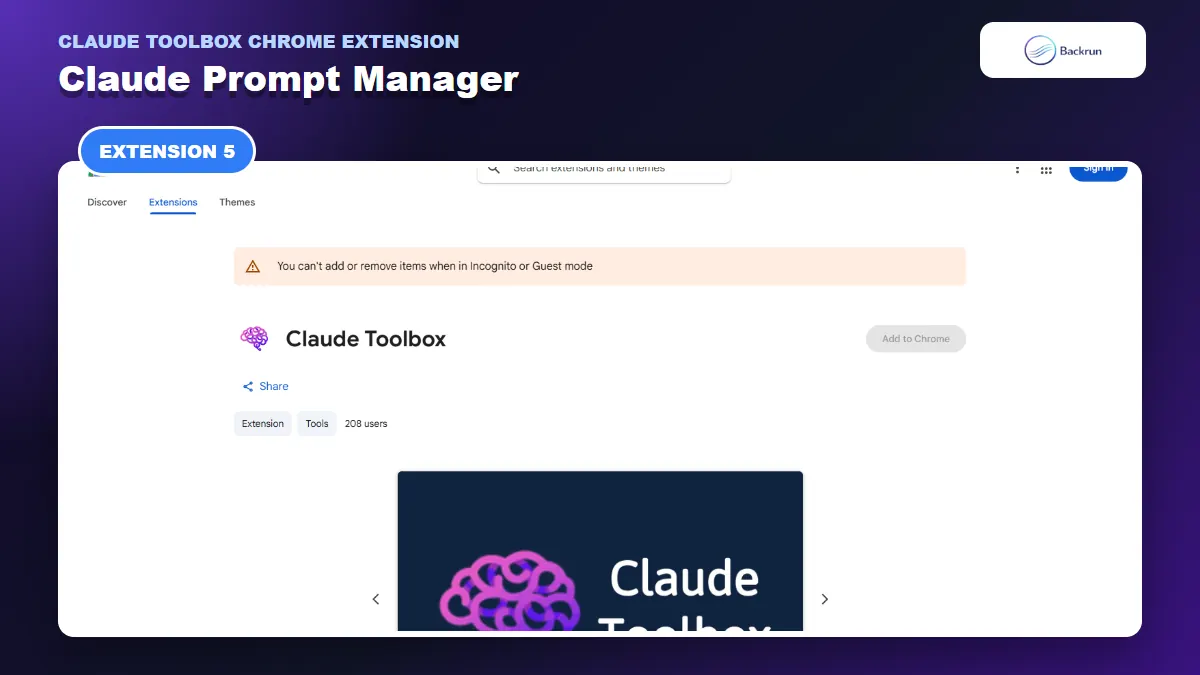
Claude Toolbox by woodskull software is not a history manager or export suite. It saves favorite Claude prompts, places them in the Claude sidebar, and lets you copy, reuse, or delete them.
Best for: users who repeatedly type the same writing, research, coding, or review prompts and want the simplest possible prompt library.
The extension works as follows:
Install it and open claude.ai.
Hover over a useful prompt and click the star near the edit control.
Open the saved prompts area in Claude's side navigation.
Copy a prompt into a new conversation when you need it again.
Delete obsolete prompts so the list stays usable.
This simplicity is the reason to choose it. If you do not need folders, full-text chat search, export, bookmarks, or artifact management, a dedicated prompt saver adds less interface overhead.
Important limitation: the listing shows 208 users, no ratings, and a last update date of November 24, 2024. Claude's interface has changed substantially since then, so verify that the star control and sidebar integration still work before building a prompt library around it. Also note that the listing says prompts use Chrome sync storage, which is different from strictly device-only storage.
Quick Recap
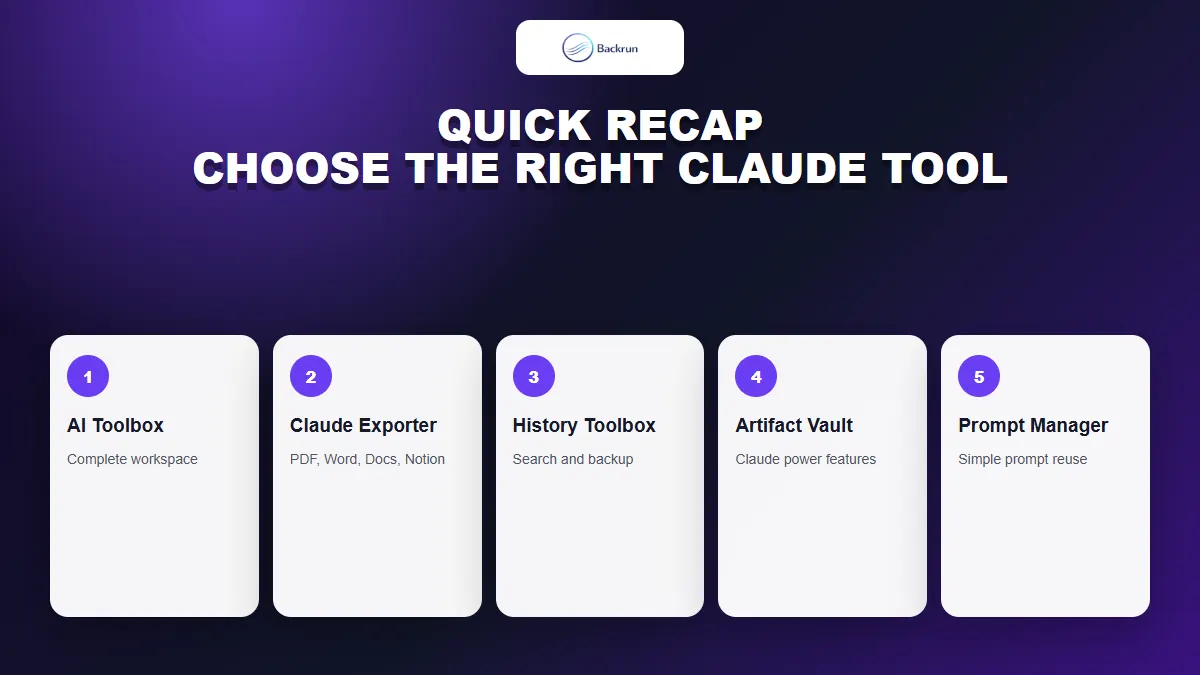
The five tools target different jobs: workspace management, polished document export, chat search, artifact management, or prompt reuse.
The best Claude Toolbox Chrome Extension depends on what “toolbox” means in your workflow.
Extension
Best fit
Standout capability
Main caution
AI Toolbox for Claude
Complete daily workflow across one or more AI tools
Choose AI Toolbox for a complete workspace, Claude Exporter for ready-to-share documents, the 6,000-user Claude Toolbox for focused search and backup, the newer Artifact Vault option for a Claude-only power workflow, or the prompt manager when reusable prompts are the only requirement.