5 ChatGPT to PDF Extensions Compared for Cleaner Exports
October 13, 20267 min read
A useful ChatGPT to PDF extension should preserve more than plain text. The final file still needs readable headings, lists, tables, code blocks, equations, links, and images, with enough control to exclude messages that do not belong in the document.
We compared five current Chrome extensions with clearly different PDF workflows. The best choice depends on whether you value message selection, page settings, long-chat handling, visual fidelity, reusable templates, or support for several AI platforms.
1. ChatGPT Exporter
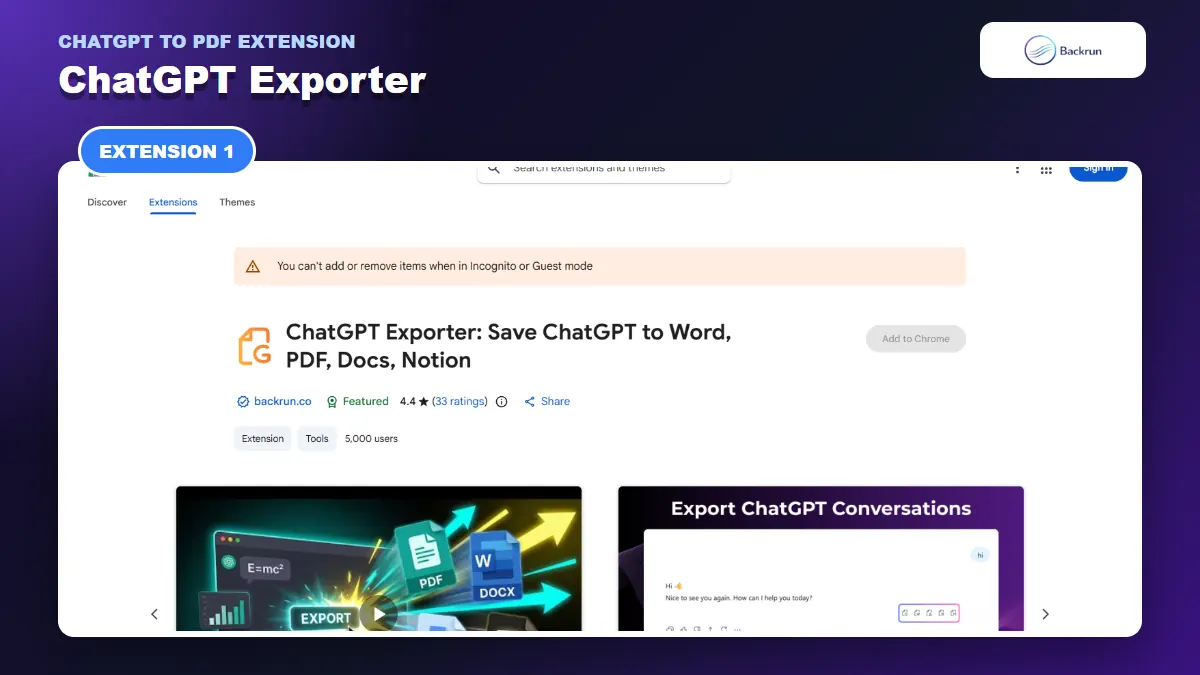
ChatGPT Exporter supports selected passages or complete conversations, plus typography controls before PDF export.
ChatGPT Exporter is the most focused all-round option in this comparison. Its Chrome Web Store listing currently shows 5,000 users and supports PDF, Word, Google Docs, and Notion without requiring another account or an API key.
Best for: users who want to decide exactly which messages enter the PDF and adjust typography before exporting.
The normal PDF workflow is:
Install ChatGPT Exporter and open the conversation you want to save.
Select a useful passage, or choose the full conversation when earlier prompts provide necessary context.
Set the font family, font size, and text color for the final document.
Choose PDF and complete the export.
Compare the result with the chat, paying particular attention to tables, equations, code, and generated images.
Its main advantage is control over scope. A client-ready PDF rarely needs every failed prompt, correction, and side question. Exporting only the confirmed answers creates a shorter file and reduces the chance of sharing internal notes. The listing also states that processing happens inside the browser.
Important limitation: the free plan described on the listing has monthly limits for full-conversation and single-message exports. Check the current allowance before processing many chats, and test one complex conversation before using it for formal documentation.
2. ChatGPT to PDF
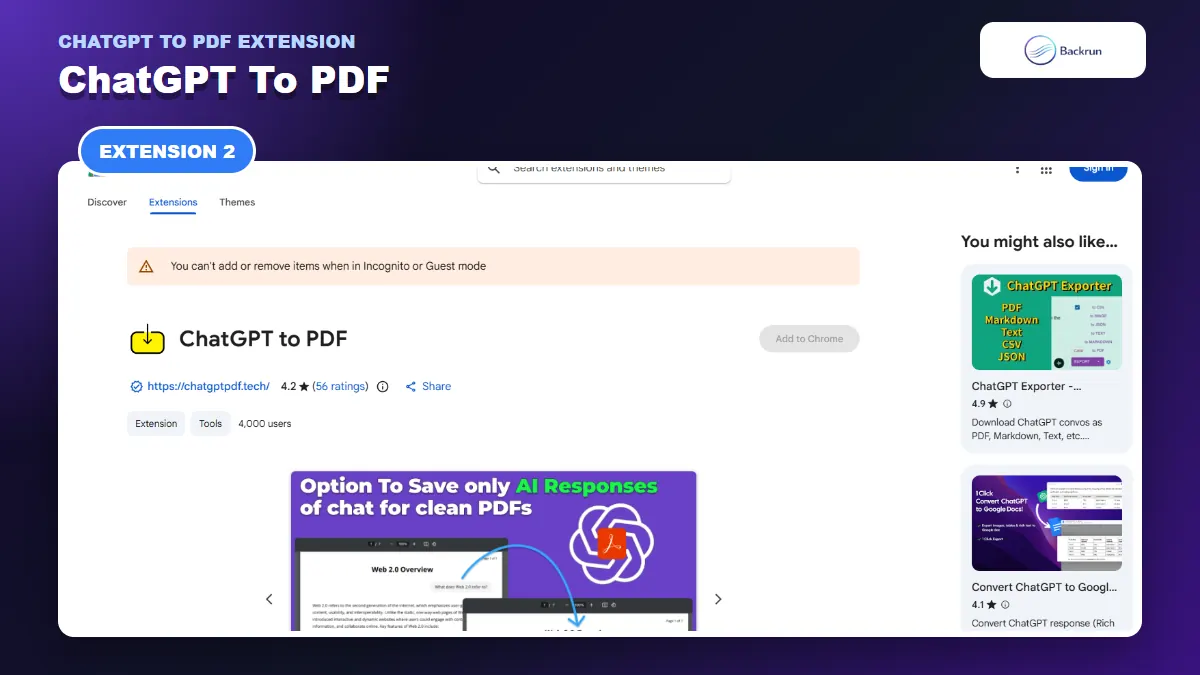
ChatGPT to PDF focuses on PDF and DOC exports with message selection and page-size controls.
ChatGPT to PDF is a more established PDF-focused extension. Its current listing shows a 4.2 rating from 56 reviews and about 4,000 users, with both PDF and DOC output.
Best for: people who want message selection plus practical print settings such as A4, Legal, or Letter page size.
To use it:
Open the target ChatGPT conversation after installing the extension.
Click the extension icon in the Chrome toolbar.
Select the parts of the conversation that belong in the document.
Choose the page format and layout options.
Generate the PDF, then inspect page breaks, margins, images, tables, and equations.
The page-size controls are useful when the PDF will be printed, submitted, or combined with an existing document set. The listing also mentions custom font size, watermarks, and selective conversation export.
Important limitation: the listing contains broad feature and support claims. Treat them as developer-provided information, not a guarantee that every current ChatGPT component will render perfectly. Run a non-sensitive test before using it with business or academic material.
3. Export AI Chats
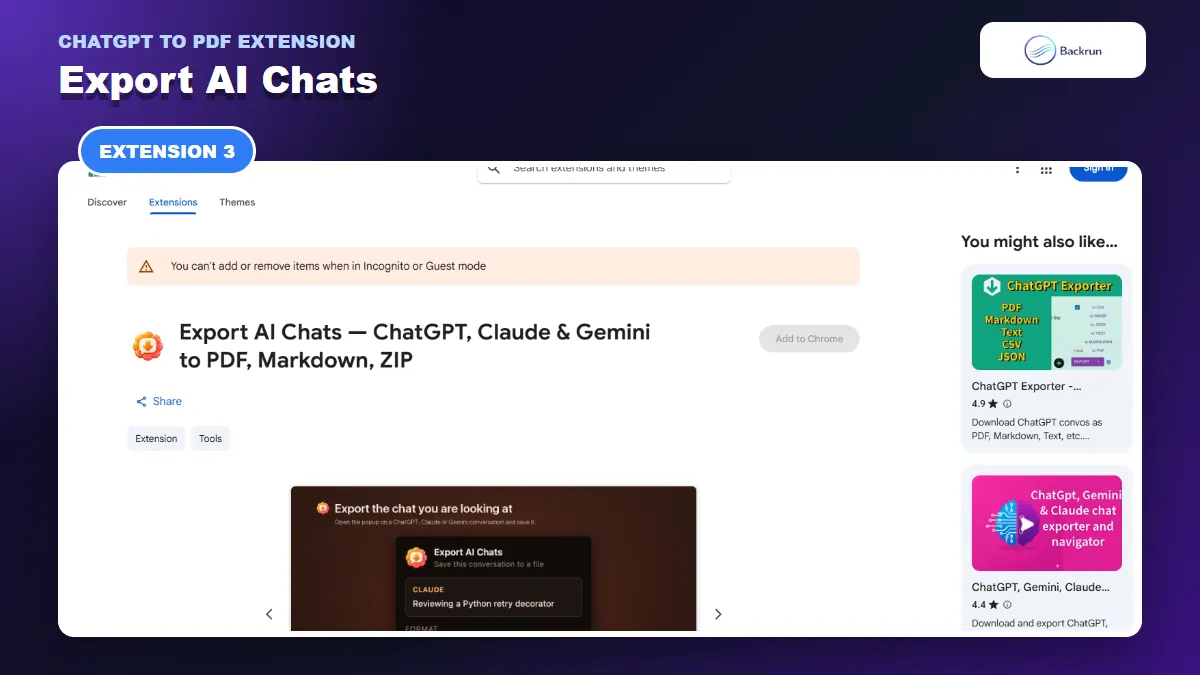
Export AI Chats uses Chrome print rendering for PDF and exposes missing-message warnings in long chats.
Export AI Chats takes a structural, local-first approach. It supports ChatGPT, Claude, and Gemini, and exports Markdown, HTML, plain text, JSON, or PDF. For PDF, it prepares a print-formatted page and hands the final save to Chrome's print engine.
Best for: technical users who value transparent limitations, structural preservation, batch capture, and a workflow that makes no network requests according to the listing.
The PDF process is:
Scroll through a long chat before export so ChatGPT loads as many messages as possible.
Open the extension and capture the current conversation.
Preview the output and check whether the extension reports missing messages.
Choose PDF to open the print-formatted page.
Select Save as PDF in Chrome's print destination.
This extension is unusually clear about long-chat behavior. If ChatGPT has not loaded older messages into the page, the export reports the gap instead of silently presenting an incomplete file as complete. Its listing also describes preservation for nested lists, tables, code fences, links, mathematics, and right-to-left or CJK text.
Important limitation: PDF requires an extra print-dialog step, and very long chats should be scrolled to the top first. Attachment contents are not available to the extension, so the resulting PDF may list a filename without embedding the original attachment.
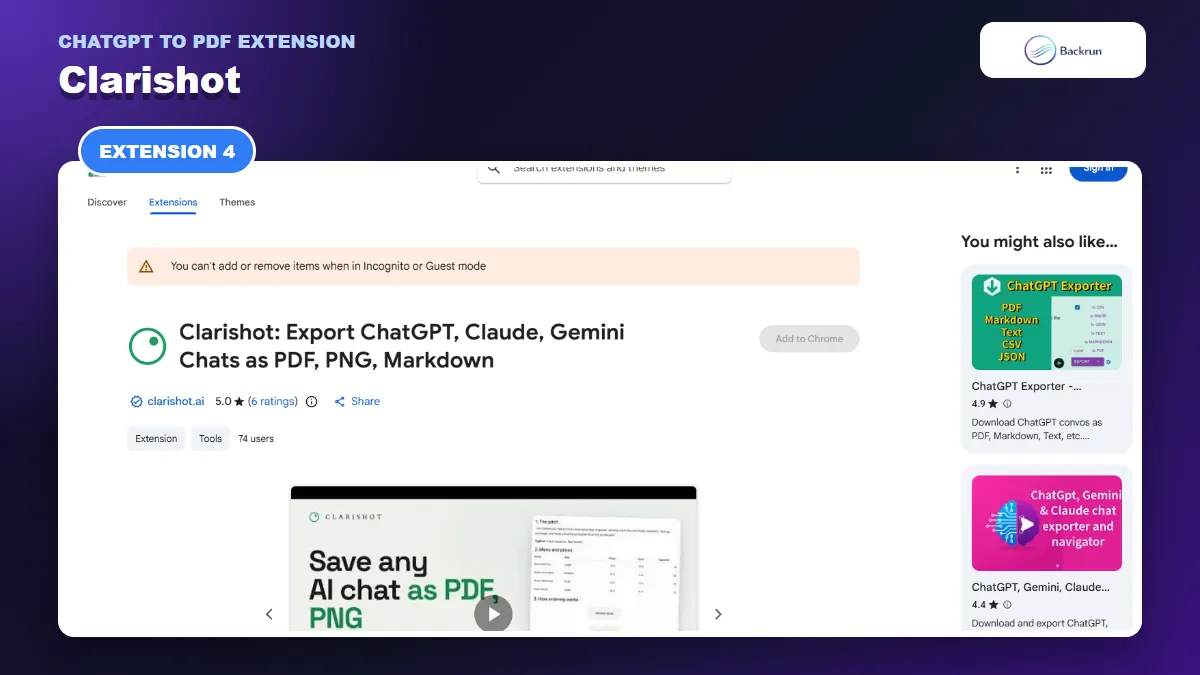
4. Clarishot
Clarishot captures the rendered chat as a searchable PDF and supports one message, ranges, or a full conversation.
Clarishot is designed around visual fidelity. Rather than rebuilding the conversation inside a generic template, it captures what the AI interface rendered and can save one message, a prompt-response pair, a selected range, or the complete conversation as a searchable PDF.
Best for: chats containing wide code blocks, complex tables, diagrams, math, syntax highlighting, or other content whose visual presentation matters.
Use it as follows:
Install Clarishot and open the relevant ChatGPT conversation.
Use the camera control beside a message for a single response, or open the toolbar for a larger selection.
Choose one message, a pair, a range, or the full chat.
Select searchable PDF as the output.
Review omitted-message labels, text search, math, and wide content before sharing the file.
The searchable-PDF approach is valuable when appearance and accessibility both matter. You can still find and copy text, while the captured result stays close to the page's actual rendering. The listing also says long conversations can become a clean multipage PDF.
Important limitation: Chrome displays a broad host-access warning because Clarishot uses a screenshot API. The developer explains that captures happen only when a control is clicked, but you should still review the permission screen and privacy policy before installing any extension with broad access.
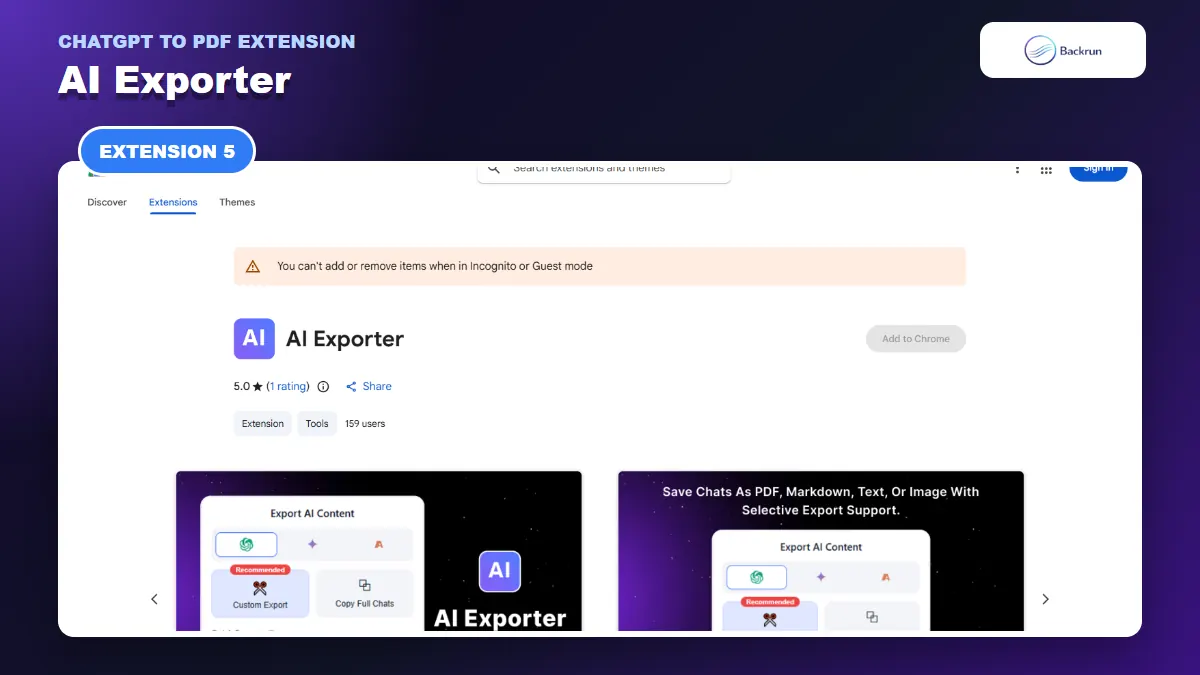
5. AI Exporter
AI Exporter adds selectable messages, a PDF preview, and several reusable PDF templates.
AI Exporter supports ChatGPT, Claude, and Gemini with PDF, Markdown, text, and image outputs. It adds a PDF preview, selectable messages, and four PDF templates: Default, Highlight, Dark, and Note.
Best for: users who want a reusable visual style for different kinds of saved chats, such as research, study notes, meeting material, or client work.
The workflow is straightforward:
Open a supported ChatGPT conversation and click AI Exporter.
Choose the full conversation, or open Custom Export to display selection checkboxes.
Select the messages that should appear in the PDF.
Pick a PDF template and review the preview page.
Save the file and verify headings, lists, code blocks, and tables.
The preview is the practical advantage. It gives you a chance to catch an unwanted prompt or awkward layout before the file is saved. Template choices can also separate an archival transcript from a note-style document without manually restyling it later.
Important limitation: the extension has a small public review sample and a relatively modest user base. Its listing says it runs locally and requires no account, but you should still verify the current permissions and test the exact ChatGPT content types you rely on.
Quick Recap
Choose an extension by export scope, page controls, long-chat behavior, visual fidelity, and template needs.
The right ChatGPT to PDF extension depends on the document you need, not the longest feature list.
Extension
Best use
PDF method
Main caution
ChatGPT Exporter
Selected or full chats with typography controls
Direct PDF export
Monthly free-use limits
ChatGPT to PDF
Paper size and print-oriented settings
Direct PDF generation
Test broad listing claims
Export AI Chats
Structural export and long-chat warnings
Chrome Save as PDF
Scroll long chats first
Clarishot
Rendered visual fidelity and searchable PDFs
Rendered searchable PDF
Review broad host permission
AI Exporter
Templates, preview, and custom selection
Preview then save
Small review sample
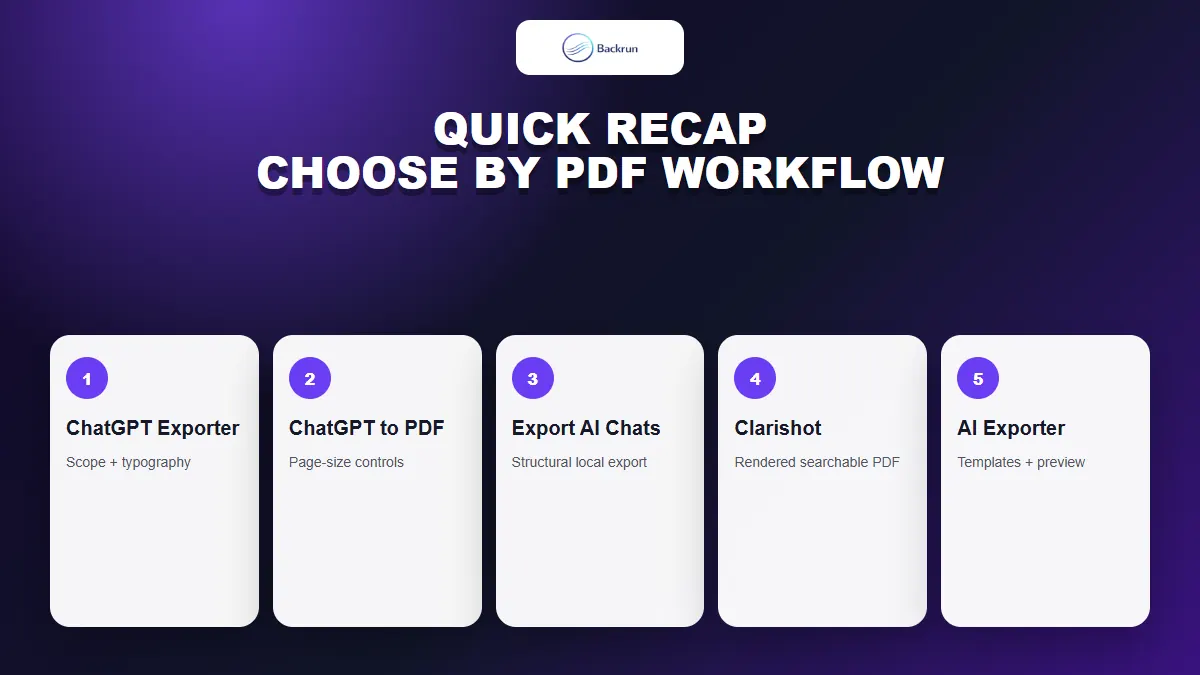
Choose ChatGPT Exporter for precise message scope, ChatGPT to PDF for page controls, Export AI Chats for transparent long-chat handling, Clarishot for rendered fidelity, or AI Exporter for templates and preview.