5 Claude to PDF Extensions Compared for Cleaner Exports
October 09, 20267 min read
A good Claude to PDF extension should do more than turn the visible page into a screenshot. It should preserve message order, headings, lists, tables, equations, code blocks, links, and images while giving you control over what enters the final document.
We compared five current Chrome extensions that explicitly support Claude and PDF. The right choice depends on whether you need selected messages, Claude Artifacts, detailed page controls, local processing, or the same exporter across several AI assistants.
1. Claude Exporter
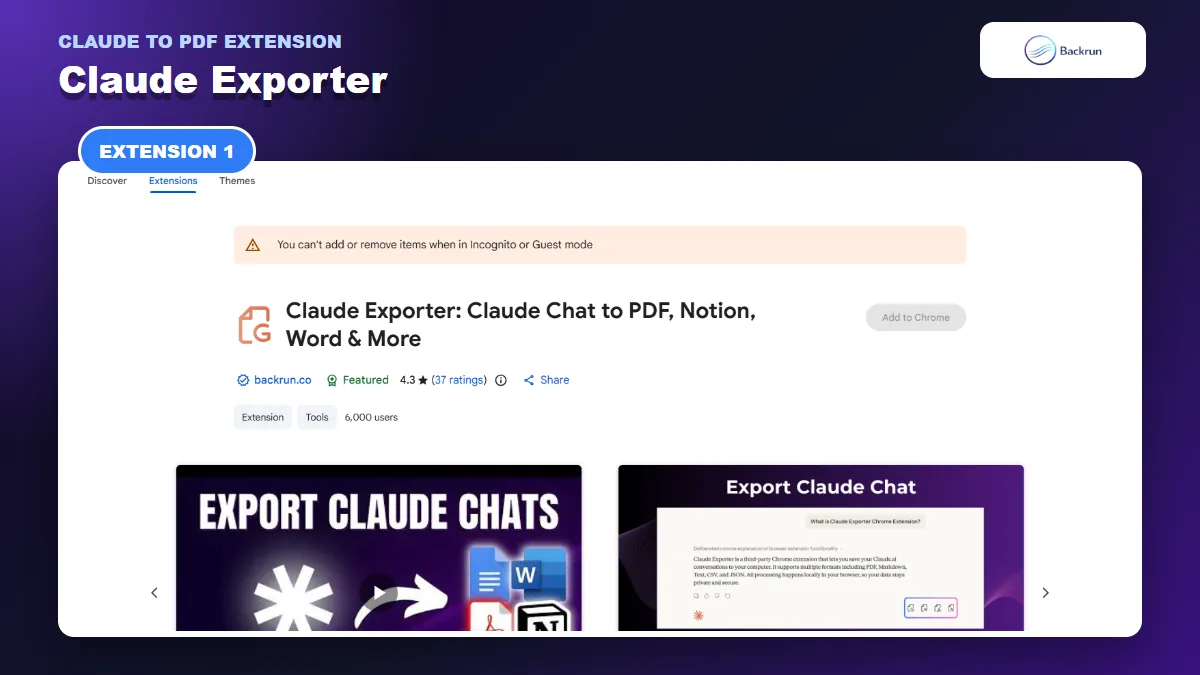
Claude Exporter provides selected-message and complete-chat PDF exports with typography controls.
Claude Exporter is the most focused option in this comparison. Its Chrome Web Store listing currently shows more than 6,000 users and describes selected-message or complete-conversation exports to PDF, Word, Google Docs, and Notion.
Best for: people who work mainly in Claude and want a clean PDF without exporting every abandoned draft or side question.
The PDF workflow is simple:
Install Claude Exporter and open the Claude conversation you want to save.
Select individual messages when only the final answer matters, or choose the entire conversation when earlier prompts provide necessary context.
Choose prompts, Claude responses, or both according to the document's audience.
Adjust the font family, size, and text color before export.
Select PDF, complete the export, and compare the file with the original chat.
The practical advantage is scope control. A concise PDF containing only the confirmed answers is easier to review and safer to share than a long transcript containing rough prompts. The listing also states support for tables, code blocks, structured outputs, Artifacts, and extended reasoning content.
Important limitation: the listing currently describes monthly free-use limits. Check the current allowance before a large export session, and test one conversation containing a table, equation, image, and code block before relying on it for formal documentation.
2. Claude to PDF
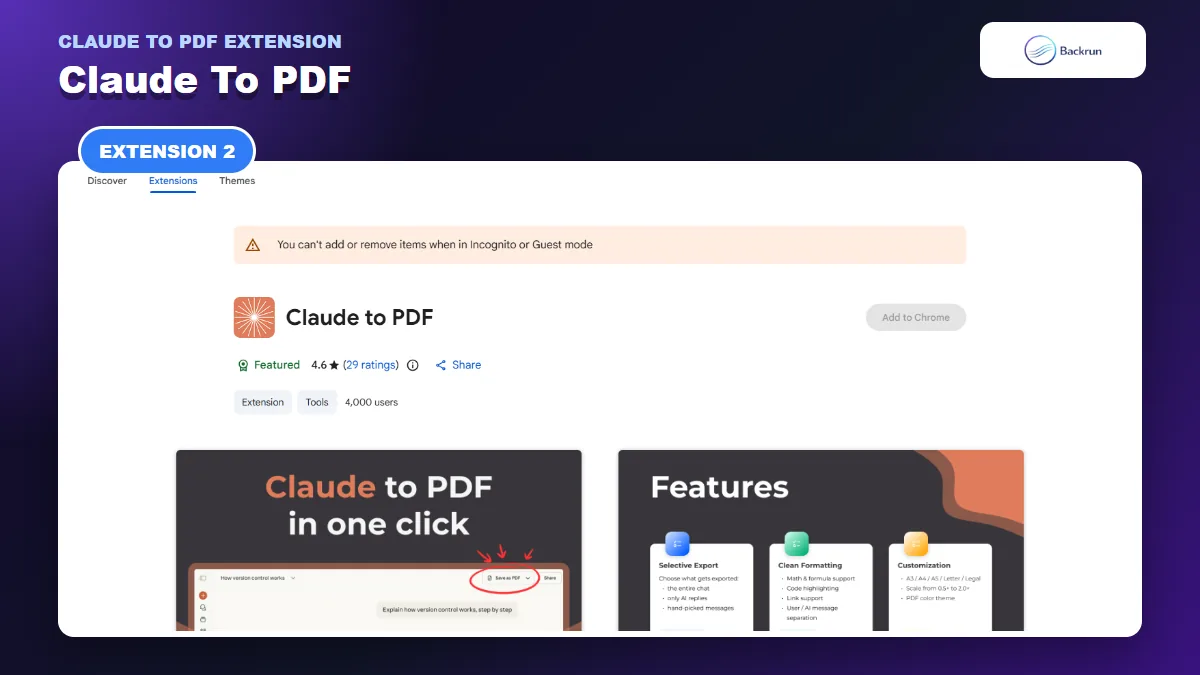
Claude to PDF focuses on PDF-only export with page, theme, scaling, and document-title controls.
Claude to PDF is a PDF-only specialist. Its listing currently shows about 4,000 users and describes complete-chat or partial exports, batch handling, automatic tables of contents, smart page breaks, templates, and page-layout controls.
Best for: users who care more about the final PDF layout than exporting the same conversation to other document formats.
The normal workflow is:
Open Claude and load the conversation.
Choose the full chat or selected sections.
Set the page size, such as A4, A5, Letter, or Legal.
Choose portrait or landscape orientation, a light or dark theme, content scale, document title, and filename.
Export the PDF and inspect page breaks, headings, code blocks, and special characters.
These controls matter for long research documents. Landscape orientation can help wide tables, while a smaller scale may reduce awkward line wrapping. Automatic tables of contents can also make a long transcript easier to navigate.
Important limitation: many capabilities in the listing are developer claims rather than guarantees for every Claude layout. Do not assume that batch export, highlights, templates, or password-related features behave identically across versions. Test the current build with non-sensitive content first.
3. AI Chat Exporter
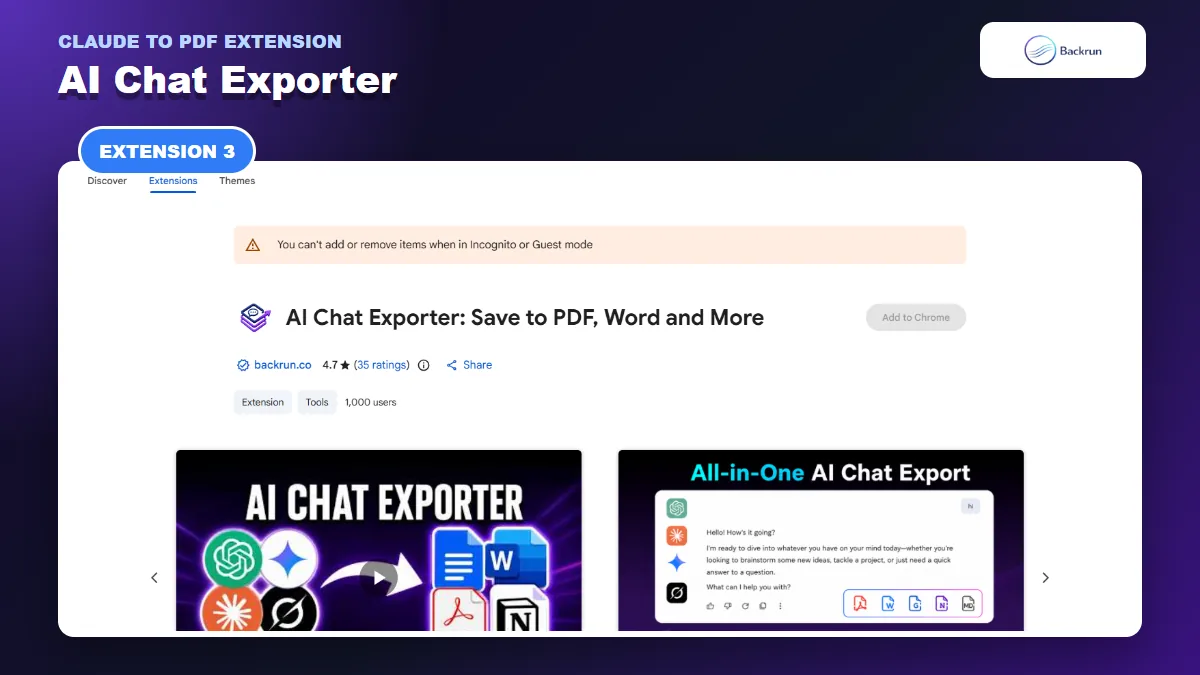
AI Chat Exporter uses one export workflow across Claude, ChatGPT, Gemini, and Grok.
AI Chat Exporter is the broader option. Its current listing supports Claude, ChatGPT, Gemini, and Grok, with exports to PDF, Word, Google Docs, Markdown, and Notion.
Best for: people who use several AI assistants and want one consistent export interface rather than a separate extension for every platform.
The Claude workflow works like this:
Install AI Chat Exporter and open a Claude conversation.
Select the useful messages, or retain the full thread when the prompt history matters.
Choose whether to include prompts, responses, or both.
Adjust typography if the PDF needs a specific reading size or visual style.
Choose PDF, export, and verify the output page by page.
The extension is especially useful when a project starts in Claude but also contains research from ChatGPT, Gemini, or Grok. A shared export workflow reduces format differences between the resulting files.
Important limitation: support for several AI websites creates a wider compatibility surface. A UI change on Claude can temporarily affect message detection even when other platforms still work. Test the exact conversation type you plan to export, particularly Artifacts, thinking blocks, or very long research chats.
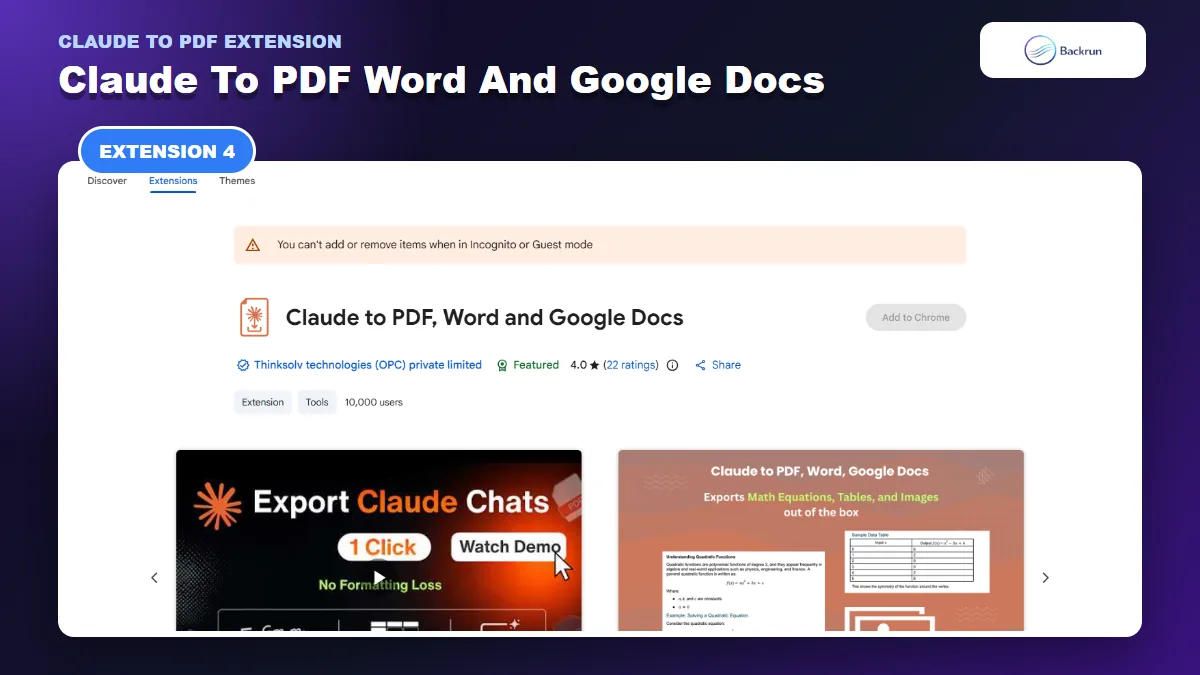
4. Claude to PDF, Word and Google Docs
The Thinksolv extension covers single responses, selected messages, complete conversations, and Claude Artifacts.
Claude to PDF, Word and Google Docs has the largest visible user base in this comparison at about 10,000 users. Its listing focuses on office-document workflows and states that it can export a single response, selected messages, the whole conversation, or only Claude's responses.
Best for: users who need PDF for delivery but may also move the same content into Word or Google Docs, especially when Claude Artifacts are involved.
Use it as follows:
Install the extension and load the relevant Claude chat or Artifact.
Choose the export scope: one response, selected messages, the full conversation, or assistant-only content.
Select PDF as the destination.
Export the file and inspect charts, diagrams, images, equations, tables, and inline code.
Keep the original Claude URL until the PDF has passed review.
The assistant-only option is useful when prompts contain internal notes that should not appear in a client-facing PDF. The listing also explicitly mentions generated documents, code, diagrams, charts, and interactive outputs, making this one of the more relevant options for Artifact-heavy chats.
Important limitation: an interactive Artifact cannot remain interactive inside a static PDF. Validate what is preserved visually and what becomes a flattened representation. The Chrome Web Store privacy section also lists website content and personally identifiable information, so review the current permissions before using a sensitive work account.
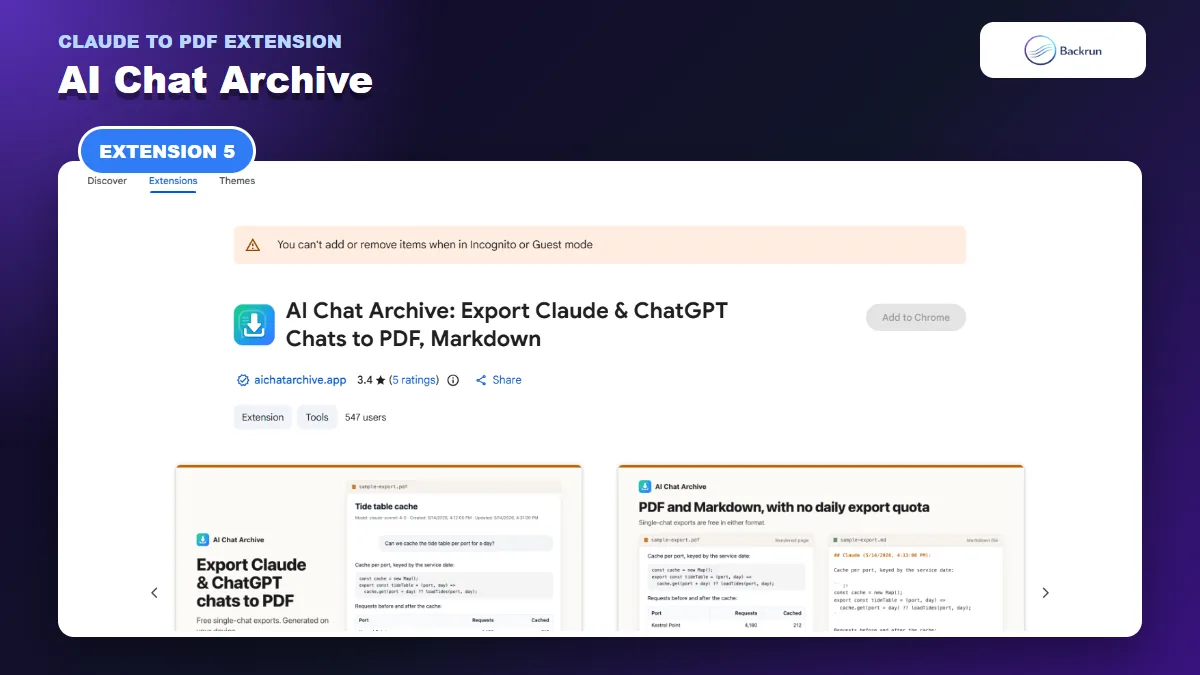
5. AI Chat Archive
AI Chat Archive prepares a local print layout for unlimited single-conversation PDF exports.
AI Chat Archive takes a local-first approach. The listing says that single-conversation PDF exports are generated in the browser without a daily cap or third-party conversion service. It prepares the conversation for Chrome's print dialog, where you select Save as PDF.
Best for: users who want unlimited single-chat PDFs, local browser rendering, embedded images, and the option to save the same chat as Markdown, HTML, JSON, or text.
To create a PDF:
Install AI Chat Archive and open a conversation on Claude.
Click the page-level Export button or use the toolbar popup.
Choose PDF as the output format.
Wait for the prepared print layout, then select Save as PDF in Chrome's destination field.
Review embedded images, CJK characters, lists, and code before archiving the original chat.
The distinction matters: the extension prepares a print-ready document, but Chrome performs the final PDF save. That approach makes the output path familiar and keeps single-chat PDF generation local according to the listing.
Important limitation: PDF is available for individual conversations, while project and batch exports use archive formats such as Markdown, HTML, JSON, or text inside ZIP files. Attachment bundling and some project features are paid. The public rating sample is also small, so test it rather than treating the rating as conclusive.
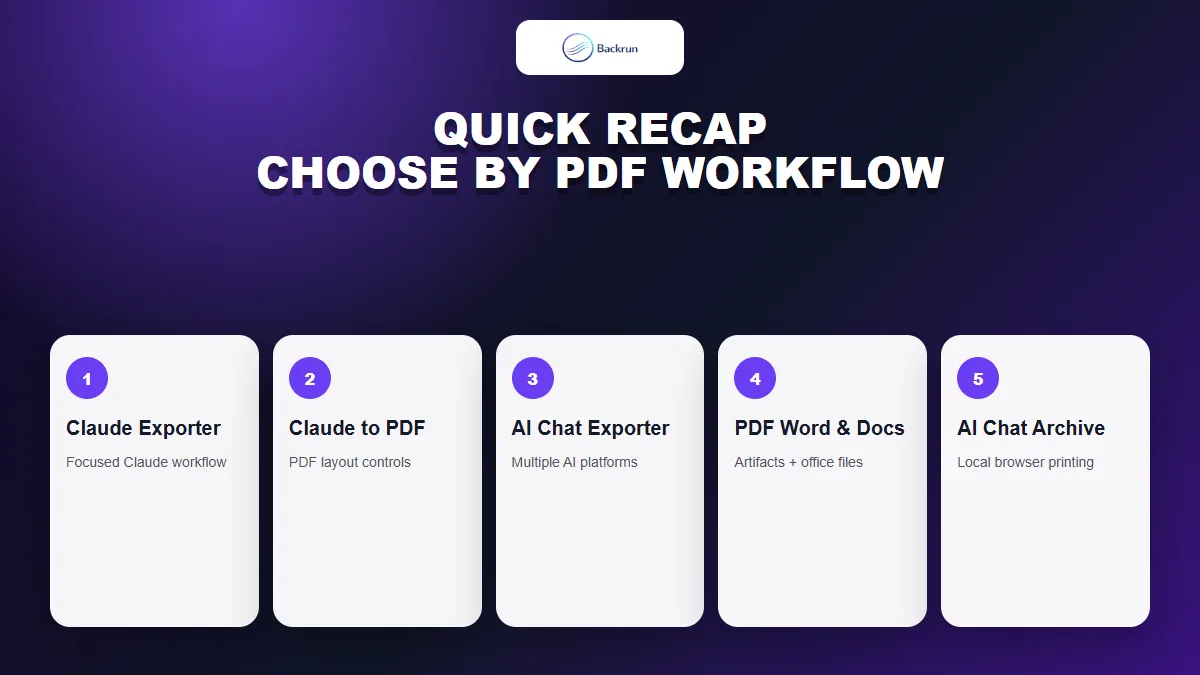
Quick Recap
Choose according to export scope, Artifact needs, layout controls, platform coverage, and local-processing preferences.
The best Claude to PDF extension is the one that matches the document you actually need to deliver.
Extension
Best use
PDF workflow
Main caution
Claude Exporter
Focused Claude exports with message selection
Direct export with typography controls
Check current monthly allowance
Claude to PDF
PDF layout and page customization
PDF-only with templates and page controls
Verify listing claims in the current build
AI Chat Exporter
One exporter across several AI services
Selected or full conversation
Test after platform UI changes
Claude to PDF, Word and Google Docs
Artifacts and office-document workflows
Single, selected, full, or assistant-only
Interactive outputs become static
AI Chat Archive
Unlimited local single-chat PDFs
Prepared layout plus Chrome Save as PDF
Project and batch exports are not PDF
Start with Claude Exporter when you want a dedicated Claude workflow, choose the Thinksolv extension for Artifact-heavy office documents, or use AI Chat Exporter when several AI platforms are involved. Claude to PDF offers deeper page controls, while AI Chat Archive is the clearest local-print option for individual conversations.
Before installing any extension, review Google's guidance for managing Chrome extensions, inspect the requested permissions, and test a non-sensitive chat. For non-extension methods such as Claude's print workflow and document conversion, see our complete guide to exporting Claude chats to PDF.